 By James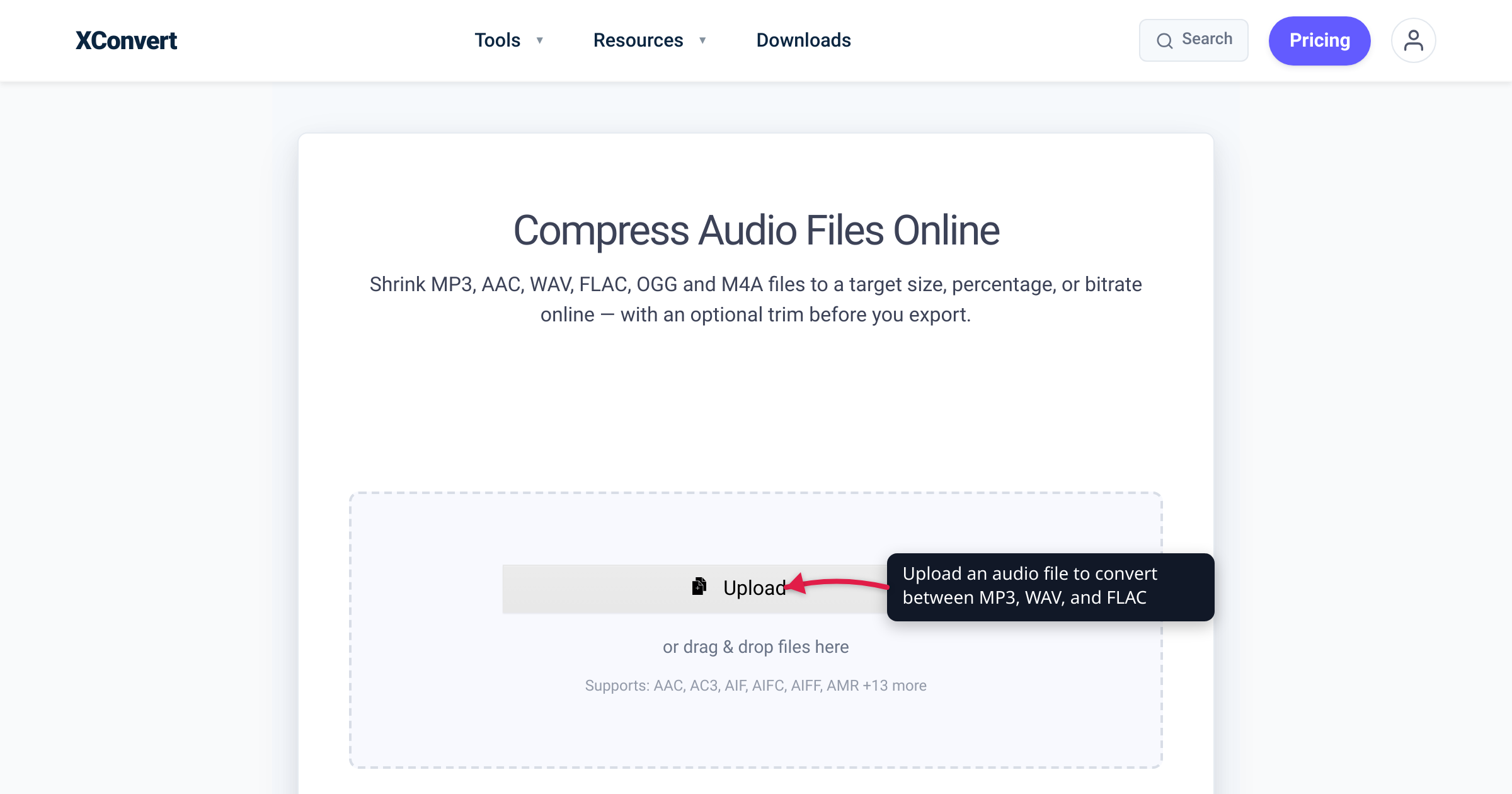
You ripped a CD to FLAC, the folder is 300 MB, and you want it smaller — so you reach for FLAC’s “compression level” slider, crank it to the max, and… the file barely shrinks. That’s not a bug. FLAC is already a compressed format — losslessly compressed — so the file you have is roughly half the size of the raw audio already, and the level slider only trades encoding speed, not bytes. The only way to make a FLAC meaningfully smaller is to give up some of what makes it FLAC. We verified the compression ratios, the level behavior, and the lossless guarantee against the Xiph.Org FLAC documentation.
Quick answer: Yes — FLAC is already compressed, losslessly. A FLAC file is typically 50–70% of the original uncompressed (WAV/PCM) size, with no quality loss. FLAC’s compression levels 0–8 change encoding speed, not audio quality, and barely change file size (often a few percent between level 0 and level 8). So there is no big “compress FLAC losslessly” win left. To make a FLAC much smaller you have two real options: (1) re-encode at a higher level for a tiny gain, or (2) convert to a lossy codec like MP3, AAC, or Opus — that’s where the big size drop lives, at the cost of some quality.
Jump to a section
- Is FLAC already compressed? Yes — here’s how
- Why the compression-level slider barely helps
- The real ways to make a FLAC smaller
- How much smaller does lossy actually get you?
- Make a FLAC much smaller on xconvert
- FAQ
Is FLAC already compressed? Yes — here’s how
FLAC stands for Free Lossless Audio Codec, and the word doing the work is lossless. When you encode WAV (or any raw PCM audio) to FLAC, the encoder shrinks the file using techniques like linear prediction, inter-channel decorrelation, and Rice coding — and the decoded waveform comes back bit-for-bit identical to the original. Per the FLAC documentation, the residual signal is “losslessly coded,” and the original data “can always be reconstructed perfectly,” regardless of the compression amount.
The result is real, immediate compression. Digital audio compressed by FLAC’s algorithm is typically reduced to between 50% and 70% of its original uncompressed size — so a CD-quality WAV that’s, say, 50 MB usually becomes a 25–35 MB FLAC. The exact ratio depends on the music: a sparse acoustic recording compresses far better than dense, noisy material.
So the answer to the title is a clear yes. By the time you have a .flac file, the easy, lossless compression has already happened — there’s no untapped “just compress it” reserve waiting in the file, which is exactly why the level slider feels like it does nothing.
Why the compression-level slider barely helps
FLAC exposes compression presets labeled 0 through 8 (-0/--fast is fastest, -8/--best is most thorough; the encoder defaults to level 5). It’s tempting to read “higher = smaller,” and technically higher levels do produce slightly smaller files — but the operative word is slightly.
Here’s the part most people miss: the compression level does not change audio quality. FLAC is lossless at every level — level 0 and level 8 decode to the exact same waveform. What changes is how hard the encoder searches for an efficient representation. As the FLAC FAQ puts it, “higher settings make the encoder search more to find better approximations” — that’s encoding effort, not fidelity.
And the size payoff for that effort is small: the jump from level 0 to level 8 is often just a few percent of the file, and most of that gain happens in the lower levels. Going from the default level 5 up to level 8 typically saves only a handful of megabytes across an entire album, while taking several times longer to encode. The decode side is essentially unaffected, so there’s no playback penalty either way.
Bottom line: re-encoding an existing FLAC at level 8 gives you a marginally smaller file at best — not the dramatic shrink you wanted. The level slider is a speed-vs-size knob with a very flat size curve, not a “make it small” button. For a meaningful reduction, you have to look elsewhere.
The real ways to make a FLAC smaller
There are exactly two honest paths, and they differ wildly in scale.
1. Re-encode FLAC at a higher level — tiny, lossless gain. If your FLAC was created at a low level (or you’re not sure), re-encoding at level 8 reclaims a little space with zero quality loss. It’s the only “shrink FLAC and keep it FLAC” option, and the savings are usually a few percent — worth it only when every megabyte counts and you don’t mind a slower encode.
2. Convert to a lossy codec — big drop, some quality loss. This is where the real size reduction lives. Converting FLAC to MP3, AAC, or Opus throws away audio information your ears are least likely to notice, in exchange for files commonly 70–90% smaller than the FLAC. The catch is that it’s a one-way trip: lossy formats discard data permanently, so keep your FLAC originals if archival quality matters and treat the lossy copy as a portable, share-friendly version.
For most “I need this FLAC to fit in an email / on my phone / under a forum’s upload cap” situations, option 2 is the answer — and at a high MP3/AAC bitrate, most listeners can’t reliably tell the difference from the lossless source. (If you’re weighing the formats themselves, our MP3 vs WAV vs FLAC guide breaks down when each one makes sense.)
How much smaller does lossy actually get you?
To make the gap concrete, here’s a rough picture for a typical 3-minute, CD-quality stereo track (16-bit / 44.1 kHz). The exact bytes depend on the music, but the relationships hold:
| Format | Compression type | Approx. size (3-min track) | vs. FLAC |
|---|---|---|---|
| WAV / PCM | Uncompressed | ~30 MB | larger |
| FLAC (level 5) | Lossless | ~15–20 MB | — (baseline) |
| MP3 @ 320 kbps | Lossy | ~7 MB | ~60–70% smaller |
| AAC @ 256 kbps | Lossy | ~5–6 MB | ~70% smaller |
| MP3 @ 128 kbps | Lossy | ~3 MB | ~80–85% smaller |
| Opus @ 96–128 kbps | Lossy | ~2–3 MB | ~85% smaller |
The pattern is what matters: lossless FLAC sits at roughly half of WAV, and a sensible lossy encode lands at a small fraction of the FLAC — the difference between trimming a file and transforming it. Modern codecs (AAC, Opus) edge out old MP3 on quality-per-byte, but MP3 wins on universal compatibility, which keeps it the safe default for sharing. (For the same reasoning applied to raw audio, see Compress a WAV file — the uncompressed-format sibling of this question.)
Make a FLAC much smaller on xconvert
The realistic “shrink my FLAC a lot” path is converting it to a lossy format. The xconvert FLAC to MP3 converter does this on our servers with the bitrate controls you need:
- Open xconvert.com/convert-flac-to-mp3 and click Upload to add your FLAC file (from your computer, Google Drive, or Dropbox).
- Open Advanced Options (the gear icon) to control the output size.
- Pick how to set the quality: choose a Quality Preset (the Preset dropdown defaults to Highest), set a Custom Bitrate as Constant Bitrate or Variable Bitrate, or use Specific file size to target an exact size in MB.
- For near-transparent quality, aim high (around 256–320 kbps); for the smallest shareable file, drop to ~128 kbps. Leave Audio Channel and Audio Sample Rate on ORIGINAL unless you specifically need to change them.
- Click Convert, then download your much-smaller MP3.
Your file is uploaded over an encrypted connection, processed on our servers, and automatically deleted a few hours later. Nothing lingers. Keep your original FLAC if you want to preserve lossless quality — the MP3 is the portable copy.
FAQ
Is FLAC already compressed?
Yes — FLAC is a losslessly compressed format. A FLAC file is typically 50–70% of the size of the original uncompressed WAV/PCM audio, and it decodes back to a bit-for-bit identical waveform. The easy, no-quality-loss compression has already been applied by the time you have a .flac file, so there’s no large untapped “compress it more, losslessly” gain left.
Does a higher FLAC compression level make the file much smaller?
No. FLAC levels 0–8 mainly change encoding speed, not size — the difference between level 0 and level 8 is usually only a few percent, and most of that comes in the lower levels. Going from the default level 5 to level 8 typically saves just a handful of megabytes per album while taking several times longer to encode. Crucially, the level never changes audio quality: FLAC is lossless at every level.
How do I actually make a FLAC file smaller?
Two ways. For a tiny, lossless gain, re-encode at level 8. For a big reduction, convert to a lossy codec (MP3, AAC, or Opus) — that commonly yields a file 70–90% smaller than the FLAC, at the cost of some permanent quality loss. For sharing, fitting upload caps, or saving phone storage, the lossy route is the practical choice.
Will converting FLAC to MP3 lose quality?
Yes — MP3 is lossy, so some audio data is discarded permanently. That said, at a high bitrate (256–320 kbps) most listeners can’t reliably distinguish the MP3 from the lossless source in normal listening. Keep your FLAC original as the archival master and use the MP3 as the portable copy; you can’t get the discarded data back by converting the MP3 back to FLAC.
Is FLAC smaller than WAV?
Yes. WAV is uncompressed PCM; FLAC losslessly compresses that same audio to roughly 50–70% of the WAV size with no quality loss. That’s the whole point of FLAC — identical audio in a smaller container. To go smaller still, you have to move to a lossy format.
What’s the best format to shrink FLAC for sharing or my phone?
For maximum compatibility, MP3 (around 256–320 kbps for quality, ~128 kbps for the smallest size) plays on virtually everything. If your target devices are modern, AAC or Opus give better quality per byte at the same size. All three are dramatically smaller than the FLAC; pick MP3 when you’re unsure who or what will play it.
Sources
Last verified 2026-06-25.
- Xiph.Org — FLAC documentation: format overview — confirms FLAC is lossless (“losslessly coded”; original reconstructed perfectly) and describes the compression techniques.
- Xiph.Org — FLAC documentation: flac command-line tool — compression presets
-0to-8, default-5, levels are speed/compression tradeoffs. - Xiph.Org — FLAC FAQ — “higher settings make the encoder search more to find better approximations” (effort, not quality); lossless verification via
-V. - Wikipedia — FLAC — “reduced to between 50 and 70 percent of its original size”; levels “labeled from 0 to 8, with higher numbers resulting in a higher compression ratio, at the cost of compression speed”; “the original data can always be reconstructed perfectly.”
- xconvert — FLAC to MP3 converter — funnel tool; UI labels (Upload, Advanced Options, Quality Preset, Preset/Highest, Custom Bitrate, Constant/Variable Bitrate, Specific file size, Audio Channel/Sample Rate ORIGINAL, Convert).