 By Stephanie Taylor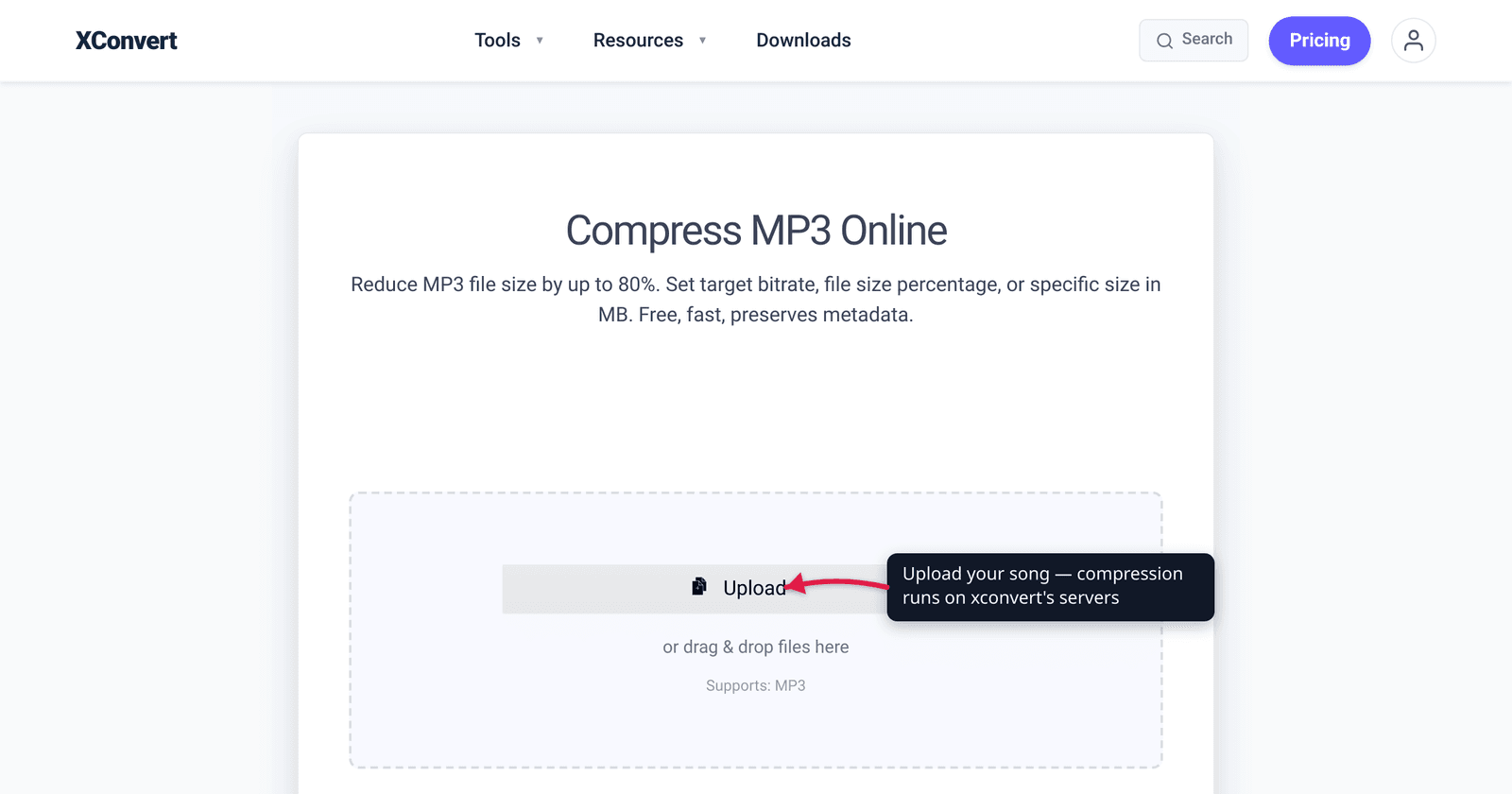
You ripped your CD collection to WAV, or your DAW exported a 24-bit master, and now a single song is 40–60 MB — too big to email, too bulky for a phone full of music. The fix is to compress it down to a sensible streaming-grade bitrate, the same kind every paid music service uses. The catch: music needs a higher bitrate than speech to stay clean, so the aggressive settings that work for a voice memo will audibly hurt a song. This guide gives you a music-specific target — what bitrate to pick, why you keep stereo, and when shrinking a whole lossless library to lossy is worth it. We verified the transparency figures against Hydrogenaudio and the real-world streaming bitrate against Spotify’s own support page.
Quick answer: To make a music file smaller without it sounding worse, re-encode it to a good music bitrate — around 256 kbps AAC or 192+ kbps MP3 (VBR) — and keep it stereo. That’s the streaming-service zone where most listeners can’t tell the compressed file from the original. Don’t go mono and don’t drop below ~128 kbps for music — those are voice tricks that wreck a song. If you’re starting from lossless (WAV/FLAC), this is a one-time, worth-it conversion; if you’re starting from an already-lossy file, expect a small additional quality cost because every lossy re-encode loses a little.
Jump to a section
- Why music needs more bitrate than speech
- What bitrate makes music transparent
- Keep it stereo — don’t go mono for music
- Lossless → lossy: when shrinking your library is worth it
- Reduce a music file’s size on xconvert
- FAQ
Why music needs more bitrate than speech
Most “compress audio” advice is written for voice — podcasts, voice memos, call recordings — and the standard voice tricks are brutal: drop to mono, cut the sample rate, push the bitrate down to 64–96 kbps. Those work because a human voice is a narrow, simple signal: little high-frequency detail and no stereo image to preserve.
Music is the opposite. A song carries the full audible band (cymbals, air, reverb tails up near 16–20 kHz), a dense mix of many instruments, and a deliberate stereo picture the producer built. A lossy encoder shrinks a file by discarding detail it predicts you won’t notice — and the busier, wider signal needs more bits to make those decisions without audible artifacts. So the bitrate that sounds clean on a podcast sounds smeared and “swirly” on a cymbal-heavy chorus.
The takeaway: set your music bitrate by music standards, not voice standards. That single decision is the difference between a smaller file that still sounds like the record and one that sounds like a bad stream. The voice/call-recording playbook (mono, low bitrate) is a separate workflow — this article is strictly about keeping music sounding like music.
What bitrate makes music transparent
“Transparent” is the audio term for compressed but indistinguishable from the original to most listeners in a blind test. The Hydrogenaudio knowledgebase — the reference community for codec listening tests — puts the rough thresholds at:
| Codec | Generally transparent for music at | Notes |
|---|---|---|
| AAC (and Opus) | Lower than MP3/Vorbis — commonly cited ~150–170 kbps and up | Most efficient of the common codecs; .m4a files |
| MP3 (LAME) | At/above ~192 kbps | Use VBR; the universal-compatibility choice |
| Ogg Vorbis | At/above ~160 kbps | Spotify’s app codec |
Hydrogenaudio is explicit that these are not hard guarantees — transparency “depends most on the listener’s familiarity with artifacts, and to a lesser extent, the compression method, bitrate used, input characteristics, listening conditions, and listening equipment,” and any single threshold “should always be considered with some skepticism.” Treat the numbers as a floor, not a promise.
The easiest real-world sanity check is what the paid streaming services ship, because those bitrates were chosen to sound transparent to a mass audience:
- Spotify streams its top “Very High” tier at ~320 kbps (Ogg Vorbis in the app), and its Premium web player at AAC 256 kbps, per Spotify’s own audio-quality page.
- Apple Music streams at 256 kbps AAC by default.
So a clean, safe music target is 256 kbps AAC or, for maximum device compatibility, 192–320 kbps MP3 (VBR). That’s the band where you get a meaningfully smaller file and a song that still sounds like the song. If you want the full bitrate ladder for MP3 specifically, see 128 vs 256 vs 320 kbps MP3. Prefer variable bitrate (VBR) when you can: it spends bits on the complex passages and saves them on quiet ones, giving the smallest file for a given perceived quality.
Keep it stereo — don’t go mono for music
Switching to mono roughly halves the file because you store one channel instead of two — which is why it’s the headline tip in voice-compression guides. For a podcast or call recording, nobody misses the stereo image, so mono is free savings.
For music it’s a bad trade. Collapsing to mono destroys stereo imaging, panning, and much of what a producer mixed in — the guitar on one side, the backing vocals on the other, the width of the reverb. You’d throw away an artistic dimension of the recording to save space you can recover more gracefully by simply choosing a sensible stereo bitrate. Leave the Audio Channel on its original (stereo) setting for songs and get your size reduction from the bitrate. Mono is for talking; stereo is for music.
The same logic applies to sample rate. Halving it helps voice (speech has nothing useful above ~8 kHz), but music uses the full audible band, so cutting the sample rate audibly dulls a song. Keep music at its original sample rate (44.1 kHz for CD-sourced audio) and let bitrate do the work.
Lossless → lossy: when shrinking your library is worth it
If your source is lossless — WAV or FLAC ripped from CD, or a master export — converting to a good lossy bitrate is one of the highest-value compressions you can do. A WAV track runs ~10 MB per minute (around 30–50 MB per song); the same song at 256 kbps AAC is roughly a tenth of that and, per the transparency thresholds above, indistinguishable to most ears. Shrinking a 50 GB lossless library to a few gigabytes of 256 kbps AAC to fit a phone is the textbook case where lossy is absolutely worth it. (For the format trade-offs, see MP3 vs WAV vs FLAC.)
There’s one honest caveat, and it’s the most important rule in audio compression:
Every time you encode with a lossy encoder, the quality decreases — and you can’t get it back. (Hydrogenaudio)
That means:
- Lossless → lossy once is fine: you’re doing the single, unavoidable lossy step at a transparent bitrate. Clean and worth it.
- Lossy → lossy (re-compressing an existing MP3/AAC) stacks a second round of loss on top of the first. It still works for getting a file under a size limit, but expect a small extra quality cost, and never re-encode to a lower bitrate than necessary — transcoding a 256 kbps MP3 down to 128 kbps sounds noticeably worse than a 128 kbps file made straight from the original.
- Bumping the bitrate up doesn’t restore anything. Re-saving a 128 kbps MP3 at 320 kbps just makes a bigger file with the same lost detail.
The practical rule the audio-preservation community follows: keep your lossless originals. That way you can always re-encode to whatever lossy format and bitrate you need later, instead of compounding loss on an already-lossy copy. If you’re working from MP3s and just need them smaller, the format-specific mechanics live in how to reduce MP3 file size.
Reduce a music file’s size on xconvert
The xconvert MP3 compressor handles MP3, AAC/M4A, WAV, FLAC and OGG, and lets you target a bitrate, a percentage, or an exact file size:
- Open xconvert.com/compress-mp3 and click Upload to add your song (from your computer, Google Drive, or Dropbox).
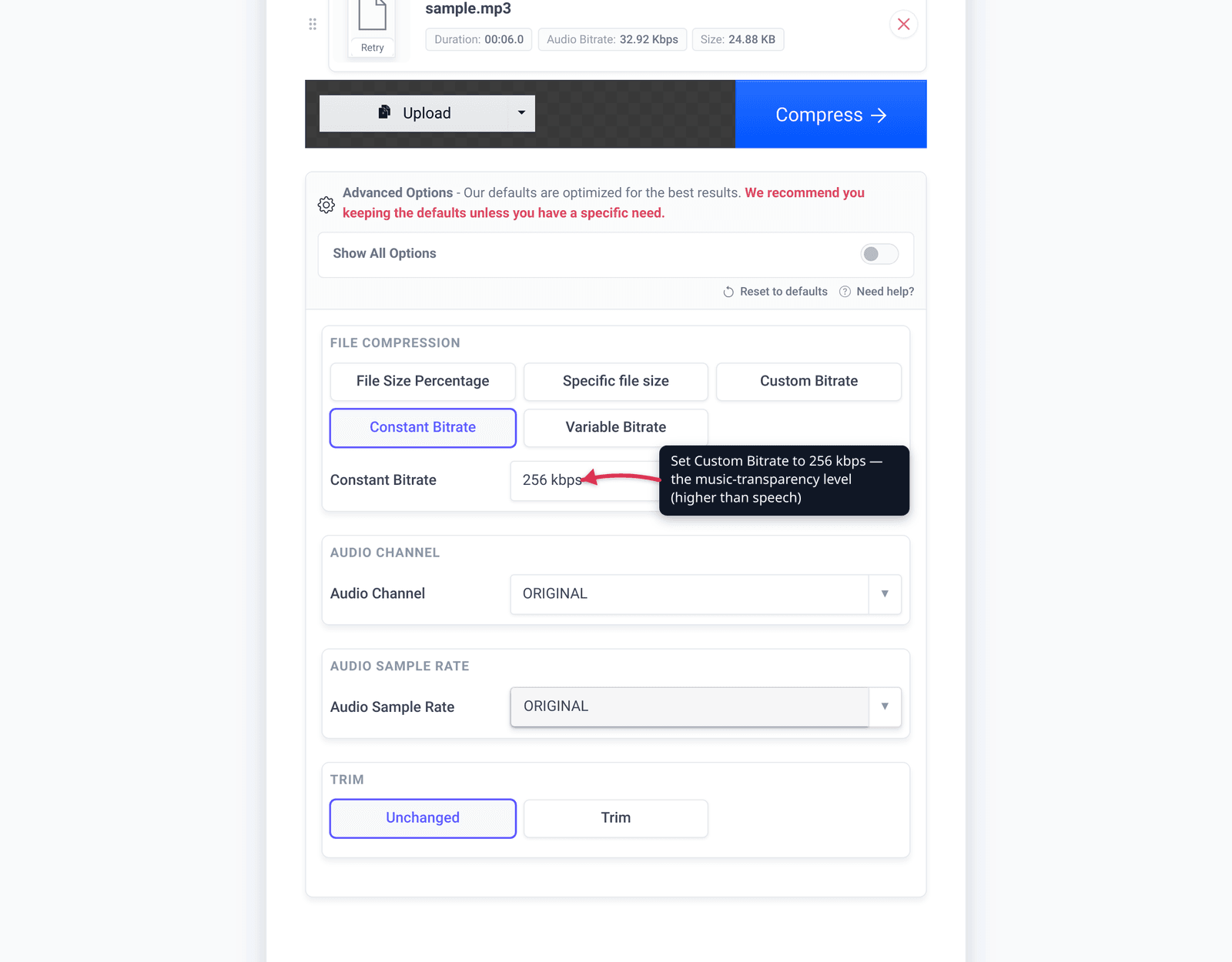
- Open Advanced Options (the gear icon) to reveal the File Compression controls.
- Choose how to shrink it: set a Custom Bitrate (pick Variable Bitrate and aim for ~256 kbps for music), use File Size Percentage, or enter a Specific file size if you have a hard limit to hit.
- Leave Audio Channel on ORIGINAL to keep the song in stereo, and leave Audio Sample Rate on ORIGINAL — bitrate alone should carry the size reduction for music.
- Run the compression and download. Compare the result against the original on decent headphones; if it’s clean, you’re done — if not, nudge the bitrate up.
Your file uploads over an encrypted connection, is processed on our servers, and is deleted automatically a few hours later. Nothing is kept.
For the deeper bitrate and format background: 128 vs 256 vs 320 kbps MP3 and MP3 vs WAV vs FLAC.
FAQ
What is the best bitrate to compress music without losing quality?
For music, aim for the streaming-service zone: about 256 kbps AAC, or 192–320 kbps MP3 using VBR. That’s where blind-test “transparency” generally sits — most listeners can’t distinguish it from the original. MP3 is usually transparent at/above ~192 kbps and AAC at a somewhat lower bitrate, per Hydrogenaudio. Below ~128 kbps, music starts to show audible artifacts.
How do I make a song file smaller without it sounding bad?
Re-encode it to a good music bitrate (~256 kbps AAC / 192+ kbps MP3), keep it stereo, and keep the original sample rate. Get the size reduction from the bitrate, not from going mono or halving the sample rate — those are voice tricks that damage music. Use VBR for the smallest file at a given perceived quality.
Should I convert music to mono to save space?
No — keep music in stereo. Mono roughly halves the file, but it destroys stereo imaging and panning that’s part of the recording. Mono is appropriate for speech (voice memos, call recordings), not for songs. Save space with a sensible stereo bitrate instead.
Is it worth converting my FLAC/WAV library to MP3 or AAC?
If you need it to fit a phone or you’re hitting size limits, yes. A lossless track (~30–50 MB) drops to roughly a tenth of that at 256 kbps AAC, and at that bitrate it’s transparent to most ears. The key rule: keep your lossless originals so you can always re-encode later — every lossy encode loses a little, and you can’t undo it.
Does re-compressing an MP3 lose more quality?
Yes. Every lossy re-encode discards a bit more detail — “every time you encode with a lossy encoder, the quality will decrease” (Hydrogenaudio). Re-compressing an existing MP3 to get it under a size limit works, but it stacks loss on top of the first encode. Never re-encode to a lower bitrate than you need, and don’t expect raising the bitrate to restore anything.
Why does my compressed music sound worse but my compressed podcast sounds fine?
Because music is a far richer signal than speech. Voice is narrow and mono-friendly, so it survives heavy compression; music has full-band detail and a stereo mix that need more bits. If you compressed a song with voice-grade settings (low bitrate, mono), that’s the cause — re-do it at ~256 kbps in stereo.
Sources
Last verified 2026-06-25.
- Spotify — Audio quality — official: “Very high” ≈ 320 kbit/s, Premium web AAC 256 kbit/s, Lossless up to 24-bit/44.1 kHz FLAC.
- Hydrogenaudio — Transparency — MP3 generally artifact-free at/above 192 kbps, Vorbis at/above 160 kbps, AAC/Opus transparent at lower bitrates; transparency depends on listener, content, encoder.
- Hydrogenaudio — Transcoding — “Every time you encode with a lossy encoder, the quality will decrease”; keep lossless archives to re-encode later; lossy-to-lossy compounds loss.
- xconvert — Compress MP3 — the funnel tool; real UI labels (Upload, Advanced Options, File Compression, Custom Bitrate, Specific file size, Audio Channel, Audio Sample Rate).