 By Stephanie Taylor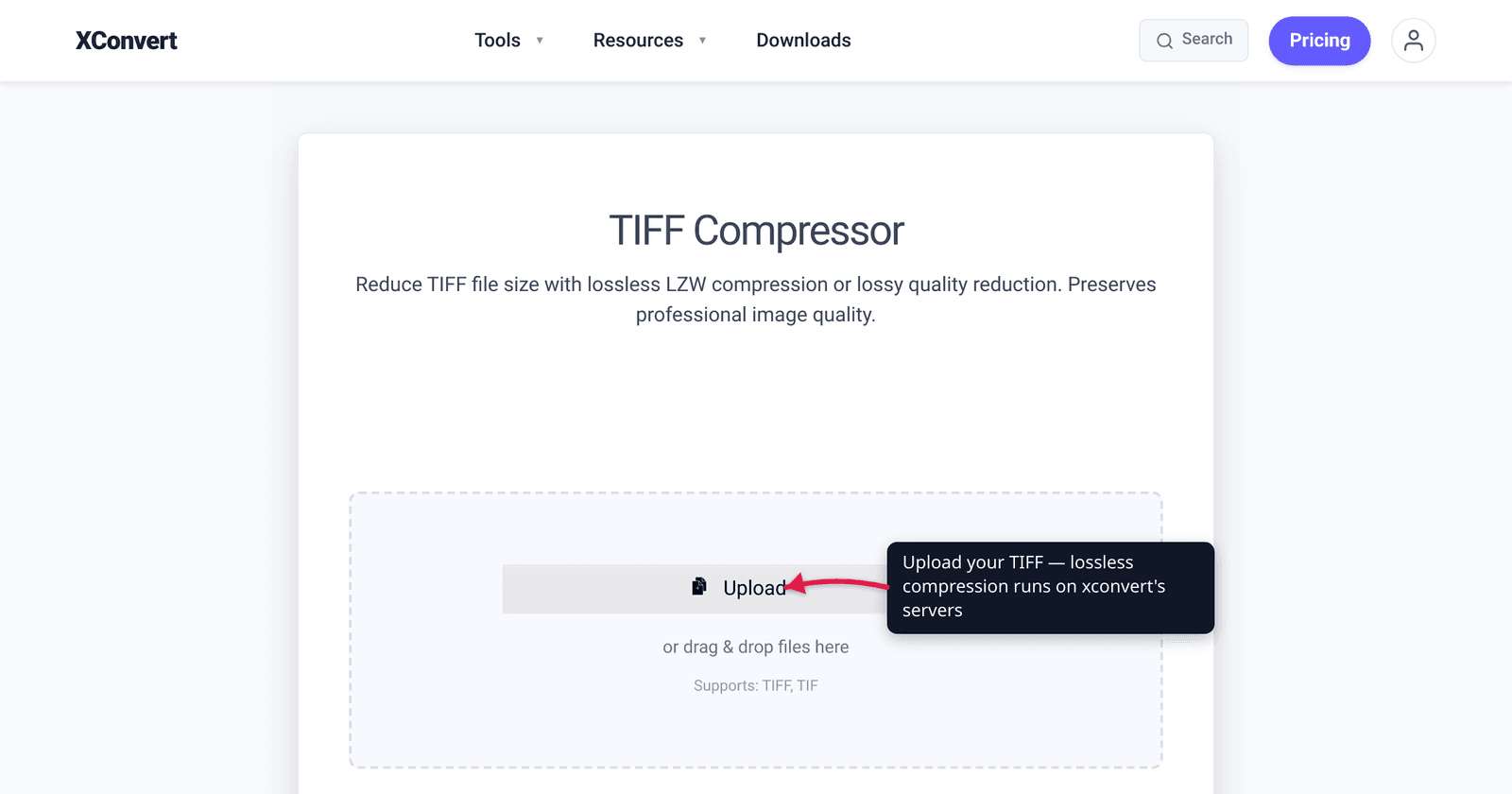
You scanned a 600 dpi document or exported a master image, and the resulting TIFF is 80, 150, even 300 MB — too big to email, slow to archive, awkward to share. You want it smaller, but a TIFF is usually your master copy, so any quality loss defeats the purpose. The good news: TIFF was built for exactly this. The format supports truly lossless compression — LZW and ZIP/Deflate — that throws away zero pixels and often halves an 8-bit file. We verified which methods are lossless (and which quietly aren’t) against the TIFF 6.0 specification, MDN, and the Library of Congress.
Quick answer: To shrink a TIFF with no quality loss whatsoever, re-save it with LZW or ZIP/Deflate compression. Both are lossless — the decompressed image is bit-for-bit identical to the original — and typically cut an 8-bit scan to around half its size. Use ZIP/Deflate for 16-bit images (LZW can ironically make those bigger). Avoid JPEG-in-TIFF if you want true lossless; it shrinks more but discards detail. Lowering bit depth or resizing also shrinks the file but does change the image — those are not “without losing quality.”
Jump to a section
- What makes a TIFF so big
- The lossless levers: LZW and ZIP/Deflate
- What is and isn’t “without losing quality”
- Which method to pick (8-bit vs 16-bit, color vs B&W)
- Reduce TIFF size without losing quality on xconvert
- FAQ
What makes a TIFF so big
A TIFF is large because, by default, it’s barely compressed. As MDN notes, “Most TIFF files are uncompressed” — every pixel is stored as raw data. That’s deliberate: TIFF is the archival and print master format, designed to preserve full fidelity rather than save space.
The raw size comes from three multipliers:
- Resolution / dimensions — a 600 dpi scan of an A4 page is roughly 4,960 × 7,016 pixels.
- Bit depth — 8 bits per channel is standard; photo masters use 16 bits per channel, which doubles the data.
- Channels — grayscale is 1 channel; RGB color is 3; CMYK print files are 4.
Multiply those out and an uncompressed full-color 16-bit scan can run to hundreds of megabytes. The fix that preserves quality isn’t to change those multipliers — it’s to compress the pixel data losslessly, which TIFF supports natively.
The lossless levers: LZW and ZIP/Deflate
TIFF’s compression method is recorded in the file’s Compression tag (tag 259). Two of its values give you smaller files with no quality loss at all:
- LZW (Compression tag value 5) — Lempel–Ziv–Welch, the same dictionary-based algorithm GIF uses. The Library of Congress describes LZW as “a lossless compression algorithm” and notes it “will generally cut the size of grayscale or color bitmap in half.” It is the most widely supported TIFF compression and the default in many applications.
- ZIP / Deflate (Compression tag value 8) — the Deflate algorithm (the same one in
.ziparchives and PNG files), added in an Adobe TIFF supplement. Also fully lossless, and on most 8-bit images it compresses as well as or slightly better than LZW.
“Lossless” here is literal: the decompressed image is bit-for-bit identical to the original. Open the file, the pixels are exactly what you started with. There is no generation loss, even if you compress, edit, and re-save repeatedly. MDN states it plainly: “lossless PackBits and LZW compression are supported, as is lossy JPEG compression.” (PackBits — a simple run-length encoding — is also lossless, but compresses far less than LZW or ZIP, so it’s rarely the best choice for photos or detailed scans.)
How much you save depends on the content. A flat document scan or an image with large uniform areas compresses dramatically; a noisy, highly-detailed photograph compresses less, because there’s less redundancy for a lossless algorithm to exploit. A realistic expectation for an 8-bit file is roughly half, sometimes much more for line-art and text scans.
What is and isn’t “without losing quality”
This is where a lot of advice gets sloppy, so be precise. Only some size-reduction methods are genuinely lossless:
| Method | Quality | What it does |
|---|---|---|
| LZW compression | Lossless ✅ | Repacks identical pixels; no data discarded. |
| ZIP / Deflate compression | Lossless ✅ | Same as above, Deflate algorithm; best for 16-bit. |
| PackBits compression | Lossless ✅ | Run-length encoding; weaker ratio. |
| JPEG-in-TIFF compression | Lossy ❌ | Smaller, but discards detail via DCT — not truly lossless. |
| Lower the bit depth (16→8) | Changes the image ❌ | Discards tonal precision; visible in gradients/edits. |
| Reduce dimensions / dpi | Changes the image ❌ | Fewer pixels = lower detail. |
| Convert to JPG/WebP | Lossy ❌ | Different format; abandons the TIFF master. |
If your goal is the words in the search box — “without losing quality” — your only honest options are LZW and ZIP/Deflate. Everything below the line in that table makes a smaller file by removing information. They’re legitimate tools when you genuinely need a smaller file and accept the trade-off — but they are not quality-preserving, and you should keep the original TIFF as your master.
One subtle trap: JPEG-in-TIFF is tempting because it shrinks the most, and the file still ends in .tiff, so it looks lossless. It isn’t. If a downstream tool reports your TIFF as “JPEG compressed,” it has already discarded detail. For a true master, stay on LZW or ZIP.
Which method to pick (8-bit vs 16-bit, color vs B&W)
Both LZW and ZIP are lossless, so you can’t hurt quality either way — but they don’t compress identically:
- 8-bit color or grayscale images — LZW or ZIP both work well and give similar results. LZW has the broadest software compatibility; ZIP often edges it out slightly on size.
- 16-bit-per-channel images (high-end photo masters, raw-derived scans) — use ZIP/Deflate, not LZW. This is counter-intuitive but well documented: LZW’s dictionary approach struggles with the high-entropy data in 16-bit samples, and it can actually make a 16-bit TIFF larger than uncompressed. ZIP handles 16-bit data far better.
- Black-and-white (bilevel) scans — documents and faxes scanned at 1 bit per pixel compress best with the CCITT Group 4 fax method, which is also lossless and purpose-built for bilevel content.
Rule of thumb: ZIP/Deflate is the safe default for losslessly shrinking any TIFF, especially at 16-bit; LZW is the most-compatible choice for 8-bit files. For the full story on how LZW works and why it’s the historical TIFF default, see What is LZW compression for TIFF. And if you’re deciding between TIFF and PNG for scanned documents in the first place, TIFF vs PNG for scanned documents compares the two lossless formats head-to-head.
Reduce TIFF size without losing quality on xconvert
The xconvert TIFF compressor lets you apply lossless compression directly, choosing the exact method:
- Open xconvert.com/compress-tiff and click Upload to add your file (From my Computer, From Google Drive, or From Dropbox).
- Open Advanced Options (the gear icon).
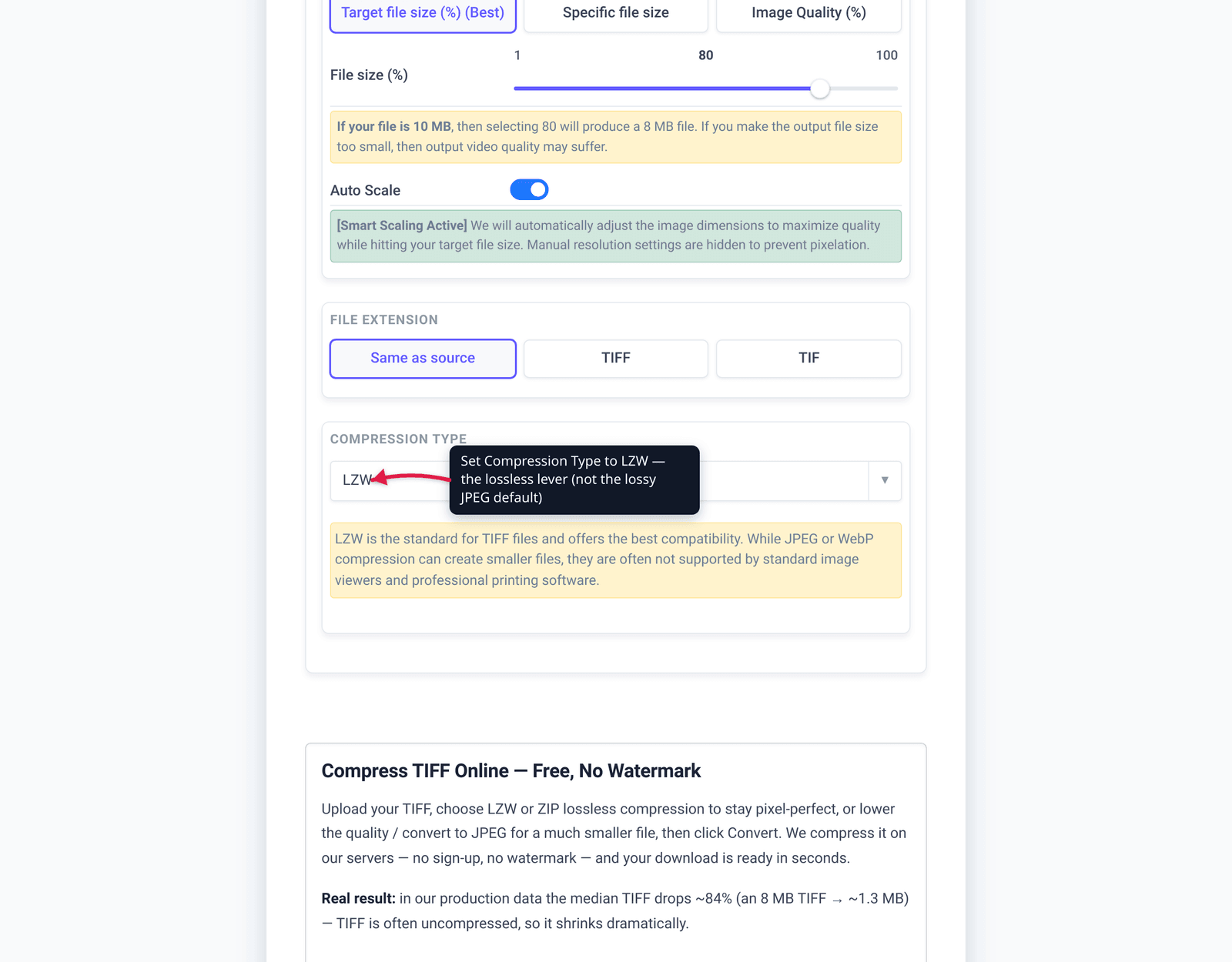
- Set the Compression Type dropdown to LZW for maximum compatibility, or Deflate/ZIP for the best lossless result — especially on 16-bit images. (Both are lossless; leave it off JPEG if you want zero quality loss.)
- To stay fully lossless, leave Image Quality (%) at 100 and don’t engage size-reducing options like Auto Scale — those resize the image, which changes it.
- Keep the File extension as TIFF (or “Same as source”) so you get a TIFF back, not a converted format.
- Click Compress, then download your smaller, pixel-identical TIFF.
Your file uploads over an encrypted connection, is processed on our servers, and is automatically deleted a few hours later. Nothing stays around.
FAQ
Can you reduce TIFF file size without losing any quality?
Yes. Re-save the TIFF with LZW or ZIP/Deflate compression. Both are lossless — the decompressed image is bit-for-bit identical to the original — and typically cut an 8-bit file to around half its size. The only methods that lose quality are JPEG-in-TIFF, lowering the bit depth, or reducing the dimensions.
Is LZW compression lossless?
Yes, completely. The Library of Congress describes LZW as “a lossless compression algorithm,” and it’s stored under TIFF Compression tag value 5. No pixel data is discarded, so you can compress, edit, and re-save without any generation loss. It’s the most widely supported TIFF compression method.
Is LZW or ZIP better for TIFF?
For 8-bit images they’re very close, and either is fine — LZW has the widest compatibility. For 16-bit-per-channel images, use ZIP/Deflate: LZW can actually make a 16-bit TIFF larger than uncompressed, because its dictionary struggles with high-entropy 16-bit data. ZIP is the safer default overall.
Does converting TIFF to JPEG keep the quality?
No. JPEG is a lossy format — it discards detail to shrink the file, and that loss is permanent. The same applies to “JPEG compression” inside a TIFF, which still ends in .tiff but is not truly lossless. If you need a true master, stay on LZW or ZIP/Deflate.
Why is my scanned TIFF so large?
Because TIFFs are usually stored uncompressed, and scans multiply three things: resolution (a 600 dpi A4 page is ~4,960 × 7,016 pixels), bit depth (8 vs 16 bits per channel), and channels (1 for grayscale, 3 for RGB, 4 for CMYK). Applying LZW or ZIP compression shrinks the file without touching any of those, so the image is unchanged.
Will lowering the resolution or bit depth lose quality?
Yes — those change the image. Reducing dimensions or dpi removes pixels (less detail); dropping 16-bit to 8-bit discards tonal precision that shows up in gradients and further editing. They make smaller files, but they are not “without losing quality.” Keep your original TIFF as the master if you go that route.
Sources
Last verified 2026-06-25.
- MDN — Image file type and format guide (TIFF) — “lossless PackBits and LZW compression are supported, as is lossy JPEG compression”; TIFF bit depths and use cases.
- Wikipedia — TIFF (citing the Adobe TIFF 6.0 specification) — Compression tag values: LZW = 5 (lossless), Deflate/ZIP = 8 (lossless), JPEG = 6/7 (lossy), PackBits (lossless); Adobe holds the TIFF 6.0 copyright.
- Library of Congress — LZW Compression Encoding (fdd000135) — LZW characterized as “a lossless compression algorithm.”
- Library of Congress — TIFF, Revision 6.0 (fdd000022) — LZW “will generally cut the size of grayscale or color bitmap in half”; TIFF defined/owned by Adobe.
- Darkroom — TIFF Compression Options: ZIP vs LZW for 16-bit — why LZW can enlarge 16-bit TIFFs and ZIP is preferred for them.