 By James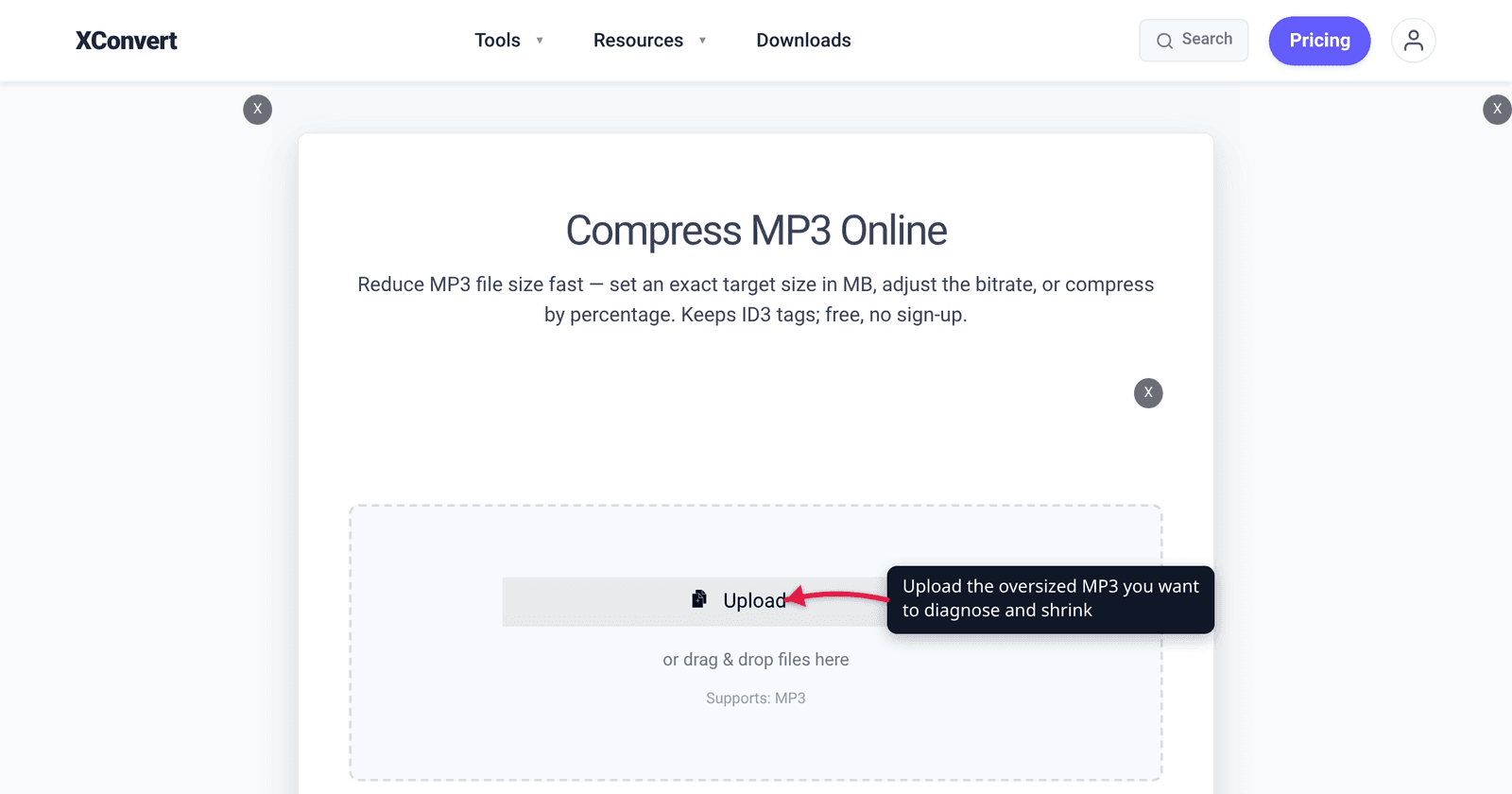
You right-click a single MP3, see 187 MB, and wonder what on earth is inside it. Nothing is wrong — an MP3’s size is almost entirely predictable from two numbers you already know, and once you can do that arithmetic in your head you can tell instantly whether a file is bloated or just long. This guide gives you the formula, a lookup chart to sanity-check any MP3 you own, the three things people think make MP3s big but don’t, and what to check when a file genuinely is bigger than it should be.
Quick answer: An MP3’s size is bitrate × duration, and almost nothing else. A constant-bitrate MP3 uses 7.5 KB per minute for every 1 kbps — so 128 kbps costs about 0.96 MB per minute and 320 kbps costs exactly 2.4 MB per minute. A three-hour audiobook at 128 kbps is supposed to be around 173 MB. If your file is much bigger than the chart below predicts, the usual culprit is embedded cover art in the ID3 tag; if it matches the chart, the only way to shrink it is to lower the bitrate or shorten the audio.
Jump to a section
- The formula that explains 95% of it
- The MP3 size chart — look up your file
- Three things that don’t make an MP3 bigger
- When your file is bigger than the chart says
- Shrink an MP3 on xconvert
- FAQ
The formula that explains 95% of it
MP3 stores a fixed number of bits for every second of audio. That rate is the bitrate, measured in kilobits per second (kbps). Multiply it by how long the recording runs, divide by eight to get bytes, and you have the file:
bytes ≈ bitrate (kbps) × 1,000 ÷ 8 × duration (seconds)
Which collapses into one number worth memorising: 1 kbps costs 7.5 KB per minute. So 128 kbps × 7.5 KB = 960 KB per minute, and 320 kbps × 7.5 KB = 2,400 KB per minute.
That is the whole mechanism. A 187 MB MP3 is not corrupt and is not hiding anything — at 320 kbps it is simply about 78 minutes long, and at 128 kbps it is over three hours. Length is the variable people forget: a DJ set, a lecture, a church service or an audiobook chapter runs ten to sixty times longer than a pop song, and the file scales in exact proportion.
Two things worth knowing about the numbers. First, MP3’s ceiling is 320 kbps — per MDN’s audio codec guide, MPEG‑1 Layer III supports 32 to 320 kbps and the lower MPEG‑2/2.5 modes go down to 8 kbps, so 2.4 MB per minute is the format’s hard maximum. Second, your file manager rounds differently: these figures use MB = 1,000,000 bytes, while Windows Explorer divides by 1,048,576 and will show a number about 4.6% smaller. A “2.4 MB” minute displays as 2.29 MB there.
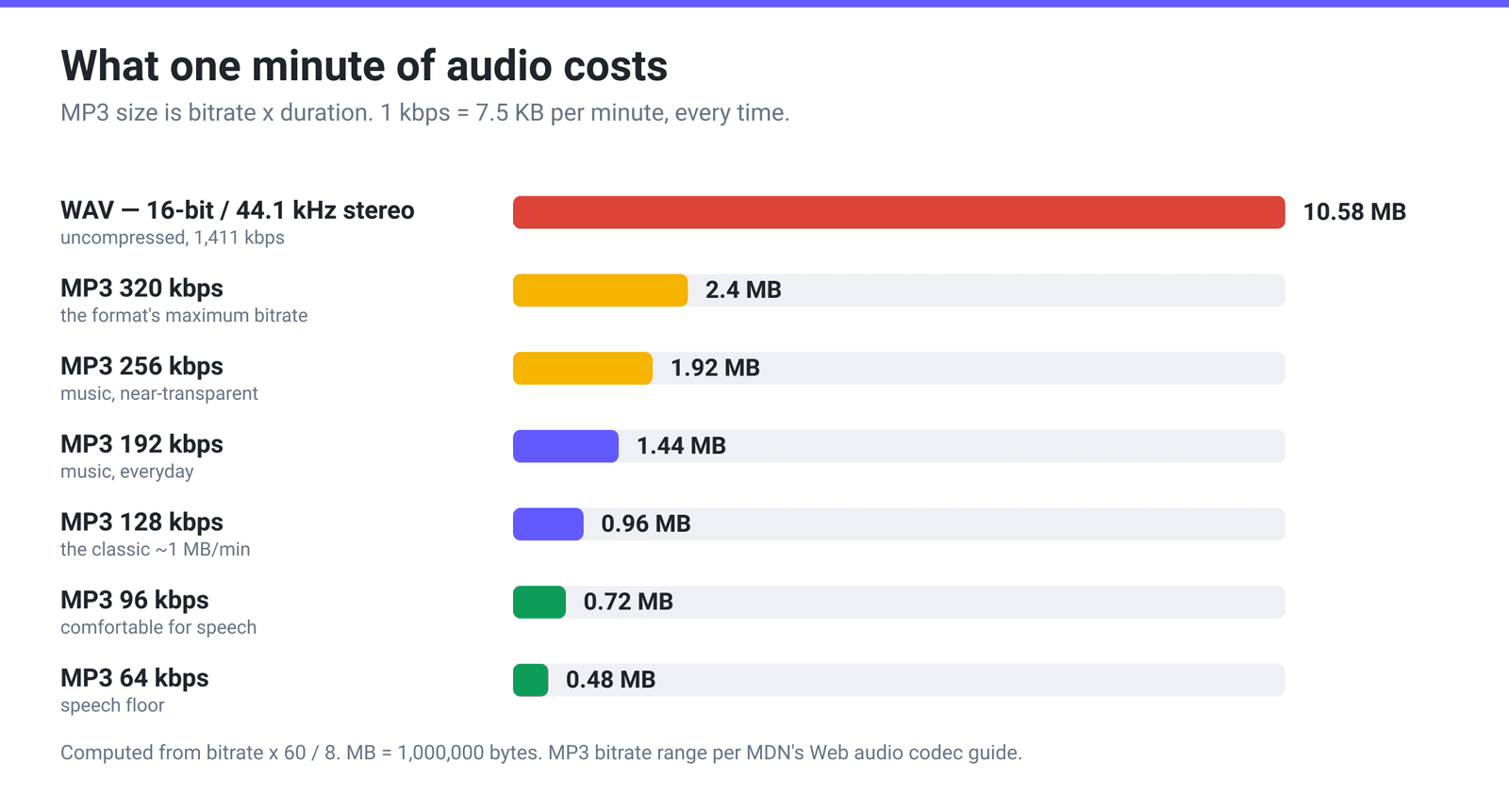
For context on the top row: a 16‑bit, 44.1 kHz stereo WAV runs at 1,411 kbps, or 10.58 MB per minute. Even a maximum-bitrate MP3 is already about 4.4× smaller than the uncompressed audio it came from. Your MP3 is not the bloated version — it is the compressed one.
The MP3 size chart — look up your file
Find your bitrate down the side and your running time across the top. If your file lands near the intersection, its size is completely normal.
| Bitrate | 3 min (song) | 10 min | 30 min | 1 hour | 3 hours |
|---|---|---|---|---|---|
| 64 kbps | 1.4 MB | 4.8 MB | 14.4 MB | 28.8 MB | 86 MB |
| 96 kbps | 2.2 MB | 7.2 MB | 21.6 MB | 43.2 MB | 130 MB |
| 128 kbps | 2.9 MB | 9.6 MB | 28.8 MB | 57.6 MB | 173 MB |
| 160 kbps | 3.6 MB | 12.0 MB | 36.0 MB | 72.0 MB | 216 MB |
| 192 kbps | 4.3 MB | 14.4 MB | 43.2 MB | 86.4 MB | 259 MB |
| 256 kbps | 5.8 MB | 19.2 MB | 57.6 MB | 115 MB | 346 MB |
| 320 kbps | 7.2 MB | 24.0 MB | 72.0 MB | 144 MB | 432 MB |
Constant bitrate, MB = 1,000,000 bytes, tag overhead excluded.
To read your own file’s bitrate: on Windows, right-click → Properties → Details shows Bit rate; on macOS, select the file and press ⌘I. If the figure is an odd number like 178 kbps the file is variable-bitrate and that is its average — the chart still works, approximately.
The practical read: an hour of audio can’t be small. Even at a speech-grade 64 kbps you are looking at ~29 MB. Anyone asking for a 10 MB hour-long recording is asking for roughly 22 kbps — a rate MP3 only reaches in its MPEG‑2 modes, and one that sounds like a bad phone call.
Three things that don’t make an MP3 bigger
This is where most size advice goes wrong. At a fixed bitrate, these three changes do not shrink the file at all:
| Change | Effect on a fixed-bitrate MP3 | What it actually does |
|---|---|---|
| Stereo → mono | No size change. 128 kbps mono and 128 kbps stereo are both 0.96 MB/min | Gives the encoder all its bits for one channel, so it sounds cleaner at that bitrate |
| 44.1 kHz → 22.05 kHz sample rate | No size change at the same bitrate | Removes the top octave of treble; lets a low bitrate spend its bits on the range that’s left |
| “Higher quality source” (WAV or FLAC in) | No size change | The source affects how good the MP3 sounds, never how big it is |
The rule: the bitrate is the size dial. Everything else is a quality dial. Channels and sample rate matter enormously for how good 96 kbps sounds, and not at all for how big 96 kbps is.
There is one honest exception. In variable-bitrate or target-size modes the encoder is chasing a quality or size goal rather than a fixed rate, so making the job easier — mono, lower sample rate, simpler content — genuinely does produce a smaller file. That is why “convert speech to mono” is good advice in a VBR workflow and useless in a CBR one. If you want the deeper comparison, see VBR vs CBR: which audio bitrate mode makes smaller files.
When your file is bigger than the chart says
Run the arithmetic first: bitrate × duration × 7.5 KB. If your file is within a few percent, it is normal and only the two levers above will change it. If it is meaningfully larger, work down this list.
- Embedded cover art. This is the number-one cause of a surprisingly fat short track. The ID3v2 specification’s Attached picture (APIC) frame stores the image inside the audio file as binary data — the spec’s own words are “This frame contains a picture directly related to the audio file.” A 1500 × 1500 JPEG album cover can be several hundred kilobytes, and some files carry more than one picture frame (front cover, back cover, artist photo). On a 2.9 MB three-minute track, an 800 KB cover is more than a quarter of the file. Note that xconvert does not expose an artwork or tag-stripping control — for that job use a dedicated tag editor such as Mp3tag, which advertises “Support for Cover Art” and batch export of embedded album covers.
- The duration isn’t what you think. Recordings often carry minutes of dead air at the end — a voice recorder left running. Check the actual playing time.
- It’s a bitrate you didn’t choose. Many recorders and “export to MP3” buttons default to 320 kbps because it is the safe maximum, not because the content needs it. Speech exported at 320 kbps is 3.3× the size of the same file at 96 kbps, with no audible benefit.
- It isn’t really an MP3. A file named
.mp3can be a mislabelled WAV or an AIFF; at 10.58 MB per minute, that alone explains a 4–10× discrepancy. If a player reports a bitrate above 320 kbps, it is not MP3 audio.
Shrink an MP3 on xconvert
Once you know the file is simply long or simply high-bitrate, the xconvert MP3 compressor gives you every lever in one place:
- Open xconvert.com/compress-mp3 and click Upload to add your file.
- Open Advanced Options (the gear icon). The page notes its defaults are already tuned, so change only what you need.
- Under File Compression, pick how you want to control the size. File Size Percentage is the default and its slider starts at 80 — the page spells out what that means: “If your file is 10 MB, then selecting 80 will produce a 8 MB file.” Choose Specific file size instead to type an exact target and pick B / KB / MB, or Constant Bitrate to pin a value from the 8–384 kbps dropdown, or Variable Bitrate to pick a range such as 45k–85k.
- For spoken word, set Audio Channel to
MONO. In the percentage and specific-size modes this hands the encoder twice as many bits per channel for the same target, so it sounds noticeably better — but remember it will not shrink a file further once you’ve fixed a constant bitrate. - If the recording has dead air, open Trim and set a Start time and Duration to cut it. Removing minutes removes megabytes in direct proportion.
- Click Compress and download the result.
Your file uploads over an encrypted connection, is processed on our servers, and is deleted automatically a few hours later.
If you already know you want a specific bitrate rather than a target size, how to reduce MP3 file size walks through the four levers in order, and the MP3 bitrate guide covers which kbps to pick for speech versus music.
FAQ
What’s a normal file size for a 3-minute MP3?
Between about 2.9 MB (128 kbps) and 7.2 MB (320 kbps), with 256 kbps landing near 5.8 MB. Anything much above 7.2 MB for three minutes is either not a constant-bitrate MP3 or is carrying a large embedded cover image, because 320 kbps is the format’s maximum rate and therefore 2.4 MB per minute is its maximum size.
Why is my MP3 bigger than the size chart predicts?
Check three things in order: the real duration (trailing silence is common), embedded artwork in the ID3 tag, and whether the file is genuinely MP3 at all. Cover art is stored inside the file as binary data in the APIC frame, so a few hundred kilobytes of JPEG is added to the audio, not stored alongside it. A file that reports a bitrate above 320 kbps isn’t MP3 audio — it is most likely an uncompressed WAV or AIFF with the wrong extension.
Does deleting the album art make an MP3 smaller?
Yes — those bytes are physically in the file, so removing the picture frames removes them. On a long recording it is a rounding error; on a three-minute track with a high-resolution cover it can be a quarter of the file or more — an 800 KB cover inside a 2.9 MB track is 27.6% of it. xconvert has no tag or artwork control, so use a tag editor like Mp3tag for this. It is the one MP3 size lever that costs you nothing in audio quality.
Does converting stereo to mono halve the file size?
Not at a fixed bitrate. A 128 kbps mono MP3 and a 128 kbps stereo MP3 are the same size, because the bitrate defines the size. Mono helps in two real ways: it makes a given bitrate sound better (all the bits go to one channel), and in variable-bitrate or target-size modes it lets the encoder hit the goal with fewer bits. For speech, the effective move is mono plus a lower bitrate — 96 kbps mono instead of 192 kbps stereo — which does halve the file.
Why did my MP3 get bigger after I converted it?
Because you re-encoded upward. Converting a 128 kbps MP3 to 320 kbps produces a file 2.5× the size that contains no additional audio information — the detail was discarded at 128 kbps and cannot be recovered. The same applies to MP3 → WAV or MP3 → FLAC: the file balloons because the container is uncompressed or lossless, not because the sound improved. Always re-encode down from the best source you have.
How small can I make a one-hour podcast without wrecking it?
About 29 MB at 64 kbps mono is the sensible floor for clear speech, and 43 MB at 96 kbps is comfortable. Below roughly 48 kbps, MP3 starts sounding thin and swirly on voices — that is a limitation of the format’s age, not of the encoder. If you must go lower, a modern speech codec such as Opus does far more with the same bits; see OPUS vs MP3.
Sources
Last verified 2026-08-31.
- MDN — Web audio codec guide — MP3 bitrate ranges (MPEG‑1: 32–320 kbps; MPEG‑2: 8–160 kbps), supported sample rates and channel counts, and VBR support.
- ID3v2.4 native frames specification (mutagen-specs mirror) — the APIC “Attached picture” frame: “This frame contains a picture directly related to the audio file”, stored as embedded binary picture data. Mirrored because id3.org is currently returning HTTP 500.
- Mp3tag — tag editor with “Support for Cover Art” and batch export of embedded album covers, for the artwork job xconvert does not do.
- xconvert MP3 compressor — the live control names quoted in the steps: File Compression modes, the 80% default and its help text, Audio Channel, Audio Sample Rate and Trim.