 By Stephanie Taylor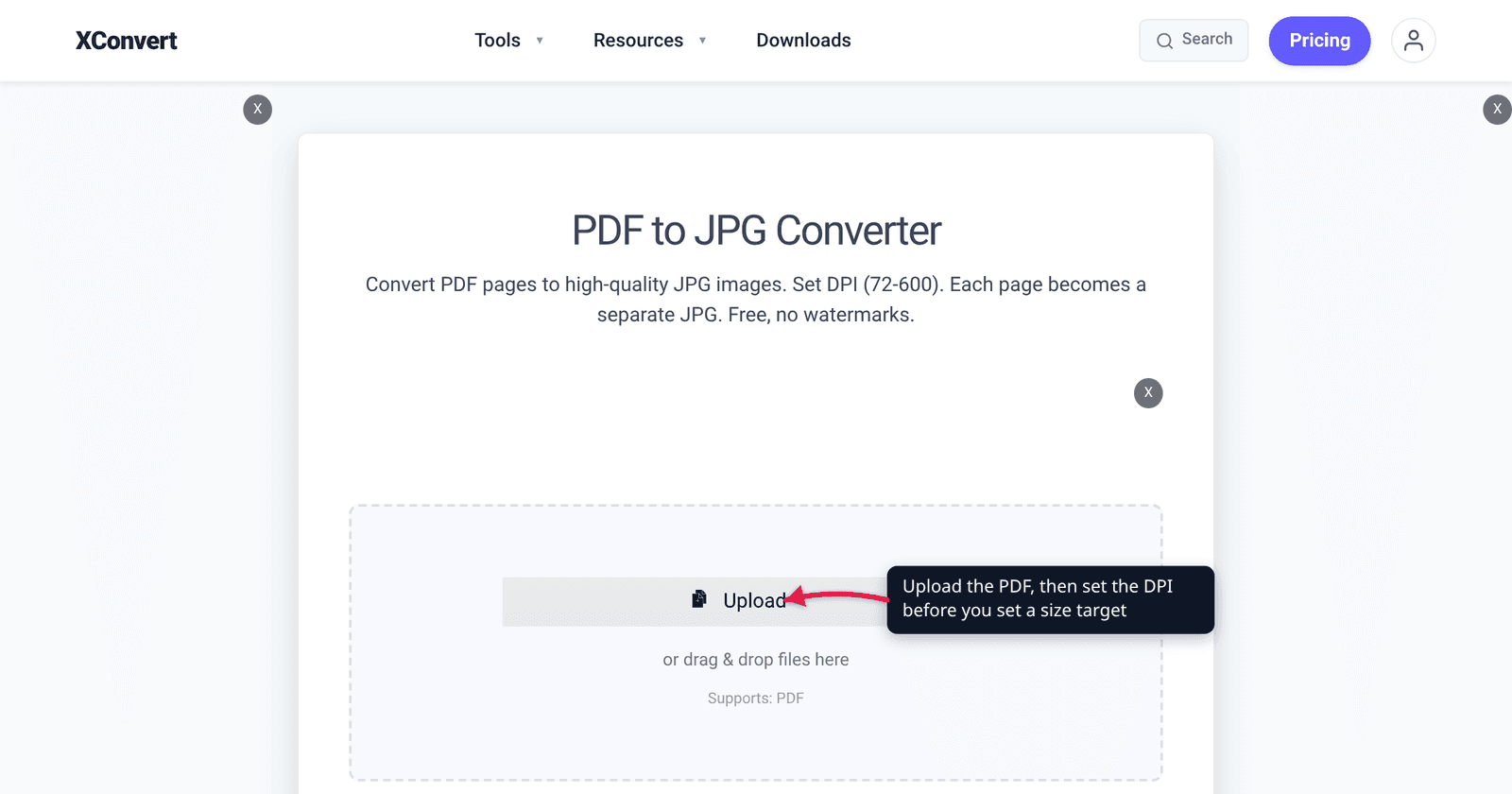
A portal wants your degree certificate as a JPG, under 200 KB. You have it as a one-page PDF. You convert it at the tool’s default 300 DPI, get a 2.1 MB file, and start dragging the quality slider down — and somewhere around the fifth attempt the certificate number turns into grey mush while the file is still over the limit. The problem is not the quality slider. It is that at 300 DPI you are asking JPEG to describe 8.4 million pixels using 200 kilobytes, and no encoder can do that gracefully.
Quick answer: Lower the Conversion Quality (DPI) before you touch anything else. A US Letter page at the default 300 DPI is 2550 × 3300 pixels; at 150 DPI it is 1275 × 1650 — a quarter of the pixels, so every pixel gets four times the byte budget. For a text document going into an upload form, 150 DPI is usually the right starting point and 200 DPI the ceiling. Then set Image Compression → Specific file size, type your limit in KB, and leave Auto Scale on so the converter can shrink the pixel dimensions rather than crush the quality. On the PDF to JPG converter, those two controls do the whole job.
Jump to a section
- Why the default 300 DPI fights a KB limit
- Pick the DPI first, then set the target
- What Auto Scale actually does
- Convert a PDF page to a JPG under the limit
- FAQ
Why the default 300 DPI fights a KB limit
A PDF page has no pixels. It is a vector description in a device-independent coordinate system, and the PDF specification fixes the default unit of that space at 1/72 inch — so a US Letter page is 612 × 792 of those units, and A4 is 595 × 842. Pixels only appear at the moment you rasterise, and DPI is the setting that decides how many of them you get.
That number climbs fast:
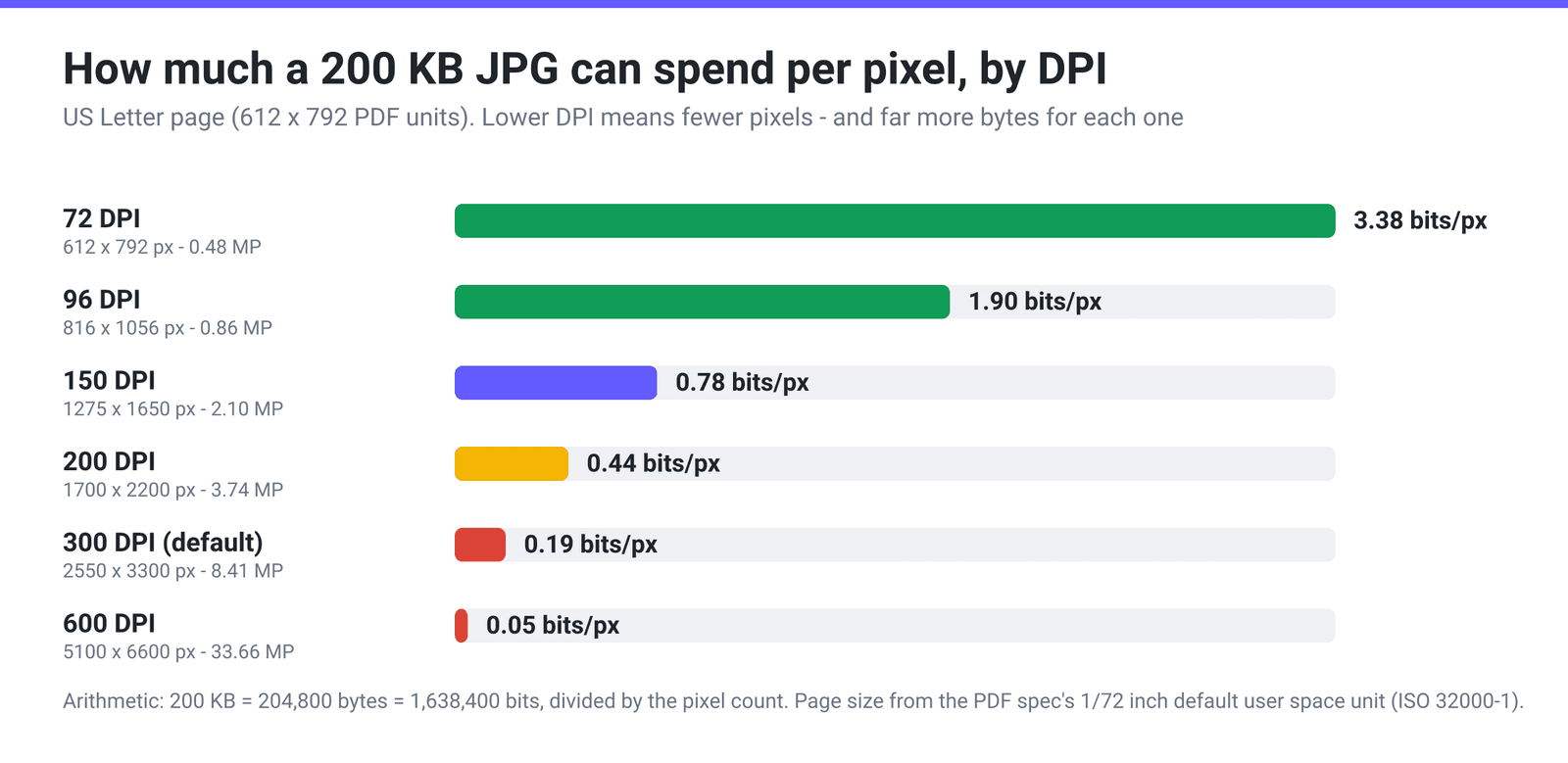
| Conversion Quality | US Letter pixels | Megapixels | Bits per pixel in a 200 KB JPG |
|---|---|---|---|
| 72 DPI | 612 × 792 | 0.48 | 3.38 |
| 96 DPI | 816 × 1056 | 0.86 | 1.90 |
| 150 DPI | 1275 × 1650 | 2.10 | 0.78 |
| 200 DPI | 1700 × 2200 | 3.74 | 0.44 |
| 300 DPI (the default) | 2550 × 3300 | 8.41 | 0.19 |
| 600 DPI | 5100 × 6600 | 33.66 | 0.05 |
The last column is the one that matters, and it is plain arithmetic: a 200 KB file (200 × 1024 bytes) holds 1,638,400 bits, so divide that by the pixel count and you get the budget available for each pixel.
At the default 300 DPI, a 200 KB JPG has 0.19 bits per pixel to work with. At 150 DPI the same 200 KB gives you 0.78 — four times the budget for every pixel that remains. You have not thrown any information away that a reader of a certificate would notice; you have simply stopped asking the encoder to store detail the portal will never display.
This is why turning the quality down does not rescue you. JPEG’s quality scale controls how coarsely each 8 × 8 block is quantised, and once you push it low enough to fit 8.4 megapixels into 200 KB, the blocking and ringing land on exactly the thing that has to stay readable: the thin strokes of text and the edges of a signature.
Pick the DPI first, then set the target
Match the DPI to what the image is actually for, not to what sounds impressive.
| What the JPG is for | Start at | Why |
|---|---|---|
| Upload form, certificate or ID document to be read on screen | 150 DPI | 1275 × 1650 for US Letter — comfortably legible when zoomed, and a quarter the pixels of the default |
| Dense small print, footnotes, tables of figures | 200 DPI | 1700 × 2200 keeps 6–8 pt text separable; expect a larger file |
| A thumbnail or preview image | 96 DPI | 816 × 1056, under a megapixel, fits a tight limit with room to spare |
| Something that will be printed | 300 DPI | The default exists for this case; do not fight a KB limit and a print requirement at the same time |
| Attaching to an email where the limit is in MB, not KB | 300 DPI | You have the headroom, so keep it |
One caution worth stating plainly: do not go below 150 DPI for anything containing a reference number, an issue date or a signature you may be asked to verify. At 96 DPI a US Letter page is 816 pixels wide, which puts standard 11 pt body text at roughly 15 pixels tall — legible on screen, but with very little margin once JPEG compression has been applied on top.
If the portal has told you a maximum pixel width as well as a KB cap, set that directly under Image resolution → Width x Height instead of trying to reach it through DPI.
What Auto Scale actually does
When you switch Image Compression from Quality Preset to Specific file size, a File size field appears with a B / KB / MB unit dropdown, and next to it a toggle labelled Auto Scale.
Without Auto Scale, hitting your target is a single-lever problem: the encoder can only lower JPEG quality until the file fits. On an 8-megapixel page that lever runs out of road long before the file is small enough, which is exactly the mush described above.
With Auto Scale on, the converter is also allowed to reduce the pixel dimensions to reach the target. That is almost always the better trade for a document: a smaller, cleaner image beats a full-size image smeared into illegibility. It is the same trade you made by choosing a lower DPI, applied automatically at the point where quality alone would not have been enough.
So the two controls are complementary rather than alternatives:
- Conversion Quality (DPI) is your deliberate, predictable choice of how many pixels to create.
- Auto Scale is the safety net that lets the converter reduce them further if your target still cannot be met.
Set the DPI sensibly and Auto Scale will rarely need to do much. Leave the DPI at 300 and ask for 100 KB, and Auto Scale is the only reason you get a usable image at all.
Convert a PDF page to a JPG under the limit
- Open xconvert.com/convert-pdf-to-jpg and click Upload — From my Computer, From Google Drive or From Dropbox.
- Open Advanced Options (the gear icon).
- Set Conversion Quality to 150 DPI (Balanced / Medium) for a document that will be read on screen, or 200 DPI (Office Standard) if it has small print. The default is 300 DPI (High Quality / Print Recommended), which is the right choice for printing and the wrong one for a KB cap.
- Under Image Compression, switch from Quality Preset to Specific file size. Type your limit in the File size field and set the unit dropdown to KB — it opens on MB, so this is easy to miss. Leave Auto Scale enabled.
- Check the Color dropdown. It defaults to White, which is what you want for a document; “Keep transparency” only has an effect for PNG output, not JPG.
- Click Convert and download. Every page of the PDF is rasterised into its own JPG, which you can download individually or as a ZIP — so a multi-page PDF gives you a numbered set and you pick the page you need.
Your file uploads over an encrypted connection, is processed on our servers, and is deleted automatically a few hours later. No sign-up, no watermark.
If you want to isolate a single page before converting — so you get exactly one JPG rather than a ZIP of twelve — run the PDF through extract PDF pages first, then convert the one-page result.
FAQ
What DPI should I use to get a PDF page under 200 KB?
Start at 150 DPI for a document that will be read on a screen. That makes a US Letter page 1275 × 1650 pixels — 2.1 megapixels, so a 200 KB file gives the encoder about 0.78 bits per pixel. At the 300 DPI default the same file has only 0.19 bits per pixel to work with, which is where text starts to break down. Use 200 DPI if the page has dense small print, and only go below 150 for thumbnails.
My converted JPG is still over the limit even at low quality. What now?
You are almost certainly still at too high a DPI, so the encoder has more pixels than the budget can cover. Drop the Conversion Quality one or two steps and try again — that is a far bigger lever than the quality preset. Make sure Auto Scale is enabled under Specific file size so the converter can reduce the pixel dimensions too. And check the units: the File size dropdown opens on MB, so a “200” left on the default is asking for 200 MB.
My PDF has 12 pages but I only need page 3. What happens?
Each page is rasterised into its own JPG, which you download individually or as a ZIP — so you will get twelve files and can take the one you want. If you would rather not deal with the ZIP, extract the single page to a one-page PDF first with extract PDF pages, then convert that.
Should I use PNG instead of JPG for a certificate?
For a text document, PNG is often cleaner — its lossless compression handles flat backgrounds and sharp black text without the ringing JPEG produces around letterforms. But it is usually much harder to fit under a tight KB cap, because the size levers are pixel dimensions and colour depth rather than a quality dial. If the portal accepts either and the limit is generous, PDF to PNG is worth trying. If the limit is 100–200 KB, JPG is the pragmatic answer.
Why does the text look fine when I zoom the PDF but bad in the JPG?
Because a PDF page is not made of pixels. It stores text as vector outlines in a coordinate system whose default unit the specification fixes at 1/72 inch, so your PDF viewer re-renders the glyphs sharply at whatever zoom you use. A JPG is a fixed grid of pixels chosen once, at the DPI you picked. Zooming past that DPI just magnifies the pixels — there is no extra detail to reveal.
Does converting the page keep the text searchable or selectable?
No. Rasterising turns the page into an image, and an image has no text layer — the words become pixels. That is fine for an upload form that only needs to look at the document, and a problem if anything downstream needs to search or copy the text. We do not run OCR, so if you need a searchable result, keep the PDF.
Is the file size limit in the portal 200 KB or 200 KiB?
You usually cannot tell, and it matters at the margins. Windows and most upload validators report “KB” while actually counting 1024-byte units, but some portals check against 200,000 bytes. Target a little under the stated number — ask for 180 KB when the cap is 200 KB — and the ambiguity stops mattering.
Sources
Last verified 2026-08-31.
- PDF 32000-1:2008 (ISO 32000-1), §8.3.2.3 “User Space” — Adobe — “If that entry is not present or supported, the default value of 1/72 inch is used. This coordinate system is called default user space.” This is the basis for a US Letter page being 612 × 792 units and for all the pixel arithmetic above.
- Foxit — Converting Pixels and Inches to PostScript Points — the points-to-pixels conversion used to derive each row of the DPI table.
- Ghostscript — Details of Output Devices — the resolution flag that sets rasterisation resolution “in dots per inch”, i.e. what a DPI setting actually controls when a PDF becomes an image.
- libjpeg-turbo — cjpeg manual — the JPEG quality scale and the guidance to use the lowest quality setting that still looks acceptable, which is what a size target searches for on your behalf.
- xconvert — Convert PDF to JPG — verified live UI: Conversion Quality presets 72/96/150/200/300/400/600/1200 DPI defaulting to “300 DPI (High Quality / Print Recommended)”; Image Compression with Quality Preset (Very High) and Specific file size plus Auto Scale; the Color dropdown defaulting to White; and “Each PDF page is rasterized into its own JPG image, which you download individually or as a ZIP.”