 By James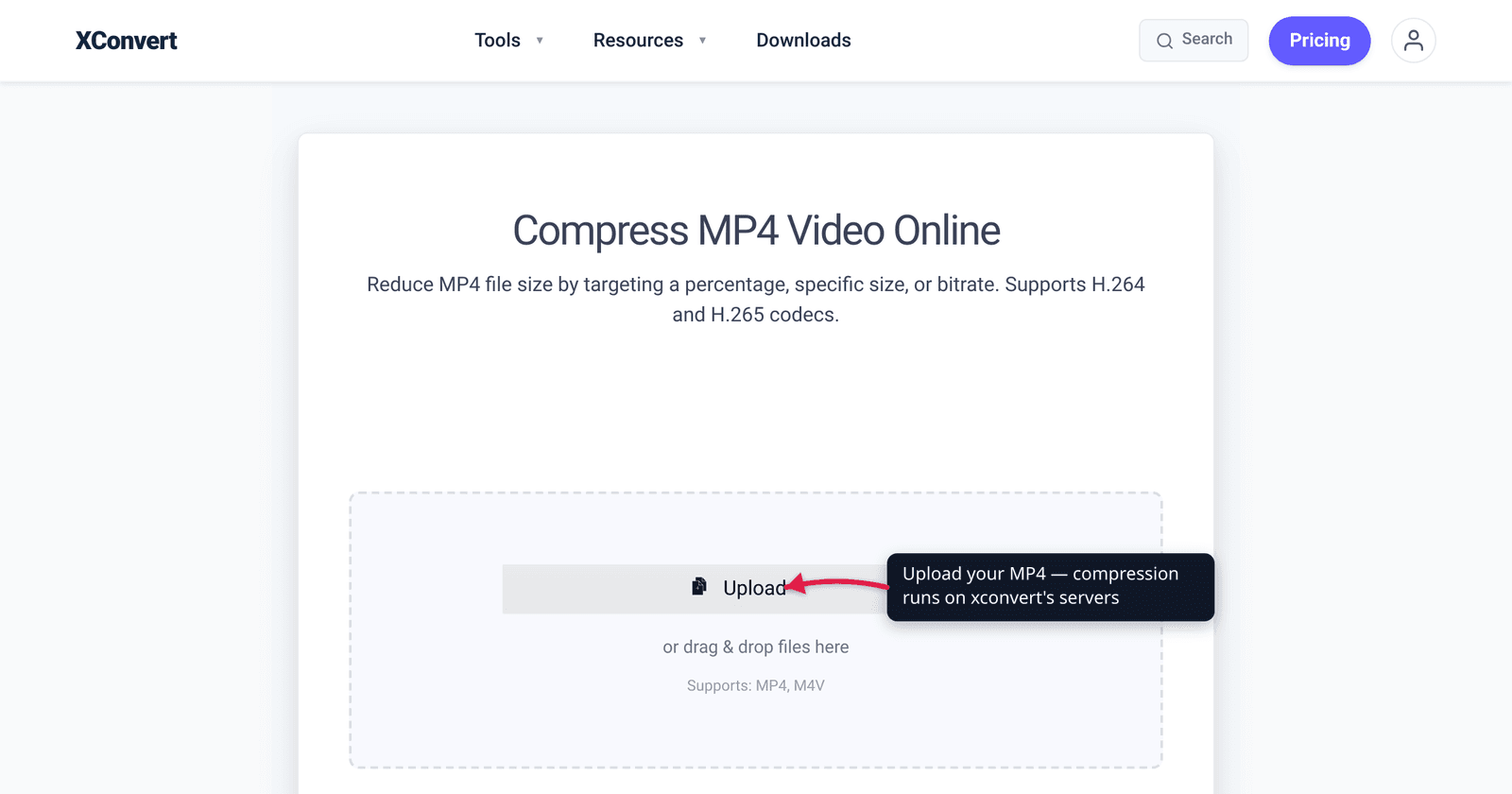
A two-minute clip from your phone lands in your inbox as a bounce: “attachment too large.” The same two minutes from a friend’s older phone was a quarter the size. Both are .mp4 files, both look fine — so why is yours so big? The MP4 part isn’t the problem. MP4 is just a container; what fills it is video data, and a handful of recording settings decide how much of it there is. This guide explains exactly what makes an MP4 heavy — bitrate first, then resolution, frame rate, length, and codec — with the numbers checked against YouTube’s and the camera makers’ own figures, then shows the levers that actually shrink it.
Quick answer: An MP4 is big because of its bitrate — the data spent per second of video — and bitrate is driven by resolution (4K has 4× the pixels of 1080p), frame rate (60 fps stores twice the frames of 30 fps), length, and codec efficiency (old H.264 needs roughly twice the data of H.265/HEVC or AV1 for the same look). Phones and screen recorders default to high bitrates, so files balloon fast: 4K/60 video runs around 400 MB per minute. To shrink one: lower the bitrate / target a file size, drop 4K to 1080p, drop 60 fps to 30, trim the length, or re-encode to H.265/AV1.
Jump to a section
- It’s the bitrate, not the “MP4”
- Resolution: 4K is four times the pixels
- Frame rate and length: the multipliers
- Codec efficiency: H.264 vs H.265 vs AV1
- Why phone and screen-recording files are so big by default
- How to shrink an MP4 on xconvert
- FAQ
It’s the bitrate, not the “MP4”
First, clear up the most common misconception: MP4 is a container, not a compression level. An .mp4 file is a wrapper that holds a video stream, an audio stream, and metadata. The same MP4 box can hold a tiny, heavily-compressed clip or a massive near-lossless master. So “it’s an MP4” tells you nothing about its size — what matters is what’s inside.
The single number that decides file size is bitrate: how many bits of data the video spends on each second of footage, usually quoted in megabits per second (Mbps). The relationship is almost arithmetic:
file size ≈ bitrate × duration
A clip encoded at 40 Mbps for 60 seconds is about 40 × 60 = 2,400 megabits ≈ 300 MB (divide megabits by 8 to get megabytes). Double the bitrate and you double the file. Everything else in this article — resolution, frame rate, codec — matters because of how it changes the bitrate you need. Bitrate is the dominant factor; the rest are the inputs that drive it.
That’s also why a longer video isn’t “more compressed” — at a fixed bitrate, size grows linearly with length. A 10-minute 4K clip is genuinely ten times a 1-minute one.
Resolution: 4K is four times the pixels
Resolution is the count of pixels in each frame, and it scales with width × height:
| Resolution | Pixels per frame | Relative to 1080p |
|---|---|---|
| 720p (1280×720) | ~0.92 million | ~0.44× |
| 1080p (1920×1080) | ~2.07 million | 1× |
| 1440p / 2K (2560×1440) | ~3.69 million | ~1.78× |
| 2160p / 4K (3840×2160) | ~8.29 million | ~4× |
Going from 1080p to 4K quadruples the pixels in every single frame. More pixels means more detail to encode, so to keep the same visual quality you need a much higher bitrate — and a bigger file. YouTube’s own recommended upload bitrates make the jump concrete: 8 Mbps for 1080p at 30 fps versus 35–45 Mbps for 4K at 30 fps — roughly 4–5× more data for the same length of footage.
The practical takeaway: if your video will only ever be watched on a phone screen or embedded small on a web page, 4K is wasted bits. Downscaling to 1080p (or 720p for messaging) is usually the single biggest size win available, because it attacks the pixel count directly.
Frame rate and length: the multipliers
Frame rate is how many still images play per second (fps). A 60 fps clip stores twice as many frames as a 30 fps clip of the same length — so, all else equal, it needs a higher bitrate to look as clean. YouTube again shows the relationship: it recommends 8 Mbps for 1080p/30 but 12 Mbps for 1080p/60, and 35–45 Mbps for 4K/30 versus 53–68 Mbps for 4K/60. Going from 30 to 60 fps doesn’t quite double the bitrate (consecutive frames are similar, so the codec saves on the in-between motion), but it’s a clear step up.
Unless you’re capturing fast action or slow-motion, 30 fps is plenty for talking-head clips, screen recordings, and most social video. Dropping 60 fps to 30 fps shaves a meaningful slice off the file.
Length is the simplest multiplier of all: at a fixed bitrate, file size is directly proportional to duration. There’s no compression magic that makes the tenth minute smaller than the first. Trimming dead air at the start and end of a clip is a free, lossless size reduction — you’re literally removing seconds of data.
Codec efficiency: H.264 vs H.265 vs AV1
The codec is the algorithm that compresses the video stream inside the MP4. Two clips that look identical can differ enormously in size purely because of which codec encoded them, and how efficiently it was tuned.
- H.264 (AVC) — the universal default. It plays on essentially every device and browser, which is exactly why exports, web embeds, and “share with anyone” workflows pick it. The cost is efficiency: it needs the most data of the three for a given quality.
- H.265 (HEVC) — designed to deliver about 50% bit-rate reduction at the same subjective quality versus H.264, per Fraunhofer HHI, one of the institutes behind the standard. In practice the saving is content-dependent (commonly 25–50%), but the direction is consistent: HEVC files are smaller. It’s the default on modern iPhones for a reason.
- AV1 — newer and more efficient still, smaller than H.265 at equal quality and royalty-free, at the cost of slower encoding and narrower hardware support.
So if your MP4 is an old H.264 export, re-encoding to H.265 or AV1 can roughly halve it with no visible quality loss. The catch is playback: H.265 and AV1 don’t play everywhere — see our H.264 vs H.265: which to use guide for the compatibility trade-offs before you commit. The rule of thumb: ship H.264, store H.265.
Why phone and screen-recording files are so big by default
Your recordings are big because the defaults are tuned for quality and editing headroom, not for sharing. A few real numbers:
- iPhone, High Efficiency (HEVC): roughly 170 MB per minute at 4K/30 and around 400 MB per minute at 4K/60 — community-tested figures consistent across iPhone models. Apple’s own settings note plainly that “faster frame rates and higher resolutions result in larger video files.” Switch the camera to the Most Compatible (H.264) format and those numbers roughly double, because H.264 is the less efficient codec.
- 1080p on a phone is far lighter — on the order of 60–90 MB per minute in HEVC — which is why dropping 4K to 1080p is so effective.
- Screen recorders (the built-in iOS/macOS/Windows recorders, plus OBS and similar) often capture at your full display resolution and a high, near-constant bitrate so the footage is clean enough to edit. A long 4K screen recording can be enormous even though the content — mostly static UI — would compress to a fraction of that size once re-encoded.
None of this is a defect; the device is preserving quality for you. It just means the file you record is rarely the file you should send. A quick re-encode that targets a smaller size, lower resolution, or more efficient codec closes the gap. For the quality-preserving approach specifically, see reduce MP4 file size without losing quality.
How to shrink an MP4 on xconvert
The xconvert MP4 compressor lets you pull every one of these levers in one place:
- Open xconvert.com/compress-mp4 and click Upload to add your video (from your computer, Google Drive, or Dropbox).
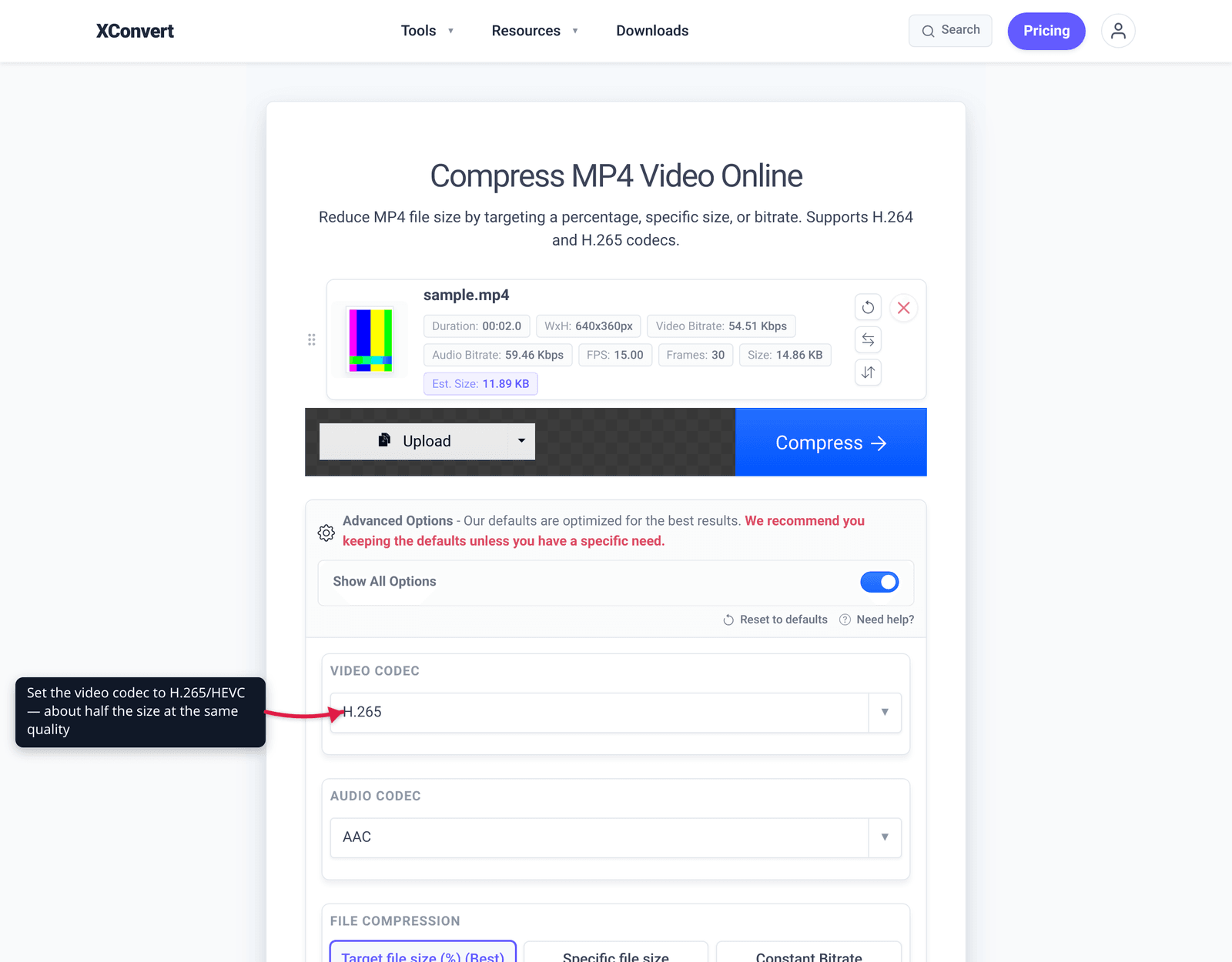
- Open Advanced Options (the gear icon) to reveal the controls.
- Pick how to control size. Use Target file size (%) (marked “Best”) to shrink by a proportion, Specific file size to hit an exact MB cap, or Constant Quality / Constant Bitrate / Variable Bitrate for finer control. This is the bitrate lever — the biggest one.
- Drop the resolution if you’re going from 4K — 1080p or 720p slashes the pixel count (use Auto Scale to let it scale sensibly).
- Re-encode to a more efficient codec — choose H.265/HEVC or AV1 instead of H.264 for roughly 25–50% smaller output at the same quality (mind the playback support).
- Use Trim → Time Range to cut dead footage, then click Compress and download.
Your file uploads over an encrypted connection, is processed on our servers, and is automatically deleted a few hours later. Nothing stays around.
For related workflows: reduce MP4 file size without losing quality (the quality-first method) and H.264 vs H.265: which to use (picking the right codec).
FAQ
Why is my MP4 so big when it’s only a short video?
Because bitrate, not length, dominates. A short 4K/60 clip recorded at a high bitrate can easily out-weigh a longer 1080p/30 clip. iPhone 4K/60 footage runs around 400 MB per minute, so even a 30-second clip is ~200 MB. Lower the resolution, frame rate, or bitrate and the short clip shrinks dramatically.
Does the MP4 format itself make files big?
No. MP4 is just a container — a wrapper around the video and audio streams. The same .mp4 can be tiny or huge depending on the bitrate, resolution, frame rate, length, and codec inside it. Two files with the same .mp4 extension can differ in size by 10× or more.
Will changing the resolution make my MP4 smaller?
Yes, significantly. Resolution scales with the pixel count, and 4K has about four times the pixels of 1080p. Downscaling 4K to 1080p — or to 720p for messaging apps — is usually the single biggest size reduction available, because it cuts the data needed in every frame.
Does converting to H.265 or AV1 reduce file size?
Yes. H.265 (HEVC) targets about 50% smaller files than H.264 at the same quality, and AV1 is smaller still. Re-encoding an old H.264 MP4 to H.265 can roughly halve it with no visible quality loss. The trade-off is playback compatibility — H.265 and AV1 don’t play everywhere, so check our H.264 vs H.265 guide first.
Why are videos from my phone so big?
Phone cameras default to high-quality settings — often 4K at 30 or 60 fps with a generous bitrate — to preserve detail and editing headroom. On iPhone, that’s roughly 170 MB/min at 4K/30 and ~400 MB/min at 4K/60 in the High Efficiency (HEVC) format; the Most Compatible (H.264) setting roughly doubles those. The file you record is rarely the one you should send — re-encode it smaller before sharing.
How do I make my MP4 small enough to email or upload?
Target an exact size. In the xconvert MP4 compressor, use Specific file size to set an MB cap (e.g. 20 MB for an email attachment), optionally drop the resolution to 1080p and the frame rate to 30 fps, then compress. See how to compress a video for email for a step-by-step.
Does a higher frame rate make the file bigger?
Yes, but not as much as resolution. 60 fps stores twice the frames of 30 fps, so it needs a higher bitrate — YouTube recommends 12 Mbps for 1080p/60 versus 8 Mbps for 1080p/30. Unless you’re shooting fast action or slow-motion, 30 fps is usually plenty and noticeably lighter.
Sources
Last verified 2026-06-25.
- YouTube — Recommended upload encoding settings — official SDR bitrate table: 1080p 8 Mbps (30 fps) / 12 Mbps (60 fps); 4K 35–45 Mbps (30 fps) / 53–68 Mbps (60 fps); container MP4, codec H.264.
- Fraunhofer HHI — H.265 / HEVC — “HEVC achieves about 50% bit-rate reduction at the same subjective video quality” vs H.264.
- Apple — Change video recording settings on iPhone — confirms higher resolution and frame rate produce larger files; High Efficiency (HEVC) vs Most Compatible (H.264) format options.
- Apple — Using HEIF or HEVC media on Apple devices — High Efficiency records HEVC, Most Compatible records H.264; HEVC saves space.
- ImageKit — Understanding video bitrate — bitrate drives file size; resolution and frame rate raise the bitrate needed (4K needs >4× the bitrate of 1080p; 60 fps a steeper requirement than 24 fps).