 By James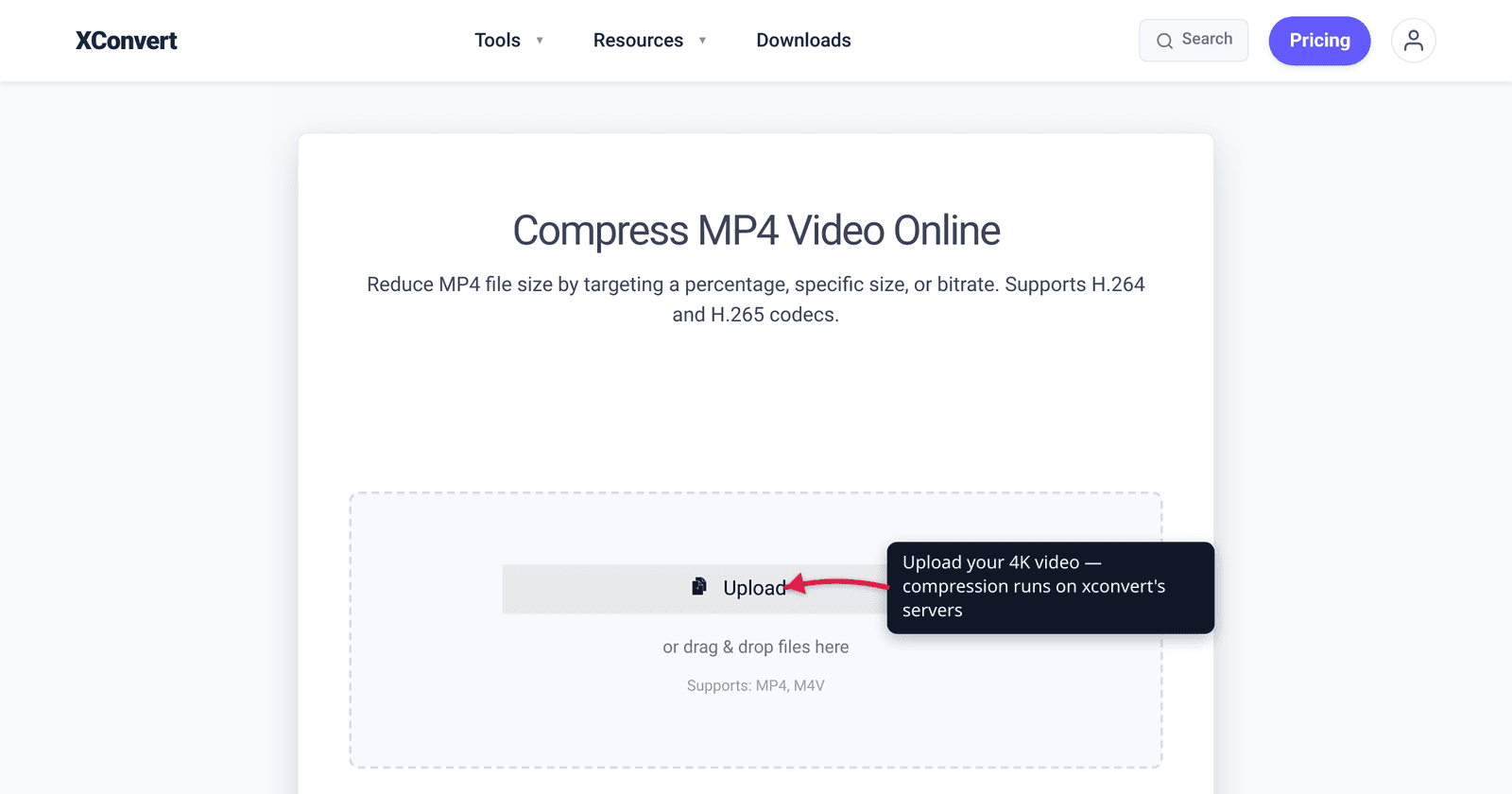
Your phone shot a two-minute 4K clip and now it’s pushing 700 MB — too big to text, too big to email, slow to upload. The reason isn’t a bug: 4K (3840×2160) packs four times the pixels of 1080p, so at the high bitrates phones and cameras record at, the files are genuinely enormous. The good news is there are two reliable ways to shrink one, and which you pick depends on a single question: do you still need the 4K detail? This guide gives you both paths — re-encode 4K efficiently, or downscale to 1080p — with the real numbers behind each, verified against the resolution standard and YouTube’s own published bitrates.
Quick answer: Two strategies. (1) Keep 4K, re-encode efficiently — switch to H.265 (HEVC) or AV1 with a sensible quality (CRF) setting to roughly halve the size at the same visual quality; best when you still want the 4K detail. (2) Downscale to 1080p — drops the pixel count by 75% for a much bigger reduction, and is the right call when the video will be watched on a phone, embedded on the web, or sent to someone who doesn’t need 4K. You can also combine both. There’s a real quality/size tradeoff either way — this guide is honest about it.
Jump to a section
- Why 4K files are so big
- Strategy 1: keep 4K, encode it efficiently
- Strategy 2: downscale to 1080p
- Which strategy should you pick?
- Compress a 4K video on xconvert
- FAQ
Why 4K files are so big
“4K” in the consumer world means UHD: 3840 × 2160 pixels. That’s 8,294,400 pixels per frame — exactly double the width and double the height of 1080p (1920 × 1080 = 2,073,600 pixels), which works out to four times as many pixels. Every one of those extra pixels is more data the encoder has to store, frame after frame, 24–60 times a second.
To make that detail look good, devices record 4K at high bitrates. YouTube’s own recommended upload bitrate for 4K SDR is 35–45 Mbps at 24–30 fps and 53–68 Mbps at 48–60 fps — versus just 8 Mbps for 1080p at 30 fps. That roughly 4-to-1 bitrate gap is exactly the pixel ratio showing up as file size. At ~45 Mbps, a single minute of 4K is on the order of 300+ MB; a few minutes blows past most email and chat limits.
Phones make it worse and better at once. Modern iPhones default to “High Efficiency” recording, which uses HEVC (H.265) and stores 4K at roughly half the size of the older “Most Compatible” (H.264) format. So if your clip already came off a recent phone, it may already be HEVC — which changes which strategy below will actually help.
Strategy 1: keep 4K, encode it efficiently
If you still want the 4K detail — a landscape shot, screen-recorded UI text, anything you’ll watch on a 4K screen — don’t throw the resolution away. Re-encode to a more efficient codec at a sensible quality target.
The lever here is the codec:
- H.265 (HEVC) targets roughly 50% lower bitrate than H.264 at the same visual quality — the design goal of the standard, and the figure the standards community quotes. In practice the saving is content-dependent (commonly 25–50%), and 4K, high-detail footage is the favourable case where it lands near 50%. That’s precisely why phone makers switched 4K recording to HEVC.
- AV1 is more efficient again — smaller than H.265 at equal quality, and royalty-free — at the cost of much slower encoding and narrower hardware-decoder support today.
The catch: if your source is already HEVC (likely, off a recent iPhone), switching codec won’t buy you much — you’d just be re-encoding HEVC to HEVC. In that case, shrink it by lowering the quality slightly (a higher CRF value) or setting a target bitrate below what the camera used. Cameras often over-allocate bitrate; trimming it modestly is usually invisible.
Control the size with constant quality (CRF) rather than a fixed bitrate when you can — CRF lets the encoder spend bits where the footage needs them and save them where it doesn’t, which is the best quality-per-byte for variable content. Lower CRF = higher quality + bigger file; higher CRF = smaller + softer. For a deeper walkthrough of the quality-preserving approach, see reduce MP4 file size without losing quality, and for the codec tradeoff itself, H.264 vs H.265.
Honest tradeoff: keeping 4K limits how small you can go. You’re shrinking the encoding overhead, not the pixel count — so expect a meaningful reduction (often ~40–50% from an H.264 4K source), not a dramatic one. If you need the file to be tiny, that’s Strategy 2.
Strategy 2: downscale to 1080p
When the 4K detail won’t actually be seen — the video is destined for a phone screen, a web embed, a messaging app, or anyone watching on a 1080p (or smaller) display — downscaling to 1080p is the single biggest win available.
The math is blunt: going from 3840 × 2160 down to 1920 × 1080 cuts the pixel count by 75% (from ~8.3 million to ~2.1 million pixels per frame). Because the encoder now has a quarter as many pixels to describe, the file shrinks dramatically — far more than re-encoding 4K ever could. Pair the downscale with H.265 and the reduction compounds.
And here’s the part people resist but shouldn’t: on a phone or in a web player, downscaled 1080p often looks indistinguishable from the 4K original, because the display can’t show the extra detail anyway. As the practitioner consensus goes, a 1080p video with a healthy bitrate often looks better than a 4K video that’s been starved of data.
Honest tradeoff: downscaling is destructive — once you’ve thrown away those pixels, you can’t get the 4K back from the smaller file. Keep your original 4K if there’s any chance you’ll want it for a big screen or future editing. Downscale a copy for sharing. For a focused walkthrough of just the resolution step (including 720p and 480p), see lower a video’s resolution.
Which strategy should you pick?
| Your situation | Best strategy |
|---|---|
| You’ll watch it on a 4K TV / monitor, or edit it later | Keep 4K, re-encode to H.265/AV1 (Strategy 1) |
| Going to a phone, social app, email, or web embed | Downscale to 1080p (Strategy 2) — biggest win |
| Source is already HEVC and still too big | Keep 4K but lower the quality/bitrate, or downscale |
| It has to be as small as possible | Downscale 1080p + H.265 (both, combined) |
| Screen recording with fine text you must keep legible | Keep 4K, raise quality; downscale only to 1440p if needed |
Rule of thumb: downscale for sharing, keep 4K for screens and archives. If you’re unsure who’ll watch it or on what, 1080p H.265 is the safe, small, broadly-compatible default — it plays everywhere and is a fraction of the size.
Compress a 4K video on xconvert
The xconvert MP4 compressor handles both strategies in one place — efficient re-encoding and downscaling.
- Open xconvert.com/compress-mp4 and click Upload to add your 4K video (from your computer, Google Drive, or Dropbox).
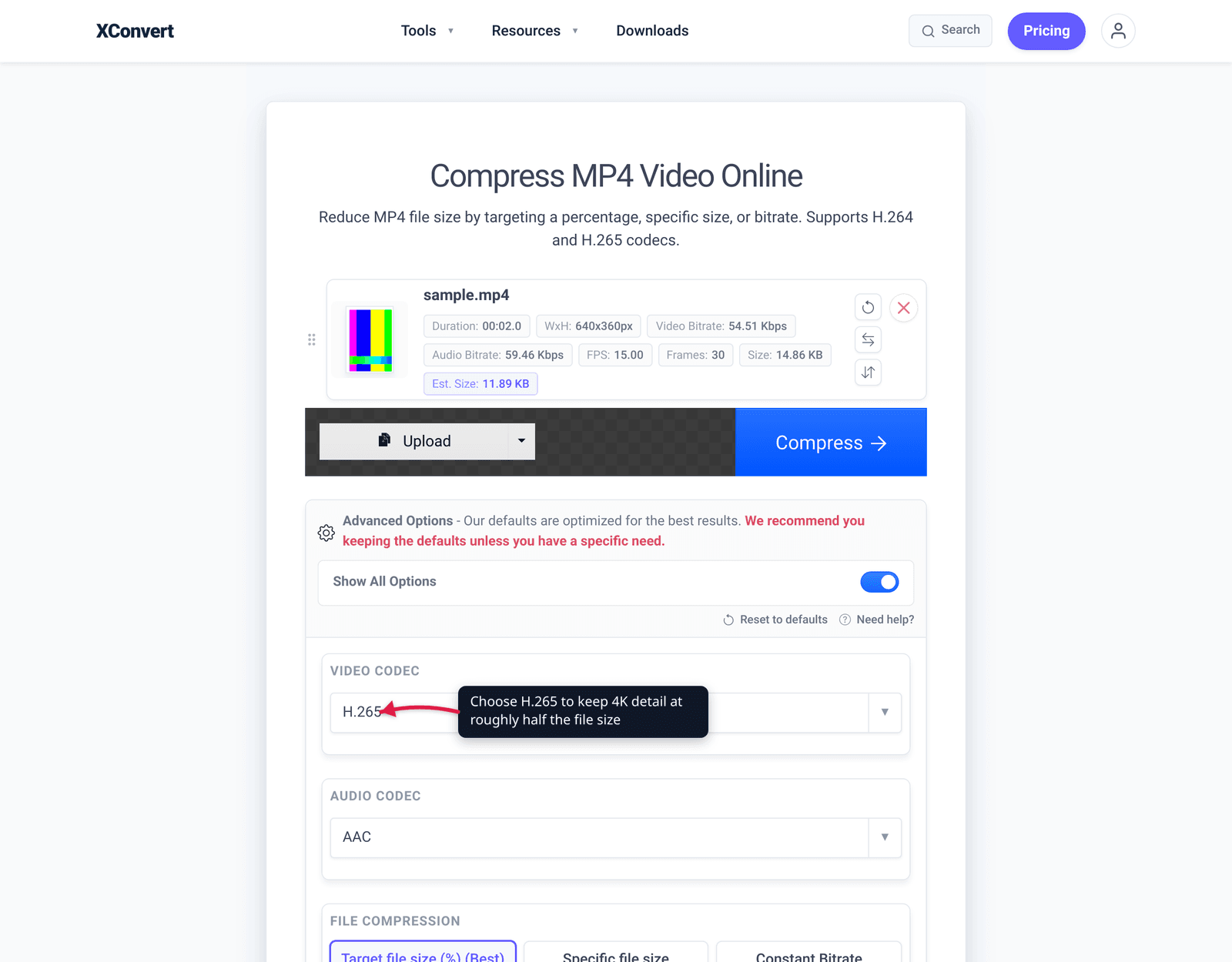
- Open Advanced Options (the gear icon).
- To shrink size, pick a compression mode: Target file size (%) (marked Best) for a quick percentage cut, Specific file size to hit an exact MB target, or Constant Quality (CRF) to let the encoder optimize quality-per-byte. Use the File size (%) slider to set how aggressive to be.
- To downscale to 1080p, use the resolution / Auto Scale control to drop the output below 4K — the single biggest reduction when you don’t need the detail.
- Click Compress, then download. 4K is a lot of data, so allow extra time for the encode — especially with H.265 or AV1.
Your file is uploaded over an encrypted connection, processed on our servers, and deleted automatically a few hours later. Nothing stays around.
For related workflows: reduce MP4 file size without losing quality (the quality-first method), lower a video’s resolution (just the downscale step), and H.264 vs H.265 (which codec to encode with).
FAQ
How do I compress a 4K video without losing quality?
Keep the 4K resolution and re-encode to a more efficient codec — H.265 (HEVC) targets about 50% smaller files than H.264 at the same visual quality, and 4K is the favourable case where it lands near that figure. Use a constant-quality (CRF) setting rather than a hard bitrate cap so the encoder spends data where the footage needs it. You won’t shrink it as far as downscaling would, but you keep every pixel.
Why is my 4K video so big?
Because 4K has four times the pixels of 1080p (3840×2160 = ~8.3 million pixels per frame vs ~2.1 million), and devices record it at high bitrates to keep that detail sharp — YouTube recommends 35–45 Mbps for 4K SDR versus 8 Mbps for 1080p. More pixels at a higher bitrate, many times per second, equals a very large file.
Should I compress 4K or just convert it to 1080p?
If you’ll watch it on a phone, share it online, or send it to someone, downscale to 1080p — it cuts the pixel count by 75% for a dramatic size drop and usually looks identical on those screens. Keep 4K (and re-encode efficiently instead) only if you’ll view it on a 4K display or edit it later. Downscaling is destructive, so keep your original.
How much smaller will my 4K video get?
It depends on the strategy. Re-encoding 4K to H.265 typically gives roughly a 40–50% reduction from an H.264 source (less if it’s already HEVC). Downscaling to 1080p is far bigger — a 75% cut in pixels — and combining both (1080p + H.265) gives the smallest result. Exact numbers vary with the footage and quality setting.
Will compressing 4K to 1080p look bad?
Usually not, on the screens most people use. A phone or a web player can’t display 4K detail anyway, so well-encoded 1080p often looks indistinguishable from the 4K original — and a healthy-bitrate 1080p file frequently looks better than a 4K file that’s been over-compressed. The one place you’d notice is a true 4K TV or monitor, where you should keep 4K.
My iPhone 4K video is already HEVC — how do I make it smaller?
Re-encoding HEVC to HEVC won’t save much, so either lower the quality slightly (a higher CRF, or a target bitrate below what the camera used — cameras often over-allocate) or downscale to 1080p for a real reduction. Modern iPhones already record 4K in HEVC under the “High Efficiency” setting, so the codec win is mostly spent already.
Does converting 4K to AV1 make it even smaller than H.265?
Yes — AV1 is more efficient than H.265, producing smaller files at equal quality, and it’s royalty-free. The tradeoffs in 2026 are much slower encoding and narrower hardware-decoder support, so it’s best when you control the playback environment and size is the priority. For broad compatibility, H.264 or H.265 are safer.
Sources
Last verified 2026-06-25.
- 4K resolution — Wikipedia — UHD is 3840×2160 (8,294,400 pixels), “exactly double the horizontal and vertical resolution of 1080p … for a total of 4 times as many pixels.”
- YouTube — recommended upload encoding settings — official SDR bitrates: 4K 35–45 Mbps (24–30fps) / 53–68 Mbps (48–60fps); 1080p 8 Mbps (30fps) / 12 Mbps (60fps); H.264 in MP4.
- Fraunhofer HHI — H.265 / HEVC — HEVC achieves about 50% bit-rate reduction at the same subjective quality vs H.264 (the favourable 4K case).
- Apple — change video recording settings on iPhone — “High Efficiency” (HEVC) records 4K at roughly half the size of “Most Compatible” (H.264).
- caniuse — HEVC / H.265 video format — current browser-support state for HEVC (Safari full; Chrome/Edge partial + hardware-gated).