 By James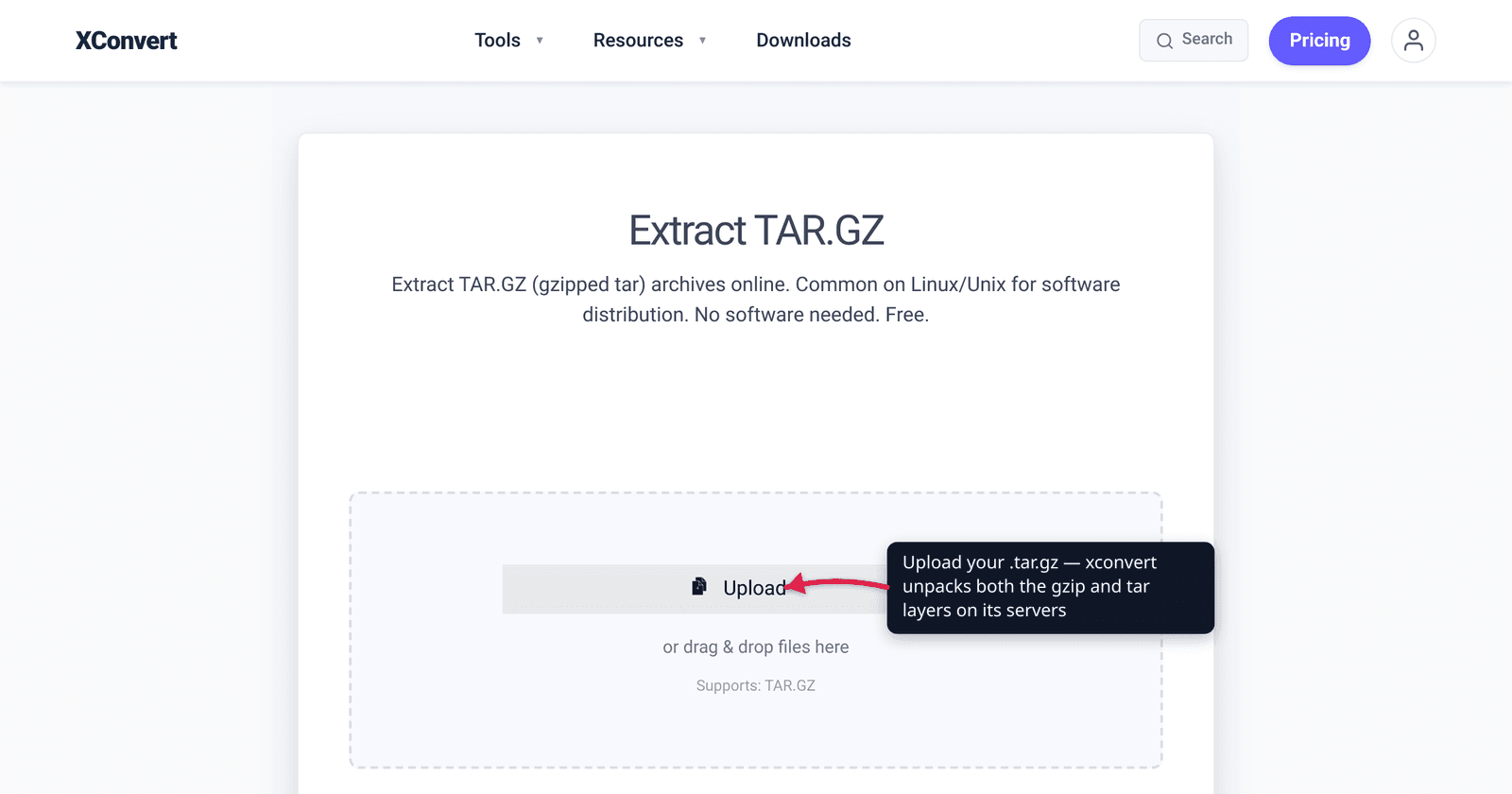
You downloaded a Linux tool, a source-code release, or a server backup and ended up with a file ending in .tar.gz (or its shorthand, .tgz). Double-clicking it on an older Windows machine did nothing useful, and the file name has two extensions, which is its own small mystery. This guide explains what a .tar.gz actually is — two compression layers stacked, not one — and gives you the exact way to open it on Linux, macOS, Windows 11, older Windows, and online. We verified the tar/gzip mechanics against the GNU manuals and the Windows native-support timeline against Microsoft’s own announcement.
Quick answer: A
.tar.gzis two layers:tarbundles many files into one archive (no compression), thengzipcompresses that bundle..tgzis just a shorter name for the same thing. To extract: on Linux/macOS runtar -xzf file.tar.gz(or double-click on a Mac); on Windows 11 (23H2+) right-click → Extract All works natively; on older Windows use 7-Zip (it takes two passes); or drop the file into an online extractor and download the contents — no install needed.
Jump to a section
- What .tar.gz and .tgz actually are
- Extract on Linux and macOS
- Extract on Windows 11 (native)
- Extract on older Windows with 7-Zip
- Extract a TAR.GZ online on xconvert
- FAQ
What .tar.gz and .tgz actually are
The double extension is the whole story. A .tar.gz file is the result of running two separate tools in sequence:
tar(“tape archive”) takes many files and folders and concatenates them into a single file — the.tararchive — preserving directory structure, permissions, ownership, and timestamps. Critically, tar does not compress anything. Per the GNU tar manual, tar’s job is to bundle; compression is handled by an external program.gzipthen compresses that single.tarfile into a.tar.gz. gzip is a stream compressor — it shrinks one file or stream at a time, which is exactly why it pairs with tar: tar first turns your whole folder into one stream, and gzip squeezes that stream down.
So the pipeline is bundle, then compress: folder → tar → .tar → gzip → .tar.gz. Extracting reverses it — gunzip the outer layer, then untar the inner archive. That two-step nature is why a single decompression tool that only knows ZIP can’t always open a .tar.gz, and why the classic tar -xzf command exists to do both passes at once.
.tgz is identical to .tar.gz. It’s a contracted spelling for filesystems or tools that historically disliked double extensions. Same format, same tools, same commands — if a guide works for one, it works for the other.
This format is everywhere in the open-source world: Linux source tarballs, npm package tarballs, Python sdists, Docker image layers, and most Unix backups all use .tar.gz because tar preserves Unix file metadata that ZIP handles less cleanly, and gzip is fast and universally available.
Extract on Linux and macOS
On any Unix-like system, one command does both layers:
tar -xzf file.tar.gzReading the flags (GNU tar manual):
-x— extract members from the archive.-z— pipe the archive through gzip (this is the layer that handles the.gzpart).-f— the next argument is the file name to read.
Add -v (tar -xzvf file.tar.gz) if you want it to print each file as it extracts. To extract into a specific folder, append -C /path/to/dir. To peek inside without extracting, swap -x for -t (list): tar -tzf file.tar.gz.
On a Mac you usually don’t need the Terminal at all. Just double-click the .tar.gz (or .tgz) in Finder — macOS’s built-in Archive Utility opens automatically and extracts the contents into the same folder, handling both the gzip and tar layers for you. The Terminal command above works identically on macOS if you prefer it (Apple documents tar in its Terminal guide).
Extract on Windows 11 (native)
For years, Windows could open ZIP files in File Explorer but not .tar.gz. That changed in Windows 11: Microsoft added native support for many archive formats — including .tar, .tar.gz, and .tgz — using the open-source libarchive library. The capability was announced at Build 2023 (May 2023) and shipped to Windows 11 through a late-October 2023 update; the supported list spans .rar, .7z, .tar, .tar.gz, .tar.bz2, .tar.zst, .tar.xz, .tgz, .tbz2, .tzst, and .txz.
To extract on Windows 11:
- Right-click the
.tar.gz(or.tgz) file in File Explorer. - Choose Extract All… and follow the prompts. You can also double-click the file to browse inside it like a folder and drag items out.
Windows 11 24H2 went further and added the ability to create .tar.gz archives (choosing Gzip as the compression method) directly from File Explorer, not just extract them.
One important limitation: per Microsoft’s support page, Windows does not support operations on encrypted archives natively — for those you still need 7-Zip or WinRAR. Plain .tar.gz files (which gzip doesn’t encrypt) extract fine.
There’s also a built-in command line on every modern Windows: tar -xzf file.tar.gz works in Windows 10 (1803+) and Windows 11, because Microsoft bundles bsdtar.
Extract on older Windows with 7-Zip
On Windows 10 and earlier (without the native libarchive support), File Explorer can’t open .tar.gz by right-click. The standard free tool is 7-Zip, and it reveals the two-layer structure clearly:
- Install 7-Zip, then right-click the
.tar.gz→ 7-Zip → Open archive. You’ll see a single.tarfile inside — that’s the gzip layer peeled off. - Open that
.tar, and now you see your actual files and folders — that’s the tar layer.
In other words, 7-Zip extracts a .tar.gz in two passes: first .tar.gz → .tar, then .tar → your files. (You can also use Extract Here twice to land at the contents.) WinRAR behaves the same way. This two-step behavior trips up a lot of first-timers who expect a single extract — it’s a direct consequence of the format being two stacked layers.
If you’d rather not install anything, the online route below works on any OS and any browser.
Extract a TAR.GZ online on xconvert
When you’re on a locked-down machine, a Chromebook, or just don’t want to install 7-Zip, the xconvert TAR.GZ extractor handles both layers in one step and lets you download the contents:
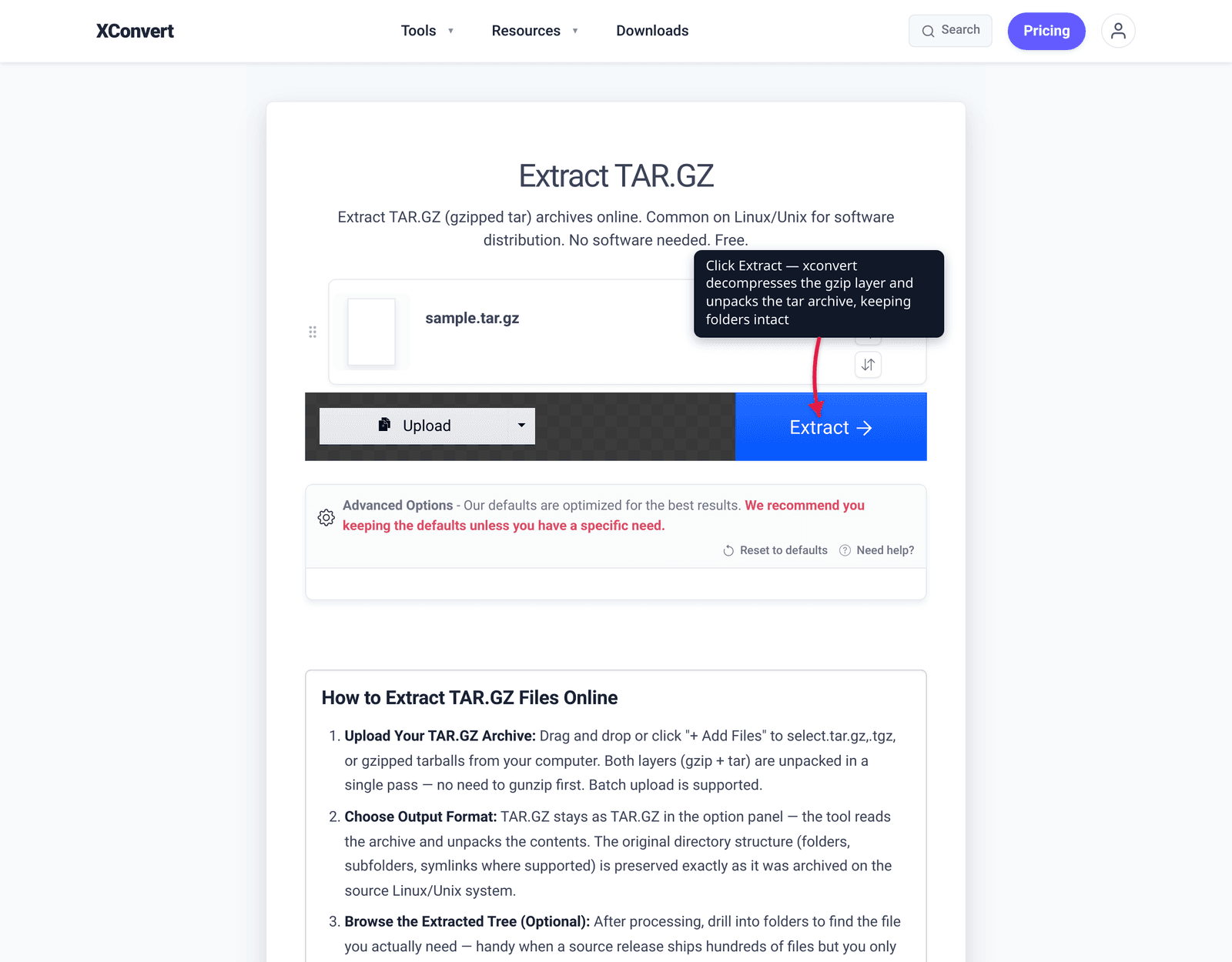
- Open xconvert.com/extract-tar.gz and click + Add Files to upload your archive — From my Computer, From Google Drive, or From Dropbox. It accepts both
.tar.gzand.tgz. - (Optional) Open Advanced Options (the gear icon) if you need to adjust anything — the defaults are tuned to preserve the original folder structure, so most people skip this.
- Click Extract. The tool decompresses the gzip layer and unpacks the tar archive, keeping folders and subfolders intact.
- Browse the resulting file tree and download the whole set or pick individual files and subfolders.
Your archive uploads over an encrypted connection, is processed on our servers, and is automatically deleted a few hours later — nothing is retained or shared. (For especially sensitive backups, local extraction with tar -xzf keeps the data on your own machine.)
Need to go the other way, or handle a plain .zip instead? See how to unzip files online for the ZIP workflow, or open and extract a RAR file for .rar.
FAQ
What is the difference between .tar.gz and .tgz?
There is none — they are the same format. .tgz is simply a shortened spelling of .tar.gz, created for systems or tools that don’t like double extensions. Both are a tar archive compressed with gzip, and every tool and command that opens one opens the other identically.
Why does a .tar.gz have two extensions?
Because it’s two operations stacked: tar bundles your files into one .tar archive (without compressing), then gzip compresses that archive into .tar.gz. The two extensions literally record the two steps. Extracting reverses them — un-gzip, then un-tar — which is why tar -xzf exists to do both at once.
How do I open a .tar.gz on Windows without installing anything?
On Windows 11 (23H2 and later), right-click the file in File Explorer and choose Extract All — native support was added via the libarchive library. On any modern Windows you can also run tar -xzf file.tar.gz in Command Prompt or PowerShell, since Windows bundles a tar command. On older Windows without these, use the online extractor or install 7-Zip.
Why does 7-Zip extract my .tar.gz in two steps?
Because the file is two layers. 7-Zip first removes the gzip compression, leaving a plain .tar file, and then you extract that to get your actual files and folders. It’s not a bug — it mirrors how the archive was built (tar first, gzip second). Tools like tar -xzf and the xconvert extractor just hide the two passes behind one action.
Does tar compress files by itself?
No. Per the GNU tar manual, tar only bundles multiple files into a single archive while preserving permissions and structure — it does no compression on its own. The shrinking comes from a separate compressor, almost always gzip (giving .tar.gz), sometimes bzip2 (.tar.bz2) or xz (.tar.xz).
Can I extract a .tar.gz on a Mac by double-clicking?
Yes. Double-clicking a .tar.gz or .tgz in Finder triggers macOS’s built-in Archive Utility, which decompresses the gzip layer and unpacks the tar archive into the same folder automatically — no Terminal or third-party app required. The tar -xzf command works too if you prefer the command line.
Is .tar.gz the same as .zip?
No. A .zip compresses each file individually and stores them in one container, so a ZIP tool can list and extract files directly. A .tar.gz bundles everything into one stream first (tar) and then compresses the whole stream (gzip), and it preserves Unix file metadata more faithfully — which is why it’s the default in Linux and open-source distribution. To work with .zip instead, see how to unzip files online.
Sources
Last verified 2026-06-25.
- GNU tar manual — tar bundles files into one archive and relies on an external compressor; meaning of the
-x,-z,-foptions. - GNU gzip manual — gzip is a single-stream compressor, which is why it’s paired with tar.
- Apple — Compress and uncompress file archives in Terminal on Mac —
tarusage on macOS; Archive Utility handles double-click extraction. - Microsoft — Zip and unzip files — Windows 11 24H2 native ZIP/RAR/7z/TAR support; Extract All; encrypted archives not supported natively.
- BleepingComputer — Windows 11 adds support for 11 file archives, including 7-Zip and RAR — libarchive integration, full supported-format list (
.tar.gz,.tgz, etc.), Build 2023 announcement and late-2023 rollout. - 7-Zip — free archiver for older Windows that extracts
.tar.gzin two passes.