 By James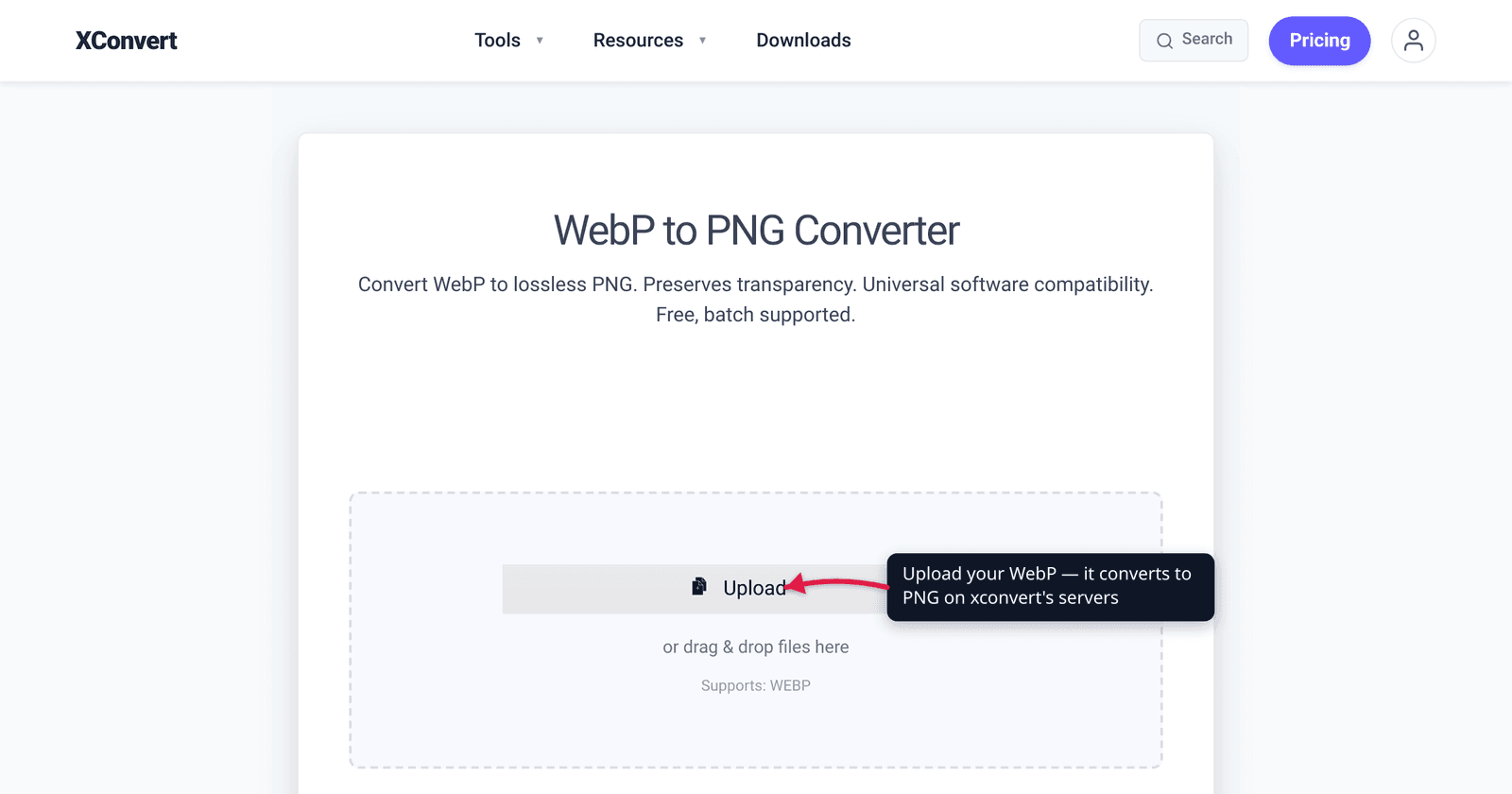
You saved an image from a website, double-clicked it — and Windows Photos shrugged, your design app refused it, or the upload box rejected it. The culprit is almost always the same: a .webp file. WebP is Google’s web image format, and while it powers a huge share of images online, plenty of desktop apps, older software, and upload forms still won’t touch it. The fix is to convert it to a universal format — PNG if you need transparency or pixel-perfect sharpness, JPG if you want a small photo. This guide explains which to pick, what conversion can and can’t recover, and how to do it. We verified the format facts, browser-support numbers, and Windows behavior against Google’s WebP docs, caniuse, and Microsoft’s own support threads.
Quick answer: Convert WebP to PNG when the image has transparency (a logo, an icon, a screenshot with a cutout) or you need a lossless, sharp copy — PNG is bigger but loses nothing. Convert WebP to JPG when it’s a photo and you want the smallest file, and you don’t need transparency. One thing to know up front: if your WebP was saved in lossy mode (most photos from the web are), converting to PNG won’t restore lost detail — it just stops any further loss. The conversion fixes the compatibility problem, not the original compression.
Jump to a section
- Why your WebP won’t open
- WebP support: where it works and where it doesn’t
- PNG or JPG? Pick the right target
- What conversion can and can’t recover
- Convert WebP to PNG or JPG on xconvert
- FAQ
Why your WebP won’t open
WebP is a modern image format developed by Google, designed to make web images smaller without an obvious quality drop. Per Google’s own figures, WebP lossless images are about 26% smaller than PNG, and WebP lossy images are 25–34% smaller than comparable JPEG at equivalent quality. That efficiency is exactly why so many sites serve their images as WebP — and why you keep ending up with .webp files when you right-click and “Save image as.”
The problem is downstream of the browser. WebP plays beautifully in browsers but is patchier in the desktop and software tools you actually want to use the image in:
- Windows Photos doesn’t open
.webpby file association by default — even though it can technically render the format internally. Rename the file to.jpgand Photos opens it, which proves the issue is recognition, not capability. (Microsoft Paint, by contrast, opens WebP natively.) - Older design and office software — many versions of Photoshop, older Office, and countless niche apps — predate WebP and simply reject it.
- Upload forms and platforms that whitelist
.jpg/.pngwill refuse a.webpoutright.
So the reason to convert isn’t that WebP is “bad” — it’s that the rest of your toolchain may not accept it. Converting to a universal PNG or JPG sidesteps all of that.
WebP support: where it works and where it doesn’t
WebP support in browsers is now nearly universal — caniuse puts global support at about 96% as of 2026. Here’s the state of play:
| Environment | WebP support |
|---|---|
| Chrome | Full since v32 (2013) |
| Firefox | Full since v65 |
| Edge | Full since v18 |
| Safari (macOS / iOS) | Full since Safari 16; partial from Safari 14 |
| Windows Photos app | Not by default — no file-association support out of the box |
| Microsoft Paint | Native (opens and saves WebP) |
| Older desktop / design apps | Often unsupported (predate the format) |
| Strict upload forms (jpg/png only) | Rejected |
The takeaway: browsers are fine; everything else is a coin toss. If your image needs to live anywhere outside a browser — an upload box, an email attachment someone opens in Outlook, an editor, a presentation — converting to PNG or JPG removes the gamble entirely.
If you’re going the other direction — making images smaller for your own website — see the reverse workflow, Convert PNG to WebP, and the format showdown PNG vs WebP vs JPG.
PNG or JPG? Pick the right target
This is the only real decision, and it comes down to two questions: does the image have transparency, and is it a photo or graphics?
Choose PNG when:
- The image has transparency — a logo, icon, sticker, or cutout with a see-through background. JPG cannot store transparency at all; it will flatten transparent areas to a solid color (usually white or black).
- You need a lossless, pixel-perfect copy — screenshots, line art, text, sharp edges, anything you’ll edit further.
- The source is a graphic with flat colors, where PNG compresses cleanly and stays crisp.
Choose JPG when:
- The image is a photograph with smooth gradients and lots of color.
- You want the smallest file and don’t need transparency.
- It’s destined for an upload form, email, or page where size matters more than perfect fidelity.
A simple rule: PNG preserves, JPG shrinks. PNG is lossless — it never throws away a pixel, so it’s the safe choice when in doubt, at the cost of a larger file. JPG is lossy — it trades a little detail for a much smaller photo, and it can’t do transparency. If you’re not sure whether your WebP has transparency, PNG is the conservative pick because it can’t lose anything PNG-to-PNG.
What conversion can and can’t recover
This is the part most guides skip, and it matters. WebP comes in two modes — lossless and lossy — and which one your file used determines what conversion can do for you.
- If the WebP was saved lossless (common for logos and graphics), converting to PNG is a clean, no-loss move. Both are lossless; nothing changes but the container.
- If the WebP was saved lossy (the norm for photos pulled off the web), the detail that lossy compression already discarded is gone. Converting that file to PNG produces a perfectly faithful copy of the already-compressed image — it does not sharpen it, un-blur it, or “upgrade” it back to original quality. What PNG does give you is no further loss: a PNG you re-save 10 times looks identical, whereas re-saving a JPG repeatedly degrades it a little each time.
So the honest framing: converting a lossy WebP to PNG stops future quality loss, it doesn’t undo past loss. If your goal is just compatibility, that’s exactly what you want. If your goal is “make this blurry image sharp again,” no format conversion can do that — the information isn’t in the file anymore.
One more practical note: converting a lossy WebP to PNG usually makes the file bigger (PNG is lossless and stores more), while converting to JPG keeps it small. Pick based on need, not habit.
Convert WebP to PNG or JPG on xconvert
Two dedicated tools, same flow — WebP to PNG preserves transparency and stays lossless; WebP to JPG gives you a smaller photo. Here’s the PNG path:
- Open xconvert.com/convert-webp-to-png and click Upload — add files From my Computer, From Google Drive, or From Dropbox. You can add several WebP files at once.
- (Optional) Open Advanced Options to fine-tune. The defaults are tuned for best results, so most people can skip this. For PNG you’ll see a Quality Preset (defaulting to Very High (Recommended)), plus compression level, compression speed, color handling (keep ORIGINAL to preserve transparency and color), and resolution controls (Keep original).
- If you’d rather have a smaller photo, use the WebP to JPG tool instead — there you can pick a Quality Preset (Very High / High / Medium / Low) or even target a Specific file size, and choose the JPEG or JPG extension.
- Click Convert.
- Download each result individually, or grab them all as a ZIP — no sign-up, no watermark.
Your file uploads over an encrypted connection, is processed on our servers, and is automatically deleted a few hours later. Nothing stays around.
FAQ
Should I convert WebP to PNG or JPG?
Use PNG if the image has transparency or you need a sharp, lossless copy (logos, icons, screenshots, graphics). Use JPG if it’s a photo and you want the smallest file and don’t need transparency. JPG cannot store transparency at all, so anything with a see-through background must go to PNG.
Why won’t my WebP file open on Windows?
The Windows Photos app doesn’t open .webp files by file association by default, even though it can render the format internally — renaming the file to .jpg makes Photos open it, which shows it’s a recognition issue, not a capability one. Microsoft Paint opens WebP natively, so you can open it in Paint and “Save as” PNG, or convert it online for a cleaner result.
Does converting WebP to PNG improve quality?
No. If the WebP was saved in lossy mode (most web photos are), the detail lost during that compression is already gone — converting to PNG makes a faithful copy of the already-compressed image but can’t restore the original sharpness. What it does do is prevent any further quality loss, since PNG is lossless.
Will WebP to PNG keep transparency?
Yes. PNG fully supports transparency (an alpha channel), so a WebP logo or cutout converts to PNG with its transparent background intact. Converting that same image to JPG would destroy the transparency — JPG has no alpha channel and fills transparent areas with a solid color.
Why is my WebP-to-PNG file so much bigger?
Because PNG is lossless and WebP is highly compressed. Google’s own numbers put WebP lossless at about 26% smaller than PNG and WebP lossy at 25–34% smaller than JPEG, so going from WebP to PNG naturally produces a larger file. If size matters more than transparency, convert to JPG instead.
Can I convert WebP to JPG without losing quality?
You’ll lose a little — JPG is lossy, so every save discards some detail. At a high quality preset the loss is usually invisible, but if you plan to edit the image repeatedly, PNG is the safer choice because it’s lossless and survives re-saving unchanged.
Sources
Last verified 2026-06-25.
- Google — WebP, an image format for the Web — WebP is Google’s format; supports lossy and lossless plus transparency; lossless ~26% smaller than PNG, lossy 25–34% smaller than JPEG.
- caniuse — WebP image format — ~96% global browser support; Chrome 32+, Firefox 65+, Edge 18+, Safari 16 full (14 partial).
- Microsoft Q&A — Windows Photos app support for .webp files — Photos doesn’t open
.webpby default association; Paint opens WebP natively.