 By Stephanie Taylor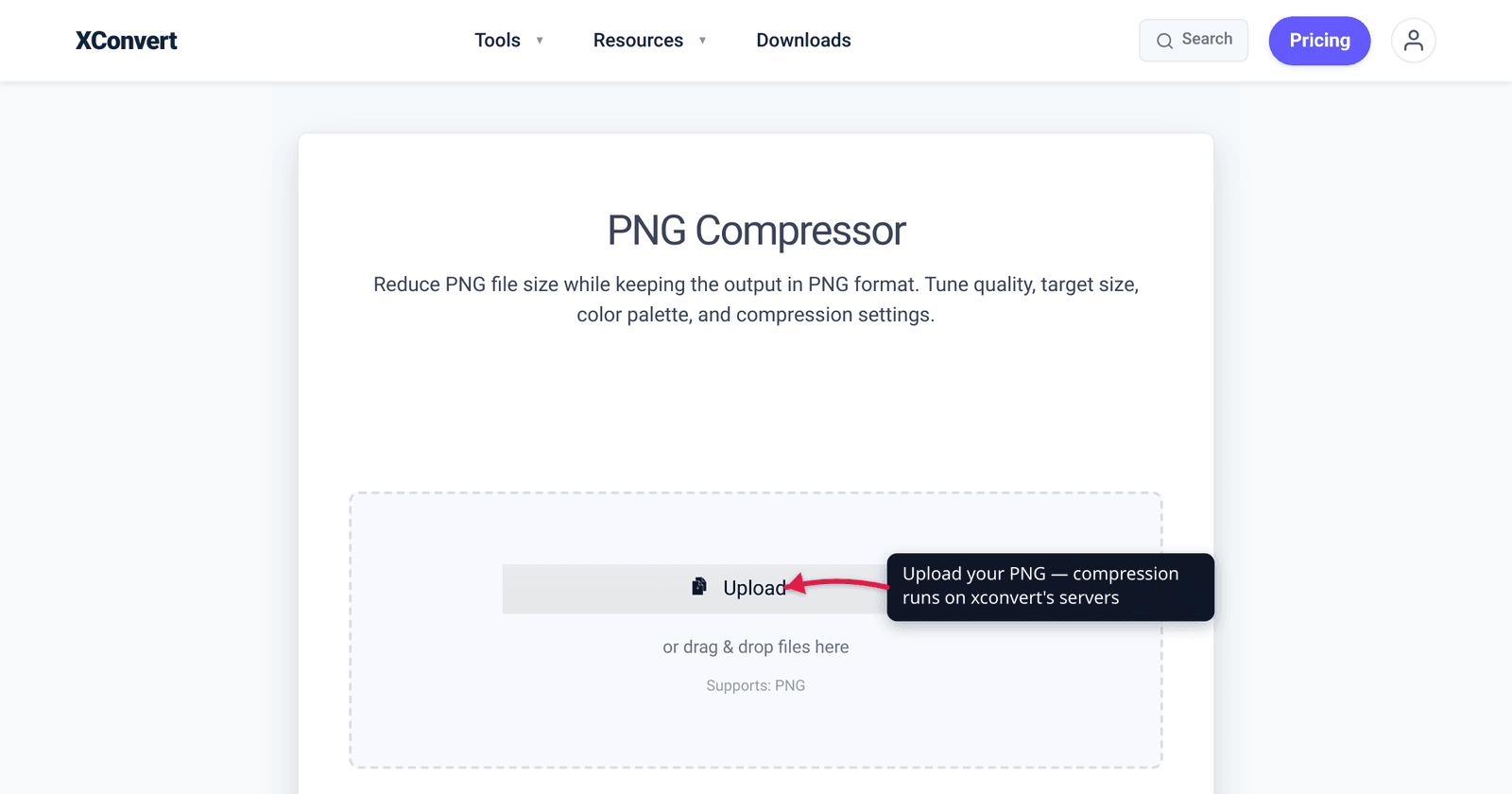
You exported a logo or a screenshot as PNG, and it’s 4 MB — too heavy for a fast-loading web page or a tidy email. The instinct is to “compress” it like a JPEG, but PNG doesn’t work that way: the format is lossless by design, so there’s no quality dial that throws away detail the way JPEG does. The real size wins come from two very different mechanisms, and knowing which one you’re using is the difference between a 5% trim and a 70% cut. This guide explains both honestly — verified against the PNG specification (W3C) and MDN — and shows exactly how to shrink a PNG on xconvert.
Quick answer: PNG is a lossless format, so true lossless optimization (better DEFLATE/zopfli, stripping metadata) only shaves a little — often single digits to ~20%. The dramatic savings (“70% smaller”) come from color quantization: reducing a 24-bit image to an indexed 256-color palette, which is technically lossy but usually looks identical for logos, icons, and flat-color graphics. For photographs, don’t use PNG at all — convert to JPG or WebP, which are built for photos and far smaller. Use color reduction for graphics; switch formats for photos.
Jump to a section
- Why PNG “compression” is different
- Two ways to shrink a PNG
- How much smaller can you go?
- When you shouldn’t keep it as a PNG
- Compress a PNG on xconvert
- FAQ
Why PNG “compression” is different
A JPEG has a quality slider because JPEG is a lossy format — turn the quality down and it discards image detail to save space. PNG has no equivalent, because the PNG format uses lossless compression: the W3C specification defines PNG as “an extensible file format for the lossless, portable, well-compressed storage of static and animated raster images.” Decode a PNG and you get back exactly the pixels that went in — no generation loss, ever.
Under the hood, every PNG is already compressed. Per the specification, “PNG compression method 0 is deflate compression” — the same DEFLATE/zlib algorithm used in ZIP files, applied after a per-row filtering step. So when a tool offers to “compress” a PNG that’s already DEFLATE-compressed, it’s doing one of two fundamentally different things — and only one of them is still lossless.
Two ways to shrink a PNG
1. Lossless optimization (zero quality change). This re-runs the compression smarter without altering a single pixel:
- Better DEFLATE / zopfli. Tools try multiple filter strategies and compression settings and keep the smallest result — exactly what optimizers like OptiPNG and zopflipng do. The decoded image is bit-for-bit identical; you just packed it tighter.
- Stripping metadata. PNG stores optional ancillary chunks — text comments, timestamps, color-profile data, editor tags — that the W3C spec says decoders may safely ignore. Removing the ones you don’t need (while keeping a needed color profile) is free size with no visual change.
The honest catch: a PNG exported by a modern editor is often already near-optimally compressed, so lossless optimization typically buys single digits up to ~20% — real, but rarely dramatic.
2. Color quantization (technically lossy, usually invisible). This is how “PNG compressors” achieve their headline savings. A full-color PNG stores up to 16.7 million possible colors (24-bit truecolor). Quantization reduces the image to an indexed-color palette — MDN confirms PNG natively supports indexed color, where “each pixel is a D-bit value indicating an index into a color palette.” Drop from millions of colors to a well-chosen 256-color (8-bit) palette and the file shrinks enormously, while staying a valid PNG with full transparency intact.
This is lossy — you’re permanently reducing the color information — but for the images people most often save as PNG (logos, icons, UI screenshots, flat illustrations, diagrams) the result is usually visually identical, because those images never had thousands of distinct colors to begin with. The popular pngquant library, which this approach is modeled on, describes itself plainly as “a command-line utility and a library for lossy compression of PNG images,” and crucially preserves full alpha transparency — the thing you kept PNG for in the first place.
How much smaller can you go?
It depends entirely on which mechanism applies and on the image content:
| Approach | Quality | Typical savings | Best for |
|---|---|---|---|
| Lossless optimization (zopfli, strip metadata) | Identical | ~5–20% | Already-optimized exports; archival originals |
| Color quantization to ≤256 colors | Lossy, usually invisible | up to ~70% | Logos, icons, screenshots, flat graphics |
| Convert to WebP / JPG | Different format | Often the smallest | Photographs (see below) |
pngquant’s own documentation reports reductions “often as much as 70%” — its worked example takes a 75,628-byte PNG down to 19,996 bytes (73% smaller) — and that gain comes almost entirely from quantization, not lossless tricks. So when a converter promises a PNG “70% smaller without losing quality,” read it precisely: it means without visible loss to the human eye, via color reduction — not the strict bit-for-bit sense of lossless.
One caveat worth previewing for: unlike JPEG, color reduction can introduce visible banding in smooth gradients — a sunset or a soft drop-shadow can develop stepped contours when the palette shrinks. If your PNG has gradients, check a preview (and consider dithering, which trades a slightly larger file for smoother transitions) before committing.
When you shouldn’t keep it as a PNG
Here’s the most important honesty check: if your image is a photograph, PNG is the wrong format, and no amount of PNG compression will fix that. PNG’s lossless storage is ideal for sharp-edged graphics and anything needing transparency, but it’s expensively large for photographic content full of subtle color variation. MDN’s guidance is direct — for photographs, “WebP/AVIF provide even better compression and reproduction” than PNG.
So before you compress:
- Logo, icon, screenshot, diagram, anything with transparency → keep it PNG, use color reduction.
- A photo you happened to save as PNG → convert it. JPG is universally compatible and tiny for photos (no transparency); WebP is smaller still and keeps transparency. Our PNG vs WebP vs JPG breakdown covers exactly when to pick which.
Converting a photo from PNG to WebP or JPG routinely beats any in-PNG compression, because you’re swapping a format built for line art onto a format built for photos.
Compress a PNG on xconvert
The xconvert PNG compressor keeps the output as a PNG and gives you both mechanisms — lossless settings and color reduction — on one page:
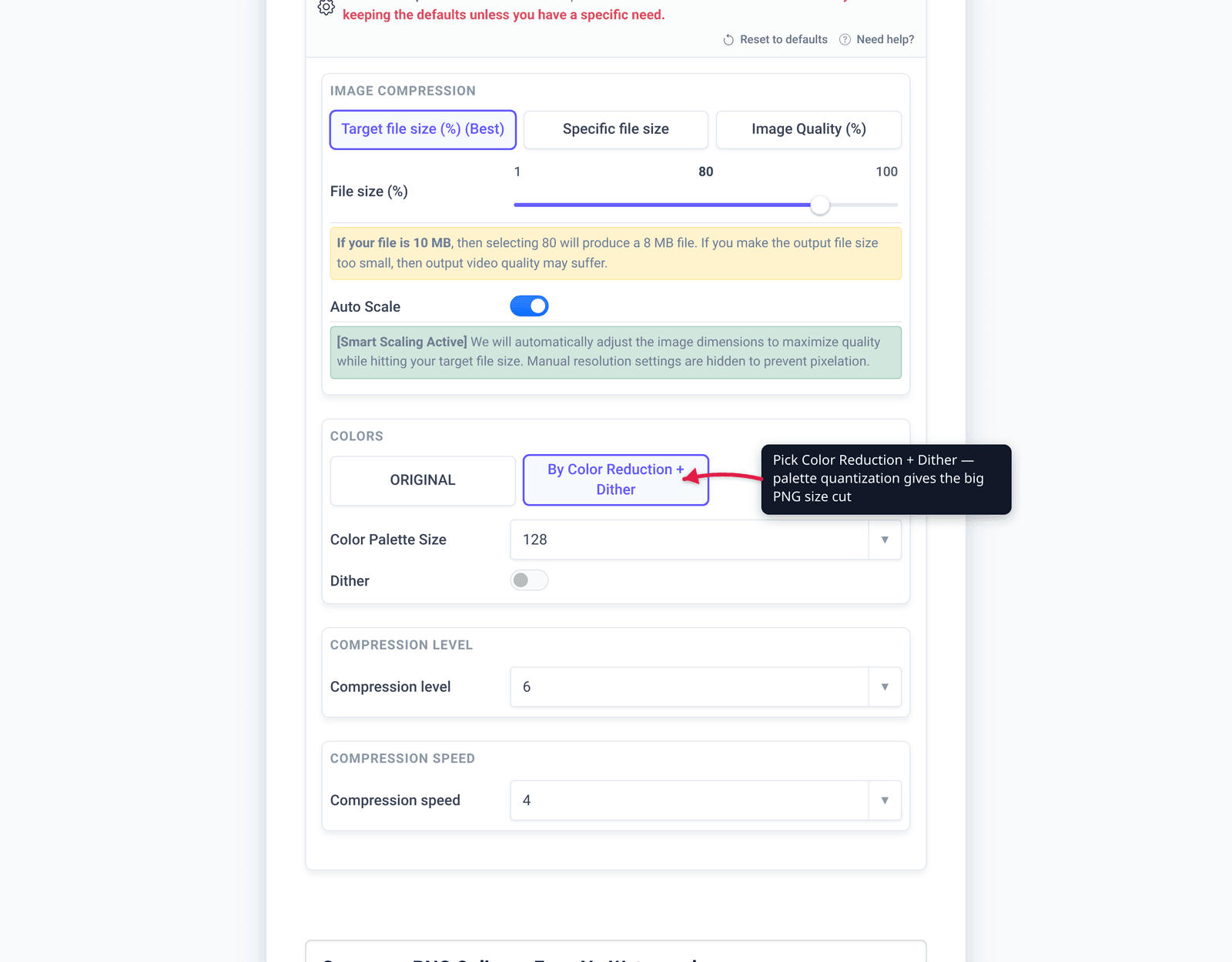
- Open xconvert.com/compress-png and click Upload to add your image (from your Computer, Google Drive, or Dropbox).
- Open Advanced Options to reveal the controls.
- Choose how to control size: Target file size (%) (marked Best), an exact Specific file size, or Image Quality (%).
- Under Colors, leave it on ORIGINAL for a purely lossless pass, or pick By Color Reduction + Dither for the big quantization savings (dither smooths gradients to avoid banding).
- Optionally adjust Compression level and Compression speed, or let Auto Scale downsize oversized dimensions.
- Click Compress PNGs and download the result.
Your file uploads over an encrypted connection, is processed on our servers, and is automatically deleted a few hours later. Nothing stays around.
If the image turns out to be a photo, it’ll usually be far smaller as WebP or JPG instead.
FAQ
Can you compress a PNG without losing quality?
Yes, but only modestly. True lossless optimization — smarter DEFLATE/zopfli plus stripping unneeded metadata — keeps the image bit-for-bit identical and typically saves around 5–20%. The dramatic “70% smaller” results you see advertised come from color quantization, which is technically lossy. For logos and flat graphics that loss is usually invisible, so “without losing quality” is honest in the visual sense — just not the strict bit-for-bit one.
Why is my PNG so large?
PNG is lossless, so it stores full detail with no quality trade-off — great for sharp graphics, but heavy for photographs, which have millions of subtly varying colors PNG can’t compress efficiently. If a PNG is surprisingly large, it’s often a photo saved in the wrong format: converting it to JPG or WebP will shrink it far more than any PNG compressor can.
Does compressing a PNG remove transparency?
No. PNG’s indexed-color and truecolor-with-alpha modes both support transparency, and quality color-reduction tools (modeled on pngquant) preserve full alpha transparency through compression. Your transparent background stays transparent.
What’s the difference between lossless and lossy PNG compression?
Lossless (zopfli, OptiPNG, metadata stripping) repacks the same pixels more tightly — identical image, small savings. Lossy PNG compression reduces the number of colors to an indexed palette — much bigger savings, permanent color reduction, but usually no visible difference on flat-color images. Most “PNG compressors” are doing the lossy color-reduction kind.
Will compressing a PNG cause banding?
It can, in smooth gradients. Reducing the color palette can turn a soft gradient into visible stepped bands. Enabling dithering scatters pixels to smooth the transition (at a slightly larger file size), and previewing the result before you save lets you catch banding on gradient-heavy images.
Should I compress a PNG or convert it to WebP/JPG?
Convert it if it’s a photograph. For photos, WebP and JPG are built for the job and produce much smaller files than a compressed PNG. Keep PNG (and compress it) for logos, icons, screenshots, and anything needing transparency. See PNG vs WebP vs JPG to choose.
Sources
Last verified 2026-06-25.
- W3C — Portable Network Graphics (PNG) Specification — defines PNG as a “lossless” format and states “PNG compression method 0 is deflate compression”; documents indexed-color images and ancillary (strippable) chunks.
- MDN — Image file type and format guide — “PNG … uses lossless compression”; PNG indexed-color palette support; recommends WebP/AVIF over PNG for photographs.
- pngquant — lossy PNG compressor — describes itself as “lossy compression,” reports reductions “often as much as 70%,” preserves full alpha transparency; basis for the color-quantization approach.