 By Stephanie Taylor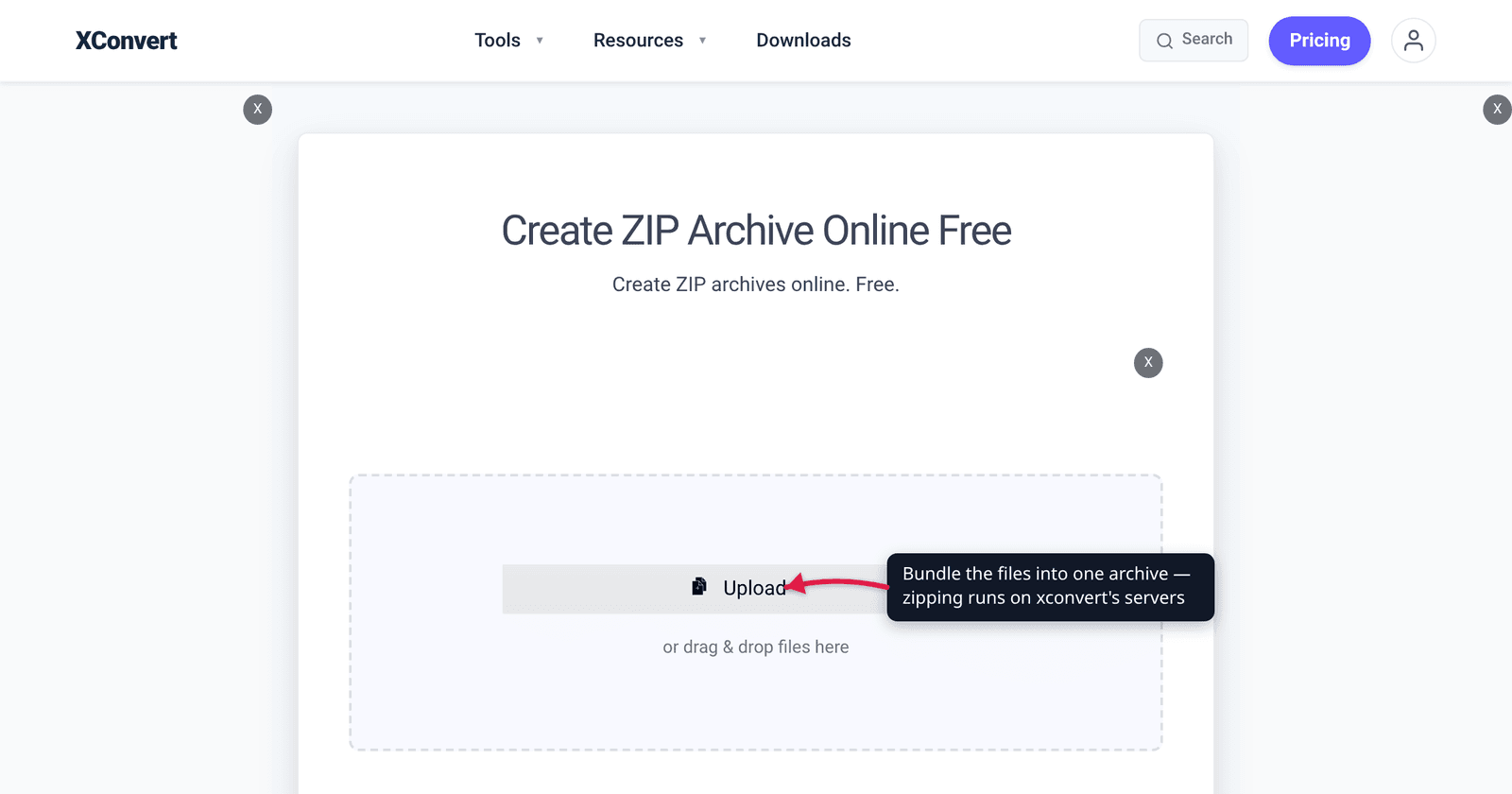
You attach a file, hit send, and Gmail answers with: “This message was blocked because its content presents a potential security issue.” Nothing was too big. Nothing was infected. You were emailing a JavaScript file to a colleague, or an installer to a client, or a disk image to yourself. Gmail publishes the exact list of extensions this happens to — 54 of them — and the workaround everyone reaches for first is the one Google specifically closed.
Quick answer: Gmail refuses 54 file extensions outright, including
.exe,.js,.mjs,.jar,.apk,.iso,.img,.dmg,.msi,.bat,.ps1,.vbsand.dll. Crucially, Google’s own help page says the block applies to those types “when found within archives (like .zip or .tgz files)” and to “password-protected archives with archived content” — so zipping does not get around it, and neither does putting a password on the zip. (Outlook’s desktop client behaves differently: Microsoft explicitly recommends zipping as a workaround.) The route Google actually recommends is to upload the file to Drive and send a link. ZIP is still the right tool for bundling allowed files into one attachment — just check nothing on the blocked list is hiding in the folder first.
Jump to a section
- The error, and what triggers it
- All 54 blocked extensions
- Why zipping works in Outlook and not in Gmail
- What actually gets the file through
- Bundle allowed files into one ZIP on xconvert
- FAQ
The error, and what triggers it
The message is always the same: “This message was blocked because its content presents a potential security issue.” Google’s help page lists three things that produce it on a message with an attachment:
- Certain types of files — “including their compressed form (like .gz or .bz2 files) or when found within archives (like .zip or .tgz files)”
- Documents with malicious macros — this one is content-based, not extension-based, so a
.docmor.xlsmis not automatically refused; a macro Google’s scanners dislike is - Password-protected archives with archived content — an encrypted archive that Gmail can’t see inside is treated as a risk in its own right
Note the first bullet carefully. It isn’t “we block these filenames.” It is “we block these types of files, including compressed and archived.” That single clause is what makes this different from every other attachment-blocking system, and it’s the sentence that turns “just zip it” from advice into a waste of ten minutes.
This is entirely separate from Gmail’s size limit — a different rejection with a different message. If your file is legal but too big, email attachment limits by provider covers that side.
All 54 blocked extensions
Google publishes the list in full and notes that it “often updates the types of files not allowed to keep up with harmful software that is constantly changing.” As published, grouped by what they actually are:
| Category | Extensions |
|---|---|
| Windows executables & installers | .exe .com .bat .cmd .msi .msix .msixbundle .msp .mst .appx .appxbundle .scr .pif .ex .ex_ .cpl .msc .sys .vxd .dll .lib .ins .isp .shb .nsh |
| Scripts | .js .mjs .jse .vb .vbe .vbs .ps1 .wsc .wsf .wsh .sct .hta .jnlp |
| Disk images & Windows cabinets | .iso .img .vhd .dmg .cab .diagcab .diagcfg .diagpkg |
| Java & Android packages | .jar .apk |
| Access databases, help files, shortcuts, Excel add-ins | .ade .adp .mde .chm .lnk .xll |
A few of these catch people out far more often than .exe ever does:
.jsand.mjs— the single biggest source of confusion for developers. Emailing a JavaScript source file to a teammate fails, because Gmail cannot tell a source file from a script that runs on double-click in Windows..jar— Minecraft mods, Java tools, and anything a university course hands out..isoand.img— Linux installers, retro-computing images, disc backups..dmg— the ordinary way Mac software ships..apk— an Android build you wanted a tester to install..dll— often not the file you meant to send at all, but sitting inside a project folder you zipped.
Why zipping works in Outlook and not in Gmail
This is where the internet’s standard advice comes from, and why it fails. The two big providers made opposite choices, and both wrote theirs down.
Microsoft’s Outlook blocks a long list of extensions too, and its stated reason is the same: “One of the most common ways of transmitting computer viruses is through file attachments.” But Microsoft’s own help page then offers compression as a supported fix, in plain terms: “Using a compression utility, such as WinZip, creates a compressed archive file that has a different file name extension. Outlook doesn’t recognize these file name extensions as potential threats. Therefore, it doesn’t block the new attachment.” Microsoft also suggests renaming the file and having the recipient rename it back.
Gmail closed both doors before anyone documented them as tricks. Its list applies to the blocked types “when found within archives,” and password-protected archives are their own separate line item.
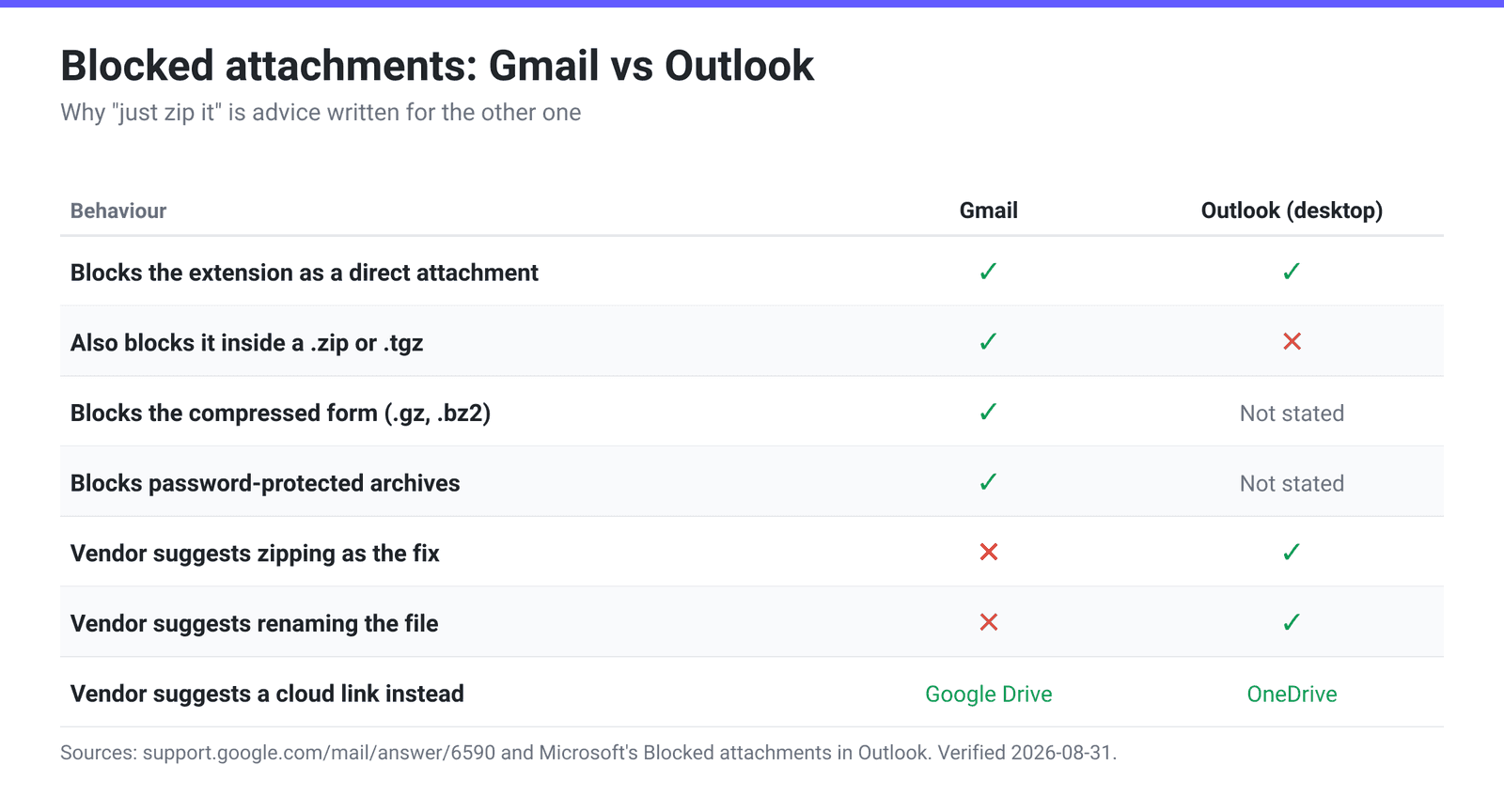
Two practical consequences. First, advice you find that says “zip it” is very likely written for Outlook and will not help you in Gmail. Second, if you receive a .zip from someone on Outlook that contains a blocked type, Gmail can still reject the message on the way in — the sender’s client was happy and yours wasn’t.
One more thing worth knowing: an organisation’s mail gateway sits on top of all of this, and it can be stricter than the provider default. Microsoft says so directly — “If you’re using a Microsoft Exchange account, your email server administrator can unblock certain file types” — and on the Google side, work and school accounts run under a Workspace administrator who sets the account’s attachment policy. So a file that a personal Gmail account would happily pass can still be stopped at the recipient’s end, and there is nothing you can do about that from your side except ask.
What actually gets the file through
In rough order of how well they work:
1. Send a cloud link — the vendor-recommended route. Google’s own tip on the blocked-files page is: “If you’re sure the file is safe, you can ask the sender to upload the file to Google Drive. Then send it as a Drive attachment.” Microsoft says the same thing about OneDrive and SharePoint. This works because the file never becomes an email attachment at all; it also sidesteps the size limit at the same time. Any general file-transfer service does the job equally well.
2. Send the file in a form that isn’t the blocked one. Often you don’t actually need the blocked artefact. A .js source file pastes into a message, a code-sharing gist, or a repository. A .dmg or .msi usually has an official download page you can link. An .apk for a tester belongs in a distribution service, not an inbox.
3. Renaming the extension. Microsoft explicitly recommends this for Outlook — rename it, send it, have the recipient rename it back. It defeats a filename check, and it is a legitimate thing to do with a file you know is safe. Be aware of two limits. It relies on the recipient knowing to rename it back, and it does nothing against a filter that inspects the file’s contents rather than its name, which is how modern gateway scanning generally works. Treat it as a fallback, not a plan.
4. What does not work: zipping (Gmail blocks the contents), password-protecting the zip (explicitly listed), double-zipping, renaming the archive, or splitting the file across several messages. None of these are clever; they are all things Google’s rules already name.
Bundle allowed files into one ZIP on xconvert
ZIP is still exactly the right tool for the job it’s actually good at: turning a pile of allowed files into one attachment. A folder of 40 photos, a set of PDFs and spreadsheets for a client, a batch of design exports — one .zip instead of forty attachments, with the folder structure intact and text-heavy files meaningfully smaller.
Before you build it, do the one check that saves the round trip: scan the folder for anything on the list above. A single stray .js, .dll or .exe will get the entire message refused, and the error won’t tell you which file caused it.
- Open the ZIP archiver and click Upload to add your files, or drag them onto the page. Add as many as you like — they all go into a single archive.
- Everything else is default; there are no compression settings to choose on this page.
- Click Archive to package them, then download the
.zip. - Attach it as normal. Your recipient opens it with a double-click on Windows, macOS, iOS and Android, or unzips it online on a locked-down machine.
Your files upload over an encrypted connection, are packaged on our servers, and are deleted automatically a few hours later. No account, no watermark.
FAQ
Why does Gmail block .js files? I’m just sending source code.
Because Gmail matches on the extension, and on Windows a .js file is executed by Windows Script Host when double-clicked — the same mechanism a script-based malware dropper uses. Gmail can’t distinguish your React component from that, so both are refused. .mjs is on the list for the same reason. The practical answer for source code is to put it somewhere designed for code: a repository, a gist, or a shared drive, and email the link.
Can I zip an .exe to get it past Gmail?
No. Google’s help page states the block applies to these file types “when found within archives (like .zip or .tgz files)” and to their “compressed form (like .gz or .bz2 files).” Gmail looks inside. This is the single most common piece of outdated advice on the topic, and it usually originates from Microsoft’s Outlook documentation, which genuinely does recommend zipping — for Outlook.
Will password-protecting the ZIP work?
No, and it makes things worse. “Password-protected archives with archived content” is its own entry in Google’s list of what Gmail won’t let you attach. An encrypted archive is refused precisely because the scanner cannot see inside it, so adding a password turns a maybe into a definite no.
My ZIP was blocked and nothing in it looks dangerous. What happened?
Something in the archive matches the list, and the error message won’t tell you what. Usual suspects are files you didn’t think about: a .dll or .exe inside a project’s build folder, a .js bundled with an exported web page or email template, a .lnk Windows shortcut that got dragged in with a folder, or a .jar in a Java project. Unpack the archive, sort by extension, and check it against the list above before rebuilding it.
Does the block apply to email I receive, not just email I send?
Yes. Google’s page is written from the sender’s side — “Gmail doesn’t allow you to attach” — but the same “potential security issue” error appears on inbound messages, which is why a colleague on a different provider can send you something that never arrives. If you’re expecting a file and it doesn’t show up, this is worth ruling out before blaming spam filtering.
Is this the same thing as Gmail’s 25 MB attachment limit?
No — they are two independent rejections with different messages. The size limit is about how big the file is (Google states 25 MB for personal Gmail accounts, with work and school accounts set by their Workspace administrator); this is about what type it is. A 2 KB .bat file is refused, and a 24 MB video sails through. If your problem is size rather than type, the fix is compression or a link, covered in email attachment limits by provider.
Sources
Last verified 2026-08-31.
- File types blocked in Gmail — Google Gmail Help — the full 54-extension list quoted above; the error text “This message was blocked because its content presents a potential security issue”; the statements that the block applies to compressed forms and files “found within archives (like .zip or .tgz files)”, to “documents with malicious macros”, and to “password-protected archives with archived content”; and the Google Drive workaround.
- Blocked attachments in Outlook — Microsoft Support — “One of the most common ways of transmitting computer viruses is through file attachments”; the compression workaround, verbatim: “Outlook doesn’t recognize these file name extensions as potential threats. Therefore, it doesn’t block the new attachment”; the rename workaround; and “If you’re using a Microsoft Exchange account, your email server administrator can unblock certain file types.”
- Send attachments with your Gmail message — Google Gmail Help — the separate size limit: “For personal Gmail accounts, the limit is 25 MB. For work and school accounts, your Google Workspace administrator sets the attachment sending limits and attachment receiving limits.”