 By James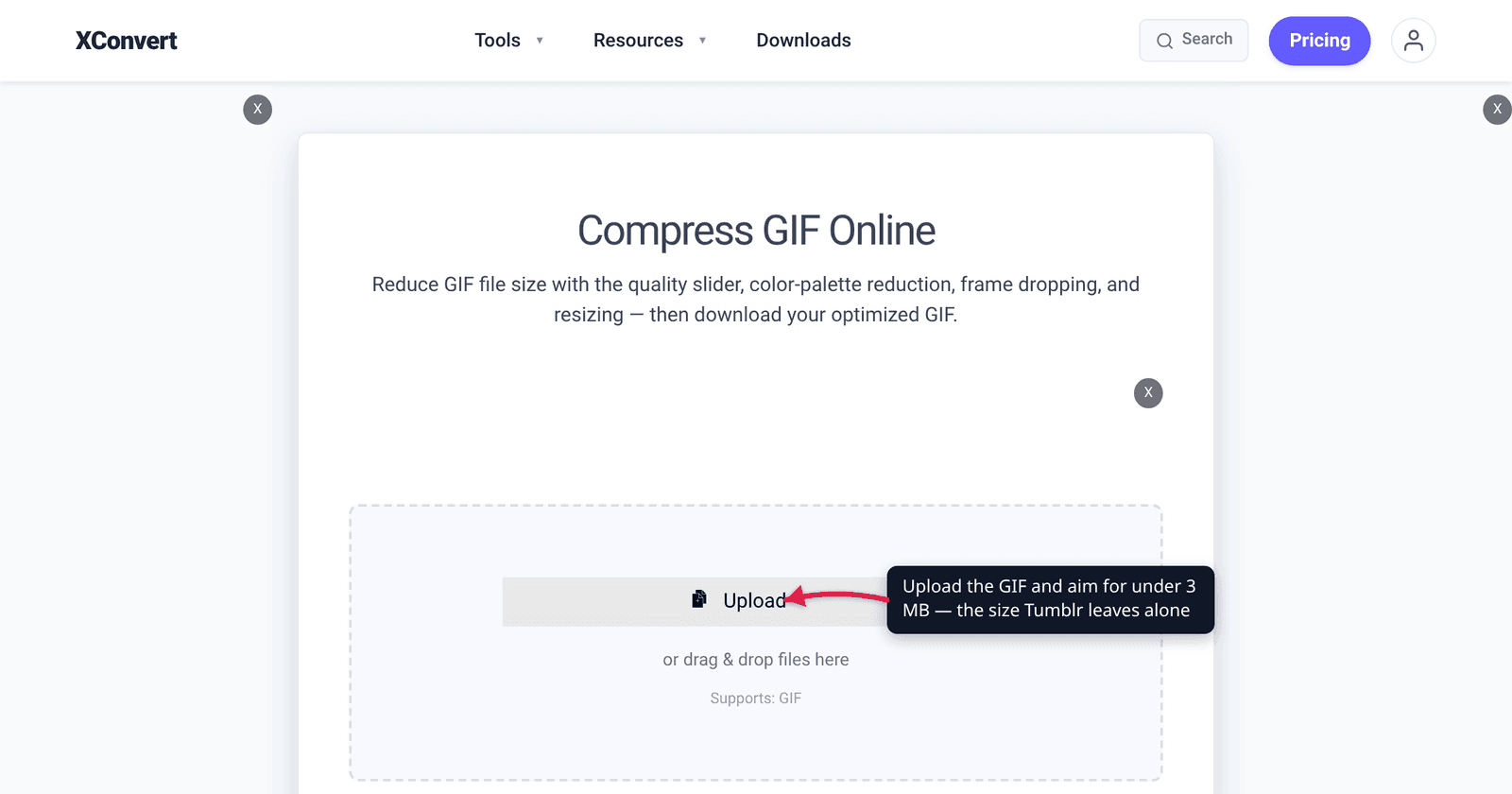
You made a nine-megabyte GIF, checked that Tumblr’s limit is 10 MB, uploaded it — and the dashboard shows a still image. Nothing animates. No error, no warning, just one frozen frame where your GIF used to be. This isn’t a bug and it isn’t your file being broken. Tumblr publishes four size thresholds in its own help centre, and the 10 MB one everybody quotes is the least useful of them. Here’s the whole ladder, and the number you should actually be aiming at.
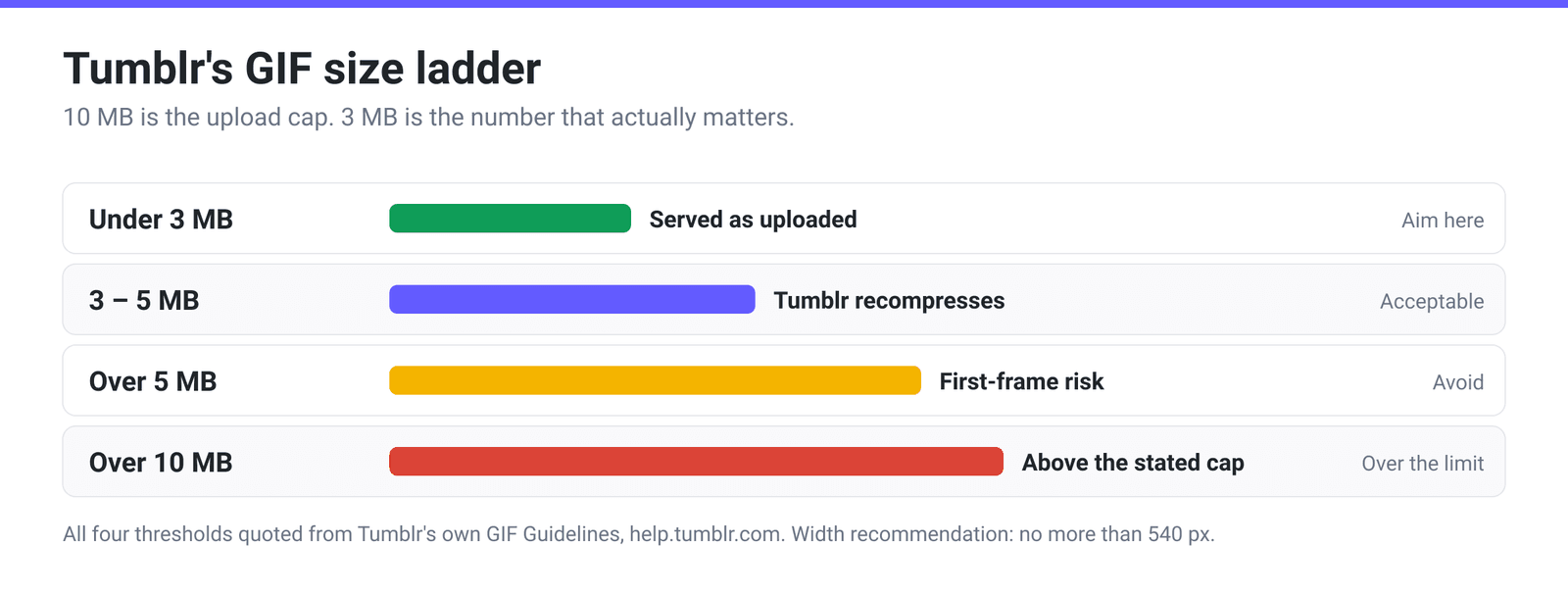
Quick answer: Tumblr’s GIF Guidelines say: keep the file 10 MB or less, keep it no more than 540 pixels wide, and note that “GIFs under 3 MB won’t be compressed.” The one that catches people: “If we’re unable to successfully serve a GIF that exceeds 5 MB, Tumblr will serve only the first frame.” So 10 MB is the upload cap, not the working target. Aim for under 3 MB at 540 px wide and your GIF is served exactly as you made it. Between 3 and 5 MB Tumblr re-compresses it. Above 5 MB you’re gambling on a still image.
Jump to a section
- Tumblr’s four thresholds, in order
- Why yours shows only one frame
- The 540-pixel rule, and why it saves you the most
- Getting under 3 MB: what to cut, in what order
- Compress a GIF for Tumblr on xconvert
- FAQ
Tumblr’s four thresholds, in order
Every number below is quoted from Tumblr’s own help centre article, “Adding & Creating GIFs.” No third-party guide required.
| Your GIF’s size | What Tumblr does | Tumblr’s own wording |
|---|---|---|
| Under 3 MB | Serves it as you made it | “GIFs under 3 MB won’t be compressed” |
| 3–5 MB | Re-compresses it for you | “If your GIF is uncompressed and under 10 MB, we’ll do our best to compress the file down for you” |
| Already-compressed, over 5 MB | Outside the recommendation | “If you’re uploading a compressed GIF, the file should be no larger than 5 MB” |
| Over 5 MB | May show a single frame | “If we’re unable to successfully serve a GIF that exceeds 5 MB, Tumblr will serve only the first frame” |
| Over 10 MB | Above the stated cap | “Please keep your GIF file size to 10 MB or less” |
Plus one dimension: “We recommend that your GIFs be no more than 540 pixels wide.”
There’s a wrinkle in the middle rows worth naming, because it explains a lot of confusion. Tumblr also says it converts “all uploaded GIFs to the GIFV format” — its own delivery wrapper — even for the under-3 MB files it promises not to compress. So what your followers’ browsers download is never byte-for-byte the file you uploaded, even when Tumblr hasn’t recompressed the image data. That’s why a GIF can look subtly different on a dashboard than it did on your desktop.
Why yours shows only one frame
This is the failure mode the whole post exists for, and Tumblr states the cause plainly: “In general, we do what we can to serve your GIFs uncompressed. If we’re unable to successfully serve a GIF that exceeds 5 MB, Tumblr will serve only the first frame. If this happens to your GIF, try reducing the file size, then upload it again.”
Three things follow.
It’s conditional, not deterministic. “If we’re unable to successfully serve” is doing real work in that sentence. A 6 MB GIF may animate fine one day and freeze the next, on a different device or a different network. That’s why people post contradictory advice about it — they’re all reporting true experiences of a probabilistic rule.
It happens after a successful upload. The file went up, the post published, no error appeared. The failure is on the serving side, which is why you only discover it by looking at the live post — ideally on a phone, on mobile data, not the desktop tab you just uploaded from.
Tumblr’s own fix is the right one. “Try reducing the file size, then upload it again.” There is no setting to toggle and no support ticket to file. Get under 5 MB to leave the risk zone, and under 3 MB to leave the compression zone entirely.
The 540-pixel rule, and why it saves you the most
540 pixels is the width of the post column on Tumblr’s default dashboard, which is why the help centre recommends it as a ceiling. Anything wider gets scaled down for display — you paid for pixels nobody sees.
More importantly, width is the most powerful size lever you have, because pixel count is a squared cost. A 1080 px-wide GIF has four times the pixels of the same GIF at 540 px, and every one of those pixels is a palette index that has to be stored for every frame. Halving the width typically takes far more off the file than any amount of fiddling with quality sliders.
| Source width | Pixels vs 540 px | Rough effect on the file |
|---|---|---|
| 1080 px | 4× | The single biggest saving available |
| 720 px | 1.8× | Worth doing |
| 540 px | 1× | Tumblr’s recommendation — stop here |
| 400 px | 0.55× | Only if you’re desperate for bytes |
Height is unconstrained; Tumblr’s guidance is about width only, so keep your aspect ratio and let the height fall where it falls. And do the resize before you start trading away colours and frames — shrinking first often means you never need to.
Getting under 3 MB: what to cut, in what order
GIF has no modern video codec behind it. Each frame is a palettised bitmap of at most 256 colours, compressed with LZW, and the file is essentially the sum of its frames. That gives you four levers, and they are not equally efficient:
- Width — squared payoff, as above. Always first.
- Frames — a GIF’s size is roughly linear in frame count, so dropping every third frame removes about a third of the data. In xconvert’s own analysis of GIF workflows, keeping every third frame is the measured sweet spot: enough motion survives that viewers don’t notice, while more aggressive dropping starts to look like a flipbook.
- Colours — cutting the palette from 256 to 128 or 64 shrinks the per-frame indices. This is where banding appears, and where dithering trades bytes for smoothness; ordered dither is the right choice for animation because it stays stable frame to frame rather than shimmering.
- Quality / lossy LZW — the last few percent. Useful for closing a small gap, not for halving a file.
If your GIF is long, none of these will save you: a 15-second GIF at 540 px is simply a lot of frames. The honest fix for length is to make a shorter GIF in the first place. (Tumblr’s own in-app GIF maker limits you to a three-second clip, which tells you something about what the platform expects.) There’s more on where the bytes actually go in why is my GIF file so big.
Compress a GIF for Tumblr on xconvert
The GIF compressor can do this in one pass or two, depending on whether your GIF is also too wide.
If the size is the only problem — aim straight at a byte target:
- Open xconvert.com/compress-gif and click Upload, or drag the GIF onto the page.
- Open Advanced Options. File Compression is already on Max file size.
- Set the Size limit dropdown to Custom size value. The field opens at 8 MB, so change it to
3and leave the unit on MB. (Left on the default Custom size %, the slider caps you at a percentage of the original — useful, but a percentage isn’t what Tumblr measures.) - Click Compress and download. A note under the dropdown shows, per file, what your cap means against that file’s actual size before you run it.
If it’s also wider than 540 px — do the resize first, because it may be all you need:
- Switch File Compression to Custom. This unlocks the manual levers.
- Under Image resolution, choose Width (Keep aspect ratio), switch the unit dropdown from Percent (%) to Pixels, and enter
540. - Optionally turn on Drop Frames and leave Frames To Drop on Every 3rd frame, and open Colors to try By Color Reduction + Dither at 128 colours. Image quality (%) defaults to 80.
- Compress, download, check the size. If it’s still over 3 MB, run the result back through using the Max file size path above.
Your GIF uploads over an encrypted connection, is processed on our servers and deleted automatically a few hours later. No sign-up, no watermark. If you want to aim at a different platform’s number instead, compressing a GIF to a specific size covers the general approach.
FAQ
Why does my Tumblr GIF only show the first frame?
Because it’s over 5 MB. Tumblr’s help centre states it directly: “If we’re unable to successfully serve a GIF that exceeds 5 MB, Tumblr will serve only the first frame.” It’s a serving-side behaviour, so the upload succeeds and the post publishes normally — you only see the problem on the live post. The fix is Tumblr’s own: reduce the file size and upload it again. Get under 5 MB to leave the risk zone; under 3 MB to be certain.
What is the maximum GIF size on Tumblr?
10 MB — “Please keep your GIF file size to 10 MB or less.” But treat that as the point where uploads stop working, not as a target. Tumblr recompresses anything between 3 and 10 MB, and reserves the right to serve a single frame above 5 MB. The number that matters in practice is 3 MB, the size under which Tumblr says it won’t touch your file at all.
Does Tumblr compress or convert my GIF?
Both, in different senses. Tumblr says “GIFs under 3 MB won’t be compressed,” and that for uncompressed GIFs under 10 MB “we’ll do our best to compress the file down for you.” Separately, it says it converts all uploaded GIFs to what it calls “the GIFV format” for delivery. So even a small GIF that escapes recompression is not served as the exact file you uploaded — which is worth knowing before you spend an evening chasing a subtle colour shift.
Should I upload at 540 pixels wide or let Tumblr scale it down?
Upload at 540. Tumblr recommends “no more than 540 pixels wide” because that’s the post column width, so anything larger is scaled for display anyway — you’re paying full price in file size for pixels that never appear. And since pixel count scales with the square of the width, resizing a 1080 px GIF down to 540 discards three-quarters of the pixels before you touch anything else. It’s the cheapest saving available.
My GIF is under 10 MB and it still isn’t animating. What now?
Under 10 MB isn’t the relevant test — under 5 MB is, and under 3 MB is safer still. Check the file’s actual size on disk rather than trusting the size your editor reported at export, then resize to 540 px wide, drop every third frame, and re-check. If it animates on desktop but not on your phone, that’s consistent with the conditional wording in Tumblr’s rule, and getting further under the threshold is the reliable answer.
How do I shrink a GIF without it looking terrible?
Work in order of efficiency: width first (squared payoff), frames second (roughly linear), colours third, lossy quality last. Most GIFs that are too big for Tumblr are simply too wide — a 540 px resize alone often lands the whole thing under 3 MB with no visible change, because you’re removing pixels nobody was going to see. Only start cutting the palette once resizing has run out of road. Making a GIF smaller without losing quality goes through each lever in detail.
Sources
Last verified 2026-08-31.
- Adding & Creating GIFs — Tumblr Help Center — every Tumblr figure in this article, quoted verbatim from the “GIF Guidelines” section: the 10 MB cap, the 540-pixel width recommendation, “GIFs under 3 MB won’t be compressed”, the 5 MB guidance for already-compressed GIFs, the GIFV conversion, and “If we’re unable to successfully serve a GIF that exceeds 5 MB, Tumblr will serve only the first frame.” The same article documents the three-second clip limit in Tumblr’s in-app GIF maker.
- xconvert GIF compressor — the live control names, modes and defaults described in the tool steps (File Compression → Max file size / Custom, Size limit, Image resolution, Drop Frames, Colors, and the Image quality slider’s 80% default).