 By James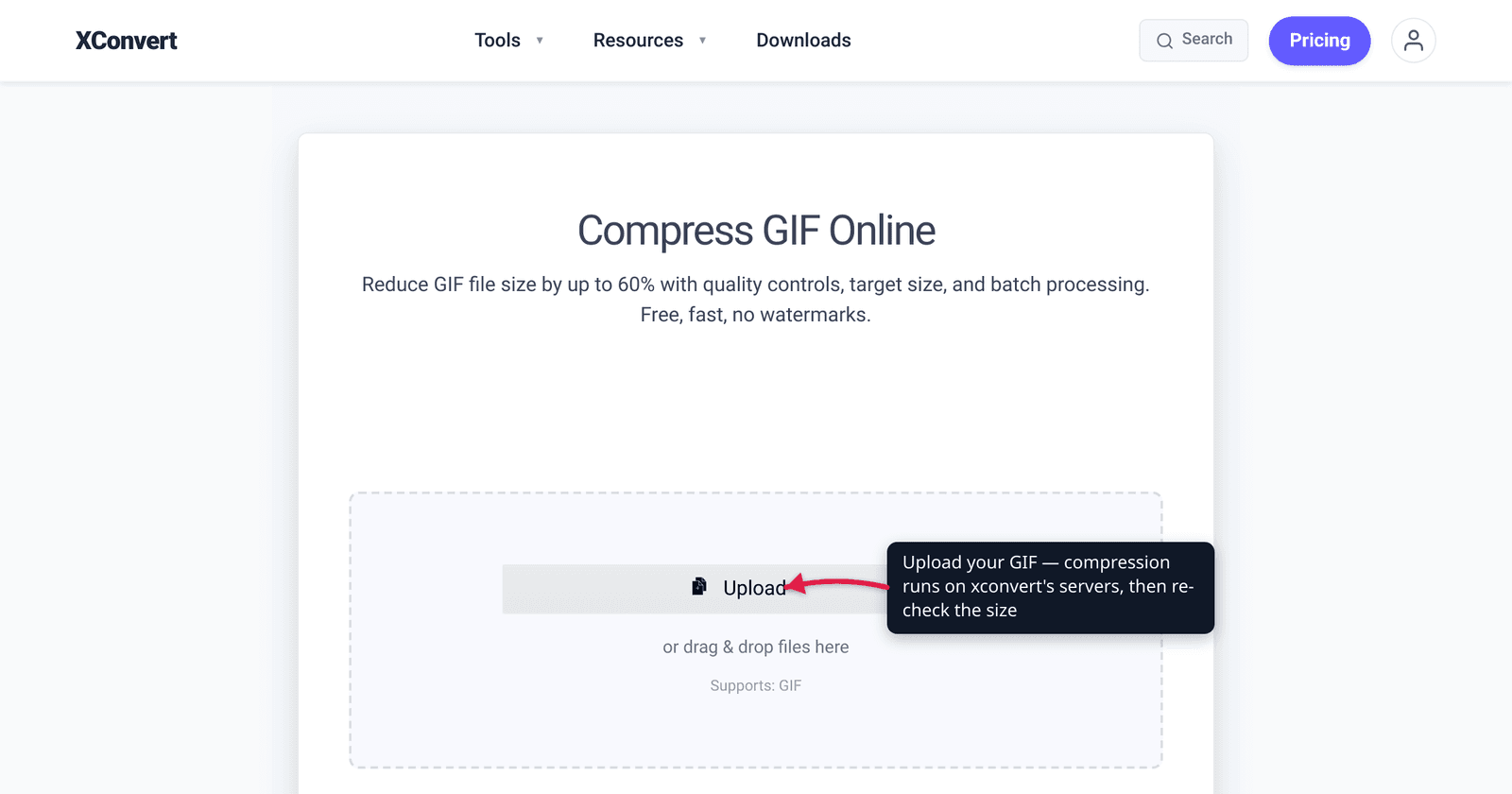
You exported a GIF, the upload box says “max 5 MB,” and yours is 14 MB. For years the honest answer was “pull some levers and re-check.” That is no longer the answer. The xconvert GIF compressor now opens on a Max file size mode: you type the number you were given — 5 MB, 10 MB, 256 KB — and a solver re-encodes and measures until it finds the best-looking GIF that fits under it. This guide covers both ends of that range: the MB targets platforms hand you (Discord 10 MB, email 25 MB, forums 2 MB) and the KB targets that show up for emoji, avatars and signatures. Every control name below was checked against the live compressor on 2026-08-31.
Quick answer: Open xconvert.com/compress-gif, add your GIF, and the options panel opens on File Compression → Max file size. In the Size limit dropdown pick Custom size value, type your number and choose KB or MB — or pick a preset (Discord (10 MB max), Email (25 MB max), Forum (2 MB max)), or leave Custom size % at its default 75. Before you compress, the panel shows a per-file verdict such as
sample.gif: original 98.3 KB → max 73.7 KB (75%) → light compression, so you see the quality cost first. Output lands at or under your number, best effort.
Jump to a section
- Type the size you need
- Read the verdict before you compress
- What each target costs: MB and KB
- When a target is hard to hit
- Compress a GIF to a specific size on xconvert
- FAQ
Type the size you need
Add a GIF at compress-gif and the options panel opens on File Compression, already set to Max file size. There is no quality preset on this page: a preset says nothing about the resulting size — on an already-optimized GIF our own QA measured only about a 2% saving at the “High” rung — whereas a cap at least aims at the thing you were asked for. Under Max file size sits a single dropdown, Size limit, with three ways to express what you need:
Custom size value — type the number. A value box (pre-filled with 8) plus a unit dropdown: B, KB, MB, with MB preselected. Type 5 + MB for a 5 MB cap, 256 + KB for a 256 KB emoji budget, 1 + MB for a wiki upload. We read MB as 1,000,000 bytes and KB as 1,000 — the decimal reading, which is the smaller of the two conventions, so a GIF capped at 10 MB here also clears a platform that means 10 MiB (10,485,760 bytes) when it says “10 MB.”
A named preset — one click for a known destination. Discord (10 MB max), Email (25 MB max) and Forum (2 MB max) are absolute per-file caps, identical to typing those numbers yourself.
Custom size % — when nobody gave you a number. This is the default. A Max % of original slider, range 1–100, starts at 75. Percent resolves per file against that file’s own size, so a batch of mixed GIFs each gets its own proportional cap rather than one shared ceiling.
Then press Compress. Max-size mode runs several encodes rather than one, so a large GIF takes longer than a plain compress — the panel says so, and it means the tool is measuring real output bytes instead of guessing.
Read the verdict before you compress
The thing worth knowing about before you upload anything is the Per file: block that appears in the options panel. It tells you what your target will cost before you spend time on the job. Upload a 98.3 KB GIF with the default 75% cap and the line under that heading reads, verbatim: sample.gif: original 98.3 KB → max 73.7 KB (75%) → light compression, followed by a green marker.
On compress-gif that verdict is instant — a GIF’s “natural size” is simply its current size, so there is nothing to estimate or probe. (On the video→GIF pages the same line has to estimate the GIF first, because a GIF is far bigger than the video it came from, and you’ll briefly see it refining.)
The verdict word and its coloured marker come from one ratio: your target divided by the GIF’s current size.
| Marker | Verdict | Target as a share of current size | What to expect |
|---|---|---|---|
| Green | light compression | 70% or more | Usually indistinguishable from the original |
| Yellow | moderate compression | 45–70% | Visible on close inspection: slightly flatter colour, some dithering |
| Red | strong compression | Under 45% | Real, visible loss — fewer colours, smaller dimensions, or both |
If your cap is already larger than the file, the line ends “— already under your max ✓” instead, and nothing gets degraded to satisfy a limit you already meet.
Two standing notes sit under the list, and they are the honest part of the feature: “Best effort — we aim just under your max. For very complex files the smallest good-quality output may come out larger; we’ll tell you if that happens.” and “Max-size mode runs several encodes — large files can take a few minutes.”
How often does “best effort” actually land it? We analysed all 73,688 GIF-output workflows over a 30-day window on our own servers. The target is reached essentially 100% of the time when it is 30% or more of the GIF’s natural size, and still 98.1% of the time at 10%. The same data is why compress-gif defaults to a real cut rather than a gentle one: under-compression is the single biggest dissatisfier on this tool — when the output comes back barely smaller than the input, people don’t download it.
The solver doesn’t stop the moment it squeaks under, either. It aims for the band within 8% below your number (or 64 KB, whichever is wider), so a 10 MB cap lands around 9.2–10 MB rather than at 4 MB with quality thrown away for nothing.
What each target costs: MB and KB
Only one number decides how hard your request is: your target ÷ the GIF’s current size. A 10 MB target is trivial for a 12 MB GIF (83% — green) and brutal for a 90 MB one (11% — deep red). Take a typical 20 MB screen-capture GIF:
- 10 MB → 50% of current → moderate compression, comfortably reachable
- 5 MB → 25% → strong compression, still reached almost every time
- 2 MB → 10% → strong, near the edge of what the format allows
- 256 KB → 1.3% → below the floor for a file that size; trim or resize first
Common targets and how to set them:
| Target | Where it comes from | Set it with | Realistic for |
|---|---|---|---|
| 25 MB | Email attachments | Preset: Email (25 MB max) | Nearly any GIF |
| 15 MB | Twitter/X on desktop | Custom size value: 15 MB | Nearly any GIF |
| 10 MB | Discord uploads | Preset: Discord (10 MB max) | Most GIFs, including long captures |
| 5 MB | Twitter/X mobile, many CMSs and forums | Custom size value: 5 MB | Most GIFs up to ~15–20 MB |
| 2 MB | Forum attachments, older upload forms | Preset: Forum (2 MB max) | A few seconds at moderate size |
| 1 MB | Wikis, docs, legacy CMS | Custom size value: 1 MB | Short clips, small canvas |
| 512 KB | Signatures, small inline embeds | Custom size value: 512 KB | Short, simple loops |
| 256 KB | Chat custom emoji (Discord’s are 128×128 under 256 KB) | Custom size value: 256 KB | Tiny loops at emoji dimensions |
| 100–200 KB | Avatars, forum signatures | Custom size value: 100 KB | Very short, few colours, small |
Two notes on the small end. Discord stickers are a different thing from emoji — 320×320 PNG/APNG, and animated GIF isn’t an accepted sticker format, so don’t aim a GIF at that budget. And for anything at 256 KB or below, the honest move is usually to make the GIF smaller in dimensions first: a 128×128 emoji-sized loop reaches 256 KB easily, while an 800-pixel-wide capture squeezed to the same number will look destroyed even when the solver technically gets there.
When a target is hard to hit
A video codec like H.264 can promise “make this 5 MB” because it sets a bitrate — a bytes-per-second budget it spends as it encodes. GIF has no bitrate. By the GIF89a spec a GIF is a sequence of complete images, each LZW-compressed against a palette capped at 256 colours, with no inter-frame (“delta”) compression at all. Final size falls out of four independent inputs — pixel count, frame count, palette size, and how compressible the content happens to be — and none of them predicts the byte total in advance.
So the size field is not a bitrate; it is a search. The solver encodes, measures the real file, and adjusts, in a fixed order: a lossless re-optimise first (if that alone clears your target, it stops there), then how hard it leans on the colour data, then the palette size, then the dimensions, and the frame count last — on a GIF source it leaves your animation’s timing alone unless frame-dropping is explicitly asked for. Every stage has a floor. It will not shrink a GIF to a thumbnail or strip it to a handful of colours just to satisfy a number, which is why the copy says at or under, best effort and why the tool tells you when the smallest good-quality output still came out above your max.
Below the floor, the format is the problem. A long, detailed, high-motion 1080p GIF genuinely cannot reach 1 MB and still look like anything. That isn’t the tool giving up; it’s a 1987 format storing every frame whole. If your destination accepts video, that’s the escape hatch, and it isn’t close: in the same 30-day production data, the same clip is about 4.9× larger as a GIF than as the MP4 it came from (median). A “100 KB” requirement that’s impossible for a GIF is trivial for a short MP4. See GIF vs MP4 file size for why, or just convert the GIF to MP4.
The manual levers still exist — switch File Compression to Custom. Use them when you want a specific look rather than a specific size: a fixed width for a documentation page, a fixed palette for a flat-colour logo. Switching File Compression from Max file size to Custom reveals four controls, with these defaults on compress-gif:
- Image resolution — the biggest single lever. Size scales with pixel count, so halving the width keeps only ~25% of the pixels, roughly a 75% cut. Resolution Percentage starts at 80.
- Drop Frames — a Frames To Drop dropdown from Every 2nd to Every 10th, with Every 3rd frame preselected. Every-3rd is the measured sweet spot in our production data; going much thinner is where motion starts to judder.
- Colors — By Color Reduction + Dither, with a Color Palette Size dropdown (256 down to 2) defaulting to 128. Simple graphics never needed 256 colours; photographic content notices immediately.
- Image quality (%) — a Quality Percentage slider, 1–100, default 65 on this page. (Don’t copy this number from another GIF page — the video→GIF pages default to 80.)
Custom mode gives you exact control and no size guarantee. Max file size gives you a size and lets the solver decide which of those levers to spend. If someone handed you a number, use the number.
Compress a GIF to a specific size on xconvert
- Open xconvert.com/compress-gif and click Upload, or drag your GIF onto the box.
- In the options panel, File Compression is already on Max file size. Leave it there.
- Open the Size limit dropdown and pick how you want to state the target. Custom size value lets you type the number and pick the unit (B / KB / MB, MB preselected) —
5+ MB,256+ KB, and so on. Discord (10 MB max), Email (25 MB max) and Forum (2 MB max) are fixed caps for those destinations. Custom size % is the default: drag Max % of original (starts at 75) if you just want the file meaningfully smaller. - Read the Per file: line before you commit.
original … → max … (…%) → light / moderate / strong compressiontells you what the target costs. If it says strong compression and you have room to move, raise the cap now rather than after the job. - Click Compress and download. Max-size mode runs several encodes, so give a large GIF a minute or two.
Cropping dead space off the edges shrinks every frame at once and costs nothing visually — the GIF cropper does that before you compress. Your file uploads over an encrypted connection, is processed on our servers, and is deleted automatically a few hours later — nothing stays around.
FAQ
How do I compress a GIF to 10 MB?
Open compress-gif, add your GIF, and in Size limit choose either the Discord (10 MB max) preset or Custom size value with 10 and MB. The per-file line then shows what 10 MB means for your specific file — for a 14 MB GIF that’s 71%, a light compression; for a 90 MB GIF it’s 11% and you’ll see a strong-compression warning. The result lands at or under 10 MB, aiming inside the last 8% below it rather than far under.
How do I compress a GIF to 5 MB?
Identical flow: Size limit → Custom size value, type 5, unit MB. 5 MB is comfortably reachable for most GIFs up to about 15–20 MB. Above roughly 50 MB you’re asking for 10% or less of the original, which our data says still succeeds 98.1% of the time — but expect fewer colours and a smaller canvas in the result.
Can I get a GIF under 256 KB or 100 KB?
Yes, with the same field — set the unit to KB and type 256 or 100. Whether it’s reachable depends on the source: a short, small, few-colour loop gets there easily, which is why chat emoji budgets (Discord’s custom emoji are 128×128 under 256 KB) work fine. A multi-second, full-width capture at 100 KB is below what GIF can do at any acceptable quality; resize it small first, or use MP4 if the destination allows it.
Will the output be exactly the size I typed?
No, and no honest tool can promise that. GIF has no bitrate, so the size is found by re-encoding and measuring, not budgeted in advance. What you get is at or under your number, aimed at the band within 8% below it. When a target sits below what the file can reach at acceptable quality, the tool says so instead of quietly returning something bigger.
Custom size % or Custom size value — which should I use?
Use Custom size value whenever someone gave you a number (a platform limit, an upload form, a ticket). Use Custom size % when nobody did and you just want the file meaningfully smaller — the default 75% is a real cut with almost no visible cost, and in a batch it caps each file against its own size rather than applying one ceiling to all of them.
Why won’t my GIF go below 1 MB?
Because of what GIF is: a 256-colour palette, no inter-frame compression (every frame is stored whole), and LZW encoding that predates HD recording. A long, detailed, high-motion 1080p GIF has a floor well above 1 MB. Cut the dimensions hard, crop away dead space, or accept that this clip wants to be an MP4 — the same content is about 4.9× smaller in that container.
Does hitting a size target make the animation choppy?
Not usually. On a GIF source the solver spends colour and dimensions before it touches frames, and it leaves your frame count alone unless you ask for frame-dropping under Custom. If you do drop frames yourself, Every 3rd frame is the measured sweet spot — smooth for screen recordings, reactions and slow animations. Going much thinner is where fast-motion clips start to judder.
Sources
Last verified 2026-08-31.
- xconvert GIF compressor — live tool; verified the current controls: File Compression → Max file size (default) / Custom; Size limit → Custom size % (Max % of original, 1–100, default 75) / Custom size value (value box + B / KB / MB, MB preselected) / Discord (10 MB max) / Email (25 MB max) / Forum (2 MB max); and, under Custom, Image quality (%) default 65, Drop Frames → Frames To Drop with Every 3rd frame preselected, Image resolution (Resolution Percentage default 80), Colors → By Color Reduction + Dither (palette default 128). The per-file verdict line and the “best effort” note are quoted verbatim from the live panel.
- xconvert production measurement, 30-day window covering all 73,688 GIF-output workflows — target reached ~100% of the time when it is 30% or more of the GIF’s natural size and 98.1% at 10%; under-compression is the single largest dissatisfier on compress-gif; a clip converted to GIF runs about 4.9× the size of its source MP4 at the median; every-3rd-frame is the measured sweet spot for frame dropping.
- W3C — GIF89a Specification — a GIF stores a sequence of complete images, each LZW-compressed against a colour table capped at 256 entries (8 bits/pixel); the structural reason GIFs are large, have no bitrate, and have a hard floor.