 By Stephanie Taylor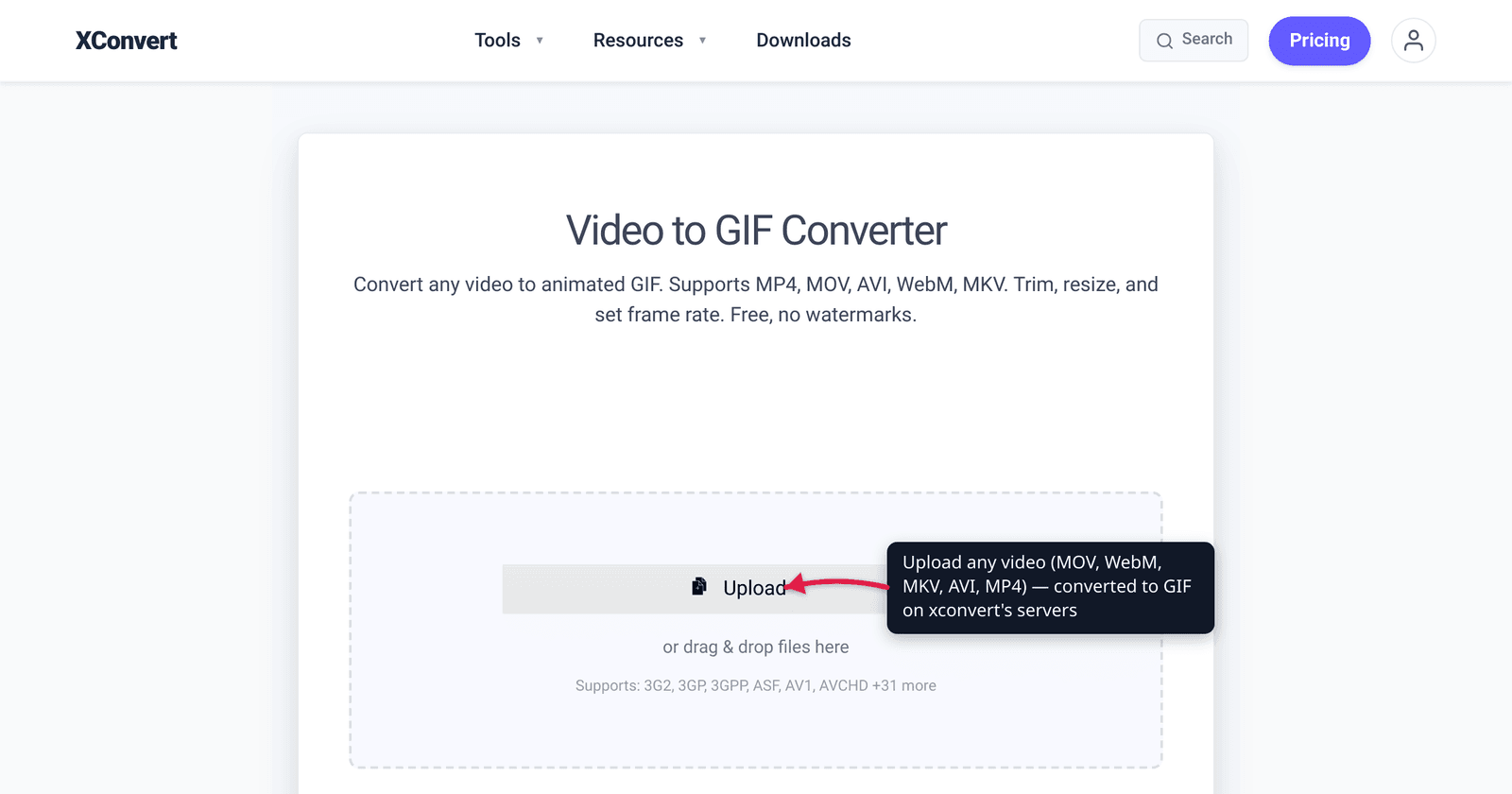
You shot a clip in QuickTime (.mov), screen-recorded one in WebM, or pulled an .mkv off your media server — and now you need a looping GIF for a chat message, a README, or a product page. The good news: the source format barely matters. MOV, WebM, MKV, AVI, and MP4 all reduce to the same thing once you convert. The thing that does matter is understanding what a GIF actually is — a 256-color, audio-free, lossless-but-bulky animation format from 1987 — so you know which clips suit it and when an MP4 or WebM is the smarter target. We verified the color limit, the lack of audio, and the format history against the GIF89a specification, MDN, and the original CompuServe standard.
Quick answer: Any common video — MOV, WebM, MKV, AVI, or MP4 — converts to GIF the same way; the input format doesn’t change the steps. Drop it into a video-to-GIF converter, leave File Compression on its default — Quality preset, set to High (Recommended) — set the frame rate (10–15 FPS is the size/smoothness sweet spot), and convert. The converter has no trim control, so cut the clip down first in the video cutter if you only need a few seconds. Remember GIF’s hard limits: a maximum of 256 colors, no audio, and a file that’s often larger than the source video. For anything longer than a few seconds, gradient-heavy, or that needs sound, MP4 or WebM is the better target — see GIF vs MP4 file size.
Jump to a section
- The source format barely matters
- What a GIF actually is — and its three hard limits
- When GIF is the right target (and when it isn’t)
- Getting the best-looking GIF: frame rate, size, colors
- Convert any video to a GIF on xconvert
- FAQ
The source format barely matters
People search for “mov to gif”, “webm to gif”, and “mkv to gif” as if each is a different job. It isn’t. A .mov, .webm, .mkv, .avi, and .mp4 are all containers — wrappers holding compressed video (and usually audio) inside. Converting to GIF means decoding the frames out of whatever container you have and re-encoding those frames as an indexed-color animation. The decoder handles the container difference; everything downstream is identical.
So “how do I convert MKV to GIF?” has the same answer as “how do I convert MOV to GIF?”: use a converter that accepts your input. xconvert’s video-to-GIF tool lists MP4, MOV, WebM, AVI, MKV, MTS/M2TS, FLV, WMV, 3GP, MPEG/MPG, OGV, TS and more — 35+ input formats — and the steps below don’t change based on which you upload.
What does differ is the audio. MOV, WebM, MKV, and MP4 typically carry an audio track; GIF cannot, so it’s simply dropped on conversion — expected, not a bug. If the sound matters, GIF is the wrong target (more below).
What a GIF actually is — and its three hard limits
GIF (Graphics Interchange Format) was introduced by CompuServe on 15 June 1987; the animated version most people mean today is GIF89a, released in 1989, which added animation delays and transparency. Three properties of the format drive every decision you’ll make:
1. Maximum 256 colors. This is the big one. Per the GIF89a specification and MDN, each pixel is an 8-bit index into a color table of at most 256 entries. A photographic frame or a smooth gradient that originally held millions of colors must be quantized down to 256 — which is why GIFs of real-world footage often show visible banding or a posterized look. (You can sometimes exceed 256 colors across a whole animation by giving each frame its own palette, but any single frame is still capped at 256.)
2. No audio. The GIF specification has no concept of an audio track. Convert a talking clip and you get silent pictures. There is no setting that fixes this — it’s the format.
3. Lossless compression, but bulky. GIF uses LZW lossless compression — good for flat-color graphics, logos, and screen recordings with large solid regions. But for video-like content with constant pixel change, LZW is far less efficient than the motion-compensated codecs (H.264, VP9, AV1) inside an MP4 or WebM. The result is the counterintuitive fact at the heart of GIFs: a GIF is frequently several times larger than the MP4 it came from. MDN goes so far as to recommend modern alternatives — APNG, WebP, or AVIF — over GIF for animation, and Safari even lets you use a video file as a “GIF replacement.”
When GIF is the right target (and when it isn’t)
GIF survives in 2026 for one reason: universal, inline, autoplaying, no-click support. A GIF plays in email, in a Slack/Discord message, in a GitHub README, and in a tweet without a player UI, without a tap to start, and without a codec question. That’s a real superpower for short reaction clips and UI demos.
Use GIF when:
- The clip is short (a few seconds) and meant to loop forever.
- It has flat colors or large solid areas — UI screen recordings, line-art animation, simple logos.
- It needs to autoplay inline where a video player is awkward or unsupported (some email clients, certain README/markdown contexts).
- Sound doesn’t matter.
Use MP4 or WebM instead when:
- The clip is longer than a few seconds — GIF size balloons fast.
- The footage is photographic or gradient-heavy — 256 colors will visibly degrade it.
- You need audio.
- You want the smallest file at the same visual quality — an H.264 MP4 or VP9/AV1 WebM will typically be a fraction of the GIF’s size.
If you’re weighing the size tradeoff specifically, GIF vs MP4 file size walks through the numbers. And if your source is already an MP4 and you want the cleanest possible GIF, how to convert MP4 to GIF in high quality covers the MP4-specific tuning.
Getting the best-looking GIF: frame rate, size, colors
GIF file size is roughly frames × pixels-per-frame × palette complexity. In xconvert’s Advanced Options two controls are on screen from the start — File Compression and Framerate — and the rest live one click away:
File Compression. The mode switch, and the first thing on the panel. It opens on Quality preset with High (Recommended) selected, and the ladder runs Highest · Very High · High (Recommended) · Medium · Low · Very Low · Lowest — one dropdown that moves fidelity and size together. Switch it to Max file size if you have a hard ceiling instead of a look to hit: the Size limit dropdown gives you Custom size %, Custom size value (a number plus B / KB / MB), or the ready-made Discord (10 MB max), Email (25 MB max) and Forum (2 MB max) caps. You type the target and the converter searches for settings that land at or under it — no dragging a slider and re-converting to find out. Switch it to Custom to drive the three levers below by hand.
Frame rate (FPS). Your biggest size lever, and always visible whatever mode you’re in. xconvert defaults to 10 FPS (Recommended), plenty for chat reactions and UI demos. Bump to 15 FPS for smoother motion; go higher only for fast action — and accept that doubling the frame rate roughly doubles the file. There’s no benefit to matching a 60 FPS source; high frame rates mostly add weight, not smoothness.
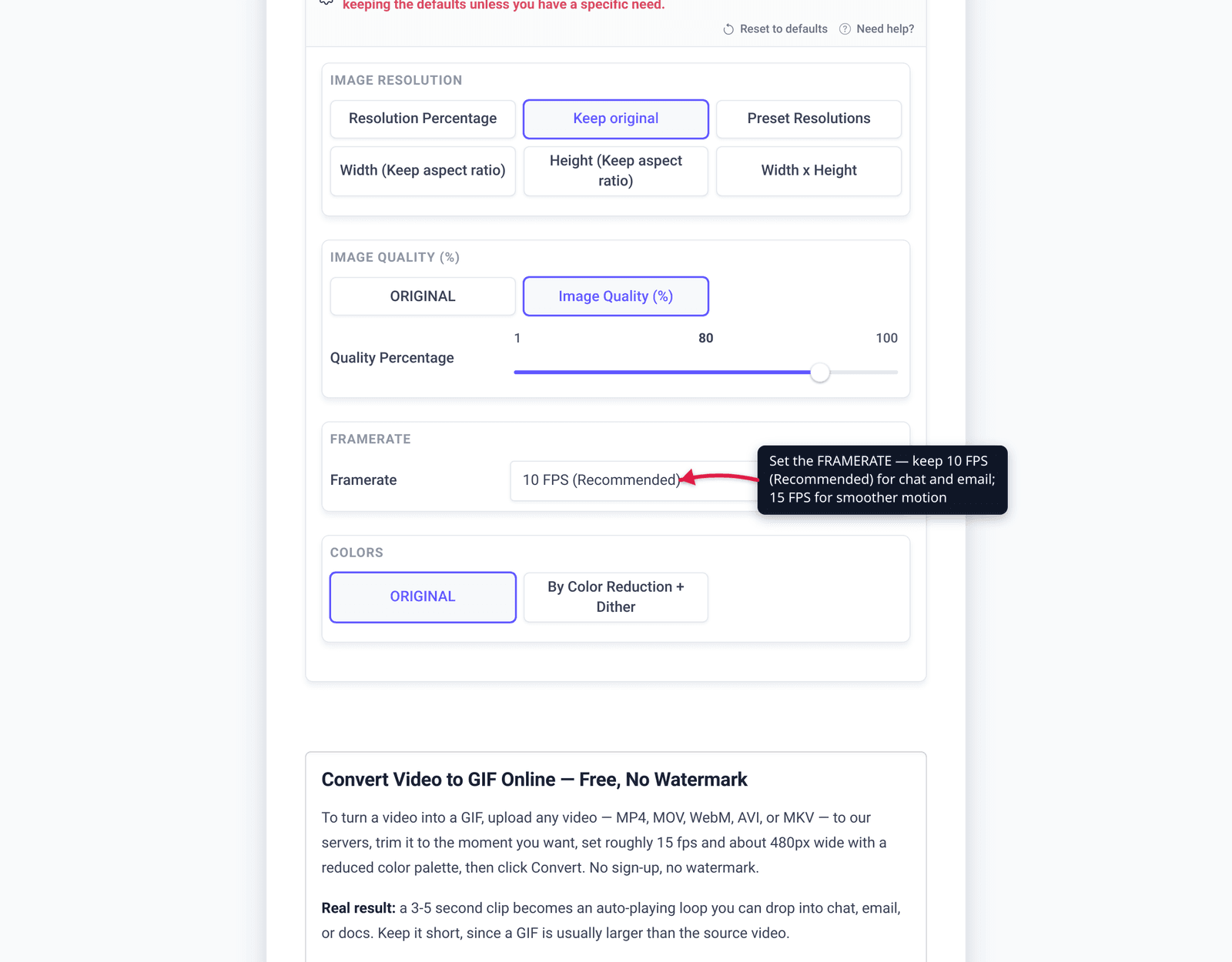
Dimensions. Appears once File Compression is set to Custom. Halving width and height quarters the pixel count and the file size. Use xconvert’s Width (Keep aspect ratio) / Height fields or the Resolution Percentage / Preset Resolutions controls to scale down. A 480px-wide GIF is fine for inline use; you rarely need full source resolution.
Colors / dither. Also Custom-mode only. Under Colors, “ORIGINAL” keeps the source palette mapping, while By Color Reduction + Dither quantizes to a reduced palette and scatters stippled noise to break up the banding that the 256-color cap causes. Dithering trades a slightly noisier look for smoother apparent gradients — useful on photographic content, less necessary on flat UI captures.
Cut first. The single most effective size reduction is fewer frames: trim the clip to just the seconds you need before you convert. The converter itself has no trim control — run the clip through the video cutter first, then convert the result. A 3-second GIF is a fraction of a 10-second one.
Convert any video to a GIF on xconvert
The xconvert video-to-GIF converter accepts MOV, WebM, MKV, AVI, MP4 and 30+ other formats, so the same steps work regardless of your source:
- Open xconvert.com/convert-video-to-gif and click + Add Files to upload your video (from your computer, Google Drive, or Dropbox).
- Open Advanced Options to reveal the controls.
- Set the FRAMERATE — leave it on 10 FPS (Recommended) for chat and email, or pick 15 FPS for smoother motion. Higher frame rates produce larger files.
- Leave File Compression on Quality preset and pick a rung: High (Recommended) is the default, Very High or Highest for a cleaner-looking GIF, Medium and below when you want it lighter. If you instead have a size ceiling to clear, switch to Max file size and set Size limit — Custom size value to type a number, or the Discord (10 MB max) / Email (25 MB max) / Forum (2 MB max) presets.
- Only if you want to steer the individual knobs: set File Compression to Custom. That reveals Image quality (%) (starts at 80), Image resolution — Resolution Percentage, a Preset Resolution, or a Width (Keep aspect ratio) — and Colors, where you can keep ORIGINAL or choose By Color Reduction + Dither to soften banding on photographic footage.
- Click Convert and download your GIF.
Your file uploads over an encrypted connection, is processed on our servers, and is automatically deleted a few hours later. Nothing stays around.
For related workflows: how to convert MP4 to GIF in high quality (MP4-specific tuning) and GIF vs MP4 file size (when video is the smaller, better target).
FAQ
How do I convert a MOV, WebM, or MKV file to a GIF?
The process is identical for all three — and for AVI and MP4. Cut the clip to the seconds you want in the video cutter first (the converter has no trim control), upload the result to the video-to-GIF converter, set the frame rate (10–15 FPS is the sweet spot), leave File Compression on Quality preset / High (Recommended), and convert. The container format (MOV vs WebM vs MKV) only changes how the video is decoded; the GIF output is the same. The audio track, if any, is dropped — GIF has no audio.
Why is my GIF bigger than the original video?
Because GIF uses lossless LZW compression that’s far less efficient than the motion codecs (H.264, VP9, AV1) inside an MP4 or WebM. For video-like content where pixels change constantly, a GIF is frequently several times larger than the source MP4 — across 30 days of our own gif-output jobs the median MP4-to-GIF came out about 4.9x the size of the video it came from. To shrink it, lower the frame rate, cut the clip shorter before converting, and either drop a rung on the Quality preset or switch File Compression to Max file size and name the ceiling you need — or, better, keep it as MP4/WebM. See GIF vs MP4 file size.
Why does my GIF look grainy or banded compared to the video?
GIF is limited to 256 colors per frame (8-bit indexed color), per the GIF89a specification. Photographic footage and smooth gradients that held millions of colors get quantized down, producing banding or a posterized look. Moving the Quality preset up to Very High or Highest is the one-click fix; for hand control, switch File Compression to Custom and enable By Color Reduction + Dither under Colors, which scatters noise to disguise the banding. Either way the 256-color ceiling is a hard limit of the format itself.
Can a GIF have sound?
No. The GIF format has no audio support at all — it’s a format for raster graphics and animation only. When you convert a video with sound to GIF, the audio is silently dropped. If sound matters, convert to MP4 or WebM instead.
What frame rate should I use for a GIF?
10–15 FPS is the sweet spot for most GIFs — smooth enough for chat reactions and UI demos, small enough to share. xconvert defaults to 10 FPS (Recommended). Go higher only for fast action, and remember that doubling the frame rate roughly doubles the file size; matching a 60 FPS source mostly adds weight, not visible smoothness.
Should I use a GIF or an MP4/WebM?
Use a GIF for short, looping, silent clips with flat colors that must autoplay inline (email, README, chat). Use MP4 or WebM for anything longer than a few seconds, photographic or gradient-heavy footage, clips that need audio, or whenever you want the smallest file at the same quality. MDN even recommends modern formats over GIF for animation.
Sources
Last verified 2026-08-31.
- W3C — GIF89a Specification — color-table size of up to 256 entries; no audio; “not intended as a platform for animation.”
- MDN — Image file type and format guide (GIF) — 8-bit indexed color, palette up to 256 entries, lossless LZW compression, and the recommendation to prefer WebP/AVIF/APNG (or video) over GIF for animation.
- Wikipedia — GIF — CompuServe introduced GIF on 15 June 1987 (87a); GIF89a in 1989 added animation delays; up to 8 bits/pixel and 256 colors; LZW lossless compression.
- xconvert — Video to GIF Converter — accepted input formats (MP4, MOV, WebM, AVI, MKV, +30 more) and the real Advanced Options UI, re-checked 2026-08-31 against the live option set: File Compression (Quality preset, default High (Recommended) / Custom / Max file size) and Framerate (default 10 FPS (Recommended)) render by default; Image quality (%) (default 80), Image resolution and Colors render only in Custom mode; there is no trim control on this page.
- xconvert — Video Cutter — the separate tool for trimming a clip before conversion.