 By James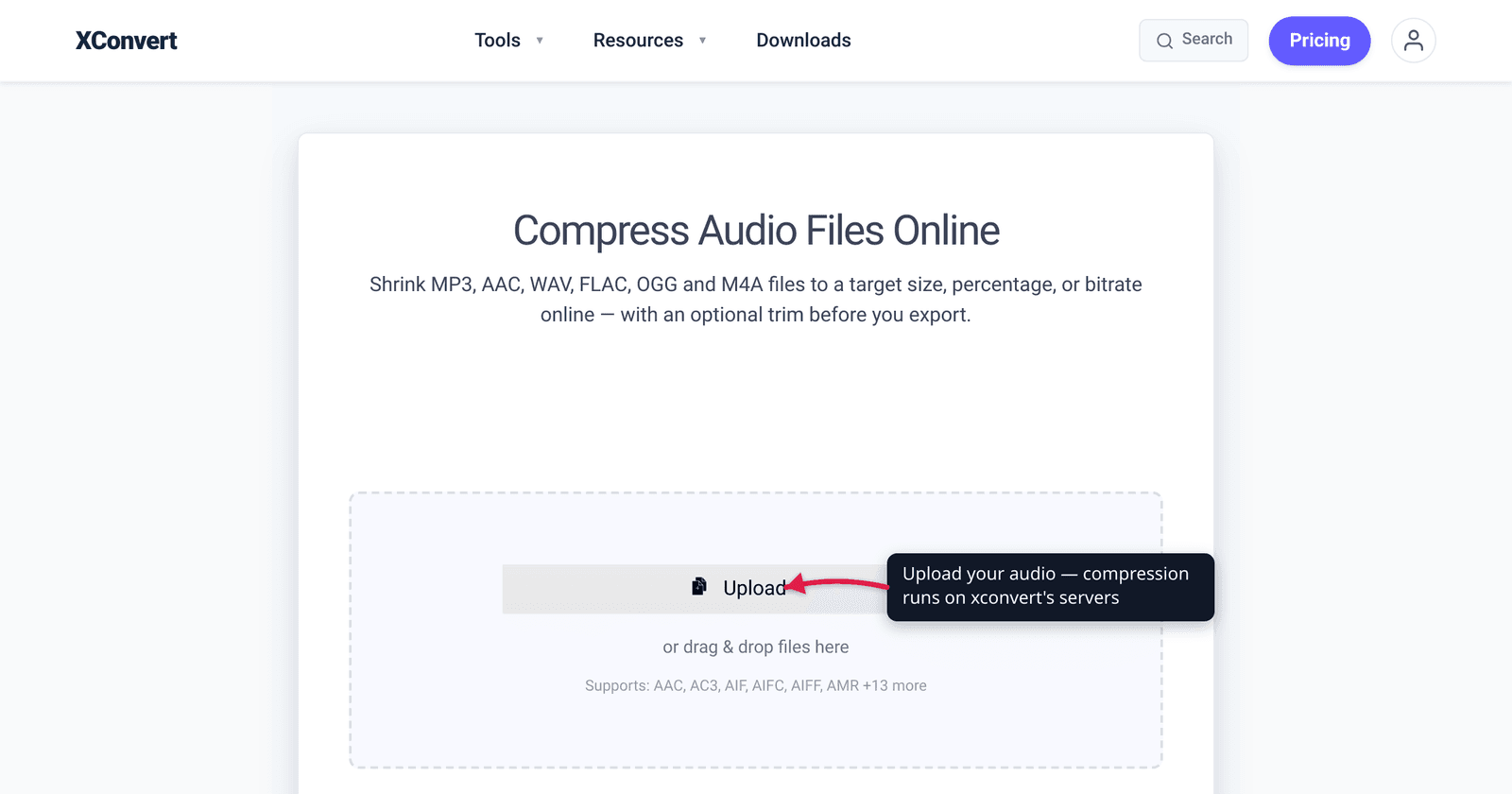
“Compress without losing quality” is the most-searched audio wish — and it hides a real fork in the road. If your file is lossless (WAV, AIFF), you genuinely can shrink it with zero quality change: encode to FLAC and it decodes back bit-for-bit identical to the original. If your file is already lossy (MP3, AAC, a YouTube rip), there’s no free lunch — re-encoding it smaller always discards a little more audio. The good news: above a sensible bitrate that loss is transparent — indistinguishable from the source to your ears. This guide draws the line between “truly lossless” and “inaudibly lossy,” and tells you the exact codec-and-bitrate moves that get you the smallest file your ears can’t fault. We verified the lossless guarantee against the FLAC project and the transparency bitrates against Xiph and Hydrogenaudio.
Quick answer: Lossless source (WAV/AIFF)? Convert to FLAC — typically 30–60% smaller with zero quality loss, decoding back identical to the original. Already-lossy source (MP3/AAC)? True lossless shrinkage is impossible, but you can re-encode to an efficient codec at a transparent bitrate so the loss is inaudible: Opus ~128 kbps, AAC ~256 kbps, or MP3 ~192 kbps+. The golden rule: never transcode lossy → lossy to save space unless you must — each pass throws away more. Pick the right codec and bitrate, and you compress with no audible loss.
Jump to a section
- Lossless vs. transparent: the distinction that matters
- The truly-lossless path: WAV/AIFF → FLAC
- The transparent path: shrinking a lossy file with no audible loss
- The one mistake to avoid: lossy → lossy
- Compress audio without losing quality on xconvert
- FAQ
Lossless vs. transparent: the distinction that matters
Two very different promises hide inside “no quality loss,” and conflating them is where most advice goes wrong.
- Truly lossless means the compressed file decodes back to the exact same audio samples as the source — bit-for-bit identical. The FLAC project states it plainly: FLAC is “lossless, meaning that audio is compressed in FLAC without any loss in quality.” You can compress, decompress, and the waveform is unchanged. This is only possible when your source is itself uncompressed or lossless (a WAV, AIFF, or another FLAC).
- Transparent is a perceptual claim, not a mathematical one. Hydrogenaudio defines it as: “If a lossily compressed result is perceptually indistinguishable from the uncompressed input, then the compression can be declared to be transparent.” The bits are different, but your ears can’t tell — in a proper blind test, you’d guess at chance.
Why this matters for you: if your file is a WAV or AIFF, you have a path to genuinely lossless compression. If your file is already an MP3, AAC, or M4A, that ship has sailed — the original audio that was discarded during the first encode is gone forever, and no tool can recover it. Your realistic best case for a lossy file is transparent re-encoding: smaller, with no loss you can actually hear.
(New to bitrate as a concept? Our primer on audio bitrate vs. sample rate explains what these knobs actually do.)
The truly-lossless path: WAV/AIFF → FLAC
If your source is uncompressed (a recording exported as WAV, a CD rip, an AIFF), FLAC is the answer to “compress without losing quality” in the literal sense.
Why it’s lossless. FLAC works like a smarter ZIP built specifically for audio: it finds and removes mathematical redundancy in the waveform, but the decoder reconstructs the original samples exactly. FLAC even stores an MD5 checksum of the unencoded audio in its header, so the file can verify it decodes back to the original — a built-in guarantee of bit-for-bit fidelity.
How much smaller. Because audio is less compressible than text, FLAC won’t halve your file the way a lossy codec would. In practice FLAC commonly lands at roughly 40–70% of the source WAV size — call it a 30–60% reduction, content-dependent (busy, noisy music compresses less; sparse or quiet passages compress more). The compression level you pick (0–8) changes encode time and squeezes out a few more percent, but every level is still perfectly lossless — level 8 just works harder for a slightly smaller file.
The catch — it’s still big. A 3-minute song as 16-bit/44.1 kHz WAV is around 30 MB; FLAC might get it to ~18 MB. That’s a real saving, but if you need it under a few megabytes for email or chat, lossless can’t get you there — you’d have to accept lossy. ALAC (Apple Lossless) is the equivalent in the Apple world; Apple Music itself offers lossless ALAC from 16-bit/44.1 kHz (CD quality) up to 24-bit/192 kHz. For a fuller format breakdown, see MP3 vs WAV vs FLAC.
Bottom line: WAV or AIFF in, FLAC out, zero audible or measurable loss, ~30–60% smaller. That’s the only way to “compress without losing quality” that’s literally true.
The transparent path: shrinking a lossy file with no audible loss
When you need a small file — for email, Discord, a podcast feed, your phone — lossless usually isn’t small enough, and an already-lossy source can’t go lossless anyway. The honest goal becomes: lose only what you can’t hear. Two levers do almost all the work.
Lever 1 — pick an efficient codec. Newer codecs reach transparency at lower bitrates, so you get a smaller file for the same perceived quality:
| Codec | “Transparent” bitrate (stereo music) | Notes |
|---|---|---|
| Opus | ~128 kbps VBR | Most efficient mainstream codec; Xiph: “Opus at 128 KB/s (VBR) is pretty much transparent.” Best size-for-quality. |
| AAC | ~256 kbps | What Apple Music’s lossy tier uses; very efficient, near-universal device support. |
| MP3 | ~192 kbps+ (Hydrogenaudio) | Universally compatible but least efficient — needs the most bits for transparency. |
The pattern: Opus < AAC < MP3 in bits needed for the same perceived quality. If broad compatibility isn’t a hard requirement, Opus gives the smallest transparent file; AAC is the safe, near-universal choice; MP3 wins only on “plays literally everywhere.”
Lever 2 — choose a sane bitrate, then stop. Going above a codec’s transparency point just makes the file bigger for no audible gain. Hydrogenaudio is blunt that exact thresholds vary by listener, content, and equipment — so “transparent” is a sensible target, not a magic constant — but the numbers above are the well-established sweet spots. (For the MP3-specific tradeoffs, our 128 vs 256 vs 320 kbps guide goes deeper; for the AAC-vs-MP3 efficiency story, see AAC vs MP3.)
So “compress a lossy file without losing quality” really means: re-encode to Opus/AAC at a transparent bitrate. The result is smaller and, to your ears, indistinguishable — even though it’s technically not lossless.
The one mistake to avoid: lossy → lossy
The single biggest quality-killer is needless lossy-to-lossy transcoding — taking a 320 kbps MP3 and re-saving it as another MP3, or an MP3 as an AAC, “to compress it.”
Every lossy encode discards detail using a psychoacoustic model. Do it once and a good codec hides the loss below your hearing threshold. Do it again on top of the first encode and the second pass can’t tell which artifacts are “the music” and which are leftovers from pass one — so it can amplify them. The damage compounds, and you don’t get much smaller in return. Hydrogenaudio’s standing advice is to avoid transcoding between lossy formats wherever possible.
Practical rules:
- Keep a lossless master if you have one. Always re-encode lossy versions from the WAV/FLAC original, never from another lossy file.
- If your only copy is already an MP3/AAC and you must make it smaller, accept that you’re taking a second hit. Minimize it: re-encode once to an efficient codec (AAC or Opus) at the lowest bitrate that still sounds clean to you, and don’t repeat the process.
- Don’t “upgrade” a lossy file’s bitrate. Re-encoding a 128 kbps MP3 to 320 kbps adds bytes but cannot add back the audio thrown away at 128 — it just stores the already-degraded sound less efficiently.
Compress audio without losing quality on xconvert
The xconvert audio compressor handles both paths — lossless re-packaging and transparent lossy re-encoding — in one place:
- Open xconvert.com/audio-compressor and click Upload to add your file (From my Computer, From Google Drive, or From Dropbox).
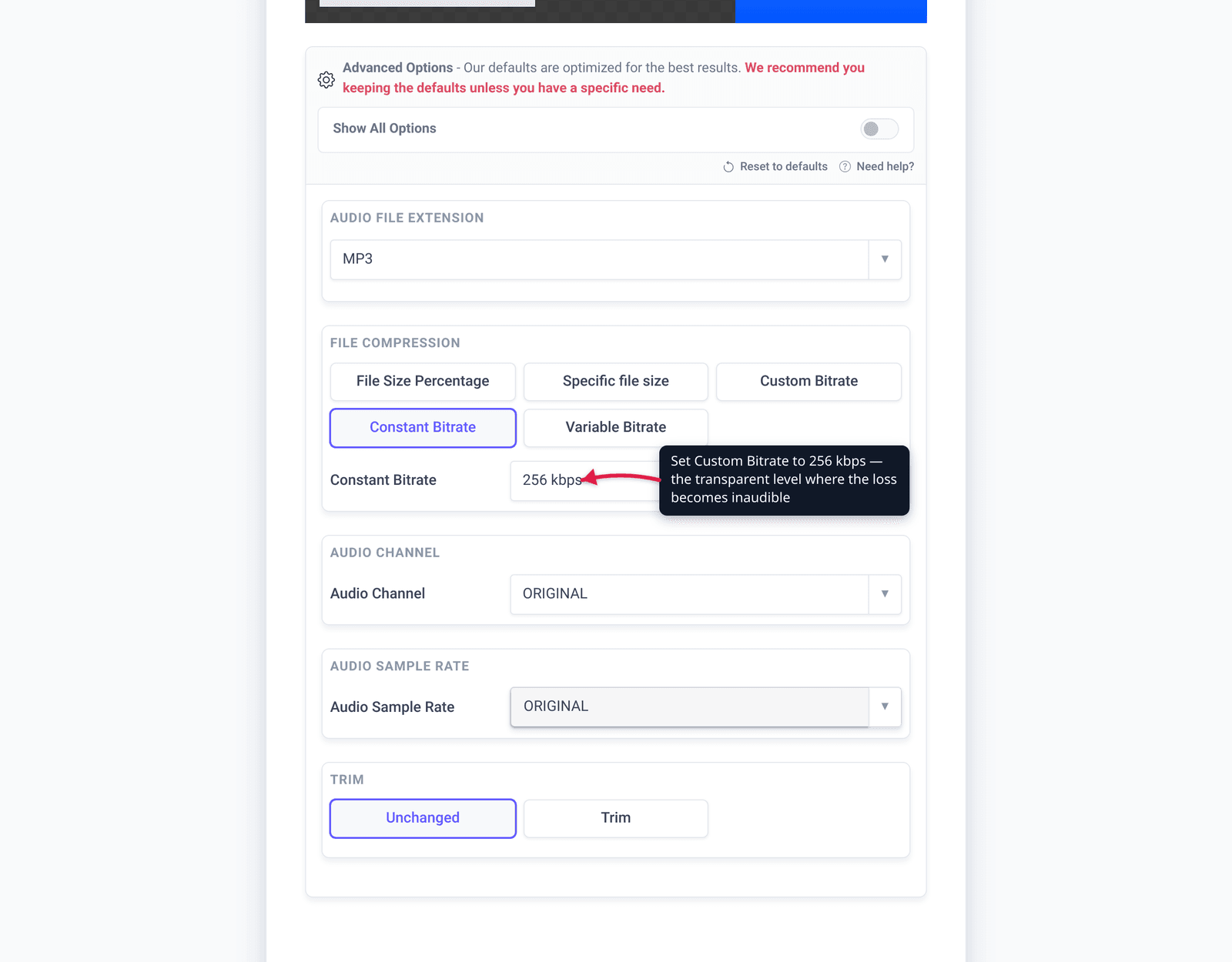
- Set Audio File Extension to your target codec: FLAC for the lossless path (only worth it if your source is WAV/AIFF), or MP3 / AAC / Opus for the transparent-lossy path.
- Open Advanced Options to control size. Under File Compression pick one of File Size Percentage, Specific file size, or Custom Bitrate — choose Custom Bitrate to dial in a transparent target (e.g. ~128 kbps Opus, ~256 kbps AAC, ~192 kbps+ MP3).
- Under bitrate mode, prefer Variable Bitrate over Constant Bitrate — VBR spends bits where the music needs them, giving better quality per megabyte.
- Leave Audio Sample Rate and Audio Channel on ORIGINAL to preserve quality (don’t downsample or drop to mono unless you specifically want a smaller, lower-fidelity file).
- Click Compress, then download.
Your file uploads over an encrypted connection, is processed on our servers, and is deleted automatically a few hours later. Nothing lingers.
FAQ
Can you really compress audio without losing any quality?
Only if your source is lossless. A WAV or AIFF re-encoded to FLAC (or ALAC) is genuinely lossless — it decodes back bit-for-bit identical to the original, typically 30–60% smaller. If your file is already lossy (MP3, AAC), zero-loss compression is impossible; the best you can do is transparent re-encoding, where the loss is inaudible rather than absent.
What’s the best format to compress audio without losing quality?
For a lossless source, FLAC — lossless and widely supported. For a lossy source where you need a small file, Opus gives the smallest transparent file (~128 kbps), AAC is the best near-universal choice (~256 kbps), and MP3 is the most compatible but least efficient (needs ~192 kbps+ for transparency).
Does converting WAV to FLAC lose quality?
No. FLAC is lossless — the FLAC project describes it as compression “without any loss in quality,” and it stores a checksum of the original audio to prove it decodes back identically. You only trade encode/decode time for the smaller size; the audio is unchanged.
Is 128 kbps enough to sound lossless?
For Opus, roughly yes — Xiph notes Opus at 128 kbps VBR is “pretty much transparent” for music, meaning most listeners can’t distinguish it from the source in a blind test. For older MP3, 128 kbps is below transparency for many people; MP3 generally needs ~192 kbps or more. “Transparent” always varies a little by listener, content, and gear.
Why does my MP3 sound worse after I compress it again?
Because you’re transcoding lossy → lossy. Each lossy encode discards detail; a second pass on top of the first compounds the damage and can amplify artifacts, with little size benefit. Always re-encode from a lossless master if you have one, and never re-compress an MP3 into another lossy file just to shrink it.
Should I use Constant or Variable Bitrate?
Variable Bitrate (VBR) generally gives better quality per megabyte — it allocates more bits to complex passages and fewer to simple ones, so you get transparency at a lower average bitrate than CBR. Use CBR only when a target requires a fixed bitrate (some streaming/broadcast pipelines).
Sources
Last verified 2026-06-25.
- FLAC — Free Lossless Audio Codec (xiph.org) — “lossless, meaning that audio is compressed in FLAC without any loss in quality.”
- FLAC format overview (xiph.org) — lossless coding stages; MD5 checksum of the unencoded audio for bit-for-bit verification.
- Xiph — Opus Recommended Settings — “Opus at 128 KB/s (VBR) is pretty much transparent” for music storage.
- Hydrogenaudio — Transparency — definition of transparency; MP3 ~192 kbps+, AAC/Opus lower; caution that thresholds vary.
- Hydrogenaudio — Transcoding — why to avoid lossy → lossy transcoding.
- Apple — About lossless audio in Apple Music — ALAC lossless from 16-bit/44.1 kHz (CD quality) up to 24-bit/192 kHz; AAC “virtually indistinguishable” tier.