 By Stephanie Taylor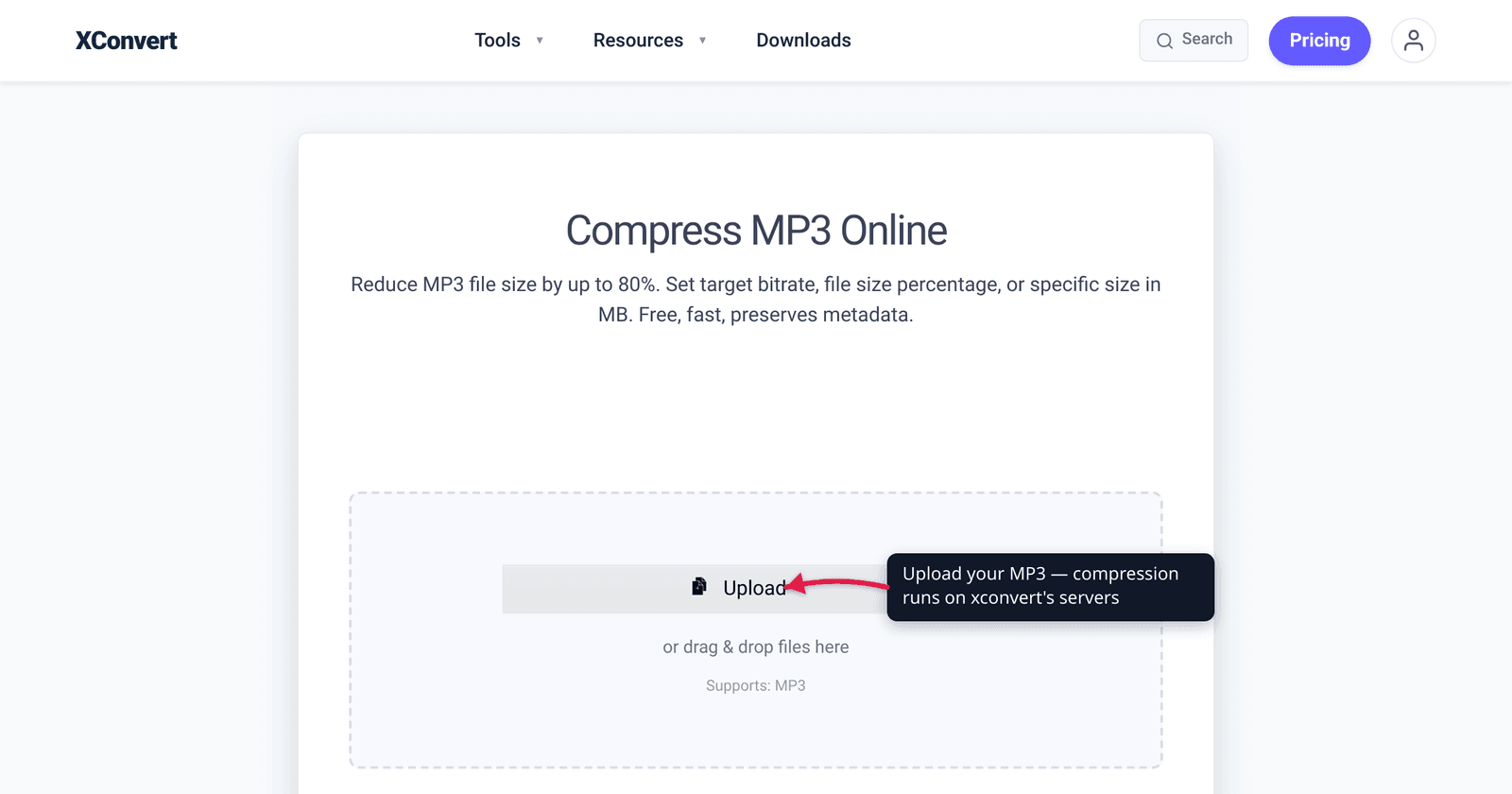
You exported a one-hour interview as a 130 MB MP3 and your podcast host (or your email) won’t take it. The fix isn’t a magic “compress” button that shrinks the file for free — MP3 is already a lossy format, so every lever that makes it smaller trades away a little audio in return. The good news: for spoken word and most casual listening, you can cut the file by half or more and almost nobody will hear the difference, if you pull the right levers. This guide explains the four that actually move the needle — bitrate, channels, sample rate, and trimming silence — what each one costs, and the bitrate numbers to use for speech versus music. We verified the bitrate guidance against the Audacity manual and the LAME encoder docs.
Quick answer: The biggest lever is bitrate — dropping a 256 kbps file to 128 kbps roughly halves it. For speech, also switch stereo to mono (cuts size again) and 96 kbps mono is plenty; for music, stay at 128 kbps or higher and keep stereo. Lowering the sample rate and trimming silence help further. Because MP3 is already lossy, re-encoding to a lower bitrate loses a little more quality — so always reduce from the highest-quality source you have, not from an already-small MP3.
Jump to a section
- Why “reducing” an MP3 always costs a little quality
- The four levers that shrink an MP3
- Bitrate guidance: speech vs music
- Reduce MP3 file size on xconvert
- FAQ
Why “reducing” an MP3 always costs a little quality
MP3 is a lossy format. When audio was first encoded to MP3, the encoder used a psychoacoustic model to throw away the parts of the sound your ear is least likely to notice — and that discarded data is gone for good. As the LAME encoder project puts it, lossy encoding produces a file that “is not the same file, but it will sound the same — more or less, depending on how much compression has been performed on it.”
That matters for shrinking, because making an MP3 smaller almost always means re-encoding it at a lower bitrate, and that’s a second pass of lossy compression on top of the first. Each pass discards a bit more. The practical rules that follow from this:
- Reduce from the best source you have. If you still have the original WAV, or a high-bitrate (256/320 kbps) MP3, compress that down — not an MP3 someone already squeezed to 96 kbps. Re-compressing an already-small file stacks generation loss for little extra savings.
- Don’t bother going “back up.” Re-encoding a 96 kbps MP3 to 320 kbps makes the file bigger without restoring any quality — the detail is already gone.
- You only need it “good enough” for the use. A voice memo for a colleague does not need CD-grade settings; a music demo does. Match the bitrate to the job (below) and you keep quality where it actually counts.
If you want the deeper theory of how bitrate and sample rate set quality and size, see Audio bitrate vs sample rate — this guide stays practical.
The four levers that shrink an MP3
There are exactly four settings that change an MP3’s size. In rough order of impact:
1. Bitrate — the big one. Bitrate (in kbps) is how many bits of audio data are stored per second, and it scales the file size almost linearly. Halve the bitrate and you roughly halve the file. A 256 kbps file dropped to 128 kbps is about half the size; 128 kbps to 64 kbps halves it again. This is the lever with the most range — and the most audible cost if you overdo it, so use the speech-vs-music numbers below.
2. Channels — stereo to mono. A stereo MP3 stores two channels; mono stores one. For spoken-word audio — interviews, lectures, voice memos, most podcasts — there’s no meaningful stereo image to lose, so converting to mono lets the encoder spend all its bits on a single channel. The Audacity manual notes that for voice-only material, “mono is usually preferred as you can achieve better sound quality with less data.” Do not flatten music to mono if the stereo mix matters.
3. Sample rate. The sample rate (in Hz) is how many times per second the audio was measured. CD-quality is 44,100 Hz (44.1 kHz). Lowering it — e.g. to 32 kHz or 22.05 kHz — gives the encoder less to encode, which helps voice files in particular. The trade-off is high-frequency detail: drop it too far and music sounds dull and “telephone-y.” Keep 44.1 kHz for music; a lower rate is a reasonable extra squeeze for voice.
4. Trim the silence. The simplest lever of all: if your file has dead air at the start, end, or middle, removing it removes those seconds of data entirely — a lossless way to shrink the file with zero quality cost to the audio that remains.
For the difference between constant and variable bitrate, and which sounds better at a given size, the LAME and Audacity docs both favour VBR (variable bitrate) for music — it spends more bits on complex passages and fewer on simple ones — while CBR (constant bitrate) is the safer choice for podcasts and for hosts that expect a fixed rate.
Bitrate guidance: speech vs music
Bitrate is where most people either waste space or wreck the audio. Here are sensible targets, drawn from the Audacity MP3 export guidance and the LAME quality presets:
| Content | Bitrate | Channels | Notes |
|---|---|---|---|
| Voice / podcast (talk only) | 64–96 kbps | Mono | 96 kbps mono is the practical sweet spot for speech; 64 kbps mono is acceptable for plain voice |
| Podcast with music beds / stings | 128 kbps | Mono or stereo | Bump up so the music doesn’t sound thin |
| General music listening | 128–192 kbps | Stereo | 128 kbps is “acceptable” for casual listening; 192 kbps is comfortably clean |
| High-quality music | 256–320 kbps | Stereo | 256 kbps VBR is the Audacity recommendation for better music quality; 320 kbps is the MP3 ceiling |
A few honest caveats:
- These are guidelines, not laws. At 128 kbps and up, most listeners on most gear can’t reliably tell MP3 from the original — but trained ears on good headphones sometimes can, especially on cymbals and reverb tails.
- The Audacity manual’s default is 170–210 kbps VBR (“Standard” preset) as a good all-round music setting. If in doubt for music, that’s a safe target.
- For speech, going above ~128 kbps mostly wastes space with no audible benefit — the spoken voice simply doesn’t carry the complexity that needs the extra bits.
If you’re specifically weighing 128 vs 256 vs 320, we compare them in depth — including when 320 is genuinely worth the bytes — in MP3 bitrate: 128 vs 256 vs 320 kbps.
Reduce MP3 file size on xconvert
The xconvert MP3 compressor exposes all four levers in one place, so you can apply the guidance above:
- Open xconvert.com/compress-mp3 and click Upload to add your MP3 (from your computer, Google Drive, or Dropbox).
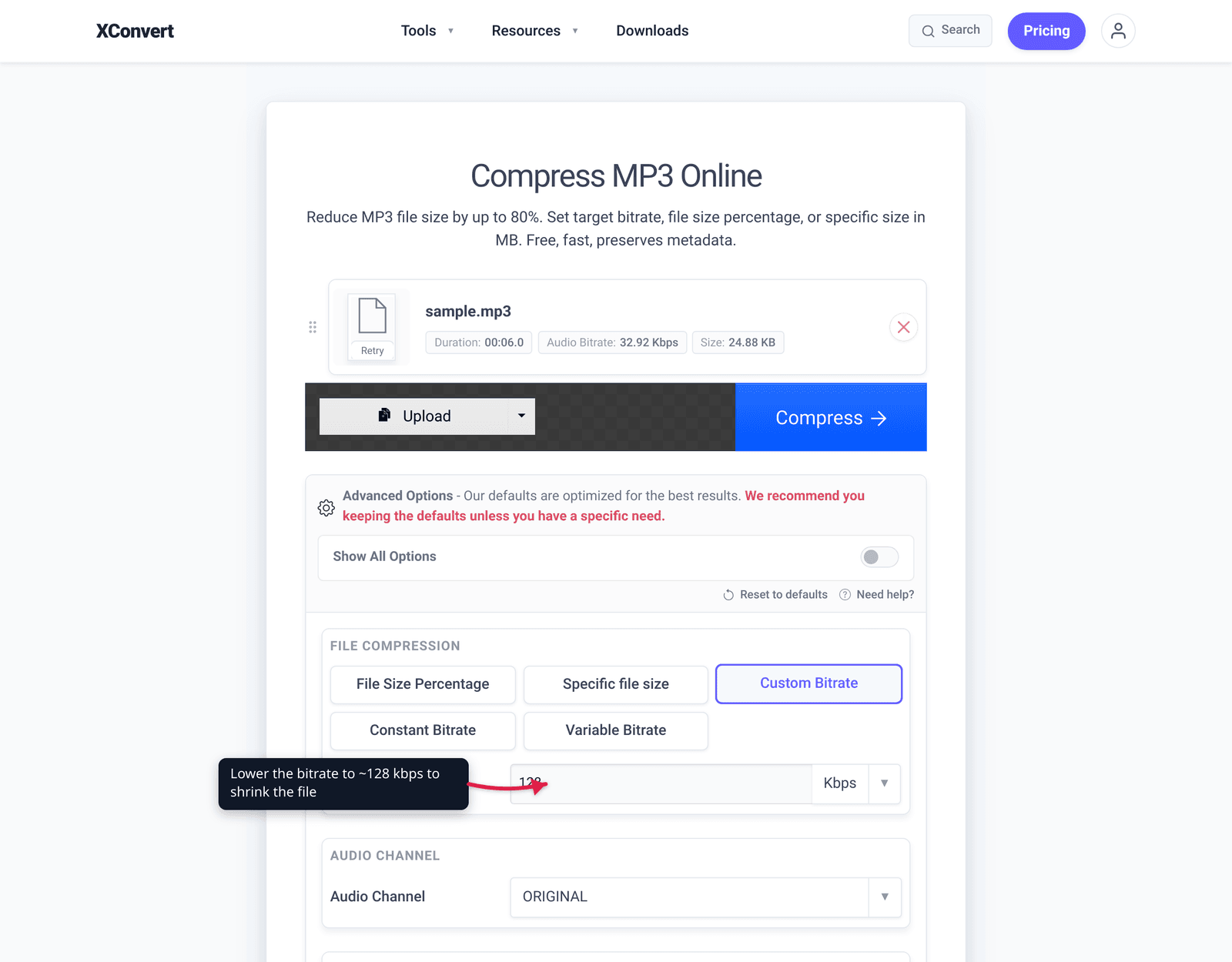
- Pick a File Compression method: File Size Percentage (drag the slider — it defaults to 80, meaning a smaller output), Specific file size to hit an exact MB target, or Custom Bitrate to set the kbps directly using the speech-vs-music numbers above.
- For voice files, open Advanced Options (the gear icon) and set Audio Channel to mono — it defaults to ORIGINAL — to roughly halve the size again.
- Optionally lower the Audio Sample Rate (also defaults to ORIGINAL) for voice, and use Trim to cut dead air.
- If you set a bitrate, choose Constant Bitrate for podcasts/predictable size or Variable Bitrate for the best quality-per-byte on music.
- Click Compress and download the result (single file, or as a ZIP for a batch).
Your file uploads over an encrypted connection, is processed on our servers, and is deleted automatically a few hours later. Nothing stays around.
For the related WAV case, see how to make a WAV file smaller — converting WAV to a sensible-bitrate MP3 is often the single biggest size win you can make.
FAQ
How can I reduce MP3 file size without losing quality?
You can’t make a lossy file smaller with zero change, but you can get close to “no audible difference.” Trim silence (truly lossless), and re-encode at a bitrate that’s still well above what your content needs — e.g. 128 kbps for casual music or 96 kbps mono for speech. The key is to compress from the highest-quality source you have, not from an already-small MP3, so you only take one quality hit.
What is a good bitrate to make an MP3 smaller?
For speech, 96 kbps mono is the practical sweet spot, and 64 kbps mono is acceptable for plain voice. For music, 128 kbps is fine for casual listening and 192–256 kbps keeps it clean. The Audacity manual’s all-round default is 170–210 kbps VBR. Going above these for the matching content type mostly wastes space.
Does converting an MP3 to mono make it smaller?
Yes — for spoken-word audio it can nearly halve the file by storing one channel instead of two, with no meaningful loss because there’s no stereo image to preserve. Don’t do it for music where the left/right mix matters.
Will re-saving an MP3 at a higher bitrate improve its quality?
No. The detail a low-bitrate MP3 already discarded is gone; re-encoding at 320 kbps only makes the file bigger without restoring anything. Always reduce down from the best source, and never expect to recover quality by going back up.
Why does my MP3 sound worse after I compress it?
You likely dropped the bitrate too far for the content — music below ~128 kbps, or voice below ~64 kbps, starts to show artifacts (a “swirly” or thin sound). It can also stack up if you compressed an already-compressed MP3. Re-do it from the original at a higher bitrate, and keep music in stereo at 44.1 kHz.
How much smaller can I make an MP3?
It depends on the starting bitrate and your target, but cutting the bitrate in half roughly halves the file, and switching voice to mono can take it down further. In practice, reductions of 40–90% are common when the source was high-bitrate and your target is reasonable for the content.
Sources
Last verified 2026-06-25.
- Audacity Manual — MP3 Export Options — bitrate recommendations (170–210 kbps VBR default, 256 kbps VBR for music, 64/96 kbps CBR mono for podcasts), the “trade-off between size and quality” of lossy formats, mono-for-voice guidance, and VBR vs CBR.
- LAME MP3 Encoder — Introduction to encoding — MP3 is lossy (“not the same file, but it will sound the same — more or less”), the psychoacoustic basis, and VBR quality presets.
- xconvert — MP3 bitrate: 128 vs 256 vs 320 kbps — deeper bitrate comparison (cross-link, not restated here).
- xconvert — Audio bitrate vs sample rate — the underlying theory of how these settings set quality and size.