 By James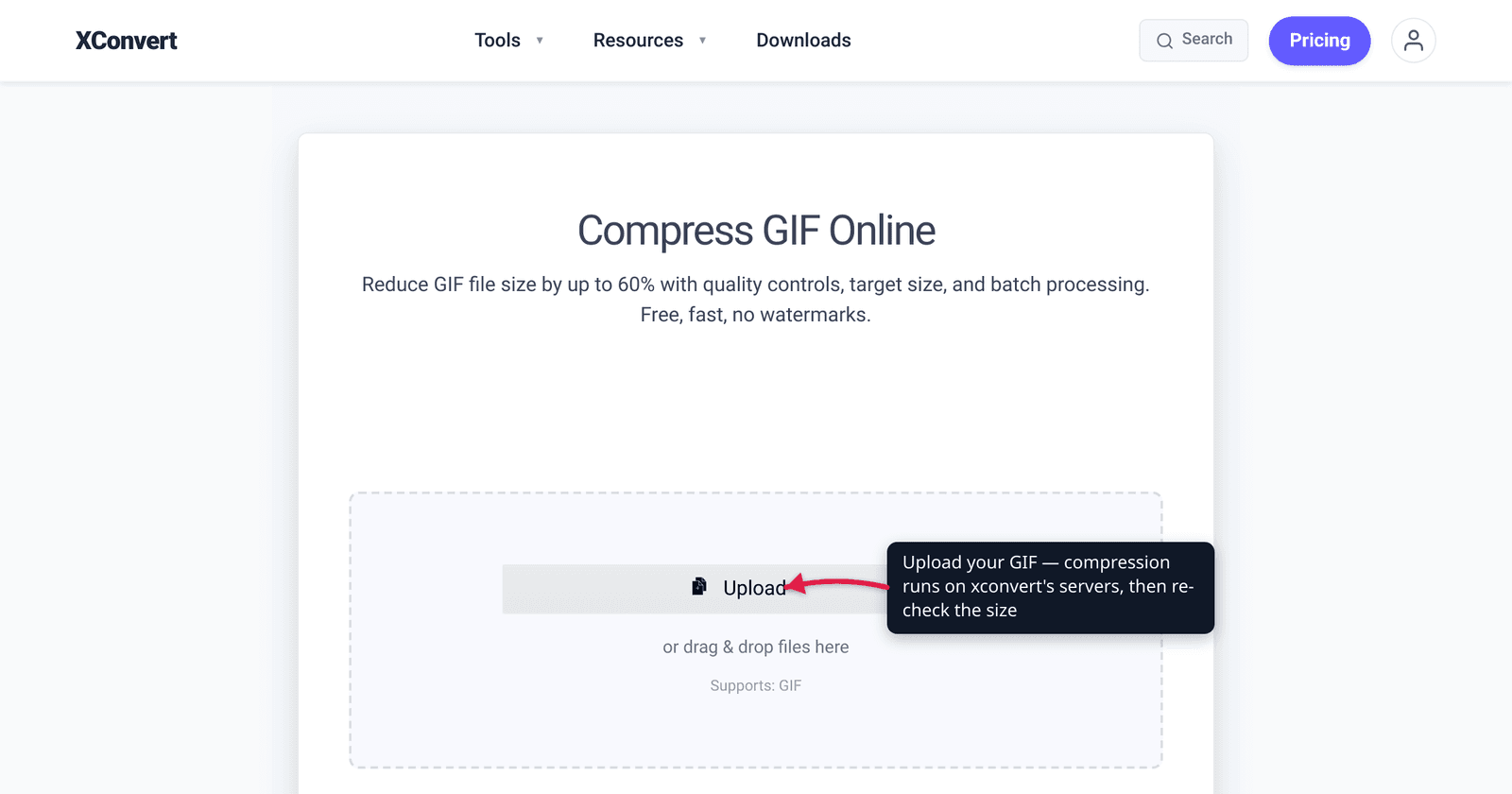
You exported a GIF, the upload box says “max 5 MB,” and yours is 14 MB. So you Google “compress gif to 5mb,” open a tool — and there’s no box to type “5 MB” into. That’s not a bug: most GIF compressors (xconvert’s included) don’t take a target size, because GIF has no single knob that maps cleanly to bytes the way a JPEG quality slider does. The good news is that four levers between them control almost all of a GIF’s size, and once you know what each one buys, hitting 10 MB, 5 MB, 1 MB — even 256 KB — is a short, predictable loop. We verified the levers against the live xconvert GIF compressor and the GIF89a format spec.
Quick answer: There’s no “enter a target size” field for GIFs — you hit a size by pulling levers and re-checking. In order of impact: (1) resolution — halving the width cuts size ~75%; (2) frame-dropping — remove every 2nd or 3rd frame to roughly halve it; (3) trim the duration — fewer seconds, fewer frames; (4) colors + quality — color reduction and the quality slider shave another 20–40%. Compress, check the output size, pull harder if it’s still over. For very small targets (1 MB and under), expect to use all four — or convert to MP4 instead.
Jump to a section
- Why there’s no “target size” box for GIFs
- The four levers and what each one buys
- How to hit a specific size: the loop
- Rough starting points by target
- Compress a GIF to a target size on xconvert
- FAQ
Why there’s no “target size” box for GIFs
A video codec like H.264 lets a tool say “make this 5 MB” because it can set a bitrate — a bytes-per-second budget the encoder spends as it goes. GIF has no bitrate. By the GIF89a spec, a GIF stores a sequence of images (frames), each compressed with LZW and limited to a 256-color palette (8 bits per pixel). Final size falls out of four independent inputs — pixel count, frame count, palette size, and how compressible the content is — with no single dial that predicts the byte total in advance.
That’s why a target-size field for GIF would be guessing anyway. The honest, reliable method is to set the levers, compress, look at the result, and adjust. It sounds manual, but each lever has a roughly predictable effect, so you usually land within one or two passes.
This is also why GIFs are so stubbornly large: unlike MP4, GIF stores every frame as a full image with no inter-frame (“delta”) compression, so a 5-second screen capture can be 20 MB as a GIF and ~1 MB as an MP4. If your destination accepts video, converting the GIF to MP4 is the single biggest size win available.
The four levers and what each one buys
These are the controls that actually move GIF size, ordered by how much they move it. The percentages are rules of thumb — actual results depend on the content (a flat-color UI capture compresses far better than a photographic, high-motion clip).
1. Resolution (dimensions) — the biggest lever. GIF size scales roughly with pixel count (width × height). Halving the width also halves the height to keep aspect ratio, so you keep only 25% of the pixels — a ~75% size cut. Scaling a 1080p (1920-wide) capture to 960 wide, or even 720, is usually invisible at the sizes GIFs are actually viewed (chat and docs rarely show them above ~480 px wide). Pull this first.
2. Frame-dropping (effective frame rate) — the second biggest. Removing every 2nd frame roughly halves the frame count and the size; every 3rd removes about a third. A 30 fps capture trimmed to every-other-frame plays at an equivalent ~15 fps, which still looks smooth for most content. Below ~10 fps, motion-heavy clips look choppy, but text and slow animations survive lower rates fine.
3. Duration (trim) — multiplies with everything else. Bytes scale with the number of frames, so a shorter clip is smaller in direct proportion. A 12-second GIF cut to the 5 seconds that matter is ~58% smaller before you touch anything else — often easier than degrading every frame.
4. Colors and quality — the fine-tuning. GIF’s palette is capped at 256 colors. Color reduction (with dithering to hide banding) plus the quality slider together typically shave another 20–40%, more on simple graphics that never needed 256 colors. Use this to nudge a 1.1 MB result under a 1 MB cap once resolution and frames have done the heavy lifting.
A practical truth from the bottom of the range: 1 MB and below is genuinely hard for a long, detailed GIF. GIF’s 256-color, no-delta design wasn’t built for 1080p recordings. If all four levers can’t get you there, that’s the format’s floor — trim harder, or switch to MP4.
How to hit a specific size: the loop
Because there’s no target field, you converge with a quick loop — almost always in one or two passes:
- Aim a bit under the cap. Target ~10% below the real limit (9 MB for a 10 MB cap, 4.5 MB for 5 MB) to avoid edge-case rejections at the boundary.
- Pull resolution first. Biggest lever, least visible — start at 50% width for a 1080p source.
- Then drop frames (every 2nd or 3rd), and compress and read the output size. That’s the only number that matters.
- Still over? Over by a little → cut colors / lower quality. Over by a lot → resize more, drop more frames, or trim seconds. Way under but rough? Back off one lever (usually resolution).
Rough starting points by target
Starting points for a typical 5-second, 1080p, 30 fps screen-capture GIF (~18–25 MB raw). Treat them as a first pass, then run the loop above — high-motion or photographic content needs more aggressive settings:
| Target | Resolution | Frame-drop | Colors / quality | Realistic for a 5 s clip? |
|---|---|---|---|---|
| 10 MB | 70% width | every 3rd frame | default | Comfortable |
| 5 MB | 50% width | every 2nd frame | default quality | Comfortable |
| 1 MB | ~35–40% width | every 2nd–3rd frame | color reduction on, lower quality | Tight — often needs a trim too |
| 256 KB | ≤320 px wide | every 2nd frame | aggressive color reduction | Only short / simple clips |
| 100 KB | ≤200 px wide, ~2–3 s | every 2nd frame | minimal palette | Tiny loops / reaction GIFs only |
For the smallest two targets, trimming the duration is usually mandatory — there aren’t enough other bytes to remove. And if a platform accepts video, a few-second MP4 at modest resolution is commonly 5–10× smaller than the GIF, making a “100 KB” requirement trivial.
Heading to a specific platform? The exact caps and settings live in dedicated guides: compress a GIF under 10 MB for Discord and compress a GIF for Twitter/X (15 MB desktop, 5 MB mobile).
Compress a GIF to a target size on xconvert
The xconvert GIF compressor exposes exactly the four levers above — there’s no “enter a size” box, so you set the levers, compress, and check the result:
- Open xconvert.com/compress-gif and click Upload to add your GIF (from your computer, Google Drive, or Dropbox).
- Under Advanced Options → Image resolution, lower the Resolution Percentage (or type a smaller Width — height follows to keep aspect ratio). Start near 50% for a 1080p source — this is your biggest size lever.
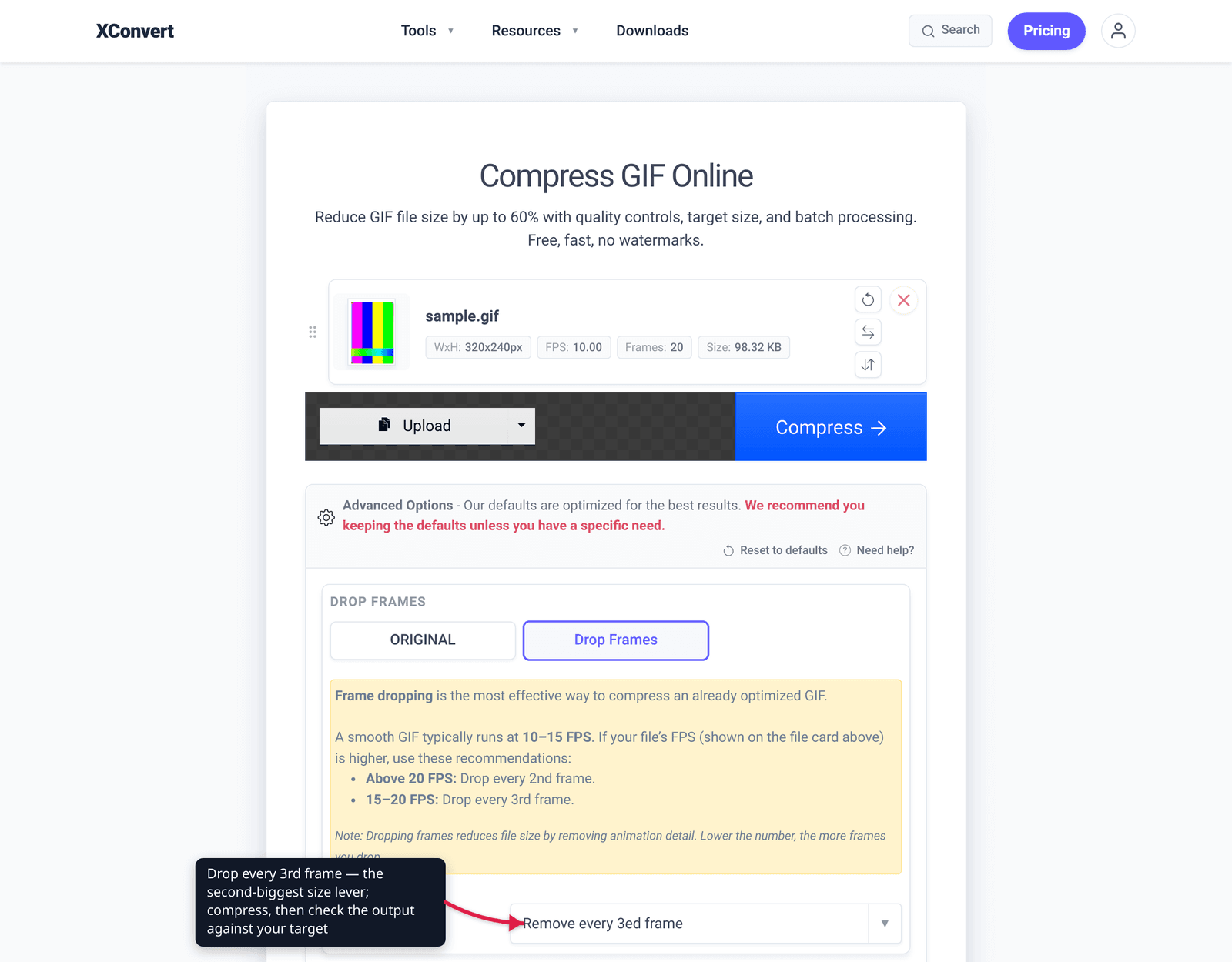
- Open the Drop Frames dropdown and pick Remove every 3rd frame (or every 2nd frame for a deeper cut). This thins the frame count without obvious judder on most content.
- To fine-tune, lower the Image quality (%) slider (default 75%) and/or turn on Colors → By Color Reduction + Dither to shrink the palette. Use these to nudge a near-miss under the cap.
- Click Compress, then download and check the file size. Still over target? Raise one lever and re-run. Well under but rough? Ease one back.
To remove seconds instead of degrading quality, trim first with the GIF cropper/trimmer, then compress. Your file uploads over an encrypted connection, is processed on our servers, and is deleted automatically a few hours later — nothing stays around.
FAQ
How do I compress a GIF to an exact file size like 5 MB?
There’s no “type 5 MB” field for GIFs, because GIF has no bitrate to budget bytes against. You hit a size by setting the levers — resolution, frame-dropping, duration, and colors/quality — then compressing and checking the result. Aim slightly under the cap (about 4.5 MB for a 5 MB limit), pull resolution first, and re-run if you’re still over. It usually takes one or two passes.
Why won’t my GIF compress below 1 MB?
GIF’s design fights you at the bottom: a 256-color palette, no inter-frame compression (every frame is stored whole), and LZW encoding that predates HD recordings. A long, detailed, high-motion 1080p GIF can’t reach 1 MB without looking destroyed. Trim the duration hard, scale down aggressively, and cut colors — or convert to MP4, which is typically 5–10× smaller.
Which setting reduces GIF size the most?
Resolution (dimensions). Size scales with pixel count, so halving the width keeps only ~25% of the pixels — a ~75% reduction in one move, and usually the least noticeable since GIFs are viewed small. Frame-dropping is the next biggest lever (remove every 2nd frame ≈ half the size).
Does dropping frames make the GIF look choppy?
Only if you go too far. Removing every 2nd or 3rd frame (taking ~30 fps down to ~15–20) looks smooth for typical screen recordings, reactions, and slow animations. Going below ~10 fps starts to look jerky on fast-motion content, while text and slow animations tolerate lower rates fine.
Is it better to convert the GIF to MP4 instead?
If your destination accepts video — yes, almost always. MP4 stores only what changes between frames, so it’s commonly 5–10× smaller than the same GIF at better quality, which makes tight targets like 256 KB or 100 KB easy. Keep GIF only when you specifically need auto-looping inline (some chat platforms loop GIFs but not video). See GIF vs MP4 file size for the why.
What’s the smallest a GIF can realistically be?
For a short, simple loop — a few seconds, low resolution, few colors — you can reach 100–256 KB. A reaction GIF at ~200 px wide and ~8–10 fps still reads clearly because the brain fills in motion. But a full-length, detailed, HD GIF has a much higher floor; at some point the only way down is to trim it or switch formats.
Sources
Last verified 2026-06-25.
- xconvert GIF compressor — live tool; verified the actual controls (Image resolution / Resolution Percentage / Width / Height, Drop Frames dropdown, Image quality (%) default 75%, Colors → By Color Reduction + Dither) and confirmed there is no target-file-size field.
- W3C — GIF89a Specification — GIF stores a sequence of images, each LZW-compressed with a color table capped at 256 entries (8 bits/pixel); the structural reason GIFs are large and have no bitrate.