 By James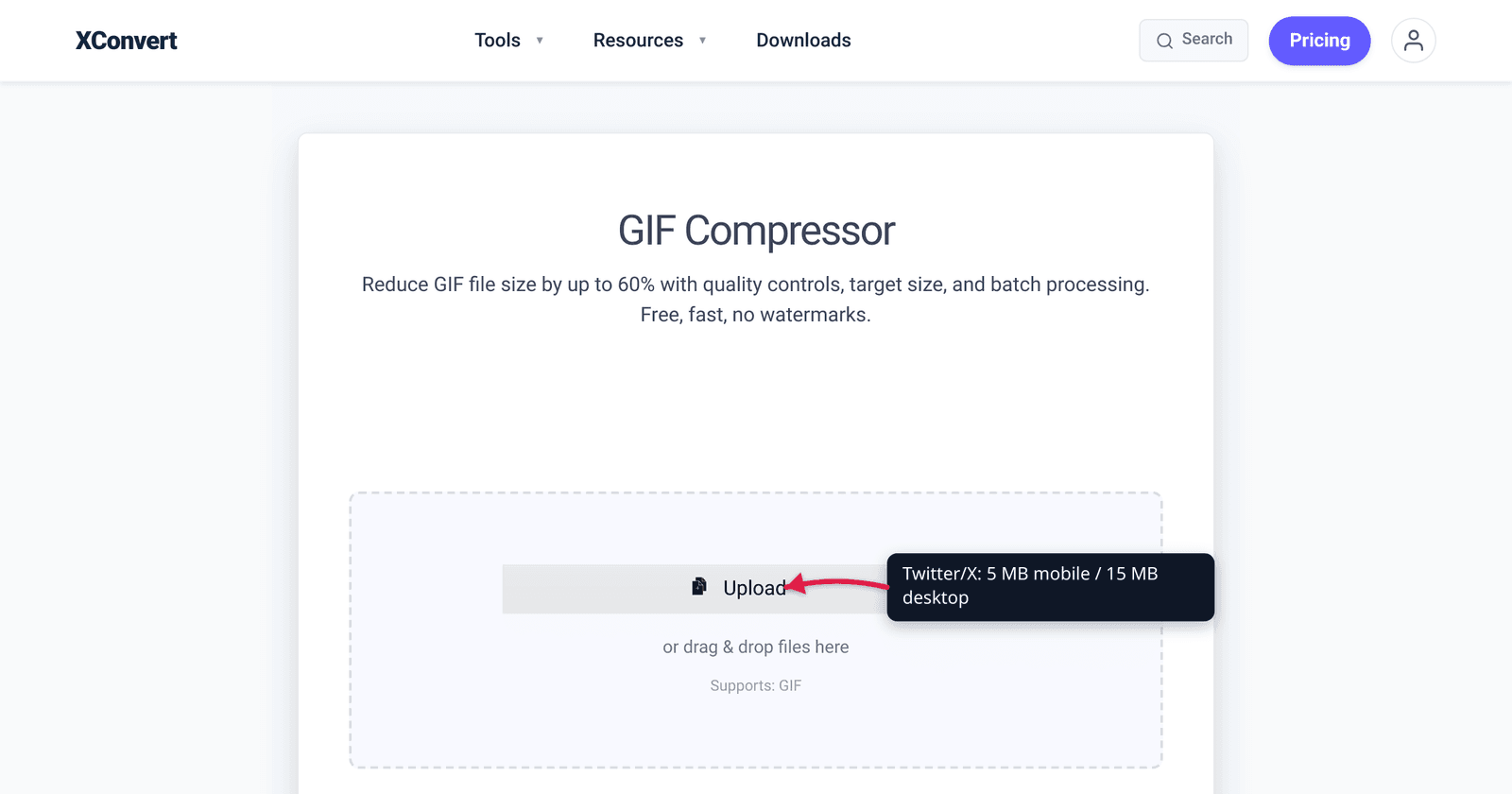
Twitter/X has different file size caps for GIF uploads on desktop (15 MB) and mobile (5 MB), and for a reaction GIF that’s posted-and-shared by people on phones, the mobile limit is the one that matters. This guide covers what fits each limit, how to make a GIF that uploads cleanly across both, and the dimension and frame-rate constraints that affect playback in the X timeline.
Quick answer: X’s help pages put animated GIFs at 15 MB from web and 5 MB from mobile. Target 5 MB so the same GIF works on both. In the xconvert GIF compressor: leave File Compression on Max file size, set the Size limit dropdown to Custom size value, type 5 in the Max size field and leave the unit on MB. There is no Twitter preset in that dropdown — you type the number yourself and the compressor searches for the biggest GIF that fits under it.
Jump to a section
- Twitter/X GIF limits (2026)
- Why mobile matters more than desktop
- Settings cheat sheet
- Step by step in xconvert
- Common mistakes that get GIFs rejected
- FAQ
Twitter/X GIF limits (2026)
Twitter/X’s documented GIF specs, as stated on X’s own help and developer pages:
| Spec | Limit |
|---|---|
| Desktop / web upload | 15 MB |
| Mobile (iOS / Android app) upload | 5 MB |
| Maximum dimensions | 1280 × 1080 px |
| Frame rate | No documented cap; keep ≤ 30 fps for smooth playback |
| Maximum length | No documented cap; practical: ≤ 6 seconds for engagement |
| Per tweet | 1 GIF (cannot combine with other images) |
In practice, for a GIF that uploads reliably from any device, target 5 MB so it works for both desktop and mobile uploads. If you know you’re posting from desktop and the file is going to be downloaded by mobile users (Twitter handles that re-encode), 15 MB is fine — Twitter compresses GIFs on the server side for mobile delivery.
Why mobile matters more than desktop
Most Twitter/X engagement happens on mobile. If the GIF’s source is high-resolution (a screen recording at 1920×1080), it’ll easily blow past 5 MB even at heavy compression — but most viewers will see it on a phone screen at ~360 px wide anyway. The visual difference between 1280 px source and 480 px source is invisible at typical mobile viewing sizes.
The mobile cap is also the consistent cap across both upload paths. If you’re tweeting on the go and the file’s 8 MB, the upload fails. If you compress to under 5 MB once, it works everywhere.
Settings cheat sheet
Two tiers depending on where you’ll upload from:
Mobile-safe (under 5 MB) — recommended
| GIF type | Resolution | FPS | Colors | Notes |
|---|---|---|---|---|
| Reaction / face GIF | 480 × 480 | 12 | 64 | ~3–4 MB for 4 sec |
| Screen recording | 720 × 405 | 12 | 64 | ~4 MB for 5 sec |
| Animation / motion graphic | 600 × 400 | 15 | 128 | ~4.5 MB for 4 sec |
Desktop-only (under 15 MB)
| GIF type | Resolution | FPS | Colors | Notes |
|---|---|---|---|---|
| Reaction / face GIF | 720 × 720 | 18 | 128 | ~10 MB for 5 sec |
| Screen recording | 1280 × 720 | 15 | 128 | ~13 MB for 6 sec |
| Animation / motion graphic | 960 × 540 | 24 | 128 | ~12 MB for 5 sec |
For most use cases, target the mobile cap — Twitter’s automatic transcoding makes a 5 MB GIF look almost identical to a 15 MB one when displayed in the timeline at 600 px wide.
Step by step in xconvert
The compressor’s Size limit dropdown ships presets for Discord, email and forums — there is no Twitter/X entry, so you type the number. That is the whole job.
- Open xconvert.com/compress-gif and click + Add Files to pick your animated GIF.
- Leave File Compression on Max file size — it is already selected when the page loads.
- In the Size limit dropdown, choose Custom size value. (It opens on Custom size %, which caps the output at a percentage of the original rather than at an absolute number — not what you want when a platform gives you a hard byte ceiling.)
- A Max size field appears with a unit dropdown next to it. Type 5 and leave the unit on MB for a GIF that uploads from anywhere. Posting from desktop only? Type 15 instead — but the mobile-safe number is the one worth defaulting to.
- Click Compress. Your file is processed on our servers and deleted automatically a few hours later.
- Download and check the size before tweeting. The ceiling is best-effort at-or-under, not an exact landing size: 5 MB out of a typical 15–25 MB reaction GIF is comfortable, while 5 MB out of a 150 MB 1080p capture gets as close as the format allows — that’s when the manual levers below earn their keep.
Optional fallback: the manual levers (Custom mode)
Frame-dropping, resolution, palette and quality are all still there; they sit one click away. Switch File Compression from Max file size to Custom:
- Drop Frames opens already on Drop Frames (versus ORIGINAL) with Every 3rd frame preselected in Frames To Drop — the measured sweet spot, dropping a third of the frames with no visible motion judder on typical reaction or screen content. Go to every 2nd only on very smooth source where one notch isn’t enough.
- Image resolution → Resolution Percentage, then drag By Percentage down hard. Most Twitter viewers see GIFs in the timeline at ~600 px wide on desktop and ~360 px on mobile, so source dimensions above 480 px are wasted bytes: 35–45% of a 1080p source for the 5 MB mobile cap, 50–60% for desktop-only.
- Image quality (%) opens on Image Quality (%) (versus ORIGINAL) with the Quality Percentage slider starting at 80. Twitter’s mobile delivery transcoding hides a moderate drop from there.
- Colors → By Color Reduction + Dither gives you a Color Palette Size dropdown (128 preselected) and a Dither toggle, off by default.
Custom mode applies exactly what you set and does not aim at a byte target, so check the result against the cap yourself. If you want the number enforced, go back to Max file size.
Heads-up — your GIF will look worse than the MP4 it came from. The format ceiling is 256 colors per frame, with every frame stored as a full image, so photographic and gradient-heavy content always bands and posterizes. That’s the GIF spec itself, not the compressor doing damage — if you can post MP4 instead, do (X takes video uploads up to 512 MB on a non-Premium account — far past any GIF cap).
Common mistakes that get GIFs rejected
1. GIFs over 1280 × 1080 dimensions. Twitter has a hard dimension cap. Bigger source GIFs get rejected even if file size is under 15 MB. Always confirm dimensions ≤ 1280 wide and ≤ 1080 tall.
2. Trying to combine a GIF with other images in one tweet. Twitter allows either 1 GIF OR up to 4 still images in a tweet — not mixed. If you want both, post the GIF and the images as a thread or separate tweets.
3. Uploading from mobile when over 5 MB. Twitter’s mobile app silently fails or strips the upload when the file exceeds 5 MB. The desktop-web path is more forgiving, but for the same reason: you might post-and-forget on desktop and find later that mobile users see a broken thumbnail.
4. GIFs with paletted-out colors that look fine in preview but bad after upload. Twitter applies its own palette quantization on the server when delivering. Source GIFs with subtle color gradients (sunsets, skin tones, rendered shaders) sometimes look noticeably worse after Twitter’s compression than they do in your preview. Test on the platform after upload.
5. Animated GIFs longer than 6 seconds. No hard limit, but engagement drops sharply after 6 seconds. Long looping GIFs look fine on file but feel boring in the timeline. Trim to the most expressive moments.
Frequently Asked Questions
Does Twitter convert my GIF to MP4?
Yes, in the timeline. Twitter serves GIFs as silent MP4 (H.264) for bandwidth efficiency on mobile. Your uploaded GIF is the source, but viewers see a transcoded MP4. That means a 15 MB GIF and a 4 MB GIF often look similar to viewers because the timeline player uses Twitter’s compressed version of either.
Can I upload an MP4 instead of a GIF for the same look?
Yes. Twitter supports MP4 video uploads up to 512 MB for non-Premium users on both desktop and mobile; auto-loop applies to videos under ~60 seconds. For a “looping animation” use case, an MP4 at 1280×720 H.264 is typically 5–10× smaller than the equivalent GIF with much better quality. Use GIF to MP4 converter if you want to switch formats.
Why does my GIF look worse after Twitter than before?
Two reasons: (1) Twitter applies its own server-side compression when delivering, especially on mobile, (2) Twitter quantizes the color palette when transcoding to its delivery format. The fix is partial: upload at higher quality so Twitter’s compression has more headroom. But for very subtle color content (sunsets, gradients), some quality loss after upload is unavoidable.
Does sound work in Twitter GIFs?
No. GIF format doesn’t support audio, and Twitter’s GIF transcode strips any embedded audio if the source had any (it usually doesn’t). For audio + animation, upload an MP4 video with sound — that supports audio playback when users tap the tweet.
How long should a Twitter GIF be?
3–6 seconds is the sweet spot for engagement. Reaction GIFs are typically 1–3 seconds; screen recordings or product demos work up to 6 seconds. Anything longer than 8 seconds, viewers swipe past before the loop completes.
Can I post a GIF as a reply or quote tweet?
Yes — same upload limits. The 5 MB / 15 MB caps apply to any GIF in any tweet regardless of whether it’s a top-level post, reply, quote tweet, or DM.
Can I edit a GIF after I tweet it?
No. Once a tweet is posted, the media is locked. Delete and re-tweet if you need to fix a GIF that uploaded poorly.
Try it now
Compress a GIF for Twitter/X with the xconvert GIF compressor — leave File Compression on Max file size, set Size limit to Custom size value, type 5 MB (mobile-safe) or 15 MB (desktop only) into Max size, click Compress. For Discord-specific GIF compression (10 MB free / 50 MB Nitro Basic), see Compress GIF for Discord. For Slack animated emoji compression (128 KB cap), see Slack Animated Emoji.
Related guides
- Compress a GIF Under 10 MB for Discord (No Quality Loss)
- Convert a Phone Screen Recording to GIF for Twitter/X
- MP4 to GIF for Reddit: File Size Limits by Subreddit
Sources
Last verified 2026-08-31.
- X Help Center — How to Post pictures or GIFs (states the 5 MB mobile / 15 MB web GIF caps)
- X Developer Platform — Media best practices (states the ≤ 1280 × 1080 GIF resolution ceiling)
- X Help Center — How to share and watch videos on X
- MDN — Image file type and format guide