 By James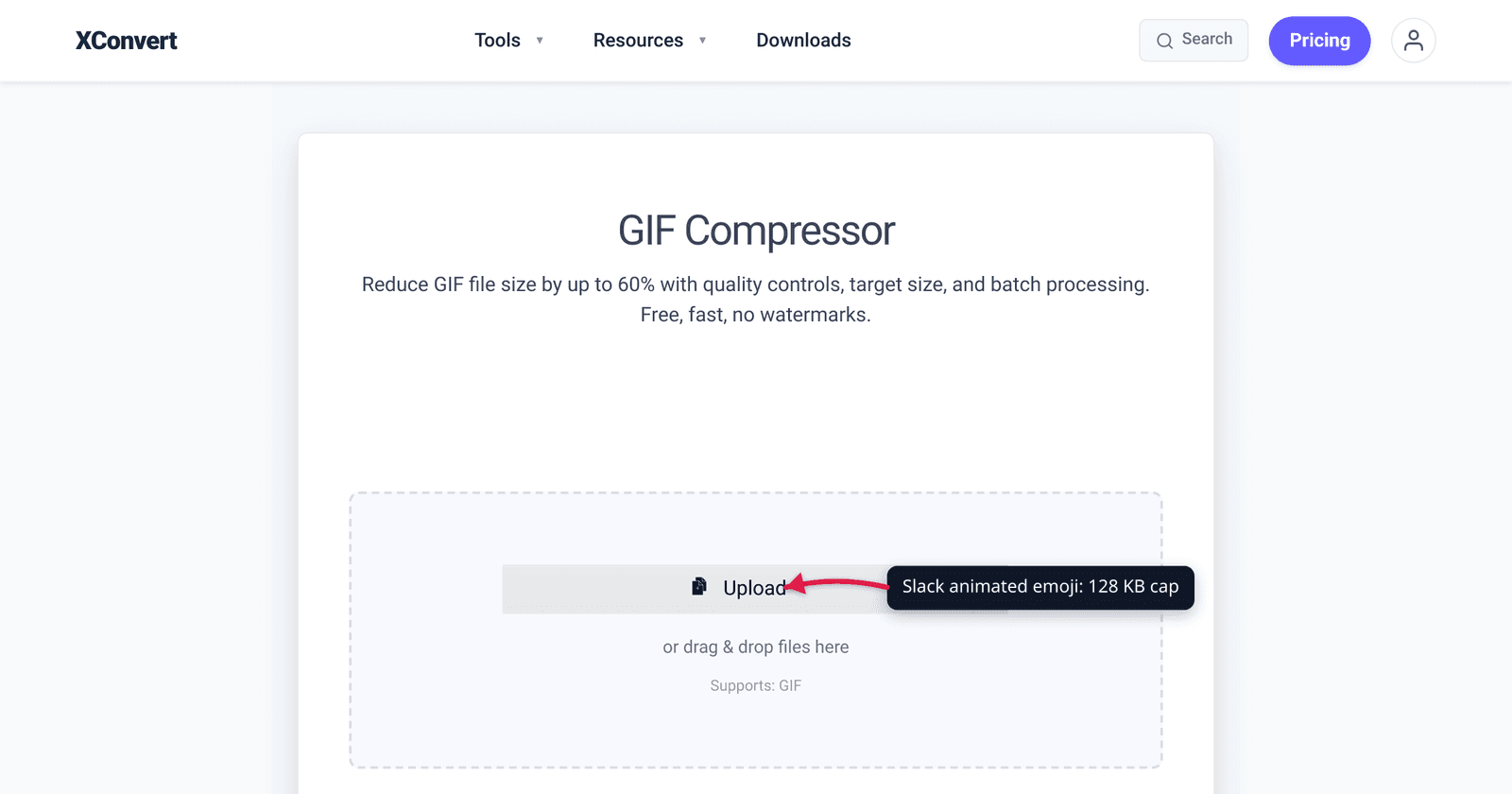
Slack’s custom emoji limit is 128 KB. For an animated GIF, that’s brutally small — most GIFs straight off Giphy are 1–5 MB, twenty times too big. Compressing an animation down 95% and keeping it readable at 32 px is a real puzzle. This guide walks through what’s actually achievable: the exact xconvert settings, what kinds of animations work at that size, and when to give up and use a static emoji instead.
Quick answer: Slack custom emoji are capped at 128 KB file size and 128×128 px. xconvert recipe: scale to 96×96 px, ‘Remove every 3rd frame’, image quality 70%, target 110 KB. Most source GIFs hit the cap with all three settings combined.
Jump to a section
- Slack emoji specs
- What kinds of animations actually fit
- The aggressive compression recipe
- Step by step in xconvert
- Worked example: a 4 MB reaction GIF → 95 KB Slack emoji
- When to give up and use a static emoji
- FAQ
Slack emoji specs
Slack’s custom emoji constraints:
| Spec | Limit |
|---|---|
| Max file size | 128 KB (per emoji) |
| Max dimensions | 128 × 128 px |
| Display size in chat | 22 × 22 px (regular), 32 × 32 px (single emoji message), 64 × 64 px (mobile single emoji) |
| Format | PNG, JPEG, GIF — for animated, must be GIF |
| Max animated frames | 50 frames (Slack official limit) |
| File extension | Must be .png, .jpg, or .gif |
Slack downsamples display to 22×22 in normal context, so the 128×128 source is 16× larger than what’s actually rendered. That gives you breathing room: the source can be aggressive about compression without affecting the rendered emoji.
What kinds of animations actually fit
At 128 KB with animation, three categories work well:
1. Single-element loops — a thumbs-up bouncing, a heart pulsing, an arrow rotating, a star twinkling. Simple geometry + few colors + tight frame count = small file. Easily fits at 64×64, 12 fps, 32 colors.
2. Tight reaction GIFs — a face making a single expression, a one-second wave, a brief eyebrow raise. Short duration limits frame count, helping size. Fits at 96×96, 10 fps, 64 colors with care.
3. Pixel-art style animations — limited palette anyway, simple movement, often game-engine generated. The native low-color count works in your favor. Fits at 128×128, 12 fps, 32–64 colors.
What doesn’t fit: photo-realistic content (skin tones, gradients, lighting changes), fast-cut clips with multiple scenes, anything longer than ~2 seconds, GIFs originally captured at high resolution where every pixel matters.
The four compression levers
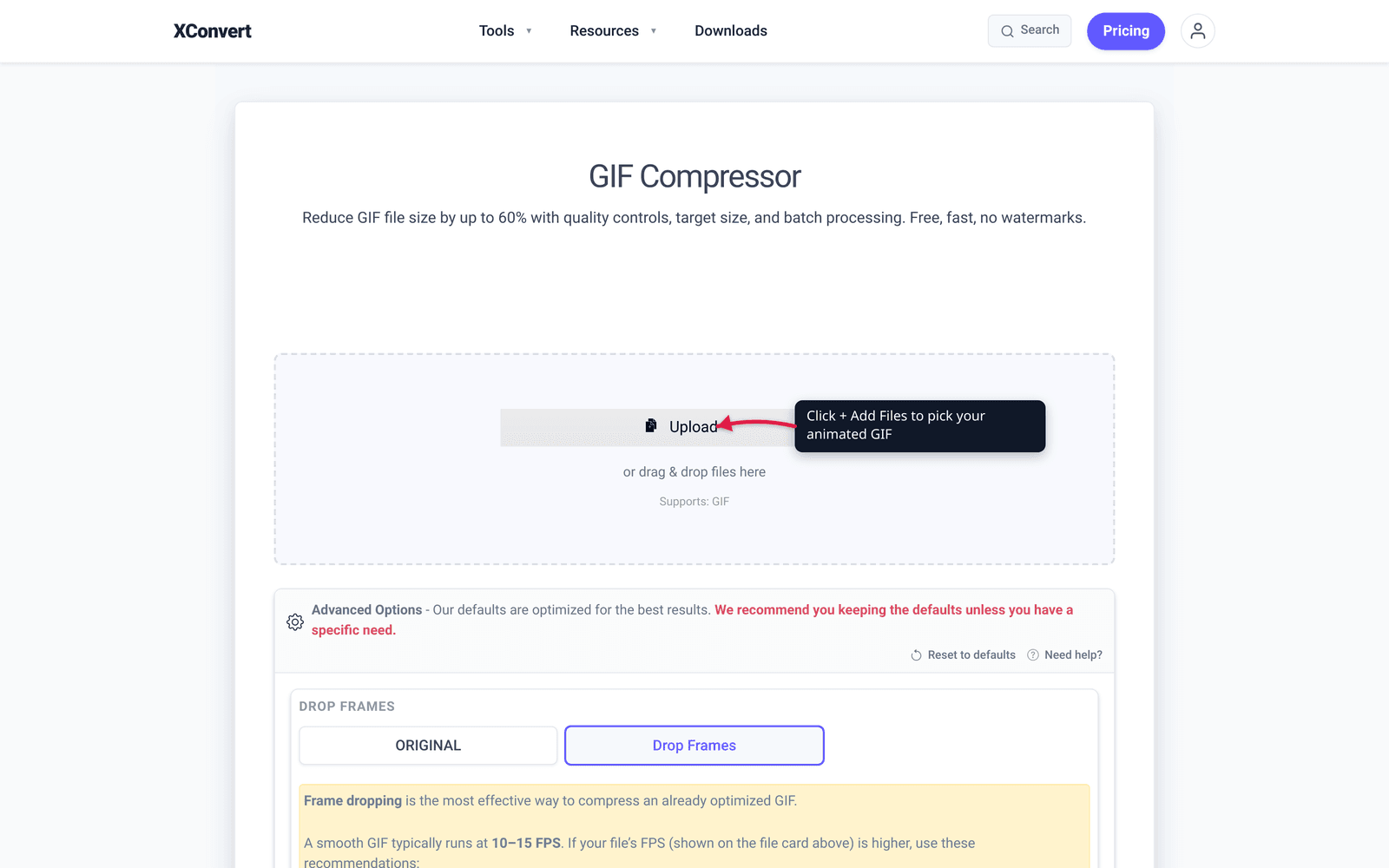
The xconvert GIF compressor exposes four Advanced Options. For Slack emoji, you’ll use all of them:
1. Drop Frames. The single most effective lever for already-optimized animations. Pick the Drop Frames mode, then choose how aggressively to thin the animation — every 2nd, 3rd, or 4th frame. The page itself recommends: above 20 FPS source, drop every 2nd frame; 15–20 FPS source, drop every 3rd. For Slack emoji going down to ~10 frames total, drop every 3rd or 4th.
2. Image resolution. Cut to 96×96 or 64×64. This is a huge lever for source GIFs at 480×480+. Use Resolution Percentage mode and pull down to ~25–40% — or use Width x Height for an exact size. Note from the tool: for GIFs specifically, reducing dimensions doesn’t always shrink the file as much as you’d expect because of how animation frames are optimized.
3. Image quality (%). Pick Image Quality (%) mode and pull the slider to 60–75%. Slack’s 22 px display size hides quality loss easily.
4. Colors. Pick By Color Reduction + Dither instead of ORIGINAL. Slack-sized emoji rarely need more than 32–64 colors visible.
A typical compression chain: 480×480 4 MB → drop every 2nd frame + 30% resolution + 70% quality + color reduction → ~95 KB. Fits.
Step by step in xconvert
- Open xconvert.com/compress-gif and click + Add Files to pick your animated GIF.
- In Advanced Options → Drop Frames, click the Drop Frames button — the default is ORIGINAL.

- After clicking, a Frames To Drop dropdown appears below. Open it and pick Remove every 3rd frame (or 4th if your source is over 20 FPS).

- In Image resolution, click the Width x Height mode (default is Resolution Percentage). This gives you separate Width and Height fields.

- Two input fields appear with Percent (%) as the unit. Type 30 in the Width field (Height auto-mirrors). On a typical 320×320 reaction GIF that lands you near 96×96 — 4× Slack’s 22 px chat render.

- In Image quality (%), click the Image Quality (%) button — the default is ORIGINAL.

- The Quality Percentage slider becomes editable. Drag the round handle leftward to about 70% (default is 80%). Slack’s tiny emoji rendering hides this much quality loss.

- In Colors, click By Color Reduction + Dither (default is ORIGINAL). This drops the palette below the standard 256 colors with dithering for smoother gradients.

- Click Compress.
- Check the resulting file size. If still over 128 KB, increase the frame-drop rate (every 4th instead of 3rd), drop dimensions to 64×64, or pull quality lower (60%). If the result is under 128 KB but the GIF looks too pixelated, walk dimensions back up to 128×128 and re-compress.
- Verify the file is ≤ 128 KB before uploading to Slack via Customize Workspace → Add Custom Emoji.
Worked example: a 4 MB reaction GIF → 95 KB Slack emoji
Source: A 480×480 reaction GIF, 30 frames, 256-color palette. File: 4.2 MB.
Step 1 — Target. 120 KB (Slack 128 KB cap with headroom).
Step 2 — Reduction needed. 4200 KB / 120 KB = 35× compression. Aggressive.
Step 3 — Lever cascade.
- Resize 480 → 96 (5× smaller in each dimension): 25× pixel reduction → ~168 KB
- Frame rate: 30 fps → 12 fps (drop every other frame): another 2.5× → ~67 KB
- Palette: 256 → 64 colors (subtle for tiny render): ~10–15% smaller → ~58 KB
Total: well under 120 KB. Quality: at 96×96 displayed at 22×22, no one will notice the palette quantization or frame drops.
Step 4 — Apply via xconvert. Either let auto-scale handle it (set Specific file size = 120 KB) or do the manual chain (resize → trim frames → compress).
Step 5 — Upload to Slack. Slack admin → Customize Slack → Add Custom Emoji. Pick the file, give it a name, save.
When to give up and use a static emoji
If after aggressive compression your GIF is still over 128 KB AND visibly low-quality, consider a static PNG instead:
- Static PNG at 128×128 with full color typically lands at 8–20 KB.
- Single most-expressive frame of the animation, exported as PNG, captures the spirit without the file-size battle.
Most “what does X mean” emoji and reactions don’t actually need the animation to convey the meaning. A static thumbs-up reads identically to an animated one in chat context. Save the animated treatment for emoji where the motion is the joke (a slowly-deflating balloon, a glitching error icon).
xconvert has GIF to PNG conversion that exports the first frame (or any specified frame) as a static PNG.
Frequently Asked Questions
Does Slack accept WebP for animated emoji?
No. Slack’s custom emoji format list is PNG, JPG, and GIF only. WebP (which would compress better than GIF for animation) isn’t accepted. If you have a WebP source, convert it to GIF first (WebP to GIF).
Can I make a transparent animated emoji?
Yes. GIF supports transparency (1-bit, on/off — no semi-transparent). PNG supports alpha transparency but is static. For animated transparent backgrounds, GIF is your only option. Make sure your source GIF has a transparent background; xconvert preserves transparency through the compression.
Why does my emoji look pixelated in chat but fine in preview?
Slack’s chat rendering is 22×22 px on desktop. If your source emoji is a finely-detailed 128×128 GIF, browsers downsample it to 22×22 for chat display, which can introduce sharpening artifacts on detailed images. Counterintuitively, an emoji designed for 22×22 (with thicker strokes and bolder shapes) looks better than one designed for 128×128 with fine details.
What about Slack workspace tiers?
The 128 KB / 128×128 emoji limits are the same on all Slack tiers — Free, Pro, Business+, Enterprise Grid. Upgrading doesn’t get you a bigger cap.
Can I batch-upload multiple animated emoji?
Slack’s Custom Emoji panel uploads one at a time. For batch uploads, several third-party tools and Slack apps automate the process — but each emoji still has to fit the same 128 KB cap individually.
Do animated emoji slow down chat?
A few animated emoji in a chat are fine. A single message with 50+ animated emoji can lag older browsers / mobile devices because they’re decoding many GIFs simultaneously. Slack throttles animation aggressively in dense chat threads.
How do other chat platforms compare?
For reference: Discord custom emoji are 256 KB / 128×128 (twice Slack’s size). Mattermost allows 1 MB / 128×128. Zulip allows 1 MB / variable. Slack’s 128 KB is the strictest among major business chat platforms.
Try it now
Compress an animated GIF for a Slack emoji with the xconvert GIF compressor — set Specific file size to 120 KB, keep Auto Scale on, click Compress. For Discord (10 MB / 50 MB / 500 MB) or Twitter (5 MB mobile / 15 MB desktop), see the related guides on Compress GIF for Discord and Compress GIF for Twitter.
Related guides
- Convert Screen Recording (MP4) to GIF for Slack and Docs
- Compress a GIF Under 10 MB for Discord (No Quality Loss)
Sources
Last verified 2026-05-19.