 By Stephanie Taylor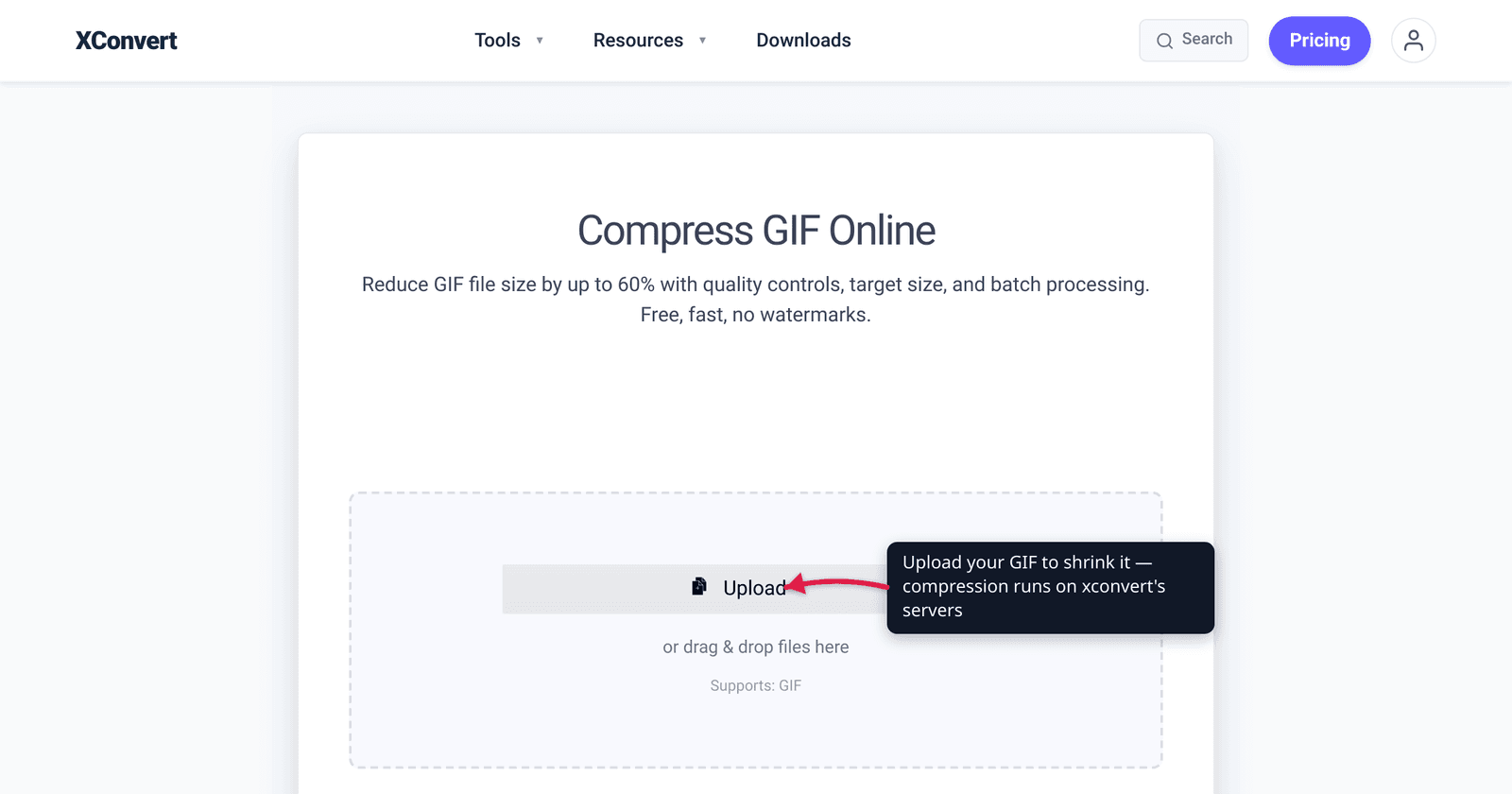
A 12 MB reaction GIF that won’t attach to an email, post to a forum, or load fast on a page is a common headache — and the usual advice (“just compress it”) skips the fact that changes everything: a GIF is already lossless-compressed. There’s no hidden “quality” dial inside the format the way there is in a JPEG. So “make it smaller without losing quality” really means removing redundancy and making smart structural choices — fewer colors, smaller dimensions, fewer frames — not finding a magic lossless squeeze. This guide explains which levers move the size, what each one costs you visually, and how to pull them deliberately. We verified the format details against the GIF89a specification and the W3C/CompuServe documentation.
Quick answer: A GIF is already compressed with lossless LZW and capped at 256 colors per frame, so there’s no “increase compression, lose quality” slider like a JPEG has. The real size levers are dimensions (resize the canvas), frame count / frame rate (drop or de-duplicate frames), and palette size (fewer colors). Trimming colors from 256 to ~64–128 and dropping redundant frames usually shrinks a GIF dramatically while staying visually clean. To get truly small with no perceptual loss, the honest answer is often convert it to MP4/WebM — but if it must stay a GIF, dimensions + frames + palette are your three knobs.
Jump to a section
- Why “lossless” GIF still gets big
- The three real size levers
- How much quality each lever actually costs
- When to keep it a GIF vs convert to MP4
- Make a GIF smaller on xconvert
- FAQ
Why a “lossless” GIF still gets big
GIF (Graphics Interchange Format) is a palette-based, lossless format. Two facts from the GIF89a specification explain its entire size behavior:
- It’s compressed with LZW — Lempel–Ziv–Welch, a lossless algorithm. The image data is already squeezed; re-saving a GIF doesn’t make it smaller the way “lower the JPEG quality” does, because there’s no quality value being thrown away in the first place.
- It’s limited to 256 colors per frame. GIF stores up to 8 bits per pixel, so each frame references a palette (“color table”) of at most 256 entries, and every pixel is just an index into that table.
So where does the bulk come from? An animated GIF stores multiple full frames, each its own palette-indexed bitmap, with a per-frame Delay Time (specified in the spec in hundredths of a second). A 3-second clip at 25 frames per second is ~75 stored images. Multiply that by the canvas dimensions and you see why a short loop balloons to many megabytes: frames × pixels-per-frame is the dominant term, and LZW can only compress the redundancy within what’s already there.
That’s the honest framing. You can’t “turn up compression” on a GIF without changing one of its structural properties — so to shrink it you reduce one of the things being stored: the size of each frame, the number of frames, or the number of distinct colors.
The three real size levers
Every legitimate GIF size reduction comes down to these three. They’re independent, so you can stack them.
1. Dimensions (resize the canvas). File size scales roughly with pixel count, which scales with width × height. Halving both width and height cuts the pixel count to a quarter — often the single biggest, visually safest win, because a GIF displayed at 320 px wide gains nothing from being stored at 640 px. This is genuinely “no quality loss” if you were over-sized for how the GIF is actually viewed.
2. Frame count / frame rate. Two sub-levers here:
- Drop frames — keep, say, every 2nd or 3rd frame. A 25 fps loop dropped to ~12 fps halves the stored frames. Smooth-motion footage shows this as slight choppiness; a slow pan or talking-head loop often looks identical.
- De-duplicate / shorten — trim dead frames at the start/end, or remove near-identical consecutive frames and lengthen the remaining one’s Delay Time. Removing frames that add no new visual information is the closest thing to free.
3. Palette size (number of colors). GIF caps at 256 colors, but you can go lower — 128, 64, even 32. Fewer palette entries means fewer bits per pixel and usually better LZW runs, so the file shrinks. Flat graphics, screen recordings, and line art tolerate aggressive color reduction beautifully; photographic or gradient-heavy content shows banding sooner.
A useful mental model: resize first (cheapest visually), trim frames second, reduce colors last and only as far as the content tolerates.
How much quality each lever actually costs
“Without losing quality” is a spectrum, not a switch. Here’s the honest cost of each:
| Lever | What you trade | Best for | Watch out for |
|---|---|---|---|
| Resize down | Detail you couldn’t see at display size anyway | Almost everything — over-sized GIFs | Don’t shrink below where it’s displayed |
| Drop frames / lower fps | Motion smoothness | Slow pans, talking heads, slideshows | Fast action gets visibly choppy |
| Trim / de-duplicate frames | Nothing, if frames were redundant | Loops with dead time or repeats | Cutting real motion frames |
| Reduce colors (256→128/64) | Color fidelity; possible banding | Flat UI, line art, screencasts | Photos, gradients, skin tones |
| Dithering (with color reduction) | Often hurts file size | Smoothing banding visually | Can enlarge the file |
One counter-intuitive point: dithering — scattering pixels to fake more colors than the palette holds — “often interfere[s] with the compressibility of the image data” per the format’s documentation, so it can increase GIF size even as it reduces visible banding. Reduce colors purely for size and dithering may work against you; reduce colors for appearance and it’s a trade you make eyes-open.
The practical sweet spot for most GIFs: resize to display dimensions, drop to ~12–15 fps, and cap the palette at 64–128 colors. That stack commonly cuts a GIF by well over half while staying clean to the eye — and every step is a deliberate structural change, not a mystery quality slider.
When to keep it a GIF vs convert to MP4
Here’s the most important honesty in this topic: if your only requirement is “short looping animation, as small as possible, no visible quality loss,” the GIF format itself is the bottleneck. A modern video codec (H.264 in an MP4, or VP9/AV1 in WebM) does true motion compression — storing differences between frames with no 256-color cap — so the same loop is frequently a fraction of the GIF’s size at equal or better quality. That’s why platforms like Twitter/X and Discord silently convert your “GIF” to MP4 behind the scenes.
So the decision is about the destination:
- Keep it a GIF when the target requires GIF — some email clients, older forum software, certain chat/sticker contexts, or when autoplay-without-controls in a
<img>tag is the point. - Convert to MP4/WebM when the destination supports video (web pages, most modern social platforms, messaging apps). You’ll get a much smaller file with less quality loss than aggressive GIF compression would cause. See GIF vs MP4 file size for the full why-it-shrinks breakdown.
If you specifically need to hit a platform’s attachment cap as a GIF, the same three levers apply with a target in mind — see compress a GIF under 10 MB for Discord.
Make a GIF smaller on xconvert
The xconvert GIF compressor gives you two ways in: name a size ceiling and let it work the three levers for you, or drive them yourself.
The fast route — name the ceiling.
- Open xconvert.com/compress-gif and click Upload (Add files) to add your GIF — from your computer, Google Drive, or Dropbox.
- File Compression is already on Max file size. Use the Size limit dropdown to say how small: Custom size % (the default, capping the result at a percentage of the original — 75% out of the box), Custom size value for a typed number in B / KB / MB, or one of the platform ceilings — Discord (10 MB max), Email (25 MB max), Forum (2 MB max).
- Click Compress and download. The result comes back at or under the ceiling wherever the content allows — it is a best-effort target, not a guaranteed landing size, so an extreme ask on a huge source gets as close as it can.
The manual route — pull the levers yourself. Switch File Compression from Max file size to Custom, and the three levers from this article appear as their own groups:
- Resize under Image resolution — use Resolution Percentage → By Percentage (1–100), set a Width or Height (Keep aspect ratio), or pick a Preset Resolution. Bring it down to the size it’s actually displayed at; this is your safest, biggest win.
- Thin the frames with Drop Frames, which opens already switched on with Every 3rd frame picked in the Frames To Drop dropdown (the alternative for this group is ORIGINAL, i.e. keep every frame). Every 3rd is the sensible default for smooth or redundant motion; Every 2nd frame is the harder cut.
- Reduce colors under Colors → By Color Reduction + Dither, which gives you a Color Palette Size dropdown (128 preselected) and a Dither toggle that is off by default — consistent with the point above that dithering can cost you bytes.
- Image quality (%) is the fourth group, already on Image Quality (%) with the Quality Percentage slider starting at 80. It is the least predictable of the four on GIF; treat it as a finishing touch rather than your first move.
- Click Compress and download. Custom mode applies exactly what you set and does not chase a byte target, so re-run if you need it smaller — or go back to Max file size and let it search.
Your file uploads over an encrypted connection, is processed on our servers, and is deleted automatically a few hours later. Nothing stays around. (If your destination accepts video, also weigh converting to MP4 for an even smaller file at the same quality.)
FAQ
Can you really make a GIF smaller without losing any quality?
Partly — it depends on the lever. Resizing an over-sized GIF down to its display dimensions, or removing redundant/dead frames, is effectively lossless to the viewer. But because GIF is already LZW-lossless and capped at 256 colors, there’s no hidden “compress more, same quality” setting. Beyond resizing and trimming dead frames, you’re trading something — motion smoothness (dropping frames) or color fidelity (smaller palette). For a genuinely smaller file with minimal perceptual loss, converting to MP4 usually beats squeezing the GIF.
What’s the single best way to shrink a GIF?
Resize the dimensions first. File size scales with pixel count, so reducing width and height has the largest, most visually forgiving effect — a GIF displayed at 320 px wide gains nothing from being stored at 640 px. After that, drop the frame rate and reduce the color palette.
Why is my GIF so much bigger than the video it came from?
Because GIF stores every frame as a full palette-indexed image and tops out at 256 colors, while a video codec stores only the differences between frames with no color cap. The same clip is routinely many times larger as a GIF than as an MP4 — which is exactly why so many platforms convert GIFs to video on upload. GIF vs MP4 file size walks through the math.
Does reducing colors hurt GIF quality?
It can, but often far less than you’d expect. Flat graphics, UI screen recordings, and line art usually survive a drop from 256 to 64 colors with no visible change and a big size cut. Photographic or gradient-heavy GIFs show banding sooner. Dithering hides banding but can increase file size, so reduce colors for size and dither only when appearance demands it.
Will dropping frames make my GIF look choppy?
Only if there’s fast motion. Slow pans, talking-head loops, and slideshow-style GIFs often look identical at half the frame rate. Fast action gets visibly choppier as you thin frames. Start by removing duplicate or dead frames (free), then lower the frame rate as far as the motion tolerates.
Is GIF compression lossless or lossy?
GIF’s core LZW compression is lossless — that’s the format’s design. The size-reduction techniques layered on top (fewer colors, fewer frames, smaller dimensions) are what introduce trade-offs. So “lossy GIF compression” really means “reduce the palette and frames until it’s small enough,” not a quality slider inside the format itself.
Sources
Last verified 2026-08-31.
- GIF89a Specification (W3C / CompuServe) — palette/color-table max of 256 entries; LZW image-data compression; Graphic Control Extension “Delay Time” in hundredths of a second.
- GIF — Wikipedia — confirms LZW is lossless, 8-bit/256-color palette per frame, pixels stored as palette indices, animation via multiple frames, and that dithering “interfere[s] with the compressibility of the image data.”
- xconvert GIF compressor — the Max file size / Size limit route and the Custom-mode resize, Drop Frames, Colors and Image quality (%) controls referenced in the steps.