 By James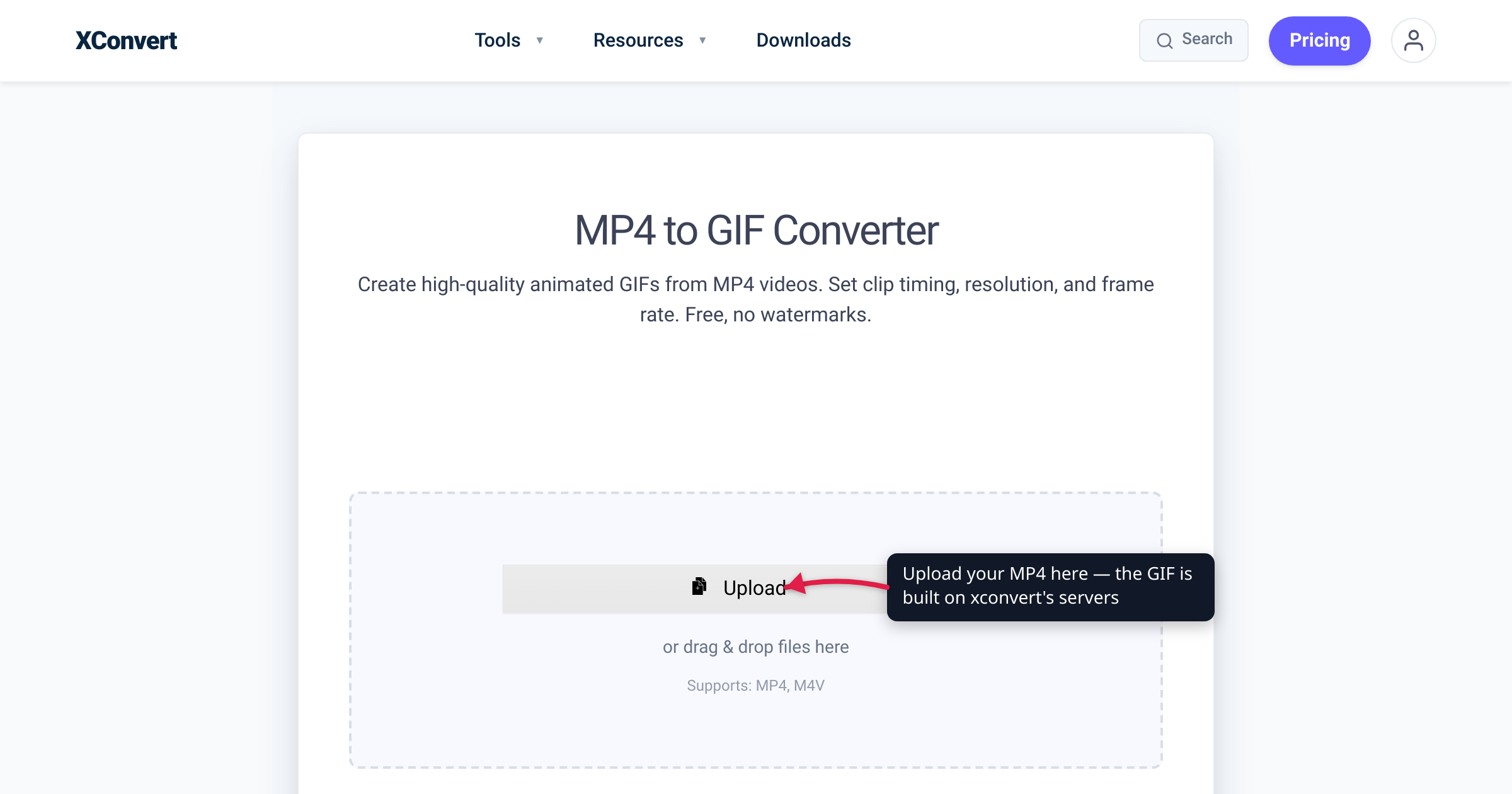
You trimmed a perfect three-second reaction clip, converted it to a GIF, and it came out grainy, banded, and somehow bigger than the MP4 you started with. That isn’t your converter failing — it’s the GIF format doing exactly what it was designed to do in 1987. A GIF can only show 256 colors per frame and compresses each frame independently with no sound, so “high quality” starts with one control — the Quality preset — and then comes down to spending a fixed budget across frame rate, dimensions, color palette, and clip length. This guide explains what GIF actually costs you (verified against the GIF89a spec and MDN) and gives you a settings recipe that keeps the result sharp and usable.
Quick answer: A GIF is capped at 256 colors per frame and stores each frame as a full image (no inter-frame compression, no audio), so a faithful copy of video looks worse and weighs more than the source. On xconvert’s converter the high-quality control is File Compression → Quality preset: it opens on High (Recommended), and stepping it up to Very High or Highest is the single change that buys the most fidelity. Then keep the clip short (2–6 seconds) and set the Framerate to 10–15 FPS — it sits right below the preset and is always on screen. For hand control over width, palette size and dithering, switch File Compression to Custom. If you actually need true video — long, smooth, full-color, with sound — keep it as MP4 or WebM instead.
Jump to a section
- Why GIFs look worse than the video
- The Quality preset, and the four levers behind it
- A high-quality recipe by use case
- When you should NOT use a GIF
- Convert MP4 to GIF on xconvert
- FAQ
Why GIFs look worse than the video
To get a good GIF you have to understand what the format gives up. Three hard limits, all baked into the spec:
1. 256 colors per frame. In a GIF, “each pixel is represented by a single 8-bit value serving as an index into a palette of 24-bit colors,” and per the GIF89a specification the color table maxes out at 2⁸ = 256 entries. Your MP4 source carries millions of colors per frame (24-bit true color). When the converter squeezes that down to a 256-color palette — a step called quantization — gradients, skin tones, skies, and dark scenes are the first to break, showing visible banding (posterized stripes) where the source had a smooth transition.
2. Lossless compression, applied frame-by-frame. GIF uses the LZW algorithm to losslessly compress 8-bit indexed color, per MDN. “Lossless” sounds great, but it cuts the other way here: LZW finds repeated patterns within a frame, and it has no concept of motion between frames. Video codecs like H.264 store mostly the changes from one frame to the next (inter-frame compression); GIF effectively stores a whole new image every frame. That’s why a 2-second clip at 10 FPS is, in practice, ~20 stacked images — and why GIFs of real footage balloon in size.
3. No audio, limited animation. The GIF89a spec is blunt: it “is not intended as a platform for animation, even though it can be done in a limited way,” and it defines no audio mechanism at all. Frame timing lives in a Graphic Control Extension measured in hundredths of a second. So any soundtrack in your MP4 is simply gone, and motion is approximate.
The upshot: a GIF that’s an honest copy of video is both uglier and heavier than the MP4. High quality means deciding what to keep.
The Quality preset, and the four levers behind it
There is one quality control now, and it’s the first thing on the panel: File Compression → Quality preset. It opens on High (Recommended) and the ladder runs Highest · Very High · High (Recommended) · Medium · Low · Very Low · Lowest. One pick moves palette handling, dithering and the lossy step together, which is why it’s the right starting move for a “high quality” GIF — go Very High or Highest and stop there for most clips.
Underneath that preset sits a budget split across four levers. Two of them you can steer without leaving the default view (Framerate is always visible; clip length you control before you upload). The other two — dimensions and the color palette — only appear once you set File Compression to Custom, which is the mode to reach for when a preset isn’t landing where you want.
| Lever | Where it lives | Higher value = | Lower value = | Sweet spot for most clips |
|---|---|---|---|---|
| Quality preset | Default view | richer, bigger file | more artifacts, smaller file | Very High (Highest for gradients) |
| Frame rate (FPS) | Default view | smoother motion, bigger file | choppier motion, smaller file | 10–15 FPS |
| Dimensions (width) | Custom mode | sharper, bigger file | softer, much smaller file | ~480 px wide |
| Colors + dithering | Custom mode | richer color, slightly bigger | banding, smaller | 256 colors + dither on |
| Clip length | Cut before upload | more content, much bigger file | less content, smaller | 2–6 seconds |
A few notes on getting each one right:
- Start with the preset. It’s one dropdown and it moves everything in the right direction at once. Only drop into Custom when you have a specific reason — a width you must hit, a palette you want to force. And if your real constraint is a byte ceiling rather than a look, the third mode, Max file size, lets you type the target (or pick Discord (10 MB max) / Email (25 MB max) / Forum (2 MB max)) and have the converter search for settings that land at or under it.
- Frame rate is the highest-leverage cut. File size scales almost linearly with FPS, but perception doesn’t — short loops at 10–15 FPS read as smooth, while 30 FPS roughly doubles the size for a difference few people notice. Reach for 15 FPS only when motion is fast or a cursor needs to glide.
- Dimensions are the multiplier. Pixel count grows with the square of the scale, so width is the brutal lever: 720 px → 480 px isn’t a third smaller, it’s roughly 55% fewer pixels. Scale to the size the GIF will actually display at — an inline chat GIF doesn’t need to be 1080p.
- Palette + dithering fights banding. Dithering scatters nearby palette colors to simulate shades the 256-color palette can’t hold, trading a faint grain for far less visible banding. It’s the single biggest win on gradients and skin tones; on flat UI/text it can slightly increase size for little gain, but it’s the safer default.
- Length is the silent killer. Because every frame is a near-full image, a 10-second GIF isn’t a little bigger than a 3-second one — it’s roughly 3× the frames. Trim ruthlessly to the moment that matters.
A high-quality recipe by use case
Start from these and adjust. “Quality” here means looks good at the size it’ll be shown, without being absurdly heavy. The Quality preset and Framerate figures are set in the default view; the width and palette figures need File Compression → Custom.
- Chat reaction / emoji loop (Slack, Discord, iMessage): preset High (Recommended), 10 FPS, ≤ 3 seconds — that alone is usually enough. In Custom: 480 px wide, 256 colors + dither. Small, smooth enough, loads instantly.
- Screen recording / UI demo: preset Very High, 15 FPS (cursor motion needs it), under ~6 seconds. In Custom: 600–720 px wide, 256 colors. Flat UI colors quantize cleanly, so dithering matters less.
- Product / photo-real footage (faces, gradients, outdoors): GIF’s worst case. Preset Highest, 12–15 FPS, ≤ 4 seconds. In Custom: 480 px wide, 256 colors + dither on (non-negotiable here). Accept some banding — and consider whether MP4/WebM is the better deliverable.
- Line art / logo animation: GIF’s best case (few flat colors). The preset can sit lower than you’d think; in Custom you can push width higher and turn dither off, since the palette has room to spare.
When you should NOT use a GIF
GIF is the right tool for short, silent, auto-looping snippets where the platform requires the .gif format. It is the wrong tool the moment any of these is true:
- The clip is longer than ~6 seconds — file size scales fast and quality stays capped.
- It has camera footage, gradients, or skin tones — 256 colors can’t do it justice.
- You need audio — GIF has none, period.
- You need smooth, full-rate motion — that’s what video codecs are for.
In every one of those cases, MP4 (H.264) or WebM is smaller and better-looking than the GIF would be — often by an order of magnitude, because of the inter-frame compression GIF lacks. Modern platforms (Twitter/X, Discord, many CMSs) actually transcode “GIFs” to MP4 behind the scenes for exactly this reason. We break the size math down in GIF vs MP4 file size. If you’re staying in video and just need it smaller, see H.264 vs H.265.
Convert MP4 to GIF on xconvert
The xconvert MP4 to GIF converter puts the quality control first and keeps the rest one click away:
- Open xconvert.com/convert-mp4-to-gif and click Upload (or Add files) to add your video — from your computer, Google Drive, or Dropbox. Cut the clip to length beforehand if it’s long; there’s no trim control on this page (use the video cutter).
- Open Advanced Options (the gear icon). Two groups are on screen: File Compression, sitting on Quality preset, and Framerate. The page notes its defaults are already optimized, so for a quick result you can skip straight to step 6.
- In the Quality preset dropdown, move off High (Recommended) if you want more fidelity — Very High for most footage, Highest for gradients and skin tones. (The rest of the ladder — Medium, Low, Very Low, Lowest — goes the other way, trading looks for size.)
- Under FRAMERATE, pick a value — 10 FPS (Recommended) for reactions, or step up to 15 for screen recordings and faster motion.
- Want to steer the details yourself? Set File Compression to Custom. That swaps the preset dropdown for the manual knobs: under Image resolution, scale down with Resolution Percentage, a Preset Resolution, or a Width (Keep aspect ratio) — around 480 px wide is the quality/size sweet spot for inline GIFs; under Colors, choose By Color Reduction + Dither (palette sizes 2–256) to soften banding on gradients and skin tones; and tune Image quality (%), which starts at 80, down toward 70 for a smaller file.
- Click Convert, then download your GIF. Shorter clips and lower FPS convert faster.
Your file uploads over an encrypted connection, is processed on our servers, and is automatically deleted a few hours later. Nothing stays around.
FAQ
How do I convert MP4 to GIF without losing quality?
You can’t keep all of it — a GIF is capped at 256 colors per frame and has no audio, so some loss is structural. But you can keep it looking sharp: trim to a few seconds, push File Compression → Quality preset up from High (Recommended) to Very High or Highest, and set 10–15 FPS. If you want to go further by hand, switch File Compression to Custom to scale the width to what it’ll actually display at (~480 px) and turn on palette dithering to hide color banding. The trick is spending fidelity where the eye notices and cutting where it doesn’t.
Why is my GIF bigger than the original MP4?
Because GIF has no inter-frame compression. MP4 (H.264) stores mostly the changes between frames; GIF stores each frame as a near-complete image and compresses them with lossless LZW one at a time. So a 3-second clip becomes ~30–45 stacked images. For anything longer than a few seconds, MP4 or WebM will be dramatically smaller — see GIF vs MP4 file size.
Does a GIF have sound?
No. The GIF89a specification defines no audio mechanism — GIFs are silent image files that only play visual frames. If you need sound, keep your clip as MP4 or WebM instead of converting it.
What FPS should a GIF be?
10–15 FPS for most clips. File size scales almost linearly with frame rate, but viewers rarely notice the difference above ~15 FPS in a short loop. Use 10 FPS for chat reactions and emoji-style GIFs, and 15 FPS when there’s fast motion or a moving cursor (screen recordings). Very high frame rates mostly just inflate the file.
Why does my GIF look grainy or banded?
That’s color quantization — the converter is squeezing millions of source colors down to GIF’s 256-color palette, and gradients, skies, and skin tones can’t survive that intact. The one-click fix is to raise File Compression → Quality preset to Very High or Highest. To do it by hand, set File Compression to Custom and use dithering (the “By Color Reduction + Dither” option under Colors), which scatters palette colors to simulate the missing shades, trading a faint grain for far less obvious banding.
How long should a GIF be?
2–6 seconds. Because every frame is essentially a full image, file size grows fast with length — a 10-second GIF is roughly 3× the frames of a 3-second one, with no quality gain. Trim to the single moment that matters; if your clip genuinely needs to be longer, that’s a sign it should stay a video.
Is GIF or MP4 better quality?
MP4 is better quality and smaller for actual video — it carries full color, supports audio, and uses efficient inter-frame compression. GIF only wins when a platform specifically requires the .gif format or you need a silent, auto-looping image element. For everything else, MP4/WebM is the stronger deliverable.
Sources
Last verified 2026-08-31.
- MDN — Image file type and format guide (GIF) — GIF is 8-bit indexed color (256-color palette) compressed losslessly with LZW; good for basic images and animations.
- W3C — GIF89a specification — color table maxes at 2⁸ = 256 entries; animation via the Graphic Control Extension (timing in 1/100 s); “not intended as a platform for animation”; no audio mechanism defined.
- MDN — Web media: image types (GIF section) — transparency via a single designated palette index; lossless LZW compression confirmed in the format summary.
- xconvert — MP4 to GIF Converter — control labels and defaults verified 2026-08-31 against the live option set: File Compression renders by default on Quality preset with High (Recommended) selected (ladder Highest / Very High / High (Recommended) / Medium / Low / Very Low / Lowest), alongside Framerate (default 10 FPS (Recommended)). Image quality (%) (default 80), Image resolution and Colors (palette 2–256 plus Dither) render only in Custom mode; Max file size is the third mode. There is no trim control on this page.