 By Stephanie Taylor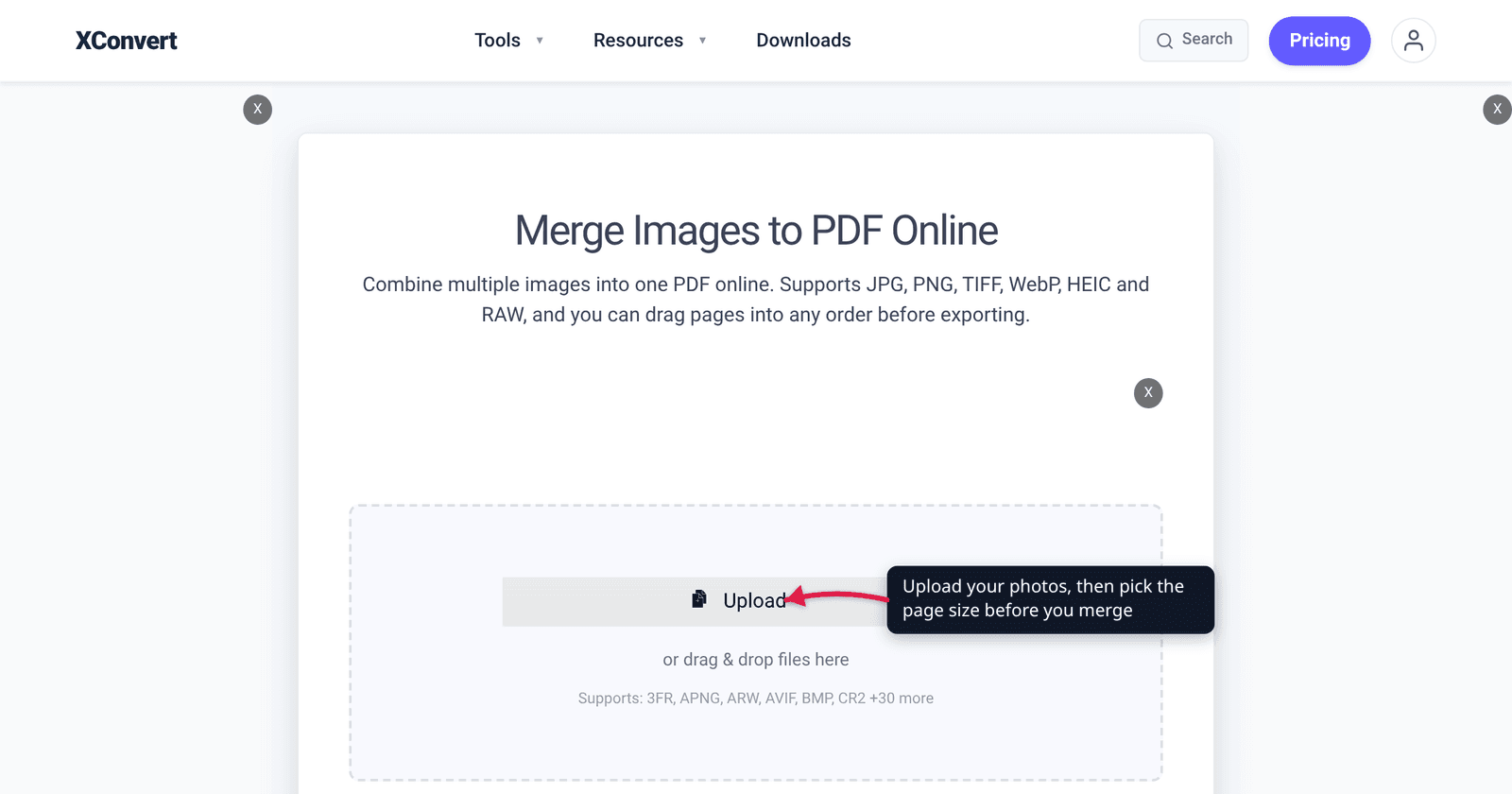
You dropped twenty holiday photos into an image-to-PDF tool, opened the result, and every page is a small picture floating in a sea of white. Or you sent a perfectly composed PDF to a colleague in Chicago and it printed 6% smaller with a stripe along the bottom. Both are the same problem: the page size you were given doesn’t match the shape of what you put on it. A4 and US Letter are not just different sizes — they are different proportions, and a photo doesn’t care about millimetres, only about ratios.
Quick answer: If the PDF will be printed in the US, Canada or Mexico, choose LETTER. Printed anywhere else, choose A4 — it’s the default. If nobody will print it (an upload, an e-signature, a portfolio, a phone), choose Original and the page becomes the image’s own size, with no white space at all. Then set Page layout to match your photos: a landscape photo on a portrait page covers under half of it, whichever paper size you picked. Every control named here is on xconvert.com/merge-image-to-pdf.
Jump to a section
- A4 and Letter are different shapes
- How much of the page your photo covers
- All thirteen page sizes and when each is right
- Margin, placement and alignment change the answer
- Set the page size on xconvert
- FAQ
A4 and Letter are different shapes
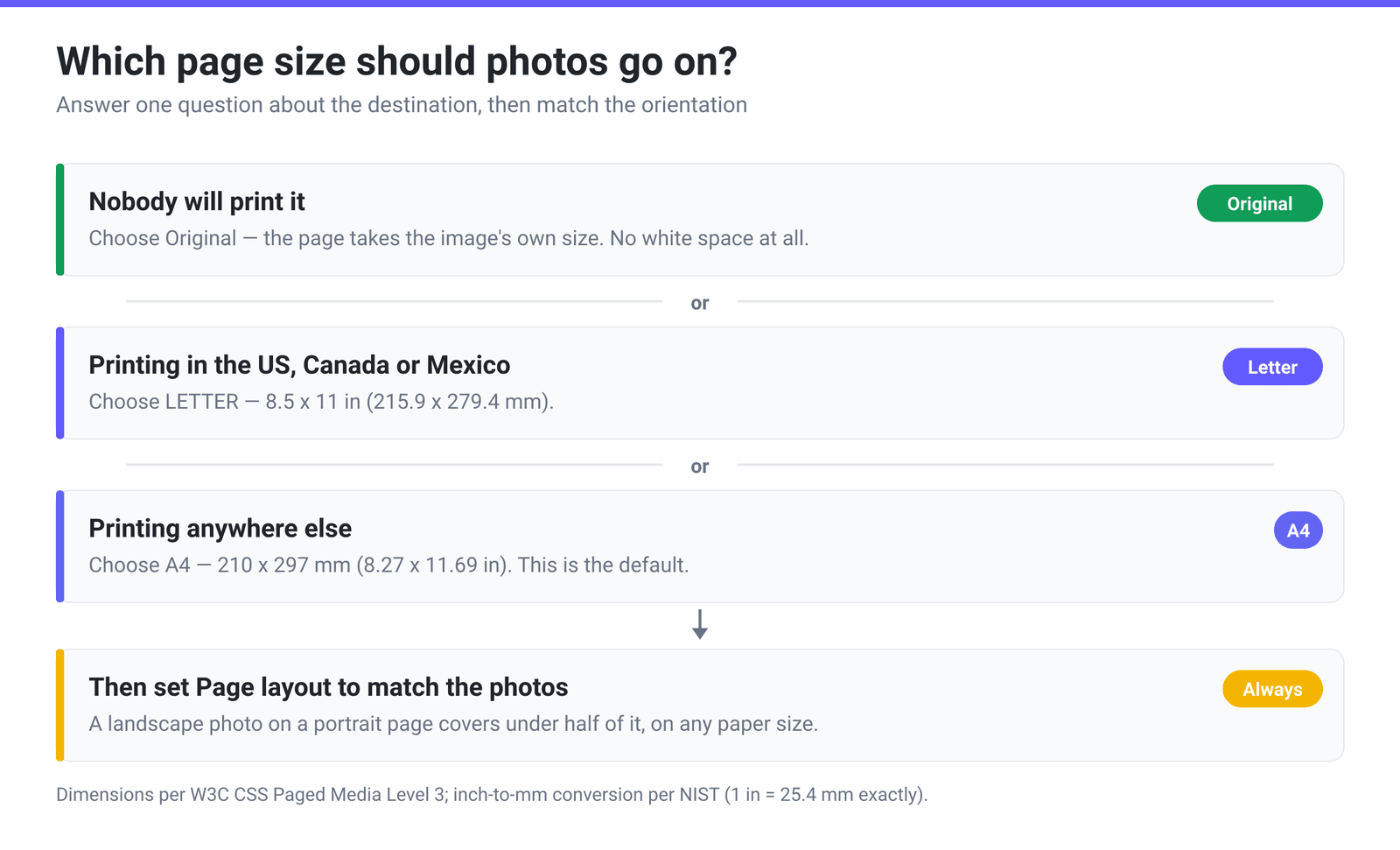
A4 is 210 mm × 297 mm — the ISO A series, used essentially everywhere outside North America. US Letter is 8.5 in × 11 in. Since an inch is exactly 25.4 mm, that’s 215.9 mm × 279.4 mm. So Letter is 6 mm wider and 18 mm shorter than A4.
The proportions matter more than the millimetres:
| A4 | US Letter | |
|---|---|---|
| Size | 210 × 297 mm | 215.9 × 279.4 mm (8.5 × 11 in) |
| Height ÷ width | 1.414 | 1.294 |
| Standard | ISO 216 A series | ANSI A / North American |
| Used in | Everywhere except North America | US, Canada, Mexico |
| Halves into | Two A5 sheets of the same proportion | Two sheets of a different proportion |
A4’s ratio is the square root of two, which is why folding an A-series sheet in half gives you the next size down with identical proportions. Letter has no such property — halve it and you get a 5.5 × 8.5 sheet with a different shape.
What happens when the wrong one gets printed. Printers scale to fit rather than clipping, so nothing is lost, but the result is off-centre and slightly small:
- An A4 PDF printed on Letter paper scales to about 94% — the page is limited by A4’s greater height (279.4 ÷ 297).
- A Letter PDF printed on A4 scales to about 97%, limited by A4’s narrower width (210 ÷ 215.9).
For photos that’s harmless. For anything where physical size matters — a signed form, a scale drawing, a document with a printed measurement on it — pick the paper the recipient actually owns.
How much of the page your photo covers
This is the part nobody tells you, and it’s the real reason photo PDFs look wrong. With the default Contained placement, the whole image is fitted inside the printable area without cropping — so a mismatch in shape becomes white space.
The table below is the fraction of the printable area a single photo covers, with the default Narrow (0.5") margin. It’s pure geometry: the photo is scaled until it touches the shorter constraint, and the rest is white.
| Photo shape | A4 portrait | A4 landscape | Letter portrait | Letter landscape |
|---|---|---|---|---|
| 3:2 landscape (most cameras) | 45% | 98% | 50% | 89% |
| 4:3 landscape (many phones, iPad) | 51% | 91% | 56% | 100% |
| 16:9 landscape (screenshots, video stills) | 38% | 83% | 42% | 75% |
| 3:2 portrait (upright photo) | 98% | 45% | 89% | 50% |
| 1:1 square (Instagram) | 68% | 68% | 75% | 75% |
Three things fall out of it:
Orientation beats paper size, by a mile. Getting Landscape versus Portrait right moves you from 45% to 98%. Choosing A4 versus Letter moves you a handful of percent. If your photos are landscape, set Page layout to Landscape and stop worrying about the rest.
Two combinations are effectively perfect. A4 in landscape with a 0.5" margin leaves a printable box of 10.69 × 7.27 in — a ratio of 1.470, within 2% of the 1.5 that a 3:2 camera photo wants. And Letter in landscape leaves exactly 10 × 7.5 in, which is exactly 4:3 — a 4:3 phone photo fills it edge to edge with no white space at all. Neither is a coincidence you’ll find documented anywhere; it just falls out of subtracting an inch from each dimension.
Margins change the shape of the box, not just its size. Letter is 1.294 bare, but 1.333 after a 0.5" margin. That’s why the margin setting can matter as much as the paper.
All thirteen page sizes and when each is right
The Paper size dropdown has thirteen entries. Most guides pretend there are two.
| Option | Size | Ratio | Use it when |
|---|---|---|---|
| Original | The image’s own dimensions | Matches the photo | Nobody will print it — uploads, e-signing, portfolios, phone viewing. Zero white space by construction |
| A4 (default) | 8.27 × 11.69 in (210 × 297 mm) | 1.414 | Printing anywhere outside North America |
| LETTER | 8.5 × 11 in | 1.294 | Printing in the US, Canada or Mexico |
| LEGAL | 8.5 × 14 in | 1.647 | US legal filings and long forms |
| EXECUTIVE | 7.25 × 10.5 in | 1.448 | Smaller US business documents |
| A3 | 11.69 × 16.53 in (297 × 420 mm) | 1.414 | Posters, plans, two A4 pages side by side |
| TABLOID | 11 × 17 in | 1.545 | US large-format portrait — newsletters, spreads |
| LEDGER | 17 × 11 in | 0.647 | The same sheet in landscape, already rotated |
| ARCH_A | 9 × 12 in | 1.333 | Architectural small sheet — and exactly 4:3, so a 4:3 photo fills it with no margin at all |
| ARCH_B | 12 × 18 in | 1.5 | Architectural — and exactly 3:2, the native shape of most camera photos |
| ISO_B5 | 6.93 × 9.85 in (176 × 250 mm) | 1.421 | Books and booklets |
| ISO_B4 | 9.85 × 13.9 in (250 × 353 mm) | 1.411 | Larger booklets, envelopes |
| SCREEN_SIZE | 6.5 × 5.18 in | 0.797 | A small landscape page; matches no print standard |
The two ARCH entries are the quiet win. They exist for architectural drawings, but 9 × 12 is exactly 4:3 and 12 × 18 is exactly 3:2 — so if you’re producing a photo book or a print-shop file rather than an office document, they letterbox nothing.
Margin, placement and alignment change the answer
Three more controls decide what the page looks like, and their defaults are worth knowing.
Margin — default Narrow (0.5"), with No margin (0"), Moderate (0.75×1"), Normal (1") and Large (2×1") alongside it. Set it to No margin with Original page size and you get a PDF that is exactly your images, edge to edge — the right answer for a photo book or a screenshot PDF that will only ever be viewed. Note that the margins are quoted in inches even when the paper is A4.
Image placement — default Contained, which fits the entire image inside the printable area and accepts the white space. The alternative, Cover, scales the image until it fills the page and crops whatever overflows. Cover gives you an edge-to-edge page every time, at the cost of losing the edges of the picture. For a full-bleed photo page it’s what you want; for a document scan or a receipt it will eat content, so leave it on Contained.
Image alignment — default Center, with Top and Bottom. This only does anything when there is white space, i.e. under Contained. Top alignment reads better for scanned documents; Center is right for photos.
Two related controls round it out: Combine? defaults to Single PDF (switch to Individual PDFs for one file per image), and Image Transparency defaults to Unchanged, which flattens transparent areas onto white — the right answer for a document page. Removed takes the other route and keeps the alpha channel in the PDF. If page order is your problem rather than page size, merge images into one PDF in the right order covers that.
Set the page size on xconvert
- Open xconvert.com/merge-image-to-pdf and click Upload. It accepts JPG, PNG, HEIC, TIFF, WebP and camera raw files, among others.
- Open Advanced Options and find Paper size. The Page size dropdown opens on A4 — change it to LETTER for North American printing, or Original if the PDF will only ever be viewed on a screen.
- Set Page layout to Landscape if your photos are landscape. This is the single biggest change you can make to how the result looks.
- Adjust Margin (default Narrow (0.5")) and Image placement — Contained keeps the whole image and leaves white space, Cover fills the page and crops the overflow.
- Leave Combine? on Single PDF for one document, and click Merge.
Your files upload over an encrypted connection, are processed on our servers, and are deleted automatically a few hours later — nothing stays around. If you’re working from a phone, combining photos into one PDF on iPhone and Android covers the device-side routes.
FAQ
Should I use A4 or Letter for a PDF of photos?
If it will be printed, use the paper the printer actually holds: Letter in the US, Canada and Mexico, A4 everywhere else. If it will only be viewed on a screen — an upload, an attachment, an e-signature — neither is ideal, and Original is better because the page takes the image’s own dimensions and there is no white space to argue about.
Why are there big white borders around my photos in the PDF?
Because the photo’s shape doesn’t match the page’s shape, and the default Contained placement fits the whole image inside rather than cropping it. A landscape photo on a portrait A4 page covers about 45% of the printable area — the other 55% is white. Switch Page layout to Landscape, or switch Image placement to Cover if you’re willing to lose the edges of the picture.
What size is A4 in inches?
210 × 297 mm is 8.27 × 11.69 inches, using the exact definition of an inch as 25.4 mm. Those are the numbers the page-size list uses. US Letter, for comparison, is 8.5 × 11 in — wider and shorter.
What happens if I print an A4 PDF on Letter paper?
It scales to about 94% and sits off-centre, because A4 is taller than Letter, so the height is the limiting dimension. Nothing is cut off — printers fit to the page rather than clipping — but anything printed at a specific physical size will be wrong. Going the other way, a Letter PDF on A4 scales to about 97%.
Which page size gives no white space at all?
Original, for any image, because the page is made to match the image. If you need a real paper size, match the ratio instead: ARCH_B (12 × 18 in) is exactly 3:2, the native shape of most camera photos, and ARCH_A (9 × 12 in) is exactly 4:3. With a 0.5" margin, Letter in landscape leaves a printable box of exactly 10 × 7.5 in, which is 4:3 — a 4:3 phone photo fills it precisely.
Does the page size affect the PDF’s file size?
Barely. Page size is stored as page geometry, a handful of bytes; the file size comes from the images themselves and from the Image Compression Quality Percentage setting. Choosing A3 instead of A4 does not double the file. If size is your constraint, that quality slider is the control to move.
Sources
Last verified 2026-08-31.
- W3C — CSS Paged Media Module Level 3 — standardised page-size dimensions: A4 “210 mm wide and 297 mm high”, A3 “297mm wide and 420mm high”, B5 “176mm wide by 250mm high”, B4 “250mm wide by 353mm high”, letter “8.5 inches wide and 11 inches high”, legal “8.5 inches wide by 14 inches high”, ledger “11 inches wide by 17 inches high”.
- NIST — SI units: length — “The value for the inch, derived from the value of the Yard effective July 1, 1959, is exactly equivalent to 25.4 mm”, the basis for every mm-to-inch figure above.
- xconvert image-to-PDF merger — live tool; verified the controls and defaults named above: Combine? (default Single PDF), Margin (default Narrow (0.5")), Paper size → Page size (13 entries, default A4), Page layout (default Portrait), Image placement (default Contained), Image alignment (default Center), Image Compression (Quality Percentage slider), Image Transparency (default Unchanged).
- xconvert implementation values — the page-size presets in inches: Letter 8.5 × 11, Tabloid 11 × 17, Ledger 17 × 11, Legal 8.5 × 14, Executive 7.25 × 10.5, A3 11.69 × 16.53, A4 8.27 × 11.69, Screen 6.5 × 5.18, Arch A 9 × 12, Arch B 12 × 18, ISO B5 6.93 × 9.85, ISO B4 9.85 × 13.9, and Original = the image’s own dimensions. Coverage percentages are computed from these figures minus the default 0.5" margin.