 By Stephanie Taylor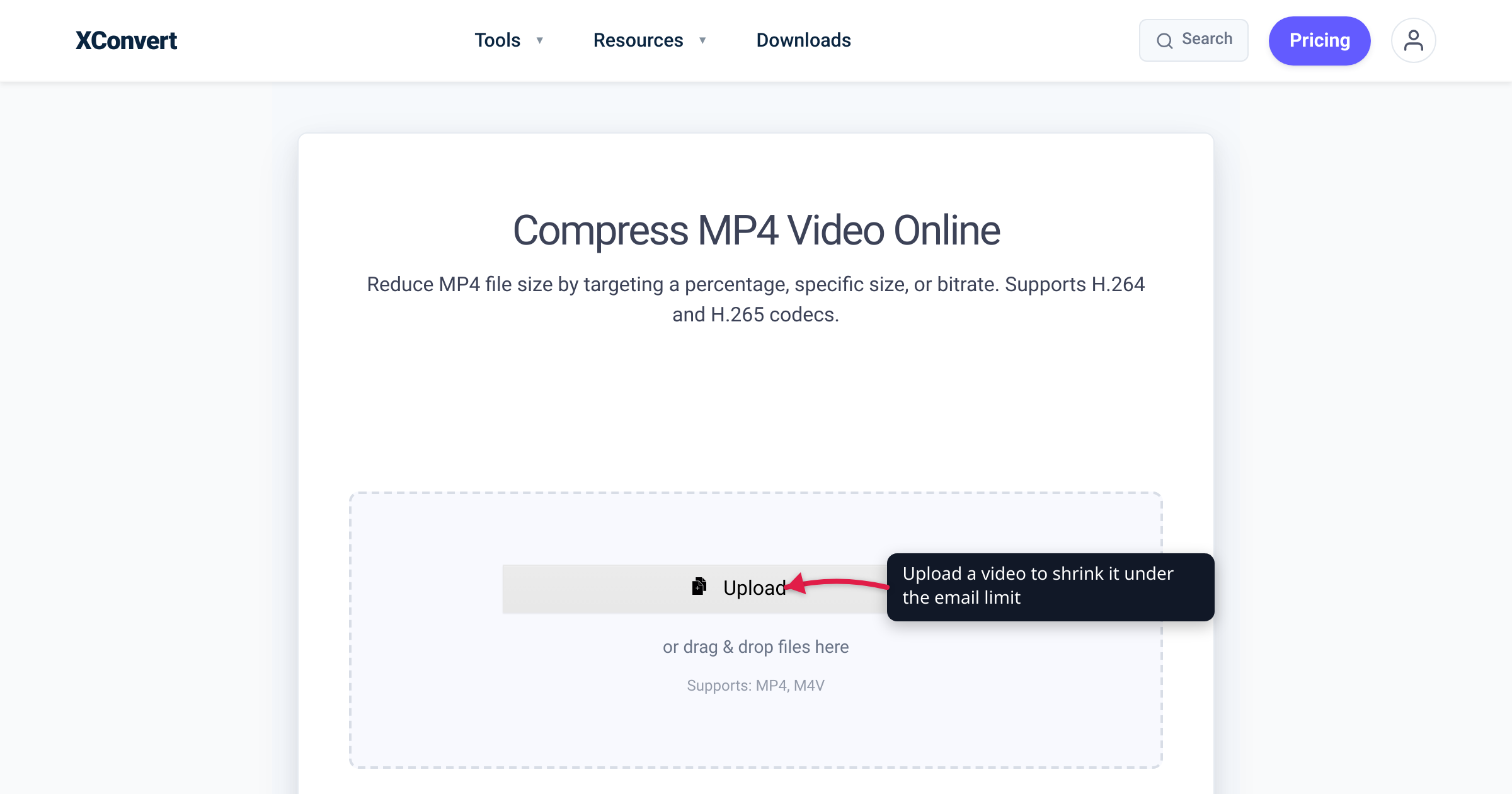
You recorded a clip on your phone, hit attach, and the email bounced — or the send button greyed out before you could click it. Video files are the single most common reason an attachment gets rejected: a one-minute 1080p clip from a modern phone is routinely 80–150 MB, and every major email provider caps attachments far below that. The fix is to know the exact cap your provider enforces, then compress the video to land just under it. This guide gives you the real limits for Gmail and Outlook, the two levers that actually shrink a video (bitrate and resolution), and a target-size workflow so you compress once and hit the number on the first try.
Quick answer: Gmail and Outlook.com both cap attachments at 25 MB; the Outlook desktop app enforces a lower 20 MB on standard internet email accounts (10 MB on Exchange business accounts). To email a video, compress it to under ~18–20 MB so the file plus base64 encoding overhead stays beneath the strictest cap you might hit. Use a target-size video compressor — set the output to a specific size (say 18 MB) and let it lower the bitrate and resolution to hit it. If the clip is long or high-resolution, drop to 720p first; that alone often does the job. Above the cap, both providers offer a cloud link (Google Drive / OneDrive) instead of a true attachment.
Jump to a section
- The exact attachment caps: Gmail vs Outlook
- Why your phone video is so big
- Compress to a target size (the one-shot method)
- The two levers: bitrate and resolution
- The cloud-link alternative (no compression needed)
- Step-by-step: compress a video to email it
- Quick reference: what size to aim for
- FAQ
The exact attachment caps: Gmail vs Outlook
The number you need is the sending attachment cap — the size limit on a file you attach to an outgoing message. It is not the same as your mailbox storage quota. Here are the verified caps:
| Provider | Max attachment (send) | What happens above it |
|---|---|---|
| Gmail (personal) | 25 MB | Gmail removes the attachment and inserts a Google Drive link automatically |
| Outlook.com / Outlook desktop (internet email account) | 20 MB | You get an error; Microsoft prompts you to share via OneDrive instead |
| Outlook / Microsoft 365 (Exchange business account) | 10 MB (default) | Admin-configurable; error below the cap |
Two important caveats:
- The cap includes the message body, not just the file. Microsoft’s documentation states the limit “includes both the size of the attachment and the size of the email.” So a 20 MB Outlook cap does not mean a 20 MB file fits — text, your signature, inline images, and base64 encoding overhead all count. Aim a margin below the cap.
- There’s an encoding-overhead tax. Email attachments are MIME base64-encoded, which inflates the on-the-wire size by roughly a third. Providers measure differently, but the practical effect is the same: leave headroom. For Gmail, target under ~22 MB; for Outlook, target under ~18 MB. A single conservative target of under 18 MB works for both.
The receiver’s provider matters too. You might be on Gmail’s generous 25 MB, but if your recipient is on a corporate Exchange server with a 10 MB inbound cap, your 22 MB attachment bounces on their end. When you don’t know the recipient’s setup, compress to the smallest size that still looks acceptable — under 10 MB clears nearly every cap in the world.
Why your phone video is so big
File size for video is overwhelmingly determined by one number: bitrate — how many bits per second the encoder spends. Phones default to high bitrates to preserve quality, and the math adds up fast:
- A modern phone recording 1080p at 30 fps writes roughly 8–20 Mbps (megabits per second).
- At 12 Mbps, one minute of video = 12 × 60 = 720 megabits ≈ 90 MB.
- 4K footage can run 45–100+ Mbps — a 30-second 4K clip can exceed 200 MB.
That’s why a clip that looks short still blows past every email cap. Resolution (1080p, 4K), frame rate (30 vs 60 fps), and duration all multiply into the bitrate budget. To email the video, you have to spend fewer bits — which is exactly what a compressor does.
Compress to a target size (the one-shot method)
The fastest reliable approach is target-size compression: you tell the tool the output size you want, and it works backwards to a bitrate that produces that file. No trial-and-error re-encoding.
On the xconvert MP4 compressor, the relevant modes are:
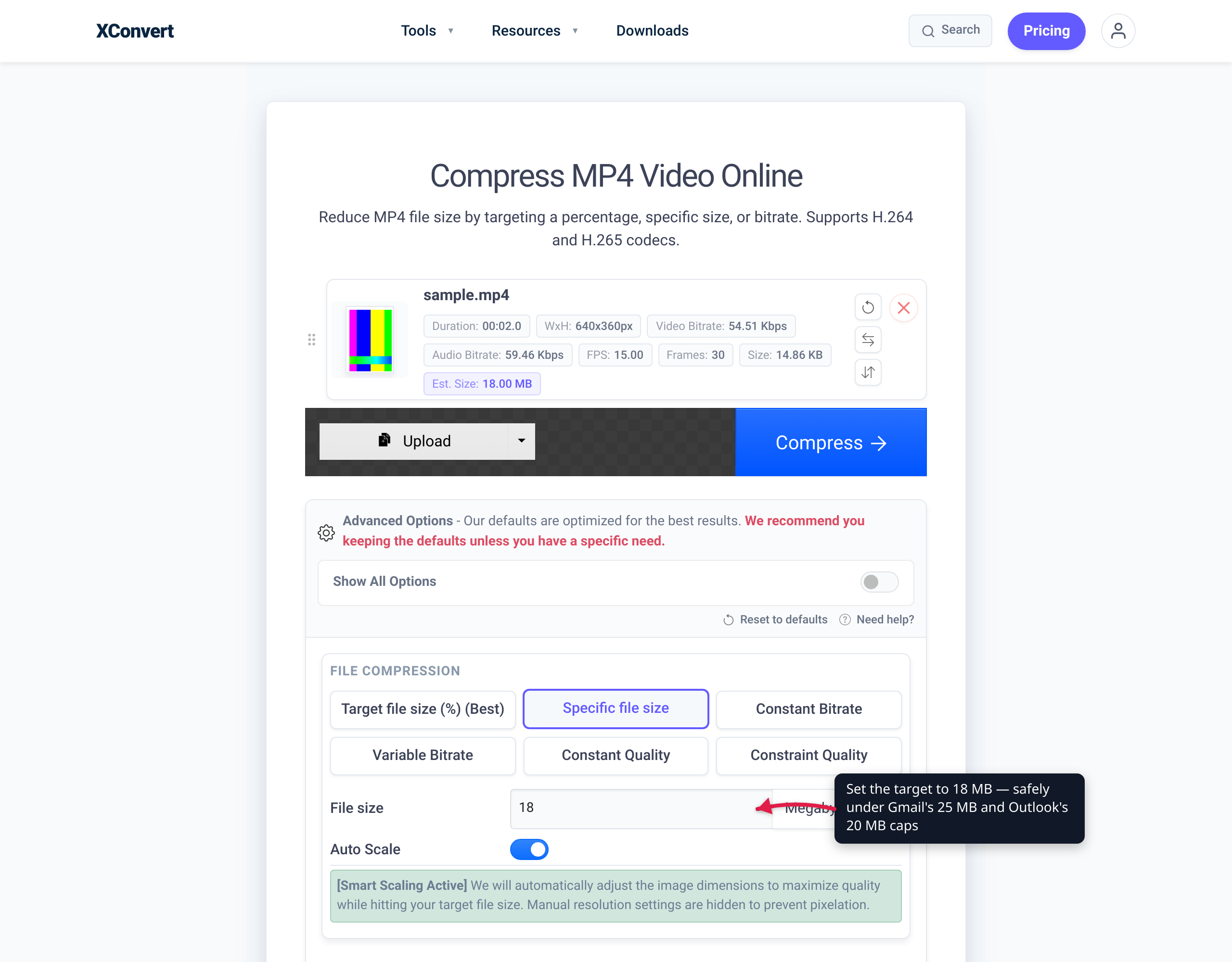
- Specific file size — enter an exact cap in MB (e.g.
18). The encoder computes the bitrate needed to land at or under that size for your clip’s duration. This is the mode to use for email. - Target file size (%) — scales the output to a percentage of the input. The tool’s own example: “If your file is 10 MB, then selecting 80 will produce an 8 MB file.” Useful when you just want it “a lot smaller” rather than a hard cap.
Set Specific file size = 18 MB, and the result clears both Gmail and Outlook with room for the message body. For a tighter universal target that survives strict corporate inboxes, use 9 MB.
Files upload over an encrypted connection and are processed on xconvert’s servers, then deleted automatically after a few hours — you download the compressed result and attach it. The tool keeps the format as MP4 (H.264), which is the most universally playable attachment a recipient can open without installing anything.
How much smaller can you expect it to get? For typical phone footage re-encoded with H.264, a 30–50% size reduction is common while keeping the clip visibly fine for sharing. Switching the codec to H.265/HEVC (an option in the tool) usually squeezes out more at the same visual quality, because HEVC is a more efficient codec — but H.265 playback isn’t guaranteed on every recipient’s device or email client. These are typical outcomes, not guarantees: the actual reduction depends on your source bitrate, resolution, and how busy the footage is. A clip that’s already compressed won’t shrink as much as raw high-bitrate phone video.
The two levers: bitrate and resolution
If you want to compress manually instead of by target size, these are the only two controls that meaningfully move file size:
1. Bitrate. This is the direct size lever. Halving the bitrate roughly halves the file. xconvert exposes it as Constant Bitrate (a fixed bits-per-second you choose), Variable Bitrate (bits allocated by scene complexity — better quality per byte), and Constant Quality (CRF) (you set a quality level and size falls out). For a predictable email target, target-size or constant-bitrate mode is easiest; CRF is best when quality matters more than an exact size.
2. Resolution. Dropping resolution is the highest-leverage move for a stubborn file, because pixel count scales quadratically. Going from 1080p to 720p removes more than half the pixels (1920×1080 = ~2.07M vs 1280×720 = ~0.92M), so the encoder needs far fewer bits for the same perceived sharpness on a phone or laptop screen. xconvert offers resolution presets (2160p / 1440p / 1080p / 720p / 480p) and an auto-scaling option that lowers resolution automatically to help hit your target size. For an emailed clip that will be watched on a phone or in an inbox preview, 720p is almost always plenty — and often it’s the single change that gets you under the cap with quality to spare.
A practical order of operations: try target-size first; if the resulting bitrate looks too low (blocky footage), drop the resolution to 720p and let the bitrate rise back up at the smaller frame size.
The cloud-link alternative (no compression needed)
When the video genuinely needs to stay full quality — a 4K family clip, a long recording, a deliverable for a client — don’t fight the cap. Send a link instead:
- Gmail does this for you: attach a file over 25 MB and Gmail automatically uploads it to Google Drive and inserts a shareable link in the message. The recipient clicks to view or download; nothing bounces.
- Outlook.com prompts you to upload to OneDrive and share the link when a file exceeds the cap.
The link route has real advantages: no quality loss, no size limit beyond your cloud storage, and the recipient streams it in the browser. The tradeoffs: the file lives in your cloud account (revoke or delete it later), the recipient needs internet access to view it, and some corporate filters distrust external share links.
Compress vs. link — which to choose: compress when the recipient should get the actual file (so they can save it, archive it, forward it, or attach it to a record) and the clip can tolerate some quality reduction. Use a cloud link when full quality is non-negotiable or the file is huge. For most “here’s a quick clip” emails, a compressed sub-20 MB MP4 attachment is the simplest thing for the recipient — it just plays.
Step-by-step: compress a video to email it
- Check the caps for your situation. Gmail 25 MB, Outlook 20 MB, Exchange/business often 10 MB. When unsure of the recipient, aim under 10 MB.
- Open the MP4 compressor (or the general video compressor for non-MP4 sources like MOV, MKV, AVI, or WebM — it accepts 35+ formats and outputs MP4).
- Upload your video. It transfers over an encrypted connection to the server for processing.
- Choose “Specific file size” and enter your target — 18 MB for Gmail/Outlook, 9 MB for maximum compatibility.
- (Optional) Set resolution to 720p if the clip is long or the auto target bitrate looks too aggressive.
- (Optional) Keep codec on H.264 for universal playback, or switch to H.265/HEVC if you and the recipient have modern devices and want more quality per MB.
- Click Compress, then download the result. Processed files are deleted from the server automatically after a few hours.
- Attach the downloaded MP4 to your email. It now fits under the cap.
Quick reference: what size to aim for
| Your situation | Compress target | Why |
|---|---|---|
| Sending via Gmail | Under ~22 MB | 25 MB cap minus base64 encoding overhead |
| Sending via Outlook.com / Outlook desktop | Under ~18 MB | 20 MB cap minus body + overhead |
| Recipient on corporate/Exchange email | Under ~9 MB | Default Exchange cap is 10 MB |
| Recipient unknown / “just make it send” | Under ~9 MB | Clears virtually every provider |
| Must keep full quality / 4K | Don’t compress — send a Drive/OneDrive link | No quality loss, no size cap |
FAQ
What is the maximum video size I can email in Gmail?
25 MB for a personal Gmail account (Google measures total attachment size). Attach anything larger and Gmail automatically uploads it to Google Drive and inserts a link instead of attaching it. To send the video as a real attachment, compress it to under about 22 MB to leave room for the message and base64 encoding overhead.
What’s the attachment limit in Outlook?
Outlook.com on the web allows 25 MB, while the Outlook desktop app enforces 20 MB on standard internet email accounts. Microsoft notes the desktop limit “includes both the size of the attachment and the size of the email.” Business accounts on Microsoft 365 / Exchange default to 10 MB (your admin can change it). Above the limit, Outlook prompts you to share the file via OneDrive instead. Compress to under ~18 MB to be safe on a 20 MB cap.
Will compressing the video ruin its quality?
Not for normal sharing. A typical phone clip compressed with H.264 commonly shrinks 30–50% while still looking fine on a phone or laptop screen — these are typical results, not guarantees, and the exact reduction depends on your source. The quality you’d lose only becomes obvious on a large screen or with very low target sizes. For an emailed clip the recipient watches on their phone or in an inbox preview, the difference is usually imperceptible. If you need pristine quality, send a cloud link instead.
How do I compress a MOV or other non-MP4 video for email?
Use the video compressor, which accepts 35+ formats — MOV, MKV, AVI, WebM, WMV, and more — and outputs a compressed MP4. MP4 (H.264) is the most universally playable attachment, so converting to it while compressing also makes the file easier for any recipient to open without extra software.
What’s the safest single size if I don’t know the recipient’s email provider?
Under 10 MB. That clears Gmail (25 MB), Outlook.com (20 MB), and the common corporate/Exchange default (10 MB) all at once, with headroom for the message body. Set the compressor’s “Specific file size” to 9 MB. If quality at 9 MB looks too rough for a long clip, drop the resolution to 720p first — the smaller frame lets the bitrate go further.
Is it better to compress the video or send a cloud link?
Compress when the recipient should get the actual file (to save, forward, or attach to a record) and the clip can tolerate some reduction — a sub-20 MB MP4 just plays in any inbox. Send a Google Drive / OneDrive link when full quality is essential or the file is very large. Gmail and Outlook both offer the link route automatically when you exceed the cap, so you can decide at send time.
Does dropping the resolution to 720p really help that much?
Yes — it’s often the single most effective change. Pixel count scales with the square of resolution, so 1080p → 720p removes more than half the pixels (≈2.07M down to ≈0.92M). The encoder then needs far fewer bits for the same perceived sharpness on a small screen, which can take a clip from over the cap to comfortably under it without looking noticeably worse in an email preview.
Sources
Last verified 2026-06-18.
- Google — Gmail attachment size limits — 25 MB cap and automatic Google Drive link behavior.
- Microsoft — Reduce attachment size to send large files with Outlook — 20 MB internet-email cap, 10 MB Exchange default, “includes both the size of the attachment and the size of the email,” and OneDrive sharing.
- xconvert — MP4 Compressor — target-size and specific-size compression modes, codec and resolution options.
- xconvert — Video Compressor — multi-format (35+) compressor outputting MP4.