 By Stephanie Taylor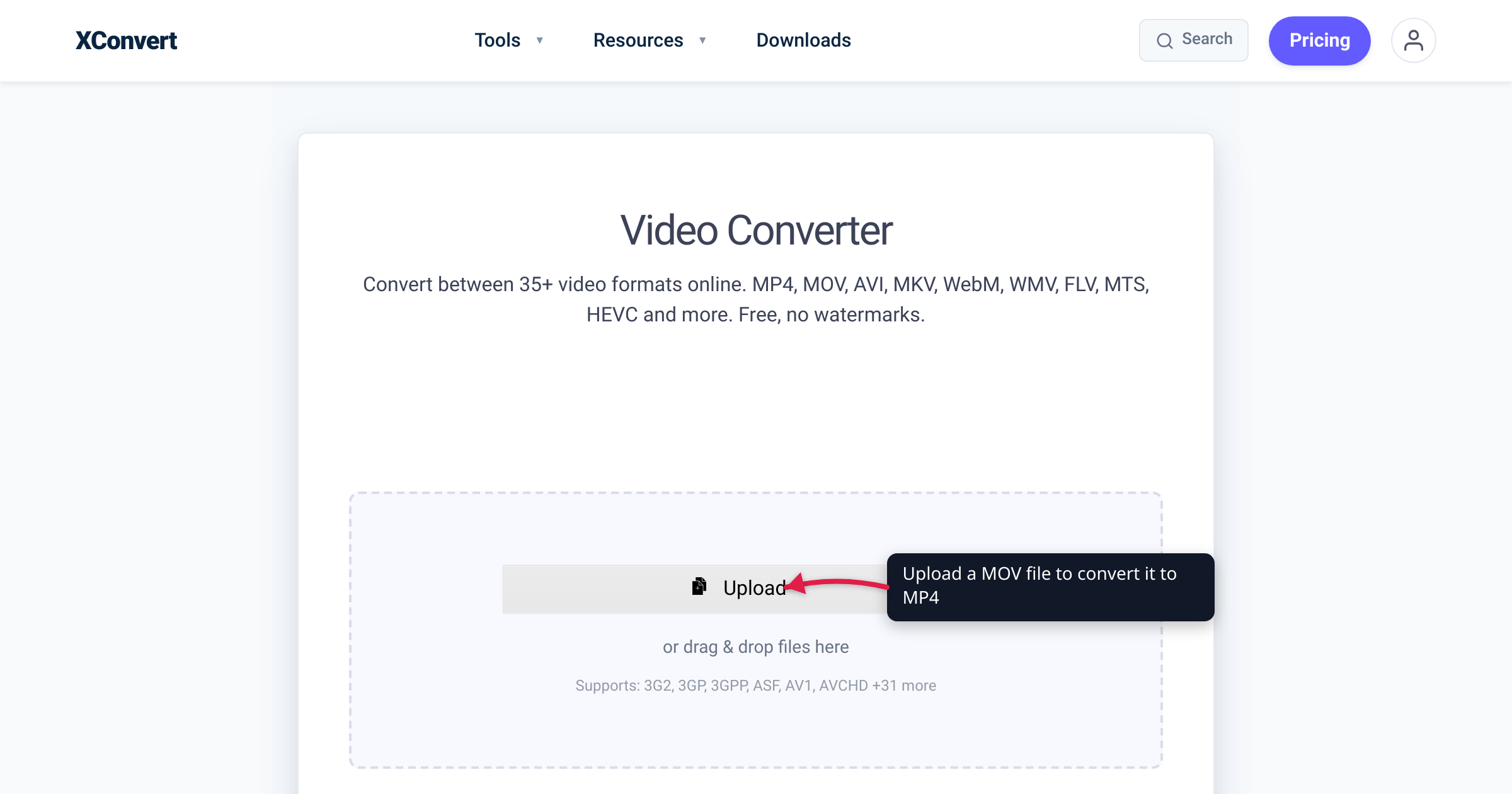
You record a clip on your iPhone, AirDrop it to your Mac, and it plays instantly. Then you email the same file to a colleague on Windows, drop it into a video editor, or try to upload it somewhere — and suddenly it stutters, won’t open, or gets rejected. The file is a .MOV, and that single extension is the source of most “my iPhone video won’t play” confusion. The honest framing: MOV and MP4 are containers, the iPhone’s .MOV usually holds a modern codec called HEVC, and the friction you hit outside the Apple world is almost always a codec problem wearing a container costume. This guide separates the box from what’s inside it, explains exactly what your iPhone captures and why, and shows when converting MOV to MP4 actually fixes things.
Quick answer: Your iPhone records video as a .MOV — Apple’s QuickTime container — and on iPhone 7 and later it captures HEVC (H.265) inside that MOV by default (Settings shows this as “High Efficiency”; switching to “Most Compatible” records H.264 instead). MOV is perfectly fine inside the Apple ecosystem (iPhone, iPad, Mac, AirDrop, Photos). The moment you leave it — Windows, Android, YouTube, most editors, “just send me the file” — MP4 is the universal container, and MP4 was literally derived from QuickTime/MOV, so converting MOV → MP4 is a clean, near-lossless rewrap. If a recipient can’t open your iPhone video, convert MOV to MP4 and the problem usually disappears.
Jump to a section
- Container vs codec: the distinction that explains everything
- What your iPhone actually records (HEVC in a MOV)
- MOV vs MP4: where each one works
- Why MP4 is the universal choice
- When to convert MOV to MP4 (and when not to)
- Decision table
- Convert and compress iPhone video with xconvert
- FAQ
Container vs codec: the distinction that explains everything
Almost every “MOV vs MP4” question is really two questions stacked on top of each other, and untangling them resolves most of the confusion.
A container (also called a wrapper or file format) is the box. It holds one or more video streams, audio streams, subtitles, chapters, and metadata, and defines how they’re interleaved. .MOV and .MP4 are both containers.
A codec is what actually compresses the video and audio inside that box. H.264, HEVC (H.265), AAC — these are codecs. The codec, not the container, determines file size, visual quality, and whether a given player or editor can decode the stream.
The critical fact: a .MOV and a .MP4 can carry the same codec. When your iPhone records HEVC into a MOV, converting that file to MP4 can be as simple as moving the same video and audio streams into a different box — a “rewrap” or “remux” — with no re-encoding and no quality loss. That’s possible because MP4 and MOV are close relatives. Per MDN, “the MP4 file format is derived from the ISO base media file format, which is directly derived from the QuickTime file format developed by Apple.” In other words, MP4 grew out of MOV. They are not byte-for-byte interchangeable — MDN notes “there are differences and the two are not quite interchangeable” — but they’re structurally similar enough that conversion between them is one of the cleanest format moves in video.
What your iPhone actually records (HEVC in a MOV)
Here’s what’s inside the file the Camera app produces.
The container is always .MOV (QuickTime). Apple created the QuickTime file format (QTFF, also abbreviated QT or MOV) for its media framework, and the iPhone Camera app saves video into it. That’s why every clip you pull off an iPhone ends in .mov.
The codec is HEVC by default — on capable hardware. With iOS 11 (released September 19, 2017), Apple introduced HEVC (High Efficiency Video Coding), also known as H.265, as the capture codec on supported devices. Per Apple Support, the camera’s “High Efficiency” setting “saves photos as HEIF and videos as HEVC,” while the “Most Compatible” setting “saves photos as JPEG and videos as H.264.” HEVC capture is supported on iPhone 7 or later (and various iPad models). On those devices, High Efficiency is the standard out-of-the-box behavior, so the typical modern iPhone clip is HEVC video inside a MOV container.
You can check or change this yourself: Settings → Camera → Formats, then choose High Efficiency (HEVC) or Most Compatible (H.264). Both options still produce a .MOV file — the toggle changes the codec inside, not the container.
Why Apple defaults to HEVC: it compresses far more efficiently than H.264. Apple’s own materials describe HEIF/HEVC as cutting file size substantially versus the older JPEG/H.264 pairing at comparable quality — which is great for fitting more footage on your phone. The trade-off is compatibility: HEVC is newer and more patent-encumbered than H.264, so a lot of non-Apple software either can’t decode it or needs an extra codec pack.
So the practical summary of an iPhone video file is: .MOV box, usually HEVC inside, sometimes H.264 if you chose Most Compatible. Both facts matter when you leave the Apple world.
MOV vs MP4: where each one works
MOV is excellent — inside Apple. On iPhone, iPad, and Mac, in Photos, iMovie, Final Cut Pro, QuickTime Player, Messages, and over AirDrop, a MOV with HEVC plays and edits natively with full hardware acceleration. If your entire workflow is Apple-to-Apple, you never need to touch the format.
MOV gets awkward outside Apple. Per MDN, “because QuickTime support is, for all intents and purposes, primarily available on Apple devices, it is no longer widely used on the internet,” and tellingly, “Apple itself generally now uses MP4 for video.” The friction shows up in predictable places:
- Windows: Many third-party tools handle
.MOVpoorly, and HEVC decoding on Windows historically needed a separate codec extension — so a double-clicked iPhone MOV may show audio with a black screen, or refuse to open. - Android: Support for MOV containers and HEVC varies by device, OS version, and player app — inconsistent enough that you can’t assume a recipient’s phone will play it.
- Non-Apple editors and tools: Many editors, web apps, and automation pipelines expect MP4 and treat MOV/HEVC as a second-class input.
- Uploading and sharing: Platforms and “send me the file” workflows are built around MP4. A MOV may be accepted, but MP4 is the friction-free path.
MP4 is the lingua franca. MP4 (MPEG-4 Part 14) plays across Chrome, Firefox, Safari, Edge, Windows, macOS, Android, iOS, smart TVs, and effectively every modern editor. It carries H.264 (the maximum-compatibility codec), and it can also carry HEVC and other codecs when you need them. When you want a file that “just opens” for anyone, MP4 is the answer.
Why MP4 is the universal choice
MP4’s ubiquity isn’t marketing — it’s standards plus history. MP4 is formally specified as ISO/IEC 14496-14 (“MPEG-4 Part 14: MP4 file format”), an instance of the ISO base media file format (ISO/IEC 14496-12) that was itself built directly on Apple’s QuickTime/MOV format. Because MP4 is an open, internationally standardized container rather than one vendor’s framework format, every operating system, browser, and editor has had decades to support it thoroughly — which is why it became the default delivery container for the whole industry, Apple included.
Two practical consequences for iPhone video. First, converting MOV → MP4 is structurally easy: since both descend from the same QuickTime lineage, the conversion is among the most reliable in video, and when the codec is already broadly supported it can be a fast rewrap rather than a slow re-encode. Second, pairing MP4 with H.264 maximizes reach — the safest “anyone, anywhere” combination is MP4 container + H.264 video + AAC audio. If your iPhone clip is HEVC and the audience is mixed, converting to MP4/H.264 trades a little file size for the broadest playback; if you control the destination and know it supports HEVC, an MP4 carrying HEVC keeps the smaller size while gaining the universal container.
The takeaway: MOV is the Apple capture format; MP4 is the share/edit/upload format. Converting between them is the bridge.
When to convert MOV to MP4 (and when not to)
Convert MOV → MP4 when you are sending video to a Windows or Android user who reports it won’t play; uploading to YouTube or a social platform (MP4/H.264 is the universally recommended upload format — platforms re-encode anyway, so MP4 minimizes rejected or mangled uploads); importing into a non-Apple editor or web tool that struggles with MOV/HEVC; embedding in a website <video> element; or archiving in a vendor-neutral container. When maximum compatibility is the goal, also target H.264 as the codec, not just the MP4 container — H.264 is decoded in hardware on almost every device.
You don’t need to convert when your workflow is entirely Apple (iPhone → Mac → Final Cut/iMovie → AirDrop), where MOV/HEVC is native and optimal, or when sharing with another recent Apple device where you want to keep the smaller HEVC file.
A note on file size: converting HEVC → H.264 for compatibility can increase file size, because H.264 is less efficient than HEVC at equal quality. If your converted MP4 is now too big to email or upload, don’t fight the container — compress it (see the tools below).
Decision table
| Your situation | Container | Video codec | Why |
|---|---|---|---|
| Apple-only workflow (iPhone/Mac/Final Cut) | MOV | HEVC | Native, hardware-accelerated, smallest file |
| Sending to Windows or Android | MP4 | H.264 | Universal playback; avoids the “black screen / won’t open” MOV problem |
| Uploading to YouTube / social | MP4 | H.264 | Recommended/assumed everywhere; re-encoded server-side anyway |
| Importing into a non-Apple editor | MP4 | H.264 | Widest editor ingest support |
Website <video> embed | MP4 | H.264 | Cross-browser baseline |
| Sharing to a recent Apple device, keep size small | MP4 (or MOV) | HEVC | Keeps HEVC efficiency in a more portable box |
| File too big after conversion | MP4 | H.264/HEVC | Compress instead of switching container |
One-line rule: keep MOV inside Apple; convert to MP4 (H.264 for maximum reach) the moment the file leaves the Apple world.
Convert and compress iPhone video with xconvert
To turn an iPhone .MOV into a universally playable file, use the Video Converter. Set the Video File Extension to MP4, and — if you need maximum compatibility — open Advanced Options and set the Video Codec to H.264 (with AAC audio). That gives you the MP4/H.264 combination that opens on virtually any device, browser, or editor.
If the converted MP4 ends up too large to email or upload (common when re-encoding HEVC to H.264), shrink it without changing the container:
- Compress MP4 — reduce an MP4’s file size by lowering bitrate or resolution while keeping it universally playable. This is the right tool when “it’s an MP4 and it’s too big.”
- Video Compressor — the general-purpose size reducer for any input format, with target-size and quality controls.
For the broader container-vs-codec picture on the web specifically (and why Safari changing its WebM stance reshaped the advice), see the companion article MP4 vs WebM: Which Video Format for the Web?.
How processing works: you upload your file over an encrypted connection, the conversion or compression runs on the xconvert servers, and you download the result. Uploaded files are deleted automatically after a few hours — there’s no manual cleanup step.
FAQ
Why does my iPhone record in MOV instead of MP4?
Because the iPhone Camera app writes to Apple’s QuickTime (.MOV) container, which Apple created for its own media framework. It’s the native capture format across iPhone, iPad, and Mac. The codec inside that MOV is typically HEVC (H.265) on iPhone 7 and later. MOV is optimal inside Apple’s ecosystem; when you need to share outside it, convert to MP4.
Is iPhone video H.264 or HEVC?
By default, on iPhone 7 or later, it’s HEVC (H.265) — Apple’s “High Efficiency” setting, per Apple Support. If you switch Settings → Camera → Formats to “Most Compatible,” the camera records H.264 instead. Either way the container stays .MOV; the setting changes only the codec inside.
How do I make my iPhone record MP4 directly?
You can’t — the Camera app always saves a .MOV container. What you can change is the codec: Settings → Camera → Formats → Most Compatible records H.264 (still in a MOV) for broader compatibility. To get an actual .MP4 file, record the clip and then convert it with a tool like the Video Converter.
Will converting MOV to MP4 lose quality?
Not necessarily. Because MP4 was derived from the QuickTime/MOV format, converting can sometimes be a “rewrap” — moving the same video and audio streams into an MP4 box with no re-encoding and no quality loss. If the codec has to change (for example, HEVC → H.264 for maximum compatibility), that’s a re-encode, which can slightly affect quality and often increases file size since H.264 is less efficient than HEVC. For a same-codec MP4, expect no visible change.
Why won’t my iPhone MOV play on Windows?
Usually it’s the codec, not the container. Modern iPhone MOVs hold HEVC (H.265), and many Windows players need a separate HEVC codec extension to decode it — without it you may get audio with a black screen, or the file won’t open. Converting the file to MP4 with H.264 (the codec Windows decodes natively) typically fixes it. Use the Video Converter and set the codec to H.264.
Is MOV better quality than MP4?
No — the container doesn’t determine quality; the codec does. A MOV and an MP4 carrying the same codec at the same bitrate look identical. The real comparison is the codec inside: an HEVC clip (common in iPhone MOVs) is smaller than an H.264 clip at equal quality, but both codecs can live in either container. So “MOV vs MP4” is about compatibility and where the file will play, not about picture quality.
What’s the best format to share an iPhone video with non-Apple users?
MP4 with H.264 video and AAC audio. That combination plays on Windows, Android, web browsers, smart TVs, and virtually every editor without extra codecs. Convert your iPhone MOV using the Video Converter (output MP4, codec H.264). If the result is too large to send, compress the MP4 rather than switching formats again.
Sources
Last verified 2026-06-18.
- Apple Support — Using HEIF or HEVC media on Apple devices — “High Efficiency” saves videos as HEVC; “Most Compatible” saves as H.264; HEVC = H.265; capture supported on iPhone 7 or later; Settings → Camera → Formats.
- MacRumors — iOS 11 roundup — iOS 11 release date (September 19, 2017) and the introduction of HEIF/HEVC.
- MDN — Media container formats — QuickTime/MOV is an Apple format primarily on Apple devices; MP4 is derived from the ISO base media file format, which is directly derived from Apple’s QuickTime file format; the two are not quite interchangeable; Apple itself now generally uses MP4.
- ISO/IEC 14496-14 — MP4 file format — formal standard defining the MP4 (MPEG-4 Part 14) container.
- ISO base media file format (ISO/IEC 14496-12) — the base format MP4 instantiates, derived from QuickTime; cites the underlying standards.