 By Stephanie Taylor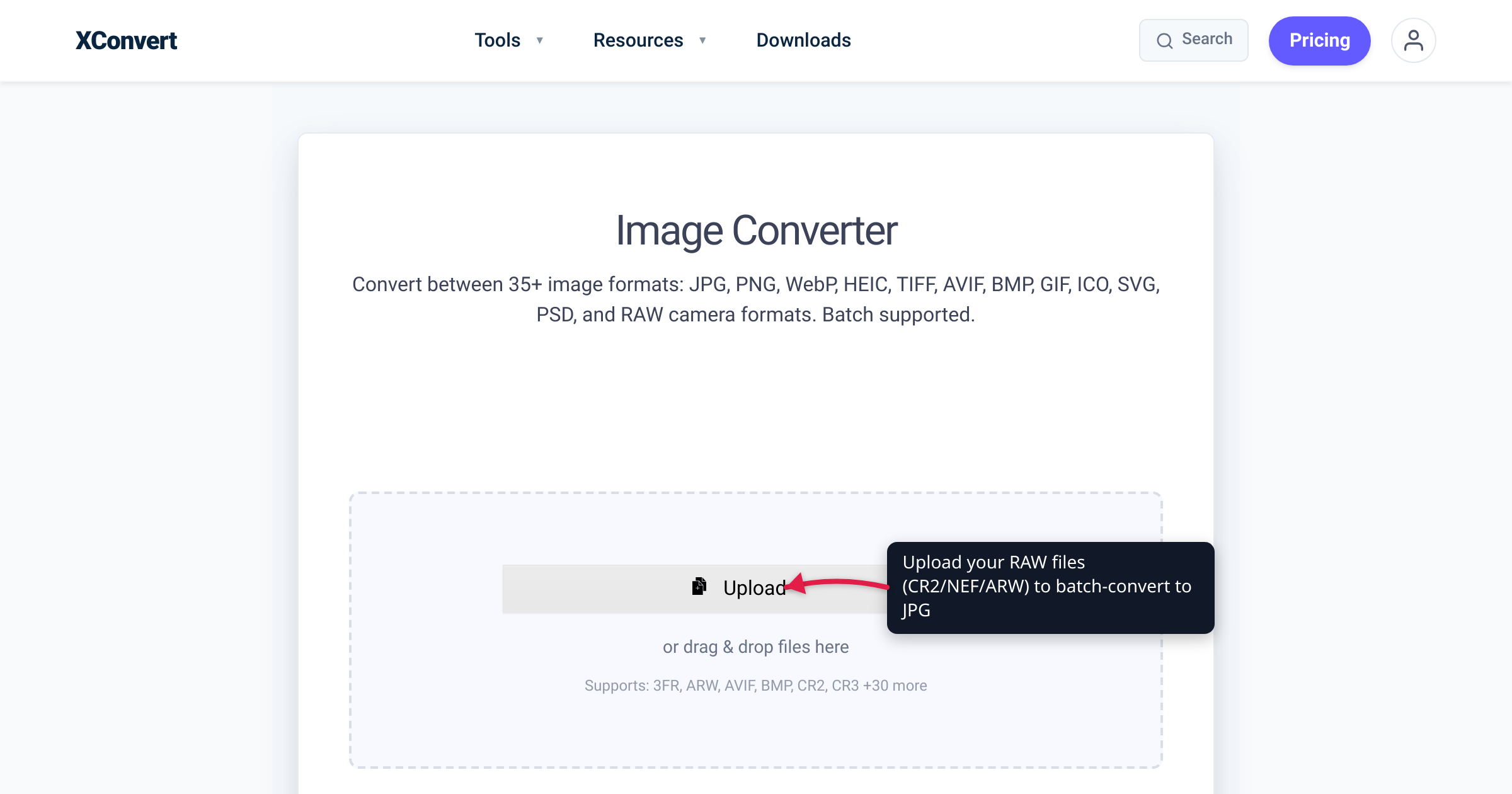
You shoot a wedding, a hike, or a product set in RAW, and then you try to text three frames to a friend or attach them to an email — and nothing works. RAW files don’t preview in most apps, they’re large, and every camera brand uses its own incompatible extension. This guide explains what those RAW formats are, why JPG is the right format for sharing, the free conversion routes built into macOS and Windows (and where their batch support stops), and how to convert a whole folder of RAW shots to JPG at once without installing Lightroom or any other software.
Quick answer: RAW formats are per-manufacturer sensor dumps — Canon uses CR2/CR3 (and older CRW), Nikon uses NEF, Sony uses ARW. To share or upload them, convert to JPG, which every device, browser, and app can open. macOS Preview can batch-convert (open files in one window, select all, File ▸ Export Selected Images ▸ JPEG); the Windows Photos app converts one file at a time via Save as. To convert many RAW files of mixed brands in one go, drop them into the xconvert Image Converter, set the output to JPG, and convert the whole batch.
Jump to a section
- What RAW actually is — and why every brand has its own extension
- Which extension belongs to which camera
- Why convert RAW to JPG at all
- Free route 1: macOS Preview (batch) and Photos
- Free route 2: Windows Photos app (one at a time)
- Batch-convert any RAW folder with xconvert — no install
- Quick reference
- FAQ
- Sources
What RAW actually is — and why every brand has its own extension
A RAW file is the (mostly) unprocessed data read straight off your camera’s image sensor, before the camera applies white balance, sharpening, contrast, and JPEG compression. Keeping that data gives you far more latitude to recover highlights, fix exposure, and adjust color later — which is why photographers shoot RAW.
The catch is that “RAW” is not one format. Each manufacturer designs its own RAW container, and several — Nikon, Canon, and Sony among them — encrypt portions of the file to protect their processing technology. That’s why a .NEF from a Nikon and an .ARW from a Sony are different file types even though both are “RAW,” and why a generic image viewer often shows nothing but a thumbnail or an error. Many of these formats are built on top of TIFF (the Tag Image File Format) — Canon’s CR2, Nikon’s NEF and NRW, and Sony’s ARW, SRF, and SR2 are all TIFF-based, per the Wikipedia Raw image format overview, which cites the manufacturers’ own documentation. Adobe’s open DNG (Digital Negative) format was created as a standardized, non-proprietary RAW container to escape this fragmentation.
Which extension belongs to which camera
Getting the brand-to-extension mapping right matters, because you select files by extension and you’ll mislabel folders if you guess. Here are the verified mappings for the major brands:
| Brand | RAW extension(s) | Notes |
|---|---|---|
| Canon | CR3, CR2, CRW | CRW was the original format; CR2 replaced it from 2004; CR3 is used by most Canon bodies since 2018. |
| Nikon | NEF | Nikon’s primary RAW extension (NRW appears on some compact models). |
| Sony | ARW | Sony’s current RAW extension (older/variant formats include SRF and SR2). |
| Adobe (open standard) | DNG | Vendor-neutral RAW container; some cameras shoot DNG directly. |
| Fujifilm | RAF | |
| Olympus | ORF | |
| Panasonic | RW2 | |
| Pentax | PEF |
The Canon generation history (CRW → CR2 in 2004 → CR3 from 2018) is documented in the same Raw image format reference. If you’re unsure which one your camera produces, the extension is printed on the file itself — sort a folder by type and you’ll see it.
Why convert RAW to JPG at all
RAW is the right format for editing and archiving and the wrong format for sharing. Three reasons to convert to JPG before sending a photo anywhere:
- Universal compatibility. JPG opens on every phone, browser, email client, document, and chat app. A RAW file usually won’t preview at all on the recipient’s side, and many upload forms reject the extension outright.
- Size. RAW files carry full-bit-depth sensor data and are typically several times larger than the JPG rendered from the same shot. For attachments, web uploads, and messaging apps with size caps, a JPG is much smaller. (To shrink JPGs further afterward, run them through the xconvert Image Compressor.)
- It’s already what you see. The preview your camera shows on its screen is a JPG rendering of the RAW.
The trade-off: a JPG is 8-bit and lossy, so it discards the editing headroom RAW preserves. The right workflow is to keep the RAW as your master and export JPGs for sharing — don’t delete the RAW if you might re-edit later.
Free route 1: macOS Preview (batch) and Photos
If you’re on a Mac, the built-in Preview app can convert multiple images at once, with no extra software. Per Apple’s official Preview support page:
- In Finder, select all the RAW files you want (Command-click for individual files, or Shift-click a range).
- Double-click one to open them all in a single Preview window.
- In Preview, choose Edit ▸ Select All (or press Command-A) to select every image in the sidebar.
- Choose File ▸ Export Selected Images.
- Click the Format pop-up menu and choose JPEG (other options include HEIC, PNG, TIFF, JPEG-2000, OpenEXR, and PDF). With JPEG you can also set a quality level.
- Pick a destination and click Save.
Apple’s documentation states this multi-file path explicitly: “To convert more than one image file at a time, open the files in one window, select them in that window’s sidebar, then follow the steps above.” That makes Preview a genuine free batch route on macOS.
One caveat: community reports describe a long-standing Preview bug where, on large selections, only the first several images convert correctly and the rest are saved with the wrong contents or suffix — so spot-check the outputs after a big batch. The macOS Photos app can also export selected photos to JPEG, but only images already imported into its library, which adds an import step.
Free route 2: Windows Photos app (one at a time)
On Windows 11, the built-in Photos app can open and convert many RAW formats:
- Open the RAW file in the Photos app.
- Click the three-dots (See more) menu and choose Save as.
- Set the output type to JPG / JPEG and click Save.
If a RAW format won’t open, install the free Raw Image Extension from the Microsoft Store, which adds broader RAW support to Windows.
The important limitation: the Windows Photos app does not do batch conversion. It converts one file at a time via Save as, as discussed in the Microsoft Community Hub thread on batch-converting RAW on Windows. For a single hero shot that’s fine; for a folder of 200 frames from a shoot, it’s impractical, and that’s exactly the gap the next section fills.
Batch-convert any RAW folder with xconvert — no install
When you have many RAW files — especially a mix of brands, like CR2s from one body and ARWs from another — the fastest route is a batch converter that handles all of them in one pass. The xconvert Image Converter accepts 35+ input formats and explicitly lists Canon (CR2/CR3/CRW), Nikon (NEF), Sony (ARW), Adobe (DNG), Fujifilm (RAF), Olympus (ORF), Panasonic (RW2), Pentax (PEF), and Sigma (X3F). Here’s the flow:
- Open the Image Converter.
- Click + Add Files (the upload control) and select your RAW files — add the whole batch at once; batch conversion is supported.
- Set the Image File Extension output dropdown to JPG (it defaults to JPG).
- Convert, then download your JPGs.
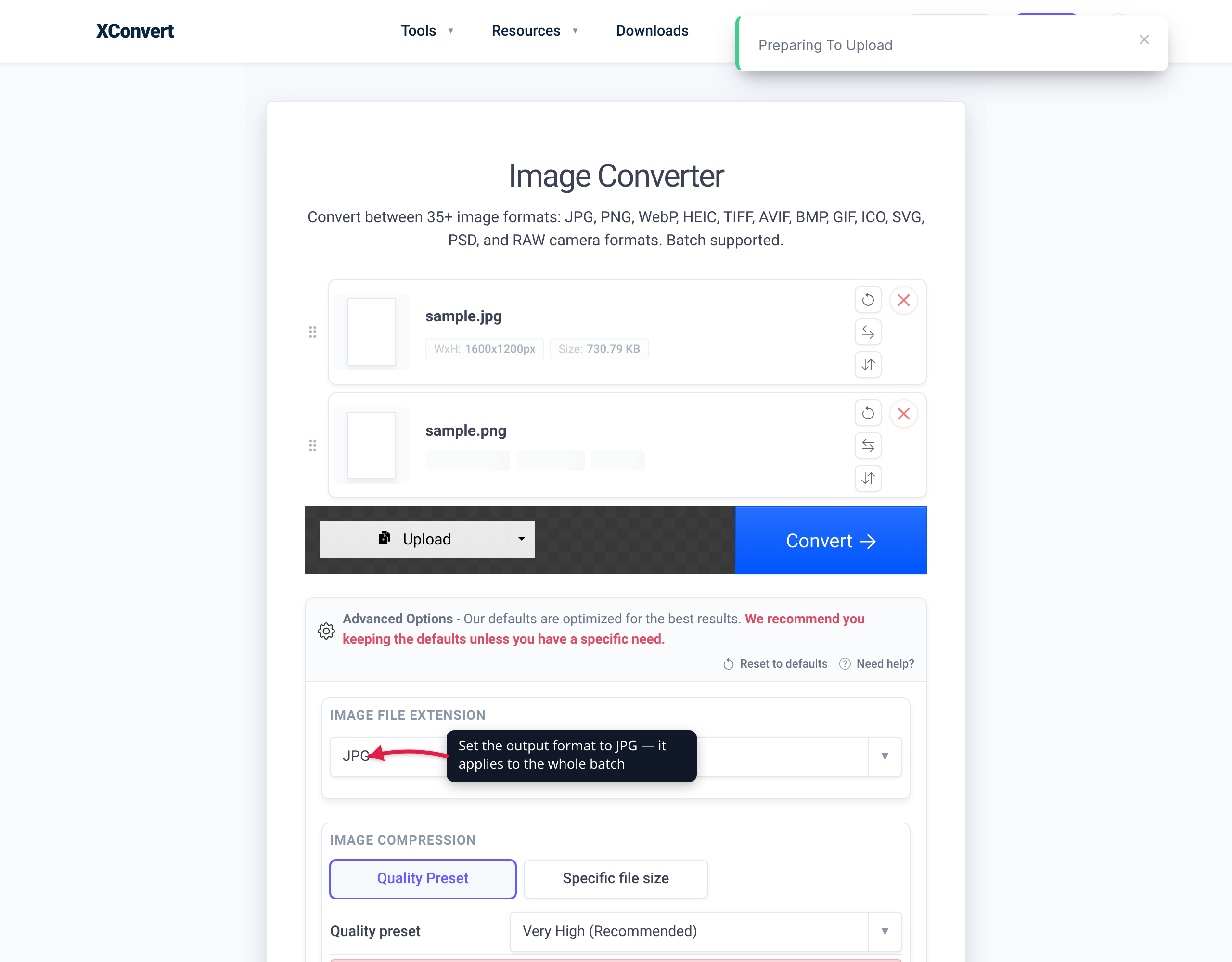
Your files upload over an encrypted connection and are processed on our servers — there’s nothing to install, no Lightroom or Photoshop license required, and it works the same whether you’re on a Mac, a Windows PC, a Chromebook, or a phone. Converted files are automatically deleted from the servers after a few hours, so you download your JPGs and they don’t linger.
If you only ever shoot one brand, the format-specific pages take you straight there: Convert CR2 to JPG (Canon), Convert NEF to JPG (Nikon), and Convert ARW to JPG (Sony). And if your JPGs are still bigger than an upload cap allows, run them through the Image Compressor to bring the file size down further.
Quick reference
| Method | Batch? | Install needed | Works cross-platform |
|---|---|---|---|
| macOS Preview | Yes (Export Selected Images) | No (built into macOS) | Mac only |
| macOS Photos | Yes, but requires importing first | No | Mac only |
| Windows Photos app | No — one file at a time | No (may need free Raw Image Extension) | Windows only |
| Adobe Lightroom / Photoshop | Yes | Yes (paid) | Mac + Windows |
| xconvert Image Converter | Yes | No | Any device/browser |
FAQ
Can I convert RAW to JPG for free without Lightroom or Photoshop?
Yes. On a Mac, the built-in Preview app batch-converts to JPEG with no extra software. On Windows, the Photos app converts one file at a time. For batch conversion on any device with no install at all, use the xconvert Image Converter — no Adobe license required.
Will I lose quality converting RAW to JPG?
JPG is an 8-bit, lossy format, so the exported JPG discards some of the editing headroom (highlight/shadow recovery, full bit depth) that the RAW preserves. For viewing and sharing, the visible quality is excellent. The recommended workflow is to keep your original RAW files as masters and export JPGs for sharing — don’t delete the RAW if you might re-edit later.
Does the Windows Photos app convert multiple RAW files at once?
No. The Windows Photos app converts a single file at a time using Save as ▸ JPG. There’s no native batch option in it. For converting a whole folder of RAW files at once, use macOS Preview (Mac) or the xconvert Image Converter (any platform).
Why won’t my RAW files open or upload anywhere?
RAW formats are proprietary, per-manufacturer, and partially encrypted, so most apps and upload forms don’t recognize them and either show a blank thumbnail or reject the file. Converting to JPG produces a universally supported file that opens everywhere and passes upload validators.
Can I batch-convert a mix of Canon, Nikon, and Sony RAW files together?
Yes. The xconvert Image Converter accepts CR2/CR3, NEF, and ARW (among 35+ formats) in the same batch — add them all, set the output to JPG, and convert in one pass. You don’t have to group them by brand first, and the converter auto-detects each RAW input.
Sources
Last verified 2026-06-18.
- Wikipedia — Raw image format — manufacturer extension mappings (Canon CRW/CR2/CR3, Nikon NEF/NRW, Sony ARW/SRF/SR2), TIFF-based underlying structure, and per-vendor encryption; cites manufacturer documentation.
- Apple Support — Convert image file types using Preview on Mac — official Preview export steps, the multi-file (batch) instruction, and the list of output formats in the Format menu.
- Microsoft Community Hub — How can I batch convert RAW images to JPG on Windows? — Windows Photos app converts via Save as one file at a time; no native batch; free Raw Image Extension for broader RAW support.
- xconvert Image Converter — supported RAW input formats, batch support, and JPG output, as listed on the live tool page.