 By Stephanie Taylor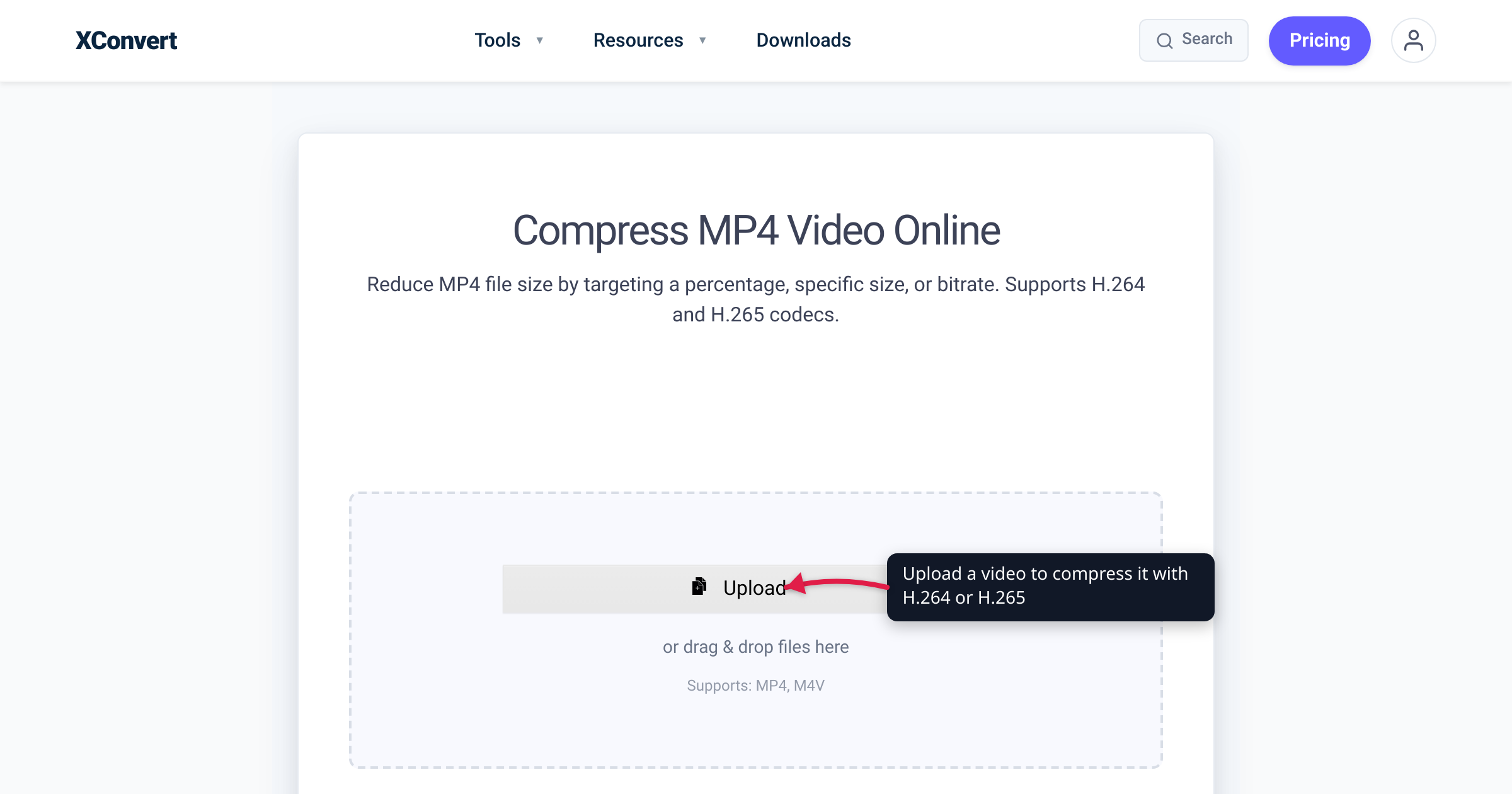
A 4K iPhone clip recorded in H.265 is roughly half the size of the same clip in H.264 — and looks the same. So why does almost every website, every video editor’s “export for web” preset, and every “share to anyone” workflow still default to H.264? Because H.265 buys you smaller files at the cost of slower encoding, narrower playback support, and patent-licensing baggage. This guide gives you a clear decision framework: when the size win is worth it, when universal compatibility wins, and what each codec actually costs you. We verified the dates, the compression numbers, and the current browser-support state against the standards bodies and caniuse — and hedged the figures that are genuinely content-dependent.
Quick answer: Use H.264 when the file must play anywhere — web embeds, email, sharing with unknown devices, older hardware. Use H.265 (HEVC) when you control the playback environment and size matters — modern phones, Apple devices, your own media library, streaming to known clients. H.265 targets roughly 50% smaller files at the same quality (real-world ~25–50%, content-dependent), but encodes slower, plays in fewer browsers, and carries licensing. H.265 produces the smaller file; H.264 wins on universal compatibility.
Jump to a section
- What the two codecs actually are
- Size and quality: how much smaller is H.265?
- Compatibility: where each one plays
- Encode speed and licensing
- The decision framework
- Compress with H.264 or H.265 on xconvert
- FAQ
What the two codecs actually are
Both are video compression codecs — algorithms that shrink raw video into a manageable file. They are not file formats; an .mp4 file can hold either one (along with AV1, and others).
- H.264 — also called AVC (Advanced Video Coding) or MPEG-4 Part 10. Standardized by the ITU-T and ISO/IEC in 2003. It is the de-facto default for online video, Blu-ray, broadcast, and recording on virtually every camera and phone. Its defining feature in 2026 is ubiquity: if a device can play video at all, it can almost certainly play H.264.
- H.265 — also called HEVC (High Efficiency Video Coding) or MPEG-H Part 2. Developed by the Joint Collaborative Team on Video Coding (JCT-VC), it received first-stage approval (consent) in January 2013, was formally ratified as ITU-T H.265 in April 2013, and published in June 2013 (ISO/IEC 23008-2). Its design goal was explicit: roughly the same visual quality as H.264 at about half the bitrate.
The newer codec is more efficient because it does more work per frame — larger and more flexible block sizes, better motion prediction, smarter entropy coding. That efficiency is the whole story: it is also why H.265 is slower to encode and why it took years for hardware decoders to become common.
Size and quality: how much smaller is H.265?
The headline number from Fraunhofer HHI — one of the institutes behind the standard — is that HEVC achieves about 50% bit-rate reduction at the same subjective video quality compared to H.264/AVC. That is the design target, and it is the figure the standards community quotes.
In practice the saving is a range, not a constant, because compression efficiency depends heavily on the content:
- Best case (≈50%) — high-resolution, high-complexity footage (4K, lots of detail and motion) tends to benefit most. This is why phone makers switched recording defaults to HEVC for 4K.
- Typical (≈25–40%) — everyday 1080p content, mixed scenes.
- Smaller gains — low-resolution or already-simple footage, where there is less redundancy for the smarter algorithm to exploit, and where encoder settings matter as much as the codec.
So the honest framing is: H.265 produces a meaningfully smaller file at equal quality — commonly 25–50% smaller, around 50% in the favourable 4K case — but treat any single percentage as content-dependent. Equivalently, at the same file size, H.265 looks better, especially at low bitrates where H.264 starts showing blocky artifacts first.
If your source is already H.265 and you only need it smaller, re-encoding to H.264 throws away that advantage — see Compress HEVC (H.265) without re-encoding to H.264 for the keep-the-codec approach.
Compatibility: where each one plays
This is where H.264 earns its keep. H.264 plays essentially everywhere — every modern browser, every OS, every phone, every smart TV, hardware decoders in chips going back well over a decade. There is no meaningful device in 2026 that can’t play H.264.
H.265 is the opposite story — strong on Apple platforms and modern phones, but patchy in web browsers:
| Environment | H.265 / HEVC support |
|---|---|
| Safari (macOS / iOS) | Supported — macOS High Sierra (10.13)+ / iOS 11+ and later |
| Chrome | Partial from version 107+, and only where the OS provides a hardware HEVC decoder; otherwise unsupported |
| Edge | Partial only, dependent on OS / hardware decoder |
| Firefox | Disabled/unsupported through v136; partial from v137+ via OS-level decoding |
| iPhone / iPad / modern Mac | Native |
| Android | Native on most devices (hardware-decoder dependent) |
| Windows 10/11 (apps) | Needs the Microsoft HEVC codec (paid) or a player like VLC |
| Web embed for unknown audience | Risky — use H.264 |
A caveat about headline support numbers: a “global support” figure for HEVC on caniuse can look high largely because of Safari’s user base, but that masks the conditional, hardware-gated nature of support in Chrome, Edge, and Firefox. For a web embed that must reach the broadest audience — Linux desktops, older devices, browsers without a hardware HEVC decoder — H.264 is still the safe default. If you want a smaller open-codec option for the web instead, compare MP4 vs WebM.
Encode speed and licensing
Two practical costs of H.265 beyond compatibility:
Encode time. Because the encoder examines more spatial and temporal patterns to reach its smaller output, H.265 encoding is meaningfully slower than H.264 at equivalent quality — commonly on the order of 2–3× longer for software encoding, more at the highest-quality presets. (Hardware encoders narrow the gap but trade some efficiency for speed.) Processing on a server, as xconvert does, removes the burden from your own machine, but the codec is still the slower of the two to produce.
Licensing. H.265 is covered by multiple patent pools, and the licensing situation is widely regarded as more complex and costly than H.264’s. This is a major reason browser vendors were slow to adopt it and why the royalty-free AV1 codec emerged as a competitor. For an individual converting a file, licensing is invisible — but it is the structural reason H.265 never achieved H.264’s universal browser support.
The decision framework
Boil it down to one question: do you control the playback environment?
Choose H.264 when:
- The video will be embedded on a public website for an unknown audience.
- You’re emailing it, or sharing with someone whose device you don’t know.
- It needs to play on older hardware, Linux, or Windows without the HEVC codec.
- Compatibility matters more than shaving off file size.
- You want the fastest encode.
Choose H.265 (HEVC) when:
- You’re staying inside the Apple ecosystem (iPhone, iPad, Mac) or sharing between known modern devices.
- You’re archiving your own media library and want to halve storage.
- You’re streaming to clients you control that have hardware HEVC decoders.
- File size is the priority and you accept the narrower playback support.
- Your source is already HEVC and you just want it smaller (keep the codec).
Rule of thumb: ship H.264, store H.265. Distribute in the universally-playable codec; keep your originals/archives in the efficient one. And if you need the absolute smallest file for a modern-only audience, AV1 is smaller still than H.265 — at the cost of much slower encoding and even narrower hardware support today.
Compress with H.264 or H.265 on xconvert
The xconvert MP4 compressor lets you choose the output codec directly, so you can apply this framework in one place:
- Open xconvert.com/compress-mp4 and click Upload to add your video (from your computer, Google Drive, or Dropbox).
- Open Advanced Options (the gear icon).
- Pick your video codec: H.264 for maximum compatibility, or H.265/HEVC for roughly 25–50% smaller files at the same quality. (AV1 is also available for the smallest output on modern devices.)
- Choose how to control size — Target file size (%), an exact specific file size in MB, Constant Quality (CRF), or a constant/variable bitrate.
- Click Compress, then download. H.265 encodes slower than H.264, so allow extra time.
Your file uploads over an encrypted connection, is processed on our servers, and is automatically deleted a few hours later. Nothing stays around.
For related workflows: compress HEVC without re-encoding to H.264 (keep the codec, just shrink), and MP4 vs WebM (when an open web codec is the better fit).
FAQ
Which is smaller, H.264 or H.265?
H.265 (HEVC) is smaller. At the same visual quality, HEVC targets about 50% lower bitrate than H.264 — so roughly half the file size in the favourable case, and commonly 25–50% smaller in practice depending on the content and encoder settings. Put another way, at the same file size H.265 looks better, particularly at low bitrates.
Is H.265 worth it?
It depends on whether you control playback. If your audience is on modern Apple devices, recent phones, or hardware you manage, yes — you get meaningfully smaller files or better quality at the same size. If the video has to play “anywhere” — public web embeds, email, older or unknown devices — the compatibility risk usually outweighs the size win, and H.264 is the safer choice. A good default is to distribute in H.264 and archive in H.265.
Is H.265 better quality than H.264?
At the same file size, yes — H.265’s more efficient compression means fewer artifacts, especially at lower bitrates. At a high enough bitrate both codecs can look visually transparent; the difference is most visible when you’re trying to keep the file small.
Why doesn’t my H.265 video play in Chrome or on Windows?
H.265 support in Chrome (and Edge) is partial and depends on a hardware HEVC decoder being present in your OS/GPU; without it, playback fails. Windows desktop apps need Microsoft’s HEVC codec (a paid add-on) or a player like VLC. This is exactly why H.264 remains the default for anything that must “just play.” Convert to H.264 with the MP4 compressor for broad compatibility.
Does converting H.265 to H.264 make the file bigger?
Yes — re-encoding HEVC to H.264 at equivalent quality typically produces a larger file, because you’re moving to the less efficient codec. Only do it when you need the compatibility. If you just want a smaller HEVC file, keep the codec instead — see Compress HEVC without re-encoding.
What about AV1 — is it better than H.265?
AV1 is more efficient again (smaller files than H.265 at equal quality) and is royalty-free, which is why browser vendors embraced it. The trade-offs in 2026 are much slower encoding and narrower hardware-decoder support than H.265. For most users today H.265 is the practical efficiency choice; AV1 makes sense for modern-only audiences where the extra size saving justifies the slower encode.
How long does H.265 take to encode compared to H.264?
Longer — H.265’s algorithm does more analysis per frame, so software encoding is commonly 2–3× slower than H.264 at equivalent quality, and more at the highest-quality presets. xconvert encodes on the server, so it doesn’t tax your own device, but H.265 is still the slower of the two to produce.
Sources
Last verified 2026-06-18.
- ITU-T H.265 (HEVC) Recommendation — official standard; first version dated 04/2013.
- Fraunhofer HHI — H.265 / HEVC — “HEVC achieves about 50% bit-rate reduction at the same subjective video quality.”
- caniuse — HEVC / H.265 video format — current browser-support state (Safari full; Chrome/Edge partial + hardware-gated; Firefox 137+ partial).
- caniuse — MPEG-4 / H.264 video format — H.264 near-universal browser support.
- MDN — Web video codec guide (AVC / HEVC) — codec characteristics, support, and licensing notes.