 By Stephanie Taylor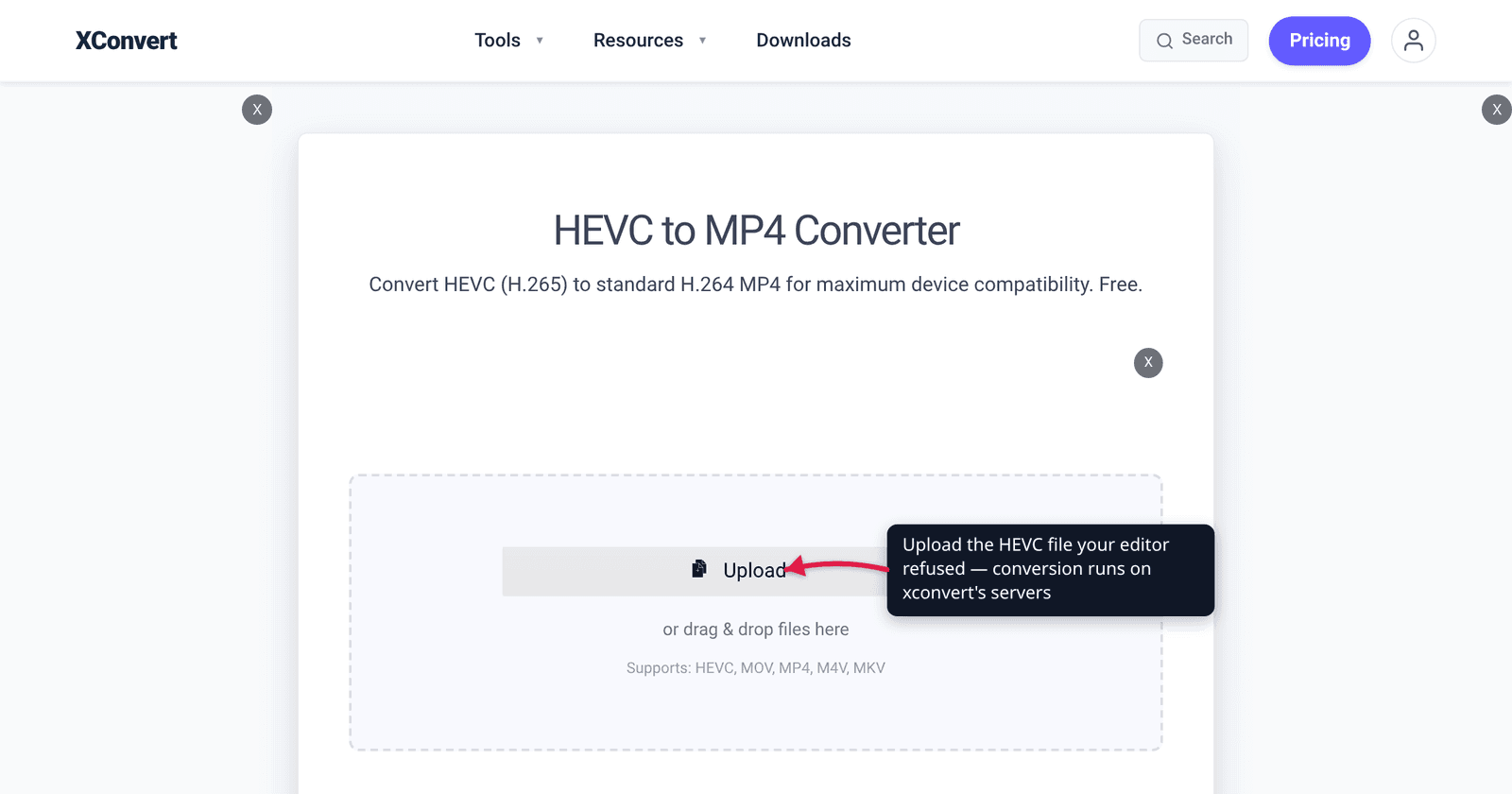
VLC plays the clip perfectly. QuickTime plays it. Your phone plays it. Then you drag it into Premiere and get “unsupported format or damaged file”, or into Resolve and watch it land on the timeline as a red Media Offline card. Nothing is wrong with the file. Playing a video and editing one are different jobs with different requirements, and HEVC is exactly where the two diverge. This guide explains which of the four real causes you’ve hit, and what to hand your editor instead.
Quick answer: Re-encode to H.264 video + AAC audio in an MP4 — the combination every editor on this list ingests without argument. On xconvert.com/convert-hevc-to-mp4, Video Codec already defaults to H.264 and Audio Codec to AAC, so the default settings are the fix. Before you do, check which cause you have: a file literally named
.hevcis a raw bitstream with no container and no editor will take it; an HEVC in an MKV is a container problem; Media Offline on Windows is usually a missing OS decoder; and a 10-bit 4:2:2 camera file is a profile problem that even a working decoder may refuse.
Jump to a section
- Why players succeed where editors fail
- The four things that actually block the import
- What each editor does with HEVC
- When converting isn’t the fix
- Convert HEVC to an editor-safe MP4 on xconvert
- FAQ
Why players succeed where editors fail
A player has an easy job: decode forward, in order, at real-time speed, and if it falls behind it can drop a frame and nobody notices. It also ships its own decoder — VLC bundles one, which is why VLC plays essentially anything on a machine where nothing else will.
An editor’s job is harder in three ways that all bite HEVC specifically.
It needs random access. Scrubbing to an arbitrary frame means seeking to the nearest keyframe and decoding every frame from there to the one you asked for. Phone and camera HEVC is long-GOP footage: keyframes can be seconds apart, so a single scrub can trigger a burst of dozens of decodes. A file that “plays fine” can be unusable on a timeline for exactly this reason.
It has to decode many streams at once. Two clips on top of each other, a transition, a nested sequence — that’s several simultaneous HEVC decodes, each of which is far more expensive than an H.264 one.
It uses a decoder it can license. This is the one that produces hard failures rather than slow ones. HEVC carries patent-licensing obligations, so editors frequently lean on the decoder the operating system provides instead of shipping their own. Blackmagic states it outright in its own codec list: on Windows, DaVinci Resolve decodes H.265 in “8/10-bit OS-supported profiles”, with “more profiles and GPU acceleration in Studio.” On macOS the same row simply reads “Yes, GPU accelerated” — because macOS supplies a system HEVC decoder and Windows, by default, does not.
That single difference explains most of the “it works on my Mac” reports in editing forums.
The four things that actually block the import
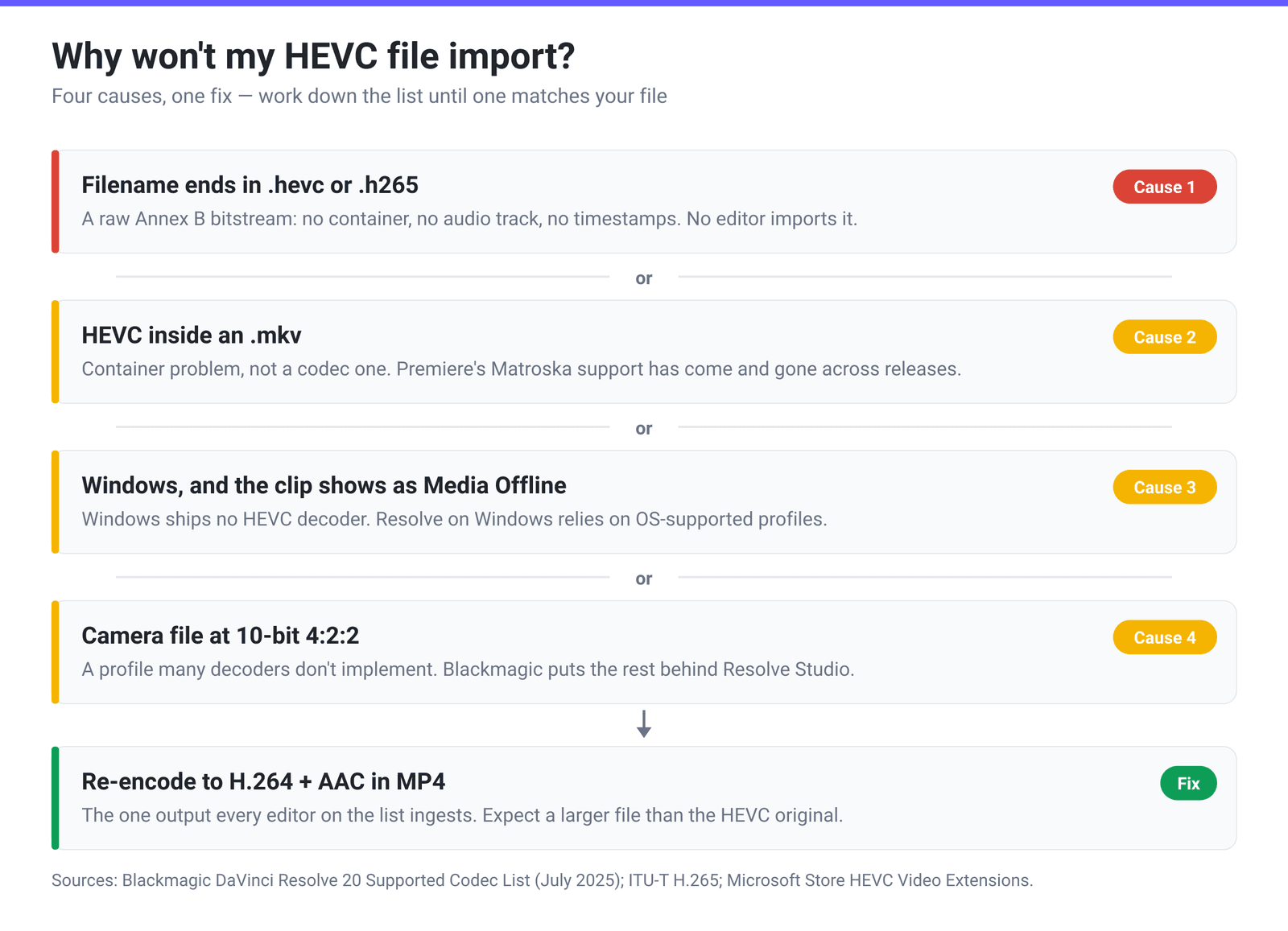
1. The file is a raw bitstream, not a video file. If the name ends in .hevc or .h265, there is usually no container around it at all — it’s an Annex B byte stream as defined in ITU-T H.265, which is a sequence of coded video frames and nothing else: no audio track, no timeline of presentation timestamps, no metadata. Editors import containers. No amount of codec support makes this file importable; it has to be wrapped, which is what converting it to MP4 does.
2. The codec is fine but the container isn’t. MP4 is a box, not a codec — MDN’s container guide puts it plainly: a container “encapsulates one or more media streams… along with metadata,” and the same .mp4 extension can hold H.264, HEVC, AV1 or VP9. So when an app’s help page says it accepts “MP4, MOV, MKV,” it is telling you about the box and saying nothing about the contents. The reverse trap is just as common: Premiere’s Matroska support has come and gone across releases, so an HEVC inside an .mkv can fail on the wrapper before the codec is ever considered.
3. Windows has no HEVC decoder out of the box. Microsoft ships HEVC decoding as a separate HEVC Video Extensions package in the Microsoft Store rather than in Windows itself — Microsoft’s own Photos troubleshooting article prices it at $0.99, though some PCs arrive with an OEM-supplied variant already installed. Any editor that relies on the OS decoder — which, per its own documentation, is what Resolve does on Windows — will report the media as offline until that package is installed. Apps that bundle their own decoder (VLC, and most modern browsers for playback) are unaffected, which is why one program on the same machine plays the file and another can’t see it.
4. The profile is outside what the decoder handles. HEVC is not one thing. Phones record 8-bit 4:2:0 Main or Main 10; mirrorless cameras increasingly record 10-bit 4:2:2, a different profile that many decoders simply don’t implement. Blackmagic’s list caps free Resolve on Windows at OS-supported profiles and puts the rest behind Studio. Adobe documents HEVC 4:2:2 10-bit hardware decoding as available on Intel platforms from Premiere / Media Encoder / After Effects version 22.0 onward, and — on a separate page — on Apple silicon from M1 Pro / M1 Max / M1 Ultra or newer — meaning outside those combinations you are on the software path, which works but is slow. A file that imports and then plays at two frames per second is this cause, not a broken file.
What each editor does with HEVC
| App | What it publishes | Where HEVC actually breaks | What to hand it |
|---|---|---|---|
| Premiere Pro | Imports HEVC from MP4 and MOV; Matroska support has come and gone across releases | Raw .hevc files; HEVC in MKV; exotic profiles falling back to software decode | H.264 + AAC in MP4 |
| DaVinci Resolve (Windows) | “8/10-bit OS-supported profiles. More profiles and GPU acceleration in Studio” | Media Offline when the Microsoft HEVC extension is absent; 4:2:2 and higher-bit-depth camera files without Studio | H.264 + AAC in MP4, or a DNxHR/ProRes intermediate |
| DaVinci Resolve (macOS) | H.265 in mov / mkv / mp4: “Yes, GPU accelerated” | Rarely the codec — check for a raw .hevc or a variable frame rate instead | Usually nothing; convert only if it’s a raw stream |
| CapCut | No published codec list; its own troubleshooting note says a file “labeled as MP4… may not match the extension” | Silent import refusals with no diagnosable error | H.264 + AAC in MP4 |
| Canva | Help Centre lists uploads by container — MOV, GIF, MP4, MPEG, MKV, WEBM, 1 GB max — and the only codecs it names are five it refuses (Apple Intermediate, ProRes 4444, HDV 720p60, G2M3, G2M4). HEVC is never mentioned either way | An HEVC-in-MP4 is “an MP4” and can still be rejected or processed badly | H.264 + AAC in MP4 |
The pattern across the bottom three rows is the point: web and mobile tools publish container lists, and where they name codecs at all it is a short deny-list that never mentions HEVC. Your file satisfies the published requirement and still fails, and nothing in the error message tells you why.
When converting isn’t the fix
Two cases where re-encoding to H.264 won’t solve your problem, so it’s worth ruling them out first.
Variable frame rate. Screen recorders and phone cameras commonly write a variable frame rate, while an editor timeline is constant. The symptom is distinctive: the clip imports and looks fine at the start, then audio drifts progressively out of sync. That’s a frame-rate interpretation problem, not a codec one — fix it in the editor’s own interpret-footage / modify-clip dialog by pinning an explicit frame rate.
Performance rather than compatibility. If the file imports but scrubbing is unbearable, H.264 will help a little, but the real answer on a long project is an editing intermediate — DNxHR or ProRes — which is intra-frame, so every frame is a keyframe and scrubbing is instant. It costs a lot of disk space and buys a lot of responsiveness. H.264 MP4 is the right output when you need compatibility; an intermediate is the right output when you need speed.
And if all you want is a smaller HEVC file rather than a compatible one, don’t convert the codec at all — compress HEVC without re-encoding to H.264 keeps the efficiency you paid for.
Convert HEVC to an editor-safe MP4 on xconvert
- Open xconvert.com/convert-hevc-to-mp4 and click Upload. The page accepts raw
.hevcstreams as well as HEVC inside.mov,.mp4,.m4vand.mkv, so it handles all four causes above. - Open Advanced Options. Video Codec is already set to H.264 and Audio Codec to AAC — the editor-safe pair. Leave them.
- Leave File Compression on Quality Preset → Very High (Recommended) for editing footage. If you need a specific size instead, switch to Specific file size and type a number; for fine control, Constant Quality exposes a CRF slider.
- Leave Video resolution on Keep original — downscaling here throws away detail your edit may need. Use Trim → Time Range if you only need part of a long clip; it’s far faster than converting the whole thing.
- Click Convert and download. Expect the H.264 file to be larger than the HEVC original: that’s the cost of moving to the less efficient codec, and it’s the reason to keep the HEVC master.
Your file uploads over an encrypted connection, is processed on our servers, and is deleted automatically a few hours later — nothing stays around. If your problem is playback rather than editing, Convert HEVC to MP4 (and why HEVC won’t play) covers that side.
FAQ
Why does VLC play my HEVC file but Premiere won’t import it?
VLC bundles its own decoder and only has to play the file forward. An editor needs to seek to arbitrary frames, decode several streams at once, and — for licensing reasons — often uses the decoder the operating system provides. On Windows that decoder isn’t installed by default. Same file, completely different requirements.
What does “Media Offline” mean in DaVinci Resolve for an H.265 file?
It means Resolve can see the file but cannot decode it. On Windows, Blackmagic’s own codec list says Resolve handles “8/10-bit OS-supported profiles,” with more profiles and GPU acceleration reserved for Studio — so the two usual causes are a missing Microsoft HEVC Video Extensions package, or a camera profile (10-bit 4:2:2 and above) that the free version won’t touch. Converting to H.264 in an MP4 sidesteps both.
I have a file ending in .hevc — why won’t anything open it?
Because it isn’t a video file in the way an editor means. A .hevc or .h265 file is normally a raw Annex B elementary stream: coded video frames with no container, no audio track and no presentation timestamps. Editors import containers, so this needs wrapping before anything will touch it. Running it through an HEVC-to-MP4 conversion does exactly that.
Will converting HEVC to H.264 lose quality?
Yes, slightly — it’s a re-encode, not a rewrap, so you’re decoding and encoding again. Keep the quality preset high (Very High is the default) and the loss is not visible in an edit. Keep your HEVC original as the master and treat the H.264 file as the working copy.
Why is my converted MP4 bigger than the HEVC original?
Because H.264 is the less efficient codec. HEVC was designed to hit roughly the same visual quality at about half the bitrate, so undoing that costs bytes. The size increase is the price of universal compatibility — see H.264 vs H.265 for the full trade-off.
My clip imports but the audio drifts out of sync — is that the codec?
Almost certainly not. That is the signature of a variable frame rate source, common in screen recordings and phone captures, being placed on a constant-frame-rate timeline. Fix it in your editor’s interpret-footage or modify-clip settings by assigning an explicit frame rate, rather than by converting the codec.
Sources
Last verified 2026-08-31.
- Blackmagic Design — DaVinci Resolve 20 Supported Formats and Codecs (July 2025) — macOS H.265 (mov/mkv/mp4) decode: “Yes, GPU accelerated”. Windows 10 H.265 (mov/mkv/mp4) decode: “8/10-bit OS-supported profiles. More profiles and GPU acceleration in Studio.”
- ITU-T H.265 (HEVC) Recommendation — defines the HEVC coded video bitstream and the Annex B byte stream format that a raw
.hevc/.h265file contains, along with the profile set (Main, Main 10, 4:2:2 profiles). - MDN — Media container formats — a container “encapsulates one or more media streams… along with metadata”; the container is independent of the codecs inside it.
- Adobe — Supported codecs and drivers for hardware-accelerated decoding — “Premiere, Adobe Media Encoder, and After Effects (version 22.0 and later) support HEVC 4:2:2 10-bit decoding on Intel platforms.”
- Adobe — Hardware-accelerated decoding and encoding — “Apple silicon (M1 Pro, M1 Max, M1 Ultra or newer) supports hardware-accelerated encoding and decoding for H.264 and H.265, including 10-bit 4:2:2 decoding.”
- Microsoft — Codecs FAQ — “you can add support by installing a codec extension from the Microsoft Store, such as the MPEG-2, HEVC, VP9, AV1, or Web Media video extensions.”
- Microsoft — Can’t view this file type in Photos — names the package and its price: “HEVC Video Extensions ($0.99) from the Microsoft Store.”
- Canva Help Centre — Check file upload formats and requirements — “MOV, GIF, MP4, MPEG, MKV, or WEBM file format” with a “Maximum file size limit: 1 GB”, and an “Avoid unsupported video formats” list naming exactly five codecs: Apple Intermediate, ProRes 4444 (ProRes 422 supported), HDV 720p60, Go2Meeting3 (G2M3) and Go2Meeting4 (G2M4). HEVC appears nowhere on the page.
- CapCut Help — Why can’t I import MP4 and JPG files? — “Even if your file is labeled as MP4 or JPG, its actual format may not match the extension, and therefore cannot be recognized by CapCut.”
- xconvert HEVC to MP4 converter — live tool; verified accepted inputs (
hevc,mov,mp4,m4v,mkv) and the controls named above: Video Codec (default H.264), Audio Codec (default AAC), File Compression (Quality Preset default Very High (Recommended); Specific file size; Constant/Variable Bitrate; Constant Quality with a CRF slider), Video resolution (default Keep original), Trim (default Unchanged).