 By James
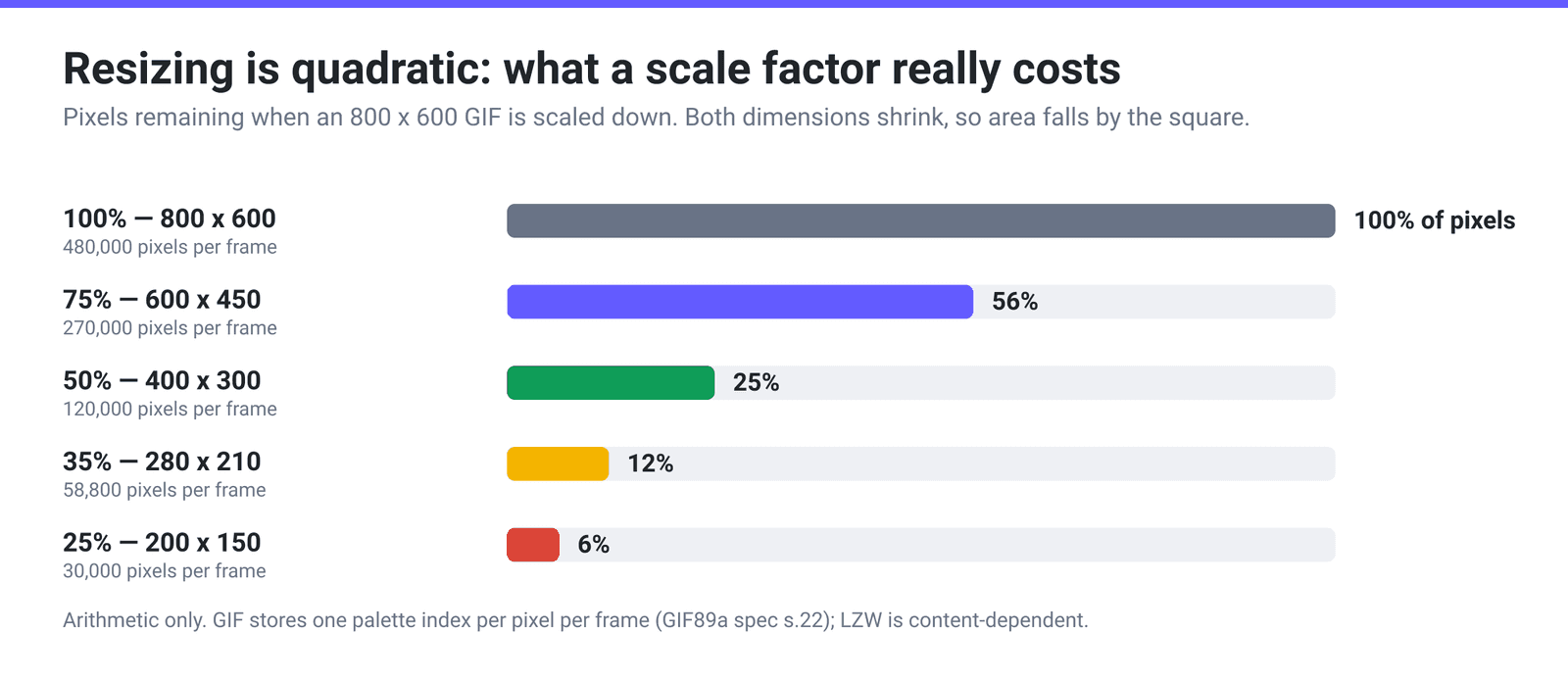
Your GIF is over the upload limit, so you drag the quality slider down and watch the number fall — some, but not enough, and the gradients start to band. Scale the same GIF from 800 px wide to 560 px instead and you have removed 51% of its pixels before the encoder even starts, with nothing visibly degraded at all. Both levers work. They just have different shapes, and the resolution one has the shape that wins: it is the only control in a GIF whose saving is quadratic.
Quick answer: Resize first. A GIF stores one colour-table index per pixel, per frame, so the byte count tracks the pixel area — and area is the square of the linear scale. Drop both dimensions to 70% and you are down to 49% of the pixels; drop to 50% and you are at 25%. A quality percentage is a real lever too — the default 80% is published as a 30–50% saving — but it is content-dependent and non-linear, so it will not reliably do what a resize does. On xconvert, resize an animated GIF at Compress GIF by setting File Compression → Custom, then Image resolution. (The Resize GIF editor works on a single frame and saves a still image, not an animation.)
Jump to a section
- Why pixels are the biggest lever in a GIF
- What each lever actually removes
- Which lever for which GIF
- Two GIF pages, two different starting points
- Resize a GIF and keep the animation
- FAQ
Why pixels are the biggest lever in a GIF
The GIF specification is unusually direct about this. Image data for a table-based image “consists of a sequence of sub-blocks … containing an index into the active color table, for each pixel in the image”, and that sequence of indices is then compressed with LZW. A colour table holds at most 256 entries.
So before compression, a GIF frame is literally one number per pixel. Halve the width and the height and you have removed three quarters of those numbers. LZW then works on a smaller stream, and the output falls with it.
Two honest caveats. First, file size follows the pixel count approximately, not exactly: LZW is content-dependent, so a flat cartoon and a noisy camera clip at the same dimensions compress very differently. Second, each frame in a GIF carries its own position and size, so an optimised animation may store only the changed rectangle of each frame rather than a full raster — which is why two GIFs of the same dimensions and frame count can differ wildly in size.
Neither caveat changes the ranking. Area is quadratic, and nothing else in the format gives you a lever with that shape.
What each lever actually removes
| Lever | What it removes | Shape of the saving | Costs you |
|---|---|---|---|
| Image resolution | Pixels, before anything is encoded | Quadratic — 70% scale leaves 49% of the pixels | Detail and readability. Text and thin lines go first |
| Image quality (%) | Precision in the pixel data, making it more compressible | Real but non-linear and content-dependent — the published saving at the default 80% is 30–50% | Fine gradients start to band and edges pick up mush |
| Colors (palette size + dither) | Entries from the colour table — 256 down to 128, 64, 32 | Large on flat, graphic content; small on photographic content | Banding on gradients, unless dither is on — and dither costs bytes back |
| Drop Frames | Whole frames from the animation | Roughly proportional to the fraction dropped: every 3rd frame removes about a third | Motion smoothness. Fine on a slow pan, obvious on fast action |
| Max file size | Whatever the solver decides | You name a target, it searches for settings that land at or under it | You give up control over which lever moved |
The one that surprises people is Image quality (%). In a JPEG, quality maps fairly directly onto how aggressively frequency coefficients are thrown away. A GIF has no such transform — it is palette indices and LZW. A “quality” setting on a GIF is a lossy pre-pass that nudges pixel values so runs repeat more often and LZW finds more matches.
That pre-pass used to be close to useless on its own: run gifsicle’s --lossy at the default sRGB gamma and even an extreme setting moved the file about 3.5%. Our compressor no longer does that. The slider now maps quality onto a paired --lossy and --gamma value that moves together and always in the same direction, which is what makes the saving real — the live tool publishes 30–50% at the default 80% quality.
Two things follow. It is monotone but not linear: over the middle of its range the gamma does most of the work, so equal drags do not remove equal bytes, and the last few points cost far more damage than the first few. And it is content-dependent: the compressor classifies your GIF as photographic, dark/gradient or flat UI and works within different bounds for each, because dark gradients band long before flat interface art does. So the same slider position takes a different amount off two different GIFs. Resolution has neither problem — half the width and half the height is a quarter of the pixels on every GIF ever made.
Which lever for which GIF
| What your GIF is | Pull first | Then | Leave alone |
|---|---|---|---|
| Screen recording with UI text (a bug repro, a how-to) | Colors — UI is mostly flat and 64 colours often looks identical | Drop Frames, if the recording is slow-moving | Resolution. Shrinking is what makes the text unreadable, and the text is the point |
| Camera or cinematic clip | Resolution — most such GIFs are far larger than they will ever be displayed | Image quality (%) | Colors below 128; photographic content bands immediately |
| Reaction meme / short loop | Resolution, hard — these are viewed small, and a few hundred pixels wide is plenty | Drop Frames | Nothing — these tolerate aggressive treatment |
| Logo or icon animation | Colors — flat vector-style art often survives 32 or even 16 | Resolution to the display size, exactly | Image quality (%). It adds noise to clean flat areas |
| Long screen capture that is simply too long | Trim it first with a cutter, then resize | Drop Frames | Everything else, until the duration is sane |
| You just need it under a specific number | Max file size, and let the solver work | Custom, if the automatic result is not the trade-off you wanted | — |
The recurring mistake is treating a screen recording like a video clip. A 1200 px screen capture at 64 colours can be smaller and more readable than the same capture scaled to 600 px at 256 colours, because the thing you actually need to preserve is edge sharpness on text, not colour fidelity.
Two GIF pages, two different starting points
Worth knowing before you go looking for a control that is not where you expect.
Compress GIF opens on File Compression → Max file size, with a Size limit dropdown offering Custom size %, Custom size value, and presets for Discord (10 MB max), Email (25 MB max) and Forum (2 MB max). That is the target-size path: you name a number, the solver searches for settings that land at or under it. Our production analysis of every GIF-output job over a 30-day window — 73,688 workflows — shows the target is reached essentially every time when it is 30% or more of the file’s natural size, and 98.1% of the time even at 10%. Below that you are asking for something the format cannot always give.
Switch File Compression to Custom and the manual knobs appear: Image quality (%), Drop Frames, Image resolution and Colors. That is where the levers in this article live.
Resize GIF is a different kind of page — a frame editor with pixel, percentage and screen-size presets whose Save menu offers JPG, PNG, WebP, TIFF and BMP. It is the right tool for pulling a still out of a GIF at a specific size. It is not the tool for resizing an animation, because the thing you download is a single image. Use Compress GIF’s Image resolution control when the animation has to survive.
Resize a GIF and keep the animation
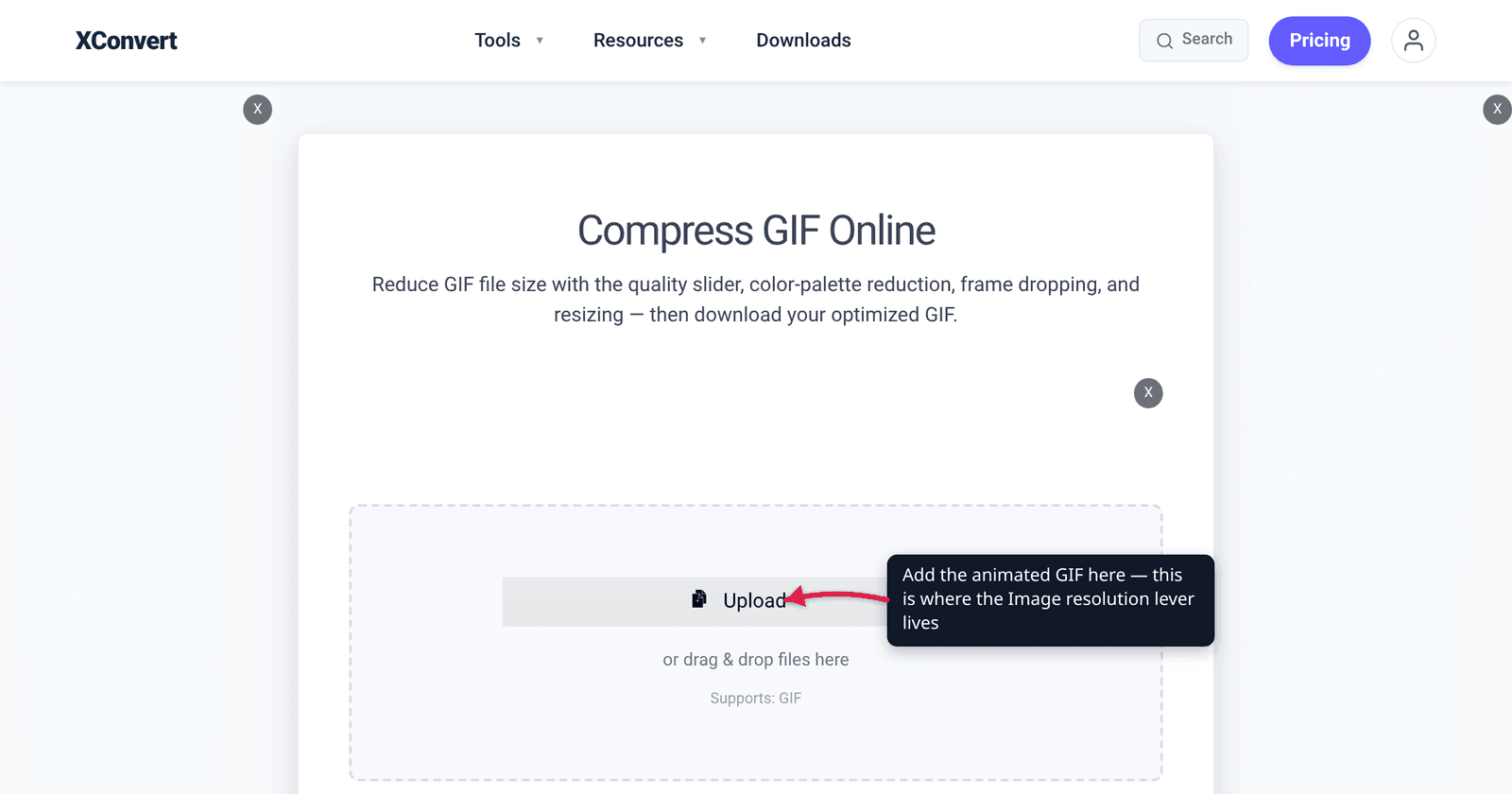
- Open xconvert.com/compress-gif and click Upload to add your GIF.
- In File Compression, switch from the default Max file size to Custom. This is what reveals the manual controls.
- Under Image resolution, pick how you want to express the new size: Resolution Percentage for a straight scale, Preset Resolutions for a standard height, Width (Keep aspect ratio) when you know the target width, or Width x Height for exact dimensions. Width and Height accept Pixels or Percent (%).
- Optionally add a second lever: reduce Colors for flat or graphic content, set Drop Frames to thin the animation, or pull Image Quality (%) down from its default 80. Quality is a genuine lever, but it is the one whose effect varies most with content, so check the result rather than assuming a number.
- Convert and download. Your file uploads over an encrypted connection, is processed on our servers, and is deleted automatically a few hours later — no sign-up, no watermark.
If you have a hard number to hit rather than a look to preserve, skip all of this and use the target-size path instead: compress a GIF to a specific size. And if your goal is the smallest file that still looks right, the companion piece is how to make a GIF smaller without losing quality.
FAQ
Does halving a GIF’s dimensions halve the file size?
No — it does better than that on the pixel side and worse than that in practice. Halving both width and height leaves 25% of the pixels, because area scales with the square of the linear factor. The file rarely lands at exactly 25% though, since LZW compression is content-dependent and every GIF also carries palette and frame-header overhead that does not shrink with the picture.
How much does the quality slider actually do?
More than it used to. A GIF is palette indices compressed with LZW, not a frequency-transform format, so there is no coefficient budget to halve — the quality setting is a lossy pre-pass that makes pixel runs repeat more often so LZW finds more matches. On its own that pre-pass is nearly inert, around 3.5% even at an extreme setting. Our compressor pairs it with a gamma adjustment that moves in step, and the published saving at the default 80% quality is 30–50%.
What it is not is proportional. The response is monotone — lower quality never gives you a bigger file — but the middle of the range does most of the work, and the compressor adapts its bounds to whether your GIF reads as photographic, dark-gradient or flat UI content. If a big drop in quality bought you a small drop in size, the file is telling you its bytes live in pixels or frames instead, and that is where to go next.
Should I reduce colours or reduce resolution?
Match the lever to the content. Flat, graphic material — UI screenshots, logos, cartoons — often survives 64 or 32 colours with no visible change, and colour reduction leaves every pixel where it was, so text stays sharp. Photographic and cinematic material bands badly below about 128 colours, so scale it down instead. When in doubt on a screen recording, cut colours before you cut pixels.
Can I resize a GIF without re-encoding it?
No. Scaling means resampling every pixel of every frame, then re-quantising to a palette and re-running LZW. There is no lossless resize for any raster format. This is why it is worth deciding your final display size once and resizing from the original rather than shrinking the same GIF twice.
My GIF is a screen recording and looks unreadable after resizing. What now?
Put the resolution back and take the size out elsewhere. Reduce Colors — interface screenshots are mostly flat fills and often look identical at 64 — and use Drop Frames if the recording is slow-moving. If it is still too big, the honest answer is that GIF is the wrong container for a long screen capture, and an MP4 or WebM of the same recording will be a fraction of the size.
Is there a point where resizing stops helping?
Yes — when the size is coming from duration rather than dimensions. A 400 px GIF that runs for 40 seconds has a lot of frames, and each one costs bytes no matter how small the frame is. Trim it to the part that matters first; then resize.
Sources
Last verified 2026-08-31.
- GIF 89a specification (W3C-hosted copy) — §22 Table Based Image Data: the image data is “an index into the active color table, for each pixel in the image”, LZW-compressed; §18–19 give the colour-table size as 3 × 2^(Size of Global Color Table + 1) from a 3-bit field, capping a table at 256 entries; §20 Image Descriptor shows each frame carrying its own position, width and height.
- xconvert production data — analysis of all 73,688 GIF-output workflows over a 30-day window: a Max file size target is reached essentially always at 30% or more of the file’s natural size, and 98.1% of the time at 10%.
- xconvert Compress GIF — live control set: File Compression opens on Max file size with the Size limit dropdown; switching to Custom reveals Image quality (%), Drop Frames, Image resolution and Colors. The page’s own savings table publishes “Lossy LZW (quality 80%) — 30-50%”.
- xconvert’s GIF damage scalar (shipped to production 2026-08-23) — the quality percentage maps to a paired gifsicle
--lossy/--gammasetting that is monotone in aggressiveness, with per-content-class gamma bounds;--lossyalone at the default sRGB gamma measured ~3.5% reduction even at its most extreme, which is the behaviour this replaced. - xconvert Resize GIF — the frame editor; its Save menu offers JPG, PNG, WebP, TIFF and BMP.