 By Stephanie Taylor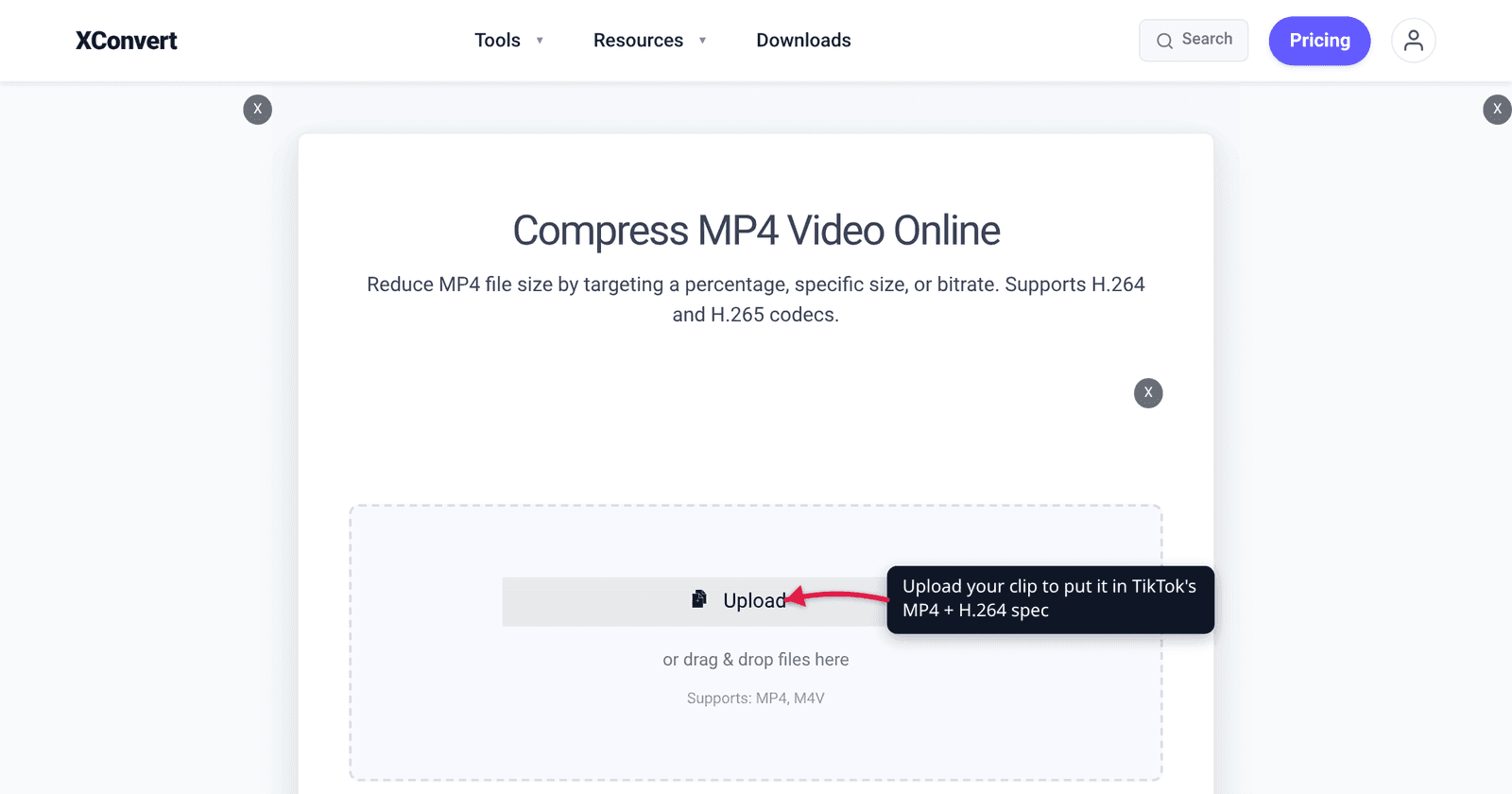
You export a clip at “maximum quality”, drag it into TikTok, and the upload stalls, comes back soft, or gets rejected outright. Almost every one of those failures traces back to a handful of numbers TikTok publishes in its own developer documentation — container, codec, frame rate, pixel dimensions, duration, file size. This guide lists that documented spec, separates the parts a file converter can genuinely fix from the parts only your camera or editor can, and gives you one export target to stop guessing against.
Quick answer: Export MP4 with H.264 video, 1080 × 1920 (9:16 vertical), 30 fps. TikTok’s own posting documentation accepts MP4 (recommended), WebM and MOV; codecs H.264 (recommended), H.265, VP8 and VP9; frame rates of 23–60 FPS; frames between 360 and 4096 pixels on each side; and files up to 4 GB. Most creators can post up to 3 minutes, with 5- or 10-minute access on some accounts. One honest caveat: aspect ratio is an export decision, not a conversion one. A converter can change your container, codec, resolution and file size — it cannot crop 16:9 footage into a 9:16 frame. Shoot or export vertical.
Jump to a section
- What TikTok actually accepts
- The 9:16 problem: what a converter can and can’t fix
- Container and codec: MP4 + H.264
- Resolution, bitrate, and the re-encode you can’t avoid
- TikTok export spec: quick reference
- Get your clip into TikTok’s spec on xconvert
- FAQ
What TikTok actually accepts
TikTok’s clearest published spec isn’t in the consumer help center — it’s in the Content Posting API documentation, the rules TikTok applies to video arriving at its own ingest endpoint. Those “Video restrictions” are the closest thing to an official TikTok file spec that exists in writing:
| Restriction | TikTok’s documented value |
|---|---|
| Media formats | MP4 (recommended), WebM, MOV |
| Video codecs | H.264 (recommended), H.265, VP8, VP9 |
| Frame rate | Minimum 23 FPS, maximum 60 FPS |
| Picture size | Minimum 360 px and maximum 4096 px, for both height and width |
| File size | Maximum 4 GB |
| Duration | “All TikTok creators can post 3-minute videos, while some have access to post 5-minute or 10-minute videos” |
Two rows are worth reading carefully. The picture-size rule applies to both dimensions — a 4K master at 3840 × 2160 is inside the limit, but a 6K or 8K export is not, since 7680 px blows past the 4096 px ceiling. And the frame-rate floor is real: 23.976/24 fps clears it, but a timelapse or slideshow exported at 12 or 15 fps does not, which is a common cause of an “unsupported” upload that plays fine on your own computer.
Two limits that are frequently quoted but are not in TikTok’s documentation:
- Per-device in-app upload caps. Figures like “72 MB on Android, 287.6 MB on iOS” appear across dozens of guides but nowhere in TikTok’s own published documentation. Treat them as community-reported; the number TikTok documents is 4 GB.
- Ad specs are a different, stricter document. For a paid In-Feed ad rather than an organic post, TikTok Ads Manager’s video ad specifications apply instead:
.mp4, .mov, .mpeg, .3gp, .avi, ≤ 500 MB, bitrate ≥ 516 kbps, minimum 540 × 960 for 9:16, up to 10 minutes. Don’t mix that 500 MB ceiling up with the 4 GB organic figure.
The 9:16 problem: what a converter can and can’t fix
This is the part most “best format for TikTok” articles quietly skip, so here it is plainly: 9:16 is something you shoot or export, not something you convert to.
TikTok’s feed is a full-screen vertical canvas. A 1920 × 1080 landscape clip posted to it doesn’t magically become vertical — TikTok pillarboxes it into a small strip in the middle of the screen. The only two ways to actually change a video’s shape are:
- Crop — throw away the left and right of every frame to leave a 9:16 slice. You lose real picture, and whatever was at the edges (a second person, a caption, a logo) goes with it.
- Pad — keep the whole frame and add black bars above and below. Nothing is lost, but you’ve now baked letterboxing into a vertical file, which looks worse than letting TikTok do it.
Neither is a resize, and xconvert’s video tools do neither. They scale (change how many pixels the frame has), change container and codec, trim the timeline, and hit a target file size. They do not crop, reframe, pad, or change aspect ratio, and they do not change frame rate. Those belong in whatever you shot or edited with — the phone camera in vertical mode, CapCut, Premiere, Resolve, Canva.
So the honest division of labour looks like this:
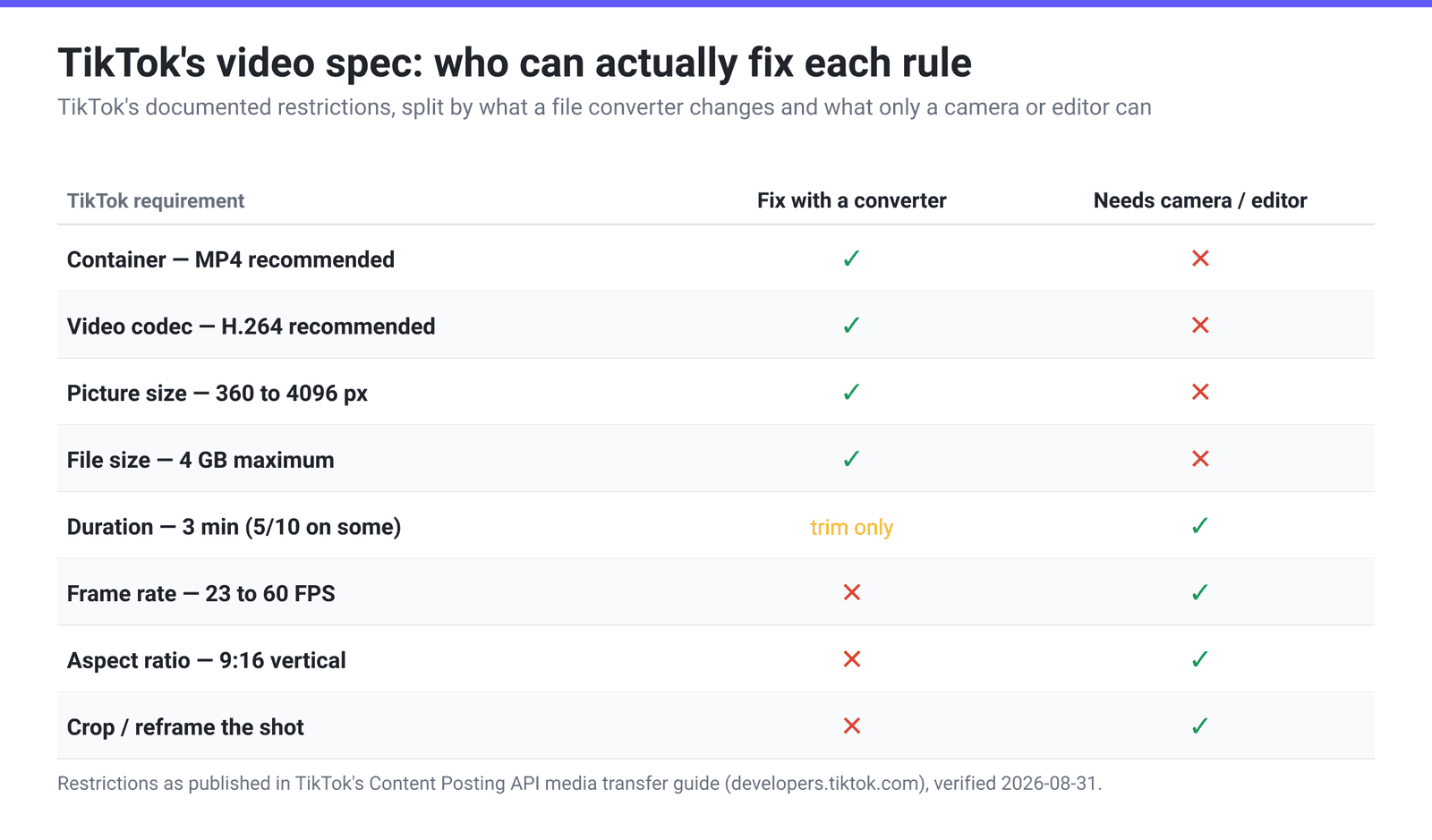
If you shot landscape and need vertical, reframe it in your editor first, export 1080 × 1920, and only then worry about codec and file size.
Container and codec: MP4 + H.264
TikTok names its preferences directly: the media format is “MP4 (recommended)” and the video codec is “H.264 (recommended)”. When the platform tells you which of its accepted options it prefers, take the hint.
Why MP4 over MOV. Both are accepted. MOV is Apple’s container and what iPhones and most Mac editors write by default, but MP4 is the universal one — none of the moov-atom or edit-list quirks that occasionally trip up an ingest pipeline. Rewrapping .mov to MP4 costs you nothing.
Why H.264 over H.265. TikTok accepts H.265/HEVC, and iPhones record in it by default, so plenty of HEVC files post fine. But H.264 is what TikTok recommends and what decodes in hardware on effectively every device made in the last decade. HEVC’s advantage is a smaller file at equal quality — valuable when you control playback, largely irrelevant here because TikTok re-encodes your upload anyway. For that trade-off in general, see H.264 vs H.265.
Audio. TikTok’s posting documentation doesn’t name an audio codec at all. AAC is the standard partner for H.264 inside MP4, is what phones and editors produce by default, and is xconvert’s default — no reason to change it.
Resolution, bitrate, and the re-encode you can’t avoid
1080 × 1920 is the target. It’s the standard full-HD vertical frame, it’s what modern phones shoot in vertical mode, and it sits well inside TikTok’s 360–4096 px window. Going higher does not buy you a sharper TikTok: the platform re-encodes every upload into its own delivery renditions, so a 4K vertical master mostly buys a longer upload and a harder downscale.
TikTok does not publish a recommended video bitrate for organic posts. The only bitrate figure in its documentation is the ads-manager floor of ≥ 516 kbps — a minimum-acceptable number, not a quality target. Ignore any article quoting a precise “recommended Mbps”; it isn’t a published figure. The practical goal is just to arrive with enough bitrate that TikTok’s re-encode is the only meaningful compression the video has been through, and a normal high-quality 1080 × 1920 export from any editor already clears that bar.
Where blur actually comes from, in rough order of how often it bites: your export was already soft (low bitrate, or a downscale-then-upscale in the edit); TikTok’s own transcode, which cannot be switched off and can only be given a clean starting point; or the upload itself was degraded. On that last one, TikTok’s posting screen has carried an Allow high-quality uploads toggle under More options in recent app versions — it isn’t documented in TikTok’s public help center, but it’s worth checking, and posting on Wi-Fi rather than a weak mobile connection is worth more than any export setting.
TikTok export spec: quick reference
| Setting | Use this | Why |
|---|---|---|
| Container | MP4 | “MP4 (recommended)” in TikTok’s posting docs |
| Video codec | H.264 | “H.264 (recommended)”; hardware-decoded everywhere |
| Audio codec | AAC | Not specified by TikTok; the standard MP4 pairing |
| Resolution | 1080 × 1920 | Full-HD vertical, inside the 360–4096 px window |
| Aspect ratio | 9:16 | Full-screen feed; set this in your camera or editor |
| Frame rate | 30 fps (23–60 allowed) | Below 23 FPS is out of spec |
| Duration | Under 3 minutes | Every creator can post 3 min; 5/10 min on some accounts |
| File size | Well under 4 GB | 4 GB documented; ≤ 500 MB if it’s a paid In-Feed ad |
Get your clip into TikTok’s spec on xconvert
Use the xconvert MP4 compressor to fix container, codec, pixel dimensions and file size in one pass. (It takes MP4 and M4V; if your clip is .mov, .mkv, .avi or .webm, start at the video compressor instead — it accepts 36 video formats and outputs MP4, or convert first with MOV to MP4.)
- Open xconvert.com/compress-mp4 and click Upload, or drag the file onto the page.
- Open Advanced Options (the gear icon) once the file is added.
- Turn on the Show All Options toggle at the top of that panel — Video Codec and Audio Codec are advanced controls and are not on the default panel. Then confirm Video Codec is H.264 (the default, and what TikTok recommends) and Audio Codec is AAC.
- To set the pixel dimensions you first have to reveal them: Video resolution is hidden while Auto Scale is ticked, and it is ticked by default in every size-target mode. Untick Auto Scale under File Compression (or switch that mode to Constant Quality, which has no Auto Scale at all) and the Video resolution group appears. Then choose Height (Keep aspect ratio), switch the unit dropdown from Percent (%) to Pixels, and enter 1920. For already-vertical footage that lands you on 1080 × 1920. (Use Preset Resolutions → 1080p instead if your clip is landscape and you’re deliberately keeping it that way.)
- Under File Compression, leave Target file size (%) for a general shrink, or pick Specific file size and type a number if you’re aiming at a hard cap — the 500 MB ads ceiling, for example.
- Click Compress and download the MP4.
Your file uploads over an encrypted connection, is processed on our servers, and is deleted automatically a few hours later.
Posting the same clip elsewhere? The caps differ a lot — video upload limits by platform has them side by side, and best video format for Instagram covers Reels, Stories and Feed, which have their own aspect-ratio rules.
FAQ
What is the best video format for TikTok?
MP4 with H.264 video, at 1080 × 1920 in 9:16, 30 fps. TikTok’s posting documentation names MP4 as the recommended media format and H.264 as the recommended codec, out of an accepted set that also includes WebM and MOV containers and H.265, VP8 and VP9 codecs. Pair it with AAC audio — TikTok doesn’t specify an audio codec, and AAC is the standard MP4 partner for H.264.
What is TikTok’s maximum video file size?
4 GB, per the video restrictions in TikTok’s Content Posting API guide. Paid In-Feed ads are a separate, much stricter case at 500 MB or less. The per-device app caps quoted elsewhere (around 72 MB on Android, 287 MB on iOS) are not published by TikTok — they’re community-reported, so don’t treat them as policy.
Can I convert a landscape video to 9:16 for TikTok?
Not with a converter, and not on xconvert. Changing aspect ratio means either cropping away the sides of every frame or padding it with black bars — both are creative edits, not conversions. xconvert scales, re-codes, trims and re-targets file size; it does not crop, pad or reframe. Reframe in your editor (CapCut, Premiere, Resolve, Canva), export at 1080 × 1920, then use the MP4 compressor for container, codec and size.
Why does my video look blurry after posting to TikTok?
TikTok re-encodes every upload and that pass cannot be turned off, so a soft result usually means it had a soft or out-of-spec file to work from. Export at 1080 × 1920 in H.264 at a healthy bitrate, keep the frame rate between 23 and 60 fps, post on Wi-Fi rather than a weak mobile connection, and check the Allow high-quality uploads option under More options on the posting screen.
How long can a TikTok video be?
TikTok’s posting documentation states that all creators can post 3-minute videos, while some have access to 5- or 10-minute videos — so 3 minutes is the length any account can rely on. Longer-form uploads have reached some accounts beyond that, but those extended limits aren’t part of the documented posting spec, so check your own app before planning a long edit.
Should I upload H.265/HEVC to TikTok?
You can — H.265 is on TikTok’s supported list, which is why iPhone footage posts without conversion. But TikTok recommends H.264, and HEVC’s benefit (a smaller file at the same quality) mostly evaporates here because TikTok re-encodes regardless. Converting to H.264 first removes a variable at no practical cost.
Sources
Last verified 2026-08-31.
- TikTok Content Posting API — Media Transfer Guide — TikTok’s own “Video restrictions”: supported media formats (MP4 recommended, WebM, MOV), codecs (H.264 recommended, H.265, VP8, VP9), 23–60 FPS, 360–4096 px picture size, 4 GB maximum, and the 3/5/10-minute duration wording.
- TikTok Ads Manager — Video Ads Specifications — the separate, stricter paid-ad spec:
.mp4/.mov/.mpeg/.3gp/.avi, ≤ 500 MB, ≥ 516 kbps, 540 × 960 minimum for 9:16, up to 10 minutes. - MDN — Web video codec guide — H.264/AVC characteristics and its near-universal hardware decode support.