 By Stephanie Taylor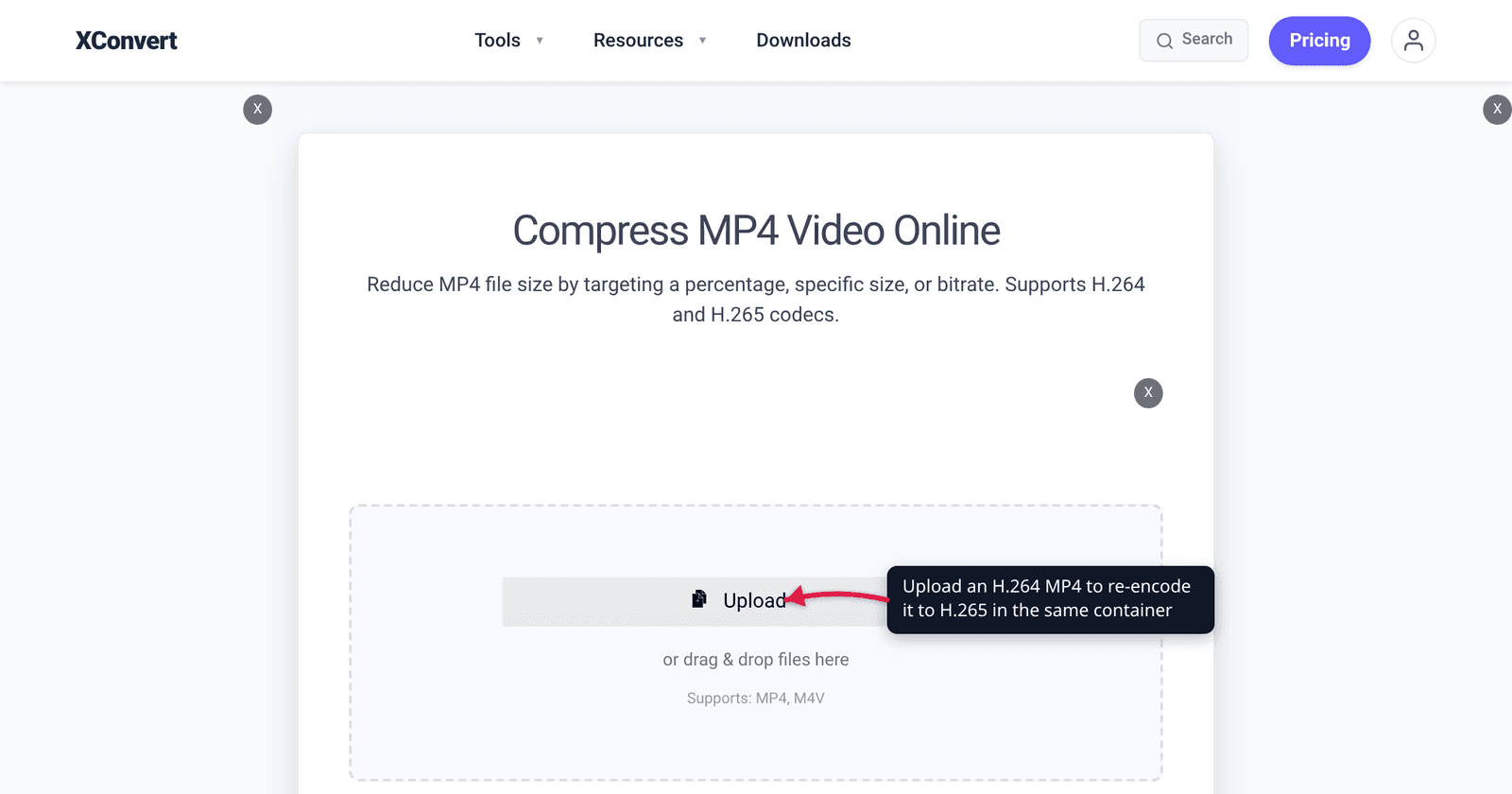
Your video folder is 800 GB of H.264 MP4s and the drive is nearly full. Re-encoding to H.265 is the obvious answer — the codec was designed to deliver the same picture in roughly half the bits — but there is a trap sitting right where most people start: converting to a file whose extension is .hevc. That produces a raw video bitstream that most players and every editor will refuse, and it silently drops your audio. This guide covers what a library-wide re-encode actually returns, how to do it so the file stays a normal, playable MP4, and what to check before you delete a single original.
Quick answer: Keep the MP4 container and change the codec inside it. On xconvert’s MP4 compressor, set Video Codec to H.265 and leave the output as MP4 — you get an ordinary
.mp4file that plays and imports normally. Do not convert to a.hevcfile: FFmpeg’s raw HEVC muxer accepts “a single stream” and stores “no timestamps or metadata”, so a.hevchas no audio track and no container index. Expect roughly 25–50% smaller files at matched quality, more on 4K and less on simple 1080p, at the cost of a slower encode and narrower playback support.
Jump to a section
- What a library re-encode actually returns
- The trap: HEVC is a codec, not a file type
- Before you delete a single original
- Re-encode MP4 to H.265 on xconvert
- FAQ
What a library re-encode actually returns
MDN’s video codec guide puts the ceiling plainly: “Theoretically, HEVC can achieve compressed file sizes half that of AVC but with comparable image quality.” Theoretically is doing work in that sentence. The saving you actually get depends on resolution and content — high-resolution, detailed footage benefits most, which is why phone makers switched 4K recording to HEVC, while an already-efficient 1080p screen recording has far less redundancy left to exploit.
Plan with a range, not a promise:
| Library today (H.264) | At 25% smaller | At 35% smaller | At 50% smaller |
|---|---|---|---|
| 100 GB | 75 GB | 65 GB | 50 GB |
| 250 GB | 188 GB | 162 GB | 125 GB |
| 500 GB | 375 GB | 325 GB | 250 GB |
| 1 TB | 750 GB | 650 GB | 500 GB |
| 2 TB | 1.5 TB | 1.3 TB | 1.0 TB |
The honest read: a mixed library of phone clips, camera exports and screen recordings tends to land in the middle of that spread rather than at the headline 50%. On a 1 TB library, budgeting for 300–350 GB back is realistic; planning around 500 GB will disappoint you.
Two costs come with it. Encoding is slower — H.265 analyses more per frame to reach its smaller output, and at library scale that is measured in hours, not seconds. And playback narrows. MDN lists HEVC as supported in the ISOBMFF, MP4, QuickTime and MPEG-TS containers, but browser support is conditional: Chrome, Edge, Firefox and Opera require a hardware decoder on most platforms, while Safari on macOS High Sierra or later has the broadest support. MDN also notes HEVC “is a proprietary format and is covered by a number of patents”, with licensing managed by Via LA — the structural reason it never reached H.264’s universal reach. If you are still deciding whether to switch at all, H.264 vs H.265: which codec should you use is the comparison; this article assumes you have decided and want to do it correctly.
The trap: HEVC is a codec, not a file type
This is the part that costs people an afternoon. HEVC/H.265 is a compression codec. MP4 is a container. An .mp4 file is a box that holds a video track, an audio track, timestamps, chapter data and an index; the video track inside it can be H.264, H.265, AV1 or several others. Changing the codec does not require changing the container, and it should not.
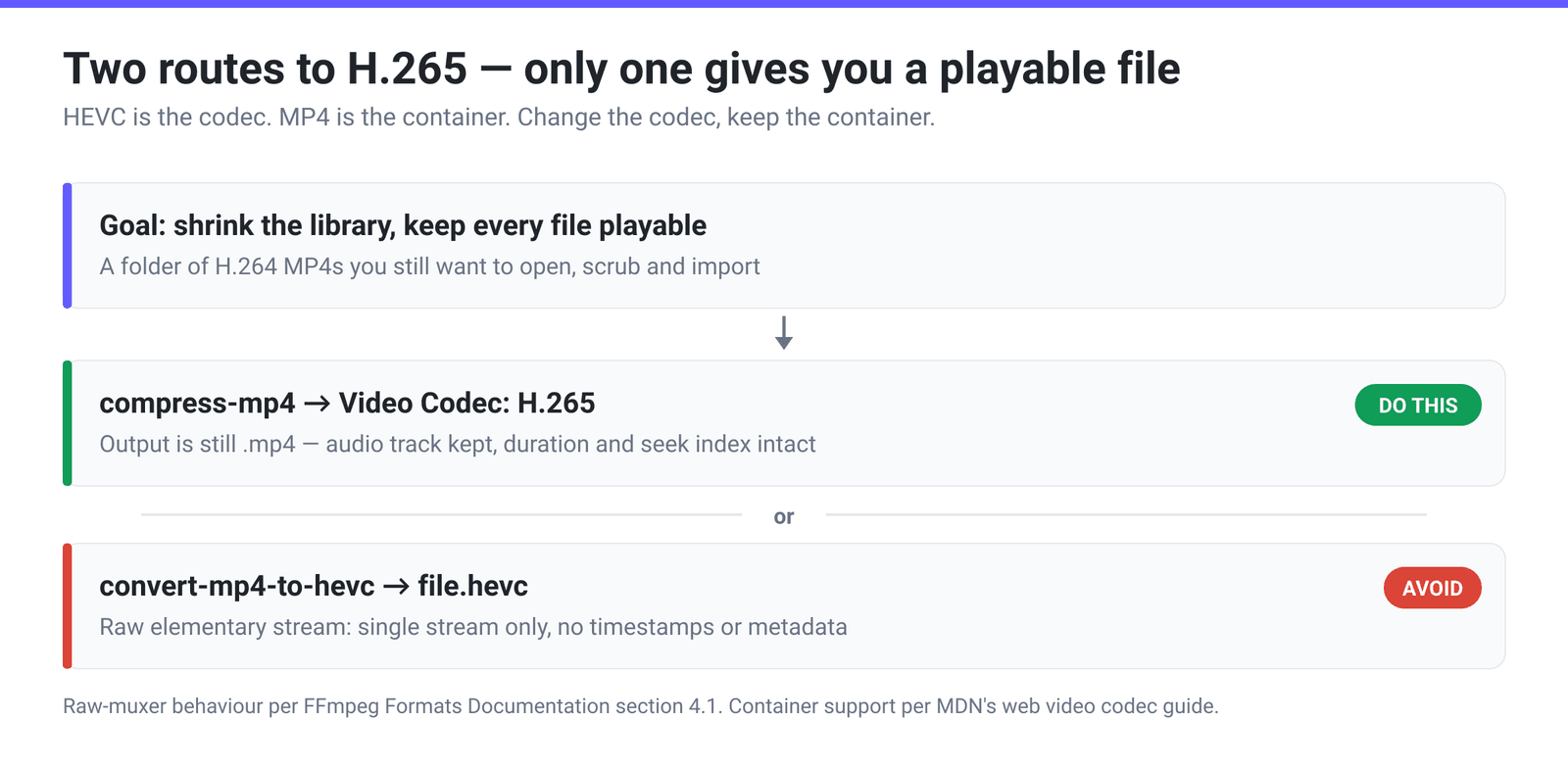
A file ending in .hevc is something different: the raw elementary stream, the compressed video bytes with nothing wrapped around them. FFmpeg’s documentation is explicit about what its raw muxers do — the section covering them states they “accept a single stream matching the designated codec” and “do not store timestamps or metadata”, and it lists hevc (extensions hevc, h265, 265) among them. Read that back: a single stream, so there is no second track for your audio, and no timestamps or metadata, so there is no duration, no seek index and no track table.
| MP4 with H.265 inside | Raw .hevc file | |
|---|---|---|
| What it is | ISOBMFF container, HEVC video track | Bare HEVC elementary stream |
| Audio track | Yes — AAC and others | No — single stream only |
| Duration / seek index | Yes | No — no timestamps or metadata |
| Opens in QuickTime, Photos, most players | Yes | Usually not |
| Imports into an editor | Yes | Usually not |
| On xconvert | compress-mp4 → Video Codec: H.265 | convert-mp4-to-hevc |
Our own /convert-mp4-to-hevc page does exactly what its name says — it writes a .hevc file. That is genuinely what some people need: feeding a bitstream into an analyser, a hardware decoder test, or a muxing pipeline that will wrap it later. It is the wrong tool for shrinking a media library, and if you have ever downloaded one and found that VLC showed no duration bar or that your editor refused the import, this is why.
The same confusion runs the other direction. Every iPhone that records in “High Efficiency” produces HEVC video inside a .mov container, not a .hevc file; HEVC in the wild arrives as .mov, .mp4 or .mkv. If you have HEVC files that will not play, the fix is usually re-wrapping or re-encoding to H.264 — see convert HEVC to MP4.
Before you delete a single original
Re-encoding is lossy to lossy. Your H.264 file already threw away detail; encoding that result as H.265 throws away a little more, and no setting recovers it. That is usually invisible at sensible quality settings, but it is a one-way door, so:
- Batch a test set first. Run five files that represent the range of your library — a dark scene, a high-motion clip, something with fine texture like grass or fabric — and watch them full-screen before committing to 800 more.
- Keep the originals until you have watched the replacements. Not until the encode “succeeded” — until you have actually looked at them.
- Check the target device plays it. A smart TV from 2015, an older Android tablet or a Linux desktop without a hardware HEVC decoder may not. Test on the device the library is actually for.
- Skip anything already efficient. Files that are already H.265, or heavily-compressed downloads, have little left to give and will mostly lose quality for a token saving.
- Skip anything you will edit again. Every re-encode compounds. Masters and project source files should stay as they are.
Re-encode MP4 to H.265 on xconvert
- Open xconvert.com/compress-mp4 and click Upload to add your video. The output stays MP4 — that is the point.
- Open Advanced Options (the gear icon), then click Show All Options. Video Codec and Audio Codec are advanced controls and are not on the default Advanced Options panel — this is the step most people miss.
- Under Video Codec, choose H.265. The list also offers AV1, H.264, MPEG‑1, MPEG‑2, MPEG‑4, VP9 and Xvid; H.264 is the default, so this is the one change that has to be deliberate.
- Leave Audio Codec on AAC unless you have a reason to change it. Because the output is a real MP4, the audio track survives the re-encode.
- Pick how to control quality under File Compression. For a library re-encode, Constant Quality and its CRF slider is the right mode — it holds a consistent visual quality across clips of different complexity instead of forcing every file to the same size. The alternatives are Target file size (%) (Best), Specific file size, Constant Bitrate, Variable Bitrate and Constraint Quality.
- Click Keep original under Video resolution. Do not skip this. On a compress page nothing preselects Keep original, so the group opens on its first option — Resolution Percentage, sitting at 80% — and leaving it alone downscales every file to 80% of its dimensions on top of the codec change. Downscaling shrinks the file too, but it is a separate decision from switching codec; mixing them makes it impossible to tell which one cost you the picture quality.
- Click Compress and download. H.265 encodes slower than H.264, so allow extra time per file.
Your file uploads over an encrypted connection, is processed on our servers, and is deleted automatically a few hours later.
If your source is already H.265 and you only want it smaller, do not round-trip it through H.264 — compress HEVC without re-encoding to H.264 covers the keep-the-codec approach.
FAQ
Should I convert my MP4 to a .hevc file?
Almost certainly not. .hevc is a raw elementary stream: per FFmpeg’s documentation, raw muxers “accept a single stream” and “do not store timestamps or metadata”, so the file has no audio track, no duration and no seek index. Most players will not open it and editors will not import it. To get H.265 video in a normal file, keep the MP4 container and set the Video Codec to H.265 instead — the result is an ordinary .mp4.
How much space will I actually save re-encoding to H.265?
Plan for 25–50%, and expect the middle of that range on a mixed library. MDN describes HEVC as theoretically achieving “compressed file sizes half that of AVC” at comparable quality, but that ceiling is reached on high-resolution, detailed footage. A 1 TB library realistically returns 300–350 GB rather than 500 GB, because simple 1080p and already-efficient sources have far less redundancy to exploit.
Will I lose quality re-encoding H.264 to H.265?
Yes, slightly — you are re-encoding lossy material, so the second pass discards a little more detail. At sensible quality settings this is generally not visible, but it is irreversible. Test five representative files at your chosen setting, watch them full-screen, and only then process the rest. Never re-encode masters or footage you intend to edit again.
Why won’t my new H.265 file play on my TV or in Chrome?
Because HEVC playback is hardware-dependent. MDN notes that Chrome, Edge, Firefox and Opera generally need a hardware HEVC decoder on the platform, while Safari on macOS High Sierra or later has the broadest support. Older TVs and streaming boxes may have no HEVC decoder at all. This is the trade you accept for the smaller files — which is why the sensible rule is store in H.265, distribute in H.264.
Does the audio get re-encoded too?
On the MP4 route, yes — the Audio Codec control defaults to AAC and the audio track is written into the output container along with the video. Audio is a small fraction of a video file’s size, so leaving it at AAC is almost always right. The reason this even needs saying is the contrast with the raw .hevc route, where there is no container to put an audio track in at all.
Is AV1 a better choice than H.265 for archiving?
AV1 is more efficient again and is royalty-free, and it is available in the same Video Codec list. The trade-offs today are much slower encoding and narrower hardware-decoder support than H.265, which matters when you are processing hundreds of files and want them to play on devices you already own. AV1 vs HEVC vs H.264 works through the comparison properly.
Sources
Last verified 2026-08-31.
- MDN — Web video codec guide — HEVC container support (“ISOBMFF, MPEG-TS, MP4, QuickTime”), “Theoretically, HEVC can achieve compressed file sizes half that of AVC but with comparable image quality”, browser support requiring a hardware decoder, and licensing via Via LA.
- FFmpeg Formats Documentation — §4.1 Raw muxers — raw muxers “accept a single stream matching the designated codec” and “do not store timestamps or metadata”;
hevcis listed with recognised extensionshevc,h265,265. - xconvert MP4 compressor — the live control names quoted in the steps: Video Codec, Audio Codec, the File Compression modes and Video resolution.