 By Stephanie Taylor
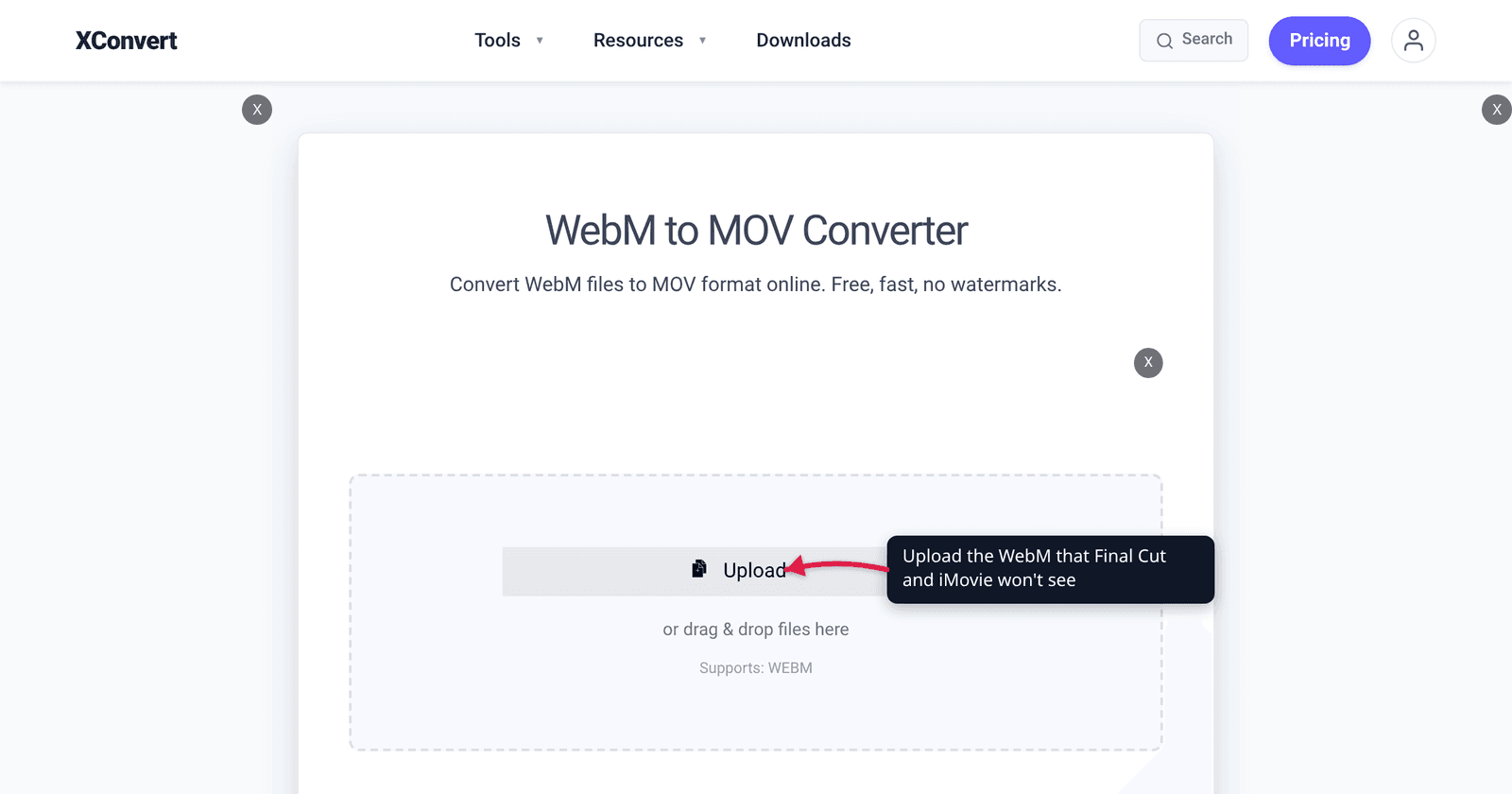
You downloaded a .webm — a screen recording, a clip someone sent you, an export from a browser-based capture tool — and dragged it into Final Cut Pro. Nothing happened. iMovie did the same: the file isn’t in the import browser at all, as if the folder were empty. That isn’t a corrupted download or a bug. WebM is built from three pieces Apple’s editors were never designed to read, and the fix is to repackage the video into the container and codec Apple actually publishes support for.
Quick answer: Final Cut Pro and iMovie can’t open WebM because all three of its parts are off Apple’s supported list — the WebM container, the VP8/VP9 video inside it, and the Vorbis/Opus audio track. Apple’s published Final Cut Pro format list names MOV (QuickTime), MP4, AVI, 3GP, MTS/M2TS and MXF as its containers, and its video list runs from H.264, HEVC and ProRes through to a set of camera RAW formats — none of which is VP8 or VP9. So convert to MOV, leaving Video Codec on H.264 and Audio Codec on AAC — the two defaults on xconvert’s WebM to MOV converter — and the clip drops straight onto the timeline.
Jump to a section
- Why Apple’s editors refuse a WebM
- Premiere Pro is a different case
- Which codec to pick in the MOV dropdown
- What the transcode costs you
- Convert WebM to MOV on xconvert
- FAQ
Why Apple’s editors refuse a WebM
A video file is three decisions stacked together: a container holding the streams, a video codec that compressed the picture, and an audio codec that compressed the sound. An editor must support all three, and WebM misses on every one.
The WebM Project — the format’s own maintainer — defines it precisely: “WebM files consist of video streams compressed with the VP8 or VP9 video codecs and audio streams compressed with the Vorbis or Opus audio codecs. The WebM file structure is based on the Matroska container.”
Compare that against Apple’s published list of what Final Cut Pro imports. Apple names its supported containers as 3GP, AVI, MOV (QuickTime), MP4, MTS/M2TS and MXF. Its video formats include Apple ProRes (all versions), Apple ProRes RAW and ProRes RAW HQ, Apple Animation, Apple Intermediate, AVCHD, AVC-ULTRA, Canon Cinema RAW Light, DV, DVCPRO HD, H.264, HDV, HEVC, MV-HEVC, iFrame, Motion JPEG (OpenDML only), MPEG IMX (D-10), QuickTime formats, REDCODE RAW (R3D), uncompressed 8-bit and 10-bit 4:2:2, XAVC, XDCAM HD/EX/HD422, XF-AVC and XF-HEVC — the Canon and RED entries requiring the camera manufacturer’s own plug-in software. Its audio formats are AAC, AIFF, BWF, CAF, MP3, MP4, RF64 and WAV.
WebM, VP8, VP9, AV1, Opus and Vorbis appear in none of them.
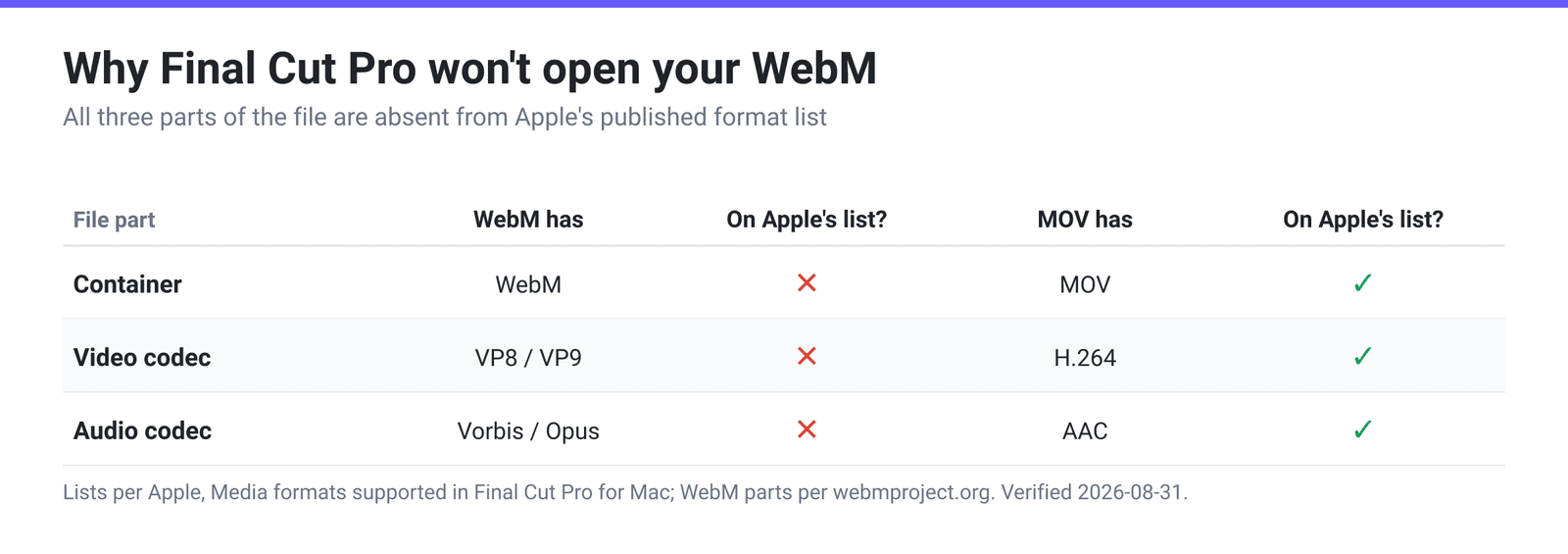
| Part of the file | Your WebM has | On Apple’s Final Cut Pro list? | Convert it to |
|---|---|---|---|
| Container | WebM (Matroska-based) | No — Apple lists 3GP, AVI, MOV, MP4, MTS/M2TS, MXF | MOV (QuickTime) |
| Video codec | VP8 or VP9 | No — Apple lists ProRes, H.264, HEVC, AVCHD, XAVC and similar | H.264 |
| Audio codec | Vorbis or Opus | No — Apple lists AAC, AIFF, BWF, CAF, MP3, MP4, RF64, WAV | AAC |
Two things confuse people here.
“But Safari plays my WebM.” It does — Safari 16.0 and later support WebM on macOS, and Safari on iOS from 17.4. That is WebKit’s own decoder serving an HTML5 <video> element. It says nothing about whether macOS offers the file to Final Cut or iMovie as importable media. Playing back in a browser and being editable are different capabilities with different plumbing.
“iMovie isn’t on that list at all.” Right — Apple publishes a format page for Final Cut Pro but no equivalent per-codec list for iMovie. It documents the pro app and leaves the consumer app undocumented; iMovie is the more restrictive of the two, so a format absent from Final Cut’s list is not a candidate there either.
One genuinely useful caveat: Apple notes on that same page that “the Media Extensions feature built into macOS lets you use additional third-party formats that aren’t natively supported in Final Cut Pro,” requiring macOS Sequoia or later. Install a third-party VP9 media extension and Final Cut gains formats it doesn’t ship with — but that is a dependency on every machine that touches the project. Converting once is simpler, and it survives handing the file to a collaborator.
Premiere Pro is a different case
Premiere isn’t built on Apple’s media stack, and its WebM handling has changed across releases — Adobe’s own Supported file formats documentation for Premiere Pro is the authority for your specific version. Don’t assume based on a forum post from a different release year.
There is a second reason to transcode even when an editor accepts the file. VP9 is a delivery codec, tuned to send the smallest possible stream to someone watching start to finish. Editing is the opposite workload — constant seeking and backwards scrubbing — and heavily inter-frame-predicted video makes the editor reconstruct a long run of frames to show you one. That is why a technically-importable clip can still scrub like treacle. If Premiere imports your WebM but the timeline crawls, the same MOV transcode is the fix.
Which codec to pick in the MOV dropdown
Open Advanced Options and click Show All Options — Video Codec and Audio Codec are advanced controls, so neither is on the default panel. Once revealed, the Video Codec group has eighteen entries. Most are there because MOV is an old and permissive container, not because they’re good ideas. Checked against Apple’s published list:
| Codec in the dropdown | On Apple’s Final Cut Pro list? | Verdict |
|---|---|---|
| H.264 | Yes | The default, and the right answer — hardware-decoded on every recent Mac |
| H.265 | Yes (listed as HEVC) | Valid and smaller at equal quality, but slower to encode and heavier to scrub |
| MJPEG | Partly — Apple lists “Motion JPEG (OpenDML only)”, the AVI flavour | Don’t rely on it; the qualifier isn’t about MOV |
| MPEG-1 / MPEG-2 | Not generically — Apple lists specific derivatives (MPEG IMX, XDCAM) | Avoid |
| MPEG-4 / Xvid / DivX / MS MPEG-4 | No | Legacy ASP-era codecs |
| Theora / WMV 1 / WMV 2 / FLV / Flash Video | No | Wrong ecosystem entirely |
| H.261 / H.263 / H.263+ | No | Videoconferencing codecs from the 1990s |
| HuffYUV | No | Lossless intermediate, but not an Apple-recognised format |
Note what is not in that dropdown for MOV output: there is no ProRes option anywhere on xconvert, and AV1 and VP9 are offered only for other output containers. This conversion gets you a clean, universally-ingestible H.264 MOV — not a ProRes edit master.
Audio Codec defaults to AAC, which is on Apple’s audio list. Leave it, unless you’re handing the file to an audio person who wants uncompressed sound — the dropdown also offers PCM 16-bit Little Endian and PCM 24-bit Little Endian, genuinely lossless and much larger.
What the transcode costs you
Converting WebM to MOV re-encodes the video — there is no way to copy VP9 frames into a QuickTime file and have Final Cut read them. Three consequences:
- Generation loss. VP9 is lossy, H.264 is lossy, and recompressing already-compressed video always costs a little. Usually invisible at a sensible quality setting, but real — so convert from the highest-quality WebM you have, not from a copy that has already been shrunk once for sharing.
- The file usually gets bigger. VP9 is a modern codec broadly in HEVC’s efficiency class; H.264 is older and less efficient, so matching the source’s visual quality takes more bits. That’s the price of compatibility — the same trade covered in H.264 vs H.265.
- Transparency doesn’t survive. WebM can carry an alpha channel; H.264 as produced here cannot, so a transparent WebM comes out flattened. If alpha is the point of the clip, MOV+H.264 is the wrong destination and you need an alpha-capable intermediate produced in a desktop application.
If your destination is a web page rather than an editor, none of this applies: leave the file as WebM, which is what it’s good at — MP4 vs WebM covers that decision.
Convert WebM to MOV on xconvert
The defaults on this page are already the Apple-friendly combination, so the fast path is three clicks.
- Open the WebM to MOV converter and click Upload to add your
.webmfiles. You can queue several at once. - Open Advanced Options to check the settings, then click Show All Options — the codec groups are advanced and hidden until you do. Under Video Codec, confirm H.264; under Audio Codec, confirm AAC. Both are the defaults for MOV output, so if you skip this step you still get the right answer.
- Under File Compression, leave Quality Preset on Very High (Recommended) for editing work. The other modes here — Specific file size, Constant Bitrate, Variable Bitrate, Constant Quality and Constraint Quality — are for hitting a hard delivery target, not for feeding an editor.
- Leave Video resolution on Keep original. If you do need a smaller frame, Preset Resolutions and Width x Height are both there.
- If you only need part of the clip, open Trim, switch from Unchanged to Time Range, and set Start time and Duration in seconds or
HH:MM:SS.sss. - Click Convert, download the MOV, and import it normally.
Your file uploads over an encrypted connection, is processed on our servers, and is deleted automatically a few hours later. No sign-up, no watermark.
FAQ
Why won’t Final Cut Pro import my WebM file?
Because none of its three components are on Apple’s supported list. Apple names 3GP, AVI, MOV, MP4, MTS/M2TS and MXF as the supported containers — WebM is not among them — and the VP8/VP9 video and Vorbis/Opus audio inside are equally absent from Apple’s video and audio lists. Final Cut isn’t rejecting the file; it never recognises it as media, which is why it often doesn’t even appear greyed out.
Can iMovie open a .webm file?
No. Apple doesn’t publish a per-codec support list for iMovie the way it does for Final Cut Pro, but iMovie is the more limited of the two apps and shares the same underlying media support. Convert to MOV with H.264 video and AAC audio and iMovie treats it like any other clip.
Should I convert WebM to MOV or to MP4 for editing?
Either works — Apple lists both containers. Pick MOV if you’re staying in the Apple ecosystem, since it’s QuickTime’s native container; pick MP4 if the file also needs to reach a Windows editor, a phone or the web. The codec inside matters far more than the container: H.264 either way. And if the MOV is bigger than the WebM was, that’s expected — H.264 is the less efficient codec, so switch Video Codec to H.265 (also on Apple’s list) if size matters more than scrubbing speed.
Can I get a ProRes file out of this converter?
No — ProRes isn’t offered on xconvert for any output format. The route is two steps: convert WebM to an H.264 MOV here so the file imports, then transcode to ProRes inside Final Cut Pro or Compressor, where you pick the flavour (422, 422 HQ, 4444) your project needs. For short clips dropped onto a timeline, the H.264 MOV is all you need.
Is there a way to avoid re-encoding altogether?
Not for this pair. Remuxing — copying streams into a different container without recompressing — only works when the destination container and the target application accept the codec you already have. Apple’s editors don’t accept VP8, VP9 or Opus in any container, so the video must be decoded and re-encoded whichever tool you use. Any converter promising an instant lossless WebM-to-MOV conversion is either re-encoding anyway or producing a file Final Cut still won’t open.
Sources
Last verified 2026-08-31.
- Apple — Media formats supported in Final Cut Pro for Mac — the container list (3GP, AVI, MOV, MP4, MTS/M2TS, MXF), the audio list (AAC, AIFF, BWF, CAF, MP3, MP4, RF64, WAV) and the video list quoted above, plus the macOS Sequoia Media Extensions note.
- The WebM Project — About WebM — “WebM files consist of video streams compressed with the VP8 or VP9 video codecs and audio streams compressed with the Vorbis or Opus audio codecs. The WebM file structure is based on the Matroska container.”
- caniuse — WebM video format — Safari supports WebM from 16.0 on macOS and 17.4 on iOS; backs the “Safari plays it but Final Cut won’t import it” point.
- xconvert WebM to MOV converter — the live Video Codec, Audio Codec, File Compression, Video resolution and Trim controls and their defaults, read from the page on 2026-08-31.