 By Stephanie Taylor
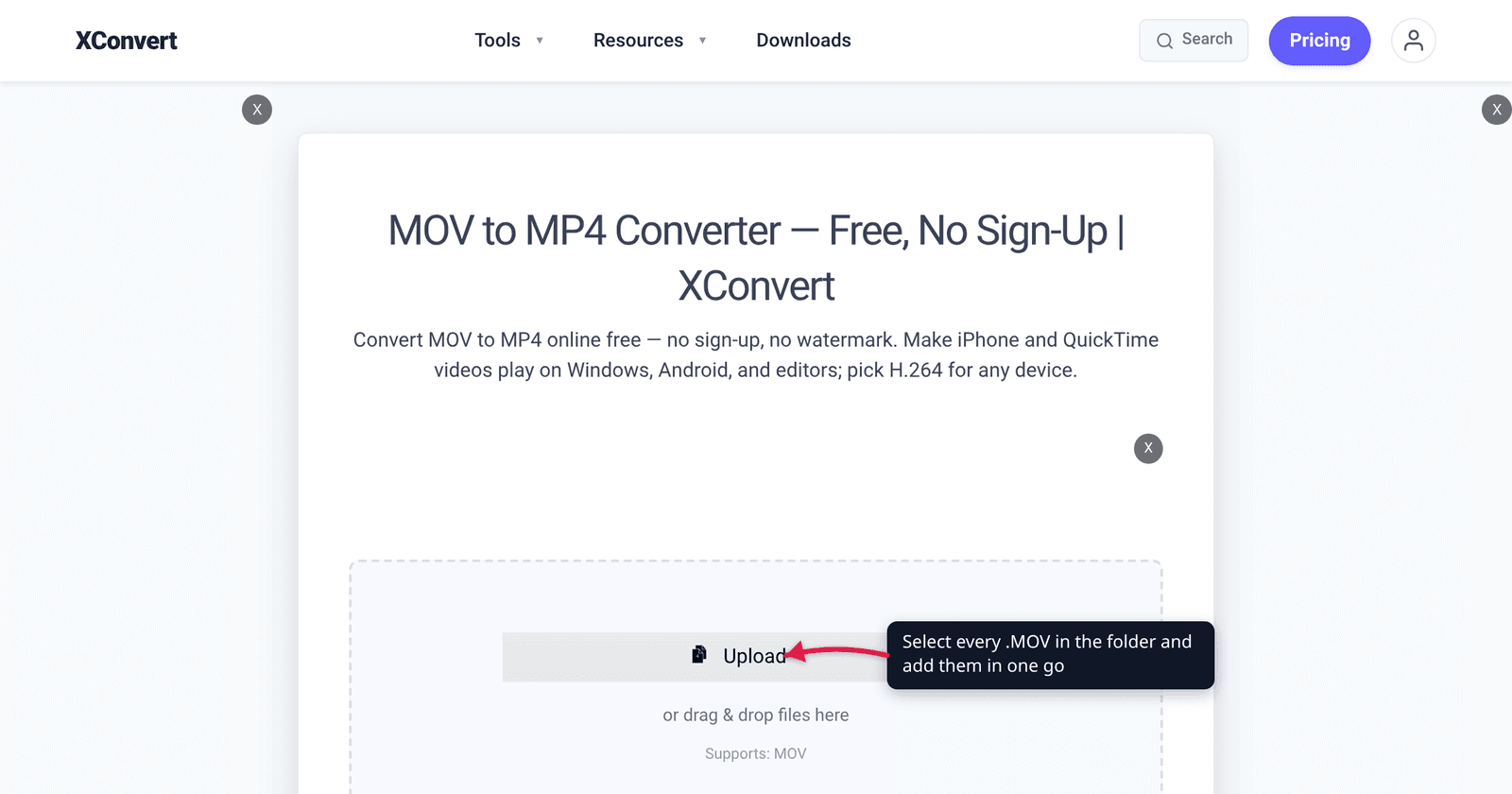
You emptied a camera card or an iPhone’s Photos export and now there is a folder with sixty .MOV files in it. Converting one is a solved problem. Converting sixty is a different job, and the things that go wrong are not the things that go wrong with one file: settings that were fine for a 20-second clip ruin a 12-minute one, a daily allowance you never noticed runs out at file thirty-one, and the download step turns into sixty clicks. This is the folder-sized version of the problem.
Quick answer: Select every
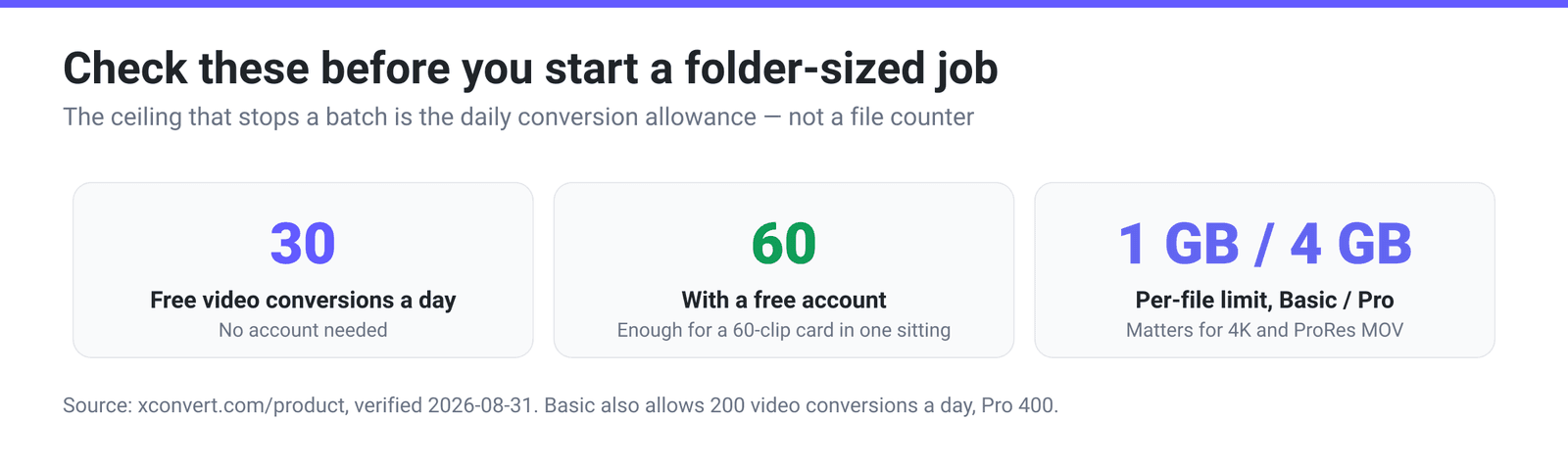
.MOVinside the folder (Ctrl+A on Windows, Cmd+A on macOS) and drop them onto xconvert’s MOV to MP4 converter in one go — the file picker accepts multiple files, and the settings you choose apply to the whole batch. Set the encode once using the Quality Preset (the default Very High is H.264 at CRF 18), and do not use Specific file size on a mixed-length batch — it applies the same megabyte target to a 20-second clip and a 12-minute one. Everyone gets 30 free video conversions a day, 60 with a free account, so plan a folder bigger than that across days or use a local tool.
Jump to a section
- What actually changes when it’s sixty files
- Set the encode once: the preset ladder
- The batch trap: never use a per-file size target
- Batch-convert MOV to MP4 on xconvert
- When to do it on your own machine instead
- FAQ
What actually changes when it’s sixty files
Almost every “how to convert MOV to MP4” guide is written for one file, and quietly assumes everything scales. Most of it doesn’t.
| One file | A folder of sixty | |
|---|---|---|
| Choosing settings | Tune per file, look at the result | One setting has to be right for the shortest and longest clip in the folder |
| Daily allowance | Irrelevant | The real ceiling — 30 video conversions a day, 60 with a free account |
| Per-file size limit | Rarely binds | One oversized 4K clip fails while the other 59 succeed |
| Downloading | One click | One click per output — there is no single “download everything” ZIP for a many-in / many-out job today |
| Filenames | You rename it | Names carry through; if two cards both had IMG_0001.MOV, sort that out before you upload |
| Failures | Obvious | A single corrupt or DRM-locked file fails silently among 59 successes — check the count at the end |
Two of those deserve expanding.
The daily allowance is the ceiling that actually bites. xconvert publishes it plainly: “Everyone gets 30 free video conversions a day — 60 with a free account.” Paid plans lift that to 200 (Basic) and 400 (Pro) per day. For a 60-file folder, a free account covers it in one sitting; a 300-file archive project does not, and pretending otherwise wastes your afternoon. Plan the split before you start rather than discovering it at file 61.
The per-file ceiling is separate from the batch. Free use has a lower per-file cap than the paid plans, which publish 1 GB (Basic) and 4 GB (Pro). This matters for MOV specifically, because MOV is the container cameras and iPhones write at high bitrates — a few minutes of 4K ProRes or 4K60 HEVC will dwarf an hour of streaming-grade H.264. If a single file bounces at upload while its neighbours go through, that is the per-file ceiling, not the batch.
Set the encode once: the preset ladder
For a batch, the goal is a setting you can defend across every file in the folder — not the perfect setting for any single one.
Leave Video Codec on H.264. It is the page default and it is the reason you are converting: H.264 in an MP4 container plays on Windows, Android, every browser, and every editor. (MOV is a container, not a codec — if you have not met that distinction, container vs codec is the five-minute version.) Then pick a Quality Preset and stop touching it. Each preset maps to a fixed H.264 CRF value:
| Quality Preset | H.264 CRF | What it means |
|---|---|---|
| Highest | 17 | Visually lossless; archival. Biggest files |
| Very High (default) | 18 | Visually lossless. The right batch default |
| High | 20 | Transparent — no artifacts you’d notice in normal viewing |
| Medium | 23 | Standard web quality |
| Low | 26 | Artifacts visible on inspection |
| Very Low | 28 | Artifacts visible on inspection |
| Lowest | 32 | Heavy compression, obvious artifacts |
CRF is a quality target, not a size target, and that is exactly what a mixed batch needs. The encoder spends whatever bitrate each clip requires to hit the same visual quality — a static locked-off shot gets few bits, a handheld pan through foliage gets many. The output sizes vary, and they should. What stays constant is how good every file looks.
If you specifically want smaller files rather than faithful ones, drop to High (CRF 20) or Medium (CRF 23) for the whole batch rather than reaching for a size target. Each step of roughly 6 in CRF is conventionally described as about a doubling or halving of bitrate, so Medium is a substantial cut from the default without visible damage on most footage.
The batch trap: never use a per-file size target
The File Compression group also offers Specific file size, Constant Bitrate, Variable Bitrate, Constant Quality and Constraint Quality. On a single file, Specific file size is the best tool on the page — you type 25 MB and the encoder solves for it.
On a batch it is the worst, because the target is applied per file, not across the set. Give a folder containing a 20-second clip and a 12-minute clip a 25 MB target and you get a 20-second clip encoded at a wastefully high bitrate and a 12-minute clip crushed to roughly a thirtieth of the bitrate it needed. Same number, opposite outcomes.
The same logic rules out Constant Bitrate for mixed content: a bitrate that flatters a talking head starves a moving landscape. Constant Quality (a CRF slider you set yourself) is the one alternative that behaves well across a batch, and it is the same mechanism the Quality Preset uses — just with the number exposed. Use it if you want CRF 21 rather than the ladder’s 20 or 23.
Size targets earn their place on the second pass: convert the folder at a quality preset, find the three files that came out too big for wherever they are going, and re-run only those. That is what compressing a MOV is for.
Batch-convert MOV to MP4 on xconvert
- Open xconvert.com/convert-mov-to-mp4 and click Upload. In the picker, open your folder, press Ctrl+A (Windows) or Cmd+A (macOS) to select every clip, and confirm. Dragging a selection of files onto the drop zone works too — select the files, not the folder icon. Google Drive and Dropbox are also available as sources.
- Open Advanced Options. Under File Compression, leave Quality Preset selected and choose your rung — Very High (Recommended) is CRF 18 and the right default for a batch.
- To pin the codec explicitly, click Show All Options and set Video Codec to H.264 and Audio Codec to AAC. That combination is what makes the output play everywhere.
- Optionally set Video resolution — Keep original by default, or a Preset Resolutions entry such as 1080p to normalise a folder of mixed 4K and 1080p sources into one deliverable size. Leave Trim on Unchanged; a trim range would be applied identically to every file in the batch, which is almost never what you want.
- Click Convert. Files are queued and processed on our servers; watch the list for any that fail rather than assuming a full set.
- Download each finished MP4 from its row. Your browser will ask permission to download multiple files — allow it once, and the rest go through.
Files are uploaded over an encrypted connection, processed on our servers, and deleted automatically a few hours later. No sign-up, no watermark.
Converting a single file, or want the native Windows and macOS routes step by step? That is MOV to MP4 on Windows and Mac.
When to do it on your own machine instead
Online conversion is the right call for a folder of tens of files, or when the machine you are on has nothing installed. It is the wrong call for an archive of hundreds of large camera files, because you would be uploading hundreds of gigabytes to convert them. Be honest about which situation you are in.
ffmpeg, one line. If ffmpeg is installed, this converts every MOV in the current folder and writes MP4s beside them. macOS or Linux:
for f in *.MOV; do ffmpeg -i "$f" -c:v libx264 -crf 18 -c:a aac -b:a 192k "${f%.MOV}.mp4"; doneWindows PowerShell:
Get-ChildItem *.MOV | ForEach-Object { ffmpeg -i $_.FullName -c:v libx264 -crf 18 -c:a aac -b:a 192k ($_.BaseName + ".mp4") }-crf 18 is deliberately the same number as the Very High preset, so the two routes produce comparable quality.
HandBrake is the no-command-line version: add the folder to the queue, pick one preset, start the queue, walk away. It is free, cross-platform, and built for exactly this.
One thing neither route changes: if your MOV files are already H.264 with AAC audio, the container is the only real problem, and a remux — rewrapping the existing streams without re-encoding — would be instant and pixel-identical. Both the online converter and the ffmpeg line above re-encode instead. At CRF 18 the difference is not something you will see, but it is a real difference, and worth knowing when the source is precious.
FAQ
How many MOV files can I convert at once?
xconvert does not publish a maximum number of files per job, so treat the daily video-conversion allowance as your real limit: 30 a day without an account, 60 with a free account, 200 on Basic and 400 on Pro. In practice the constraint you hit first on a big folder is time and upload bandwidth, not a file counter.
Will converting MOV to MP4 lose quality?
A little, and almost certainly not visibly. The default Very High preset encodes H.264 at CRF 18, which sits in the visually-lossless band — you would need a side-by-side A/B on a good display and specific footage to spot a difference. It is still a re-encode, not a copy: if your MOV is a camera original you want to keep, convert a copy and archive the original.
Can I drag a whole folder onto the page?
Select the files inside it rather than the folder itself. Open the folder, press Ctrl+A / Cmd+A, and drag that selection — or use Upload and select all in the picker. The uploader accepts multiple files at once; a bare folder icon is not the reliable way to hand it sixty clips.
Why did one file fail when the rest converted?
Three usual causes. It exceeded the per-file size ceiling — most likely if it is 4K or ProRes, since a few minutes of either dwarfs an hour of ordinary H.264. It is damaged, which happens when a card is pulled mid-write. Or it is DRM-protected, which no converter can lawfully open. Check the count of finished files against what you uploaded rather than assuming the batch completed.
Should I use “Specific file size” for the whole folder?
No. It applies the same megabyte target to every file independently, so short clips are inflated and long ones are starved. Use a Quality Preset (or Constant Quality, which is the same CRF mechanism with the number exposed) for the batch, then re-run individual files against a size target if something specific needs to fit a specific limit.
Do the converted MP4s keep the recording date?
Do not count on it. Re-encoding writes a new file, and while modern camera metadata often survives a container change, the reliable place to check is your own output before you delete originals. If the shoot date matters for archiving, keep the MOV originals or record the dates separately before converting.
Sources
Last verified 2026-08-31.
- xconvert plans and limits — “Everyone gets 30 free video conversions a day — 60 with a free account”; Basic $4.99/mo with a 1 GB file-size limit and 200 video conversions per day; Pro $9.99/mo with a 4 GB file-size limit and 400 video conversions per day.
- xconvert MOV to MP4 converter — the live control surface: Video Codec, Audio Codec, File Compression (Quality Preset / Specific file size / Constant Bitrate / Variable Bitrate / Constant Quality / Constraint Quality), Video resolution and Trim. Preset-to-CRF values are xconvert’s own encoder configuration.
- FFmpeg documentation — the
-c:vand-c:aper-stream codec options used in the local batch commands (-crfis libx264’s rate-control option, documented in FFmpeg’s codecs reference). - HandBrake documentation — the “Using the queue” guide, i.e. queue-based batch encoding as the desktop alternative.