 By James
You spent an afternoon on a tidy animated logo for your email signature. It looks perfect in your own inbox. Then a colleague replies “nice, but it’s not moving,” someone in accounts sees a broken-image box, and IT asks why every message you send is suddenly heavier. Three complaints, three different causes, and only one of them is about your GIF. Here is what Google and Microsoft actually publish, and what it means for the file you should be making.
Quick answer: Google publishes a hard limit that catches people out: a Gmail signature can hold up to 10,000 characters, and your image counts toward that limit — the documented fix is to resize the image. Microsoft, meanwhile, says classic Outlook plays animated GIFs by default; if a recipient sees only the first frame, animations are disabled on their machine, not broken in your file. You cannot fix that from your end, so build the GIF so frame one works as a complete static signature — then get it down to a few tens of kilobytes, because it rides along on every message you ever send.
Jump to a section
- The size limit Google actually publishes
- Whether it animates is the recipient’s setting, not your file
- A realistic byte budget, and the levers that get you there
- Design rules that fall out of the format
- Shrink a signature GIF on xconvert
- FAQ
The size limit Google actually publishes
Most “email signature best practice” advice quotes a size in kilobytes with no source. Google’s own Gmail help page gives you a real number, and it is not measured in kilobytes at all:
“You can put up to 10,000 characters in your signature.”
And immediately after, the part people miss:
“Tip: Your image also counts toward the character limit. If you get an error, try to resize the image.”
So in Gmail the signature — markup, text and image together — shares one 10,000-character budget, and Google’s documented remedy when you blow it is to make the image smaller. That is the closest thing to an official “how big can my signature graphic be” answer that exists, and it is why an animated GIF is a tighter fit than people expect.
Microsoft publishes no size limit for an Outlook signature image anywhere in its signature documentation. That is not permission to be careless, because of the constraint nobody writes down: a signature is a per-message cost. A 400 KB banner on 60 emails a day is 24 MB of outbound traffic daily, replicated into every recipient’s mailbox and into every reply that quotes your message — a ten-reply thread can carry ten copies.
Gmail also truncates long messages with a “message clipped” link, which pushes the signature below the fold. Google doesn’t publish the threshold, so treat the widely-repeated figure as folklore rather than specification — but the direction is clear: a lighter signature stays visible.
Whether it animates is the recipient’s setting, not your file
This is the part almost every signature guide on the internet gets wrong, and it is worth reading Microsoft’s own words.
The claim you’ll see repeated is that classic Outlook for Windows simply doesn’t animate GIFs and shows the first frame instead. Microsoft’s support article “The animated graphic in my e-mail message doesn’t work” — which lists Outlook for Microsoft 365, Outlook 2024, Outlook 2021, Outlook 2019 and Outlook 2016 as the versions it applies to — says something different:
“By default, Outlook plays animated graphics in the body of email messages. If only the first frame of the animation appears, you have animations, or animated GIFs, disabled.”
In other words, first-frame-only is a configuration state on the reader’s machine, not the default behaviour and not a property of your file. Microsoft gives three remedies, all of which the recipient has to perform:
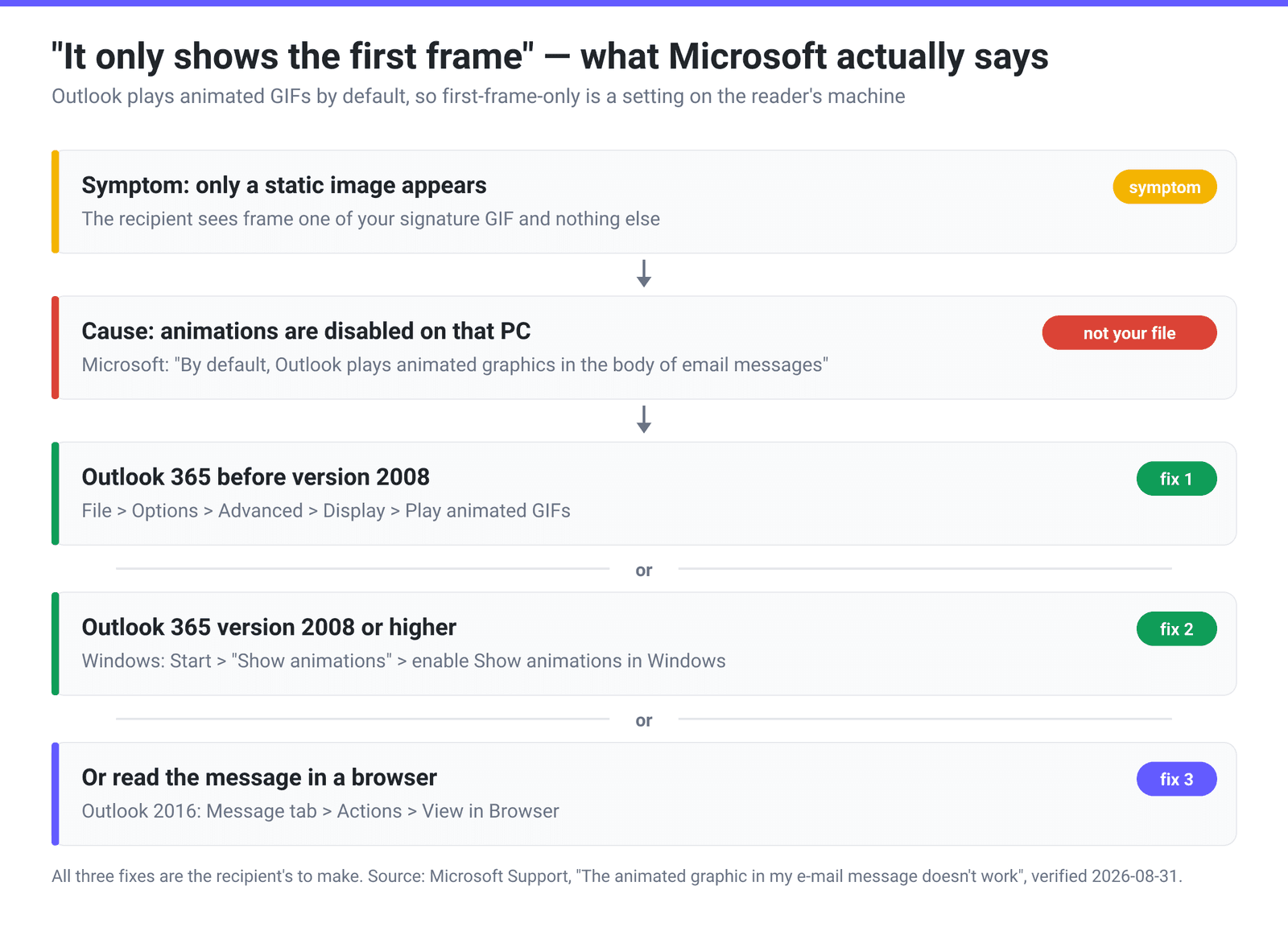
The version split matters. In Outlook for Office 365 before version 2008 the switch is inside Outlook: File > Options > Advanced, Display section, Play animated GIFs. From version 2008 onward Microsoft deferred to the operating system: “Click Start and type Show animations. Click the search result and under Simplify and personalize Windows, enable Show animations in Windows.” That is a system-wide accessibility and performance toggle — the same one people switch off to make an older laptop feel faster, or because motion makes them uncomfortable.
Two consequences. First, stop treating “it didn’t animate in Outlook” as a bug in your GIF; it is a setting you have no access to. Second, since you can’t control it, the design has to survive it — frame one is the version many people will see.
It is worth knowing why Outlook is the client this keeps happening in. Microsoft documented, when the change was made, that “Microsoft Office Outlook 2007 uses the HTML parsing and rendering engine from Microsoft Office Word 2007 to display HTML message bodies.” Classic Outlook for Windows renders email through Word rather than a browser engine, which is why its behaviour diverges from Outlook on the web, new Outlook for Windows, and every webmail client.
A realistic byte budget, and the levers that get you there
Signature GIFs should be measured in tens of kilobytes, not megabytes — Gmail’s character budget, the per-message repetition, and the fact that the graphic is decoration rather than content all point the same way. Which levers actually pay, from our own production analysis of GIF output:
| Lever | What it does | What it costs |
|---|---|---|
| Pixel dimensions | Bytes scale with area, so halving width and height cuts the pixel count to a quarter | The biggest single lever by far |
| Frame count | Drop Frames deletes every Nth frame; the Every 3rd frame setting removes one frame in three and keeps the other two, and that is our measured sweet spot | Motion gets choppier. Our data has a separate warning about the resulting playback rate: a 5 fps output lands in the worst-performing bucket, so watch where the thinning leaves you |
| Colour palette | GIF89a allows at most 256 palette entries; dropping to 64 or 32 shrinks every pixel index | Banding, especially on gradients |
| Dither | Smooths banding after a palette cut | Ordered dither costs about +12% bytes at 64 colours; Floyd-Steinberg about +25% and flickers between frames because it is temporally unstable |
| Per-frame palettes | A separate palette per frame instead of one global one | About 3x the bytes for roughly 0.001 SSIM of quality — never worth it for a signature |
| Image quality (%) | A lossy pre-pass before LZW; the slider defaults to 80 | Softens fine detail before you ever touch the palette |
For a logo or wordmark — flat colour, hard edges, no photographic gradients — the palette lever is unusually generous. A two-colour wordmark does not need 256 entries, and cutting to 16 or 32 costs almost nothing visually while removing bits from every pixel of every frame. Photographic or gradient-heavy signatures are the opposite case and the ones that end up grainy; why your GIF looks grainy covers that trade-off.
On dimensions: high-DPI screens draw a CSS pixel with more than one device pixel, so a banner displayed 300 px wide wants roughly a 600 px source to look sharp — four times the pixel count. Decide the displayed size, double it, stop there. Anything wider is bytes you pay for on every email and nobody can see.
Design rules that fall out of the format
The GIF89a specification, published at the W3C, imposes two constraints on what a signature GIF can be.
A maximum of 256 colours. The colour table size is a 3-bit field, capping a table at 2^8 entries, so anything photographic gets quantised — which is why animated photo signatures rarely look good and always weigh too much.
Transparency is one index, not a channel. The spec defines a single Transparency Index: “when encountered, the corresponding pixel of the display device is not modified.” A pixel is fully transparent or fully opaque, with no partial alpha, so anti-aliased edges over transparency keep a hard fringe in whatever colour the GIF was flattened against. If your signature sits on white in your client and on dark in someone else’s — dark-mode webmail — that white-matted fringe is exactly where the halo comes from. A solid background matching the intended surface is usually safer.
And from the Outlook section: frame one must be a complete, correct signature on its own. Never put your phone number, job title, or a call to action only in a later frame. The animation is a bonus for people whose settings allow it; the first frame is the product.
Two more follow from the medium rather than the spec: keep the loop short, because a signature animating forever in a thread someone is trying to read is an irritant rather than a brand asset; and many clients block remote images until the reader loads them, so the message must read correctly with every image missing.
Shrink a signature GIF on xconvert
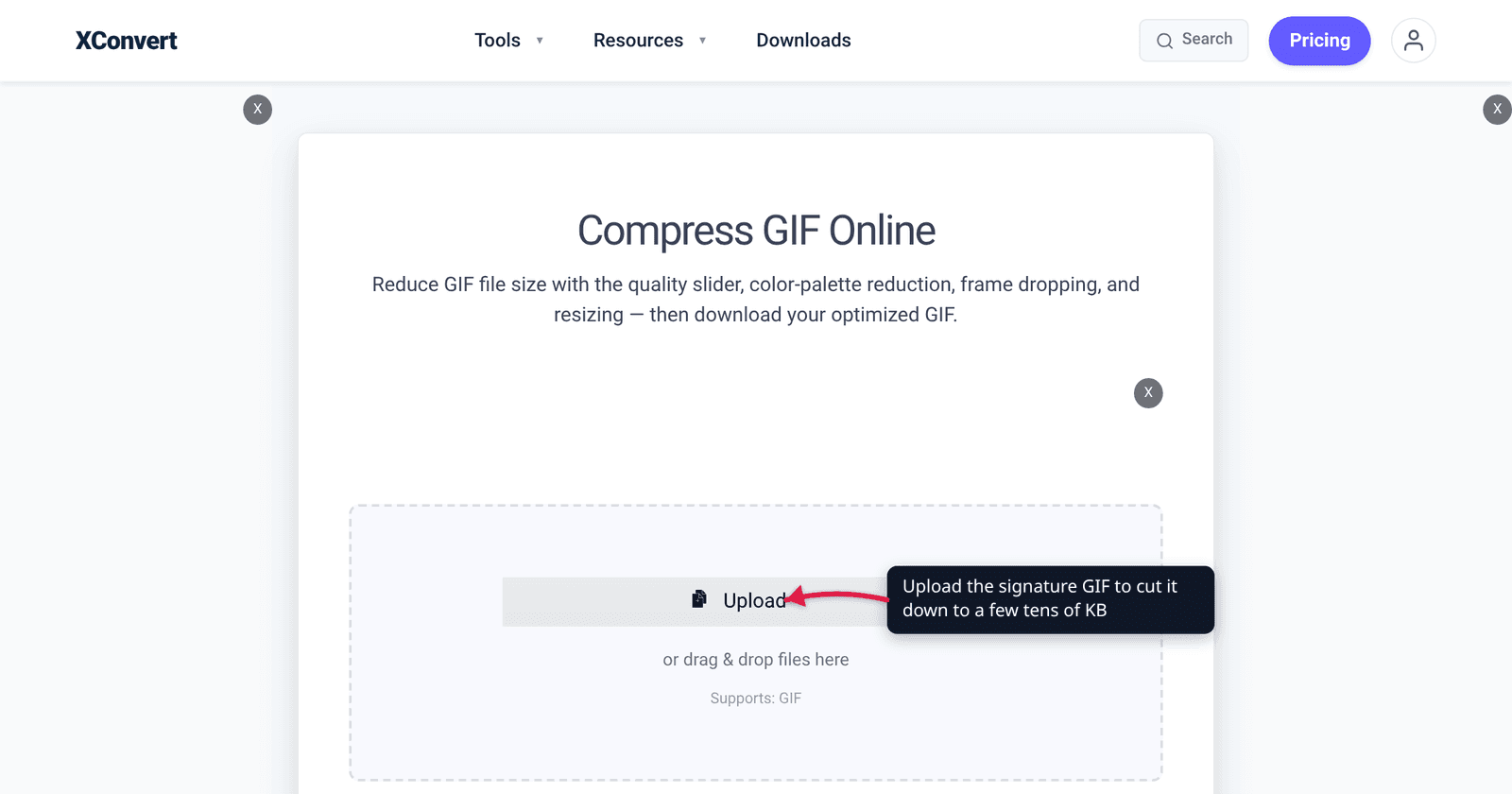
The xconvert GIF compressor handles the dimensions, palette, and frame count in one job — including the resize, which is the lever that matters most here.
- Click Upload to add your GIF (from your computer, Google Drive, or Dropbox).
- Under File Compression, switch from Max file size to Custom. That is what reveals the manual controls — the default Max file size mode gives you a cap to aim at rather than the individual levers.
- Set Image resolution to Width (Keep aspect ratio), change the unit dropdown from Percent (%) to Pixels, and type the width you actually need — roughly twice your displayed width.
- Open Colors, choose By Color Reduction + Dither, and drop Color Palette Size from its 128 default to 64, 32 or 16 depending on how flat your artwork is.
- If the animation is still heavy, use Drop Frames → Frames To Drop and keep the preselected Every 3rd frame, which deletes one frame in three and keeps the other two.
- Optionally pull the Image quality (%) slider below its default of 80, then click Compress and download.
Your file uploads over an encrypted connection, is processed on our servers, and is automatically deleted a few hours later. No sign-up, no watermark.
If you would rather work to a number than to settings, switch Size limit to Custom size value and type a target in KB — compressing a GIF to 100, 256 or 512 KB walks through what those sub-megabyte targets actually cost.
FAQ
Why doesn’t my animated signature move in Outlook?
Because animations are switched off on the machine reading it. Microsoft’s own support article states that Outlook plays animated graphics in the message body by default, and that seeing only the first frame means “you have animations, or animated GIFs, disabled.” Before Outlook for Office 365 version 2008 that setting lived in File > Options > Advanced > Display; from version 2008 it follows the Windows Show animations in Windows setting. Either way it is the recipient’s control, not yours.
How big should an email signature GIF be?
Aim for tens of kilobytes. The only officially published constraint is Gmail’s: a signature holds up to 10,000 characters and Google says your image counts toward that limit, with “resize the image” as the documented fix. Microsoft publishes no equivalent number for Outlook. Beyond any limit, the file is re-sent with every message and quoted into every reply.
Should the GIF have a transparent background?
Usually not. GIF89a supports a single transparency index — a pixel is either fully transparent or fully opaque, with no partial alpha — so anti-aliased edges keep a hard fringe in whatever colour the image was flattened against. On a dark-mode client that fringe shows up as a visible halo. A solid background that matches where the signature will sit is generally more reliable.
Will an animated signature get my email marked as spam?
The animation itself isn’t a spam signal, but image-heaviness is worth managing anyway: many clients block remote images until the reader allows them, so an all-image signature conveys nothing until that click. Keep your name, title and contact details as real text and let the GIF be decoration.
Can I use a video or WebP instead?
Not reliably. Video doesn’t play in most mail clients, and animated WebP support across them is inconsistent enough that GIF remains the pragmatic choice for a signature specifically — the opposite of the advice for a web page, where GIF is usually the wrong answer. For why GIF is so byte-hungry to begin with, how GIF optimization actually works covers the palette and frame mechanics.
How many frames should it have?
As few as carry the idea. Our production data shows dropping every third frame is the sweet spot for animation that still reads as smooth — the Every 3rd frame setting deletes one frame in three and keeps the other two, it does not keep one in three. The same data separately shows an output running at 5 fps lands in the worst-performing bucket — so keep an eye on the rate the thinning leaves you at, not just the drop factor. For a signature, a short loop of a dozen or two frames is plenty — the artwork is doing the work, not the frame rate.
Sources
Last verified 2026-08-31.
- Gmail Help — Create a Gmail signature — “You can put up to 10,000 characters in your signature” and “Your image also counts toward the character limit. If you get an error, try to resize the image.”
- Microsoft Support — The animated graphic in my e-mail message doesn’t work — Outlook plays animated graphics by default; first-frame-only means animations are disabled; the pre-2008 Outlook option, the Windows “Show animations in Windows” setting, and View in Browser. Applies to Outlook for Microsoft 365, 2024, 2021, 2019 and 2016.
- Microsoft Learn — Word 2007 HTML and CSS Rendering Capabilities in Outlook 2007 — “Microsoft Office Outlook 2007 uses the HTML parsing and rendering engine from Microsoft Office Word 2007 to display HTML message bodies.”
- Microsoft Support — How to add and change an email signature in Outlook — signature creation across new Outlook, classic Outlook, Outlook on the web and Outlook.com; no published image size limit.
- W3C — GIF89a specification — colour table size field and the 3 x 2^(Size+1) table capping palettes at 256 entries; the single Transparency Index, where a flagged pixel “is not modified.”