 By James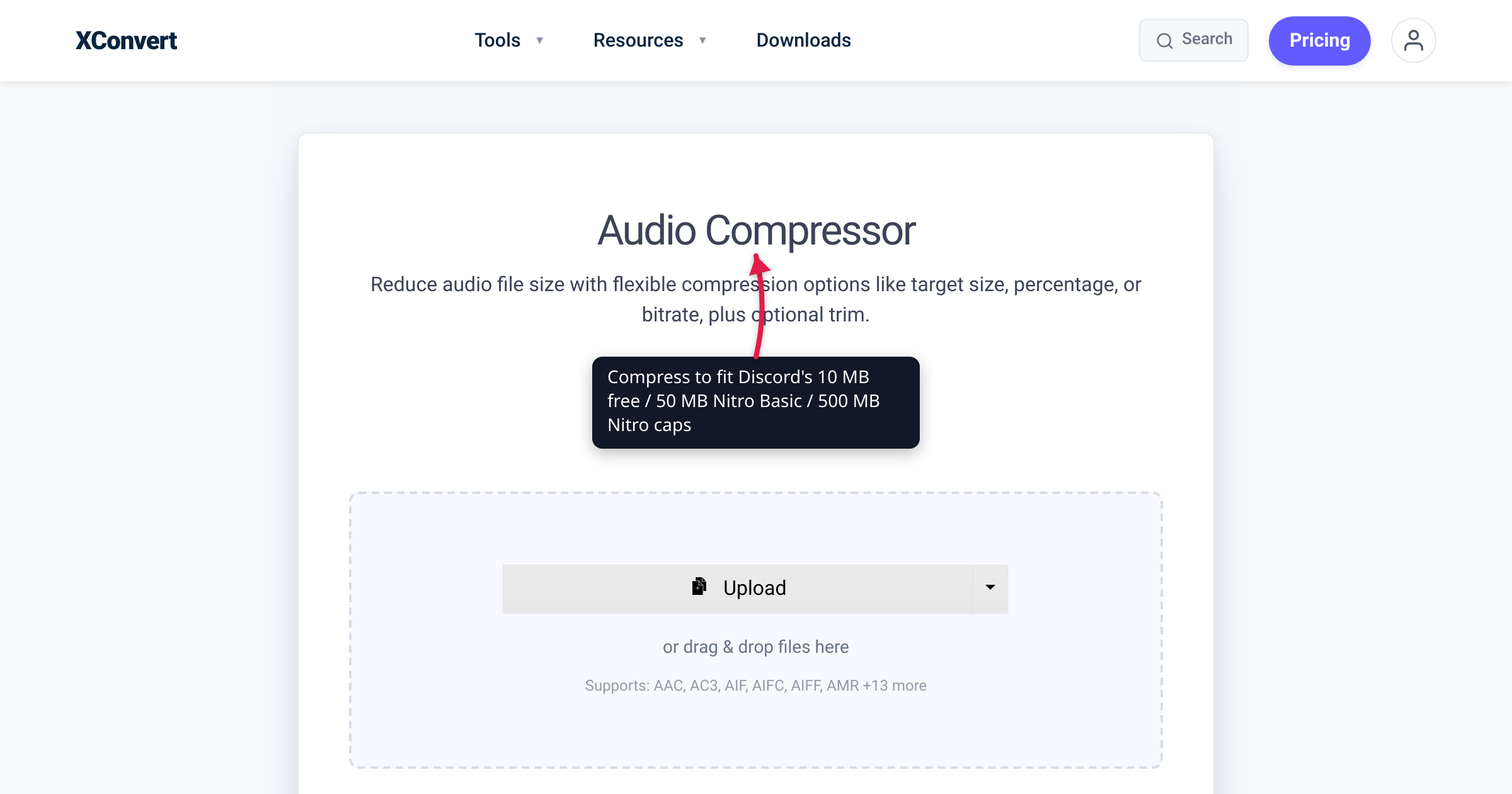
Discord lowered its free-account file upload limit to 10 MB in September 2024 — down from a more generous 25 MB. If you’re sharing voice clips, music samples, or podcast snippets in a server, that 10 MB ceiling is tight, and most recordings out of the box are well over it. This guide covers what fits in each Discord tier as of 2026, the exact xconvert settings to hit each ceiling, and what to do when even aggressive compression doesn’t make the cut.
Quick answer: Discord caps audio file size at 10 MB free / 50 MB Nitro Basic / 500 MB Nitro. For free-tier 30-minute voice: xconvert Audio Compressor at 64 kbps mono 22 kHz produces ~9 MB. For Nitro Basic music share: 128 kbps stereo 44.1 kHz keeps a 20-minute clip under 25 MB.
Jump to a section
- Discord upload limits by tier (2026)
- What fits at 10 MB, 50 MB, 500 MB
- Settings cheat sheet
- Step by step in xconvert
- Worked example: 5-minute voice memo for a server
- Sharing files larger than 500 MB
- FAQ
Discord upload limits by tier (2026)
Discord’s per-message attachment cap depends on your account tier:
| Tier | Cost | Per-file limit | Notes |
|---|---|---|---|
| Free | $0 | 10 MB | Lowered from 25 MB in September 2024 |
| Nitro Basic | $2.99/month | 50 MB | 5× the free limit |
| Nitro | $9.99/month | 500 MB | 50× the free limit; covers most podcasts |
| Server boost benefits | Server-tier-dependent | Up to 100 MB for boosted servers | Tier 2+ boost lifts the cap for everyone in that server |
The 10 MB free-tier cap is the one most users hit. Server boost levels can lift the cap for everyone in a specific server (Tier 2 = 50 MB, Tier 3 = 100 MB), but you can only rely on that if you know the server you’re posting in is boosted.
For a safe target, treat 10 MB as the ceiling unless you’re confident the recipient or server tier is higher. We’ll size for that.
What fits at 10 MB, 50 MB, 500 MB
Rough capacity at common audio settings:
| Setting | 10 MB fits | 50 MB fits | 500 MB fits |
|---|---|---|---|
| 320 kbps stereo MP3 (high-quality music) | 4 minutes | 21 min | 3.5 hours |
| 192 kbps stereo MP3 (good music) | 7 minutes | 35 min | 5.8 hours |
| 128 kbps stereo MP3 (decent music) | 10 minutes | 52 min | 8.7 hours |
| 96 kbps stereo MP3 (talk-heavy podcast) | 14 minutes | 69 min | 11.6 hours |
| 64 kbps mono MP3 (speech / voice memo) | 21 minutes | 104 min | 17.4 hours |
| 48 kbps mono MP3 (lowest acceptable speech) | 28 minutes | 138 min | 23 hours |
Everything above the bold rows uses speech-optimized settings (mono + low bitrate) — they look extreme but voice content is fine at 48–64 kbps mono.
Settings cheat sheet
Use these defaults based on what’s in the audio and which Discord tier you’re on:
For free-tier Discord (10 MB target)
| Content type | Bitrate | Channels | Sample rate | Max duration |
|---|---|---|---|---|
| Voice clip / DM audio | 64 kbps | Mono | 22 kHz | ~21 min |
| Voice with music intro | 96 kbps | Mono | 44 kHz | ~14 min |
| Music demo / sample | 128 kbps | Stereo | 44 kHz | ~10 min |
| Music sample (high quality) | 192 kbps | Stereo | 44 kHz | ~7 min |
For Nitro Basic (50 MB target)
| Content type | Bitrate | Channels | Sample rate | Max duration |
|---|---|---|---|---|
| Voice / podcast | 96 kbps | Stereo | 44 kHz | ~69 min |
| Music demo | 192 kbps | Stereo | 44 kHz | ~35 min |
| High-quality music | 320 kbps | Stereo | 44 kHz | ~21 min |
For Nitro (500 MB target)
You almost never need to compress for the 500 MB ceiling unless your file is huge to start with. Anything under 4 hours at any reasonable bitrate fits. Compress only if quality reduction is acceptable.
Step by step in xconvert
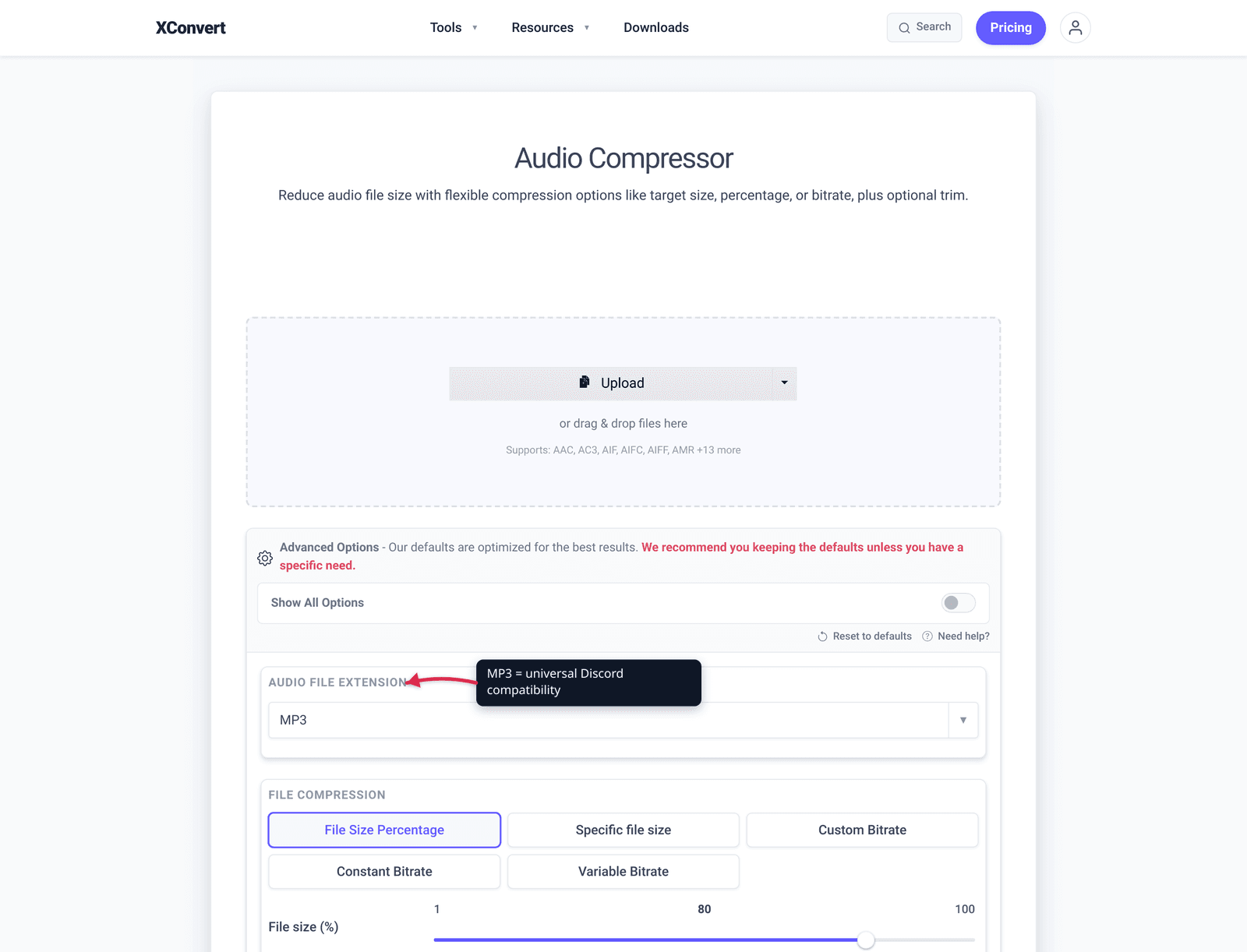
- Open xconvert.com/audio-compressor.
- Click + Add Files and pick your audio file (any format — MP3, WAV, M4A, FLAC, OGG, AAC).
- Toggle Show All Options to expose all the controls.
- Audio File Extension → leave on MP3 (universal Discord compatibility).
- File Compression → click Specific file size and enter your target (e.g., 9 MB for free-tier safety).
- Audio Channel → set to Mono for voice content; leave Stereo for music.
- Audio Sample Rate → 22050 Hz for voice; 44100 Hz for music.
- Click Compress. Wait 5–30 seconds. Download.
- Verify file is under your tier’s cap before uploading to Discord.
Worked example: 5-minute voice memo for a server
Source: 5-minute voice memo from your phone, M4A, 128 kbps mono, 44 kHz. Original size: ~4.8 MB.
Step 1 — Check whether you need to compress at all. 4.8 MB is under the 10 MB free cap. You don’t need to compress, but converting to MP3 may broaden compatibility. Skip to step 4.
Step 2 — If your phone records at higher quality (some Android voice apps default to 256 kbps stereo): file would be ~9.6 MB, still under 10 MB but cutting it close. Compress to 64 kbps mono → ~2.4 MB.
Step 3 — Upload directly to the Discord chat. No further action needed.
Worked example: 30-minute podcast clip (free Discord)
Source: 30-minute podcast extract, MP3 at 128 kbps stereo. Original: 28.8 MB. Way over the 10 MB free cap.
Step 1 — Decide tier. Free Discord = 10 MB ceiling. Aim for 9 MB to leave headroom.
Step 2 — Pick settings. Talk-heavy podcast → 96 kbps stereo at 44 kHz fits 14 min in 10 MB. Our content is 30 min — too long. Drop to mono and 22 kHz. At 96 kbps mono 22 kHz: 30 min × 60 × 96 / 8 / 1024 ≈ 21 MB. Still too big.
Step 3 — Drop bitrate further. 64 kbps mono at 22 kHz: 30 × 60 × 64 / 8 / 1024 ≈ 14 MB. Still over.
Step 4 — Drop more or trim. Either 48 kbps mono (≈10.5 MB — still over by a hair) or trim the recording to 20 minutes at 64 kbps mono (≈9.4 MB). Trimming is the cleaner answer for podcast content because the quality stays acceptable.
Step 5 — Use xconvert’s built-in trim under Advanced Options → Trim, set start/end times to extract the most relevant 20 minutes, and let xconvert trim + compress in one pass.
This is why the Specific file size target option is useful — you set the goal and xconvert picks the bitrate to hit it. For pure speech, that’s usually fine. For music, the auto-bitrate sometimes drops too low; manual settings give you better control.
Sharing files larger than 500 MB
When even Nitro’s 500 MB isn’t enough:
1. External file hosting + link. Drop the file on Google Drive, Dropbox, or WeTransfer, post the link in chat. The recipient downloads from the host. No size limit beyond your storage quota.
2. Split the file. A 1-hour stereo music recording split into two 30-minute MP3s at high quality fits 50 MB Nitro Basic per part.
3. Upload to YouTube/SoundCloud unlisted. Embed-style sharing for music or podcasts. Free, no Discord limit, but adds a step for the recipient.
4. Server boosts. If you control the server, pushing it to Server Boost Tier 2 (7 boosts) lifts everyone’s per-file cap to 50 MB. Tier 3 (14 boosts) lifts it to 100 MB.
Frequently Asked Questions
What was the old Discord file size limit?
Discord’s free tier was 8 MB before April 2022, then raised to 25 MB through 2024. In September 2024, Discord lowered the free cap to 10 MB to manage storage costs. Most online tutorials still reference 8 MB or 25 MB — those are out of date as of 2026.
Can I bypass the Discord limit by sending the file in pieces?
Discord doesn’t natively reassemble multi-part uploads. Splitting an MP3 into two 9 MB parts gives the recipient two playable files, not a single one. Tools like RAR or 7-Zip can split into multi-part archives, but the recipient needs to know to extract them — friction. Compressing to fit a single file is almost always better.
Does the limit apply to bot uploads too?
Yes. Bots that upload files use the same per-message attachment ceiling as the user account hosting them. Most file-sharing bots route uploads through external hosts to bypass the limit.
What audio formats does Discord support natively?
Discord plays MP3, WAV, FLAC, AAC, M4A, OGG, and OPUS in-line in the chat. For maximum compatibility, MP3 is the safest choice — it plays without codec issues on every Discord client (web, desktop, iOS, Android). If your file is large and you want better compression-per-quality, OPUS at 64 kbps for voice or 96 kbps for music gives smaller files but slightly less universal playback.
Should I use Specific File Size or Bitrate in xconvert?
For Discord uploads, Specific File Size is usually the right choice — you tell xconvert “make this 9 MB” and it picks the bitrate. For voice content this works perfectly. For music, the auto-bitrate sometimes drops too low and audio quality suffers; in that case switch to Custom Bitrate and pick 128 kbps stereo manually, then accept whatever duration fits.
Does compressing affect voice messages I record in Discord?
Voice messages recorded directly in Discord are bound by recording duration rather than a hard MB cap (Free accounts get short recordings; Nitro extends the recording length). The tools in this article are for sharing audio files you recorded elsewhere (phone voice memos, Zoom recordings, OBS captures, screen-recording audio), which DO go through the per-file upload cap.
What’s the lowest bitrate that’s still listenable for music on Discord?
For music, 96 kbps stereo at 44 kHz is around the floor — listeners on phone speakers may not notice the difference from 128 kbps, but anyone with headphones will hear the compression. 128 kbps stereo is the safer minimum for music. For voice content, you can go much lower — 48 kbps mono is fully listenable for speech.
Can I send a video on free Discord and bypass the audio limit?
Discord’s 10 MB ceiling is per-file regardless of type. A short video at low resolution might fit while the audio extracted from it would not (because video typically compresses more aggressively). If you only need the audio, extract it first — see convert MP4 to MP3 for the one-step extraction.
Try it now
Compress audio for Discord with the xconvert audio compressor — pick Specific file size, enter 9 MB (or 45 MB for Nitro Basic), click Compress. For converting non-MP3 source files (M4A from iPhone, WAV from desktop recorders), xconvert handles that in the same step. For sending audio over email instead of Discord (Gmail’s 25 MB limit), see our companion guide How to Compress an MP3 to Send by Email.
Related guides
- Compress an MP3 to Send by Email (Under Gmail’s 25 MB)
- Reduce iPhone Voice Memo File Size for Email and AirDrop
- Compress a Podcast Episode for Spotify, Apple, and Amazon
Sources
Last verified 2026-05-19.
- Discord Help — Uploading Files in Direct Messages and Servers
- Discord Help Center
- Discord — Safety Center