 By James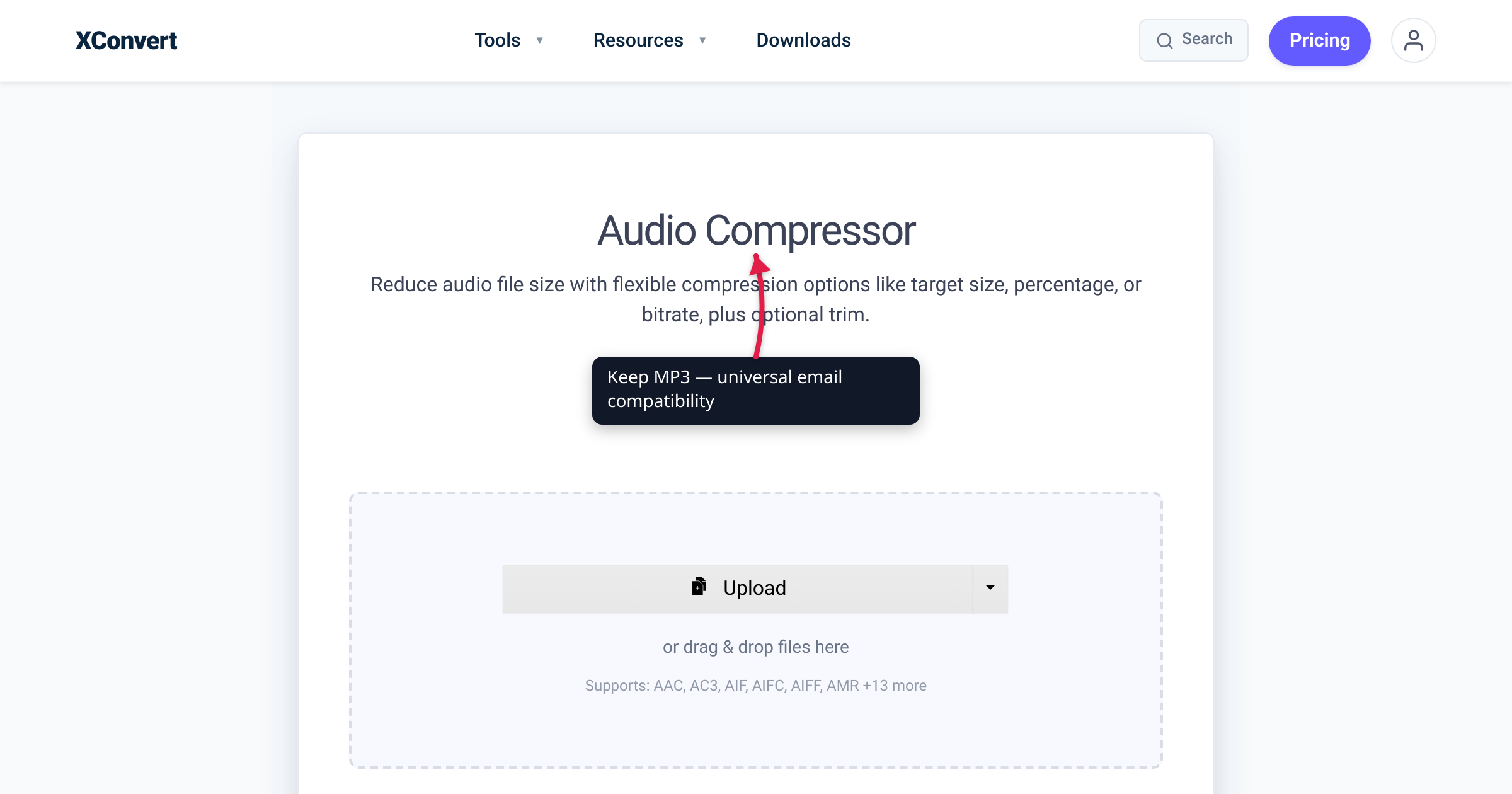
A 60-minute interview recorded at 320 kbps stereo MP3 lands at about 146 MB — six times Gmail’s attachment limit. Even a half-hour podcast at 192 kbps comes out to ~43 MB, still over the line. Compressing audio for email isn’t optional; it’s a constant. This guide gives you the exact settings to fit any MP3 into Gmail’s 25 MB cap (which Outlook.com, Yahoo, and Proton Mail also use; some corporate Exchange / M365 setups are tighter), with realistic before-and-after numbers for speech vs music.
Quick answer: To fit Gmail’s 25 MB attachment cap (Outlook 20 MB): xconvert Audio Compressor at 96 kbps for speech, 128 kbps for music, 44.1 kHz, mono for voice. A 60-min interview at 320 kbps stereo (146 MB) shrinks to ~22 MB at 96 kbps mono.
Jump to a section
- Email attachment limits by provider
- The compression knobs that matter
- Settings cheat sheet by content type
- Step by step in xconvert
- Worked example: 60-minute interview
- What if 25 MB still isn’t enough?
- FAQ
Email attachment limits by provider
Most email systems impose a hard ceiling on attachment size. Hit it and your message bounces — sometimes with a clear “attachment too large” error, sometimes with a vaguer delivery failure.
| Provider | Limit | Notes |
|---|---|---|
| Gmail | 25 MB | Largest among major free webmail. Drive sharing for files above. |
| Outlook.com / Hotmail | 25 MB | Same as Gmail; OneDrive sharing for files above. |
| Outlook (work / 365) | typically 35–150 MB | Configurable per organization; some corporate caps drop to 10–20 MB. Check with IT. |
| Yahoo Mail | 25 MB | Matches Gmail. |
| iCloud Mail | 20 MB | Mail Drop kicks in for larger files. |
| Proton Mail | 25 MB | Same envelope size for free and paid. |
The practical target is under 20 MB if you don’t know the recipient’s organization, since some corporate Exchange / M365 setups cap inbound mail at 10–20 MB. For free webmail (Gmail / Outlook.com / Yahoo / Proton / iCloud), 25 MB is the consistent cap.
The compression knobs that matter
Three knobs control 95% of the file-size outcome:
1. Bitrate (kbps). The single biggest lever. File size scales linearly: a 5-minute recording at 64 kbps is exactly half the size of the same recording at 128 kbps. Music typically wants 128–192 kbps for transparent quality. Speech is fine at 64–96 kbps. Below 64 kbps speech gets robotic; below 96 kbps music gets noticeably hollow.
2. Channels (mono vs stereo). Stereo doubles the data — and for spoken content you almost never need it. Voice memos, interviews, lectures, audiobook chapters: convert to mono and you halve the file size with no listener noticing. For music or anything with stereo imaging, keep stereo.
3. Sample rate (Hz). Audio files are typically 44.1 kHz (CD quality) or 48 kHz (video standard). For spoken content, dropping to 22.05 kHz is fine — that’s the highest frequency of speech. Halving the sample rate halves the file size again.
A fourth knob exists in xconvert: target file size. Instead of picking bitrate manually, you tell xconvert “make this 20 MB” and it picks the bitrate to hit that target. We’ll use both approaches below.
Settings cheat sheet by content type
The right settings depend almost entirely on what’s in the audio. Use this as a quick lookup:
| Content | Bitrate | Channels | Sample rate | Result for 60 min |
|---|---|---|---|---|
| Voice memo / interview (speech only) | 64 kbps | Mono | 22 kHz | ~28 MB |
| Voice memo (Gmail-safe) | 48 kbps | Mono | 22 kHz | ~21 MB |
| Voice memo (Corporate-mailbox-safe) | 40 kbps | Mono | 22 kHz | ~17.5 MB |
| Lecture / classroom | 64 kbps | Mono | 22 kHz | ~28 MB |
| Audiobook chapter | 64 kbps | Mono | 22 kHz | ~28 MB |
| Podcast (talk-only) | 96 kbps | Stereo | 44 kHz | ~42 MB (need to trim) |
| Podcast (with music intro) | 128 kbps | Stereo | 44 kHz | ~56 MB (need to trim) |
| Music demo (full quality) | 192 kbps | Stereo | 44 kHz | ~84 MB (way over) |
For anything over 30 minutes that isn’t pure speech, you’ll have a hard time fitting it under 25 MB at acceptable quality. Trim it, split it, or use Drive instead of an attachment.
Step by step in xconvert
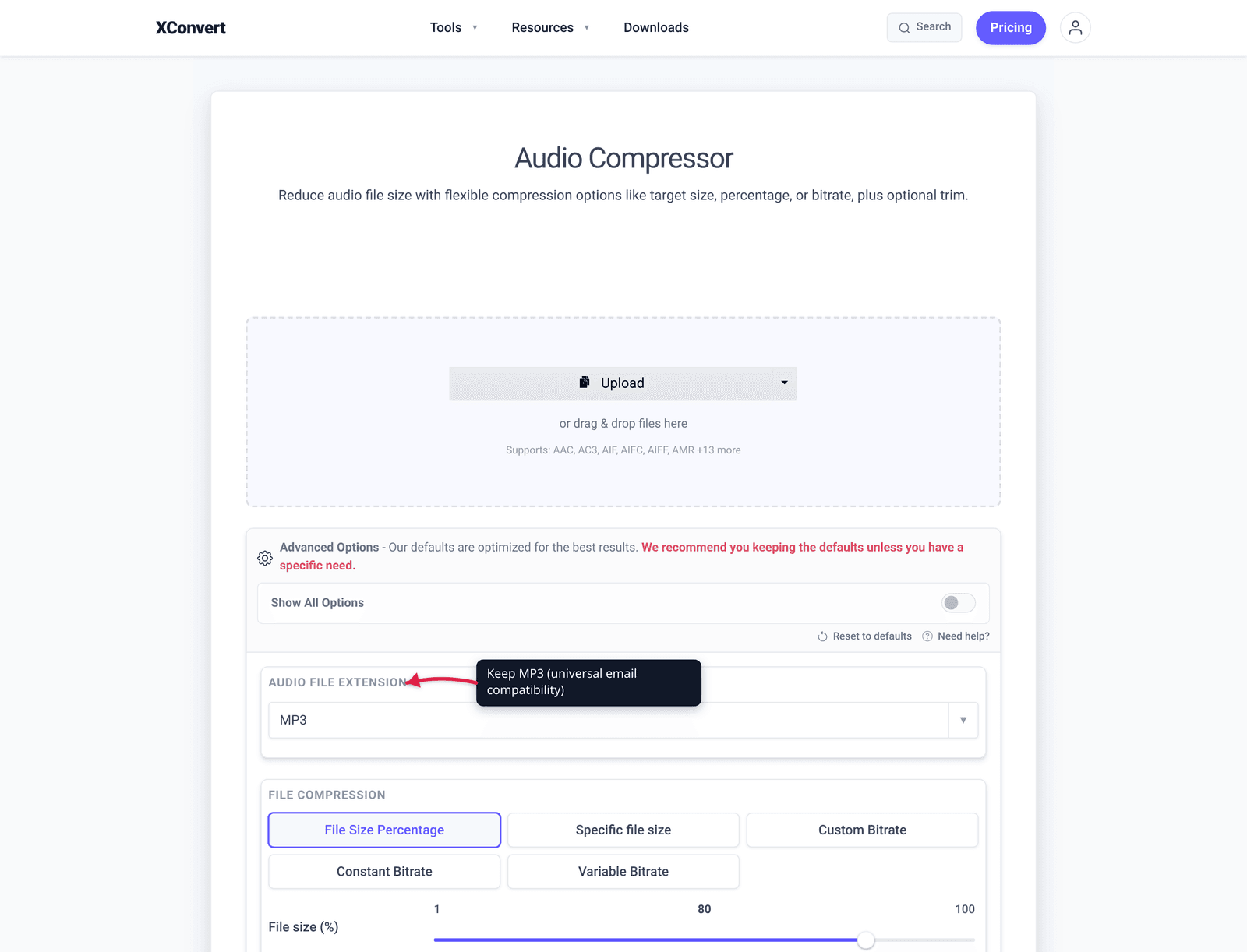
- Open xconvert.com/audio-compressor.
- Click + Add Files and pick the MP3 (or WAV, M4A, FLAC — anything supported).
- Toggle Show All Options to expose the bitrate and sample-rate controls.
- In Audio File Extension, leave MP3 selected (universal compatibility).
- In File Compression, click Specific file size and enter your target (e.g., 20 MB).
- In Audio Channel, switch to Mono if the source is speech-only.
- In Audio Sample Rate, drop to 22050 Hz for speech, leave 44100 Hz for music.
- Click Compress. Wait 5–30 seconds. Download.
- Verify the downloaded file size is under your target before attaching.
Worked example: 60-minute interview
Source: 60-minute Zoom recording, exported as 320 kbps stereo MP3 at 48 kHz. Original size: 146.5 MB. Need to send to a colleague over Gmail (25 MB limit).
Step 1 — Decide the target. 25 MB ceiling, but Gmail rejects messages just at the limit. Aim for 22 MB to leave headroom for the message body and headers.
Step 2 — Pick settings. Speech only → mono. Speech doesn’t need 48 kHz → drop to 22 kHz. Bitrate math: 22 MB / (60 × 60 s) = 6.1 KB/s = 49 kbps. Round up to 48 kbps.
Step 3 — Compress. Mono, 22 kHz, 48 kbps in xconvert. Expected output: 60 × 60 × 48 / 8 / 1024 ≈ 21 MB.
Step 4 — Verify. Download, check size in Finder/Explorer, listen to a 30-second sample. Speech should still be clear at 48 kbps mono — slightly thinner than the original but completely intelligible.
Step 5 — Attach. 21 MB attaches to Gmail without complaint. Done.
If you’d kept the original at 320 kbps stereo, you’d have needed 6× compression to fit. Even at 96 kbps stereo (a common “good enough” target for podcasts), you’d hit 43 MB — still too big. The mono + low-sample-rate combo is what makes speech recordings fit under email caps.
What if 25 MB still isn’t enough?
You have three escape hatches when even aggressive compression doesn’t fit:
1. Gmail’s “Drive attachment” feature. When you attach a file over 25 MB, Gmail offers to upload it to Google Drive and share a link instead. The recipient gets a Drive link in the message body. No size limit (within your Drive quota). Works for any provider that uses Drive on the receiving end.
2. Send a download link from a file host. WeTransfer, Smash, Dropbox Transfer, and Filemail all let you upload a file and email a download link. Most allow 2 GB or more for free; the recipient downloads from a web link.
3. Trim or split. For speeches and interviews, trimming silence and cutting filler can shave 10–30%. Splitting a 60-minute file into two 30-minute parts at speech-quality settings (48 kbps mono) gives you two ~10.5 MB files — both safely under any email cap.
xconvert’s audio compressor has built-in trim functionality (under Advanced Options → Trim) for the trim-and-compress workflow.
Frequently Asked Questions
What’s the smallest a 60-minute MP3 can get and still be listenable?
For speech, 48 kbps mono at 22 kHz ≈ 21 MB is about the floor for clarity. Below that, voices start to sound underwater. For music, the floor is much higher: 96 kbps stereo gives ~43 MB and audible compression artifacts. If you need a music recording under 25 MB and it’s longer than ~30 minutes, you’ll have to either trim or accept noticeable quality loss.
Should I use MP3, AAC, or OGG for email attachments?
MP3 — universal compatibility. Every device, every email client, every podcast app handles MP3. AAC is technically more efficient (better quality at the same bitrate), but some Windows email clients and older devices struggle with .m4a or .aac files. OGG is even more efficient than AAC but has the lowest compatibility. For email attachments, stick with MP3.
Why does my recording app produce such large files?
Most modern recording apps default to uncompressed PCM (WAV) or lossless formats. iPhone Voice Memos record at AAC 64-128 kbps mono — small files. Pro recording apps like Zoom, OBS, and Audacity default to WAV at 1411 kbps stereo — about 10 MB per minute. The fix is to compress before sending, not record at higher quality than you need.
Will compressing affect transcription accuracy?
For services like Otter.ai, Rev, or Whisper, 64 kbps mono is the lower bound for reliable transcription. Below 48 kbps, accuracy drops 2–5 percentage points. Most transcription services accept up to 200 MB or more in a single upload, so you don’t actually have to compress as aggressively for transcription as for email — only compress for email if email is the destination.
What about WAV files?
WAV is uncompressed audio — typically 10× larger than an equivalent-quality MP3. For email, always convert WAV to MP3 before sending. xconvert’s WAV-to-MP3 converter handles this in one step. A 60-minute WAV (1411 kbps, ~636 MB) becomes a 60-minute MP3 at 96 kbps (~43 MB) — already viable for Drive sharing if not direct attachment.
Can I compress a single message at higher quality than a long file?
Yes. The math is linear in duration: a 5-minute message at 320 kbps stereo (12 MB) fits Gmail directly without any compression. If your audio is short, you don’t need to compress aggressively. The “compress for email” workflow is mainly for recordings over 10–15 minutes.
Why does xconvert say “MP3” by default — should I change it?
The MP3 default is correct for almost every email use case (universal compatibility). Change to AAC (M4A) only if you know the recipient prefers Apple-native formats and is on a modern Mac/iOS device. Keep MP3 for everything else.
Try it now
Compress an MP3 for email with the xconvert audio compressor — pick Specific file size, enter 20 MB, click Compress. For other audio formats (WAV, FLAC, M4A), the same tool handles them; just upload directly. If you need to convert from WAV to MP3 first, see WAV to MP3 Converter.
Related guides
- Compress Audio for Discord: 10 MB Free, 50 MB Nitro Settings
- Reduce iPhone Voice Memo File Size for Email and AirDrop
- Compress a Podcast Episode for Spotify, Apple, and Amazon
Sources
Last verified 2026-05-19.
- Gmail Help — Send attachments
- Microsoft Outlook Support
- Apple Support — Send large attachments with Mail Drop