 By Stephanie Taylor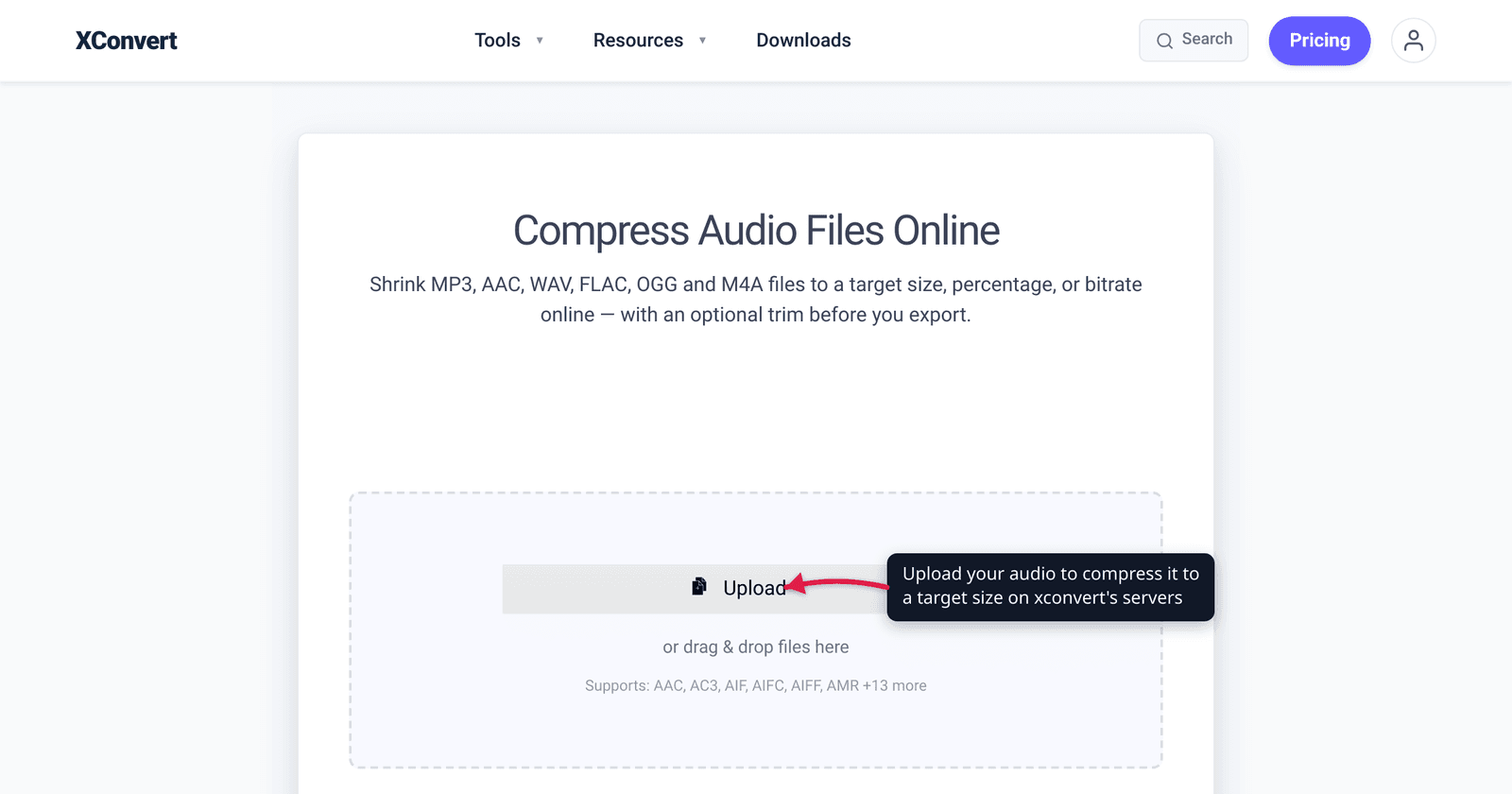
You exported a podcast episode and the upload form rejects it: “file too large, 10 MB max.” Or a form needs your voice memo under 5 MB, or a chat app caps attachments at a hard number. The fix isn’t to compress blindly and hope — it’s to work backwards from the size you need. Audio file size follows one simple relationship: size ≈ bitrate × duration. Once you know your clip’s length and your target megabytes, you can compute the exact bitrate that lands under the cap. This guide gives you that formula with verified worked examples, then shows the one-click way to do it without any math. We checked the unit conventions against NIST and the arithmetic by hand.
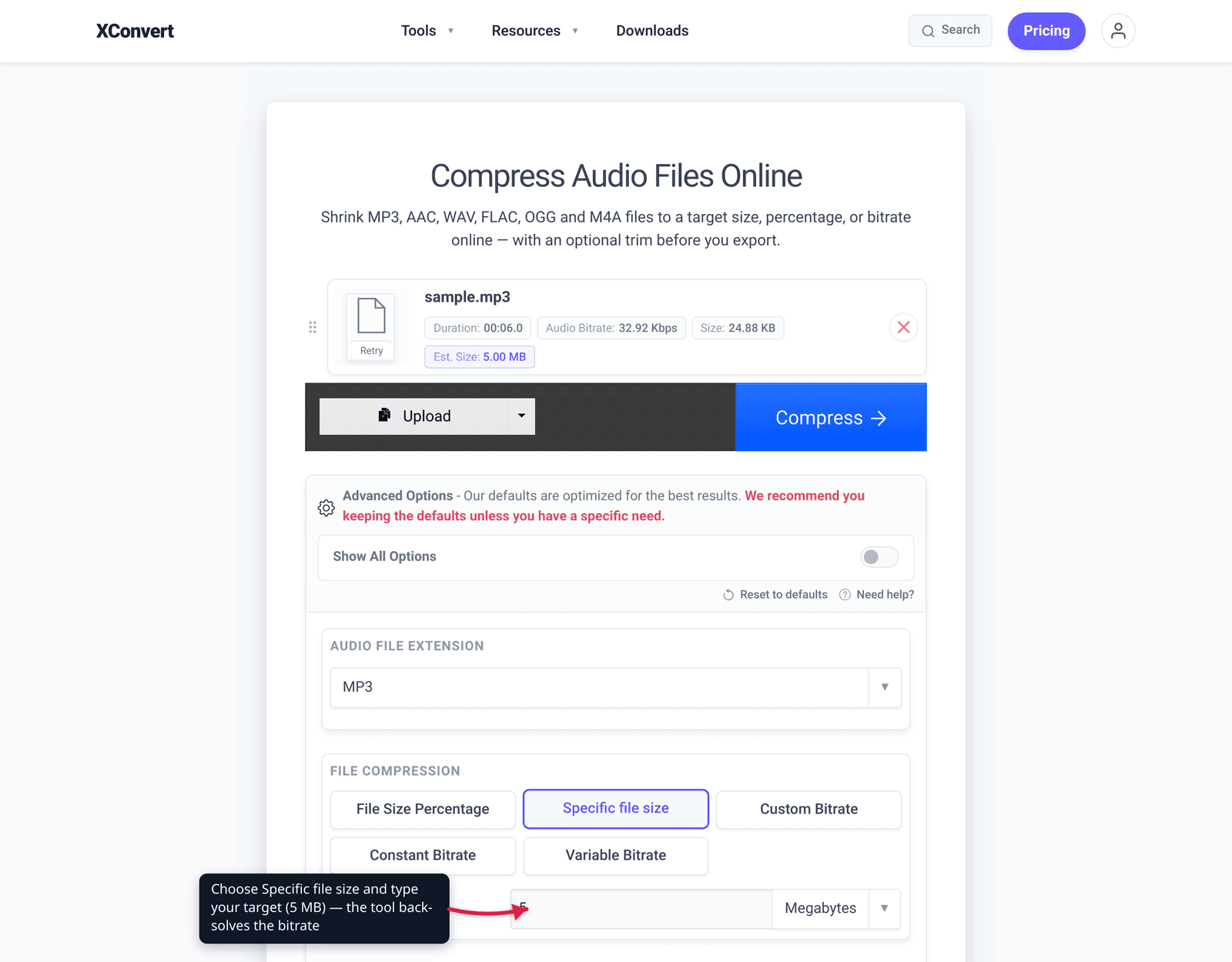
Quick answer: File size in MB ≈ (bitrate in kbps × duration in seconds) ÷ 8000. To hit a target size, flip it: bitrate (kbps) = (target MB × 8000) ÷ duration in seconds, then round down to a standard bitrate for headroom. On xconvert’s audio compressor you can skip the math entirely — choose Specific file size, type your target in MB or KB, and the tool back-solves the bitrate for you.
Jump to a section
- The one formula behind audio file size
- Compute the bitrate to hit a target size
- Worked examples (verified)
- What lower bitrate costs you
- Common size targets
- Compress audio to a target size on xconvert
- FAQ
The one formula behind audio file size
For any compressed audio format — MP3, AAC, M4A, OGG, Opus — the file size is governed by the bitrate (how many bits of data per second of audio) and the duration:
file size (bits) = bitrate (bits per second) × duration (seconds)Divide by 8 to get bytes, and again by 1,000,000 to get megabytes. Bitrate is usually quoted in kbps (kilobits per second = 1,000 bits/s), so the practical version collapses to:
size (MB) ≈ (bitrate in kbps × duration in seconds) ÷ 8000That “8000” is just the 8 bits-per-byte and the decimal kilo/mega prefixes folded together. Two things make this clean:
- The bitrate already includes both channels. A 128 kbps stereo file and a 128 kbps mono file are the same size — mono just spends those bits on one channel. So you don’t multiply by channel count for compressed audio.
- Sample rate doesn’t enter the size formula for lossy audio. It affects what frequencies survive, not the byte count — the bitrate sets the byte count.
(Uncompressed WAV/AIFF is a different animal: its size is sample rate × bit depth × channels × duration, which is why CD-quality WAV runs ~1,411 kbps and balloons fast. If your source is WAV, converting to a compressed format is the single biggest win — see how to reduce a WAV file’s size.)
Compute the bitrate to hit a target size
Rearrange the formula to solve for the bitrate that fits a given duration into a target size:
target bitrate (kbps) = (target size in MB × 8000) ÷ duration in secondsThree steps, every time:
- Get the duration in seconds. A 4-minute song = 240 s; a 30-minute podcast = 1,800 s; a 1-hour lecture = 3,600 s.
- Plug in your target MB. The result is the maximum bitrate that fits.
- Round DOWN to a standard bitrate (320, 256, 192, 160, 128, 96, 64, 48, 32 kbps). Rounding down — not up — guarantees you land under the cap, and leaves a little headroom for container overhead and the fact that some encoders run a few percent over a target.
The “round down” rule matters because container metadata, ID3 tags, and VBR fluctuation can nudge a file slightly over a razor-thin target. A small margin avoids a failed upload.
Worked examples (verified)
A 4-minute song into a 10 MB limit. Duration = 240 s. Target bitrate = (10 × 8000) ÷ 240 = 333 kbps. The nearest standard below that is 320 kbps, which produces 320 × 240 ÷ 8000 = 9.6 MB — comfortably under 10 MB, and 320 kbps is transparent for music. (256 kbps would give 7.68 MB with even more margin.)
A 30-minute podcast into a 10 MB limit. Duration = 1,800 s. Target bitrate = (10 × 8000) ÷ 1,800 = 44 kbps. Round down to 32 kbps → 32 × 1,800 ÷ 8000 = 7.2 MB. Speech survives low bitrates well, so 32–48 kbps mono is fine for a talk track; 48 kbps would give 10.8 MB, over the cap — which is exactly why you round down, not up.
A 1-hour lecture into a 25 MB limit. Duration = 3,600 s. Target bitrate = (25 × 8000) ÷ 3,600 = 56 kbps. At 56 kbps you’d get 25.2 MB — a hair over — so drop to 48 kbps → 21.6 MB, safely under. Spoken-word at 48 kbps mono is perfectly intelligible.
Notice the pattern: longer audio forces a lower bitrate to hit the same size. That’s the whole game.
What lower bitrate costs you
Bitrate is a quality dial, and the floor differs by content type:
| Content | Comfortable floor | Notes |
|---|---|---|
| Music (stereo) | ~192–256 kbps | 320 is transparent; below ~128 kbps cymbals and reverb start to smear |
| Podcast / interview (speech) | ~48–96 kbps mono | Voice has a narrow spectrum; tolerates low bitrates gracefully |
| Voice memo / lecture | ~32–64 kbps mono | Intelligibility holds down to ~32 kbps for plain speech |
| Audiobook | ~48–64 kbps mono | Industry distribution often sits here |
Two ways to claw back size without dropping bitrate further: convert speech to mono (a stereo voice recording wastes half its bits on a duplicate channel) and, where supported, use a more efficient codec — Opus and AAC sound better than MP3 at the same low bitrate. If you want the background on why, see understanding audio bitrate and sample rate and the 128 vs 256 vs 320 kbps breakdown.
Common size targets
Most “compress to X MB” jobs come from a platform’s attachment cap. A few worth knowing, but always check the current limit — they change:
- Email (Gmail / Outlook): the practical attachment ceiling is 25 MB. For the full email workflow — including what to do when you’re over it — see compress MP3 for email (Gmail’s 25 MB limit).
- Chat apps (Discord, Slack, etc.): free tiers cap attachments at small numbers (commonly around 10 MB). Compressing audio for Discord covers those tiers.
- Web forms and uploaders: often 5 MB or 10 MB — the formula above tells you the bitrate to hit either.
One unit gotcha worth knowing: per NIST, a megabyte (MB) is 1,000,000 bytes (decimal), while a mebibyte (MiB) is 1,048,576 bytes. Some tools and OSes label MiB as “MB,” so a stated “10 MB” cap may actually be ~10.49 decimal MB — extra reason the round-down margin is your friend rather than something to fight.
Compress audio to a target size on xconvert
The xconvert audio compressor has a built-in Specific file size mode, so you can either let it back-solve the bitrate from your target, or set the bitrate you computed above by hand. The H1 on the page reads “Compress Audio Files Online.”
- Open xconvert.com/audio-compressor and click + Add Files to add your audio (from your computer, Google Drive, or Dropbox). It accepts MP3, WAV, FLAC, AAC, M4A, OGG, Opus, and more.
- Under the compression mode, choose Specific file size and type your target — in MB or KB (e.g.
10 MBor4500 KB). The tool reads your clip’s duration and back-solves the bitrate to land under that size. (Prefer to drive it yourself? Pick Custom Bitrate / Constant Bitrate / Variable Bitrate and enter the kbps you calculated.) - Open Advanced Options (the gear icon) if you want to set Audio Channel to mono for speech, change the Audio File Extension (e.g. to AAC/Opus for better low-bitrate quality), or adjust Audio Sample Rate. There’s also a Trim control to cut dead air, which shrinks the file directly.
- Click to compress, then download the result and confirm it’s under your cap.
Your file uploads over an encrypted connection, is processed on our servers, and is automatically deleted a few hours later. Nothing stays around.
FAQ
How do I convert audio MB to KB, or compress audio to an exact size?
Use a tool with a target-size mode. On xconvert’s audio compressor, choose Specific file size and type the target in MB or KB — it back-solves the bitrate from your clip’s duration so the output lands under that size. To do it by hand, compute bitrate (kbps) = (target MB × 8000) ÷ duration in seconds and round down to a standard bitrate.
What bitrate do I need to fit a song into 10 MB?
It depends on length. For a 4-minute track: (10 × 8000) ÷ 240 = 333 kbps, so use 320 kbps (≈9.6 MB). For a longer track the bitrate has to drop — a 6-minute song into 10 MB needs about 222 kbps, so 192 kbps. Longer audio = lower bitrate for the same target size.
Does changing the sample rate reduce audio file size?
For lossy formats (MP3, AAC, Opus), file size is set by the bitrate, not the sample rate — lowering sample rate alone won’t reliably shrink the file and just discards high frequencies. The lever that controls size is bitrate. (Sample rate does drive size for uncompressed WAV/AIFF.)
Will converting stereo to mono make the file smaller?
Only if you also lower the bitrate. At a fixed bitrate, mono and stereo files are the same size — mono just spends all the bits on one channel, which sounds better at low bitrates. The practical win is that mono lets you use a lower bitrate (and thus a smaller file) for speech without losing intelligibility.
Why is my file slightly over the target after compressing?
Container metadata, ID3 tags, and variable-bitrate fluctuation can push a file a few percent past a razor-thin target, and a “10 MB” cap labeled in MiB is actually ~10.49 decimal MB (or vice-versa). Round the bitrate down, not up, to leave headroom — that’s why the worked examples above pick the standard bitrate below the computed maximum.
Can I compress audio without losing any quality?
Not if you need it meaningfully smaller — lossy compression trades some fidelity for size by design. But the loss is often inaudible: speech at 48–96 kbps and music at 256–320 kbps are hard to distinguish from the original for most listeners. The smallest lossless path is to keep the file but switch to FLAC, though the savings are modest compared to lossy.
Sources
Last verified 2026-06-25.
- NIST — Prefixes for binary multiples — backs the MB (10⁶ bytes) vs MiB (2²⁰ = 1,048,576 bytes) and kB vs KiB distinction used in the target-size math.
- xconvert audio compressor — the live tool: confirmed the + Add Files button, the Specific file size mode (enter target in MB/KB), the bitrate modes, and the Advanced Options (Audio Channel, Audio File Extension, Sample Rate, Trim).