 By James
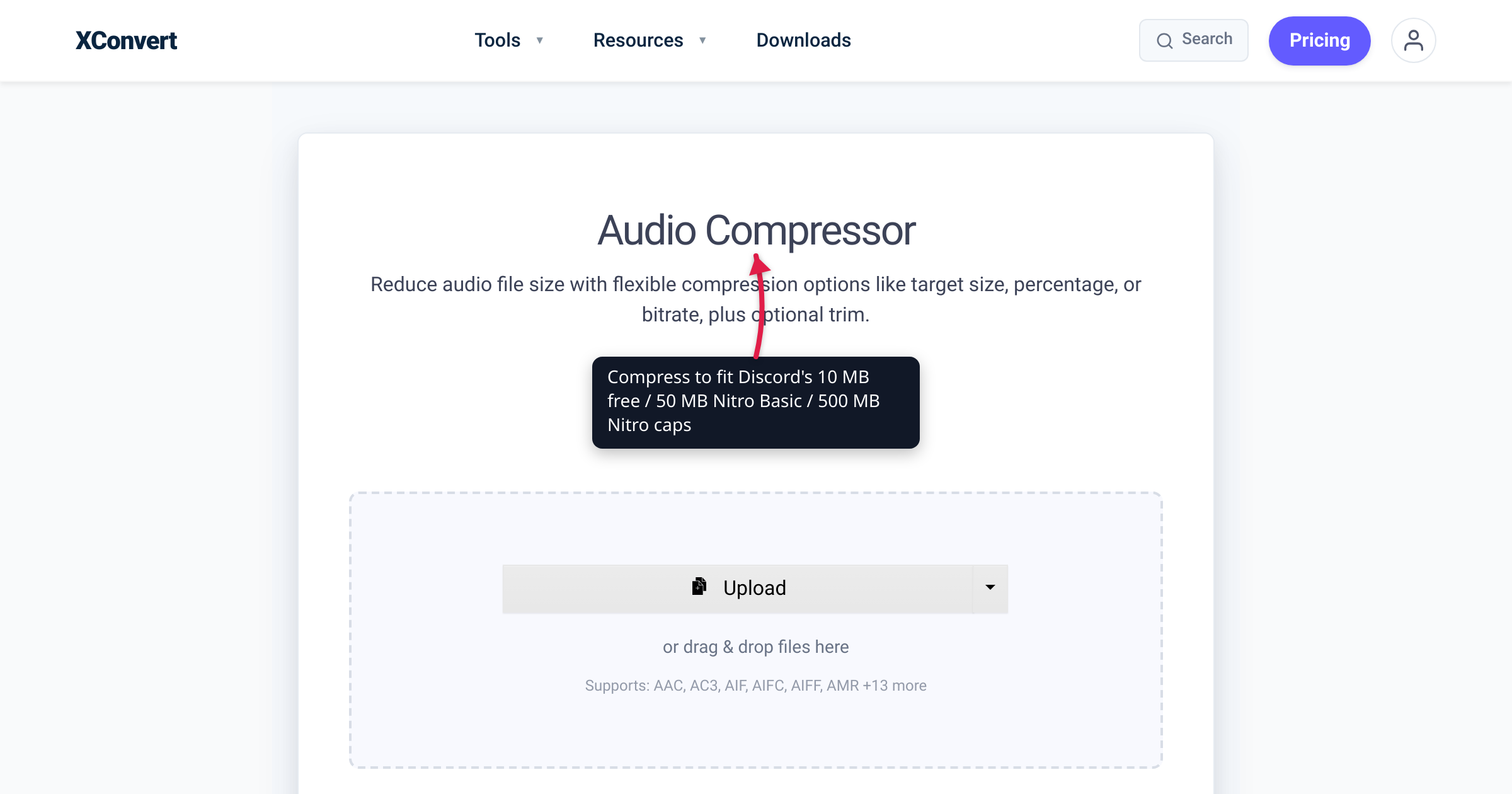
Discord’s free-account upload limit is 20 MB as of August 2026, up from 10 MB (Discord’s File Attachments FAQ, read November 2026). If you’re sharing voice clips, music samples, or podcast snippets in a server, long recordings are still over it. The tables in this guide were built for the earlier 10 MB limit: everything in them still fits, and a free account now has twice the room. This guide covers what fits in each Discord tier as of 2026, the exact xconvert settings to hit each ceiling, and what to do when even aggressive compression doesn’t make the cut.
Quick answer: Discord caps a file at 20 MB free / 50 MB Nitro Basic / 1 GB Nitro (read November 2026). For a 30-minute voice recording on a free account: MP3 at 64 kbps mono is about 14 MB. For music on Nitro Basic: 128 kbps stereo at 44.1 kHz keeps a 20-minute clip at about 19.2 MB.
Jump to a section
- Discord upload limits by tier (2026)
- What fits at 10 MB, 50 MB, 500 MB
- Settings cheat sheet
- Step by step in xconvert
- Worked example: 5-minute voice memo for a server
- Sharing files larger than 500 MB
- FAQ
Discord upload limits by tier (2026)
Discord’s per-message attachment cap depends on your account tier:
| Tier | Cost | Per-file limit | Notes |
|---|---|---|---|
| Free | $0 | 20 MB | As of August 2026, up from 10 MB |
| Nitro Basic | $2.99/month | 50 MB | 2.5× the free limit |
| Nitro | $9.99/month | 1 GB | 50× the free limit; covers most podcasts |
| Server boost benefits | Server-tier-dependent | Up to 100 MB for boosted servers | Tier 2+ boost lifts the cap for everyone in that server |
The 20 MB free-tier cap is the one most users hit. Server boost levels can lift the cap for everyone in a specific server (Tier 2 = 50 MB, Tier 3 = 100 MB), but you can only rely on that if you know the server you’re posting in is boosted.
For a safe target, treat 20 MB as the ceiling unless you’re confident the recipient or server tier is higher. The tables below were sized for the earlier 10 MB limit, so every setting in them is safe; on a free account today each “10 MB fits” duration doubles.
What fits at 10 MB, 50 MB, 500 MB
Rough capacity at common audio settings:
| Setting | 10 MB fits | 50 MB fits | 500 MB fits |
|---|---|---|---|
| 320 kbps stereo MP3 (high-quality music) | 4 minutes | 21 min | 3.5 hours |
| 192 kbps stereo MP3 (good music) | 7 minutes | 35 min | 5.8 hours |
| 128 kbps stereo MP3 (decent music) | 10 minutes | 52 min | 8.7 hours |
| 96 kbps stereo MP3 (talk-heavy podcast) | 14 minutes | 69 min | 11.6 hours |
| 64 kbps mono MP3 (speech / voice memo) | 21 minutes | 104 min | 17.4 hours |
| 48 kbps mono MP3 (lowest acceptable speech) | 28 minutes | 138 min | 23 hours |
Everything above the bold rows uses speech-optimized settings (mono + low bitrate) — they look extreme but voice content is fine at 48–64 kbps mono.
Settings cheat sheet
Use these defaults based on what’s in the audio and which Discord tier you’re on:
For free-tier Discord (10 MB target)
| Content type | Bitrate | Channels | Sample rate | Max duration |
|---|---|---|---|---|
| Voice clip / DM audio | 64 kbps | Mono | 24 kHz | ~21 min |
| Voice with music intro | 96 kbps | Mono | 44 kHz | ~14 min |
| Music demo / sample | 128 kbps | Stereo | 44 kHz | ~10 min |
| Music sample (high quality) | 192 kbps | Stereo | 44 kHz | ~7 min |
For Nitro Basic (50 MB target)
| Content type | Bitrate | Channels | Sample rate | Max duration |
|---|---|---|---|---|
| Voice / podcast | 96 kbps | Stereo | 44 kHz | ~69 min |
| Music demo | 192 kbps | Stereo | 44 kHz | ~35 min |
| High-quality music | 320 kbps | Stereo | 44 kHz | ~21 min |
For Nitro (500 MB target)
Nitro’s limit is now 1 GB (read November 2026), twice the 500 MB this section was written for. You almost never need to compress for it unless your file is huge to start with. Anything under 4 hours at any reasonable bitrate fits. Compress only if quality reduction is acceptable.
Step by step in xconvert
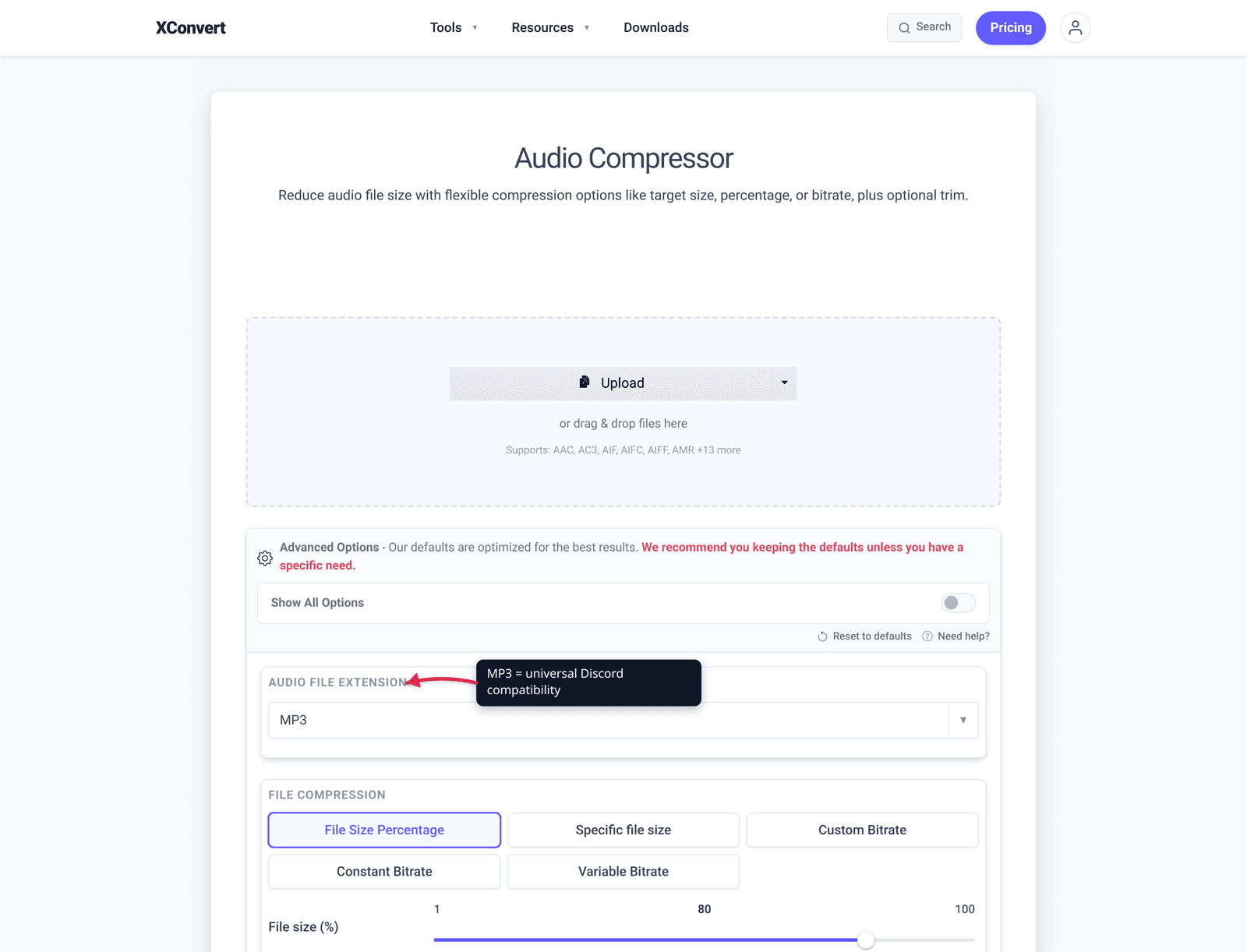
- Open xconvert.com/audio-compressor.
- Click Upload and pick your audio file (MP3, WAV, M4A, FLAC, OGG and AAC are among the 21 accepted types). After an M4A upload a box titled “M4A File Upload Detected” asks whether to auto-select settings for M4A files: choose No to keep MP3 as the output.
- Show All Options can stay off: with MP3 output it adds no control, and the ones used in the next steps are already on the page under Advanced Options.
- Audio File Extension → leave on MP3 (universal Discord compatibility).
- File Compression → click Specific file size and enter your target (e.g., 18 MB to stay under the 20 MB free limit).
- Audio Channel → set to Mono for voice content; leave Stereo for music.
- Audio Sample Rate → 24000 HZ for voice; 44100 HZ for music.
- Click Compress, then Download when the card is ready. Files of 25 MB or less finished in a median of 7 seconds once the upload was in (12,804 jobs, 17 October to 15 November 2026).
- Verify file is under your tier’s cap before uploading to Discord.
Worked example: 5-minute voice memo for a server
Source: 5-minute voice memo from your phone, M4A, 128 kbps mono, 44 kHz. Original size: ~4.8 MB.
Step 1 — Check whether you need to compress at all. 4.8 MB is under the 20 MB free cap. You don’t need to compress, but converting to MP3 may broaden compatibility. Skip to step 4.
Step 2 — If your phone records at higher quality (some Android voice apps default to 256 kbps stereo): file would be ~9.6 MB, still well under 20 MB. If you want it smaller anyway, 64 kbps mono gives ~2.4 MB.
Step 3 — Upload directly to the Discord chat. No further action needed.
Worked example: 30-minute podcast clip (free Discord)
Source: 30-minute podcast extract, MP3 at 128 kbps stereo. Original: 28.8 MB. Over the 20 MB free cap.
Step 1 — Decide tier. Free Discord = 20 MB ceiling (read November 2026). Aim for 18 MB to leave headroom.
Step 2 — Pick settings. Talk-heavy podcast → 96 kbps fits about 28 min in 20 MB. Our content is 30 min — just too long: 30 min × 60 × 96 / 8 / 1024 ≈ 21 MB. Still too big.
Step 3 — Drop bitrate further. 64 kbps mono at 24 kHz: 30 × 60 × 64 / 8 / 1024 ≈ 14 MB. That fits under 20 MB.
Step 4 — Only if the server or the recipient needs it smaller. Either 48 kbps mono (≈10.5 MB) or trim the recording to 20 minutes at 64 kbps mono (≈9.4 MB). Trimming is the cleaner answer for podcast content because the quality stays acceptable.
Step 5 — Use xconvert’s built-in trim under Advanced Options → Trim: enter a Start time and a Duration (20 minutes is 1200 seconds; the fields open at 0 and 10 seconds), and let xconvert trim + compress in one pass. With Trim on, a Specific file size still counts the whole upload, so the trimmed file can end well under the number you type.
This is why the Specific file size target option is useful — you set the goal and xconvert picks the bitrate that aims at it; the size is a target, not a guarantee (see the FAQ below). For pure speech, that’s usually fine. For music, the auto-bitrate sometimes drops too low; manual settings give you better control.
Sharing files larger than 500 MB
Nitro’s limit is 1 GB today (read November 2026), not the 500 MB of the heading. When even that isn’t enough:
1. External file hosting + link. Drop the file on Google Drive, Dropbox, or WeTransfer, post the link in chat. The recipient downloads from the host. No size limit beyond your storage quota.
2. Split the file. A 1-hour stereo music recording split into two 30-minute MP3s at 192 kbps fits 50 MB Nitro Basic per part (43.2 MB each); at 320 kbps a 30-minute part is 72 MB and does not.
3. Upload to YouTube/SoundCloud unlisted. Embed-style sharing for music or podcasts. Free, no Discord limit, but adds a step for the recipient.
4. Server boosts. If you control the server, pushing it to Server Boost Tier 2 (7 boosts) lifts everyone’s per-file cap to 50 MB. Tier 3 (14 boosts) lifts it to 100 MB.
Frequently Asked Questions
What was the old Discord file size limit?
As of August 2026 the free limit is 20 MB, up from 10 MB (Discord’s File Attachments FAQ, read November 2026). Tutorials still name 8 MB, 25 MB or 10 MB; all three are out of date. We could not confirm on Discord’s own pages when the earlier changes were made.
Can I bypass the Discord limit by sending the file in pieces?
Discord doesn’t natively reassemble multi-part uploads. Splitting an MP3 into two 9 MB parts gives the recipient two playable files, not a single one. Tools like RAR or 7-Zip can split into multi-part archives, but the recipient needs to know to extract them — friction. Compressing to fit a single file is almost always better.
Does the limit apply to bot uploads too?
Yes. Bots that upload files use the same per-message attachment ceiling as the user account hosting them. Most file-sharing bots route uploads through external hosts to bypass the limit.
What audio formats does Discord support natively?
Discord plays MP3, WAV, FLAC, AAC, M4A, OGG, and OPUS in-line in the chat. For maximum compatibility, MP3 is the safest choice — it plays without codec issues on every Discord client (web, desktop, iOS, Android). If your file is large and you want better compression-per-quality, OPUS at 64 kbps for voice or 96 kbps for music gives smaller files but slightly less universal playback.
Should I use Specific File Size or Bitrate in xconvert?
For Discord uploads, Specific File Size is usually the right choice — you tell xconvert “make this 9 MB” and it picks the bitrate. It is a target, not a guarantee: between 17 October and 15 November 2026, 91 % of the files given a size below their own ended at or under it, at a median 94 % of the size typed, so check the result before you upload. For music, the auto-bitrate sometimes drops too low and audio quality suffers; in that case switch to Custom Bitrate and pick 128 kbps stereo manually, then accept whatever duration fits.
Does compressing affect voice messages I record in Discord?
Voice messages recorded directly in Discord are bound by recording duration rather than a hard MB cap (Discord’s Voice Messages page gives one maximum, 20 minutes; read November 2026 in the archive copy of 31 May 2026). The tools in this article are for sharing audio files you recorded elsewhere (phone voice memos, Zoom recordings, OBS captures, screen-recording audio), which DO go through the per-file upload cap.
What’s the lowest bitrate that’s still listenable for music on Discord?
For music, 96 kbps stereo at 44 kHz is around the floor — listeners on phone speakers may not notice the difference from 128 kbps, but anyone with headphones will hear the compression. 128 kbps stereo is the safer minimum for music. For voice content, you can go much lower — 48 kbps mono is fully listenable for speech.
Can I send a video on free Discord and bypass the audio limit?
Discord’s 20 MB ceiling is per-file regardless of type, so a video counts against it like any other file. If you only need the audio, extract it first — see convert MP4 to MP3 for the one-step extraction.
Try it now
Compress audio for Discord with the xconvert audio compressor — pick Specific file size, enter 18 MB (or 45 MB for Nitro Basic), click Compress. For converting non-MP3 source files (M4A from iPhone, WAV from desktop recorders), xconvert handles that in the same step. For sending audio over email instead of Discord (Gmail’s 25 MB limit), see our companion guide How to Compress an MP3 to Send by Email.
Related guides
- Compress an MP3 to Send by Email (Under Gmail’s 25 MB)
- Reduce iPhone Voice Memo File Size for Email and AirDrop
- Compress a Podcast Episode for Spotify, Apple, and Amazon
Sources
Last verified 2026-05-19. Upload limits and prices read again 2026-11-18.
- Discord — File Attachments FAQ — free limit 20 MB as of August 2026, Nitro Basic 50 MB, Nitro up to 1 GB (page dated 30 September 2026; read in the archive copy of 8 November 2026).
- Discord — Nitro — $2.99 and $9.99 a month, 50 MB and 1 GB uploads (read 18 November 2026).
- Discord — Server Boosting FAQ — Level 2 at 7 boosts: 50 MB; Level 3 at 14 boosts: 100 MB (read in the archive copy of 13 November 2026).
- Discord — Voice Messages — a voice message can be up to 20 minutes long (read in the archive copy of 31 May 2026).
- Not confirmed, read November 2026: that a bot has the same limit as the account behind it, and which audio formats Discord plays in the chat. The Discord pages we could read state neither.
- Discord Help Center
- Discord — Safety Center
[…] Compress Audio for Discord: 10 MB Free, 50 MB Nitro Settings […]