 By James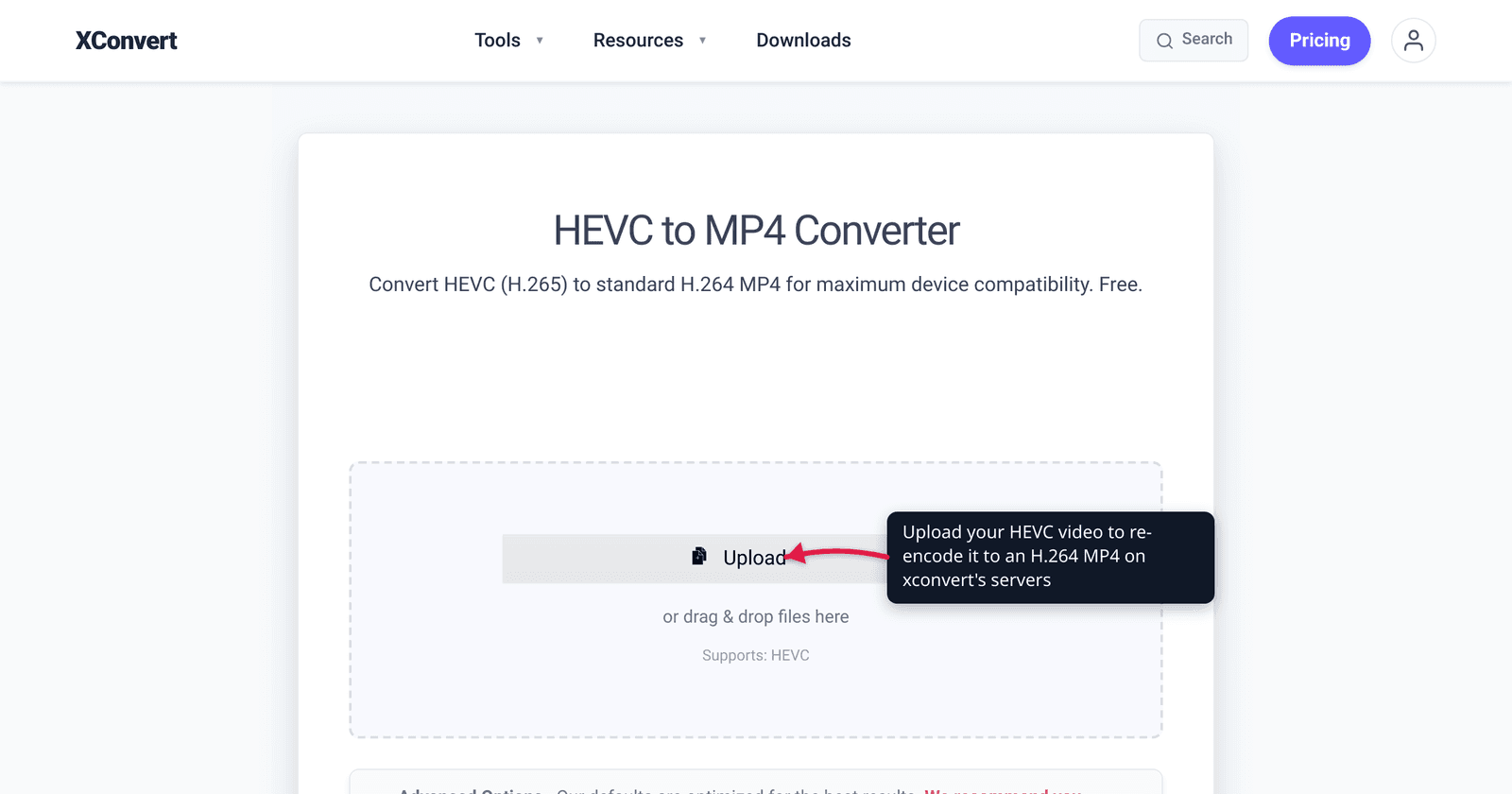
You emailed an iPhone video to a Windows laptop — and it won’t play. The player throws a codec error, or you just hear audio with no picture. The cause is almost always the same: your iPhone recorded in HEVC (H.265), and the device you’re trying to play it on can’t decode that codec without extra software. “Converting HEVC to MP4” is the fix everyone searches for — but it’s worth knowing what that conversion actually does, because it isn’t just a rename. We verified the playback support, the Windows codec situation, and the file-size trade-off against Apple, Microsoft, and caniuse.
Quick answer: Most “HEVC” files are already .mp4 or .mov — the problem isn’t the container, it’s the H.265 video codec inside, which Windows, older devices, and several browsers can’t decode without a paid add-on or a player like VLC. The real fix is to re-encode H.265 to H.264 (AVC) in an MP4, which plays virtually everywhere. Expect the converted file to be larger, because H.264 is the less efficient codec — that’s the price of universal compatibility.
Jump to a section
- Why your HEVC video won’t play
- HEVC vs MP4: codec, not container
- What “convert HEVC to MP4” really does (and why the file grows)
- Other ways to play HEVC without converting
- Convert HEVC to MP4 on xconvert
- FAQ
Why your HEVC video won’t play
HEVC — High Efficiency Video Coding, also known as H.265 — is the codec Apple uses by default for video on iPhone 7 and later. Per Apple’s support documentation, “iOS 11 and macOS High Sierra introduced support for these new, industry-standard media formats,” and HEVC “uses less storage space” than older formats. That efficiency is great until you move the file off Apple’s ecosystem.
The catch is that H.265 needs a dedicated decoder, and that decoder is not built in on most non-Apple platforms:
- Windows 10/11 ships without HEVC decoding. The Photos and Movies & TV apps show an error or blank frame until you install Microsoft’s HEVC Video Extensions — a Store add-on that costs about $0.99 (Microsoft Store listing). A free “HEVC Video Extensions from Device Manufacturer” package is functionally identical but intended for PC makers to preinstall, so it isn’t surfaced in normal Store search.
- Web browsers are inconsistent. Per caniuse, Safari on macOS and iOS supports HEVC fully, but Chrome’s support is only partial from version 107+ and depends on the OS/GPU providing a hardware HEVC decoder; Edge is partial and hardware-dependent too; Firefox is disabled by default through v136 and only partial from v137+. caniuse even notes it’s “hard for browsers to universally support HEVC because it is complex and expensive to license.”
- Older phones, smart TVs, Linux machines, and many video editors likewise need a hardware decoder or third-party player to handle H.265.
So a high “global support” figure for HEVC (caniuse shows ~92%) is misleading: it’s inflated by Safari’s user base and masks the conditional, hardware-gated reality everywhere else. If a video needs to “just play” for an unknown recipient, HEVC is the wrong format to send.
HEVC vs MP4: codec, not container
The single most important thing to understand — and the reason “convert HEVC to MP4” confuses people — is that HEVC and MP4 aren’t the same kind of thing:
- MP4 (and
.mov) is a container — a wrapper that holds video, audio, and metadata. - HEVC / H.265 is a video codec — the algorithm that compresses the actual picture.
An .mp4 file can hold H.264, H.265 (HEVC), AV1, and others. So your iPhone clip is very often already an .mp4 or .mov that simply contains an H.265 stream. Renaming it, or remuxing it into a fresh MP4 without touching the codec, won’t fix playback — the incompatible H.265 stream is still inside.
| What it is | The compatibility problem | |
|---|---|---|
| MP4 / MOV | Container (wrapper) | None — containers are widely supported |
| HEVC / H.265 | Video codec (the picture) | Needs a hardware/paid decoder; patchy in browsers, Windows, older devices |
| H.264 / AVC | Video codec (the picture) | Plays essentially everywhere |
That’s why a real “HEVC to MP4” conversion has to change the codec inside the container — from H.265 to H.264 — not just the file extension. For a deeper look at how these two codecs differ in size and quality, see H.264 vs H.265: which should you use.
What “convert HEVC to MP4” really does (and why the file grows)
When a converter turns your HEVC video into a “compatible MP4,” it re-encodes the H.265 video stream into H.264 (AVC) inside an MP4 container. H.264 is the de-facto universal codec — if a device can play video at all, it can almost certainly play H.264.
There’s an honest trade-off you should expect:
- The file usually gets bigger. H.265 was designed to hit roughly the same visual quality as H.264 at about half the bitrate. Going the other direction — H.265 → H.264 at equivalent quality — moves you to the less efficient codec, so the output is typically larger than the HEVC original. That’s normal; you’re trading bytes for compatibility.
- It’s a re-encode, not a copy. The picture is decoded and re-compressed, so the conversion takes real processing time and is lossy in principle. At a high quality setting the result is visually indistinguishable for most footage — just don’t expect a re-encode to improve quality.
- Audio and resolution can be preserved. A good converter keeps the audio track and original resolution unless you choose to change them.
If your goal isn’t compatibility but simply a smaller HEVC file, do not convert to H.264 — that throws away the efficiency win. Keep the codec and shrink it instead: see Compress HEVC (H.265) without re-encoding to H.264.
Other ways to play HEVC without converting
Converting is the surest fix, but it isn’t the only one. Depending on the situation, you might prefer:
- Install a player that bundles its own decoder. VLC plays HEVC out of the box on Windows, macOS, and Linux without buying anything — ideal when you just need to watch the file once.
- Buy Microsoft’s HEVC Video Extensions (~$0.99) so Windows’ built-in Photos/Movies & TV apps can decode H.265 system-wide. Useful if you regularly receive HEVC files and want them to play in native Windows apps.
- Stop recording in HEVC at the source. On iPhone, Apple lets you switch via Settings → Camera → Formats → Most Compatible, which records new video in H.264 instead of HEVC. Existing clips stay HEVC, but everything you shoot afterward will play anywhere.
When you need the file itself to be portable — to email it, embed it on a website, hand it to someone on an unknown device, or import it into an editor that chokes on H.265 — converting to an H.264 MP4 is the reliable answer.
Convert HEVC to MP4 on xconvert
The xconvert HEVC to MP4 converter re-encodes your H.265 video to a standard H.264 MP4 for maximum device compatibility:
- Open xconvert.com/convert-hevc-to-mp4 and click Upload to add your video — From my Computer, From Google Drive, or From Dropbox.
- (Optional) Open Advanced Options (the gear icon) to fine-tune the output.
- Under Quality Preset, leave the Preset at Very High (Recommended) to keep the picture looking like the original, or pick a lower preset / smaller Specific file size if you want to cap the size.
- (Optional) Leave Video resolution on Keep original, or scale it down under Preset Resolutions / Width x Height if the destination doesn’t need full resolution.
- Click Convert, then download your H.264 MP4. Because this is a re-encode, allow a little processing time — and remember the converted file may be larger than the HEVC original.
Your file uploads over an encrypted connection, is processed on our servers, and is automatically deleted a few hours later. Nothing is kept.
For related workflows: H.264 vs H.265 (which codec to choose and why) and compress HEVC without re-encoding (keep the codec, just make the file smaller).
FAQ
Is HEVC the same as MP4?
No. HEVC (H.265) is a video codec — the compression used for the picture — while MP4 is a container that wraps the video and audio. An MP4 file can contain H.265, H.264, AV1, and others. Most iPhone “HEVC” clips are already .mov or .mp4 files; the incompatibility is the H.265 codec inside, not the container.
Why won’t my iPhone HEVC video play on Windows?
Because Windows doesn’t include an H.265 decoder by default. The Photos and Movies & TV apps need Microsoft’s HEVC Video Extensions (about $0.99 on the Store) or a third-party player like VLC to decode it. The most reliable fix for sharing is to convert the video to an H.264 MP4, which plays without any add-on.
Does converting HEVC to MP4 reduce quality?
It’s a re-encode, so it’s technically lossy — but at a high quality setting the result is visually indistinguishable from the original for most footage. A re-encode never improves quality, so pick a high preset (xconvert defaults to Very High) if fidelity matters.
Will the MP4 be bigger than the HEVC file?
Usually yes. H.265 targets roughly half the bitrate of H.264 at the same quality, so re-encoding to H.264 moves you to the less efficient codec and typically produces a larger file. That’s the expected cost of universal compatibility. If you only want a smaller file, keep the HEVC codec and compress it instead.
Can I just rename the file to .mp4?
No. If the codec inside is H.265, renaming or remuxing into a fresh MP4 leaves the incompatible stream untouched, so it still won’t play on devices that lack an HEVC decoder. You have to actually re-encode the video to H.264.
Do browsers support HEVC?
Inconsistently. Per caniuse, Safari (macOS/iOS) supports HEVC fully, but Chrome (107+) and Edge are only partial and require a hardware HEVC decoder in your OS/GPU; Firefox is disabled by default through v136 and partial from v137+. For a video that must play in any browser, H.264 is the safe choice.
How do I stop my iPhone from recording in HEVC?
Open Settings → Camera → Formats and choose Most Compatible, which switches recording to H.264 (and JPEG for photos). Existing HEVC clips aren’t changed, but everything you record afterward will play on Windows and older devices without conversion.
Sources
Last verified 2026-06-25.
- Apple — HEIF and HEVC support — iOS 11 / macOS High Sierra introduced HEVC; “Most Compatible” records H.264 instead.
- caniuse — HEVC / H.265 video format — Safari full; Chrome 107+/Edge partial + hardware-gated; Firefox disabled through v136, partial v137+; licensing complexity note.
- Microsoft Store — HEVC Video Extensions — paid (~$0.99) add-on that enables HEVC playback in Windows apps.
- How-To Geek — free HEVC codecs on Windows 10 — the paid ($0.99) vs the free “from Device Manufacturer” package, and that the free one isn’t surfaced in normal Store search.
- MDN — Web video codec guide (AVC / HEVC) — H.264 near-universal support; HEVC efficiency and licensing characteristics.