 By Stephanie Taylor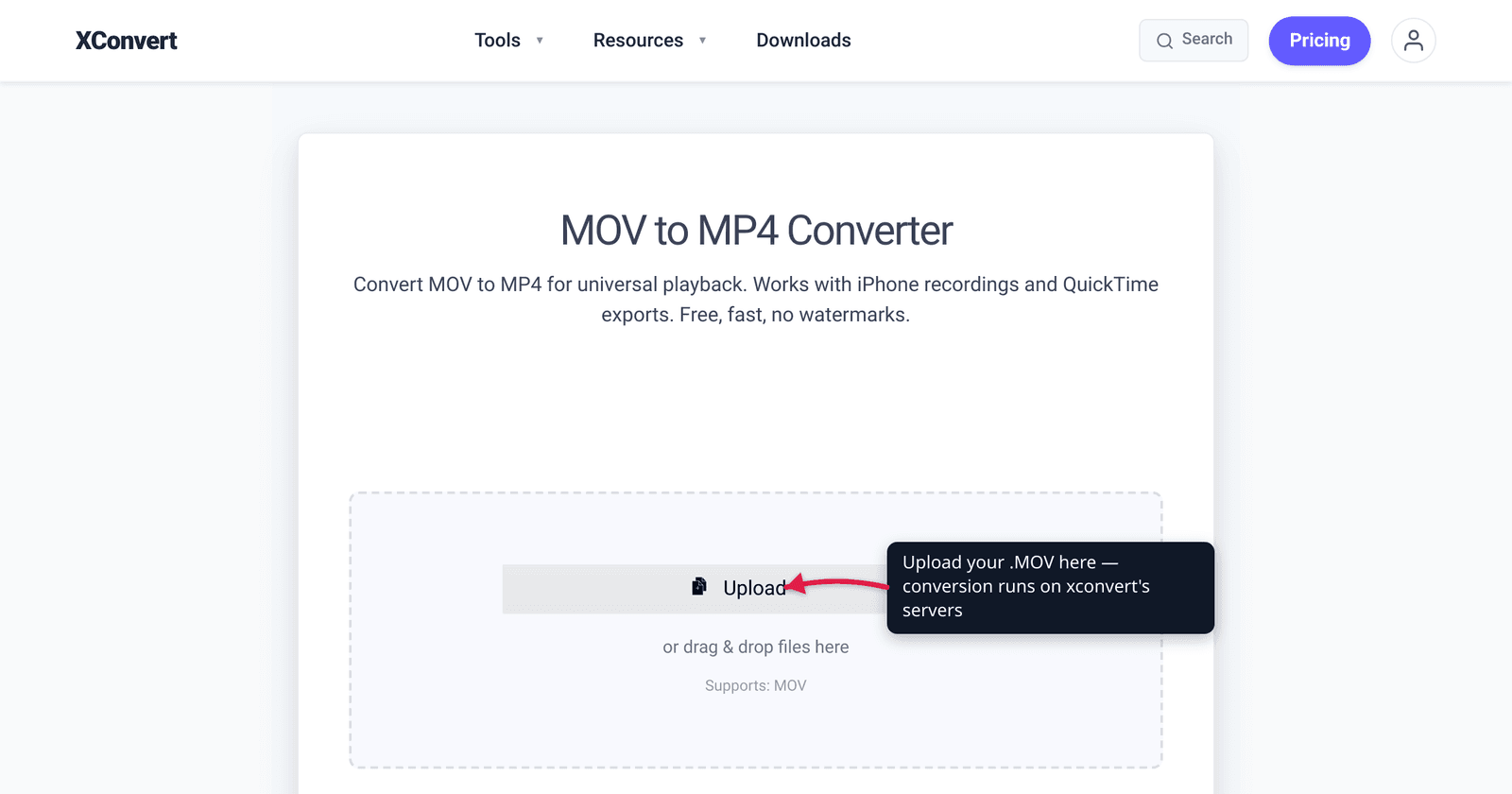
You hand an iPhone clip to a colleague on Windows, drop it into a non-Apple editor, or try to upload it — and the .MOV stutters, shows a black screen, or gets rejected. The fix is almost always “convert it to MP4,” and here’s the part most guides skip: MOV and MP4 are close relatives, so the conversion is often a clean rewrap with no quality loss at all. This guide explains why, the fastest native trick on each platform (and its one catch), and how to convert reliably whatever codec is inside. We verified the QuickTime/MP4 relationship against MDN and the Mac shortcut against Apple’s own support docs.
Quick answer: MOV is Apple’s QuickTime container; MP4 (MPEG-4 Part 14) was derived from QuickTime, so the two are structurally close cousins and often hold the same H.264/AAC streams. That means MOV → MP4 is frequently just a container rewrap (remux) — fast, and no quality loss when the codecs are already compatible. On a Mac, if the file is H.264 you can literally rename .mov to .mp4; on Windows, the built-in Photos app or a converter does the job. The catch: iPhone clips are often HEVC (H.265), which the rename trick won’t fix and some players still can’t decode — for those, re-encode to MP4 / H.264 for true universal playback.
Jump to a section
- Why MOV → MP4 usually loses no quality
- Convert MOV to MP4 on Mac
- Convert MOV to MP4 on Windows
- The HEVC catch (and why people convert)
- Convert MOV to MP4 on xconvert
- FAQ
Why MOV → MP4 usually loses no quality
The single fact that demystifies this whole conversion: MOV and MP4 are not rivals — MP4 grew out of MOV.
A .MOV file is Apple’s QuickTime container, the box Apple created for its media framework. A .MP4 file is the MPEG-4 Part 14 container. Per MDN, “the MP4 file format is derived from the ISO base media file format, which is directly derived from the QuickTime file format developed by Apple.” In other words, MP4 is a standardized descendant of MOV.
A container is just the wrapper. What actually determines picture quality and file size is the codec inside it — H.264, HEVC (H.265), AAC for audio. Crucially, a .MOV and a .MP4 can carry the exact same codec. When they do, converting can be a rewrap (or remux): the same video and audio streams are simply moved into a different box. No frames are re-compressed, so there is no quality loss and the operation is fast.
The one honest caveat, also from MDN: QuickTime and MP4 are “not quite interchangeable,” so a tool still has to repackage the streams correctly rather than treat the files as byte-identical. But when the codec is already broadly supported (H.264/AAC), that repackaging is lossless.
So the takeaway: if your MOV is already H.264/AAC, converting to MP4 costs you nothing in quality. Only when the codec itself must change (HEVC → H.264) do you re-encode — a deliberate trade for compatibility, covered below.
Convert MOV to MP4 on Mac
macOS has a genuinely instant trick — with one important condition.
The fastest way (H.264 files only): rename the extension. Per Apple Support, “to quickly convert a MOV file that uses the H.264 codec, you can simply change the filename extension of the MOV file to MP4.” The steps:
- Select the
.MOVfile in Finder, then choose File → Get Info. - In the More Info section, confirm one of the Codecs listed is H.264. (If it’s anything else — HEVC, for example — the rename won’t work; skip to the converter approach.)
- Control-click the file, choose Rename, select the
.movpart of the name, typemp4after the period, and press Return. Confirm Use .mp4 when prompted.
This works precisely because of the MOV/MP4 lineage above: an H.264 stream is valid in either container, so renaming is effectively a zero-cost rewrap.
If the file isn’t H.264 (most modern iPhone clips are HEVC), Apple’s guidance is to “use iMovie to convert the file,” or use a converter that re-encodes to H.264. iMovie, Final Cut Pro, and Compressor all export MP4 but need a project workflow; for a quick one-off, an online converter like xconvert is faster.
Convert MOV to MP4 on Windows
Windows has no rename shortcut equivalent — the OS won’t transcode a MOV by changing the extension — but it does have a built-in tool and reliable online options.
Built-in: the Photos app. If the MOV is encoded with H.264, the Windows Photos app can open it and re-export it. Note that Windows historically needs a separate HEVC codec extension from the Microsoft Store to even play HEVC-encoded MOVs — so an HEVC iPhone clip may show a black screen until that’s installed, making the Photos route most reliable for H.264 sources.
The codec-agnostic option: an online converter. Because the in-OS tools stumble on HEVC, the most dependable cross-codec path is a server-side converter that re-encodes when needed: upload the MOV, choose MP4/H.264 output, download — no codec packs, no install. Jump to the xconvert steps. Desktop apps like VLC and the free, open-source HandBrake also convert MOV → MP4 and handle HEVC input if you’d rather process locally.
The HEVC catch (and why people convert)
If MOV → MP4 is so often lossless, why does anyone hit trouble? Because of what’s inside a modern iPhone’s MOV.
Since iOS 11, iPhones default to recording HEVC (H.265) inside the .MOV — Apple’s “High Efficiency” setting — because HEVC produces dramatically smaller files than H.264 at the same quality. (You can check under Settings → Camera → Formats; “Most Compatible” records H.264 instead.) HEVC is excellent inside the Apple world, but outside it Windows needs a paid Microsoft HEVC codec extension to decode it, many editors and upload pipelines treat HEVC as a second-class input, and a web <video> embed can’t rely on it (browser support is partial and hardware-gated).
So people convert MOV → MP4 for three recurring reasons: Windows/Android playback, importing into a non-Apple editor, and uploading to a platform or website. When the goal is “play anywhere,” the safe target isn’t just the MP4 container — it’s MP4 + H.264 + AAC, the combination decoded in hardware on virtually every device.
Re-encoding HEVC → H.264 is the one case where you do re-process the video (a small, usually invisible quality change) — and it often makes the file larger, because H.264 is less efficient than HEVC. If your converted MP4 is now too big, compress it rather than switching formats again. For the full container-vs-codec breakdown of iPhone footage, see MOV vs MP4 for iPhone video; for the codec choice itself, see H.264 vs H.265: which to use.
Convert MOV to MP4 on xconvert
The xconvert MOV to MP4 converter handles both cases — a clean rewrap when the codec is already compatible, or a re-encode to H.264 when you need universal playback — and works the same on Windows, Mac, or any browser:
- Open xconvert.com/convert-mov-to-mp4 and click Upload (or drag your
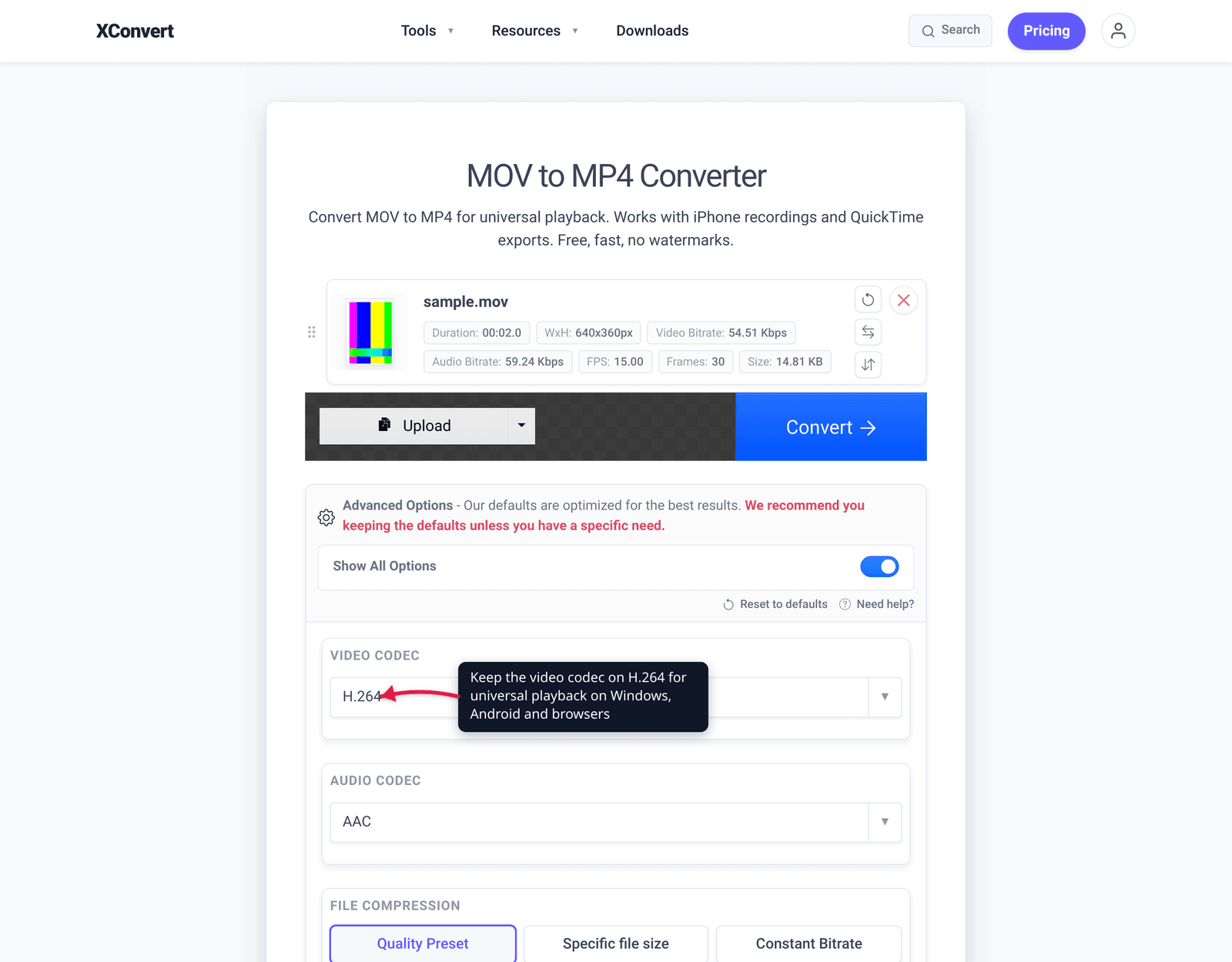
.MOVonto the drop area) to add the file. - The output is already MP4 — that’s the tool’s job. To control the result, open Advanced Options (the Options gear).
- For maximum compatibility, set the video codec to H.264 (with AAC audio) so the MP4 plays on Windows, Android, browsers, and editors without extra codec packs.
- Handle size with the Quality Preset dropdown (defaults to Very High (Recommended)), or pick a precise mode — Specific file size, Constant Bitrate, Variable Bitrate, or Constant Quality. Leave Resolution on Keep original unless you want to downscale, and optionally Trim to a Time Range.
- Click to convert, then download your MP4.
Your file uploads over an encrypted connection, is processed on our servers, and is deleted automatically a few hours later — there’s no manual cleanup. If the new H.264 MP4 is too large to send, shrink it with the MP4 compressor instead of converting again.
FAQ
Does converting MOV to MP4 lose quality?
Not when the codec is already compatible. Because MP4 was derived from Apple’s QuickTime/MOV format, an H.264/AAC MOV can be rewrapped into MP4 with no re-encoding and no quality loss — the same streams just move into a new container. Quality only changes if the codec itself has to change, e.g. re-encoding HEVC to H.264, which is usually a slight, often invisible difference.
How do I convert MOV to MP4 on Windows for free?
If the MOV is H.264, the built-in Photos app can open and re-export it. For HEVC iPhone clips (which Windows may not even play without a paid HEVC codec extension), the most reliable free route is a server-side converter — upload, output MP4/H.264, download — or a local app like HandBrake or VLC. Renaming .mov to .mp4 does not work on Windows.
Can I just rename a .MOV file to .MP4 on Mac?
Only if the codec is H.264. Per Apple, you can change the extension of an H.264 MOV to .mp4 directly — check the codec under File → Get Info → More Info first. If it’s HEVC or anything else, the rename won’t produce a valid, broadly playable file; convert with iMovie or an online converter instead.
Why won’t my iPhone .MOV play on Windows?
It’s almost always the codec, not the container. Modern iPhones record HEVC (H.265) inside the MOV, and Windows needs a separate (paid) HEVC codec extension to decode it — without it you get a black screen. Converting to MP4 with H.264 (decoded natively on Windows) fixes it. See MOV vs MP4 for iPhone video.
Is MOV or MP4 better quality?
Neither — the container doesn’t set quality, the codec does. A MOV and an MP4 carrying the same codec at the same bitrate look identical. MP4 wins on compatibility (it plays virtually everywhere); MOV is optimal inside Apple’s ecosystem. So “MOV vs MP4” is about where the file needs to play, not picture quality.
Will my MP4 be bigger than the original MOV?
Possibly — if you re-encode HEVC to H.264, which is less efficient than HEVC and can produce a larger file at the same quality. A same-codec rewrap (H.264 MOV → H.264 MP4) keeps the size essentially unchanged. If the result is too big, compress the MP4 rather than switching containers again.
Sources
Last verified 2026-06-25.
- MDN — Media container formats — MP4 is derived from the ISO base media file format, which is directly derived from Apple’s QuickTime (MOV) file format; the two are “not quite interchangeable”; QuickTime is no longer widely used on the internet and Apple itself now generally uses MP4.
- Apple Support — Convert a MOV file to MP4 on Mac — renaming the
.movextension to.mp4works only for H.264-codec files (verify codec via File → Get Info → More Info); otherwise use iMovie to convert. - Apple Support — Using HEIF or HEVC media on Apple devices — iPhone “High Efficiency” records HEVC (H.265); “Most Compatible” records H.264; the container stays MOV either way.