 By James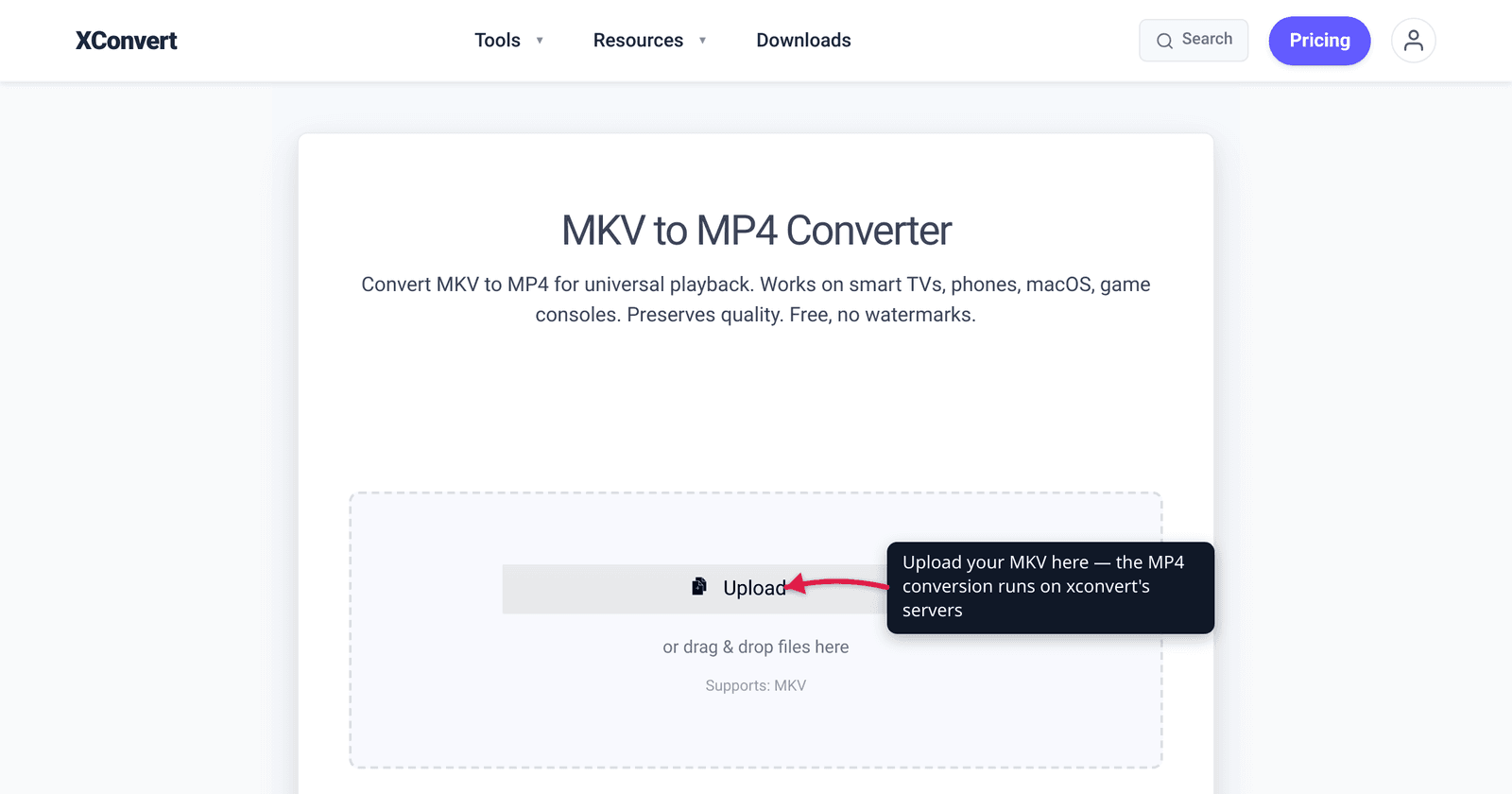
You downloaded a movie or exported a recording and got a .mkv file — then your iPhone, your smart TV, or a website upload form refused to touch it. MKV (Matroska) is a superb, flexible container, but it’s the format Apple devices, browsers, and most consumer hardware don’t play natively. The good news: converting MKV to MP4 is usually a fast container swap that keeps your video pixel-for-pixel identical — no re-compression, no quality loss — as long as the streams inside are MP4-friendly. This guide explains when that holds, when a re-encode is unavoidable (DTS/TrueHD audio, styled subtitles), and how to do it. We verified the container facts against Matroska’s own spec, MDN, and caniuse.
Quick answer: MKV is an open, flexible container; MP4 is the one that plays everywhere — Apple devices, browsers (96%+ support), TVs, consoles. If your MKV already holds H.264/H.265 video + AAC audio, MKV→MP4 is a remux (just relabel the container) that copies the streams untouched — no quality loss, near-instant. A re-encode is only needed when the MKV uses codecs MP4 doesn’t carry (e.g. DTS, Dolby TrueHD audio, or ASS/PGS subtitles). MKV can stack many audio/subtitle tracks; MP4 handles subtitles more narrowly, so some tracks may not survive.
Jump to a section
- MKV vs MP4: what’s actually different
- Remux vs re-encode: keeping quality
- What MP4 can and can’t carry (the fact traps)
- Compatibility: why MP4 wins for sharing
- What happens to multiple audio and subtitle tracks
- Convert MKV to MP4 on xconvert
- FAQ
MKV vs MP4: what’s actually different
Both MKV and MP4 are containers, not codecs. A container is the wrapper; the actual video and audio live inside it as encoded streams (H.264, AAC, and so on). Neither MKV nor MP4 compresses video on its own — so “MKV vs MP4” is a question about the wrapper, not the picture.
- MKV (Matroska) is an open, EBML-based container designed to hold almost anything: any number of video, audio, and subtitle tracks, chapters, attachments (like fonts), and rich metadata. Matroska’s own spec describes it as “modularly expandable” with “selectable subtitle/audio/video streams.” That flexibility is why it’s popular for movies, anime, and archival rips — and why it carries codecs other containers won’t.
- MP4 (MPEG-4 Part 14) is the ISO standard derived from Apple’s QuickTime file format (ISO/IEC 14496-14, finalized 2003). It supports a focused set of widely-used codecs and is, per MDN, “broadly supported” — the default for web video, phones, and editors’ “export” presets.
The practical upshot: MKV is the better workshop format (hold everything), MP4 is the better delivery format (plays everywhere). Converting MKV→MP4 is almost always about moving from the workshop to delivery.
Remux vs re-encode: keeping quality
This is the single most important thing to understand, because it determines whether you lose any quality at all.
Remux (the fast, lossless path). If the streams inside your MKV are already codecs MP4 supports — overwhelmingly the common case: H.264 or H.265 video with AAC audio — the converter doesn’t have to touch the compressed data. It just copies the existing video and audio streams into a new MP4 wrapper. Because nothing is decoded and re-compressed:
- Quality is identical — the pixels and audio samples are bit-for-bit the same.
- It’s near-instant — seconds, not minutes, since there’s no encoding.
- File size barely changes — the new MP4 is within a few KB of the original.
Re-encode (only when forced). If the MKV holds something MP4 can’t carry, that stream must be decoded and re-compressed into an MP4-compatible codec — for example, DTS, DTS-HD, FLAC, or Dolby TrueHD audio re-encoded to AAC. Re-encoding is slower and is lossy for the stream being converted (you can’t perfectly recover lossless DTS-HD once it’s AAC), though AAC at a healthy bitrate is transparent to most listeners. Video almost never needs re-encoding for MKV→MP4, because H.264/H.265 — the codecs MKV files usually carry — are exactly what MP4 expects.
So the honest rule: MKV→MP4 keeps full quality whenever it can remux, and only sacrifices quality on the specific streams MP4 won’t accept.
What MP4 can and can’t carry (the fact traps)
Here’s where MKV’s flexibility outruns MP4’s. Matroska’s codec spec lists audio IDs for DTS (A_DTS), AC-3 (A_AC3), TrueHD-class formats, ALAC, WavPack, and more; MP4’s practical codec set is narrower.
| Stream type | MKV holds | MP4 holds (common, supported) | Needs re-encode for MP4? |
|---|---|---|---|
| Video | H.264, H.265, VP9, AV1, MPEG-2, and more | H.264 (AVC), H.265 (HEVC), AV1, VP9 | Usually no (H.264/H.265 pass straight through) |
| Audio | AAC, MP3, AC-3, DTS, DTS-HD, TrueHD, FLAC, Vorbis, Opus, ALAC | AAC, MP3, FLAC, Opus (AAC is the universal default) | Yes for DTS/DTS-HD/TrueHD → AAC |
| Subtitles | SRT/UTF-8, ASS/SSA (styled), PGS (Blu-ray image), VobSub, WebVTT | tx3g (MPEG-4 Timed Text) / basic text | Often dropped or flattened — styled/image subs don’t map cleanly |
The two traps to remember: (1) lossless/cinema audio (DTS-HD, TrueHD) won’t fit in MP4 and gets re-encoded to AAC, and (2) the rich subtitle formats MKV is famous for — ASS/SSA styling, PGS Blu-ray subs — have no direct MP4 equivalent, so they may not survive the conversion. (MDN notes MP4 “supports several of the most-used codecs,” not all of them — that’s the gap.)
Compatibility: why MP4 wins for sharing
If MKV is so flexible, why convert at all? Because almost nothing outside dedicated media players plays it natively.
- Apple platforms don’t support MKV natively. QuickTime Player can’t open it, and iPhones/iPads won’t play it without a third-party app like VLC. Apple’s own “file won’t play” guidance flags
.mkv(alongside.avi,.wmv) as a format you typically need to convert. MP4/M4V, by contrast, is essentially Apple’s native lineage — MP4 is derived from QuickTime’s file format. - Browsers don’t play MKV. There’s no MKV
<video>support across mainstream browsers. MP4 with H.264, on the other hand, sits at roughly 96.65% global browser support per caniuse — the closest thing to a universal web video format. - TVs, consoles, and upload forms overwhelmingly expect MP4. Smart TVs, PlayStation/Xbox, and most “drop a video here” web uploaders accept MP4 and balk at MKV.
That’s the whole trade: you give up MKV’s track flexibility to gain “plays anywhere.” If your goal is a clip for the web, an open alternative is also worth knowing — see MP4 vs WebM for web video. And the same remux-when-possible logic applies to Apple’s other container — see convert MOV to MP4 on Windows and Mac.
What happens to multiple audio and subtitle tracks
MKV’s signature feature is stacking tracks: a single file can carry the English and Japanese audio, plus five subtitle languages, plus a director’s commentary. MP4 can hold multiple audio tracks too, but in practice it’s less reliable across players, and its subtitle support is far narrower.
What this means when you convert:
- Video — the single video stream carries over cleanly.
- Audio — your default/primary audio track converts reliably; extra alternate-language tracks may or may not be preserved depending on the tool, and any DTS/TrueHD track gets re-encoded to AAC.
- Subtitles — soft (selectable) subtitles are the most fragile part. Plain-text subs may transfer; styled ASS/SSA and image-based PGS subs frequently break or drop, because MP4 has no matching subtitle type. If a multi-language, styled-subtitle file is precious, keep the MKV original and convert a copy.
If you only need one language and one audio track — the common “make this play on my phone” case — none of this bites: you get a clean MP4 of the same quality.
Convert MKV to MP4 on xconvert
The xconvert MKV to MP4 converter does the container swap on our servers, so it works the same on Windows, Mac, Linux, and mobile — nothing to install:
- Open xconvert.com/convert-mkv-to-mp4 and click Upload to add your file — From my Computer, From Google Drive, or From Dropbox.
- For most files, leave the defaults — the page notes its “defaults are optimized for the best results.” A standard H.264/H.265 + AAC MKV converts cleanly to MP4 without you touching anything.
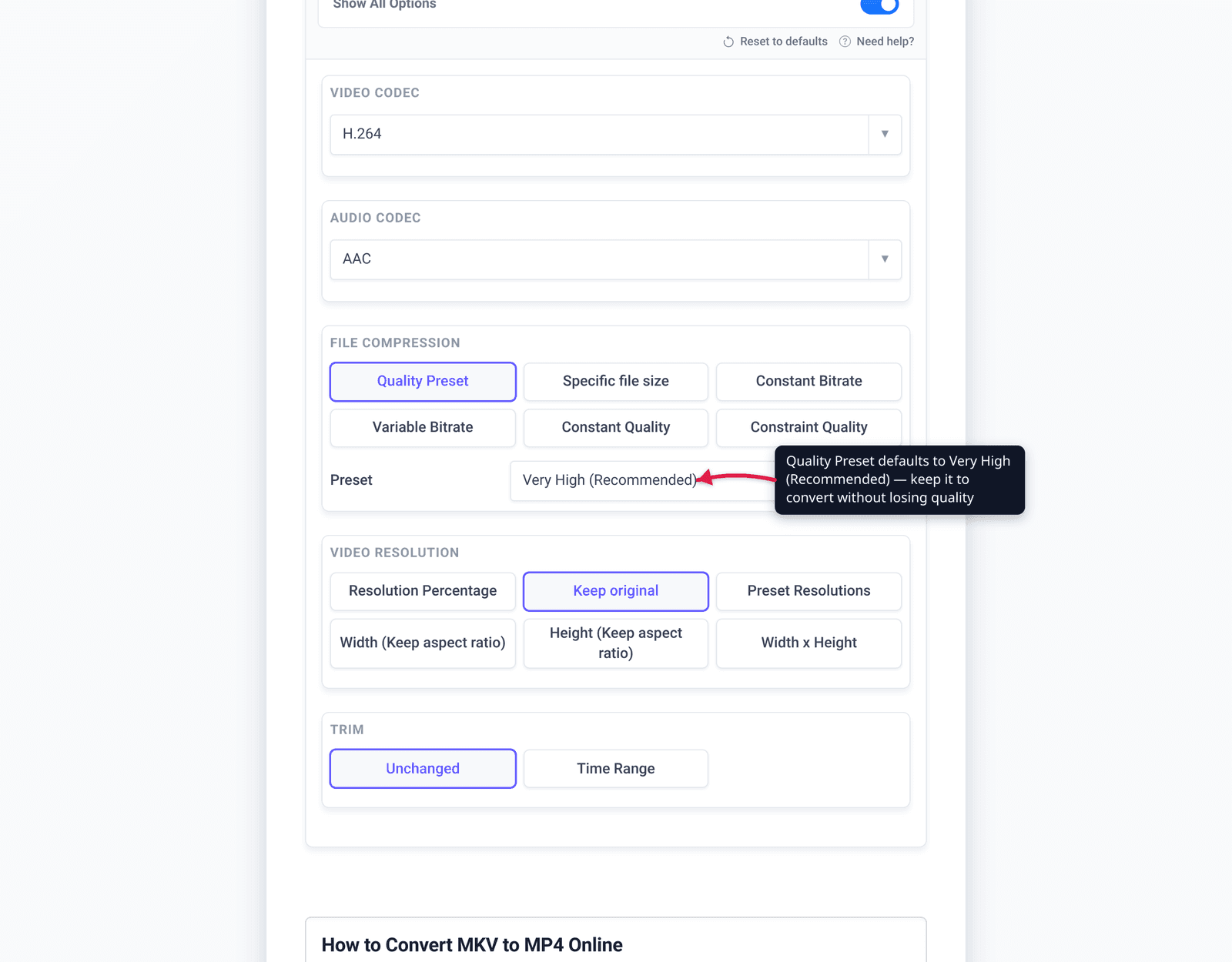
- If you do need control, open Advanced Options (the gear icon). Under File Compression you can choose a Quality Preset (defaults to Very High (Recommended)), a Specific file size, Constant Bitrate, Variable Bitrate, or Constant Quality — and under video adjustment you can change Resolution or Trim a time range.
- Start the conversion and download your MP4. It now plays on iPhone, smart TVs, consoles, browsers, and macOS.
- If your source has DTS/TrueHD audio or styled subtitles, check the result plays the audio you expect and that any subtitles you need are present — those are the streams most affected by the move to MP4.
Your file uploads over an encrypted connection, is processed on our servers, and is automatically deleted a few hours later. Nothing stays around.
If you don’t want to change format at all and only need a smaller MKV, that’s a different job — but for compatibility, MP4 is the answer.
FAQ
Does converting MKV to MP4 lose quality?
Not when it can remux — and for the common case (H.264/H.265 video + AAC audio) it does exactly that, copying the streams into the new container untouched, so the result is bit-for-bit identical to the original. Quality is only affected when a stream MP4 can’t carry — such as DTS-HD or Dolby TrueHD audio — has to be re-encoded to AAC.
Why won’t my MKV file play on my iPhone, TV, or in a browser?
Because MKV isn’t natively supported on Apple devices, in mainstream browsers, or on most TVs and consoles. Apple’s own support guidance lists .mkv as a format you typically need to convert, and there’s no MKV <video> support in browsers. MP4 with H.264 plays on roughly 96% of browsers and on virtually every device — which is exactly why you convert.
Is MKV or MP4 better quality?
Neither — they’re containers, not codecs. The picture quality comes from the video codec inside (H.264, H.265, etc.), and that codec can sit in either container at the same quality. MKV is more flexible (more codecs, more tracks); MP4 is more compatible. Converting between them, when it remuxes, changes the wrapper without changing the quality.
Will my subtitles and multiple audio tracks survive the conversion?
The primary audio track and plain-text subtitles usually survive; styled and image subtitles often don’t. MP4’s subtitle support is narrower than MKV’s, so ASS/SSA styled subs and PGS Blu-ray image subs frequently drop or break. Extra alternate-language audio tracks may or may not carry depending on the tool. If a multi-track, styled-subtitle file matters, keep the MKV original and convert a copy.
Is MKV to MP4 conversion fast?
When it remuxes, yes — near-instant, because no video is decoded or re-compressed; the streams are just copied into a new container. It only slows down if a stream needs re-encoding (e.g. DTS/TrueHD audio to AAC), which takes real processing time.
Can I convert MKV to MP4 without re-encoding?
Yes — that’s the remux path, and it’s the default behavior whenever the MKV’s codecs are MP4-compatible (H.264/H.265 + AAC). The streams are copied as-is, the file size barely changes, and there’s zero quality loss. Re-encoding is only triggered by codecs MP4 doesn’t support.
Sources
Last verified 2026-06-25.
- Matroska — Basics (technical spec) — Matroska is an EBML-based container, “modularly expandable,” with “selectable subtitle/audio/video streams”; multiple track support.
- Matroska — Codec specifications — codec IDs MKV carries:
A_DTS,A_AC3, FLAC, ALAC, plus subtitle IDsS_TEXT/ASS,S_HDMV/PGS,S_VOBSUB(formats MP4 lacks an equivalent for). - MDN — Media container formats — MP4 is derived from the ISO base media / QuickTime file format, “supports several of the most-used codecs,” and is “broadly supported”; codec table (AVC/AV1/VP9 video, AAC/FLAC/MP3/Opus audio).
- caniuse — MPEG-4 / H.264 video format — MP4/H.264 at ~96.65% global browser support; near-universal.
- Apple Support — If a media file doesn’t open or play on your Apple device —
.mkvlisted among formats Apple devices don’t play natively and that typically need conversion. - ISO/IEC 14496-14:2003 — MP4 file format — the MP4 container standard, derived from MPEG-4 Part 12 (ISO base media file format).