 By Stephanie Taylor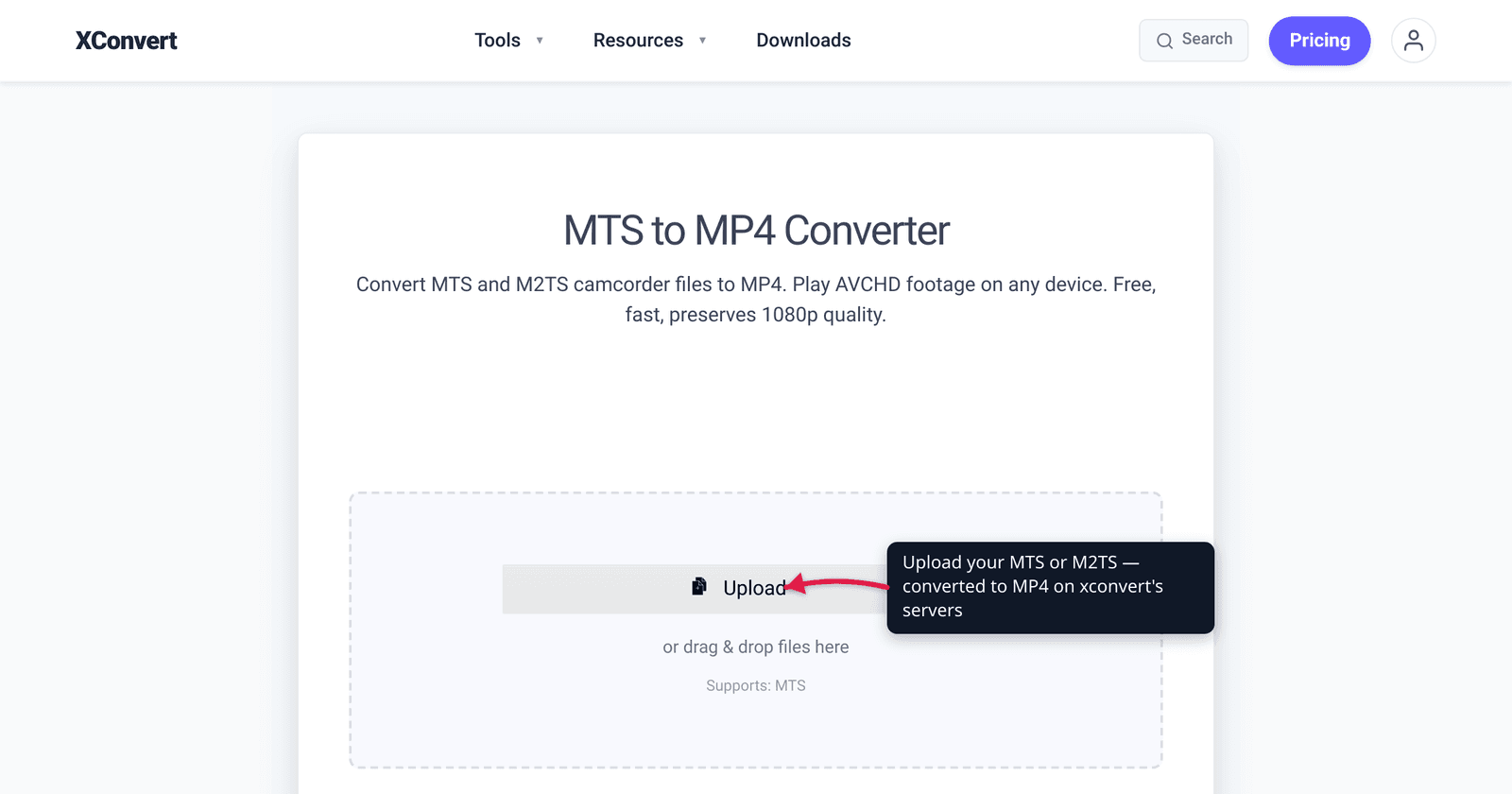
You copied the holiday footage off your Sony or Panasonic camcorder, double-clicked the .MTS file — and nothing happened. Maybe your phone refused it, your editor wouldn’t import it, or the audio went silent. That’s not a corrupt file: .MTS and .M2TS are AVCHD camcorder files, an old-school broadcast container that most phones, browsers, and even some editors don’t recognize. The good news is the video inside is already H.264 — the same codec MP4 uses — so converting to MP4 is fast and, done right, loses no visible quality. We verified the AVCHD format details, the codecs, and the MTS-vs-M2TS distinction against the standards documentation and Wikipedia’s primary-sourced entries.
Quick answer: MTS and M2TS are AVCHD camcorder files — an MPEG-2 transport-stream container (developed by Sony and Panasonic in 2006) that usually holds H.264 video with Dolby AC-3 audio. Phones, web browsers, and many editors can’t play or import them directly. Converting to MP4 keeps the same H.264 video, so it plays everywhere and edits cleanly — with little to no quality change because the codec is preserved. .MTS is the in-camera extension; .M2TS is the same thing after import (or off a Blu-ray).
Jump to a section
- What MTS and M2TS files actually are
- Why they won’t play or import
- MTS vs M2TS: the difference
- Does converting to MP4 lose quality?
- Convert MTS/M2TS to MP4 on xconvert
- FAQ
What MTS and M2TS files actually are
.MTS and .M2TS are the file extensions used by AVCHD — Advanced Video Coding High Definition. Sony and Panasonic developed AVCHD jointly and introduced it in 2006, specifically for consumer high-definition camcorders. If your footage came off a Sony, Panasonic, Canon, JVC, Hitachi, or Leica camcorder, it’s almost certainly AVCHD.
Three things define the format:
- Container: MPEG-2 transport stream. AVCHD multiplexes its audio and video into an MPEG transport stream — the same packetized format used for digital broadcast and Blu-ray. It’s robust and great for recording to flash memory, but it’s not the friendly, web-native container that MP4 is.
- Video codec: H.264 / MPEG-4 AVC. This is the important part. AVCHD uses H.264 — the exact same video codec that lives inside the vast majority of MP4 files. The picture data is already in a modern, universally-playable codec; it’s just wrapped in the wrong box.
- Audio codec: Dolby AC-3 or linear PCM. AVCHD audio is typically Dolby Digital (AC-3), which is where a lot of the “no sound” problems come from — many players and editors handle AC-3 inconsistently.
Resolutions are full HD: AVCHD supports 1920×1080, 1440×1080, and 1280×720 at the usual broadcast frame rates. So an MTS file is genuinely high-quality footage — it’s the packaging, not the picture, that causes trouble.
Why they won’t play or import
The frustration is real and it has a clear cause: the transport-stream container has almost no support outside the broadcast/disc world.
- Web browsers can’t play it. MP4 with H.264 enjoys near-universal browser support — roughly 96–97% of users globally, per caniuse. The raw MPEG-2 transport stream that AVCHD uses has no native browser support at all (MDN lists no browsers for MPEG transport-stream playback). Drop an MTS file into a
<video>tag or a web uploader and it simply won’t play. - Phones and many apps don’t recognize the extension. Most smartphones, smart TVs, and consumer apps were never built to open
.MTS/.M2TS. The codec inside (H.264) is fine — the wrapper is the problem. - Editors choke on the container or the AC-3 audio. Even tools that can import AVCHD often need its specific folder structure intact, and the AC-3 audio is a frequent point of failure — silent playback after import is a classic AVCHD symptom tied to AC-3 codec availability on the host system.
Converting to MP4 fixes all three at once: MP4 is the format browsers, phones, and editors expect, and switching the audio to AAC sidesteps the AC-3 headaches.
MTS vs M2TS: the difference
People treat these as two formats. They’re essentially the same container with two different filename conventions — and there’s no functional video difference between them.
.MTS | .M2TS | |
|---|---|---|
| Where it comes from | Recorded in-camera (on the camcorder’s memory card) | After import to a computer, or off a Blu-ray disc |
| Filename convention | Legacy 8.3 short names (e.g. 00001.MTS) | Long filenames |
| Typical folder | AVCHD/BDMV/STREAM (sometimes under PRIVATE) | BDMV/STREAM on the disc |
| Container | MPEG-2 transport stream | BDAV MPEG-2 transport stream (M2TS) |
| Encryption | Camcorder files are unencrypted | Commercial Blu-ray M2TS is often encrypted |
In short: MTS = the camcorder’s in-card extension; M2TS = the same data after import, or the Blu-ray/disc variant. Both hold H.264 video, both convert to MP4 the same way, and you can usually even rename one to the other. The practical takeaway is that the conversion steps below work identically for both.
Does converting to MP4 lose quality?
This is the question that stops people from converting, and the honest answer is reassuring: usually little to no visible quality change.
Here’s why. Your AVCHD file already contains H.264 video, and MP4’s most common codec is also H.264. There are two ways the conversion can go:
- Re-mux (copy the stream, change the container). When the video stream is copied unchanged from the transport-stream wrapper into an MP4 wrapper, there is zero quality loss — the exact same bytes of video, in a friendlier box.
- Re-encode at a matching (or higher) bitrate. If the stream is re-encoded — for example to also fix the AC-3 audio, change resolution, or compress — converting H.264 to H.264 at a comparable bitrate is visually lossless in practice; you won’t see a difference at normal viewing.
The only time you’d notice quality loss is if you deliberately lower the bitrate or downscale the resolution to shrink the file. Keep the settings at “match the source” and your converted MP4 looks the same as the original AVCHD — just playable everywhere. (This is the same principle that makes converting MOV to MP4 lossless when the underlying H.264 video is preserved.)
Convert MTS/M2TS to MP4 on xconvert
The xconvert MTS-to-MP4 converter handles both .MTS and .M2TS and keeps your 1080p quality. Here’s the flow:
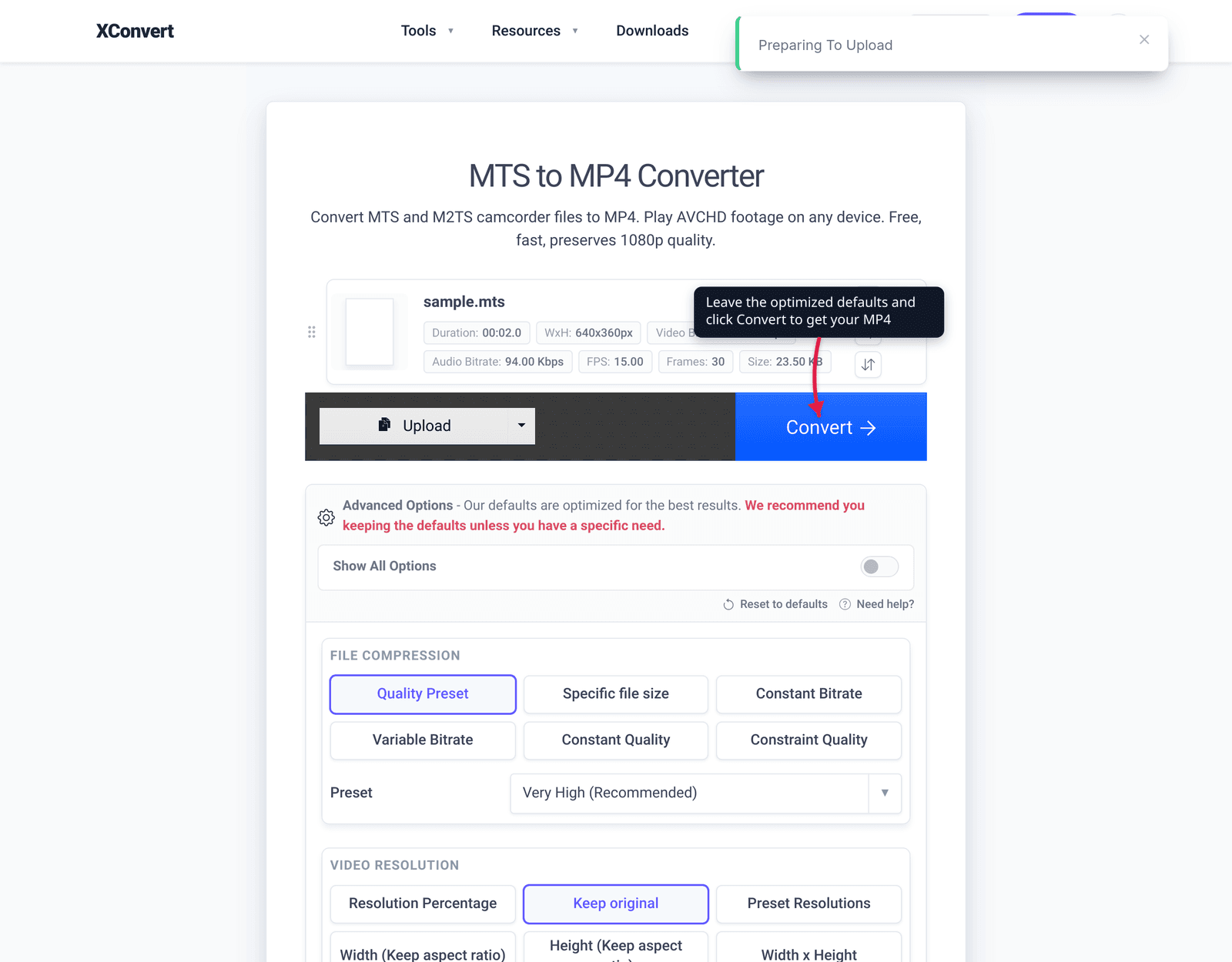
- Open xconvert.com/convert-mts-to-mp4 and click Upload to add your file — From my Computer, From Google Drive, or From Dropbox. Both
.MTSand.M2TSwork. - To keep maximum quality, leave the defaults — they’re optimized for the best result. The page note says “Our defaults are optimized for the best results.”
- To control the output, open Advanced Options (the gear). Under File Compression you can pick a Quality Preset (e.g. Very High (Recommended)), a Specific file size, Constant Bitrate, Variable Bitrate, or Constant Quality.
- Want the original frame size? Under Video resolution choose Keep original (or pick a Preset Resolution to downscale).
- Need just a clip? Use Trim → Time Range to set start and end points; leave it on Unchanged to convert the whole file.
- Start the conversion and download your MP4. It will now play on phones, browsers, and editors that rejected the AVCHD file.
Your file uploads over an encrypted connection, is processed on our servers, and is deleted automatically a few hours later. Nothing lingers.
For related workflows: Convert MOV to MP4 on Windows and Mac (same H.264-preserving approach for iPhone/QuickTime video), and H.264 vs H.265: which to use (when you also want to shrink the file with a newer codec).
FAQ
Why won’t my MTS file play on my computer or phone?
Because .MTS/.M2TS are AVCHD camcorder files in an MPEG-2 transport-stream container, which most phones, browsers, and consumer apps don’t support — and the Dolby AC-3 audio inside often causes silent playback even where the video shows. The H.264 video itself is fine; converting the file to MP4 puts that same video into a container everything can open.
Is MTS the same as M2TS?
Essentially yes — they’re the same AVCHD/transport-stream data with two naming conventions. .MTS is the in-camera extension (legacy 8.3 short filenames); .M2TS is the extension after importing to a computer, and also the variant used on Blu-ray discs. There’s no functional video difference, and both convert to MP4 identically.
Does converting MTS to MP4 lose quality?
Usually not noticeably. AVCHD already uses H.264, and so does MP4, so the video can be re-muxed (copied) into MP4 with zero quality loss, or re-encoded H.264→H.264 at a matching bitrate for visually lossless results. You only lose quality if you deliberately lower the bitrate or downscale the resolution.
Why does my AVCHD video have no sound after converting?
AVCHD audio is typically Dolby AC-3, which some systems and editors don’t decode cleanly. Converting to MP4 with AAC audio is the reliable fix — it’s the audio format MP4 expects and that players handle universally, which is why “convert to MP4 first” is the standard advice before editing AVCHD footage.
Can I edit MTS files directly in my video editor?
Sometimes, but it’s fragile — many editors need the full AVCHD folder structure intact and stumble on the AC-3 audio. The recommended workflow is to convert to MP4 (with AAC audio) first, then import the MP4. It imports cleanly and plays back without the silent-audio issue.
What camcorders record MTS/M2TS files?
AVCHD was developed by Sony and Panasonic (2006) and is used across consumer HD camcorders from Sony, Panasonic, Canon, JVC, Hitachi, and Leica, among others. If your HD camcorder footage has a .MTS or .M2TS extension, it’s AVCHD.
Sources
Last verified 2026-06-25.
- Wikipedia — AVCHD — AVCHD developed jointly by Sony and Panasonic, introduced 2006 for HD consumer camcorders; MPEG transport-stream container; H.264/MPEG-4 AVC video; Dolby AC-3 and linear PCM audio; 1920×1080 / 1440×1080 / 1280×720 resolutions;
.MTS(camcorder) vs.m2ts(after import) extensions; manufacturer list. - Wikipedia — .m2ts — M2TS as the BDAV MPEG-2 Transport Stream container; AVCHD uses legacy 8.3
.MTSfilenames while Blu-ray uses long.m2tsnames; files placed in theBDMV/STREAMdirectory; holds H.264/MPEG-4 AVC video. - Library of Congress — MPEG-2 Transport Stream for BDAV and AVCHD — format description for the AVCHD/Blu-ray transport-stream container.
- MDN — Web video codec guide — H.264/AVC is broadly compatible across all major browsers; MPEG-2 / MPEG transport stream has no practical browser support.
- caniuse — MPEG-4 / H.264 video format — H.264/MP4 near-universal browser support (~96–97% global).