 By James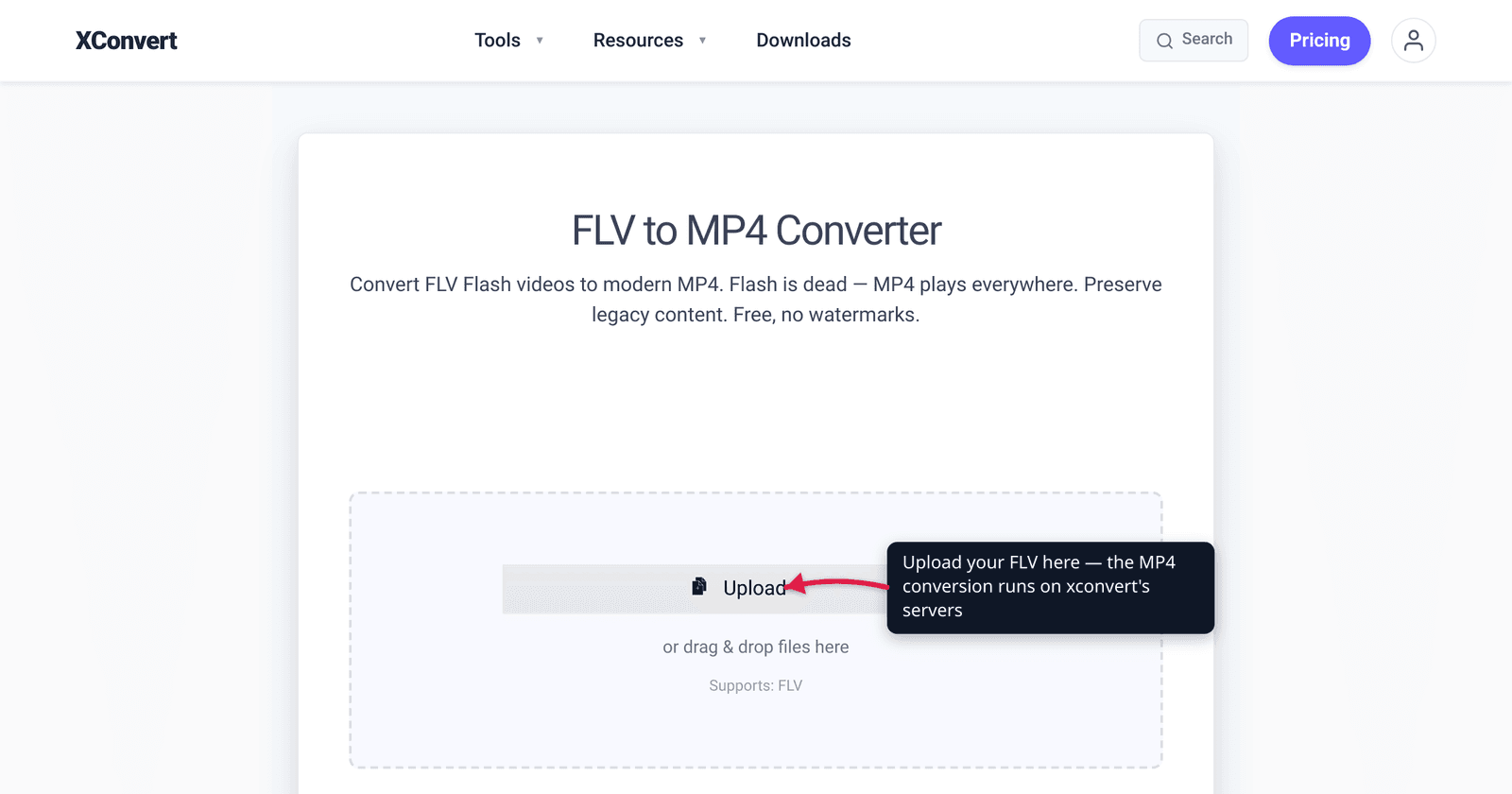
You found an old .flv file — a downloaded lecture, a screen recording, a clip from a defunct streaming site — and nothing will play it. That’s not a bug: FLV (Flash Video) is tied to Adobe Flash Player, and Adobe ended Flash on December 31, 2020 and blocked it from running on January 12, 2021. Modern browsers, phones, and most desktop players dropped FLV support along with it. The fix is to repackage the video as MP4 (H.264), the format that plays everywhere. This guide explains why FLV died, what actually happens during the conversion (often a fast, lossless re-mux), and how to do it. We verified the Flash end-of-life dates against Adobe and the FLV format details against the standards/format record.
Quick answer: FLV is a legacy Flash container that no longer plays on modern devices because Adobe ended Flash Player on Dec 31, 2020. Convert it to MP4 to make it playable again. If the FLV’s video is already H.264 (most are), the conversion is a quick re-mux — the video stream is copied into the MP4 container with no quality loss. If it uses an older codec like Sorenson Spark (H.263) or VP6, it’s re-encoded to H.264, which is still visually near-identical.
Jump to a section
- Why FLV won’t play anymore
- What’s actually inside an FLV file
- Re-mux vs. re-encode: what conversion really does
- Does converting FLV to MP4 lose quality?
- Convert FLV to MP4 on xconvert
- FAQ
Why FLV won’t play anymore
FLV — Flash Video — was the format that powered web video in the 2000s. Early YouTube, news sites, and Flash-based players all served FLV through the browser’s Flash plugin. It was the de-facto standard for streaming video for the better part of a decade.
Then Flash was retired. Per Adobe’s own end-of-life notice, Adobe stopped supporting Flash Player beginning December 31, 2020 (the “EOL Date”), and blocked Flash content from running in Flash Player beginning January 12, 2021. Every major browser — Chrome, Edge, Firefox, Safari — removed the Flash plugin around the same time. Apple’s iOS never supported Flash at all, and Adobe had already discontinued Flash Player for Android back in 2012.
The result: an .flv file is a container built for a runtime that no longer exists. It won’t open in a browser, won’t play on a phone, and won’t play in the default video apps on Windows or macOS. (Dedicated players like VLC can still open many FLVs because they bundle their own decoders — but that’s a workaround, not a fix you can share.) To make the video usable again — playable on any device, embeddable on a page, shareable with anyone — you repackage it as MP4.
What’s actually inside an FLV file
A file format like FLV is a container — a wrapper that holds a compressed video stream and an audio stream, plus timing data. The container is separate from the codecs used to compress those streams. This distinction is the key to understanding the conversion.
FLV was originally developed by Macromedia (first released in 2003) and later maintained by Adobe. Over its life it carried a handful of codecs:
| Stream | Codecs FLV commonly holds |
|---|---|
| Video | H.264 / AVC (the most common in later FLVs), Sorenson Spark (an H.263 variant, used in early Flash), On2 VP6 |
| Audio | AAC (later FLVs), MP3, and Nellymoser Asao (for microphone-recorded audio) |
The important takeaway: most FLV files from the late-Flash era already contain H.264 video and AAC audio — exactly the codecs MP4 uses. That makes the conversion much simpler than it sounds, as the next section explains.
MP4, by contrast, is the modern universal container. An .mp4 holding H.264 video and AAC audio plays in every browser, on every phone, and in every video app — the opposite of FLV’s situation today. (For more on the H.264 codec and its newer sibling H.265, see H.264 vs H.265: which to use.)
Re-mux vs. re-encode: what conversion really does
Because FLV and MP4 are just containers, converting between them can happen one of two ways:
1. Re-mux (stream copy) — fast and lossless. When the FLV’s video is already H.264 and its audio is AAC, the converter simply lifts those streams out of the FLV wrapper and drops them into an MP4 wrapper. The actual compressed bits are copied unchanged — no re-compression, no generation loss, no quality drop. This is fast and produces a file that’s essentially identical in quality and size. Most modern FLVs qualify for this path.
2. Re-encode — needed for old codecs. If the FLV uses an older video codec that MP4 doesn’t support well — Sorenson Spark (H.263) or VP6 from early Flash — the video must be decoded and re-compressed into H.264. This is a true re-encode. It takes longer and, like any lossy re-compression, can lose a small amount of quality (usually visually negligible at a sensible quality setting). The same applies to MP3 or Nellymoser audio, which gets re-encoded to AAC.
A good converter chooses automatically: it copies the stream when it can (H.264/AAC source) and re-encodes only when it must (old codecs). You don’t have to know which path your file takes — but it explains why some FLV conversions finish almost instantly and others take a while.
Does converting FLV to MP4 lose quality?
This is the most common worry, and the honest answer is “usually no, and never much.”
- If your FLV is H.264/AAC (most are): the conversion is a re-mux, the streams are copied bit-for-bit, and there is no quality loss at all. The MP4 looks identical to the FLV because it contains the same video data.
- If your FLV uses an old codec (Sorenson Spark / H.263 or VP6): it must be re-encoded to H.264, which is lossy in principle. In practice the loss is small and rarely noticeable at a reasonable quality setting — you are not making a low-quality copy of a high-quality master; you are converting an already-compressed, often low-bitrate legacy file.
One thing converting cannot do is improve the video. FLV files from the Flash era were frequently low-resolution and heavily compressed for slow connections. MP4 will preserve what’s there and make it playable again — it won’t add detail that the original never captured. Set a high quality/bitrate so the conversion doesn’t subtract anything, and accept that the ceiling is the original FLV.
Convert FLV to MP4 on xconvert
The xconvert FLV to MP4 converter runs the conversion on our servers — copying the stream when your FLV is already H.264, re-encoding only when it isn’t — so you don’t need Flash, VLC, or any install:
- Open xconvert.com/convert-flv-to-mp4 and click Upload to add your
.flv(from your computer, Google Drive, or Dropbox — or drag and drop). - For most files, the defaults are right: the output is MP4 and the Audio Codec defaults to AAC. Click Convert and you’re done.
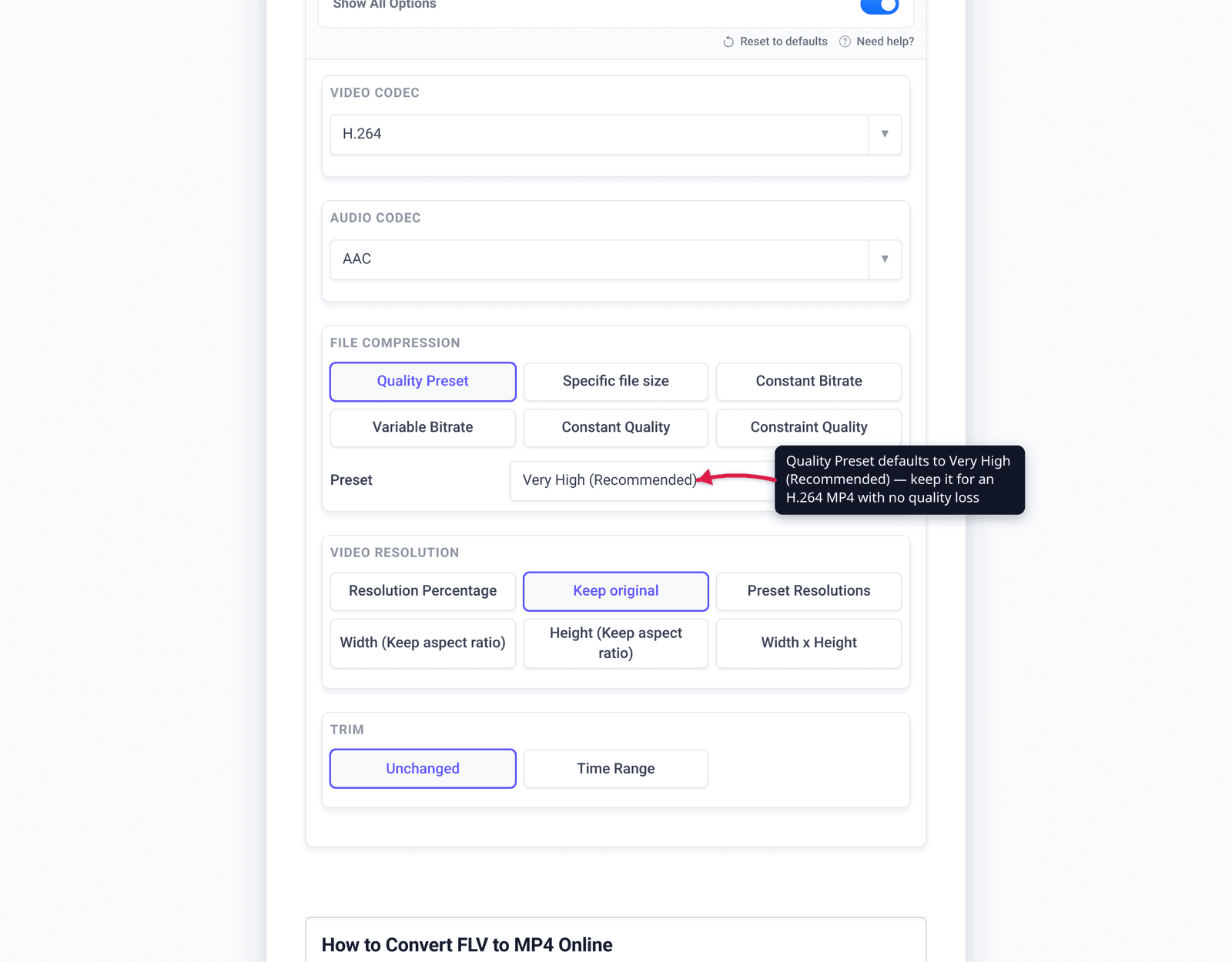
- To control the output, open Advanced Options (the gear icon). There you can set a Quality Preset (e.g. Very High (Recommended)), pick Preset Resolutions or a custom Video resolution, and choose how to set the rate — Constant Bitrate, Variable Bitrate, Constant Quality, or Constraint Quality.
- Use the Trim option with a Time Range if you only need part of the clip.
- Click Convert, wait for it to finish, then download your MP4. If you don’t like a result, Reset to defaults and try again.
Your file uploads over an encrypted connection, is processed on our servers, and is deleted automatically a few hours later. There’s no sign-up, and nothing is kept.
FAQ
Why won’t my FLV file play?
Because FLV depends on Adobe Flash Player, which Adobe ended on December 31, 2020 and blocked from running on January 12, 2021. Browsers removed the Flash plugin, and phones never supported it, so an .flv file has no modern runtime to play in. Convert it to MP4 and it plays everywhere again.
Does converting FLV to MP4 reduce quality?
Usually not. If your FLV already contains H.264 video (most do), the converter copies the stream straight into the MP4 container — a re-mux with zero quality loss. Only FLVs that use older codecs (Sorenson Spark / VP6) are re-encoded, and even then the loss is small and rarely noticeable at a high quality setting.
What’s the difference between FLV and MP4?
Both are container formats, but FLV was built for Adobe Flash and is now obsolete, while MP4 is the modern universal container. An MP4 holding H.264 + AAC plays in every browser, phone, and app; an FLV plays in almost nothing without special software. The video inside can be the same — only the wrapper changes.
Can I still play FLV without converting it?
Yes, with a dedicated player like VLC, which bundles its own decoders and opens most FLVs. But that’s a per-device workaround — you can’t embed an FLV on a web page or reliably share it. Converting to MP4 is the durable fix.
Will converting upscale or improve my old FLV video?
No. Conversion preserves the existing quality and makes the file playable — it cannot add resolution or detail the original never had. FLVs were often low-bitrate; the MP4 ceiling is whatever the source contains. Use a high quality setting so the conversion doesn’t lose anything.
Is FLV the same as F4V or SWF?
Not quite. F4V is a later Adobe format based on the MP4/ISO base media file format (closer to MP4 internally). SWF is a Flash application/animation file, not a video container. This converter targets the classic FLV video container; F4V and SWF are different cases.
Sources
Last verified 2026-06-25.
- Adobe — Flash Player end of life — Adobe stopped supporting Flash Player on Dec 31, 2020 and blocked Flash content from running on Jan 12, 2021.
- Flash Video (FLV) format record — FLV originated at Macromedia (2003), is maintained by Adobe, depends on Flash Player, and carries H.264/AVC, Sorenson Spark (H.263), VP6 video with AAC/MP3/Nellymoser audio. (Aggregator citing Adobe specs.)
- MDN — Media container formats — MP4 as the broadly supported modern container; container vs. codec distinction.
- H.264 vs H.265: which to use — background on the H.264 codec that FLV→MP4 conversions target.