 By Stephanie Taylor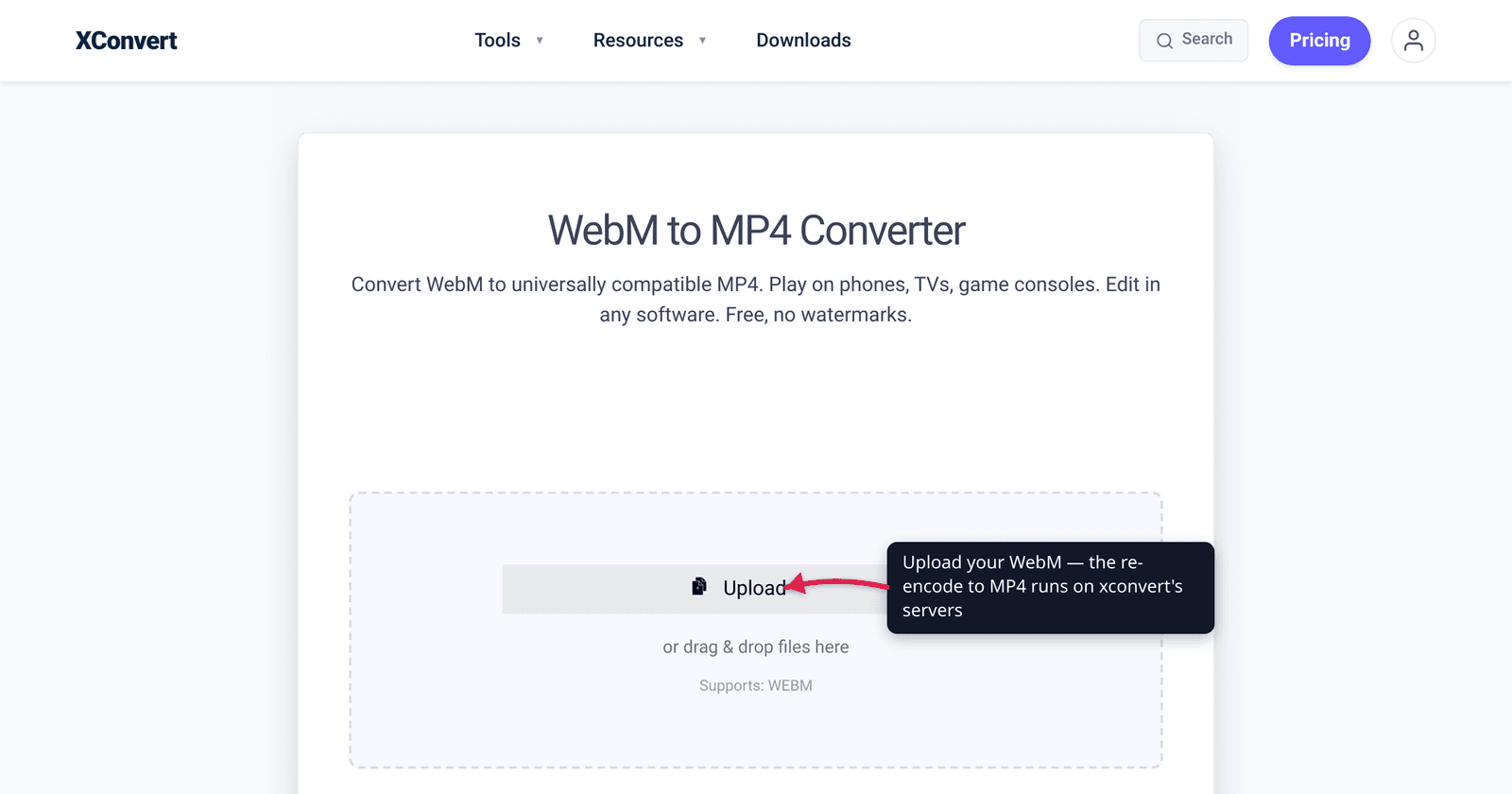
You downloaded a clip as a .webm — maybe from a screen recorder, a browser “save video as”, or a web app’s export — and now your video editor won’t import it, PowerPoint refuses to play it, or it just won’t open on an older phone. That’s WebM working exactly as designed: it’s Google’s open, web-native container, brilliant inside a browser and awkward almost everywhere else. The fix is to convert it to MP4 (H.264), the format that plays on essentially every device and editor on Earth. This guide explains why the wall exists, what the conversion actually does to your file, and how to do it cleanly. We verified the codec facts and compatibility claims against the WebM Project, MDN, caniuse, and Microsoft’s own docs.
Quick answer: WebM is an open, royalty-free container (VP8/VP9/AV1 video, Vorbis/Opus audio) built for web playback — but many video editors, older devices, and PowerPoint don’t support it, and Safari only added it recently. Converting WebM to MP4 (H.264) gives you near-universal compatibility. Because the two formats use different codecs, this is a true re-encode, not a quick rewrap — so use a high-quality setting to keep the loss invisible. On xconvert’s WebM to MP4 Converter, click Upload, leave the Quality Preset on Very High (Recommended), and click Convert.
Jump to a section
- What WebM actually is
- Why WebM won’t play (and MP4 will)
- Does converting lose quality?
- Convert WebM to MP4 on xconvert
- FAQ
What WebM actually is
WebM is a container format — a wrapper that holds a video stream, an audio stream, and metadata together in one file. It was launched by Google as open and royalty-free, “100% free, and open-sourced under a BSD-style license,” and its file structure is based on the Matroska container. The whole point was to give the web a high-quality video format nobody had to pay patent royalties to use.
Inside that wrapper, WebM is deliberately narrow about which codecs it allows:
- Video: VP8, VP9, and (more recently) AV1 — all open, royalty-free codecs.
- Audio: Vorbis and Opus — also open.
That’s the key thing to understand: WebM and MP4 are both containers, but they carry different codecs. An .mp4 file almost always holds H.264 (AVC) video with AAC audio — the universal pairing. WebM holds VP8/VP9/AV1 with Vorbis/Opus. So “WebM to MP4” isn’t just renaming the box; the video and audio inside have to be decoded and re-encoded into codecs MP4 uses. (For the full container-vs-codec breakdown, see MP4 vs WebM for web video.)
Why WebM won’t play (and MP4 will)
WebM is genuinely excellent inside a web browser — caniuse shows roughly 96% global support, and Chrome, Firefox, Edge, and Opera have played it natively for years. The problem is everything outside the browser, plus a few notable browser gaps:
| Where you’re trying to use it | WebM | MP4 (H.264) |
|---|---|---|
| Chrome / Firefox / Edge / Opera | Supported | Supported |
| Safari (macOS) | Only from Safari 16+ | Supported |
| Safari (iOS / iPadOS) | Only from iOS 17.4+ | Supported |
| Older phones / smart TVs / set-top boxes | Often unsupported | Near-universal |
| Most desktop video editors | Frequently can’t import | Universal |
| PowerPoint | Needs the Web Media Extensions add-on, and even then playback can be unreliable | Recommended format |
| Social / messaging uploads | Hit or miss | Accepted nearly everywhere |
Two things stand out. First, Safari was late — desktop Safari only gained WebM support in version 16.0 and mobile Safari in iOS 17.4, so anyone on an older iPhone or Mac simply can’t play your .webm. Second, the world outside browsers runs on MP4/H.264. Microsoft’s own documentation recommends “.mp4 files encoded with H.264 video and AAC audio” for PowerPoint, and lists WebM as supported only if you’ve installed the Web Media Extensions, with playback that may still fail. Most non-linear video editors are the same story: import an MP4 and it just works; import a WebM and you’re hunting for a plugin.
MP4 with H.264 is the lowest common denominator on purpose. If a device or app can play video at all, it can almost certainly play H.264. That’s why converting to MP4 is the reliable move whenever your audience or toolchain is anything other than “a modern web browser.”
Does converting lose quality?
Yes — a little, and here’s the honest reason. Because WebM (VP8/VP9/AV1) and MP4 (H.264) use different, incompatible codecs, there is no way to “just rewrap” the streams. The video has to be fully decoded and re-encoded into H.264, and any lossy re-encode discards some data. This is unavoidable for WebM → MP4; it’s not a flaw in any particular tool.
The good news: at a high-quality encode setting, the loss is visually negligible for normal viewing. A few practical points:
- Encode at high quality. A high bitrate or a high constant-quality setting keeps re-encoding artifacts below what your eye can detect. This is why leaving the Quality Preset on Very High is the safe default.
- You can’t recover detail WebM already threw away. Your WebM was itself a lossy encode. Converting won’t improve it — it can only preserve what’s there. Don’t expect a low-quality WebM to look better as MP4.
- The file size will usually change. H.264 is a slightly older, generally less efficient codec than VP9 or AV1, so a high-quality H.264 re-encode of an efficient WebM can come out a bit larger at matched quality. If you specifically need a smaller file afterward, you can constrain the output size during conversion. (Going the other direction — H.265/HEVC’s efficiency tradeoffs — is covered in H.264 vs H.265: which to use.)
So treat WebM → MP4 as a compatibility trade: you accept one careful re-encode in exchange for a file that plays everywhere. Done at a high preset, that trade is almost always worth it.
Convert WebM to MP4 on xconvert
The xconvert WebM to MP4 Converter handles the re-encode for you, with sensible defaults so you don’t have to think about codecs:
- Open xconvert.com/convert-webm-to-mp4 and click Upload to add your
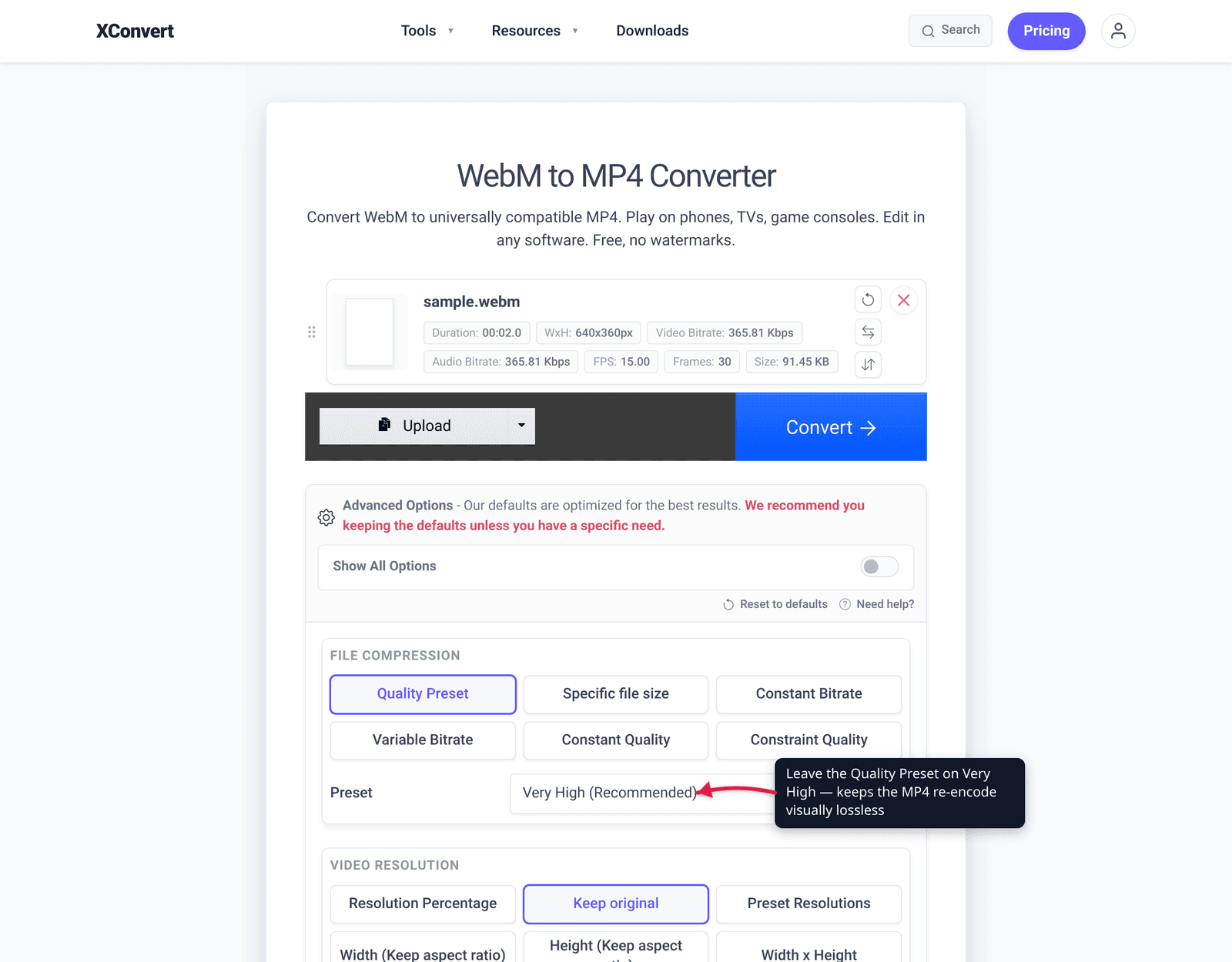
.webmfile (from your computer, Google Drive, or Dropbox). - To keep maximum quality, leave the Quality Preset on Very High (Recommended) — this is what makes the re-encode visually lossless for normal viewing.
- (Optional) Open Advanced Options if you want to control the output. Under File Compression you can switch from Quality Preset to Specific file size, Constant Bitrate, Variable Bitrate, or Constant Quality to hit a size or bitrate target.
- (Optional) Use Video resolution to downscale (Resolution Percentage, Preset Resolutions, or a custom Width/Height that keeps aspect ratio), or Trim to a Time Range if you only need part of the clip.
- Click Convert, then download your MP4 once it finishes.
Your file uploads over an encrypted connection, is processed on our servers, and is automatically deleted a few hours later. Nothing stays around.
Working with iPhone or QuickTime footage instead? See how to convert MOV to MP4 on Windows and Mac for that workflow.
FAQ
Why won’t my WebM file play or import?
Because WebM is a web-native container that many tools outside the browser don’t support. Most desktop video editors, older phones and TVs, and PowerPoint either can’t open it or need an extra plugin — and Safari only added WebM in version 16 (desktop) and iOS 17.4 (mobile). Converting to MP4 (H.264) fixes it because H.264 plays on essentially everything.
Is converting WebM to MP4 lossless?
No — it’s a true re-encode, so there’s some loss. WebM (VP8/VP9/AV1) and MP4 (H.264) use different, incompatible codecs, so the video must be decoded and re-encoded rather than simply rewrapped. At a high-quality preset the loss is visually negligible, but it’s never bit-for-bit identical.
Will the MP4 be bigger or smaller than the WebM?
It can go either way, but often slightly bigger at matched quality. H.264 (the codec inside most MP4s) is generally less efficient than VP9 or AV1, so a high-quality MP4 re-encode of an efficient WebM may come out larger. If you need a smaller file, set a Specific file size or lower bitrate in Advanced Options during conversion.
Does converting to MP4 improve the video quality?
No. Conversion can only preserve what’s already in the WebM — it can’t add back detail the original encode discarded. A blurry or low-bitrate WebM will look the same (at best) as an MP4, never better. Encode at a high setting to avoid making it worse.
Can I put a WebM into PowerPoint without converting?
Only sometimes, and unreliably. Microsoft lists WebM as supported only if you install the Web Media Extensions, and even then playback can fail. Microsoft’s recommended format is “.mp4 files encoded with H.264 video and AAC audio,” so converting to MP4 first is the dependable route.
Do I need to choose a codec when converting?
No — the converter outputs MP4 with H.264 by default, which is the universal-compatibility target you want. You only need to touch Advanced Options if you want to control file size, bitrate, resolution, or trim the clip.
Sources
Last verified 2026-06-25.
- The WebM Project — About — WebM is an open, royalty-free container based on Matroska; supports VP8/VP9 video and Vorbis/Opus audio; BSD-style license.
- MDN — Media container formats (file types) — WebM carries VP8/VP9/AV1 + Vorbis/Opus; MP4 carries H.264/AV1/VP9 + AAC/MP3/Opus; container vs codec distinction.
- caniuse — WebM video format — ~96% global support; Safari desktop from v16, mobile Safari from iOS 17.4; full support in Chrome/Firefox/Edge/Opera.
- Microsoft — Video and audio file formats supported in PowerPoint — recommends MP4 (H.264/AAC); WebM requires the Web Media Extensions add-on.
- xconvert WebM to MP4 Converter — real UI labels (Upload, Quality Preset / Very High, Advanced Options, File Compression modes, Video resolution, Trim, Convert).