 By Stephanie Taylor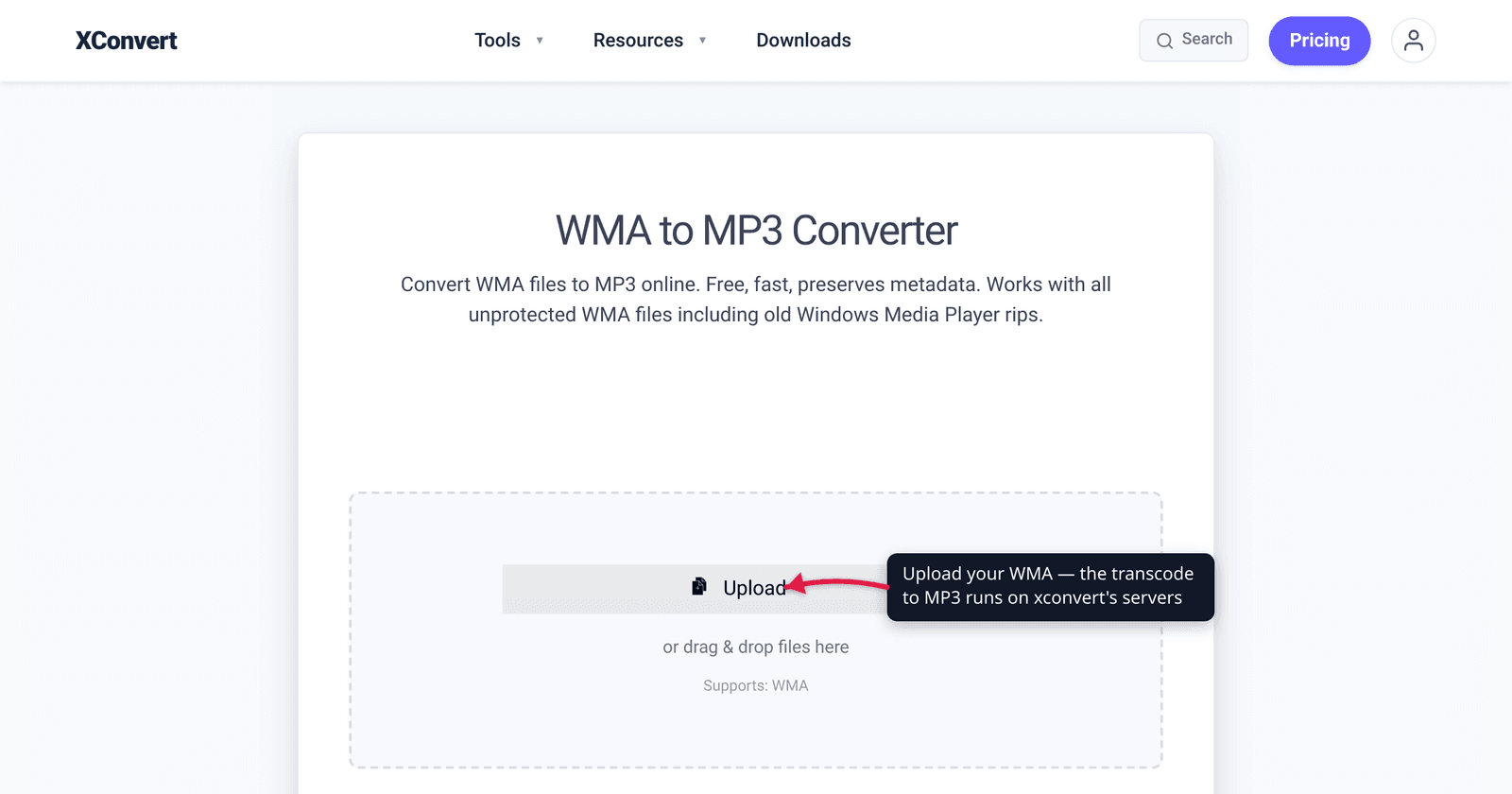
You copied an old folder of music off a Windows PC — ripped years ago in Windows Media Player — and now half of it won’t play. The .wma files refuse to open on your Mac, get rejected by your iPhone, and skip silently in many players. That’s not your fault: WMA is Microsoft’s proprietary audio format, and almost everything outside the Windows world treats it as a second-class citizen. Converting those files to MP3 fixes it permanently — MP3 plays in essentially every browser, phone, car stereo, and app on the planet. This guide covers what WMA is, why the conversion is worth doing, the one quality caveat, and how to convert in a few clicks — with the format facts verified against Microsoft’s history and the standards record.
Quick answer: WMA (Windows Media Audio) is Microsoft’s proprietary, lossy audio codec, stored in the ASF container and historically tied to Windows Media Player. It plays poorly outside Windows — Macs, iPhones, and many players can’t open it natively. Converting to MP3 makes the audio universally playable (MP3 is supported in ~96.7% of browsers and basically every device). The one caveat: WMA→MP3 is lossy→lossy, so it adds a small amount of generational quality loss — keep the bitrate high (use the Highest quality preset) and it’s inaudible for almost everyone. Two limits: it won’t work on DRM-protected WMA, and you can’t recover quality the WMA already discarded.
Jump to a section
- What WMA actually is
- Why convert WMA to MP3?
- The quality caveat: lossy to lossy
- DRM-protected WMA — the one thing that won’t convert
- Convert WMA to MP3 on xconvert
- FAQ
What WMA actually is
WMA stands for Windows Media Audio — an audio compression technology Microsoft introduced on August 17, 1999 as part of its Windows Media framework, positioned as a Windows-native alternative to MP3. A few facts worth knowing before you convert:
- It’s lossy. The standard WMA codec is “a lossy audio codec based on the study of psychoacoustics” — it permanently discards audio detail judged imperceptible to the human ear, exactly as MP3 does. (There’s also a separate WMA Lossless codec, plus WMA Pro and WMA Voice variants, but everyday
.wmafiles from CD rips are the standard lossy codec.) - It lives in the ASF container. A
.wmafile is wrapped in Microsoft’s Advanced Systems Format (ASF), a proprietary container that also carries the metadata — artist, track number, album — similar to MP3’s ID3 tags. - It’s proprietary to Microsoft. Unlike MP3, WMA is a Microsoft-owned technology. That ownership is the root of every compatibility headache below.
The practical upshot: WMA was designed for the Windows + Windows Media Player world, and that’s where it stayed. Outside it, support is patchy by design.
Why convert WMA to MP3?
One word: compatibility. WMA’s support outside Windows is genuinely poor:
| Platform | Native WMA support |
|---|---|
| Windows / Windows Media Player | Native (where it came from) |
| macOS | No native support — Microsoft last shipped Windows Media Player for Mac in 2003 and abandoned it; Apple Music/iTunes can’t import protected WMA, and modern macOS won’t play .wma out of the box |
| iPhone / iPad | No native support — Apple devices can’t play WMA; you must convert first |
| Android | “The core Android platform does not itself support WMA”; playback relies on third-party apps |
| VLC / Winamp | Plays it — but these are workarounds, not what most people have installed |
| Web browsers | Not a standard <audio> format |
Compare that to MP3, which is the closest thing to a universal audio standard there is:
- ~96.7% global browser support (caniuse) — it plays in every current version of Chrome, Safari, Firefox, and Edge.
- It plays natively on iPhone, iPad, Mac, Android, Windows, car stereos, smart speakers, and effectively every media app and player ever made.
- Its core patents expired in 2017, so MP3 is now royalty-free — one reason support is so total and durable.
So the trade is simple: you give up nothing you’ll miss (a WMA file you couldn’t play) and gain a file that plays anywhere. This is the same “legacy Windows Media format → universal modern format” move as converting a stranded .wmv video — see How to Convert WMV to MP4 for the video side of the same problem.
The quality caveat: lossy to lossy
Here’s the one honest caveat. Both WMA and MP3 are lossy codecs, so converting WMA → MP3 is a lossy-to-lossy transcode. The original WMA already threw away some audio data when it was first encoded; re-encoding to MP3 runs that already-reduced audio through a second lossy pass, which can introduce a small amount of additional (“generational”) loss.
In practice, this almost never matters, if you do two things:
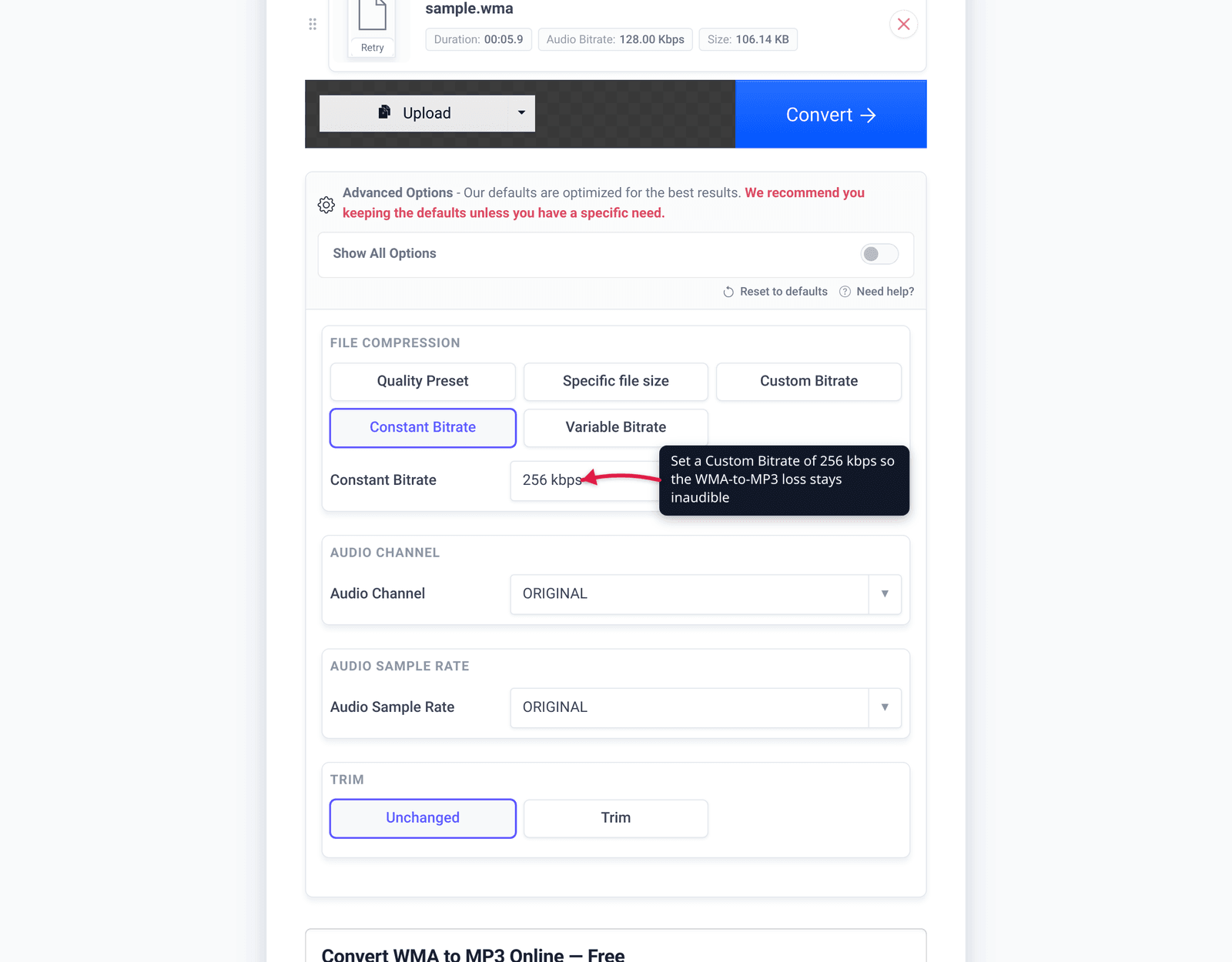
- Encode the MP3 at a high bitrate. On xconvert, leave the Quality Preset on Highest (or set a high Custom Bitrate like 256 or 320 kbps). The higher the target, the more headroom the MP3 has to faithfully reproduce what the WMA still contains — so the second-generation loss stays inaudible to almost everyone. If you want the full picture on what bitrate buys you, see MP3 bitrate: 128 vs 256 vs 320 kbps.
- Don’t expect to recover quality. Converting to a high bitrate can’t add back detail the WMA already discarded — it only preserves what’s there. Bumping a 96 kbps WMA up to a 320 kbps MP3 makes the file bigger without making it sound better. Match a sensible bitrate to the source.
The bottom line: a high-bitrate MP3 made from a decent-quality WMA is, for normal listening, indistinguishable from the original — and now it plays everywhere. For more on how lossy formats compare, see AAC vs MP3.
DRM-protected WMA — the one thing that won’t convert
Some WMA files — typically tracks bought from old Windows-era music stores or downloaded through subscription services — are wrapped in Windows Media DRM (digital rights management). The ASF container can carry DRM that ties a file to a specific authorized device or account.
DRM-protected WMA files cannot be converted by xconvert (or any general-purpose converter), because the encryption deliberately blocks copying the audio out. This isn’t a tool limitation — it’s the protection working as designed. The fix is to obtain a non-DRM copy (for example, re-download from a service that now offers unprotected files, or use the original purchase platform’s authorized export). xconvert’s converter explicitly works with all unprotected WMA files, including old Windows Media Player rips — which is the vast majority of personal .wma files. If a conversion fails, a DRM lock is the most likely reason.
Convert WMA to MP3 on xconvert
The xconvert WMA to MP3 converter does this on our servers with no software to install:
- Open xconvert.com/convert-wma-to-mp3 and click Upload (“Add files”) to add your
.wmafile — From my Computer, From Google Drive, or From Dropbox. You can add several at once to batch-convert a folder. - (Optional) Open Advanced Options (the gear). Set the Quality Preset — leave it on Highest to keep the audio crisp, or pick Custom Bitrate and choose Constant Bitrate or Variable Bitrate to dial in an exact value like 256 or 320 kbps.
- (Optional) Under Show All Options, the Audio Channel and Audio Sample Rate dropdowns default to ORIGINAL — leave them there to preserve the source. There’s also a Trim control if you want to cut to a section.
- Click Convert.
- Download your MP3 when it’s ready. (Hit Reset to defaults anytime to start over.)
Your file is uploaded over an encrypted connection, processed on our servers, and deleted automatically a few hours later. Nothing is kept.
FAQ
Why won’t my WMA file play on my Mac or iPhone?
Because WMA is a Microsoft-proprietary format and Apple devices don’t support it natively. Microsoft abandoned Windows Media Player for Mac back in 2003, and iPhones/iPads can’t open .wma at all. The reliable fix is to convert the file to MP3, which every Apple device plays out of the box.
Does converting WMA to MP3 lose quality?
A little, in principle — both are lossy formats, so it’s a lossy-to-lossy transcode and adds one extra generation of compression. In practice it’s inaudible to almost everyone if you encode the MP3 at a high bitrate (use the Highest preset, or 256–320 kbps). What you can’t do is recover quality the WMA already discarded — a high bitrate preserves the audio but can’t improve on the source.
What bitrate should I use for the MP3?
Match it to the source. For most music, 256–320 kbps (or the Highest preset) keeps the second-generation loss inaudible. There’s no point converting a low-bitrate WMA (say 96 kbps) up to 320 kbps — it only inflates the file size without adding quality. See 128 vs 256 vs 320 kbps for the trade-offs.
Will the conversion keep my song titles and artist names?
Yes — the converter preserves metadata. WMA stores its tags in the ASF container; MP3 carries the equivalent ID3 tags, so artist, title, album, and track number carry across.
Why does my WMA file fail to convert?
The most common reason is DRM protection. WMA files from old Windows music stores or subscription services can be locked with Windows Media DRM, which deliberately blocks copying or converting the audio. Unprotected WMA — including ordinary Windows Media Player CD rips — converts fine; protected files need a non-DRM copy first.
Is MP3 really supported everywhere?
Effectively, yes. MP3 is supported in ~96.7% of browsers (caniuse) and plays natively on virtually every phone, computer, car stereo, and media app. Its core patents expired in 2017, making it royalty-free — which is a big reason support is so universal and unlikely to ever go away.
Sources
Last verified 2026-06-25.
- Windows Media Audio — Wikipedia — WMA developed by Microsoft, first released 1999; standard codec is lossy; stored in the ASF container; four codec variants (Standard, Pro, Lossless, Voice); proprietary; Windows Media DRM; limited non-Windows support (Mac WMP abandoned after 2003, “core Android platform does not itself support WMA”).
- caniuse — MP3 audio format — ~96.7% global browser support; supported in current Chrome, Safari, Firefox, and Edge.
- The Register — MP3 key patents expire (2017) — MP3’s core patent licensing program terminated in April 2017, making the format royalty-free.
- xconvert — WMA to MP3 converter — the live tool: real UI labels (Upload/Add files, Advanced Options, Quality Preset, Custom Bitrate, Audio Channel, Audio Sample Rate, Trim, Convert); “works with all unprotected WMA files including old Windows Media Player rips.”