 By James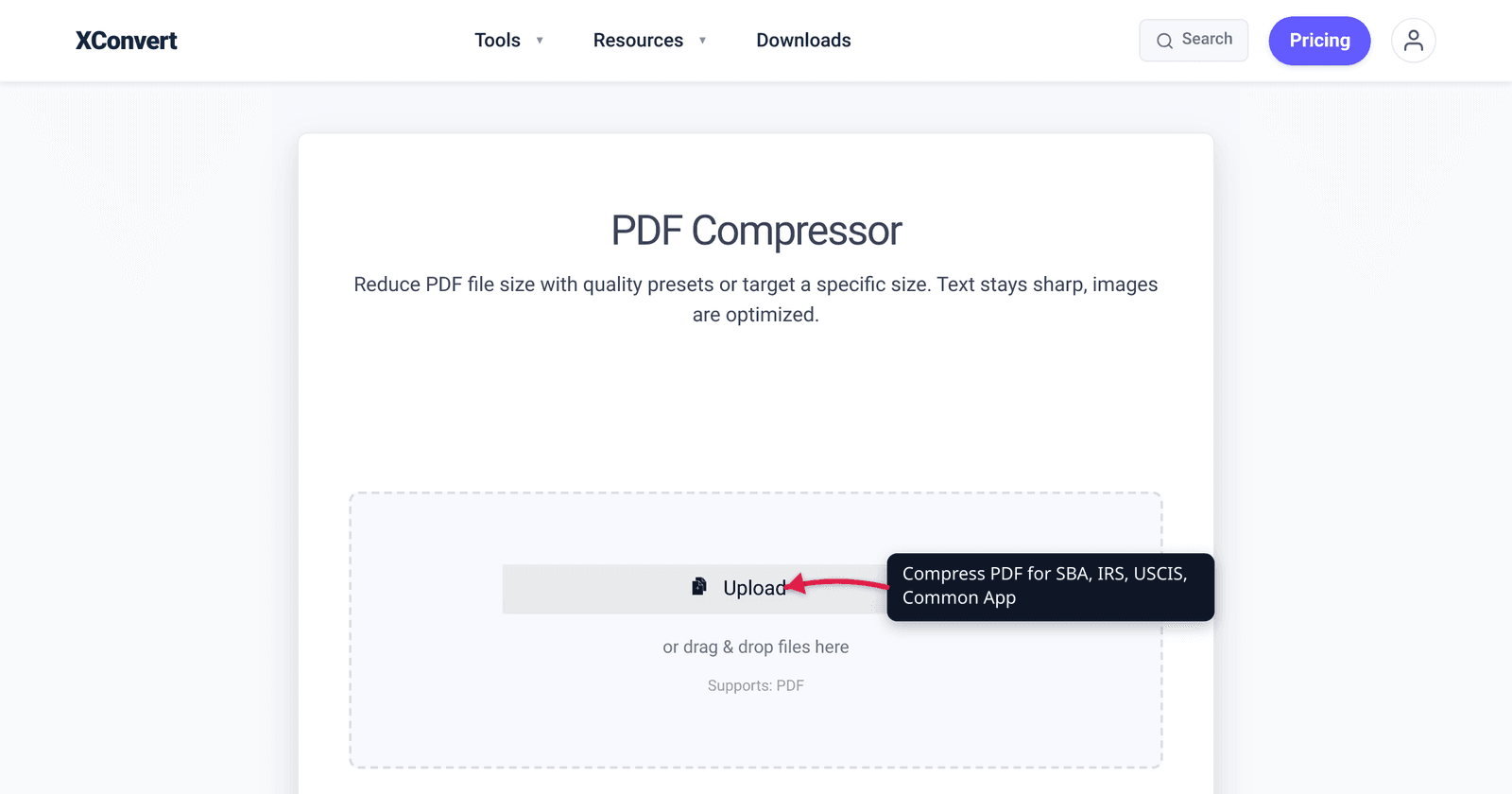
SBA: ~25 MB. IRS: 60 MB. USCIS: 12 MB. Common App: 2 MB. FAFSA: 5 MB. If you’re filing PDFs to a US government portal, the first question is “how big can it be?” — and the answers are scattered across two dozen agency docs. This guide consolidates the limits and gives you exact xconvert settings to fit each.
Quick answer: Government PDF size caps vary: SBA EIDL ~25 MB, IRS e-file 60 MB, USCIS 12 MB, Common App 2 MB, FAFSA 5 MB. Use xconvert’s PDF Compressor: pick a Compression Type preset (Ebook for a balanced first pass, Screen (Best) for the tightest caps), compress, and check the size it reports against your portal’s cap. Most filings fit on the first or second preset.
Jump to a section
- Government portal PDF size limits (2026)
- Why your scanned PDF is so big
- Compression strategies by content type
- Step by step in xconvert
- Worked examples by portal
- What to do when it still won’t fit
- FAQ
Government portal PDF size limits (2026)
US government and quasi-government portals:
| Portal | Per-file cap | Notes |
|---|---|---|
| USCIS myUSCIS (current) | 12 MB | See our USCIS-specific guide |
| NVC CEAC (visa applications) | 2 MB | Stricter than USCIS — different agency |
| SBA EIDL / 7(a) / 504 portals | Not officially published; ~25 MB practical | SBA’s CAFS doesn’t document a user-facing cap |
| IRS e-file (1040, 1099, etc.) | 60 MB per PDF, 1 GB combined | Most third-party tax software caps each attachment at 5 MB |
| Common App (college applications) | 2 MB per file (~2,000 KB) | Strict; aggressive compression often needed |
| FAFSA (financial aid) | Varies by institution (no FAFSA-wide cap) | Each school’s portal sets its own limit |
| TSA Trusted Traveler / Global Entry | ~1 MB per file (community-reported) | CBP doesn’t publish a cap; uploads commonly fail above 1 MB |
| State professional licensing portals | Varies; typically 5–10 MB | Each state different |
| Court e-filing (federal CM/ECF) | 25–35 MB depending on district | Multiple-page court filings |
| Patent/Trademark (USPTO) | 25 MB per filing | Specifications, drawings |
The common-denominator target: if you compress to 5 MB, you fit most of these portals without per-portal tuning.
Why your scanned PDF is so big
Three causes:
1. High DPI scanning. Office scanners default to 600 DPI color, which produces 4–5 MB per page. Most documents only need 200–300 DPI for legibility.
2. Color when grayscale would work. A 10-page typed letter scanned in color is 50 MB; the same in grayscale is ~7 MB.
3. Embedded high-res photos. PDFs with embedded high-resolution photos (passport, ID scans) inflate even if the text portions are well-compressed.
xconvert’s PDF compressor automatically applies all three optimizations.
Which preset to pick, by content type
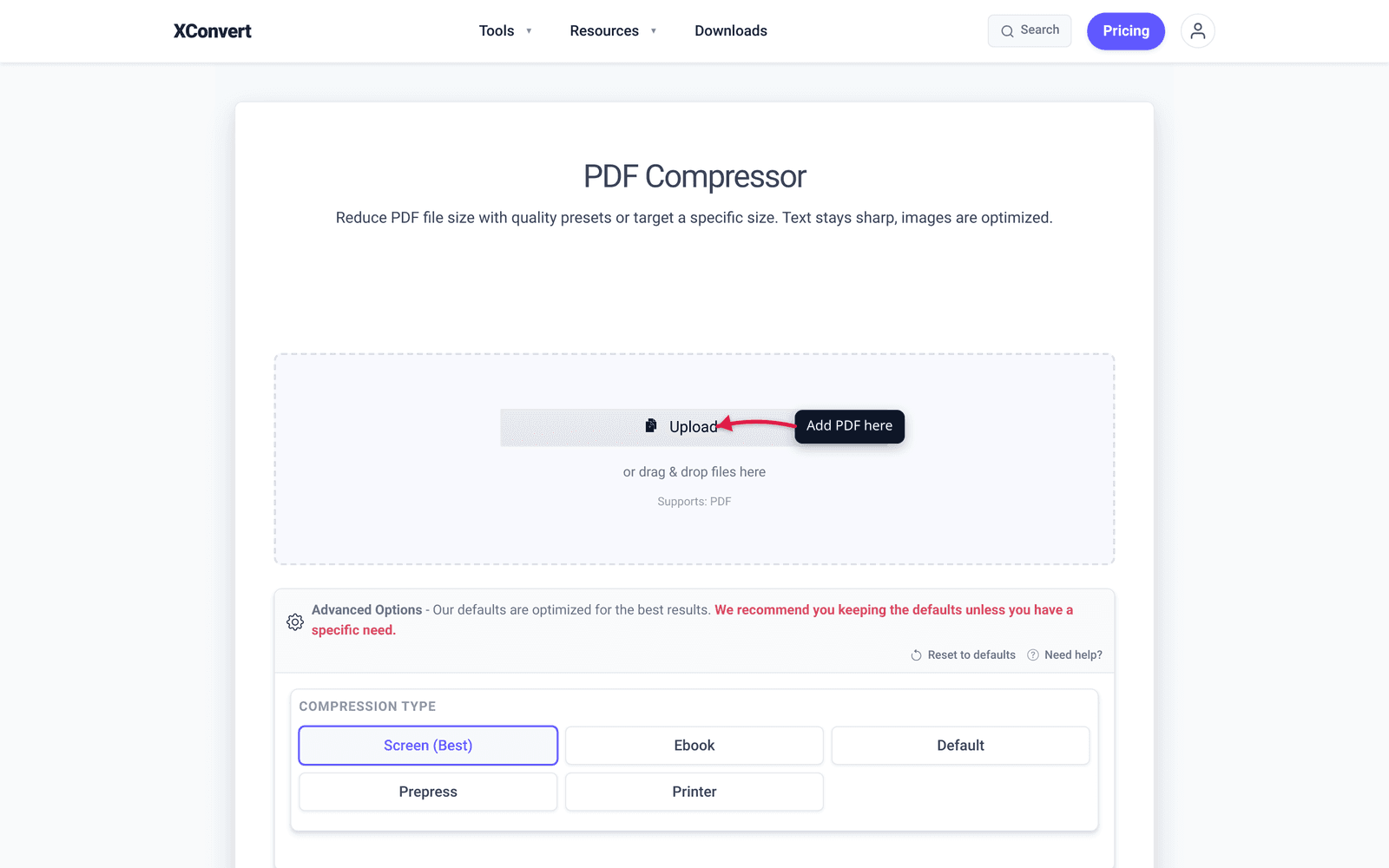
xconvert’s PDF compressor exposes one decision: the Compression Type preset — Screen (Best), Ebook, Default, Prepress, or Printer. Each preset bundles the image downsampling and re-encoding for its target use (Screen ≈ 72 DPI images for on-screen reading, Ebook ≈ 150 DPI, Printer/Prepress ≈ 300 DPI for print). You don’t tune DPI or JPEG quality by hand — you pick the preset that matches where the PDF is going:
| Content | Preset to try first | Why |
|---|---|---|
| Text-only document (typed letter, contract) | Screen (Best) | Text stays vector-sharp at any preset; there’s little image data to protect |
| Mixed text and signatures | Ebook | 150 DPI keeps signature strokes clean |
| Photos / IDs / passport scans | Ebook | IDs must stay legible; drop to Screen only if the cap forces it |
| Form with photo evidence (tax return, application) | Ebook, then Screen if over the cap | Balanced first pass, tightest pass second |
| Anything going to print | Printer | Keeps 300 DPI; largest output — only when the portal has no tight cap |
Per the tool’s own published figures, image-heavy PDFs typically shrink 60–90% on Screen and 40–70% on Ebook; text-heavy files shrink less because there’s little image data to remove.
Step by step in xconvert
- Open xconvert.com/compress-pdf.
- Click Upload and pick your PDF (from your computer, Google Drive, or Dropbox).
- In Advanced Options, pick a Compression Type preset — Ebook is the balanced first pass; Screen (Best) is the strongest squeeze.
- Click Compress. Wait — large PDFs take 10–60 seconds.
- Check the output size the tool reports against your portal’s cap.
- Over the cap? Re-run the original on the next-stronger preset (Ebook → Screen). Still over? Pre-shrink the source images before merging (see the fallback options) or split the file.
- Open the compressed PDF and confirm text is readable before you upload it.
There’s no exact-megabyte target box on this tool — the preset decides the compression, and you verify the number it reports. (If your filing is built from photos, the image compressor does take a Specific file size with Auto Scale — shrink the images first, then merge.)
Worked examples by portal
Example 1: SBA EIDL Application (25 MB cap)
Source: Combined PDF with cover letter + 24-month bank statements + tax returns. Originally 35 MB (high-res scans).
Target: under 25 MB, with headroom.
Settings: Compression Type → Ebook. Bank statements and tax returns are image scans, and per the tool’s published ranges Ebook typically cuts image-heavy PDFs 40–70% — a 35 MB set usually lands comfortably under the cap. Check the reported size; if it’s still over, re-run the original on Screen (Best).
Example 2: Common App SAT Score Upload (2 MB cap)
Source: Scanned SAT score report. 4 MB.
Target: under 2 MB.
Settings: Compression Type → Screen (Best). A tight 2 MB cap calls for the strongest preset straight away; a 4 MB single-document scan typically halves or better on Screen (the tool’s published image-heavy range is 60–90%). Verify the reported size, then open the file and confirm the scores are still crisp before uploading.
Example 3: USCIS Evidence Submission (12 MB cap)
See USCIS Merge PDF guide for the dedicated workflow.
Example 4: NVC CEAC (2 MB cap, very tight)
Source: Marriage certificate + supporting financial docs PDF. Originally 8 MB.
Target: under 2 MB — the tightest common cap against an 8 MB source.
Settings: Compression Type → Screen (Best), and expect to need a second lever. An 8 MB → 2 MB squeeze (75%) sits at the top of the published Screen range, so it may not fit in one pass. If the first pass lands around 3 MB, don’t hunt for a stronger setting — there isn’t one. Either split the document into two files under 2 MB each with the split PDF tool, or rebuild smaller: run the source images through the image compressor (Specific file size + Auto Scale) and re-merge — that route gives you the exact per-image budget this portal demands.
Example 5: IRS Schedule with Attachments (5 MB practical cap)
Source: Schedule C with receipts and supporting documentation. 12 MB.
Target: under 5 MB.
Settings: Compression Type → Screen (Best). Receipts photographed or scanned in color carry a lot of removable image data — a 12 MB → under-5 MB cut (≈60%) is inside the published Screen range for image-heavy files. Verify the reported size; receipts should stay readable, but open the output and zoom on the smallest print before you attach it.
What to do when it still won’t fit
If aggressive compression still doesn’t fit:
1. Split into multiple files. Most portals accept multiple PDFs in the same submission slot. Split a 4 MB compressed file into two 2 MB files using xconvert’s split PDF tool.
2. Re-scan at lower resolution. If the source TIFF was 600 DPI, re-scan at 200 DPI for text-only documents. The size reduction is dramatic.
3. Re-take photos of physical documents. A phone camera shot at 12 MP saves to a 5 MB JPG. Combined into a PDF at 200 DPI equivalent, it’s typically 1–2 MB per page — much smaller than scanner output.
4. Use grayscale aggressively. For text-only legal documents, grayscale + 200 DPI gives 80% size reduction with no loss of legibility.
5. Convert to text-searchable PDF. OCR-then-strip-images can produce a PDF with selectable text and minimal embedded images — typically very small files. Tools like Adobe Acrobat or ABBYY FineReader handle this.
Frequently Asked Questions
Will government portals accept my compressed PDF?
Yes — government portals don’t care about how the PDF was produced or compressed; they care about the final file. As long as the compressed PDF is readable (text legible, images clear enough), it passes. The only issue: if compression introduces visible artifacts that obscure data, the reviewer may issue a Request for Additional Information.
Can I OCR after compressing?
Yes. Tools like Adobe Acrobat, ABBYY, or open-source ocrmypdf can add a searchable text layer to a compressed PDF without re-running compression. The text layer adds ~5–10% to the file size but preserves searchability.
What if the portal rejects my PDF?
Common causes: (1) password-protected — remove encryption first, (2) embedded fonts not embedded in the PDF — re-export from your source application with “Embed all fonts” enabled, (3) PDF version too new — convert to PDF/A or PDF 1.4 for maximum compatibility.
Should I use PDF/A for government submissions?
PDF/A is a standard for archival. Some courts require it; most general government portals do not. If you’re filing a court document, check the local rule. For SBA, IRS, USCIS, and similar, regular PDF works.
Why does my compressed PDF look slightly blurry?
PDF compression at very small targets uses JPEG-encoded images at low quality, which produces visible blur. The trade-off is unavoidable below a certain size:quality ratio. For text-heavy documents, scanning in grayscale in the first place preserves text crispness much better than squeezing a color scan with aggressive compression.
Does compressing remove form-fillable fields?
If your PDF has fillable form fields (XFA or AcroForm), aggressive compression can flatten them into static images. Check after compression: if you can still tab through fields and type in them, the form structure is preserved. If not, you’ll need to use a less aggressive compression approach.
Can I batch-compress multiple PDFs?
xconvert’s PDF compressor accepts multiple files at once — drag-drop several PDFs and they’ll all be compressed with the same settings. Output is a ZIP with all compressed PDFs.
Try it now
Compress a PDF for government portal submission with xconvert PDF compressor. For specific portal guidance, see USCIS Merge PDF (12 MB) for the most-detailed walkthrough on the most popular government portal.
Related guides
- Combine Documents Into One PDF for USCIS Upload (12 MB)
- Compress TIFF for Email: Smaller Scans, Crisp Text
Sources
Last verified 2026-05-19.
- IRS — e-File Providers
- SBA — Small Business Administration
- Common App — Apply
- Federal Student Aid Help Center