 By Stephanie Taylor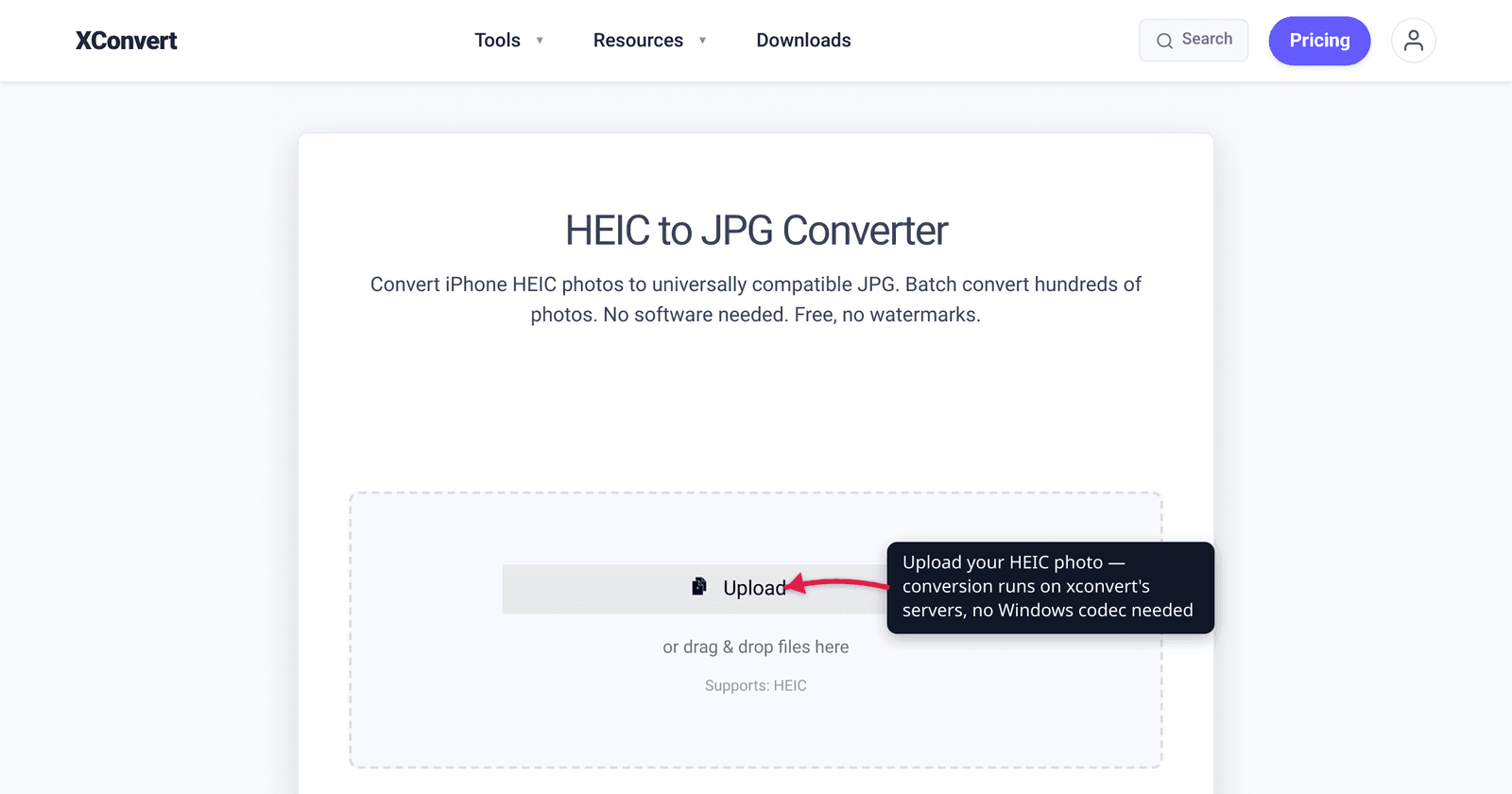
You double-click a .heic photo your iPhone-using friend just emailed you, and Windows shrugs — a generic icon, or the Photos app asking you to install something from the Store. HEIC is the format every recent iPhone shoots by default, and Windows still doesn’t open it cleanly out of the box. The good news: there are two reliable fixes, and one of them works on any PC with no install at all. This guide explains why HEIC won’t open on Windows, walks through the Microsoft codec route (and its $0.99 catch), and shows the universal fix — convert to JPG. We verified the codec situation against the Microsoft Store and the iPhone settings path against Apple Support.
Quick answer: HEIC files are Apple’s HEIF images compressed with HEVC (H.265) — the iPhone’s default since iOS 11 (2017). Windows doesn’t decode them out of the box; you need Microsoft’s HEIF Image Extensions (free) plus the HEVC Video Extensions (a paid $0.99 Store add-on) — and even installing them can be finicky. The no-install, works-everywhere fix is to convert HEIC → JPG. To stop the problem at the source, set your iPhone to shoot JPEG: Settings > Camera > Formats > Most Compatible.
Jump to a section
- Why HEIC won’t open on Windows
- Option 1: install the Microsoft codecs
- Option 2: convert HEIC to JPG (the universal fix)
- Option 3: make your iPhone shoot JPEG instead
- Which option should you pick?
- Convert HEIC to JPG on xconvert
- FAQ
- Sources
Why HEIC won’t open on Windows
HEIC is the file extension Apple uses for HEIF images (High Efficiency Image File Format, ISO/IEC 23008-12) whose pixel data is compressed with the HEVC / H.265 codec — the same compression family used for modern video. Apple adopted it in iOS 11 in 2017 and made it the default capture format on iPhone 7 and later, because at the same visual quality a HEIC is roughly half the size of a JPEG. Great for your storage and iCloud bill — until a file leaves the Apple world.
Windows can’t read HEIC out of the box because it ships without an HEVC decoder. Two pieces are missing:
- The HEIF container reader — so Windows understands the
.heicwrapper. - The HEVC decoder — so it can actually decompress the image inside.
HEVC is patent-encumbered, which is why Microsoft doesn’t bundle a decoder with Windows by default and instead gates it behind a separately installed (and, for the video extension, paid) Store package. As of 2025, even Windows 11 does not open HEIC natively in the Photos app without adding these components — there’s no true out-of-the-box support. That’s the whole reason your double-click does nothing.
Option 1: install the Microsoft codecs
The “make Windows itself open HEIC” route means installing two extensions from the Microsoft Store so File Explorer and the Photos app can render .heic thumbnails and previews:
| Extension | Cost | What it does |
|---|---|---|
| HEIF Image Extensions | Free | Lets Windows read/write the HEIF container |
| HEVC Video Extensions | $0.99 (paid) | Provides the HEVC/H.265 decoder the image needs |
The catch most guides bury: HEIF Image Extensions alone is not enough. A HEIC photo’s data is HEVC-compressed, so without the HEVC decoder Windows still can’t display it. And the standard HEVC Video Extensions package is a paid $0.99 add-on in the Microsoft Store.
There used to be a free workaround — a package called “HEVC Video Extensions from Device Manufacturer” that Microsoft published at no charge — but Microsoft removed it from easy Store discovery, so for most people the practical price of the codec route is $0.99. Some users also report the Store blocking the install entirely depending on region or account. None of this is a problem if you control the PC and don’t mind paying a dollar once; it’s a real friction if you’re on a work machine, a locked-down PC, or just want a one-off photo opened now.
Option 2: convert HEIC to JPG (the universal fix)
The simplest fix that works on any computer — no codec, no Store, no admin rights — is to convert the HEIC to JPG. JPEG is the 1992 baseline image standard that essentially every program, browser, and operating system on earth can open. Once a photo is a .jpg, Windows Photos, Paint, Word, email previews, and every website read it without a second thought.
This is the right move when:
- You just need to see or share the photo, not edit a giant library.
- You’re on a PC you don’t control (work, school, a friend’s machine) where you can’t install Store apps.
- You’re sending the photo onward — to the web, to a non-Apple recipient, into a form upload — where HEIC would fail at the other end too.
You do lose HEIC’s size advantage (the JPG will usually be larger), and JPEG can’t carry HEIC extras like depth maps or Live Photo motion. For a snapshot you want to view, print, or send, none of that matters. See our companion piece, HEIC vs JPG for iPhone photos, for when it’s worth keeping HEIC versus converting.
You can convert one photo or a whole batch at once with the xconvert HEIC to JPG converter — steps below.
Option 3: make your iPhone shoot JPEG instead
If the photos are coming from your own iPhone and they keep tripping up Windows, the cleanest long-term fix is to stop producing HEIC in the first place. Apple lets you switch the capture format:
Settings > Camera > Formats > Most Compatible.
Per Apple Support, Most Compatible captures new photos and videos as JPEG and H.264 instead of HEIF/HEVC — universally readable on Windows from the moment they’re taken. The trade-off is larger files and the loss of the storage savings; switch back any time with High Efficiency (the default). This only affects new photos — anything already shot in HEIC still needs converting (Option 2).
A useful detail: even with High Efficiency set, AirDropping or syncing a photo to a non-Apple destination, or sharing it through some apps, will sometimes hand off a JPEG copy automatically. But to guarantee JPEGs every time, Most Compatible is the setting.
Which option should you pick?
- One photo, or a PC you can’t modify → Convert to JPG (Option 2). Fastest, free, no install, works anywhere.
- Your own Windows PC and you handle iPhone photos constantly → pay the $0.99 for the HEVC Video Extensions plus the free HEIF Image Extensions (Option 1) so Windows opens HEIC everywhere. Then convert only when you need to send a file onward.
- It’s your iPhone and you’d rather never deal with this again → switch to Most Compatible (Option 3) so new shots are JPEG from the start, and convert your existing HEIC backlog once.
Most people landing here want one stubborn .heic opened right now — so convert to JPG and move on.
Convert HEIC to JPG on xconvert
The xconvert HEIC to JPG converter handles a single photo or a whole folder, with no codec to install:
- Open xconvert.com/convert-heic-to-jpg and click + Add Files to add your photos — from your computer, Google Drive, or Dropbox. You can drag-and-drop a batch.
- (Optional) Open Advanced Options (the gear icon). The defaults are tuned for best results, but you can pick a Quality Preset (Very High is recommended), resize with Resolution Percentage or a preset, or confirm the output extension is JPG.
- Click Convert.
- Download each photo, or grab them all as a single ZIP if you converted a batch.
Your files upload over an encrypted connection, are processed on our servers, and are deleted automatically a few hours later — nothing is kept.
FAQ
Why won’t my HEIC file open on Windows?
Because Windows ships without an HEVC decoder. HEIC photos are HEIF images compressed with HEVC (H.265), and Windows needs Microsoft’s HEIF Image Extensions plus the HEVC Video Extensions to read them — neither is installed by default, and even Windows 11 doesn’t open HEIC natively out of the box. The quickest workaround is to convert the file to JPG.
Is opening HEIC on Windows free?
The HEIF Image Extensions is free, but the HEVC Video Extensions you also need is a paid $0.99 Microsoft Store add-on. A formerly-free “HEVC Video Extensions from Device Manufacturer” package existed but Microsoft removed it from easy Store discovery. Converting HEIC to JPG is free and needs no install at all.
Does Windows 11 open HEIC files by default?
No. As of 2025, Windows 11 still does not open HEIC in the Photos app without first installing the HEIF and HEVC extensions from the Microsoft Store. There’s no true out-of-the-box native HEIC support.
How do I stop my iPhone from saving photos as HEIC?
Go to Settings > Camera > Formats and choose Most Compatible. Per Apple, new photos will then be saved as JPEG instead of HEIC. This only affects photos taken after you change it — existing HEIC files still need converting.
Do I lose quality converting HEIC to JPG?
Both formats are lossy, so a conversion re-encodes the image, but at a high quality setting the difference is visually negligible for normal viewing, sharing, and printing. The bigger change is file size — the JPG is usually larger than the HEIC because JPEG compresses less efficiently. For details on the tradeoff, see HEIC vs JPG for iPhone photos.
Can I convert many HEIC files at once?
Yes. Upload a whole batch to the xconvert HEIC to JPG converter, convert them in one go, and download the results as a single ZIP file.
Sources
Last verified 2026-06-25.
- Apple Support — Using HEIF or HEVC media on Apple devices — confirms iOS 11 / macOS High Sierra introduced HEIF/HEVC, default capture on iPhone 7 and later, and the exact Settings > Camera > Formats > Most Compatible path to shoot JPEG/H.264.
- Microsoft Store — HEIF Image Extensions — the free extension that lets Windows read the HEIF container.
- Microsoft Store — HEVC Video Extensions — the paid ($0.99) HEVC decoder package required alongside it.
- Adobe — Download and install HEIC or HEVC codecs — confirms both the HEIF Image and HEVC Video extensions are needed on Windows.
- Tom’s Hardware — How to open HEIC files in Windows 11 — confirms Windows 11 requires installing the codecs and has no native out-of-the-box HEIC support.