 By James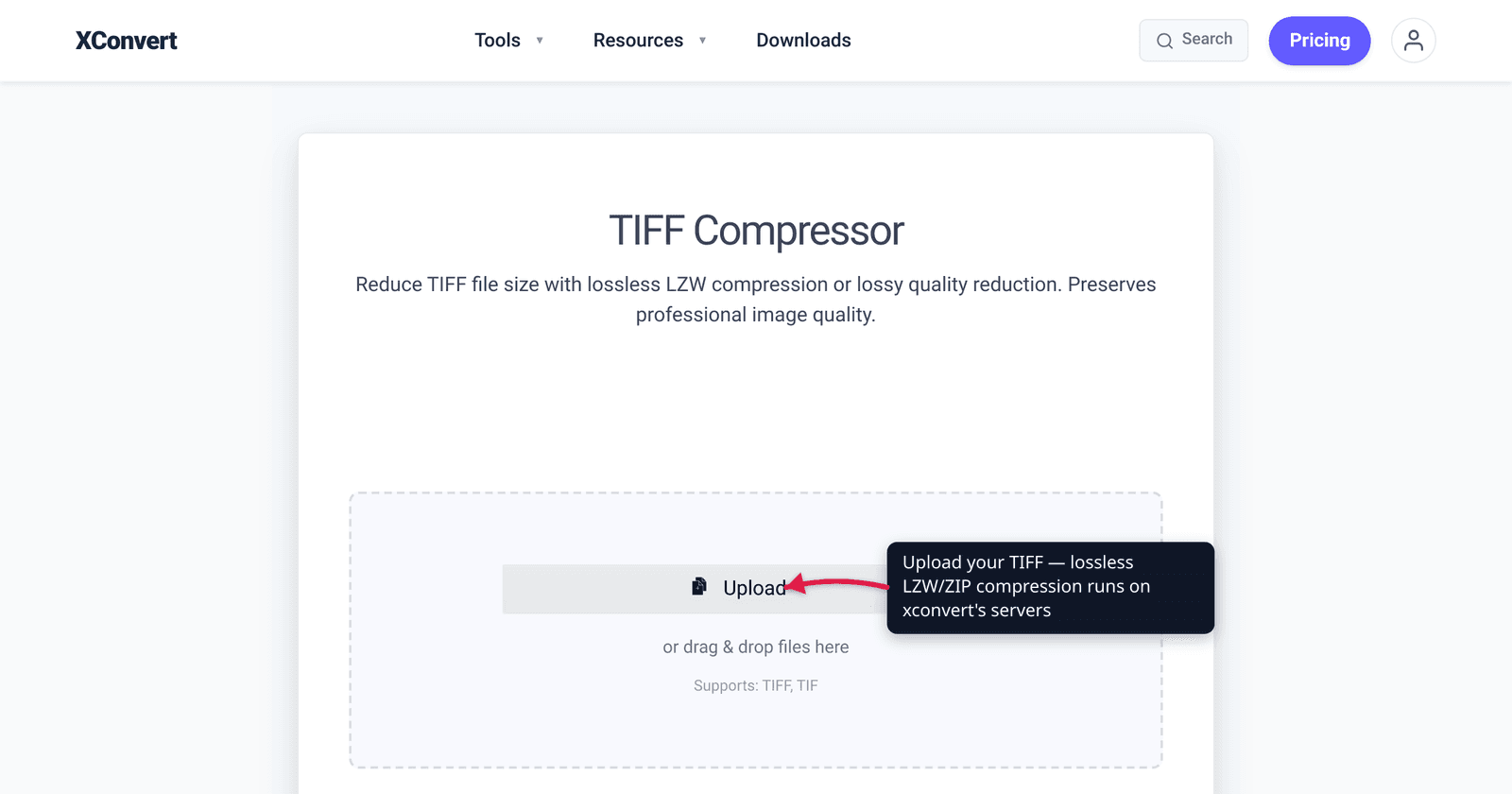
A 600 DPI color scan saved as an uncompressed TIFF can easily run 20 MB or more per page — fine for an archive, awkward for email, OneDrive, or a shared folder. The frustrating part on Windows is that the tools sitting right in front of you don’t really help: Paint and the Photos app can open a TIFF and resize it, but neither lets you choose a TIFF compression method like LZW or ZIP, and the new Windows 11 “compress” feature just re-encodes as JPEG. This guide covers what actually shrinks a TIFF on Windows — lossless LZW/ZIP, cutting resolution or bit depth, and a server-side tool for exact target sizes — and is honest about where the built-in apps fall short. We verified the TIFF compression facts against the Library of Congress format registry and the Adobe/Aldus TIFF 6.0 specification.
Quick answer: To shrink a TIFF on Windows with zero quality loss, re-save it with LZW or ZIP/Deflate lossless compression (typically ~50% smaller for an uncompressed 8-bit photo). Windows Paint and Photos can’t pick a TIFF compression method, so use an app that can (IrfanView, GIMP, Photoshop) or compress TIFF online. For a dramatic cut, the real levers are lowering resolution/bit depth or converting to JPG/PDF — lossless compression alone won’t halve a 600 DPI scan. On a Mac instead? See the macOS TIFF guide.
Jump to a section
- What “compress a TIFF” actually means
- Why Windows Paint and Photos don’t really help
- The Windows methods that work
- LZW vs ZIP, and reducing resolution
- Compress a TIFF on xconvert
- FAQ
What “compress a TIFF” actually means
TIFF (Tagged Image File Format) was created by Aldus in 1986 and has been maintained by Adobe since it acquired Aldus in 1994; the current TIFF 6.0 specification was finalized in June 1992. Crucially, TIFF is a container — it can hold image data compressed several different ways, which is why “compress a TIFF” is really three different jobs.
| Compression | Type | What it does |
|---|---|---|
| None | Uncompressed | Largest possible file; every pixel stored raw |
| LZW | Lossless | No quality loss; ~50% smaller on an 8-bit photo |
| ZIP / Deflate | Lossless | Often beats LZW on photos and 16-bit images |
| PackBits | Lossless | Simple run-length encoding; baseline TIFF |
| CCITT Group 4 | Lossless (bilevel) | Black-and-white scans only |
| JPEG | Lossy | Smallest TIFF, but discards image data permanently |
Two facts do most of the work here. LZW and ZIP are lossless — they reconstruct every pixel exactly, so there’s no quality loss, but the savings are modest (commonly around 50% on an uncompressed 8-bit color photo, less on already-compressed or noisy images). JPEG-in-TIFF is lossy — much smaller, but it throws away the archival fidelity that made TIFF worth choosing. LZW is dictionary-based (Lempel–Ziv–Welch); it was added in TIFF Revision 5.0 and is classified as an Extension in the Adobe specification, though virtually every TIFF reader supports it. The old Unisys LZW patents expired in 2003–2004, so there’s no longer any licensing concern with using it. (Sources: Library of Congress TIFF format description, TIFF on Wikipedia.)
If you want a deeper look at how the lossless algorithm itself works, see What is LZW compression for TIFF.
Why Windows Paint and Photos don’t really help
This is the honest part most “compress TIFF on Windows” articles skip. The apps built into Windows give you almost no control over TIFF compression:
- Microsoft Paint can open a TIFF and save it back as
.tiff, but it does not expose a compression-method dialog — there’s no LZW vs ZIP vs None choice the way Photoshop or IrfanView offer. Microsoft doesn’t publicly document Paint’s TIFF save behavior, so you can’t reliably control whether (or how well) it compresses. Paint’s Resize tool does shrink files — but only by changing the pixel dimensions, which lowers resolution. - The Photos app is a viewer; it has no TIFF compression-method control either.
- Windows 11’s newer “compress” feature (in the Share UI / Photos) reduces size by lowering the JPEG encoding quality — it re-encodes to a smaller JPEG rather than producing a smaller TIFF. That’s lossy, and the output isn’t a TIFF anymore.
So if your goal is a smaller TIFF — same format, lossless — you need a tool that actually lets you set the compression method. On Windows that means a third-party app (IrfanView and GIMP are free; Photoshop if you have it) or an online tool. The native apps are fine only when you’re willing to (a) change the pixel dimensions, or (b) convert away from TIFF entirely.
The Windows methods that work
Here are the realistic paths, fastest first:
1. Online — set an exact compression method or target size. No install, and the only no-friction way to say “make this exactly 5 MB” or apply lossless LZW/ZIP to a TIFF. Covered step-by-step in the tool section below.
2. IrfanView (free) — keep TIFF, pick the compressor. Open the file, choose File → Save As, select TIFF as the type, and IrfanView shows a TIFF save dialog where you can pick LZW, ZIP/Deflate, PackBits, JPEG, or None. This is the closest free desktop equivalent to Photoshop’s “TIFF Options” box and the most direct way to re-save a TIFF losslessly on Windows.
3. GIMP (free) — export with a compression choice. Open the TIFF, choose File → Export As, keep the .tif/.tiff extension, and in the export dialog pick a Compression option (None, LZW, PackBits, or Deflate/ZIP). Lossless by default unless you choose JPEG.
4. Paint (built in) — only if you accept lower resolution. Open the TIFF in Paint, use Resize (Percentage or Pixels) to reduce the dimensions, and save. This genuinely shrinks the file, but it’s downscaling, not lossless compression — you’re permanently reducing detail. Use it only when the image is larger on screen than you need.
5. Convert to JPG or PDF — for the biggest cut. If you don’t need to keep TIFF, converting a photographic scan to JPG, or a multi-page document scan to PDF, almost always beats squeezing the TIFF itself.
LZW vs ZIP, and reducing resolution
Once you can choose a compression method, two quick rules help:
- 8-bit images (most color and grayscale scans): LZW and ZIP both work; ZIP often edges out LZW on photographic content.
- 16-bit images (high-bit-depth scans, some RAW-derived TIFFs): prefer ZIP/Deflate. LZW can occasionally make a 16-bit file larger than uncompressed, because its dictionary model doesn’t suit high-bit-depth data well.
But the honest ceiling on lossless compression is low. If a 600 DPI, 24-bit scan is still too big after LZW/ZIP, no lossless method will rescue it — resolution and bit depth dominate TIFF size, not the format. The high-impact moves are:
- Lower the resolution. A 600 DPI archival scan is overkill for on-screen viewing or email; 200–300 DPI is plenty for most sharing.
- Drop color depth where appropriate. A black-and-white document doesn’t need 24-bit color — converting to grayscale or bilevel (with CCITT Group 4 for pure black-and-white) shrinks it dramatically and stays lossless.
- Switch formats for distribution. Keep the lossless TIFF master in your archive; share a JPG or PDF working copy.
For the Mac-equivalent workflow (Preview and Automator do this without third-party apps), see the macOS TIFF compression guide.
Compress a TIFF on xconvert
When you want to pick the compression method or hit an exact target size without installing anything, the xconvert TIFF compressor does both in the browser:
- Open xconvert.com/compress-tiff and click Upload to add your file (from your computer, Google Drive, or Dropbox).
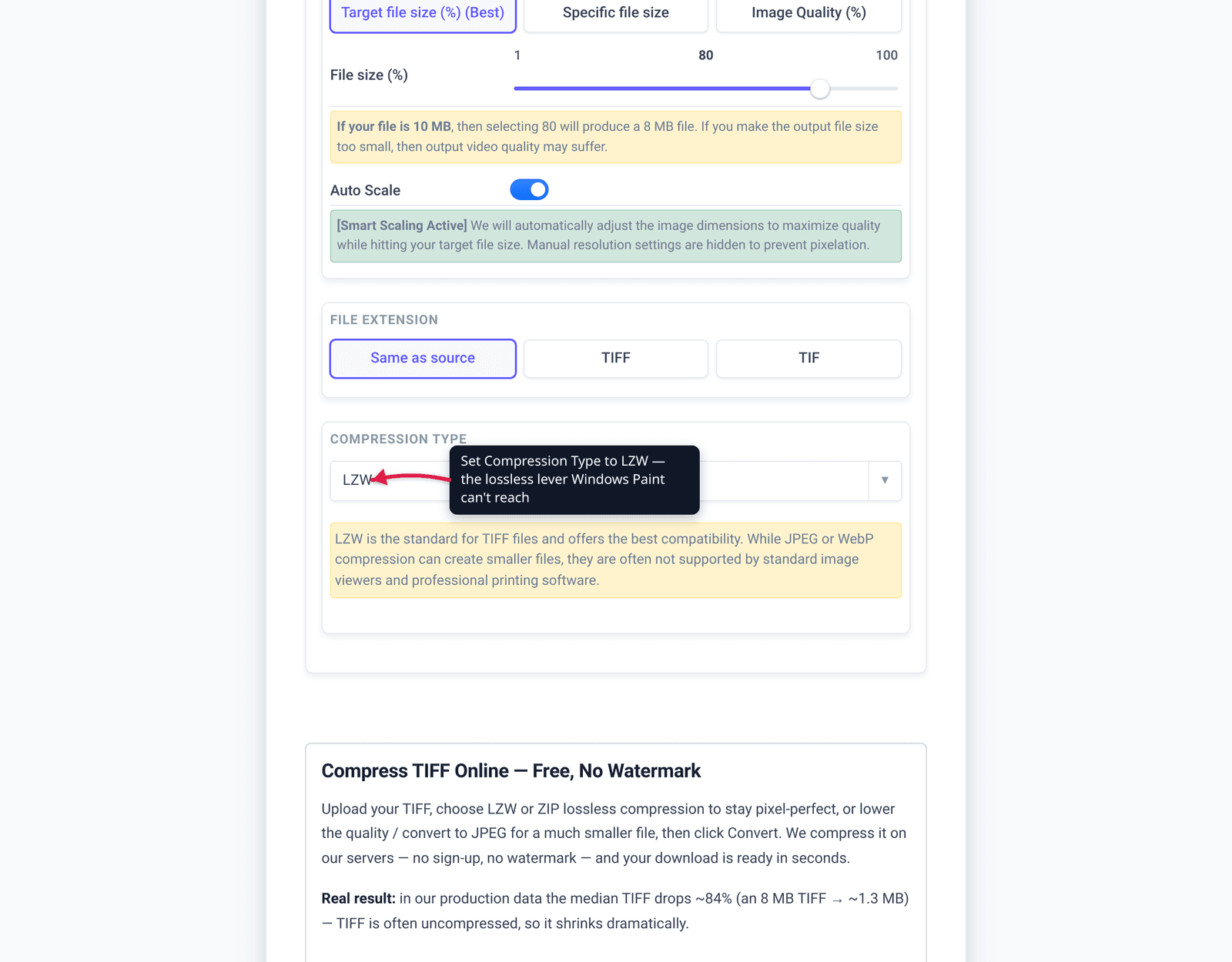
- Open Advanced Options (the gear icon).
- Under Image Compression, choose how to control size: Target file size (%), Specific file size (type an exact KB/MB), or Image Quality (%).
- Set the Compression Type — JPEG (default, lossy, smallest) or a lossless option: LZW, Deflate (ZIP), PackBits, CCITT Fax 4 (for black-and-white), plus WebP, JP2K, and ZSTD.
- Pick the output File extension (Same as source, TIFF, or TIF — both extensions are the same format).
- Click Compress, then download.
Your file uploads over an encrypted connection, is processed on our servers, and is deleted automatically a few hours later — nothing is shared or kept. For shrinking across mixed image formats, the same engine powers the image compressor; for the deeper “how LZW works” explainer, see What is LZW compression for TIFF.
FAQ
How do I compress a TIFF file on Windows without losing quality?
Re-save it with LZW or ZIP/Deflate lossless compression — both reconstruct every pixel exactly. Windows Paint and Photos can’t choose a TIFF compression method, so use IrfanView or GIMP (both free), Photoshop, or an online TIFF compressor that lets you pick the method. Expect modest savings — around 50% on an uncompressed 8-bit photo, less on noisy or already-compressed images.
Can Microsoft Paint compress a TIFF?
Not in the way most people mean. Paint has no TIFF compression-method dialog (no LZW/ZIP/None choice), so you can’t control lossless compression from it. Paint’s Resize tool will make the file smaller, but only by reducing the pixel dimensions — that lowers resolution and permanently discards detail. For real lossless TIFF compression, use IrfanView, GIMP, or an online tool.
Why is my TIFF still huge after compressing it?
Because resolution and bit depth, not the format, drive TIFF size. A 600 DPI, 24-bit page holds tens of millions of pixels, and lossless compression (LZW/ZIP) can only trim so much. To actually shrink it, lower the resolution (200–300 DPI is fine for sharing), convert color to grayscale where appropriate, or switch to JPG/PDF for distribution.
Is LZW or ZIP better for TIFF compression?
For most 8-bit images, both are lossless and similar; ZIP often wins slightly on photos. For 16-bit images, prefer ZIP/Deflate — LZW can occasionally produce a larger file than uncompressed on high-bit-depth data. Only JPEG compression inside a TIFF is lossy.
Does the Windows 11 “compress” feature work on TIFF?
Windows 11’s newer image-compression option (in the Share UI / Photos) reduces size by lowering the JPEG encoding quality — it re-encodes to a smaller JPEG rather than producing a smaller TIFF, so the result is lossy and no longer a TIFF. If you need to keep the TIFF format and stay lossless, use a tool that exposes LZW/ZIP compression instead.
Is .tif the same as .tiff?
Yes. .tif and .tiff are the same Tagged Image File Format; the only difference is extension length. .tif survives from older DOS/Windows systems that limited extensions to three characters. Every modern app reads both, and tools like xconvert let you output either.
Sources
Last verified 2026-06-25.
- Library of Congress — TIFF, Revision 6.0 format description — baseline vs. extension compression, LZW/ZIP/CCITT/JPEG behavior, history.
- TIFF (Wikipedia) — Aldus origin (1986), Adobe maintenance, TIFF 6.0 (June 1992), LZW as a lossless dictionary-based Extension, Unisys patent expiry (2003–2004), CCITT Group 4 bilevel-only, JPEG-in-TIFF lossy.
- Darkroom Photos — TIFF compression: ZIP vs LZW — why ZIP is preferred for 16-bit TIFFs and LZW can enlarge them.
- Windows Latest — Windows 11 image compression in Paint/Photos — the Windows 11 compress feature works by lowering JPEG encoding quality.