 By James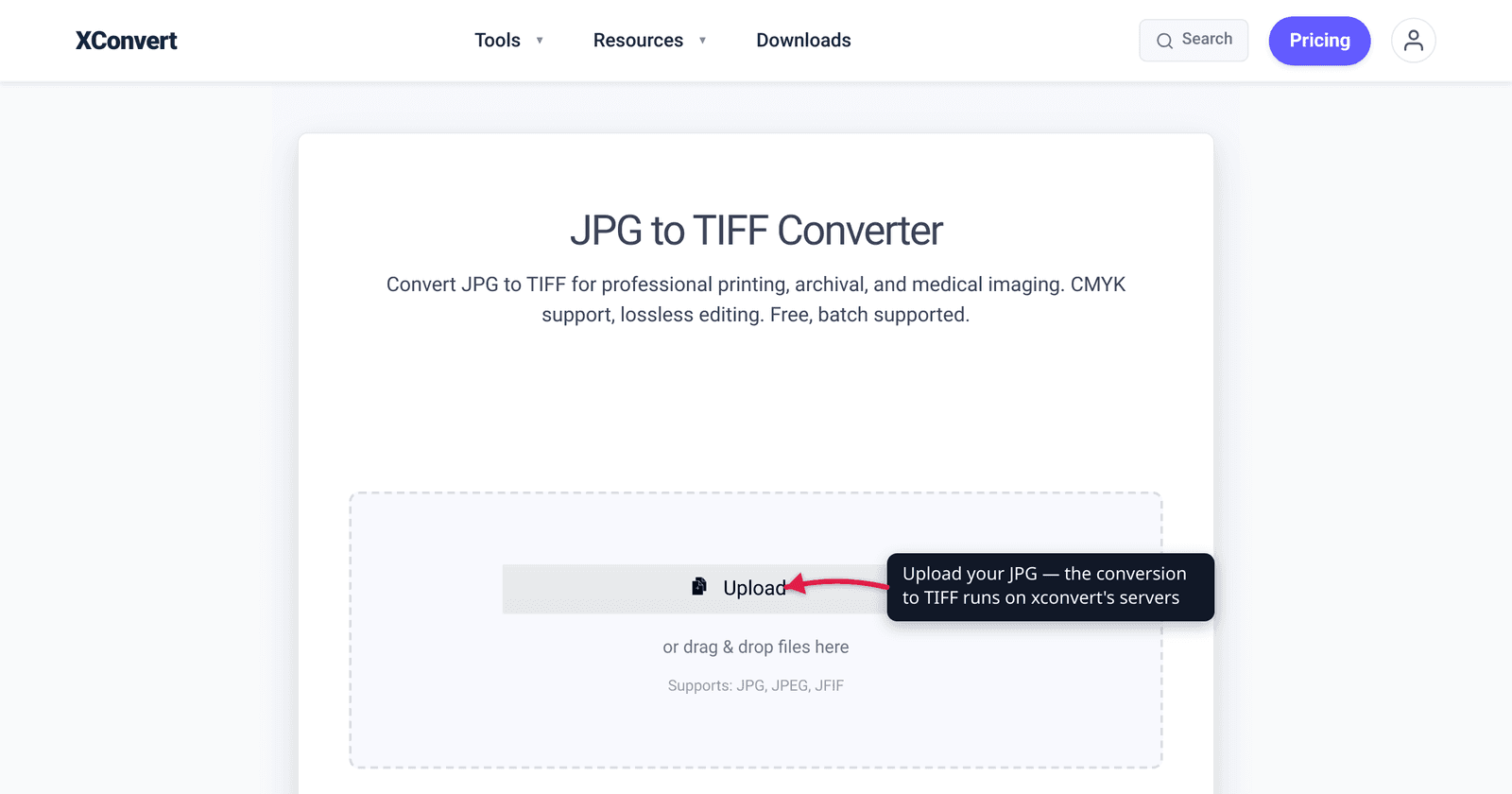
A print shop asks for a TIFF. A library digitization project won’t accept your JPGs. Your OCR pipeline only ingests TIFF. So you convert — and that’s the right move, with one big caveat you need to hear up front: converting a JPG to TIFF does not undo the compression damage JPEG already baked in. It stops further loss and gives you a format that printers, archives, and scanning tools actually want — at the cost of a much larger file. This guide explains when JPG→TIFF is genuinely worth it, what it can and can’t do for quality, and how to do it. We verified the lossy/lossless facts against the JPEG specification community and the Library of Congress’s preservation guidance.
Quick answer: Convert JPG→TIFF when a printer, archive, or OCR/scanning workflow requires TIFF, or when you’re about to edit a photo repeatedly and want to stop accumulating JPEG generation loss. TIFF (with LZW compression) is lossless, so it won’t degrade on each save the way JPEG does. But it cannot restore detail JPEG already discarded — that data is gone permanently — and the TIFF will be several times larger than the JPG. If you just need a smaller or web-friendly image, TIFF is the wrong direction.
Jump to a section
- Why convert JPG to TIFF at all
- The honest truth: TIFF doesn’t restore lost quality
- TIFF is lossless — what that actually buys you
- The trade-off: file size
- When NOT to convert JPG to TIFF
- Convert JPG to TIFF on xconvert
- FAQ
Why convert JPG to TIFF at all
JPG and TIFF were built for opposite jobs. JPEG (.jpg/.jpeg) is a lossy photo format optimized for small files and the web. TIFF (Tagged Image File Format, .tif/.tiff) is a flexible lossless raster container designed for high-fidelity production work. People convert JPG→TIFF for a handful of concrete reasons:
- Professional printing. Commercial print and publishing workflows expect TIFF, and TIFF natively supports the CMYK color mode that presses use — something JPEG handles poorly. A print shop or magazine that asks for “the TIFF version” is asking for a file their RIP and color pipeline can trust.
- Archival and preservation. TIFF is the go-to archival master format. The Library of Congress recommends TIFF (alongside JPEG 2000) when creating preservation images, for example when digitizing collections, precisely because it’s lossless and stable over time.
- Editing without compounding loss. Every time you re-save a JPEG, it’s recompressed and loses a little more — generation loss. If you’re about to do a multi-step edit, converting to TIFF first means subsequent saves don’t keep degrading the image.
- OCR and scanning workflows. Many document-scanning, OCR, and medical-imaging pipelines standardize on TIFF (including multi-page TIFF) as their required input or storage format. If the tool only ingests TIFF, you convert.
If your goal is choosing between TIFF and PNG for scanned paperwork specifically, see TIFF vs PNG for scanned documents — different decision, different winner.
The honest truth: TIFF doesn’t restore lost quality
This is the single most important thing to understand, and a lot of guides skip it: converting JPG→TIFF cannot recover image quality that JPEG already threw away.
JPEG is a lossy format. During encoding it runs a step called quantization that permanently discards image information to shrink the file — and that information “cannot be restored.” It’s the only lossy operation in the JPEG pipeline, and it’s irreversible. By the time you have a .jpg, the lost detail, color nuance, and fine gradients are simply gone.
Wrapping that already-degraded image in a TIFF container doesn’t add back what was removed. As photographers on the DPReview forums put it bluntly: converting a JPG to TIFF “does not improve anything” because the color, highlight, and shadow data were already lost when the image became a JPEG. An 8-bit JPEG has a fixed, limited amount of information; exporting it as a 16-bit TIFF gives you a bigger file with the same information, not a better picture.
So set expectations correctly:
- TIFF stops future loss — it freezes the image at its current quality and won’t degrade on subsequent saves.
- TIFF does not reverse past loss — JPEG artifacts, banding, and softness already in the file stay in the file.
If you want a genuinely high-fidelity 16-bit TIFF, that has to come from a raw original processed in raw software — not from a JPG. (For why JPEGs look soft or blocky in the first place, see why your JPEG looks blurry after saving.)
TIFF is lossless — what that actually buys you
Here’s the upside that makes the conversion worthwhile when you genuinely need TIFF. TIFF is a lossless format. You can compress a TIFF to save space using LZW (Lempel–Ziv–Welch) and the image does not degrade — LZW “reduces file size with no quality loss, no data is thrown away, and the image does not degrade over time.” Deflate/ZIP and PackBits are other lossless options TIFF supports.
That has two practical consequences:
- No generation loss. Once your image is a TIFF, you can open it, edit it, and re-save it as many times as you like (in a lossless mode) without the cumulative quality decay JPEG suffers. This is exactly why production and archival workflows prefer it as the working/master copy.
- Compression is free of quality cost. Choosing LZW or ZIP on a TIFF shrinks the file without touching image quality — unlike JPEG, where “smaller” always means “more loss.” (TIFF can also carry JPEG-compressed data, which is lossy; for a true lossless master, pick LZW, Deflate/ZIP, or none.)
The format itself is mature and well-documented: TIFF dates to Aldus in 1986, reached the widely-used Revision 6.0 in June 1992, and its specification has been maintained by Adobe since it acquired Aldus in 1994. That longevity is part of why archivists trust it.
The trade-off: file size
There’s no free lunch. A TIFF is substantially larger than the JPG it came from — often several times the size, even with LZW compression — because lossless storage keeps far more data than JPEG’s aggressive lossy compression. The Library of Congress notes that TIFF files “require more storage space than JPEGs because of their relatively larger, data-rich sizes,” which is exactly why preservation teams reach for LZW to claw back some of that space without sacrificing quality.
Practical guidance:
- Expect the output to be bigger, not smaller. If a workflow handed you a 2 MB JPG and now wants a TIFF, don’t be surprised by a 10–30 MB result.
- Use LZW or ZIP (Deflate) compression to keep the file as small as losslessly possible — it’s a no-downside choice for the lossless case.
- TIFF is not a web or email format. Browsers generally don’t display TIFF inline, and the size makes it impractical to share casually. Convert to TIFF for production, archive, or print — and back to JPG/PNG when you need to share.
When NOT to convert JPG to TIFF
Skip the conversion when:
- You want a smaller file. TIFF goes the wrong way — it’s bigger. To shrink a JPG, keep it JPEG or use PNG/WebP.
- You’re putting the image on the web or emailing it. TIFF won’t display in most browsers and is needlessly heavy. Use JPG, PNG, or WebP instead.
- You expect TIFF to “fix” a low-quality JPG. It can’t (see above). The artifacts stay.
- You only have a JPG but need true 16-bit/high-bit-depth quality. That has to come from a raw original, not a JPG re-wrapped as TIFF.
Convert to TIFF when a printer, archive, scanner, or OCR tool requires it, or to create a stable master before heavy editing. Otherwise, it’s usually the wrong tool.
Convert JPG to TIFF on xconvert
The xconvert JPG to TIFF converter handles the conversion and lets you pick the lossless compression that matters:
- Open xconvert.com/convert-jpg-to-tiff and click Upload to add your image (From my Computer, From Google Drive, or From Dropbox) — or drag and drop it onto the page. Batch is supported, so you can add several JPGs at once.
- Open Advanced Options (the gear icon).
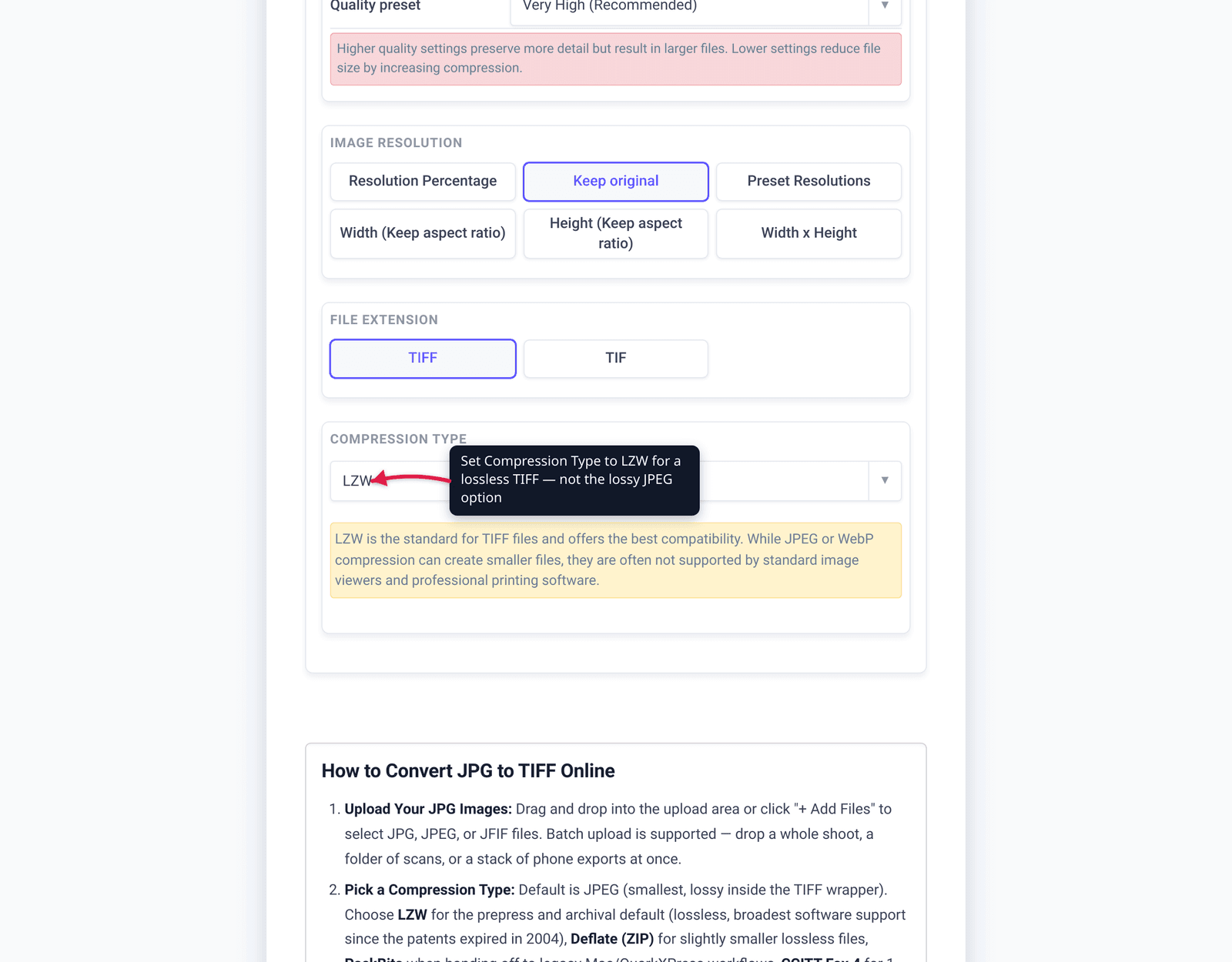
- Set the Compression Type. For a true lossless master, choose LZW or Deflate (ZIP) rather than JPEG — the JPEG option re-applies lossy compression. (Other options include PackBits, ZSTD, JP2K, and None.)
- Optionally pick a Quality Preset (e.g. Very High (Recommended)) and the output extension — TIFF or TIF.
- Optionally set Resolution — leave it on Keep original unless you specifically need to resize (Width/Height with aspect ratio, or Width × Height).
- Click Convert, then download your TIFF.
Your file uploads over an encrypted connection, is processed on our servers, and is deleted automatically a few hours later — nothing lingers.
Need to go the other way later, for sharing or the web? See convert PDF to JPG without losing quality for the lossless-export mindset applied to a different format pair.
FAQ
Does converting JPG to TIFF improve quality?
No. Converting JPG→TIFF cannot restore detail that JPEG’s lossy compression already discarded — that data is permanently gone. What TIFF does is prevent future loss: as a lossless format, it won’t degrade on subsequent saves the way a JPEG does. You get a faithful copy of the current image, not a better one.
Is TIFF lossless?
Yes. TIFF is a lossless raster format, and its standard LZW (and ZIP/Deflate) compression shrinks files with no quality loss — no data is thrown away and the image doesn’t degrade over time. Note that TIFF can also store JPEG-compressed (lossy) data; for a true lossless file, choose LZW, Deflate/ZIP, or no compression.
Why is my TIFF so much bigger than the JPG?
Because TIFF stores the image losslessly, keeping far more data than JPEG’s aggressive lossy compression discards. The Library of Congress notes TIFFs “require more storage space than JPEGs because of their relatively larger, data-rich sizes.” Using LZW or ZIP compression keeps the TIFF as small as possible without any quality cost.
When should I use TIFF instead of JPG?
Use TIFF for professional/CMYK printing, archival preservation, multi-page scanning/OCR workflows, and as an editing master where you don’t want generation loss. The Library of Congress recommends TIFF (with JPEG 2000) for preservation imaging. Use JPG for the web, email, and anywhere small file size matters.
Can I convert TIFF back to JPG?
Yes — and you’ll want to for sharing, since TIFF doesn’t display in most browsers and is large. Converting TIFF→JPG re-applies lossy compression, so the JPG will be smaller but will lose some quality. Keep the TIFF as your master and export JPGs as needed.
Should I use LZW or JPEG compression inside the TIFF?
Choose LZW (or Deflate/ZIP) for a lossless TIFF — that’s the whole point of converting to TIFF in the first place. The “JPEG” compression option inside a TIFF re-introduces lossy compression, which defeats the purpose unless you specifically need the smaller size and accept the quality cost.
Is TIFF good for archiving photos?
Yes — it’s a standard archival master format. The Library of Congress recommends TIFF (alongside JPEG 2000) for creating preservation images, because it’s lossless, stable, and well-documented (the spec dates to 1986 and is maintained by Adobe). For the best archival result, your master should originate from a raw or high-quality source, not from an already-compressed JPG.
Sources
Last verified 2026-06-25.
- Wikipedia — JPEG — JPEG is lossy; quantization permanently discards information that “cannot be restored”; multiple re-saves cause generation loss.
- DPReview Forums — “convert jpg to tiff – does anyone?” — practitioner consensus that converting JPG→TIFF doesn’t improve quality because the data was already lost at JPEG encode time.
- Library of Congress — TIFF, Revision 6.0 (FDD000022) — TIFF as a preservation format; LoC recommends TIFF (and JPEG 2000) for digitization; TIFFs are larger/data-rich vs JPEG.
- Library of Congress — TIFF Bitmap with LZW Compression (FDD000074) — LZW is lossless: “reduces file size with no quality loss… no data is thrown away and the image does not degrade over time.”
- Wikipedia — TIFF — TIFF history (Aldus 1986, Revision 6.0 June 1992, maintained by Adobe since acquiring Aldus in 1994); LZW is a lossless TIFF compression.
- TIFF Revision 6.0 specification (PDF) — the format specification itself.