 By Stephanie Taylor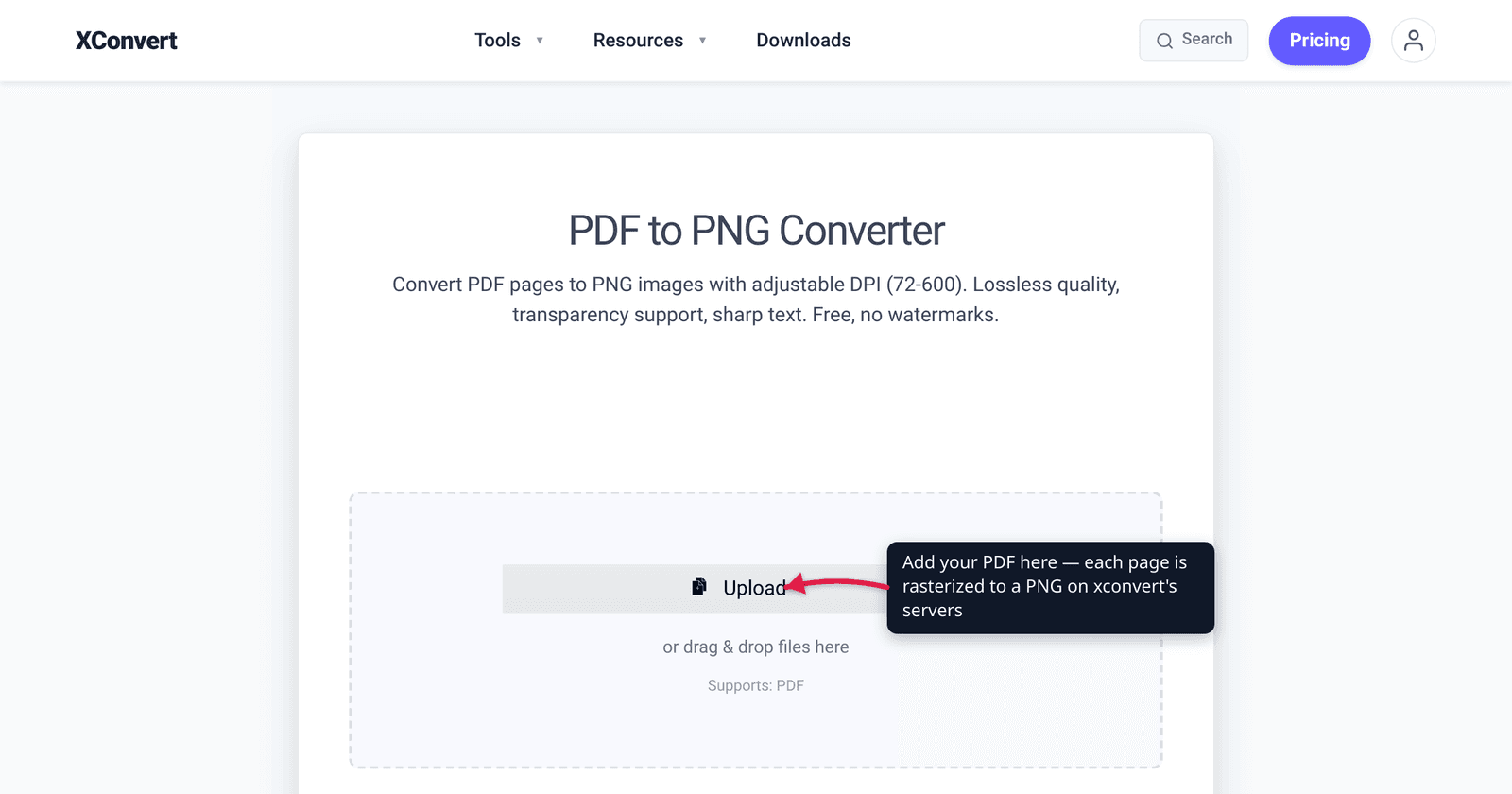
You need a single PDF page as a crisp image — to drop a contract signature block into a slide, to post a one-page flyer where uploads only accept images, or to grab a diagram with a clean transparent background. The catch nobody tells you: converting a PDF to PNG doesn’t “extract” the page, it rasterizes it — repaints every vector line and letter as a fixed grid of pixels at whatever resolution you pick. Choose too low a DPI and the text comes out soft; choose PNG over JPG and you keep crisp edges plus transparency. This guide explains exactly what happens, what DPI to set, and why PNG beats JPG for this job — verified against the W3C PNG spec and MDN’s image-format guide.
Quick answer: PDF→PNG rasterizes each page into a pixel image at a DPI you choose. Use 300 DPI for print-sharp output (72–150 for screen-only, 600+ for archival zoom). PNG is lossless and the only one of the two that supports transparency, so text edges and logos stay crisp with no JPEG fuzz. Every page becomes its own PNG (a 10-page PDF = 10 files). The trade-off: once rasterized, the text is pixels — no longer selectable or searchable.
Jump to a section
- What “PDF to PNG” actually does
- DPI: how sharp, and how big
- Why PNG (and when JPG is fine instead)
- What you lose: searchable text
- Convert PDF to PNG on xconvert
- FAQ
What “PDF to PNG” actually does
A PDF page is usually vector content: text is stored as characters in a font, lines and shapes as math. That’s why a PDF stays razor-sharp no matter how far you zoom — the device redraws it at the display’s native resolution.
A PNG is the opposite: a raster image, a fixed grid of colored pixels. So converting PDF→PNG can’t just copy the page over. It rasterizes it — renders the vector page once, at a resolution you choose, and freezes the result as pixels. As FolderMill’s documentation of the process puts it, after rasterization “previously selectable characters become bitmaps composed of RGB color values,” and the original vector data is gone.
Three consequences follow, and they drive every decision below:
- Resolution is now baked in. A vector PDF is resolution-independent; the PNG you make is locked to the DPI you picked. Zoom past that and it pixelates.
- One image per page. A PNG holds a single image, so a multi-page PDF produces one PNG per page — page-1.png, page-2.png, and so on.
- It’s effectively one-way. You can’t turn the PNG back into editable, selectable text without running OCR over it afterward.
DPI: how sharp, and how big
DPI (dots per inch) is the dial that decides everything — how many pixels the converter renders for each inch of the original page. Higher DPI samples the vector page more finely, so text and thin lines come out sharper, at the cost of a bigger file. The relationship is roughly quadratic: doubling DPI renders ~4× as many pixels.
A practical scale for an A4/Letter page:
| DPI | Best for | A4/Letter pixel size (approx.) |
|---|---|---|
| 72–96 | Screen-only, web embeds, email previews where size matters | ~595×842 (72) |
| 150 | General on-screen viewing, decent print at small sizes | ~1240×1754 |
| 200 | Good balance for digital circulation | ~1654×2339 |
| 300 | Print-quality default — sharp text, the standard for printed output | ~2480×3508 |
| 600 | High-detail print, archival, fine line art you’ll zoom into | ~4960×7016 |
| 1200 | Maximum-fidelity archival; very large files | ~9920×14032 |
300 DPI is the right default for most people — the long-standing benchmark for print-quality raster output, and what xconvert pre-selects. Go to 600 only if you’ll zoom in hard or send it to a print shop; drop to 150 (or 72) when the PNG is screen-only and you’d rather keep the file small. There’s no “more is always better”: past the resolution you’ll actually view or print at, extra DPI just inflates the file with pixels you’ll never see.
Want JPG instead because file size matters more than transparency? The same DPI logic applies — see How to convert a PDF to JPG without it coming out blurry, which is entirely about getting the DPI right.
Why PNG (and when JPG is fine instead)
PNG and JPG are both raster, but they make opposite trade-offs, and for a rasterized document page PNG usually wins. Two properties decide it, both verifiable from the format owners:
PNG is lossless. Per MDN’s image-format guide, PNG “uses lossless compression” — every pixel is preserved exactly, using the non-patented DEFLATE algorithm. JPEG is “the most widely used lossy compression format,” which is great for photographs but bad for the hard edges of text: it smears letters with the soft halos and blocky artifacts you see when you over-compress a JPG. For a page that’s mostly text and line art, lossless PNG keeps those edges crisp.
PNG supports transparency; JPEG does not. MDN states plainly that JPEG “does not support an alpha channel,” while PNG has “full alpha transparency support.” The W3C PNG Rationale confirms PNG “supports a full alpha channel as well as transparent-color specifications.” So if your PDF page has a transparent background — a logo, a signature, a stamp meant to overlay other content — PNG keeps it transparent. JPG would flatten it onto a solid (usually white) background.
| PNG | JPG (JPEG) | |
|---|---|---|
| Compression | Lossless — exact pixels | Lossy — discards detail |
| Text / line-art edges | Crisp | Can soften, show halos |
| Transparency | Yes (full alpha) | No |
| File size (typical page) | Larger | Smaller |
| Best for | Text, diagrams, logos, transparency | Photo-heavy pages where size matters |
Choose JPG instead when the page is mostly a photograph and you care more about a small file than perfect edges or transparency. For everything text-, logo-, or diagram-shaped, PNG is the better output. (For a broader head-to-head of web image formats, see PNG vs WebP vs JPG.)
What you lose: searchable text
This is the one surprise that catches people out. The moment a page is rasterized, its text stops being text. You can no longer:
- Select or copy any words from the PNG — they’re pixels, not characters.
- Search inside it (Ctrl/Cmd-F finds nothing).
- Edit the wording without an image editor.
If a PNG is your goal that’s fine — you wanted an image. But it’s the wrong move if you actually need editable or searchable output; for that you’d want PDF-to-Word (for editing) or an OCR pass (to re-add a searchable text layer). Rasterizing is also why some people deliberately convert sensitive PDFs to images: flattening the page stops the underlying text being copied or scraped.
In short: PDF→PNG is a visual capture, not a content extraction. Set your DPI for how it’ll be viewed, and accept that the words are now part of the picture.
Convert PDF to PNG on xconvert
The xconvert PDF to PNG converter exposes the DPI dial directly, so you can apply everything above in one place:
- Open xconvert.com/convert-pdf-to-png and click + Add Files to upload your PDF (from your computer, Google Drive, or Dropbox).
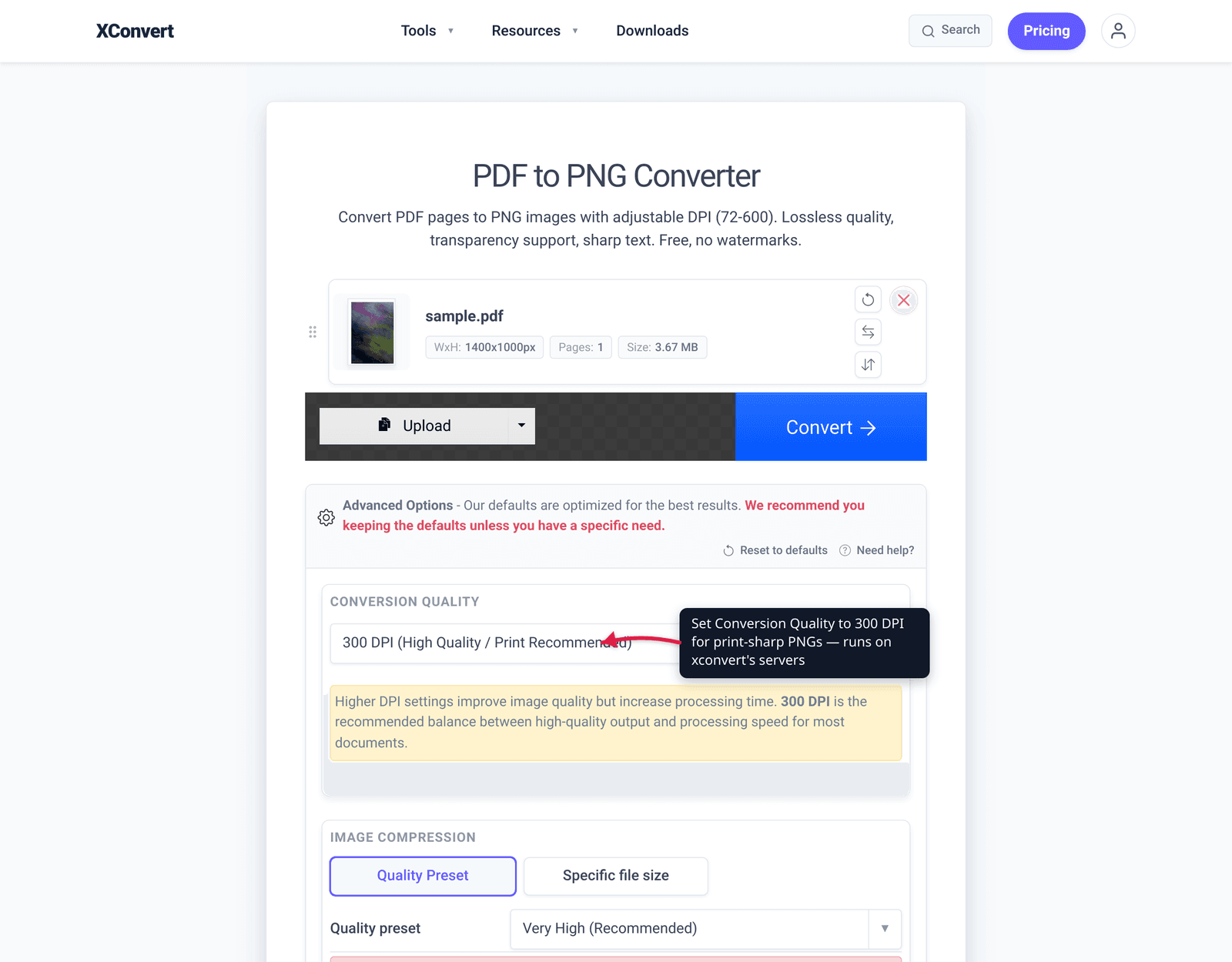
- Open Advanced Options (the gear icon).
- Set Conversion Quality — the DPI dropdown. It defaults to 300 DPI (High Quality / Print Recommended); pick 600 or 1200 for archival/print-shop sharpness, or drop to 150 / 72 for a smaller screen-only file.
- (Optional) Use Image Transparency to keep the page’s alpha channel, or flatten it onto a solid color (default White); and Image Resolution if you want to keep the original dimensions or set a custom width/height.
- Click Convert. Each page becomes its own numbered PNG (page-1.png, page-2.png, …).
- Download the PNGs individually, or grab them all as a single ZIP for a multi-page PDF.
Your file is uploaded over an encrypted connection, processed on our servers, and deleted automatically a few hours later — no sign-up, no watermark.
FAQ
What DPI should I use to convert a PDF to PNG?
300 DPI is the print-quality default and the right choice for most uses — it renders text and lines sharply enough to print. Use 150 DPI (or 72) when the image is only ever viewed on a screen and you want a smaller file, and 600 DPI or higher for archival captures or anything you’ll zoom into hard. Past the resolution you’ll actually view or print at, extra DPI just makes a bigger file without visible benefit.
Why is my PDF blurry after converting to PNG?
Almost always a DPI that was set too low. Because the conversion rasterizes the vector page, the PNG is only as sharp as the resolution you chose — if you rendered at 72 or 96 DPI and then zoom in or print, text looks soft and pixelated. Re-convert at 300 DPI (or 600 for print) and the edges sharpen up. The same fix applies to blurry PDF-to-JPG output.
Does converting PDF to PNG keep the text selectable?
No. Rasterizing turns the page into pixels, so the text becomes part of the image — you can’t select, copy, or search it afterward. If you need editable or searchable output, convert to Word or run OCR instead of rasterizing to an image.
PNG or JPG for a PDF page — which is better?
PNG for most pages. It’s lossless (crisp text and line edges) and supports transparency, where JPEG is lossy and has no alpha channel — per MDN, “JPEG does not support an alpha channel.” Choose JPG only when the page is mainly a photograph and a smaller file matters more than perfect edges or a transparent background.
How many PNG files will I get from a multi-page PDF?
One PNG per page. A PNG holds a single image, so a 10-page PDF produces 10 numbered files (page-1.png through page-10.png). On xconvert you can download them individually or all at once as a ZIP.
Can PNG have a transparent background from my PDF?
Yes — PNG supports full alpha transparency, so if the PDF page has transparent areas they’re preserved. If you’d rather flatten the page onto a solid color, set the Image Transparency option (white by default). JPG can’t do this at all — it has no transparency support.
Sources
Last verified 2026-06-25.
- MDN — Image file type and format guide — PNG “uses lossless compression” with “full alpha transparency support”; JPEG is “lossy” and “does not support an alpha channel.”
- W3C — PNG Specification: Rationale — PNG “supports a full alpha channel”; lossy and lossless formats are kept “strictly separate.”
- FolderMill — Rasterize a PDF and make text non-searchable — rasterizing converts selectable characters into bitmaps; text becomes unselectable, uncopyable, unsearchable.
- xconvert — PDF to PNG converter — live tool UI: Conversion Quality (DPI) dropdown 72–1200, default 300; Image Transparency; per-page PNG + ZIP output.