 By James
You scanned a contract page by page, exported three chapters of a report from different apps, or saved a stack of receipts as separate PDFs — and now you need them as one file, in the right order. Merging PDFs sounds like it should degrade them, the way re-saving a JPEG does, but it doesn’t: a well-behaved merge copies each page across untouched and stitches them into a single document. This guide covers how PDF merging actually works, why it’s lossless, how to control the order, and the cases where the result can grow or shrink — verified against the PDF standard and the real xconvert tool.
Quick answer: Merging combines several PDFs into one document by concatenating their pages in the order you choose. Because PDF is a page-based container, the pages are copied, not re-rendered — text stays selectable, images keep their resolution, fonts and layout are preserved. On xconvert you upload the files, drag the tiles to set the sequence (files merge top-to-bottom — first file’s pages first), then click Merge. Reordering is drag-and-drop, and merging is lossless unless you deliberately apply a compression preset.
Jump to a section
- What “merging” a PDF actually does
- Is merging lossless? What’s preserved
- Getting the order right
- When the merged file is bigger or smaller
- Common use cases
- Merge multiple PDFs into one on xconvert
- FAQ
What “merging” a PDF actually does
A PDF is a page-based document container. Internally, each page is a discrete object with its own content stream, its own embedded fonts, and references to its images. The PDF format (standardized as ISO 32000) was designed so a document looks the same regardless of the app, device, or OS that opens it — that fixed-layout fidelity is the whole point of the format.
Merging takes advantage of that structure. A merge tool reads each source PDF, copies the page objects out, and writes them into one new document in sequence — page 1 of file A, page 2 of file A, then page 1 of file B, and so on. It is fundamentally a concatenation operation, not a conversion. Nothing is rasterized; nothing is re-encoded by default.
This is the key mental model: merging is closer to collating printed pages into one stack than to re-photographing them. The pages that go in are the pages that come out.
Is merging lossless? What’s preserved
Yes — a straight merge is lossless. Because pages are copied as-is rather than re-rendered, everything that makes a PDF a PDF survives the operation:
| What’s preserved | Why |
|---|---|
| Text (selectable / searchable) | Text objects are copied, not flattened to an image — you can still highlight and Ctrl-F the merged file |
| Image resolution | Embedded images carry over at their original DPI; no down-sampling in a plain merge |
| Fonts & formatting | Embedded fonts and layout travel with each page object |
| Vector graphics | Logos, line art, and charts stay crisp (vectors, not pixels) |
| Page dimensions | Each page keeps its own size — an A4 page and a US-Letter page can coexist in one file |
| Hyperlinks & internal structure | Generally preserved, though links that pointed between originally separate files may need attention |
The one honest caveat: many merge tools (xconvert included) offer an optional compression step. If you leave it off — the default — the merge is lossless. If you deliberately turn on a compression preset to shrink the result, that step can re-process images and reduce quality, which is a separate, opt-in trade-off, not something merging does on its own. For an in-depth look at scanned-document size, see why a scanned PDF is so big.
Getting the order right
The order of the final document is determined by the order of the files you arrange before merging — the first file’s pages appear first, the last file’s pages last. Two things make this reliable:
- Drag-to-reorder. On xconvert each uploaded file becomes a tile; you drag the tiles up or down to set the sequence. Whatever order the tiles are in, top-to-bottom, is the order the pages concatenate in. You arrange before you merge, so there’s no guesswork.
- A naming fallback. If you’d rather not drag — say you’re bulk-uploading 20 scans — rename the files with zero-padded numeric prefixes (
01_,02_,03_, …) first. Most tools honor the upload order, and numeric prefixes force a clean sort. Verify the tile order on screen before merging regardless.
The most common ordering mistake is assuming files merge in alphabetical or date-modified order automatically. They don’t necessarily — they merge in the on-screen tile order, so always glance at the sequence before clicking Merge. If a single page is out of place, it’s usually easier to fix the source file’s tile position than to re-merge from scratch.
When the merged file is bigger or smaller
A merged PDF’s size is, to a first approximation, the sum of its inputs — you’re stacking pages, so the page data adds up. But two effects nudge it off that exact sum:
- Slightly smaller than the sum: Some tools de-duplicate shared resources. If five source files all embed the same font, a smart merge can store that font once instead of five times, trimming a little overhead.
- No magic shrink: Merging alone does not compress your content. If your inputs are large scans, the merged file will be large too. To actually reduce size you need a real compression pass (the optional preset), which is a deliberate quality trade-off. For an email-sized result, see how to email a large PDF file.
So if you’re merging to organize documents, expect a file roughly the size of its parts. If you’re merging to shrink them, merging is the wrong first step — compress, then merge (or merge with a compression preset, accepting the quality hit).
Common use cases
Merging is the quiet workhorse of document workflows. The patterns that come up most:
- Bundling scans. A multi-page contract or form scanned one page at a time becomes one clean, ordered PDF you can sign and send. (Scanning straight to a phone? See combine photos into one PDF on iPhone, Android, or PC.)
- Assembling a report or proposal. Cover page, an exported chart deck, an appendix from a different app — drop them in order, merge once, deliver a single polished file.
- Combining receipts or invoices. Bookkeeping and expense reports go faster as one chronological PDF than as a dozen attachments. Numeric prefixes keep them in date order.
- Preparing a submission packet. Many government and institutional portals want a single PDF in a specified order. Merging gives you exactly that, with pages preserved at full fidelity. For a worked example of an official packet, see merge PDFs for USCIS.
Merge multiple PDFs into one on xconvert
The xconvert Merge PDF tool handles the whole process on our servers, with drag-to-order tiles:
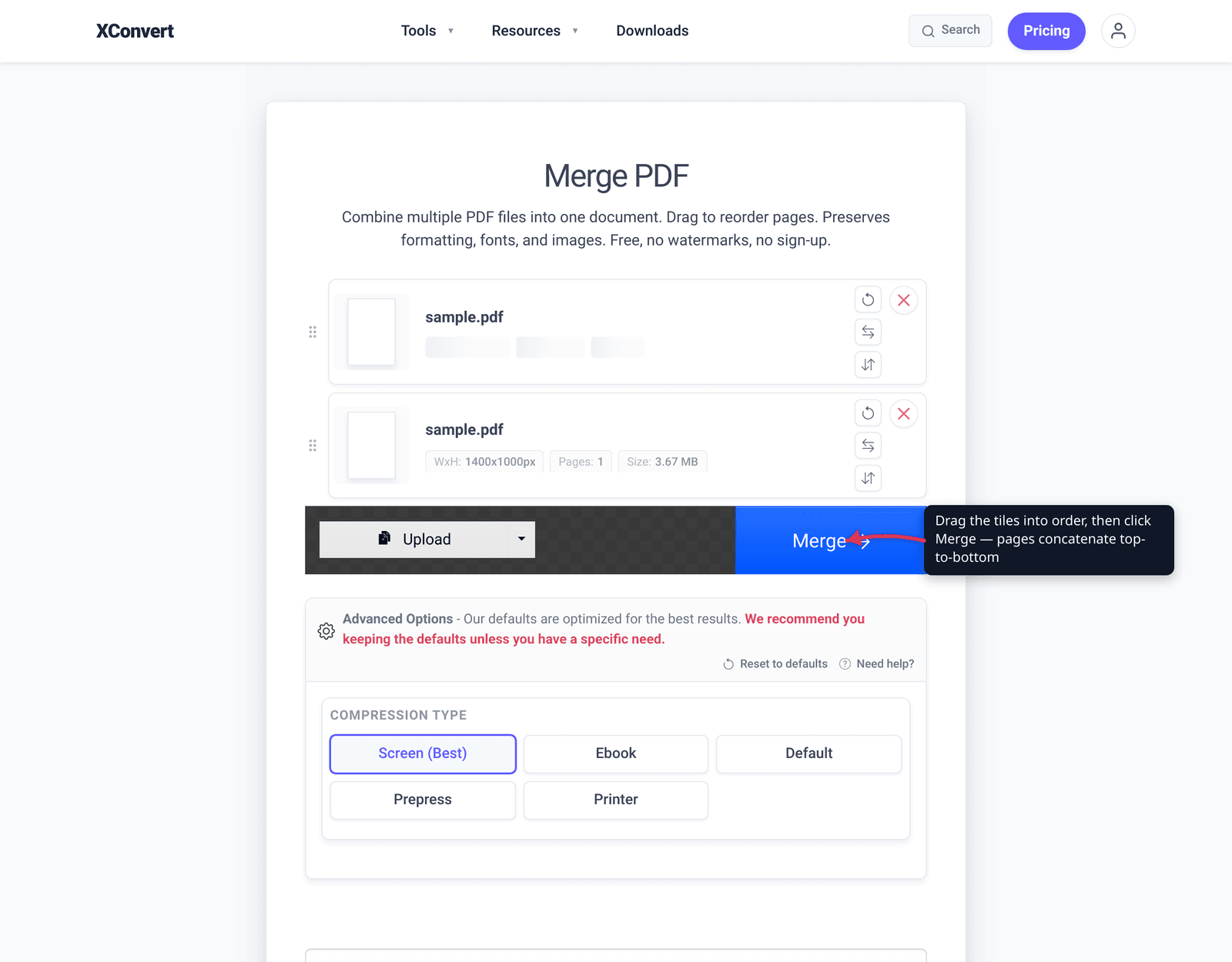
- Open xconvert.com/merge-pdf and click Upload to add your PDFs — from your computer, Google Drive, or Dropbox. You can add several at once.
- Arrange the order: drag and drop the file tiles to set the sequence. Files concatenate top-to-bottom in the order shown — the first tile’s pages come first, the last tile’s pages last.
- (Optional) Open Advanced Options to pick a Ghostscript compression preset only if you also want to shrink the result. Leave it untouched for a lossless merge that preserves quality exactly.
- Click Merge, then download your single combined PDF.
Your files are uploaded over an encrypted connection, processed on our servers, and deleted automatically a few hours later. Nothing stays around.
FAQ
Does merging PDFs reduce their quality?
No — a plain merge is lossless. Pages are copied, not re-rendered, so text stays selectable, images keep their resolution, and fonts and layout are preserved. Quality only changes if you deliberately apply a compression preset, which is an optional, separate step.
How do I control the order pages appear in?
You set the order before merging by arranging the file tiles. On xconvert you drag and drop the tiles into the sequence you want; files concatenate top-to-bottom, so the top tile’s pages come first. If you bulk-upload, naming files with numeric prefixes (01_, 02_) helps keep them in order — but always check the on-screen order before clicking Merge.
Can I merge PDFs of different page sizes?
Yes. PDF stores each page’s dimensions individually, so an A4 page and a US-Letter page can sit in the same merged document. Each page keeps its own size; the merge doesn’t force them to match.
Will merging make my file smaller?
Not on its own. A merged PDF is roughly the sum of its inputs, since you’re stacking pages — sometimes a touch smaller if shared fonts get de-duplicated. To genuinely reduce size you need a compression pass, which trades some quality for a smaller file.
Is there a limit to how many PDFs I can merge?
There’s no fixed document-count limit baked into the PDF format itself; practical limits come down to the total upload size and processing time. For a large stack of big scans, compressing the inputs first (or using the merge tool’s compression preset) keeps the job manageable.
Can I merge images and PDFs together into one PDF?
Merging combines PDF files. If you have images, convert them to PDF first, then merge — or use a tool built for that, like turning phone photos into a PDF. See combine photos into one PDF for the image-to-PDF route.
Sources
Last verified 2026-06-25.
- ISO 32000-1:2008 — Portable Document Format (PDF 1.7) — the standard defining PDF as a page-based, fixed-layout document container.
- ISO 32000-2:2020 — Portable Document Format (PDF 2.0) — current PDF specification; pages stored as discrete objects.
- Library of Congress — PDF 1.7 (ISO 32000-1) format description — independent description of PDF’s page/object structure and layout fidelity for long-term preservation.
- PDF24 — Merge PDF — corroborates that merging combines pages “in such a way that the content quality is exactly preserved.”
- Foxit — Merge PDF — corroborates preservation of original resolution, formatting, images, and layout when merging.
- xconvert — Merge PDF tool — the funnel tool; verified UI labels (Upload, drag-to-reorder tiles, Advanced Options compression presets, Merge).